
Knowledge SuperBox
Thanksgiving TV Setup: Get Your Living Room Ready for Football and Family





Thanksgiving asks a lot of one living room. Someone wants football, someone wants to hear the conversation, and someone else is already asking which movie everyone will watch after dinner. Meanwhile, the host is trying to serve food without becoming the person who fixes the TV all afternoon.
A good Thanksgiving TV setup makes those transitions easier. The picture should be visible from the extra chairs, the commentary should be clear without overpowering the room, and switching from live television to a family movie should take only a few familiar steps.
For U.S. Thanksgiving on Thursday, November 26, 2026, prepare the room and test your viewing options before the holiday. If you use a SuperBox S8, organize its live TV, on-demand, and catch-up apps around the way your family will actually spend the day.
Start with a simple viewing plan
Ask the household three questions: Which game matters most? When will dinner be served? What would everyone enjoy afterward?
Write down the main game’s kickoff time in your local time zone and confirm its broadcaster through the official NFL schedule. Then locate the actual program in your chosen viewing service. Finding a familiar channel name is only the first check; confirm what that channel will show in your area.
Avoid planning the whole afternoon around two-screen viewing just because the feature is available. Thanksgiving games may run one after another. Use one large picture when everyone is watching the same event, and consider a second view only when supported programs genuinely overlap.
Agree on a dinner handover, too. You might lower the sound during the meal, pause an on-demand program, or use eligible catch-up viewing afterward. Deciding this early prevents a discussion about the remote while everyone is carrying plates.

Arrange the living room for the guests who will use it
Check the view from every seat
Sit in the extra chairs before guests arrive. A picture that looks excellent from the sofa can be difficult to follow from a chair beside the television.
Check whether viewers can read the score and see the action without leaning forward. Move chairs inward where possible, and avoid placing someone directly beneath or far beside the screen. Keep a comfortable seat available for anyone who has difficulty standing or moving around.
A room full of guests does not automatically require a new television. Better chair placement may solve the problem with the equipment you already own.
Reduce glare without making the room dark
Look at the screen during the hours you expect to watch. Close a blind if sunlight reflects across the picture, and move a bright lamp if it appears in the display.
Keep enough light for people to walk safely with plates. Small lamps away from the screen can make the room comfortable when afternoon football turns into evening entertainment.
Leave space around the SuperBox and other equipment for ventilation. Decorations, napkins, and serving dishes should stay clear of the devices.
Give drinks and cables their own space
Put drinks on stable side tables, away from the remote and electronics. Secure loose cables along the edge of the room instead of across a walkway.
Choose one obvious home for the remote. A small tray works well and saves everyone from searching under cushions while a game is playing.
Test the whole streaming setup before Thanksgiving
Turn on the TV, SuperBox, and any soundbar together. Choose the correct HDMI input, open the app you plan to use, and play something long enough to check both picture and sound.
A successful test includes returning Home, opening another app, and getting back to the original channel. That small rehearsal catches problems that a quick glance at the home screen will miss.
If an app is missing, use the SuperBox S8 app installation guide before the holiday. Installing an app and adding its shortcut to Home are separate steps.
Test the connection where the box sits
The important connection is the one reaching your TV setup. A phone working well beside the router does not prove the box will have the same experience across the house.
If practical, connect the S8 to your router with Ethernet and test it. If you use WiFi, compare performance in the actual living-room location. Follow the S8 WiFi and Ethernet setup guide for connection steps.
Consider the extra household activity, too. Guests may be watching videos, uploading photos, or using another television. Test with a realistic amount of activity and pause large downloads if they interfere with viewing.
If playback struggles, use the WiFi optimization guide to work through the connection. Avoid changing several settings at once; make one change and test again.
Keep the picture comfortable and readable
Choose a resolution supported by your television and connected equipment. A 4K-capable box cannot turn every broadcast into native 4K.
Pay attention to picture shape. If the score graphic is cut off or people look stretched, check the TV’s picture-size setting before guests arrive. Our Android TV box resolution guide explains the display choices.
Prepare SuperBox apps for football and family entertainment
SuperBox brings several types of viewing into one TV setup. Its dedicated apps include Blue TV, offering 2000+ live TV channels, and Blue VOD, with a large library of movies and series. Playback provides catch-up viewing for supported programs.
These core apps are free to use after purchasing a compatible SuperBox, without a separate monthly subscription for those apps. That gives households a useful range of entertainment beyond Thanksgiving. Internet access remains a separate cost, and optional paid services have their own charges.
For families moving away from traditional cable, SuperBox can help reduce recurring TV expenses while keeping a familiar live-channel viewing routine. Compare what you actually watch with what you currently pay for before canceling an existing package.
Prepare the apps around three jobs:
- Live viewing: Locate the channels you intend to watch in Blue TV and check their program listings.
- After-dinner entertainment: Find a couple of suitable movies or episodes in Blue VOD.
- Catch-up: Check whether the program you may miss is available through Playback.
Specific games, titles, and catch-up availability can vary by location and service. Test the programs that matter to your household instead of assuming a large catalog includes every event.
Use our Blue TV guide to learn channel search and guide navigation. For the evening selection, the Blue VOD guide covers searching and saving titles.
Choose the viewing layout that suits the moment
One large picture is often the most comfortable choice for a Thanksgiving gathering. People sitting farther away can follow the game more easily, and occasional viewers do not have to work out which panel matters.
The S8’s Picture-in-Picture and Multi-Screen features become useful when two supported channels overlap.
| What the family wants | Viewing layout | What to check |
|---|---|---|
| Everyone is following one game | Single full-screen view | Score readability from the extra chairs |
| One program matters most while another needs occasional attention | Picture-in-Picture | The smaller window remains useful from your seat |
| Two supported events deserve similar attention | Multi-Screen | Both panels are readable and the channel pair works |
| Dinner conversation takes priority | Lower or mute the TV sound | Everyone agrees when normal viewing resumes |
Picture-in-Picture keeps a main program large with a smaller secondary window. Multi-Screen places two supported channels side by side. Both operate on one television.
Model choice matters: S8 Pro and Plus support Multi-Viewing for supported PPV and ESPN channels; S8 Max and Ultra provide broader access across full supported channels. Max and Ultra also list the NFL app.
Those differences concern the supported Multi-Viewing selection; they do not mean Pro and Plus are limited to PPV and ESPN for ordinary single-channel viewing.
Try your intended channel pair beforehand, choose one commentary feed, and return to full-screen viewing if the divided picture is uncomfortable. Follow the PiP and Multi-Screen guide for the controls, or compare viewing needs in our S8 sports buying guide.
Make the commentary clear without overwhelming dinner
Test the sound from the farthest chair. Clear speech matters more than simply turning everything up.
If your TV or soundbar offers a dialogue setting, try it with a spoken program and choose what sounds comfortable in your room. Keep the remote accessible so the host can lower the volume when the meal begins.
When using a soundbar, confirm that sound is coming from the intended speakers. TV speakers and a soundbar playing together can create distracting echo. Check lip sync, too: voices should match the people speaking.
Leave any unfamiliar wiring changes for the preparation day. Once the setup works, show another family member how to adjust the volume and return to the correct TV input. That gives the host a chance to leave the room without becoming the only person who can operate it.
Plan for dinner breaks with Playback or manual recording
A meal does not always line up with halftime. Decide whether the household will keep watching quietly, catch up later, or record supported content.
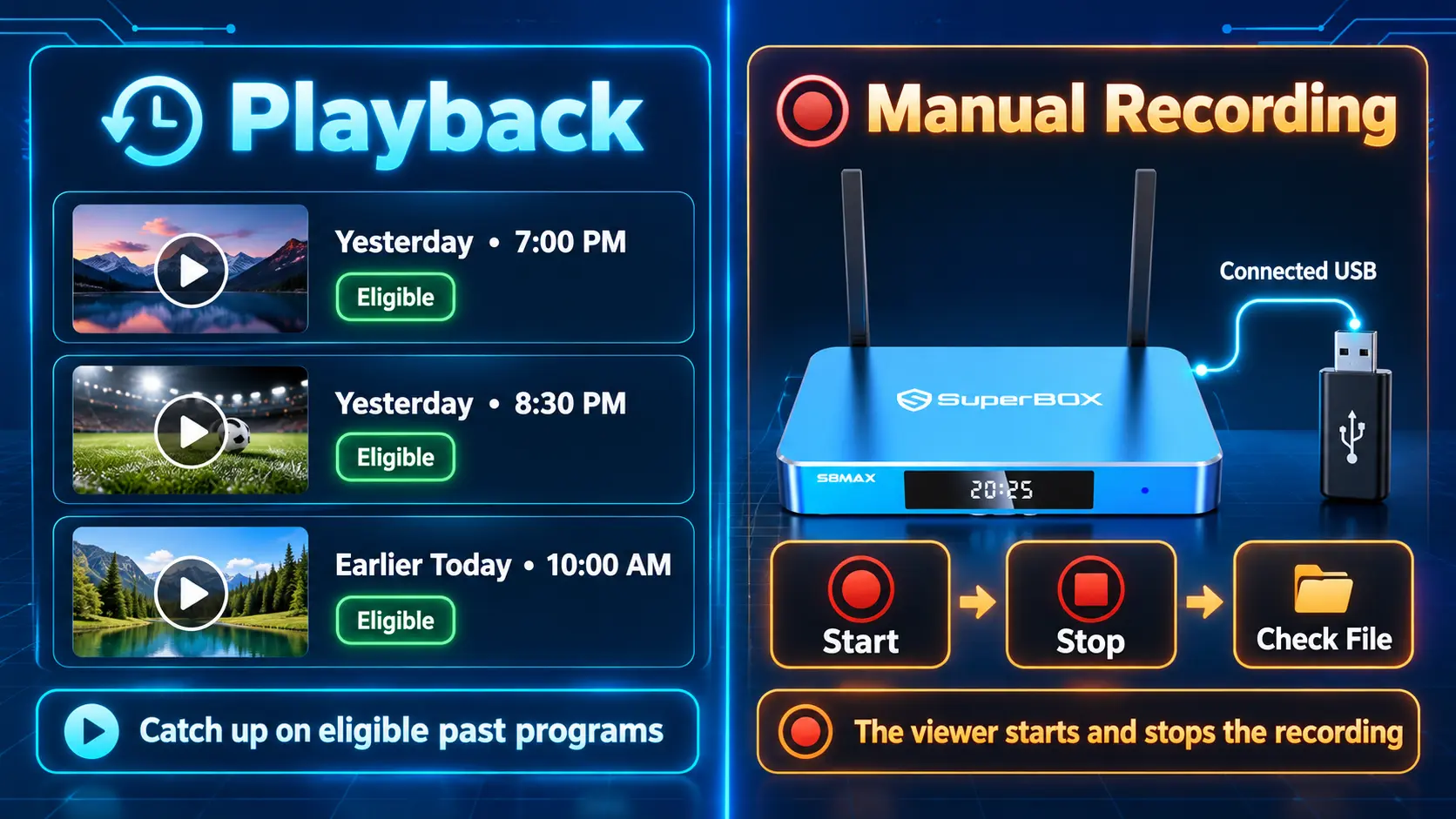
Playback lets you revisit eligible previously aired programs, with up to seven days available on supported content. Check the actual channel and program; it is separate from making your own recording.
S8 built-in recording is a manual process using compatible USB storage. Recordings save to that USB device, so extra internal storage is not a substitute for connecting a drive.
To prepare a recording:
- Connect a compatible USB drive and open Video Recorder.
- Confirm that the drive and remaining space appear correctly.
- Start recording and check that the recording indicator is active.
- Return Home and open the supported app or program you want to capture.
- When finished, stop recording and allow the file to save.
- Open the saved file briefly to confirm that it plays.
Test this with a short recording before Thanksgiving. Recording depends on the app and content permitting capture, and the current workflow requires you to start and stop it manually.
The complete S8 Recorder guide explains the controls and saved-file checks.
Make the remote easy for visiting family
Keep the home screen focused on the apps people will use. Put live television and the evening entertainment choice within easy reach.
S8 owners can use the Quick Access and number-key setup guide to prepare familiar routes into their apps. Show a visiting parent how to open the main app, go back, and return Home before the room gets busy.
A small card beside the remote can explain the TV input and the app names. Keep it short enough to read at a glance.
Check remote batteries in advance. If the remote needs pairing, follow the S8 remote pairing guide during preparation.
Have an after-dinner choice ready
Choose two possible movies or programs with the family before everyone settles down. Ask about children’s ages, preferred languages, and whether anyone would rather watch something short.
Open each choice briefly to check playback, sound, and available subtitles. Save the titles where the app supports it. A prepared shortlist makes the switch from football to family viewing much easier.
Give someone other than the football fan responsibility for this part of the day. It helps the television feel shared, and it gives the host one fewer task.
If you buy an S8 specifically for the main room, the S8 Max offers 64GB storage and High performance speed. The S8 Ultra adds 128GB, Premium performance speed, and an included backlit remote that can be convenient for evening viewing.
Choose for everyday household use as well as the holiday. The full S8 comparison covers the remaining differences.
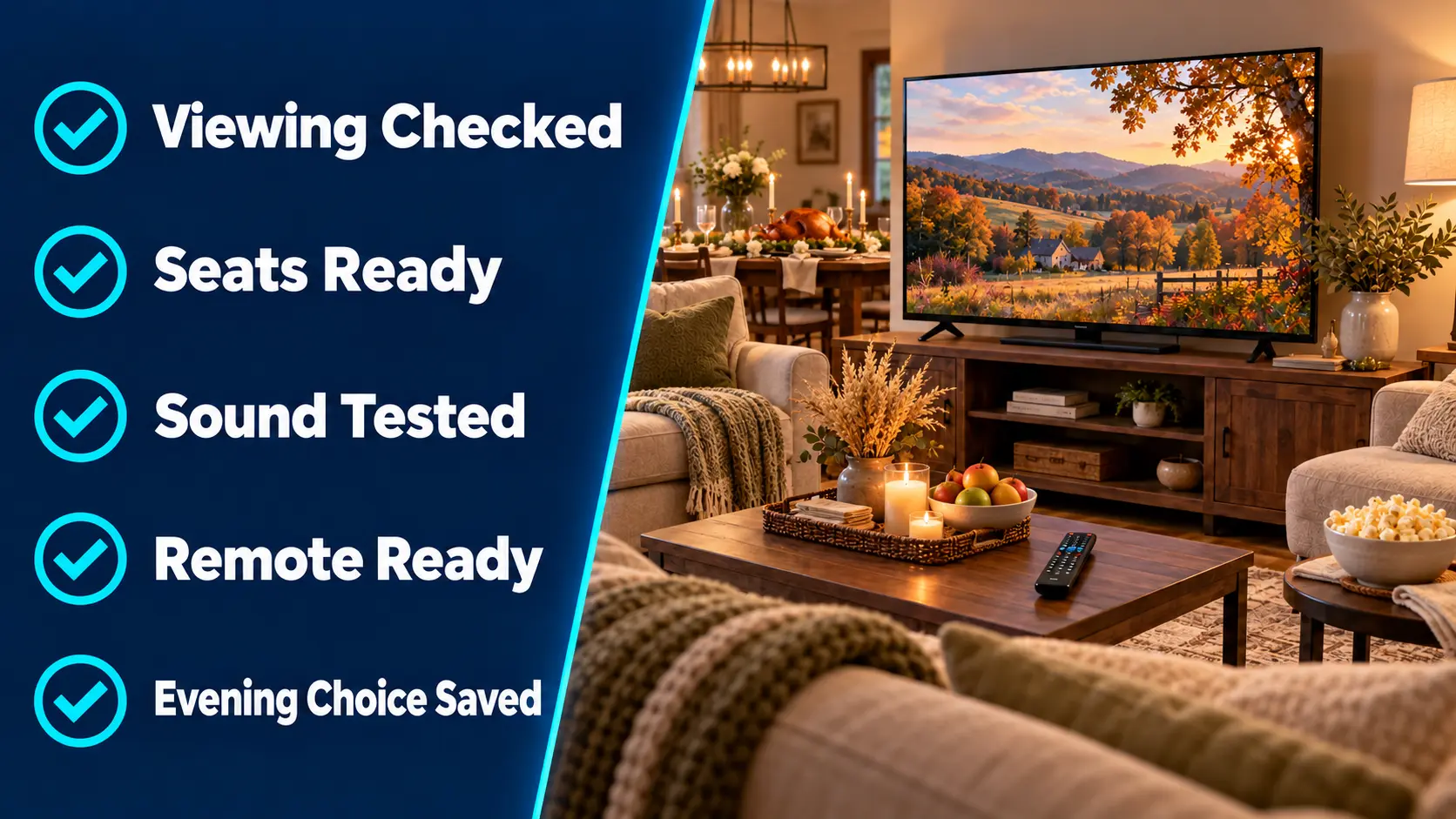
Run this final Thanksgiving TV checklist
| When | What to finish |
|---|---|
| A few days before | Confirm game listings, install needed apps, and test the complete setup |
| The day before | Check every seat, sound, remote, and any USB recording you plan to use |
| Thanksgiving morning | Recheck the viewing source and prepare the evening shortlist |
| Before guests arrive | Clear walkways, put the remote in its tray, and open the planned program |
| Before dinner | Agree on volume and any catch-up or recording plan |
For a last-minute playback problem, try another channel or title to see whether the issue affects one item or the wider setup. Check the connection and use the buffering troubleshooting guide if needed. Avoid beginning a factory reset while guests are waiting.
Frequently asked questions
When should I prepare my Thanksgiving TV setup?
Test it a few days ahead, then run a quick check on Thanksgiving morning. Leave time to fix connection, app, or remote problems before guests arrive.
Can I watch Thanksgiving football on SuperBox?
Yes. SuperBox offers live viewing through its supported apps. Confirm the specific game’s broadcaster, local availability, and actual program listing before the holiday.
Do I need a smart TV to use SuperBox?
You need a compatible television with an HDMI input and an internet connection for SuperBox. Our non-smart TV streaming guide explains the basic setup.
Are Blue TV and Blue VOD free to use?
Yes. The core apps are free after purchasing a compatible SuperBox. Blue TV offers 2000+ live channels, while Blue VOD provides a large movie and series library. Internet and optional paid services remain separate expenses.
Can SuperBox S8 show two channels on one TV?
Yes, using supported PiP or Multi-Screen combinations. Pro and Plus have supported PPV/ESPN Multi-Viewing; Max and Ultra offer full supported-channel access. Test your intended pair before relying on it.
Can I record while the family eats?
On S8 models, you can manually record supported content to compatible USB storage. Start the recording, stop it afterward, and check the saved file.
Which S8 model is useful for a family living room?
Max suits households wanting broader supported Multi-Viewing. Ultra adds more internal storage and an included backlit remote. Your viewing habits, budget, and evening use should guide the choice.
Can SuperBox TV Box Store help with setup?
Yes. If you purchased directly from superboxtvboxstore.com, email customer@superboxtvboxstore.com for technical or order-related help. Include your model, a clear description, and a screen photo if useful.
Choose a SuperBox seller you can verify
A useful Thanksgiving setup should keep serving your household after the holiday. Choose equipment that fits your daily viewing, and buy from a seller you can reach when you need help.
SuperBox TV Box Store is an authorized retailer serving the U.S. and Canada. Verify authorization code SP20250414002 through the SuperBox authorization portal.
Our team values your experience before and after delivery. For any technical or order question about a purchase made directly from our website, contact customer@superboxtvboxstore.com.
Browse SuperBox models or contact us for help choosing a setup for football, family entertainment, and everyday use.
The article was updated on:
