
Knowledge SuperBox
How to Use the SuperBox S8 Recorder App (Built-in Recording): Complete Guide





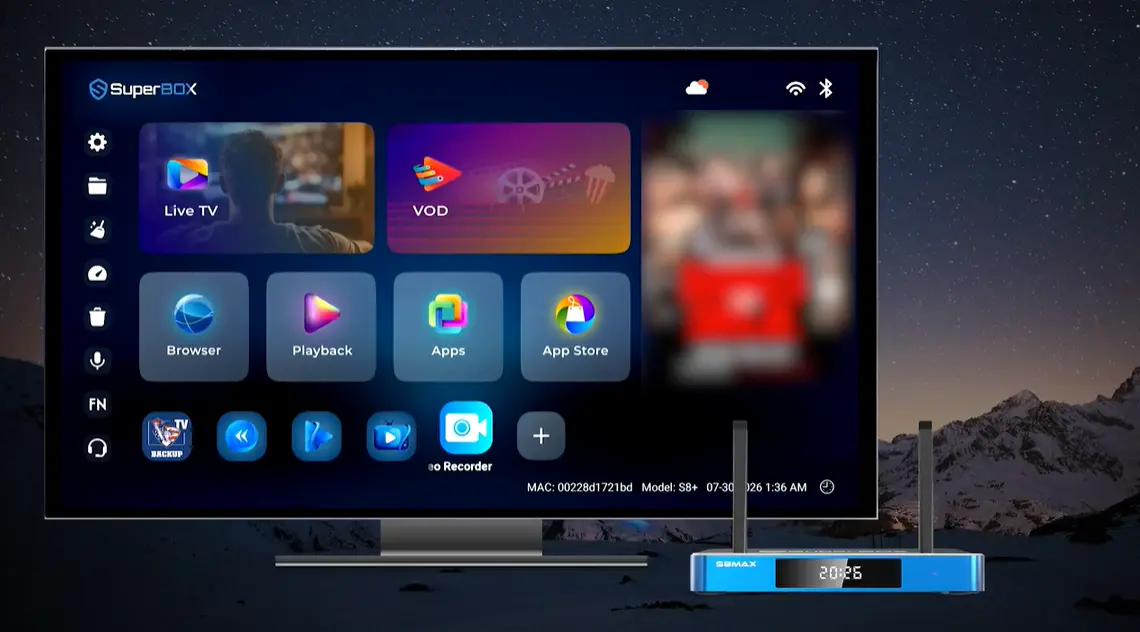
Built-in recording is one of the most important upgrades introduced with the SuperBox S8 Series. Earlier SuperBox generations offered Playback and Time Shift on supported content, but those functions are not the same as creating a recording. The S8 adds a dedicated Recorder experience for managing media files that the user records.
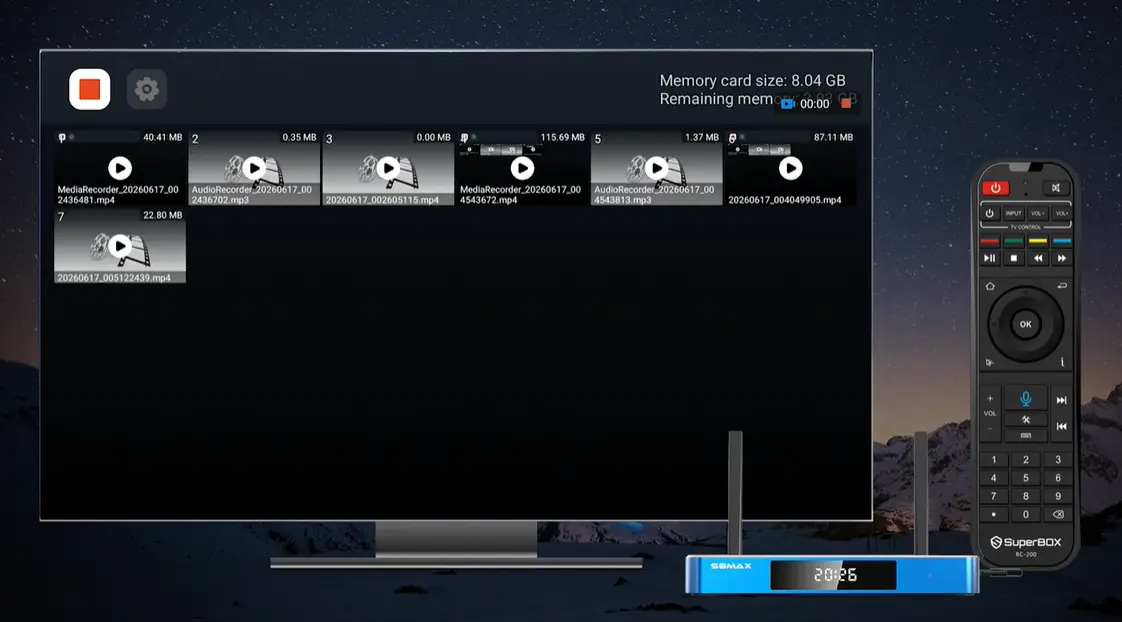
The Recorder App gives users a visual library containing saved video and audio files. Each item can display a filename, file type, thumbnail, and size. The same screen reports the capacity of the connected storage and its remaining space, helping users understand whether there is room for another recording. A saved video can then be selected and played directly on the television.
This guide explains the S8 Recorder interface, the safest recording workflow, storage management, playback, and troubleshooting. It applies to the SuperBox S8 Pro, S8 Plus, S8 Max, and S8 Ultra, all of which list built-in recording as a core S8 feature.
Quick answer: Connect a compatible storage device, open the Video Recorder shortcut on the SuperBox S8 home screen, and use the Recorder interface to access recording controls and saved files. The library shows available storage, MP4 video recordings, MP3 audio recordings, and file sizes. Highlight a saved recording and press OK to play it. Recording support can vary by application, content, software version, storage device, and applicable service restrictions.
Why Built-in Recording Is a Major S8 Upgrade
The Recorder App changes what users can do with supported media on the device. Playback allows viewers to browse eligible programs that have already aired, while Time Shift lets them move within an available live window. Recording is different because it creates a media file that appears in the user’s Recorder library.
That difference matters for three reasons:
- The recording becomes an identifiable file. The Recorder library shows a filename, format, and file size rather than only a past-program schedule.
- Storage becomes part of the experience. The interface reports storage capacity and remaining space because recordings consume space as they are created.
- The user can reopen the file later. Saved recordings appear as selectable items that can be played from the Recorder App.
For buyers comparing the new S8 generation with the S7 Series, this is a meaningful functional upgrade. The S7 models do not provide the same built-in Recorder feature. The S8 combines recording with its new interface, upgraded streaming system, Picture-in-Picture, Multi-Screen, Playback, and Backup TV tools.
Recorder (Built-in Recording) vs. Playback vs. Time Shift
It is easy to group these features together because all three help when live viewing is inconvenient. Their behavior, however, is different.
| Feature | Main purpose | Creates a personal file? | Depends on a past-program catalog? | Best use |
|---|---|---|---|---|
| Recorder App | Stores and organizes user-created video or audio recordings | Yes | No | Keeping a supported recording and reopening it later |
| Playback App | Browses recently available past programs by channel, date, and time | No | Yes | Watching an eligible program that already aired without recording it first |
| Time Shift | Pauses or navigates within a supported live/recent viewing window | No permanent recording by itself | No | Controlling a live program while it is available |
The practical rule is simple: use Playback to find eligible past content, Time Shift to control a supported live stream, and Recorder when you want the S8 to create and manage a recording file.
The demonstrated Recorder App does not show an electronic program guide or scheduled-DVR menu. Therefore, users should not assume that the app can automatically record a future program at a preset time. The verified workflow is a manual Recorder interface with saved-file management and playback.
What the SuperBox S8 Recorder App Shows
The Recorder library is designed to provide the most important information without opening every file.
Recording controls
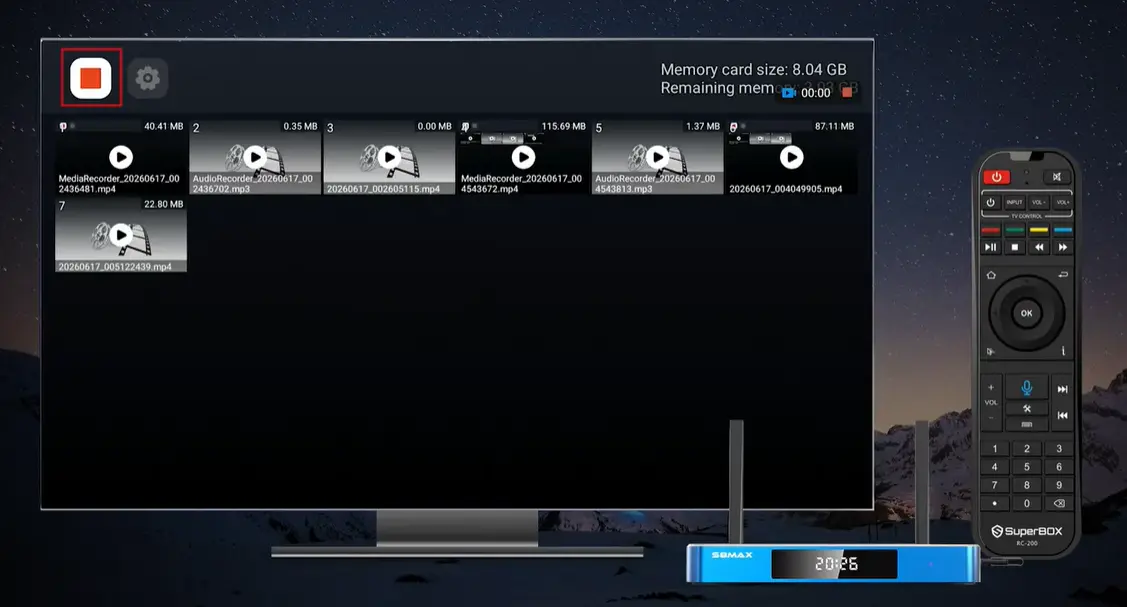
At the upper-left of the screen, the app displays a large recording control and a Settings icon. The highlighted red-square control is the prominent Recorder action. Always follow the status indicator shown by the current S8 software so you can confirm whether recording is running or stopped.
Storage capacity and remaining space
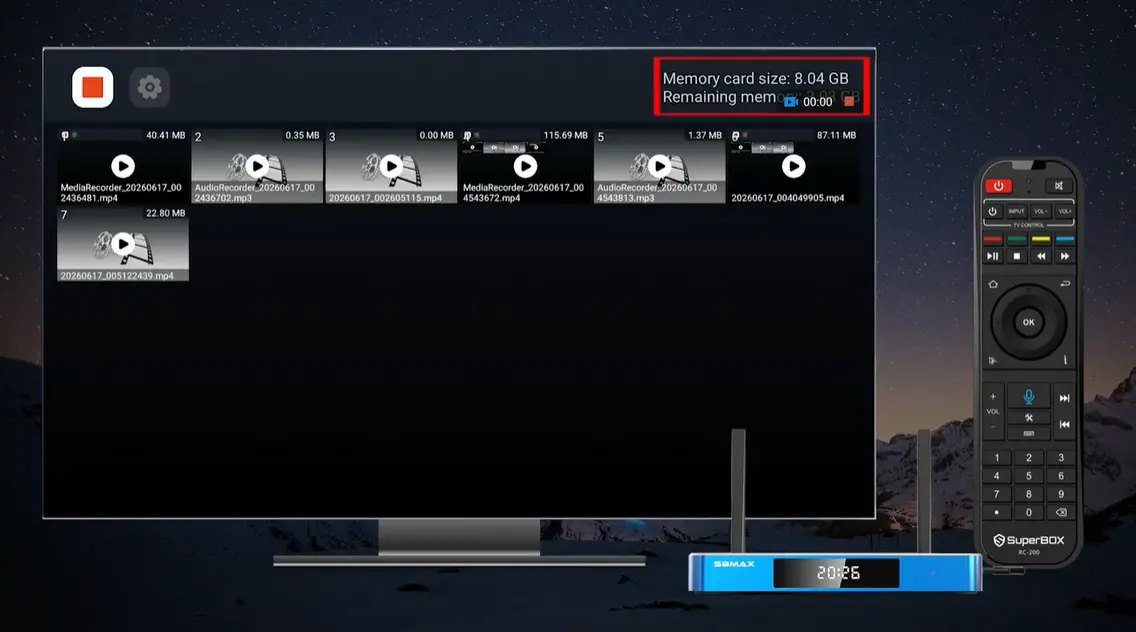
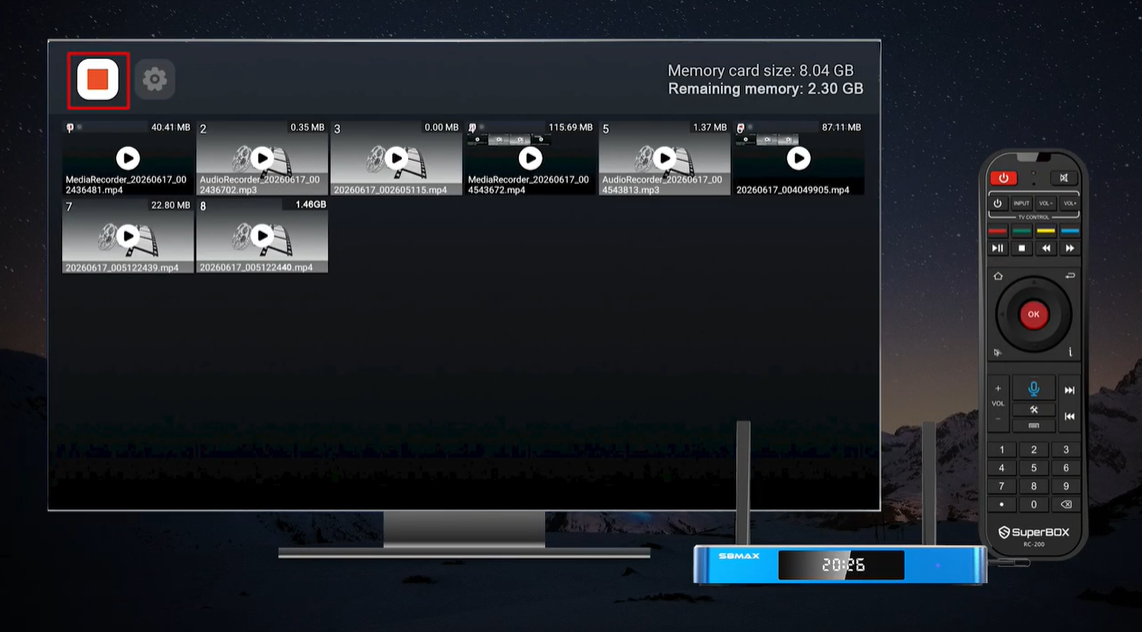
The upper-right corner displays Memory card size and Remaining memory. In the demonstrated setup, the connected device is shown with approximately 8 GB of capacity. This is an example from that storage device, not a fixed limitation of the Recorder App.
The remaining-space figure is more important than the total capacity when deciding whether to begin another recording. Longer video recordings consume more space than short clips or audio-only files.
Saved-file grid
The main area contains tiles for recorded files. Video items use filenames ending in .mp4, while audio items use .mp3. Each tile can also show its file size, allowing users to identify which recordings occupy the most storage.
Recording status indicator
The interface includes a recording timer/status area. When using Recorder, look for an active timer or indicator rather than assuming that a button press successfully started the capture.
Before You Record on a SuperBox S8
Complete these checks before beginning a recording:
- Confirm that you are using a SuperBox S8 Series model.
- Connect a compatible storage device and allow the S8 to recognize it.
- Open Video Recorder and verify that the capacity and remaining-space figures appear.
- Make sure there is enough free space for the intended recording.
- Test with a short recording before attempting to capture a longer program.
- Verify that the application and content permit recording.
The video demonstrates an external storage device connected to the S8 before the Recorder library is opened. The app then reports that device’s capacity as memory-card storage. Because compatibility can vary, use a storage device the S8 recognizes reliably rather than assuming every USB drive, adapter, or card will behave identically.
Do not disconnect the storage device while a recording is active or while a file is being saved. Interrupting a write can leave the recording incomplete or unreadable.
How to Open the Recorder App
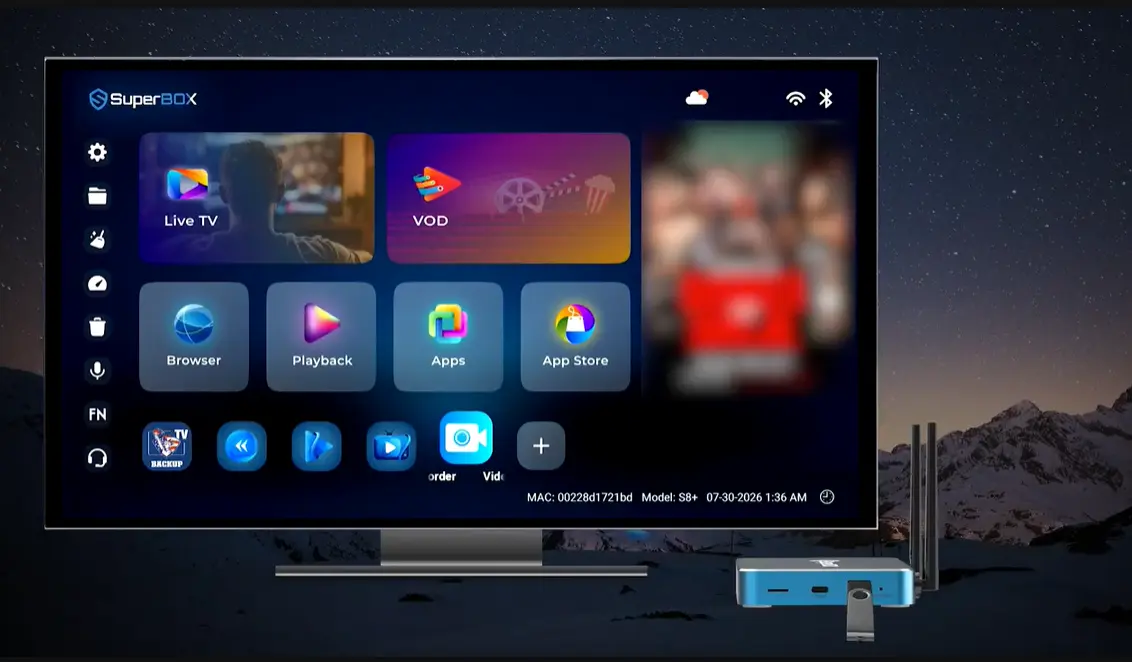
Step 1: Find Video Recorder on the S8 home screen
From the redesigned S8 home screen, move to the lower shortcut row. Highlight the blue-and-white camera icon labeled Video Recorder.
If the shortcut is not already visible, check the S8 Apps area and add the approved Recorder app to the home-screen shortcuts where supported. Avoid downloading an unrelated recorder from an unknown source simply because it has a similar icon.
Step 2: Press OK
Press OK on the S8 remote to open the Recorder library. Allow the app a moment to read the connected storage and populate the file grid.
Step 3: Confirm the storage display
Before using the recording control, look at the upper-right corner. Confirm that the app reports a storage capacity and available space. If both figures are absent, zero, or clearly incorrect, return to the home screen and check the storage connection first.
How to Make a Recording Safely
The Recorder interface provides a prominent recording control, but recording eligibility may depend on the app, source, and current software. Use this reliable sequence:
- Connect and confirm the storage device.
- Open Video Recorder and check remaining capacity.
- Navigate to the supported media you want to record according to the current on-screen controls.
- Activate the Recorder control.
- Confirm that the timer/status indicator becomes active.
- Allow the desired segment to play while recording continues.
- Stop the recording using the displayed stop control.
- Wait for the file to finish saving before removing storage or powering off the S8.
- Return to the Recorder library and verify that a new file appears.
This is a manual recording workflow. Do not describe it as scheduled DVR unless a future S8 software version visibly provides scheduling and that feature is confirmed for the relevant model and application.
How to confirm a recording was saved
A successful video recording should appear as a new tile in the library, normally with an MP4 filename and a non-zero file size. An audio recording appears as MP3. A zero-byte or 0.00 MB item may indicate that no usable media was captured.
When several files have similar system-generated names, compare the timestamp-like filename information, thumbnail, and file size. Playing the file briefly is the most direct way to verify its contents.
How to Make a Recording Safely
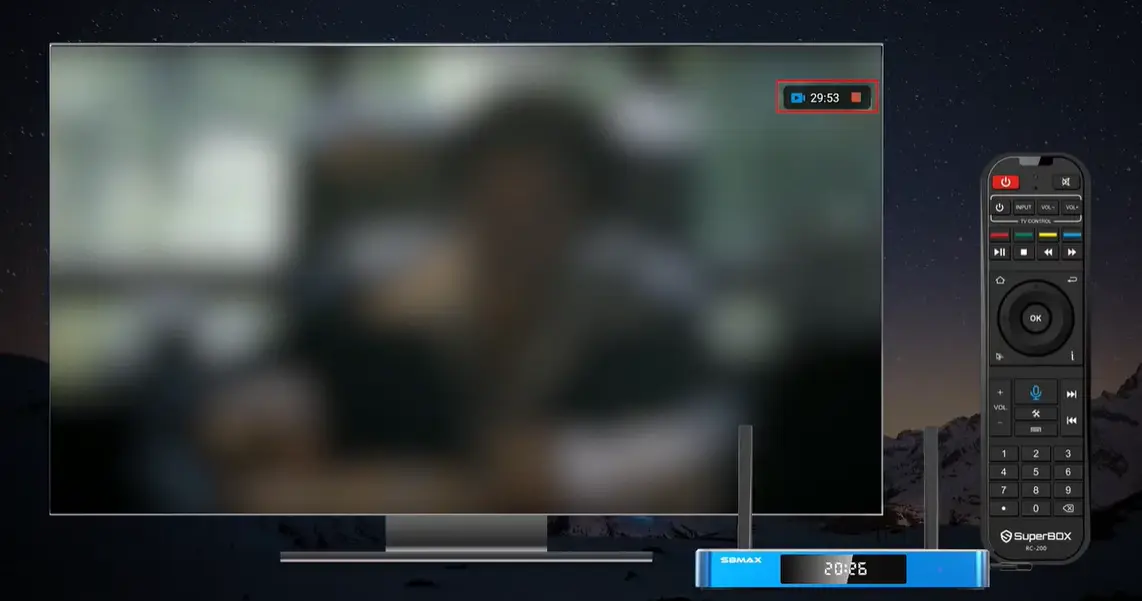
The S8 records the content displayed on its screen. You first start the Recorder, return to the Home screen, and then open the supported app or program you want to capture. A floating timer in the upper-right corner confirms that recording is continuing while you navigate and watch.
Step 1: Connect storage and open Video Recorder
Connect the storage device, open Video Recorder, and check the storage panel in the upper-right corner. Do not start until the capacity and remaining-memory information appear correctly.
Step 2: Start recording
Move the highlight to the large recording control in the upper-left corner and press OK. The control uses a red recording/stop symbol. After recording begins, look for the small floating recording indicator and timer.
Do not rely only on the button press. The active timer is the clearest confirmation that the S8 is currently capturing the screen.
Step 3: Return to the S8 Home screen
Press the Home button on the remote. Leaving the Recorder interface does not end an active capture. The small recording timer remains visible at the top-right of the S8 interface.
This is the step that makes the S8 Recorder useful: you do not remain inside an empty recording library. You start the capture first, then navigate to the actual content.
Step 4: Open the app or content you want to record
Highlight the supported application and press OK. In the demonstration, Blue VOD is opened after recording begins. Navigate to the desired program and start playback normally.
The recording timer stays on screen while the content plays. Let the desired segment run for as long as you want to capture it. Avoid opening private information, passwords, payment screens, or unrelated apps while screen recording is active because on-screen activity may become part of the saved file.
Step 5: Stop the recording
When the desired segment is complete, return to the Recorder controls and press the red Stop button. The floating timer and red-square indicator help you confirm that capture is still active before you stop it. Do not unplug the storage device or disconnect power to end a recording.
After Stop is pressed, allow the S8 a moment to finalize the file. Ending the capture properly gives the Recorder App time to write a playable MP4 to storage.
Step 6: Return to Recorder and verify the new file
Open Video Recorder again. The completed capture should appear in the library as a new MediaRecorder file ending in .mp4. Check that its file size is greater than zero, then open it briefly to confirm that the intended content and duration were saved.
This is a manual screen-recording workflow. The demonstrated interface does not show a future-program scheduling menu, so it should not be advertised as scheduled DVR.
How to confirm a recording was saved
A successful video recording should appear as a new tile in the library, normally with an MP4 filename and a non-zero file size. An audio recording appears as MP3. A zero-byte or 0.00 MB item may indicate that no usable media was captured.
When several files have similar system-generated names, compare the timestamp-like filename information, thumbnail, and file size. Playing the file briefly is the most direct way to verify its contents.
How to Play a Saved SuperBox S8 Recording
Step 1: Open the Recorder library
Launch Video Recorder from the home screen. Wait until all recognized files appear.
Step 2: Highlight a recording
Use the directional pad to move through the file grid. Look at the thumbnail, filename, file extension, and size to identify the recording.
Step 3: Press OK to play
With the desired video highlighted, press OK. The demonstrated recording opens full screen and plays directly from the saved file.
Step 4: Return to the library
Press Back/Return to leave the playing file and return to the Recorder grid. This lets you choose another recording without closing the app completely.
Understanding Recording Storage on Each S8 Model
All four S8 models list built-in recording, but their internal storage capacities differ.
| S8 model | RAM / internal storage | Built-in Recorder | Buying consideration |
|---|---|---|---|
| S8 Pro | 4GB / 32GB | Yes | Best entry point for buyers who record selectively and manage files regularly |
| S8 Plus | 4GB / 64GB | Yes | More room for apps and general device data than Pro |
| S8 Max | 4GB / 64GB | Yes | Best overall feature balance with full supported Multi-Viewing and NFL app |
| S8 Ultra | 4GB / 128GB | Yes | Most internal capacity, full supported Multi-Viewing, NFL app, and backlit remote |
Storage specifications should not be treated as a promise that the entire advertised capacity is available for recordings. The operating system, applications, updates, and other files use part of the device’s storage. In addition, the demonstrated Recorder workflow reports the capacity of connected memory-card storage, so the available recording space depends on the active storage destination.
For frequent recording, the S8 Ultra offers the most generous internal capacity for the overall device environment. However, buyers should still manage the actual Recorder storage shown in the app rather than relying only on the model’s headline storage number.
How to Manage Recorder Storage
Monitor remaining memory
Check the remaining-space display before every long recording. A storage device that is almost full may start a recording but fail to preserve the entire program.
Review large files first
The library lists the size of each recording. If space is limited, identify the largest files and decide which ones are no longer needed.
Verify before deleting
System-generated filenames can look similar. Play a file briefly before removing it so that you do not delete the wrong recording.
Stop activity before disconnecting storage
Do not unplug the device while recording, saving, or playing a file. Exit active playback, stop the recording, allow the save to finish, and use the S8’s supported storage-ejection process when available.
Keep important recordings backed up where permitted
If a recording is important and the applicable content rules permit copying it, maintain a separate backup. Storage devices can fail, and resetting or reformatting a device can erase files.
Common Recorder Problems and Fixes
| Problem | Likely cause | What to do |
|---|---|---|
| Video Recorder shortcut is missing | Shortcut was removed, app is unavailable, or software differs | Check Apps/App Store, restart the S8, and contact Technical Support rather than installing an unknown APK |
| Storage capacity does not appear | Storage is not recognized or connected correctly | Reconnect the device, return to Home, and reopen Recorder |
| Remaining memory is very low | Existing recordings or other files occupy the device | Review file sizes, preserve anything important, and remove unneeded files safely |
| New file shows 0.00 MB | Recording did not capture usable media or was stopped too quickly | Test a short supported recording again and wait for the file to finish saving |
| MP4 file appears but will not play | File may be incomplete, damaged, or unsupported | Test another recording; if only one file fails, recreate it where possible |
| Recording stops early | Storage filled up, was disconnected, or capture was interrupted | Check remaining space and the physical storage connection before retrying |
| App opens but file grid is empty | No recordings are on the selected storage or the device was not read | Confirm the correct storage device and create a short test recording |
| A particular app cannot be recorded | Recording may be restricted or unsupported | Do not attempt to bypass restrictions; use Recorder only where the interface and service permit it |
| Files have confusing names | Recorder uses automatically generated filenames | Compare date/time portions, thumbnails, formats, and sizes; play files to identify them |
| Recorder repeatedly crashes | App, storage, or software issue | Restart the S8, test a different compatible storage device, and contact Technical Support if the issue continues |
Avoid factory resetting the S8 as the first response to a Recorder problem. First test whether the problem follows one file, one storage device, or the entire app. A factory reset can remove settings and data without fixing an incompatible or failing storage device.
Frequently Asked Questions
Does the SuperBox S8 have built-in recording?
Yes. Built-in recording is a core feature listed for the S8 Pro, S8 Plus, S8 Max, and S8 Ultra.
Did the SuperBox S7 have the same Recorder feature?
No. The dedicated built-in recording capability is an S8 Series upgrade and should not be confused with Playback or Time Shift available on earlier generations.
Where is the Recorder App on SuperBox S8?
Look for the blue-and-white camera icon labeled Video Recorder in the S8 home-screen shortcut row or Apps area.
Does the S8 Recorder require external storage?
The demonstrated workflow uses connected external storage, and the app reports its capacity as memory-card storage. Storage requirements and supported destinations can depend on the S8 software and recording source.
What file format does SuperBox S8 Recorder use?
The demonstrated library contains MP4 video recordings and MP3 audio recordings.
Can I play recordings directly on the SuperBox?
Yes. Highlight a saved video in the Recorder library and press OK to open it full screen.
Can SuperBox S8 schedule recordings in advance?
The verified Recorder interface does not show a scheduling or future-program DVR menu. Do not assume scheduled recording unless it is added and confirmed in the current software.
Is Recorder the same as the Playback App?
No. Recorder manages user-created files. Playback browses eligible previously aired programs by channel, date, and scheduled time without requiring a recording in advance.
How can I see how much recording space remains?
Open Video Recorder and check the upper-right storage panel for total capacity and remaining memory.
Why does one recording show 0.00 MB?
It likely contains no usable captured data. Test a new short recording, confirm the active status, and allow it to save fully before checking the library.
Which S8 model is best for recording?
All four support the Recorder feature. The S8 Ultra has the largest internal storage at 128GB, while the Pro has 32GB and the Plus and Max have 64GB. The best choice also depends on Multi-Viewing scope, NFL app access, ports, and remote preference.
Can every app and channel be recorded?
No universal guarantee should be made. Recording can depend on the application, channel, program, software version, region, storage, and service restrictions.
Final Thoughts
The SuperBox S8 Recorder App adds something earlier generations did not offer in the same way: a dedicated workflow for creating, organizing, and reopening recording files. Its library makes recordings easier to manage by displaying thumbnails, filenames, formats, file sizes, total storage, and remaining capacity in one place.
The feature is most useful when approached carefully. Confirm storage first, check that the recording status is active, stop and save the file properly, and verify the result in the library. MP4 and MP3 labels help distinguish video from audio, while the size display helps identify incomplete files and manage limited space.
Most importantly, Recorder should be described accurately. It is not the same as seven-day Playback, it is not merely pausing live TV, and the verified interface should not be advertised as scheduled DVR. It is a practical, user-controlled recording and media-management feature and one of the clearest reasons the S8 Series represents a functional upgrade over the S7 generation.
Retail and availability notice: SuperBox TV Box Store sells hardware and provides related support. It does not host, transmit, maintain, or control third-party content. Recording availability can vary by app, program, model, software version, region, storage device, and service terms.
The article was updated on:
