
Knowledge SuperBox
SuperBox S7 Ultra Speed and Stability Test: Check Your Setup at Home





A useful SuperBox S7 Ultra speed and stability test should answer three questions: Does the box respond comfortably to the remote? Can your connection deliver video consistently? And do the apps you actually watch keep playing through a normal session?
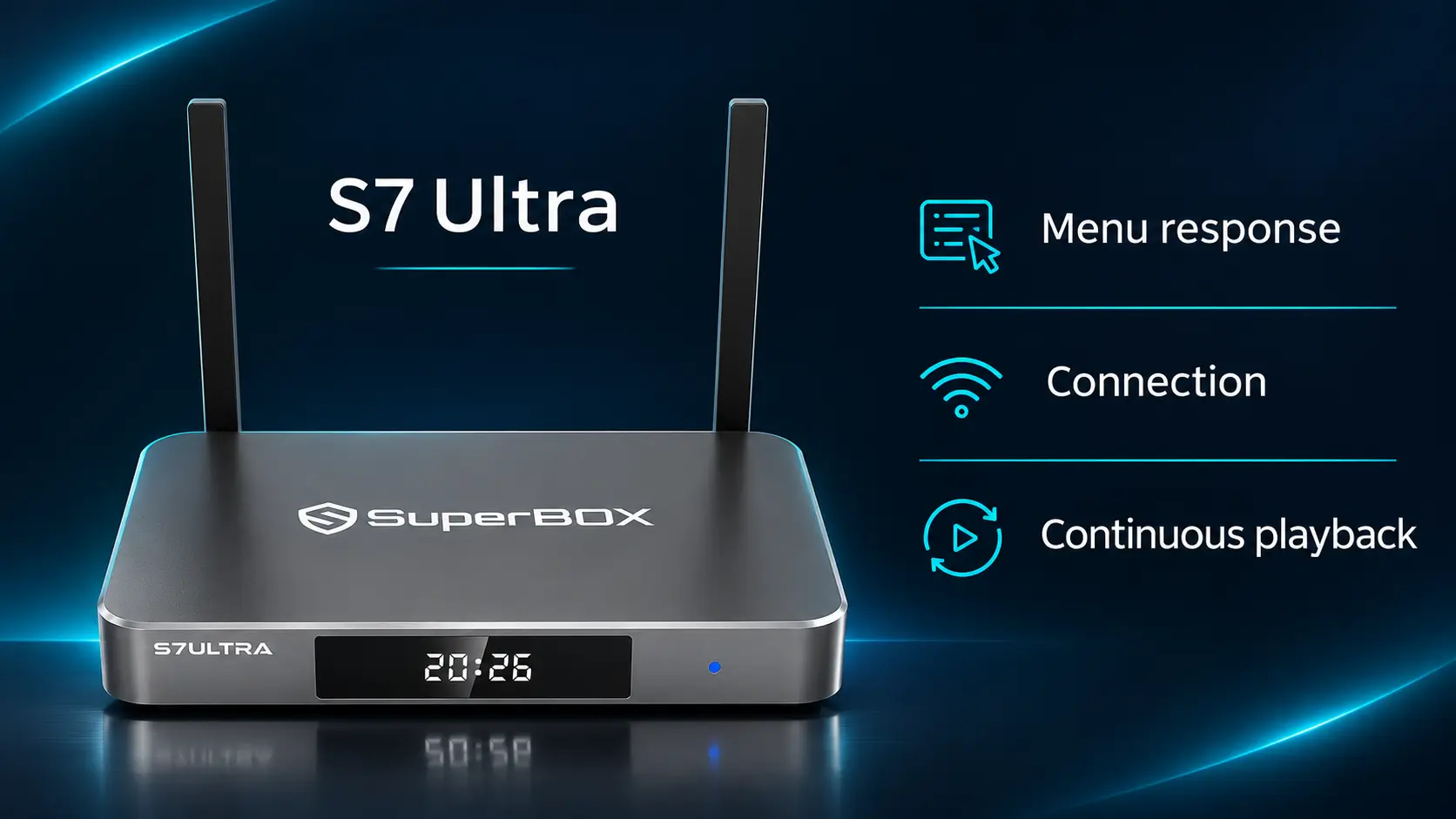
The S7 Ultra has a capable foundation for that job: 4GB RAM, 128GB internal storage, WiFi 6, Gigabit Ethernet, and a backlit voice remote. Getting the best experience means assessing the complete setup rather than judging it from one large speed-test number.
This guide gives you a repeatable home test for menu response, app opening, internet speed, live TV, and on-demand playback. Follow it on your own S7 Ultra and record what happens. Use the test sheet to record your own measurements and compare one change at a time.
Start with a short check, then extend playback if you want to assess a full evening’s viewing. The aim is a setup that opens your regular entertainment easily and keeps it playing reliably.
What the SuperBox S7 Ultra hardware contributes
The specifications help explain what you are testing, but each has a different role.
| S7 Ultra feature | Why it matters to this test |
|---|---|
| 4GB RAM | Supports the system and applications while they run |
| 128GB internal storage | Provides room for the system, compatible apps, their data, and local files |
| Dual-band WiFi 6 | Offers a wireless connection you can evaluate at the television’s location |
| 1000Mbps Gigabit Ethernet | Provides a wired alternative for comparison |
| Metal housing with ventilation | Makes unobstructed placement part of the setup check |
| Backlit voice remote | Helps with everyday control, including dim-room use |
The SuperBox S7 Ultra product information gives the current configuration. Its 128GB capacity is internal storage, separate from the 4GB RAM used during operation.
For entertainment, Blue TV offers access to 2,000+ live channels and Blue VOD provides a broad movie and series library. These compatible core apps are free to use after purchasing the hardware. That gives the test a practical purpose: checking the viewing system you may use to reduce recurring television expenses.
If you are still learning how the equipment fits together, the explanation of how S7 Ultra works without cable covers the internet, HDMI, and app roles.
Prepare one consistent test setup
Use the television and room where the S7 Ultra normally sits. Connect the supplied power equipment, check the HDMI connection, and leave the ventilation openings clear. Keep the remote in its usual operating position.
Before changing anything, note:
- Whether the box uses WiFi or Ethernet.
- The approximate distance to the router and any walls between them.
- The time of day and whether other people are streaming or downloading.
- The apps you will test and their versions, if readily available.
- The particular symptom you want to understand, if there is one.
Finish any active app installation or update before timing launches. For a quiet-network baseline, pause large downloads you control. Later, you can repeat the viewing test during normal household use.
Do not clear app data or factory-reset the box before taking the baseline. Those actions change the setup you are trying to assess. If you make an adjustment later, record it and repeat the affected test.
Choose one familiar live channel, two alternative channels, and an on-demand title you can reopen. A repeatable selection makes the comparison more useful than opening something different every time.
Test 1: separate menu response from stream loading
Begin on the S7 Ultra Home screen. Move between several visible items using the directional buttons, open an installed app, return to Home, and open a second app.
Watch for the difference between a selection responding and online content arriving. If the highlight moves immediately but a channel list takes longer to populate, that is a different observation from the entire interface ignoring input.
For a simple timing check, use a phone stopwatch:
- Highlight the app you want to open.
- Start timing when you press OK.
- Stop when its main screen becomes usable.
- Record whether it was the first opening after a restart or a repeat opening.
- Repeat the same route three times and keep all three results.
Compare like with like. An app loading for the first time after a restart may do different work from one you have just used. Returning Home does not necessarily close it completely, so label the second measurement “reopen” rather than calling it a fresh launch.
The middle result of three is a useful reference, but retain an unusually slow run in your notes. Repeated variability can matter more than one fast opening.
There is no universal two-second pass mark for this test. What matters is whether your usual actions respond consistently and whether a delay belongs to the controls, the app screen, or the stream itself.
Test 2: measure internet speed on the S7 Ultra
A phone result beside the router does not measure the connection reaching your television box. Run the test on the S7 Ultra itself when possible.
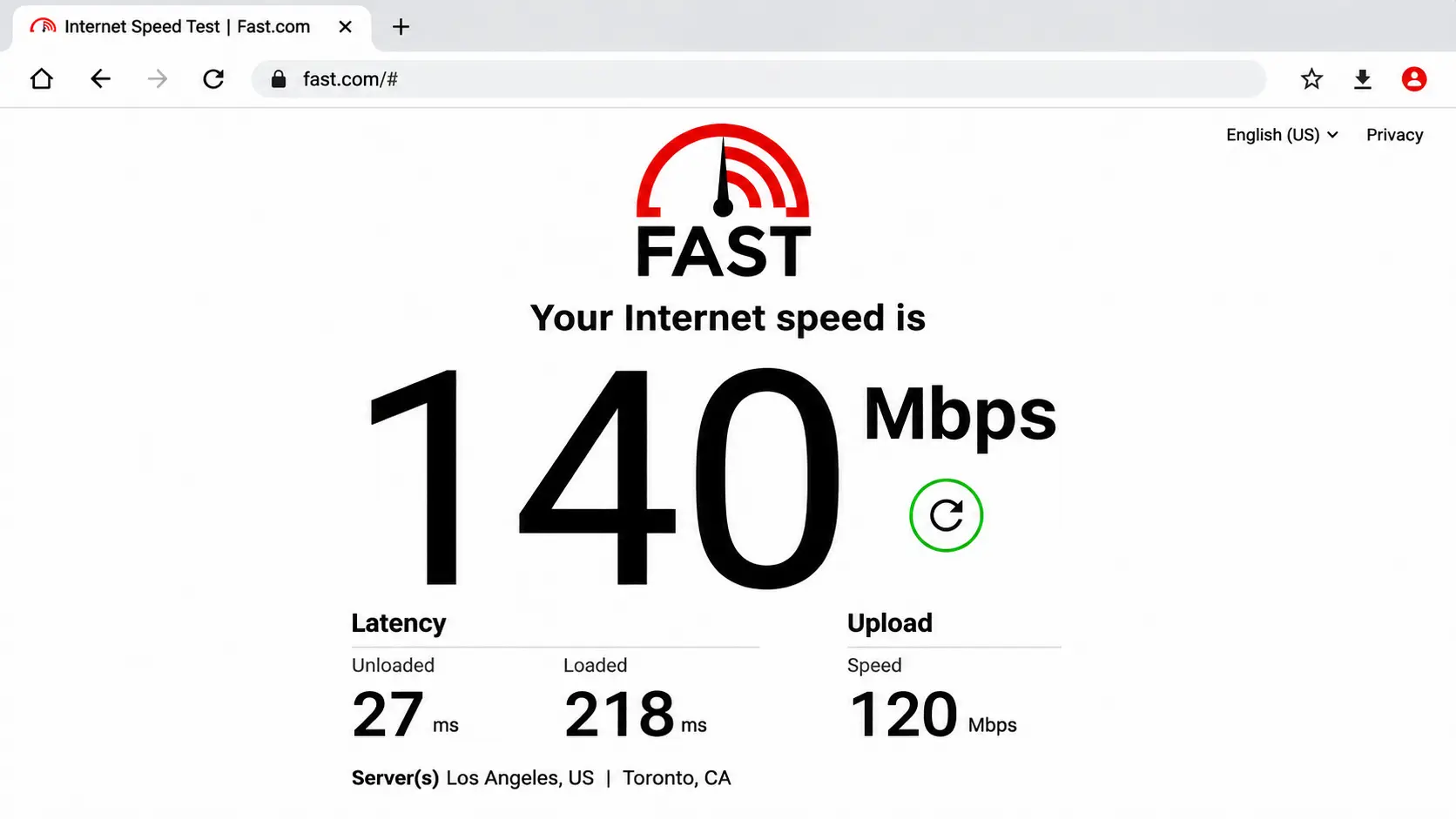
Open an available browser on the box, visit FAST.com, and let the download test finish. Record the result and its unit. Run it three times using the same connection, allowing each test to complete before starting another.
FAST.com estimates your connection’s speed using Netflix servers. It is a useful network check, not a direct measurement of the Blue TV or Blue VOD source you will watch.
If the website will not run properly in your installed browser, do not record an error or an unfinished zero as your download speed. Use a working connection-test option on the box, or ask support for a suitable method. A phone or laptop test can provide additional context, but label which device produced it.
Read Mbps and latency correctly
Mbps means megabits per second. It is a rate of data transfer, not the S7 Ultra’s processor speed.
Selecting Show more info on FAST.com also displays connection latency. In plain language, latency describes delay; the test distinguishes results with and without additional traffic. A larger change under load can be useful context when problems appear only while the home network is busy.
Record those values if convenient, but keep the main task simple: three complete download tests and an actual viewing test. Do not run a bandwidth test at the same time as the baseline video test, because the measurement itself adds traffic.
How much speed should you expect?
SuperBox’s S7 connection recommendation specifies 160Mbps measured directly on the box. Treat that as the manufacturer’s setup recommendation when assessing your connection.
Requirements also vary by service and stream. For context, Netflix recommends a stable 15Mbps for its own 4K streaming. That is Netflix guidance, not a Blue TV requirement or a SuperBox performance certification.
A result below a recommendation does not by itself diagnose faulty hardware, and exceeding it does not certify uninterrupted playback. Use the next tests to see what your regular programs actually do.
Test 3: check live television for consistency
Open Blue TV and choose your familiar channel. Separate the initial wait for playback from interruptions after the program has started.
For a practical first check, watch for 10 to 15 minutes. This is a suggested observation period, not an official manufacturer benchmark. Note any pauses, spinning indicators, picture freezes, audio interruptions, or unexpected exits.
If the program pauses, record whether sound continues, whether the on-screen controls still respond, and approximately when it happened. These details help distinguish several experiences people often describe simply as “freezing.”
Next, try two other channels. Allow each to settle into normal playback rather than judging from an instant of loading.
A single troublesome channel alongside two working alternatives suggests checking that particular feed or app route first. It does not prove every hardware component is healthy, but it gives support a narrower starting point than “the whole box is slow.”
If every selection is affected, compare the network results and test another app before changing several settings at once.
Test 4: compare live TV with Blue VOD
Open Blue VOD and select an available movie or episode. Choose a title you can find again, and note its exact name, year, and episode where relevant.
Play it for a similar observation period. Check picture and sound continuity, then pause and resume once. If you test seeking, record it separately: the wait after jumping forward is different from an interruption during uninterrupted playback.
This comparison adds useful information. If on-demand viewing is steady while one live channel stops, concentrate on the affected stream. If different apps lose their online content at the same time, investigate the connection and wider setup.
You do not need to explore every player option. The S7 Blue VOD demonstration guide explains common search and viewing controls; follow the labels available in your app version.
If your player shows a small data-transfer indicator, do not treat it as a replacement for the full speed test. An app may fetch video in bursts, and its indicator may describe current transfer activity rather than the maximum capacity of your internet connection.
Test 5: compare WiFi with Ethernet
The S7 Ultra’s WiFi 6 and Gigabit Ethernet make this comparison especially useful. You can evaluate a different network path while keeping the box, television, app, and viewing selection the same.
First, save your WiFi observations. Then connect an Ethernet cable from a router LAN port to the box and confirm that it is using the wired connection. Temporarily switch WiFi off during this comparison if needed to avoid uncertainty about the active route.
Repeat the connection test and the same playback check. If comparing first app openings, use a normal restart before each connection’s launch test and keep the starting conditions consistent. For VOD, replay the same portion if practical. A live broadcast keeps changing, so record the channel and time rather than pretending both runs contained identical material.
Avoid changing the player settings, clearing cache, and moving the box during the same comparison. Otherwise, you will not know which adjustment produced the difference.
If Ethernet makes the session more consistent, that points toward investigating the wireless path: router placement, distance, walls, or household activity. It does not automatically mean the box’s WiFi hardware is defective.
If WiFi already works consistently, a higher Ethernet score alone is not a reason to rearrange the whole room. Choose the connection that performs well in your actual setup. Our WiFi placement and streaming guide helps with the room-level decisions.
Record the results without guessing
Use this sheet for your own observations. Leave an unavailable measurement blank rather than filling it with an assumed result.
| Check | WiFi result | Ethernet result | Notes |
|---|---|---|---|
| Download speed, three completed runs | ___ / ___ / ___ Mbps | ___ / ___ / ___ Mbps | Time, household activity |
| First app opening after restart | ___ seconds | ___ seconds | App and version |
| Repeat app openings | ___ / ___ / ___ seconds | ___ / ___ / ___ seconds | Same starting point |
| Live channel observation | ___ interruptions in ___ minutes | ___ interruptions in ___ minutes | Channel and time |
| Alternative channels | ___ | ___ | Which worked or failed |
| VOD observation | ___ interruptions in ___ minutes | ___ interruptions in ___ minutes | Title, episode, segment |
| Unexpected app exits | ___ | ___ | Exact screen or message |
| Longer session | ___ minutes observed | ___ minutes observed | Any change later in use |
Extend the check to a normal viewing session
A short test can identify an obvious problem. A longer session tells you more about consistency.
If the first checks work, continue watching something you would normally choose for 45 to 60 minutes, or complete an ordinary evening session. These are suggested observation periods, not published endurance-test results.
Note whether a problem starts immediately, appears only later, or coincides with other people beginning downloads or streams. Keep the ventilation openings clear throughout the session.
If performance changes after extended use, record that pattern. A warm enclosure alone is not a temperature measurement or proof of overheating. Repeated app exits, reboots, or worsening playback deserve investigation with the timing and conditions attached.
Later, repeat the relevant check during the hours you usually watch. A quiet afternoon baseline and a busy evening observation answer different questions. Label both so you can see whether the conditions explain the change.
What your results suggest doing next
| Observation | Useful next action |
|---|---|
| Menus respond, but one live channel repeatedly stops | Check another channel and report the affected name, time, and message |
| Ethernet is consistently better than WiFi | Review the wireless route and test one placement change |
| Both connections show problems across several online apps | Check router/internet behavior and provide the cross-app results to support |
| One app struggles while others work | Record its version and exact failure; investigate that app first |
| Highlight movement is inconsistent before opening a stream | Compare remote input and Home navigation before treating it as buffering |
| Problems appear only after longer use | Record elapsed time, placement, power setup, and whether the box exits or restarts |
These observations identify the next check; they are not a remote diagnosis of a failed component.
For broader sluggishness, keep your baseline and test again after one targeted change. A reset should not be the opening move in a measurement exercise.
SuperBox TV Box Store is an authorized retailer serving customers in the US and Canada. If you bought directly from us, email customer@superboxtvboxstore.com for technical or order help. We value your experience and can coordinate assistance using the results you collected.
A useful message is: “My S7 Ultra pauses on [channel] at [time]. I tested [other channel] and [VOD title]. On WiFi, the result was [observation]; on Ethernet, it was [observation]. The screen shows [message].” Add a short video if possible, keeping order and device identifiers in private messages.
S7 Ultra performance test FAQs
Does 128GB storage make every channel load faster?
Storage gives you room for installed apps and files. It is different from RAM and network speed. A larger storage figure alone does not establish faster channel loading; use the same app and connection when comparing actual behavior.
Should a Gigabit Ethernet port produce a 1000Mbps internet result?
No. Gigabit describes the port’s capability. Your internet plan, router, cable path, test server, and current traffic affect the measured result. It is not a promise that the internet test will display 1000Mbps.
Is one successful speed test enough?
It is a snapshot. Repeated measurements plus a viewing session are more useful when the symptom comes and goes. Note the time and connection so you can compare the results fairly.
Can I use my phone to record the test?
Yes. A short phone recording can show the remote action, screen response, or interruption clearly. If you run a speed test on the phone instead of the box, label it as a phone result.
Can I compare these measurements with someone else’s online test?
Compare the method and conditions first: exact model, app version, connection, test service, and timing. Different homes or video sources can produce different results. Treat an unexplained number as context rather than a reliable model ranking.
Finish with a dependable result, not the biggest number
A successful home check ends with a clear description: the connection used, the apps and programs tested, the observation period, and what happened.
If your regular channels and on-demand choices open comfortably and play consistently, the setup is doing its job. Keep that working configuration. If a problem remains, your notes make the next support conversation much more productive than a single speed number or a general claim that the box is slow.
The article was updated on:
