
Knowledge SuperBox, Knowledge SuperBox S7
SuperBox S7 Pro and Max Blue VOD Demonstration: The Complete User Guide





Finding something to watch should not feel like work. Blue VOD on the SuperBox S7 series is designed to shorten that journey with voice search, precise filters, Watch History, Favorites, and a set of playback controls built for the television screen.
This guide follows the official Blue VOD demonstration for the SuperBox S7 Pro and S7 Max. It explains every important action in plain English, from finding a title to changing episodes, correcting subtitle timing, and checking the internet connection.
Quick overview: Open Blue VOD, hold the microphone button to search by title, actor, or director, or use the on-screen keyboard. Refine the results with the available filters, open a title, and select Play. During playback, press OK to pause or resume and Menu to access viewing controls.
Model note: The video explicitly demonstrates the S7 Pro and S7 Max and refers to the wider S7 series. Menu labels, title availability, subtitle tracks, and individual features can vary by model, region, app version, and software build.
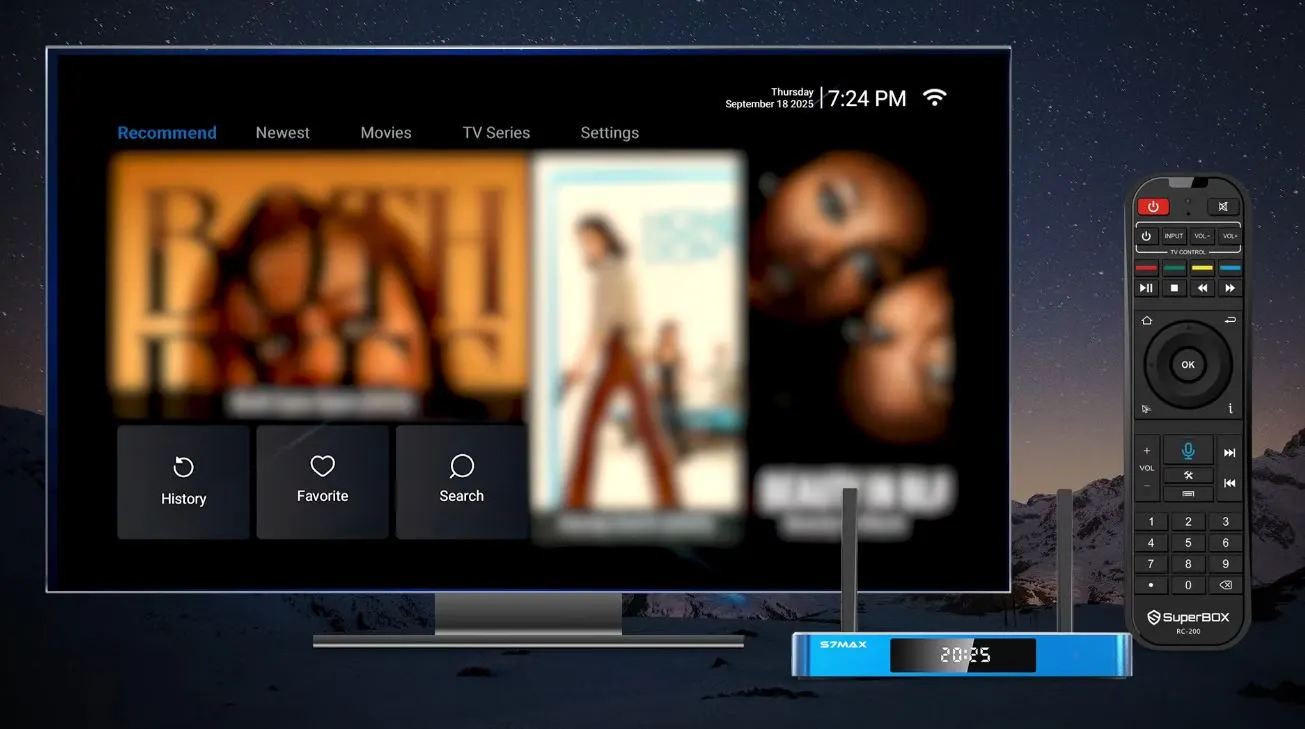
What Blue VOD Lets You Do
The demonstration covers the features customers are most likely to use:
- search by voice or on-screen keyboard;
- search by title, actor, or director;
- filter results by movie, TV series, name, director, or cast;
- browse by genre, country, and release year;
- reopen titles through Watch History and Favorites;
- navigate episodes in a series;
- pause, resume, rewind, and fast-forward;
- display internet speed during playback;
- change aspect ratio and playback speed;
- adjust decode settings;
- select English or Spanish subtitles when supplied;
- correct subtitle timing; and
- access support, updates, and internet diagnostics.
The value comes from the complete workflow: search narrows the catalog, filters improve the results, Favorites saves the selection, and playback settings adapt the experience to the viewer.
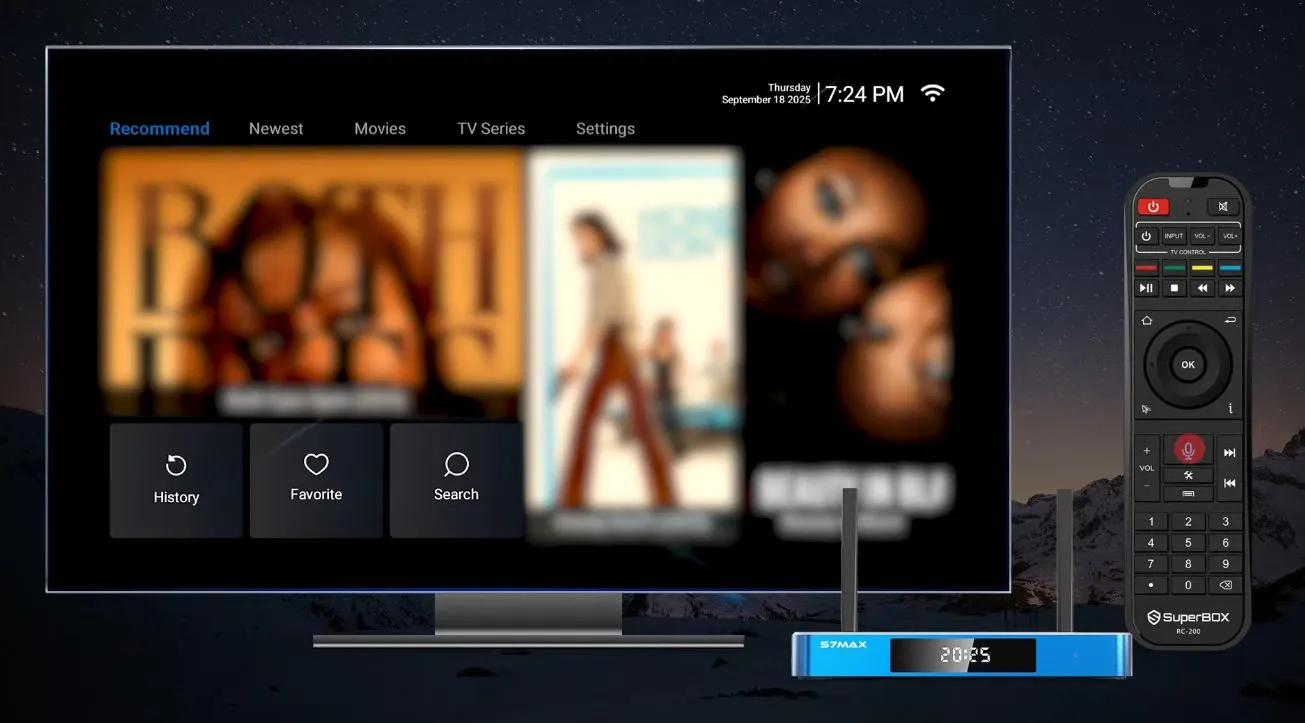
1. Search Blue VOD with Your Voice
Voice search is the fastest method when you already know what you want.
- Open Blue VOD.
- Press and hold the microphone command button on the remote.
- Clearly say a title, actor’s name, or director’s name.
- Release the button and review the results.
The video demonstrates all three query types. This means you do not need to remember an exact title; a performer or director can be used as the starting point.
For better recognition, speak naturally, keep the remote reasonably close, and use a full name where possible. If the result is too broad, repeat the search with a more specific phrase.
If voice search does not respond
Check that the remote is paired and that voice commands work elsewhere on the box. Reduce background noise and try a shorter phrase. If recognition remains unreliable, typed search offers more precision.
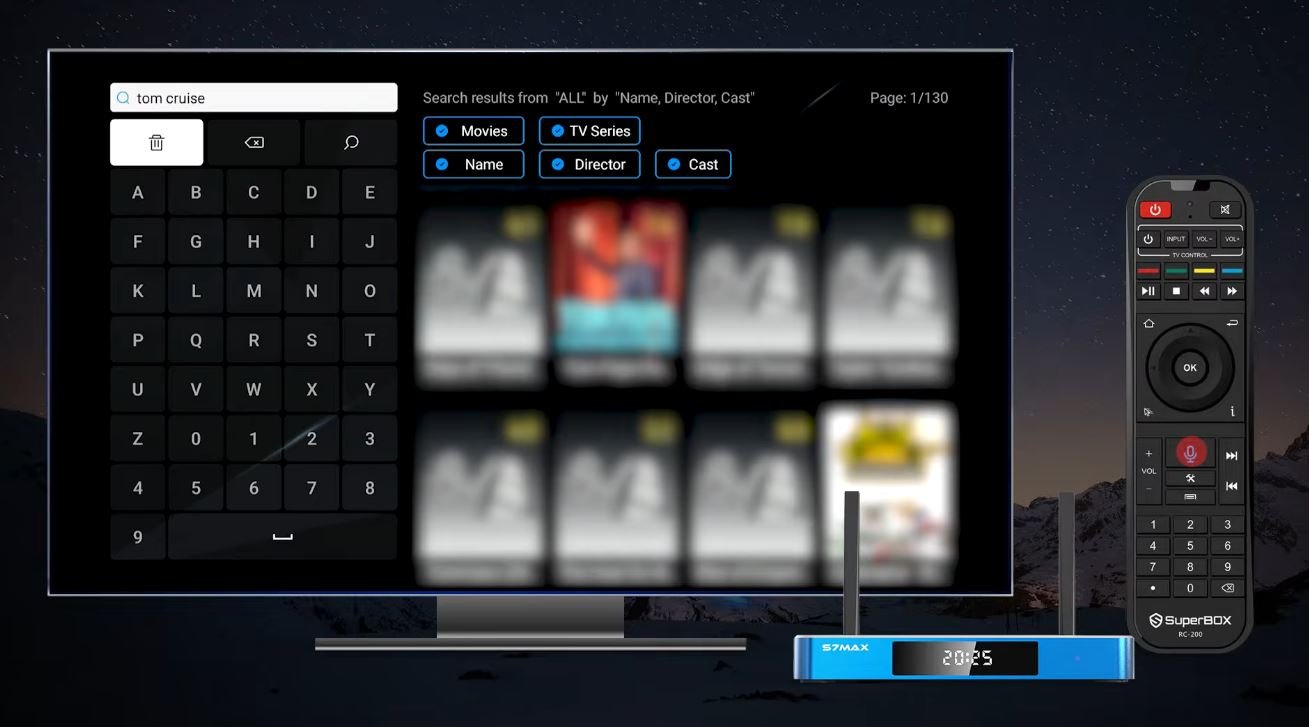
2. Search with the On-Screen Keyboard
Select the Search icon and enter the title or name with the on-screen keyboard. Typed search is useful for unusual spellings or when several voice results look similar.
Blue VOD can filter the query by:
- Movies;
- TV Series;
- Name;
- Director; or
- Cast.
Choose the filter that matches your intention. A word can appear in a title and a person’s name, so this extra step can remove unrelated results.
3. Return to Watch History and Favorites
Blue VOD places Watch History and Favorites on the front page, giving returning viewers two useful shortcuts.
- Watch History helps locate something viewed recently and may allow playback to continue from an earlier point.
- Favorites is a deliberate shortlist of titles saved for later.
History reflects previous activity; Favorites reflects personal choices. Using both reduces repetitive searching.
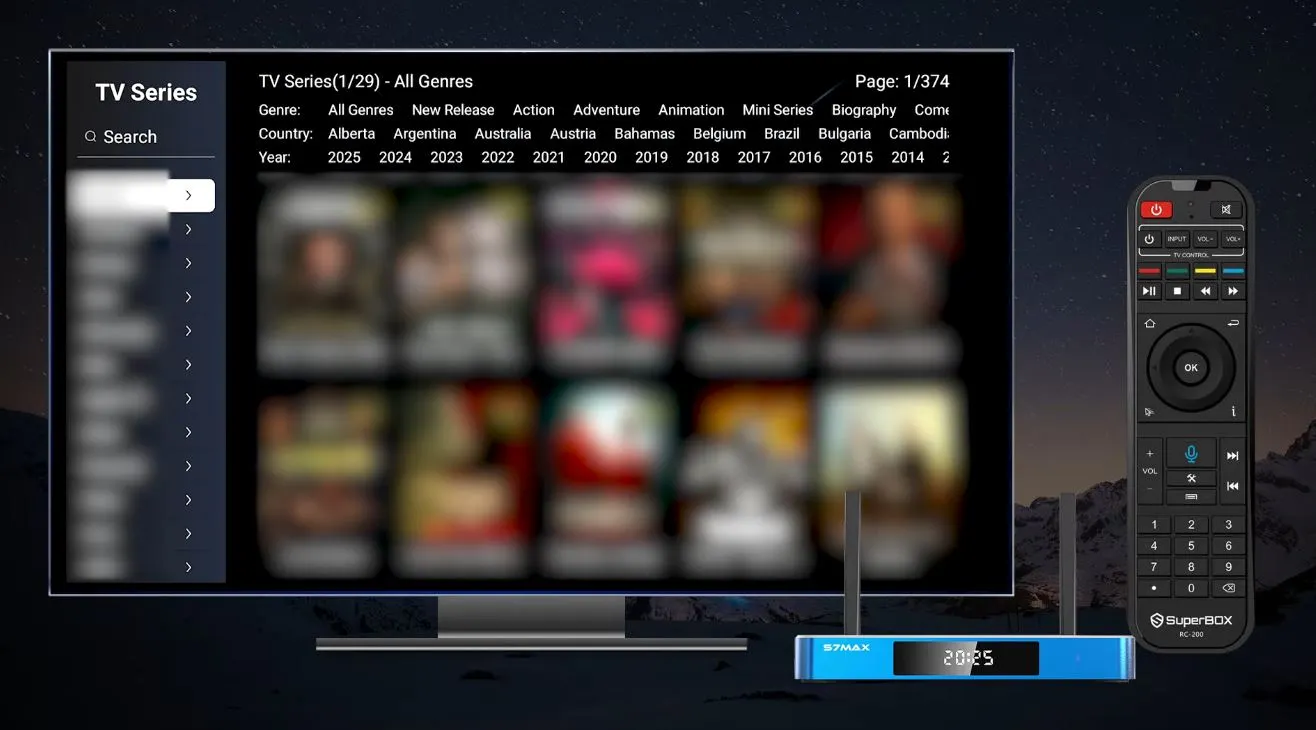
4. Browse by Genre, Country, and Release Year
The Movies and TV Series pages introduce more detailed discovery filters. Customers can narrow the page by:
- Genre, for the type of movie or series;
- Country, for regional production or origin; and
- Release Year, for a particular period.
A practical browsing sequence is:
- choose Movies or TV Series;
- select a genre;
- add a country filter if relevant;
- choose a release year; and
- open a promising result.
If the page becomes empty, remove one filter at a time. A title may be categorized differently from what you expect.
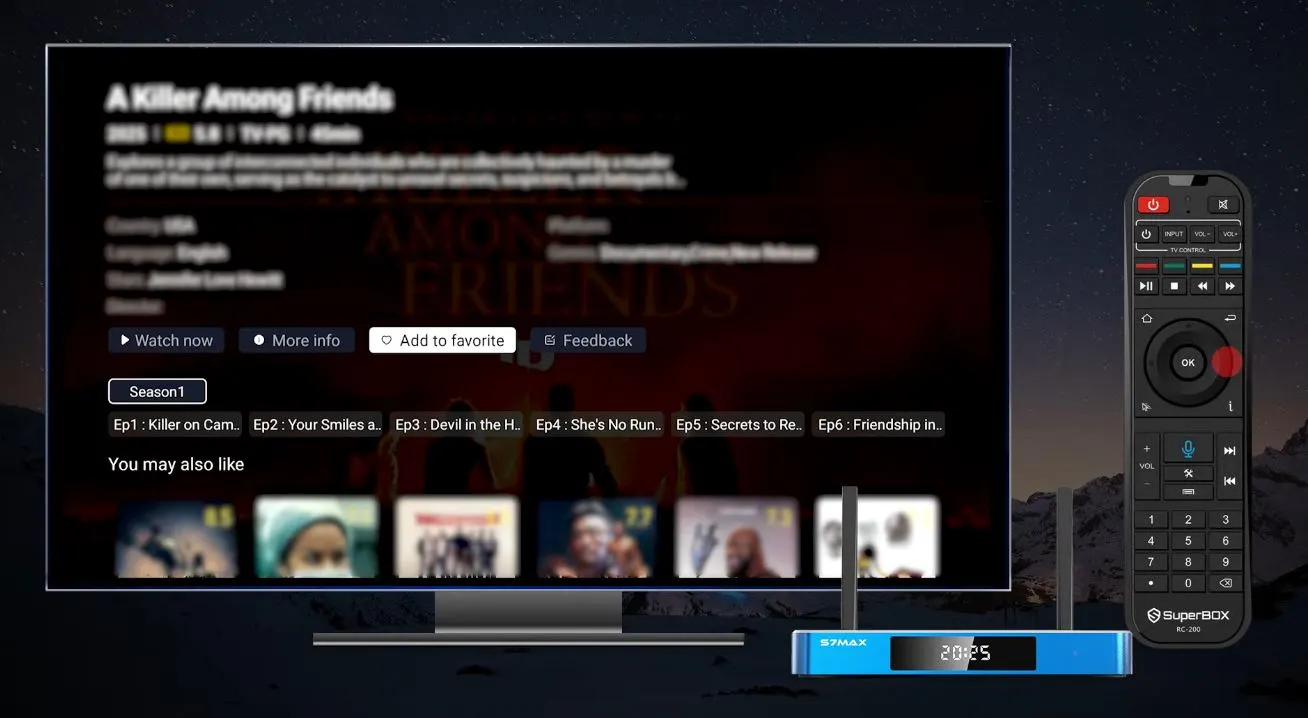
5. Save a Title or Start Watching
Select a result to open its detail page. From there, the demonstration shows two essential actions:
- add the title to Favorites for easy access later; or
- select Play to begin watching.
Saving the title before playback is useful when you may not finish it in one session. It remains accessible from Favorites even if Watch History does not resume exactly as expected.
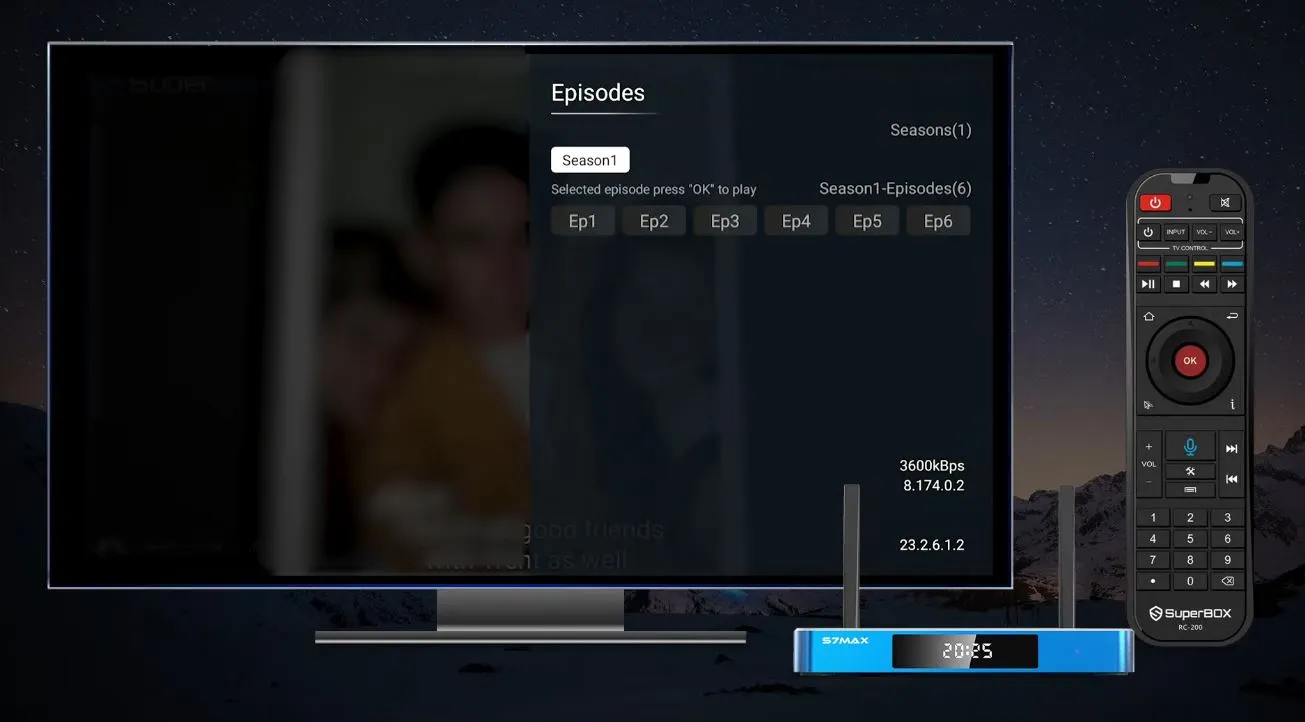
6. Pause, Resume, and Change Episodes
During playback, press OK to pause or resume the video.
For a TV series, use the directional buttons to switch between episodes or open the episode list and choose one directly. Opening the list is the most reliable method when you want a specific episode.
To rewind or fast-forward:
- display the playback controls;
- move the cursor to the progress bar;
- hold Left to rewind or Right to fast-forward; and
- release near the desired point.
Use shorter presses for more precise movement.
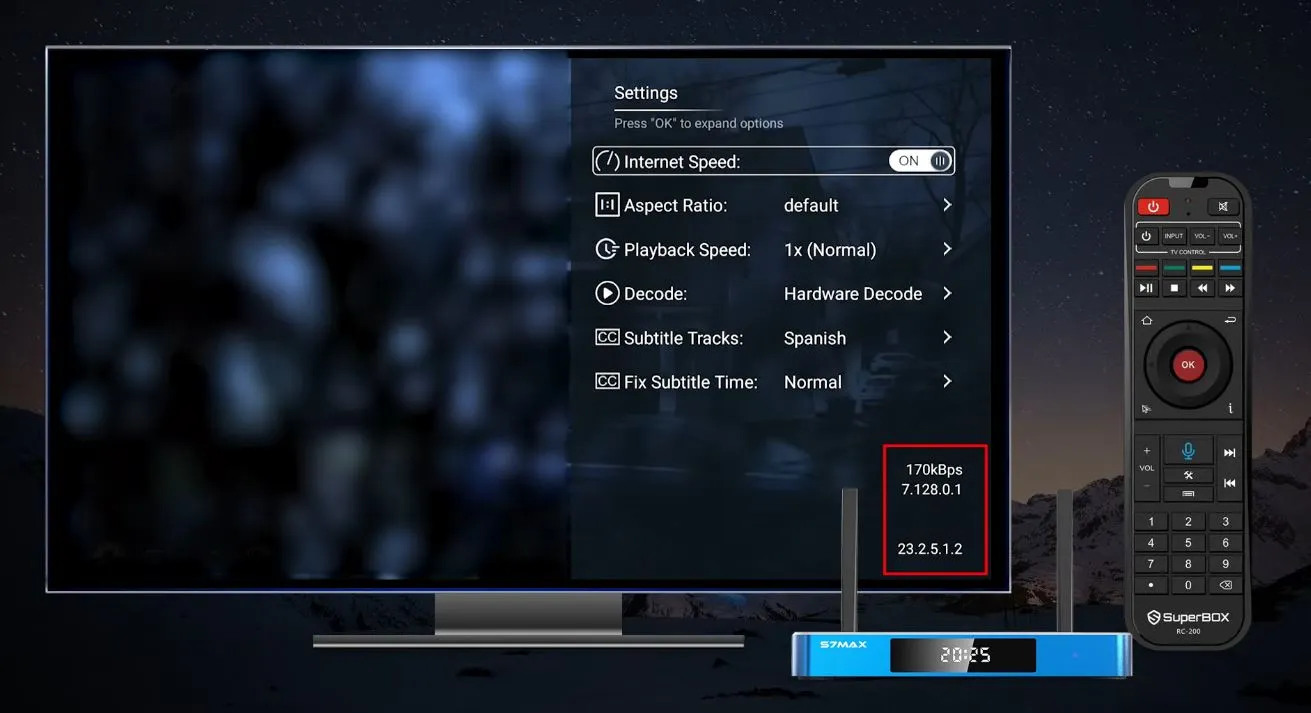
7. Customize the Watching Experience
Select the Settings icon or press Menu on the remote to open the playback options.
Display internet speed
Enable the internet-speed indicator to monitor connection activity during playback. It is useful for identifying sudden drops, but it is not a complete speed test or a measurement of the internet plan’s maximum rate.
If buffering appears when the value drops, test the connection with another app or device. That helps separate a network problem from an issue affecting only one title.
Adjust the aspect ratio
If the image looks stretched, compressed, or incorrectly cropped, choose an aspect ratio that preserves natural proportions and fits the television correctly.
Normal cinematic black bars do not necessarily indicate a problem. Zooming merely to remove them can crop part of the picture.
Change playback speed
Playback can be made faster or slower. This is useful for reviewing a scene or following spoken information. Return to normal speed if voices or motion feel unnatural.
Review decode settings
Decode settings control how the video is processed. If playback is already stable, keep the default. When troubleshooting, record the original selection and change only one setting at a time.
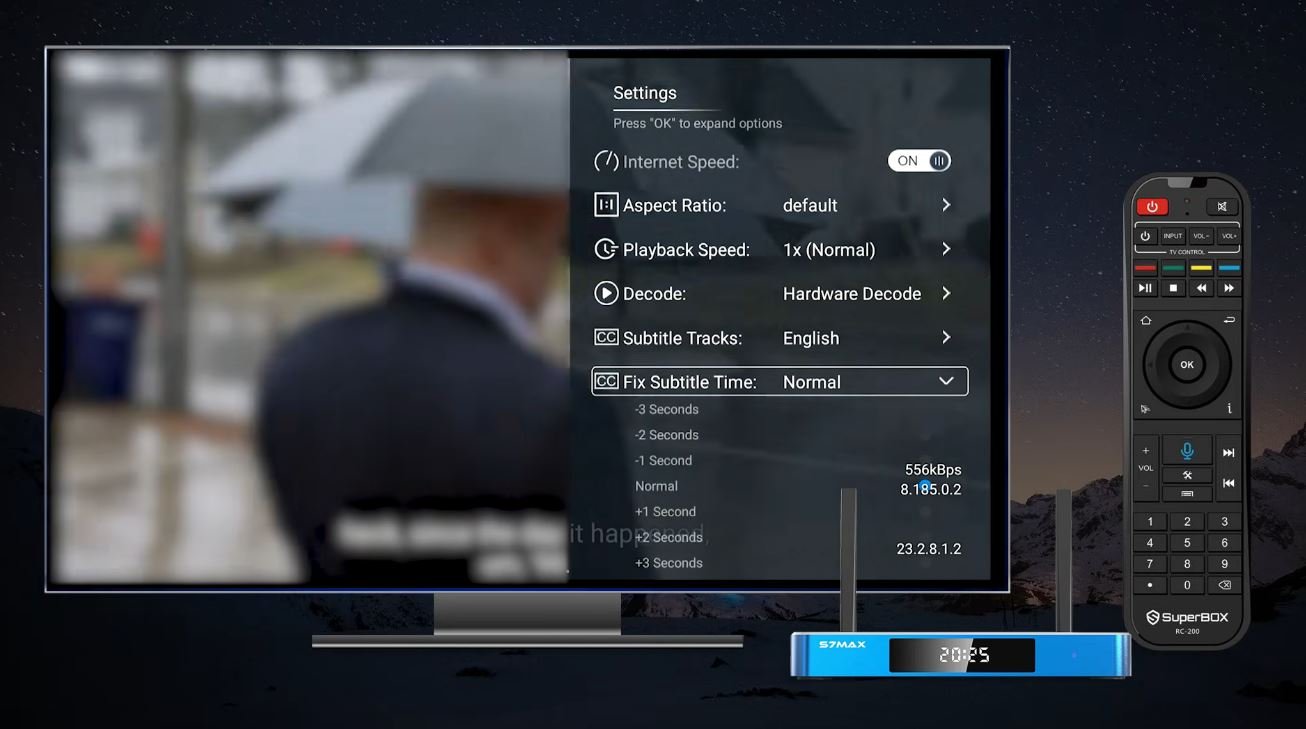
8. Select Subtitles and Correct Their Timing
The demonstration shows subtitle tracks for English and Spanish, plus an option to turn subtitles off. Availability depends on the individual title and the data supplied to the app.
Blue VOD also allows manual timing adjustment. Use it when subtitles consistently appear before or after the spoken dialogue:
- delay subtitles that appear too early;
- advance subtitles that appear too late; and
- make small changes, then test several lines.
Timing adjustment can correct synchronization. It cannot add a missing language track or repair incorrect caption text.
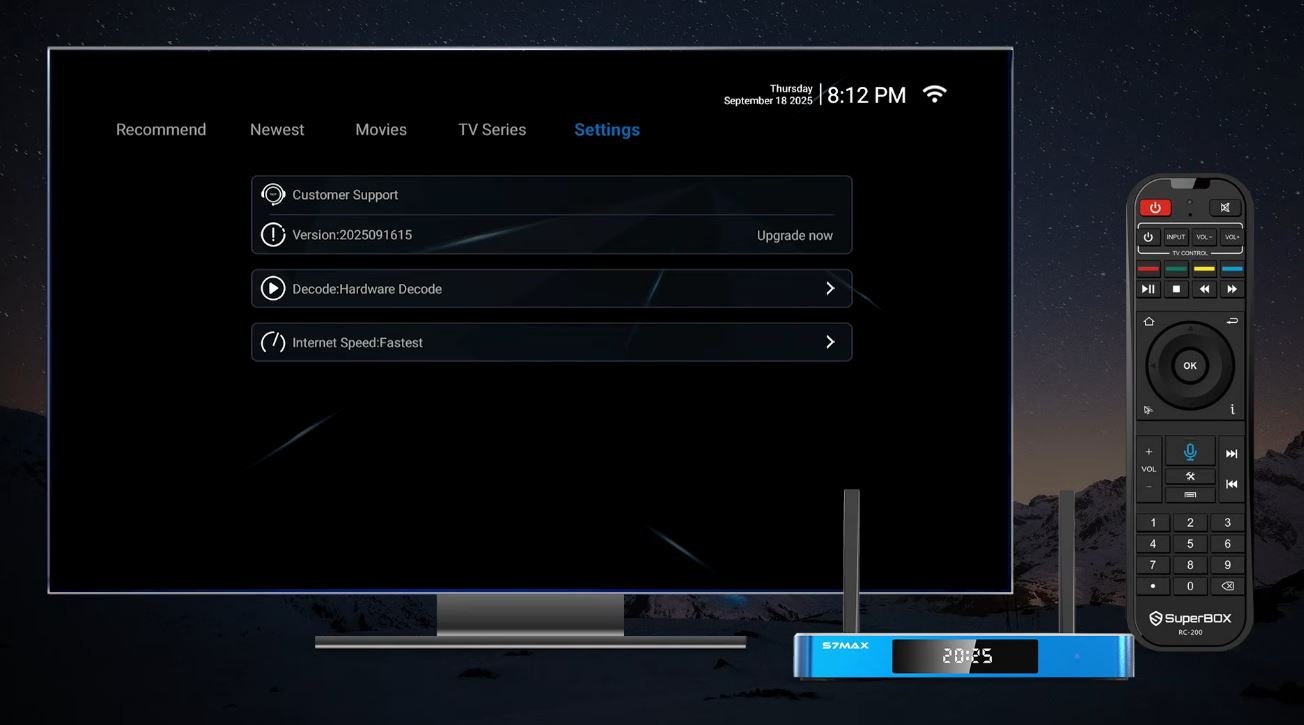
9. Open the Main Blue VOD Settings
The main Settings section groups maintenance, diagnostics, and support tools in one place.
Customer Support
Use this option to report a problem. Include your model, software version, the title or menu involved, the approximate time of the issue, and a photo of any error message.
Update
Install approved updates offered through the device. Keep the SuperBox connected to power and a stable network until the process finishes. Never install firmware intended for another model.
Decode Settings
This provides another route to advanced video-processing controls. Retain the default unless you are solving a specific playback problem.
Check Internet
Run the internet check if playback is slow or repeatedly buffering. If a problem is detected, restart the router and SuperBox, reconnect to Wi-Fi or Ethernet, and test again before changing multiple playback settings.
Blue VOD Quick Reference
| What you want to do | Remote or menu action |
|---|---|
| Search by voice | Hold the microphone button and say a title, actor, or director |
| Search manually | Select Search and enter the query with the on-screen keyboard |
| Open a result | Highlight it and press OK |
| Save a title | Select the Favorite control on its detail page |
| Pause or resume | Press OK during playback |
| Choose an episode | Use the directional controls or open the episode list |
| Open playback settings | Select Settings or press Menu |
| Rewind or fast-forward | Select the progress bar and hold Left or Right |
Blue TV vs Blue VOD
| Blue TV | Blue VOD |
| Built around live-channel navigation and an EPG | Built around searchable on-demand titles |
| Uses channel numbers, Favorites, and recent-channel shortcuts | Uses title, cast, director, genre, country, and year filters |
| Programs follow a channel schedule | Playback begins when the selected title is opened |
| Focuses on channel switching and preview | Focuses on discovery, episodes, subtitles, and playback controls |
A shortcut used in Blue TV may not perform the same action in Blue VOD, so follow the guide for the interface currently open.
Troubleshooting Blue VOD
| Problem | Recommended action |
| Voice search does not respond | Check remote pairing, reduce background noise, restart the box, or use typed search. |
| Search returns no result | Shorten the query, check spelling, change the result type, and remove active filters. |
| Filtered page is empty | Remove genre, country, or year filters one at a time. |
| Playback buffers | Run Check Internet, restart the router and box, test Ethernet, and avoid changing several decode options at once. |
| Picture looks stretched or cropped | Choose an aspect ratio that preserves natural proportions. |
| Subtitles are unavailable | Open the track list; language availability varies by title and version. |
| Subtitles are out of sync | Adjust subtitle timing gradually and test several lines. |
| An episode will not open | Return to the episode list, select it directly, check the connection, and retry. |
| History or Favorites disappears | Reopen the app, confirm the title was saved, and contact support if the lists repeatedly reset. |
Frequently Asked Questions
Can I search by actor or director?
Yes. The demonstration shows searches by title, actor, and director and provides filters for Name, Director, and Cast.
How do I continue something I watched earlier?
Open Watch History from the home page. The exact resume point can depend on the app version and how the previous session ended.
How do I save a title for later?
Open its detail page and select the Favorite control. It should then appear in Favorites on the front page.
Can I filter by release year?
Yes. The S7 demonstration includes genre, country, and release-year filters.
How do I change episodes?
During series playback, use the navigation controls or open the episode list and select an episode directly.
Should I change decode settings for every video?
No. Keep the default if playback is stable. Decode settings are best used for a specific compatibility or performance issue.
Does the speed display replace an internet speed test?
No. It is a convenient live indicator. A dedicated speed test and comparison with another device provide a more complete diagnosis.
Final Thoughts
Blue VOD works best when customers use its discovery tools together: voice search for speed, keyboard search for precision, filters for focus, and Favorites for easy access later. Once playback begins, the essential controls remain simple-OK to pause or resume and Menu for viewing options.
Advanced settings should be used only when needed. Start with the defaults, confirm the internet connection, and change one option at a time if a specific problem appears.
If Blue VOD does not match the demonstration or a feature is not working, contact SuperBox TV Box Store Technical Support on WhatsApp. Send your model, software version, a photo of the screen, and the exact step where the issue occurs.
For visual demonstration
Source video reference
SuperBOX S7 Pro/Max Blue VOD Demonstration
The article was updated on:
