
Knowledge SuperBox
SuperBox S8 Series Features Explained: What Is New and What You Still Get





What is new on the SuperBox S8 Series
The SuperBox S8 Series introduces built-in manual recording, Picture-in-Picture, Multi-Screen viewing, a redesigned interface and an upgraded streaming system. It also keeps familiar viewing tools such as Blue TV, Blue VOD, Playback, Time Shift, Parental Control and voice control.
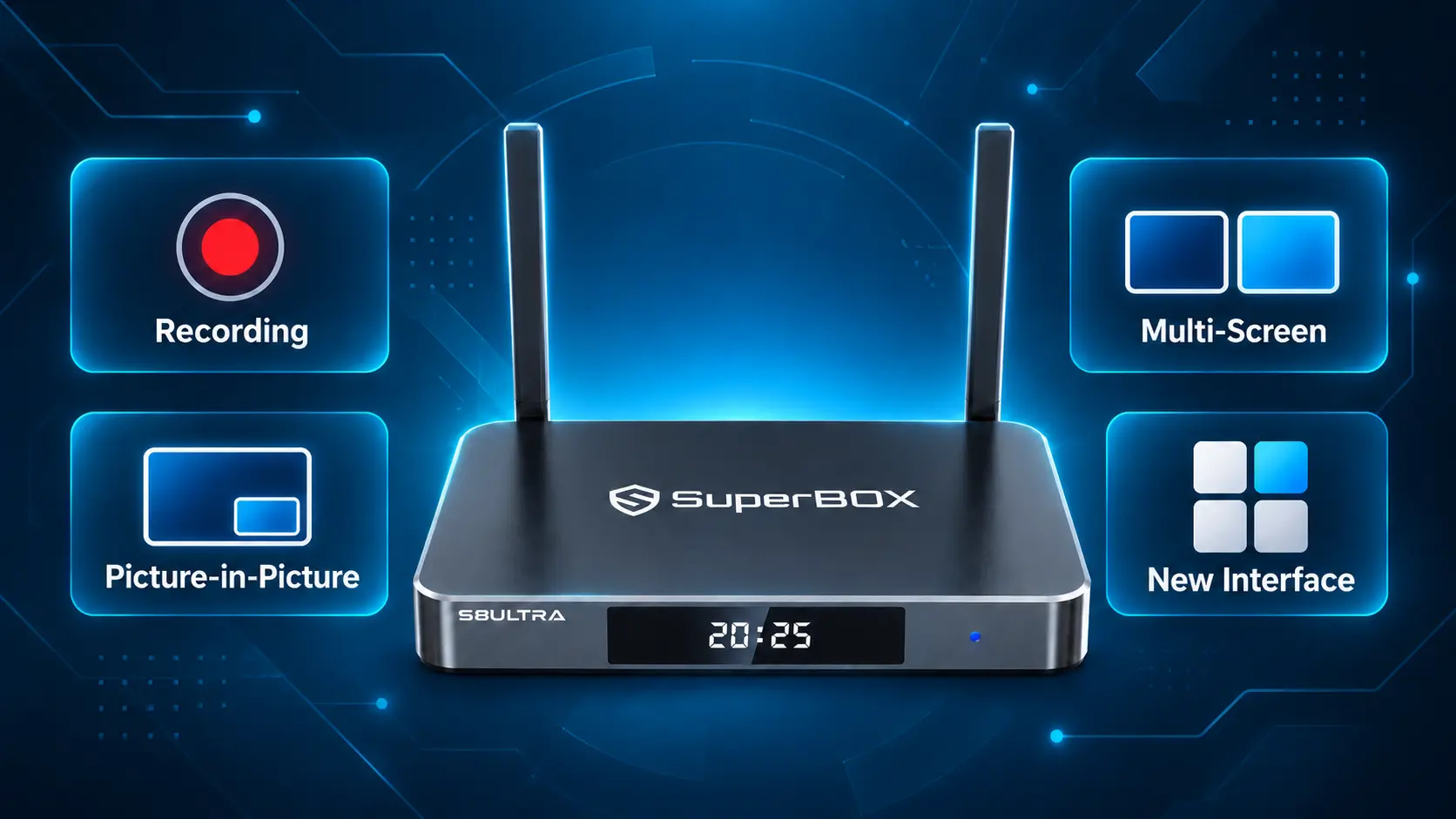
The result is a more flexible way to use the television you already own. You can follow two supported channels on one screen, create a recording when supported, or organize the Home screen around the apps your household uses most.
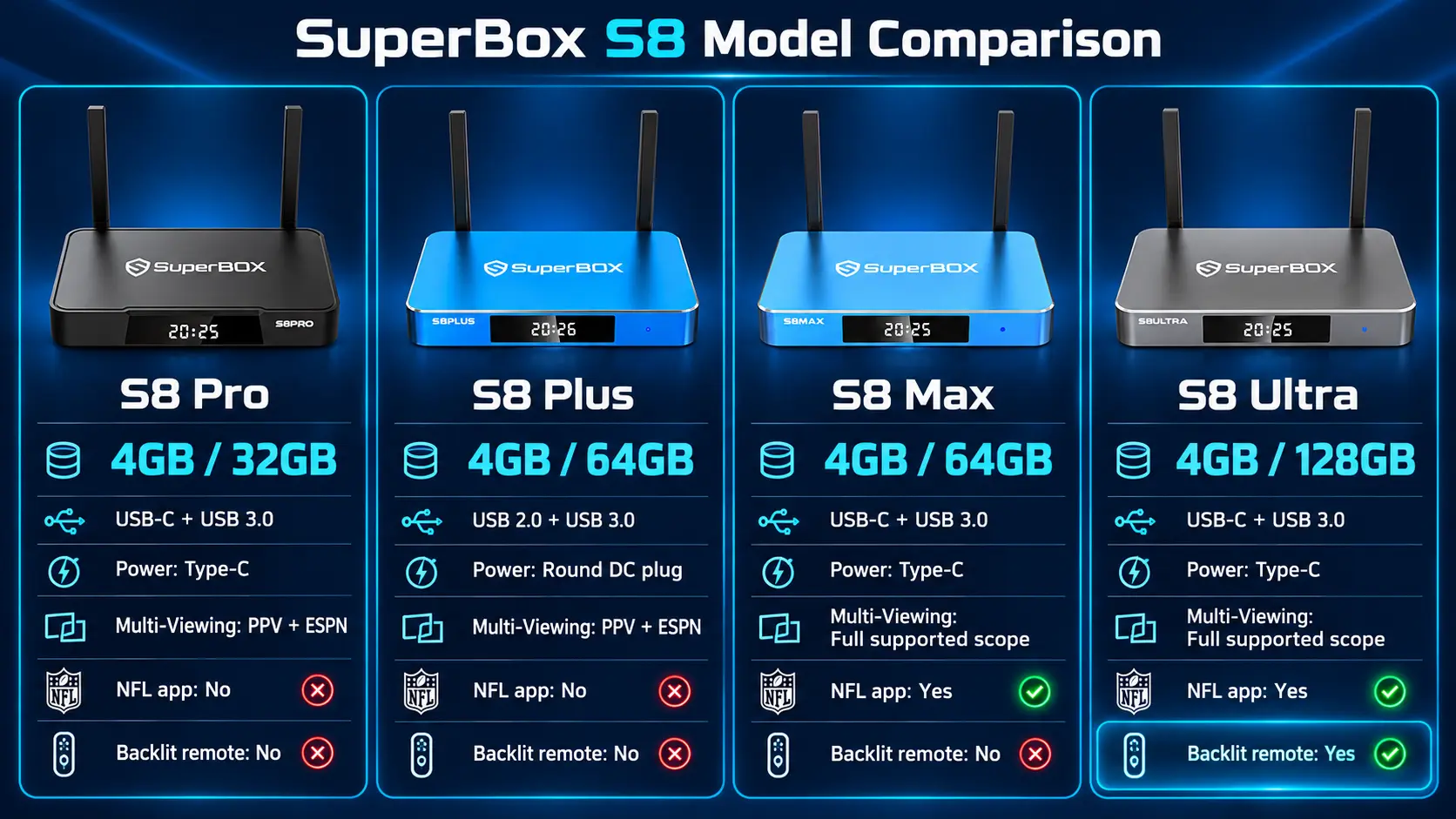
Four models make up the lineup: S8 Pro, S8 Plus, S8 Max and S8 Ultra. They share the main S8 experience, while storage, Multi-Viewing access, the NFL app and the included remote vary by model.
You do not need to learn every feature at once. Start with ordinary viewing, then add the tools that solve a problem for you. If you often change channels to check another game, explore the two viewing layouts. If you want to save supported content yourself, learn Recorder. If reaching an app takes too many button presses, arrange your shortcuts.
SuperBox S8 features at a glance
| Feature | What it does for you | Where it fits |
|---|---|---|
| Built-in Recording | Creates supported recordings you can reopen later | New S8 generation feature; manual operation |
| Picture-in-Picture | Keeps one channel large with another in a smaller window | New S8 viewing layout |
| Multi-Screen / Multi-Viewing | Shows two supported channels beside each other | New S8 viewing layout; channel access varies |
| Redesigned interface | Organizes apps and controls around a refreshed Home screen | New S8 interface |
| Upgraded streaming system | Designed to improve the responsiveness and stability of viewing | S8 platform update |
| NFL app | Adds the NFL app listed for the higher S8 tiers | Max and Ultra |
| Blue TV and Blue VOD | Provide live-channel and on-demand browsing | Familiar core functions |
| Playback and Time Shift | Help revisit supported past or recent programming | Familiar functions retained on S8 |
| Voice command and parental controls | Add convenience and household viewing controls | Familiar tools |
| Backlit remote | Makes the buttons easier to see in a dark room | Included with S8 Ultra |
The most useful upgrade is the one you will actually use. For a family that mainly watches one program at a time, the clearer navigation may matter most. For overlapping live events, the two-channel layouts can be the bigger change.
1. Built-in recording gives you a new way to save supported content
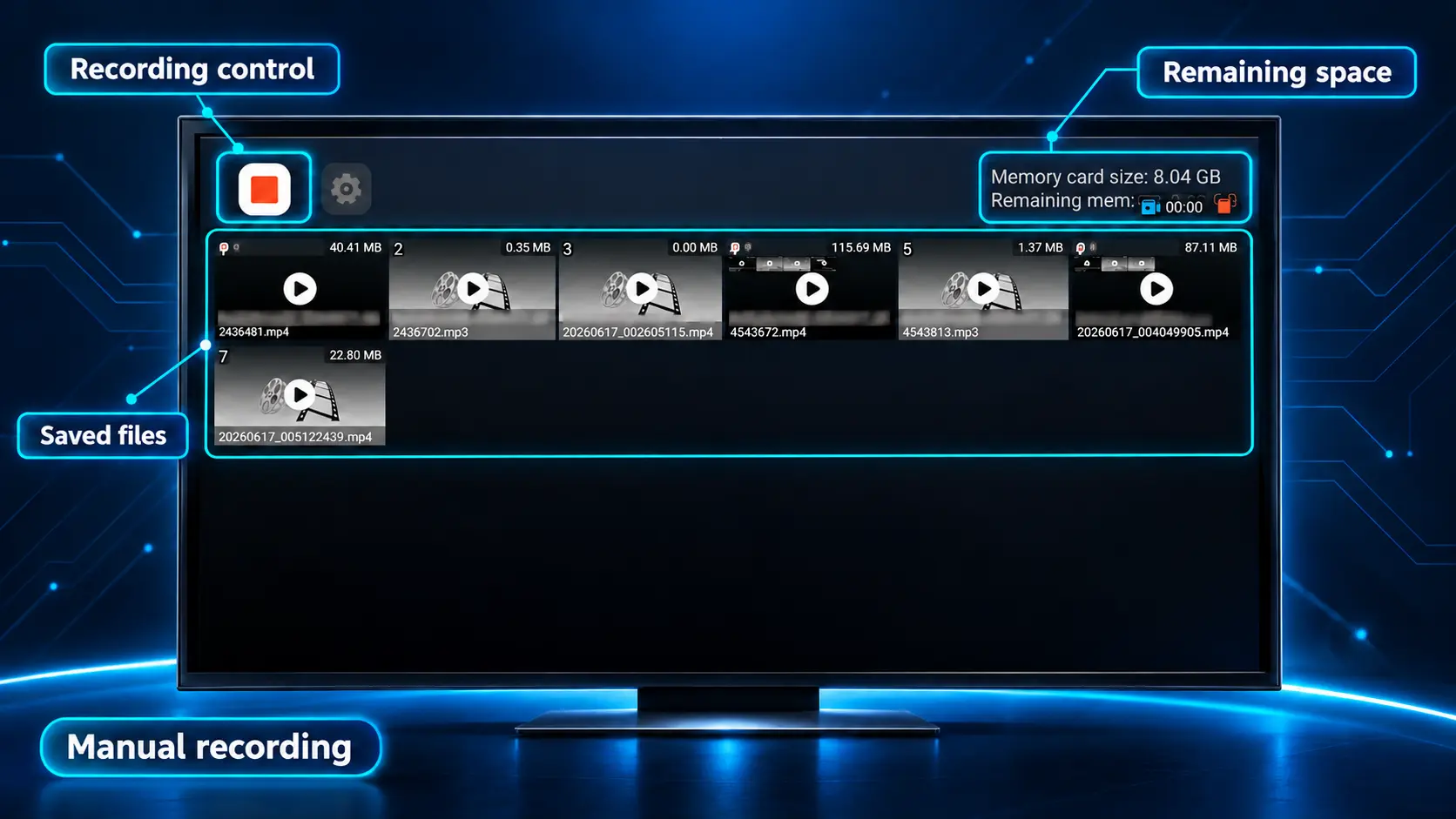
Recording is one of the clearest differences between the S8 generation and the S7 lineup. All four S8 models list built-in Recording, with a Recorder interface for saved files and storage information.
The practical benefit is straightforward: when the source and app support recording, you can create a file and return to it later. This is separate from finding an already-aired program in Playback.
The Recorder library lets you see saved items and open a recording on the television. Before trying a long session, check that compatible storage is recognized and make a short test. Confirm the recording has saved and plays correctly before relying on that setup.
Recording is manual. The S8 does not schedule a future program to record automatically. If your main requirement is “record this show tomorrow while I am away,” understand that limitation before buying. Available recording time also depends on usable storage and the content being captured, so a fixed hours-per-model promise would be misleading.
For the controls, storage checks and saved-file workflow, follow our SuperBox S8 Recorder guide. Record only where the service and applicable rules permit it.
2. Picture-in-Picture keeps a second channel within view
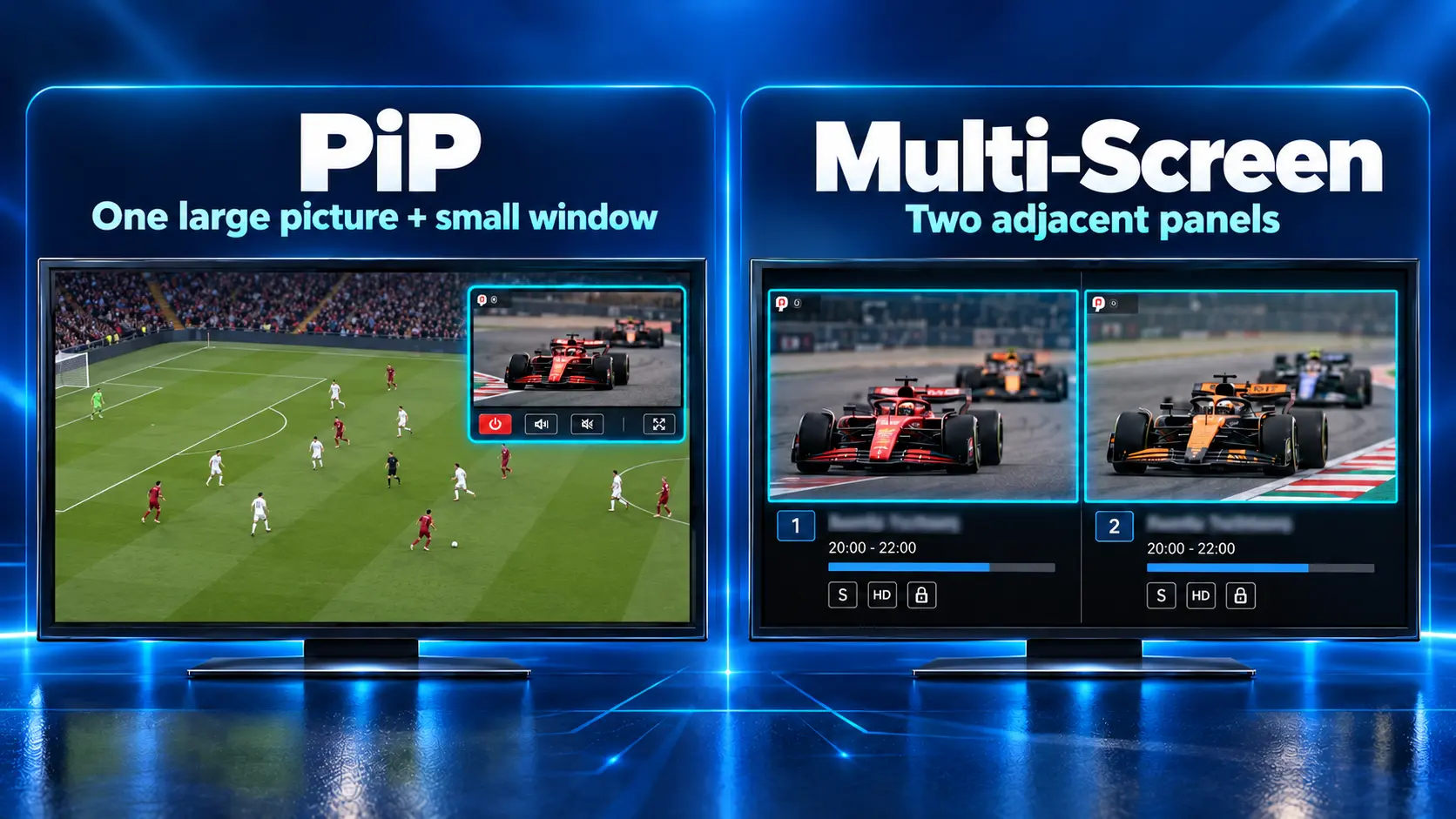
Picture-in-Picture, usually shortened to PiP, places a smaller channel window over the main picture. One program remains your primary focus while you keep an eye on another supported channel.
For example, you might follow one live event and glance at a second event during breaks. You can see when the other program becomes interesting without repeatedly leaving the main one.
On the S8 Blue TV interface, PiP is available through Settings. Choose the mode, select the second supported channel and follow the controls shown on screen. The Play/Pause button can swap which channel takes the main view.
PiP is for supported live-channel viewing inside the relevant app. It should not be understood as a promise to combine any two unrelated apps on the television. For setup and controls, use our S8 Picture-in-Picture and Multi-Screen guide.
3. Multi-Screen gives two channels similar space
Multi-Screen, also called Multi-Viewing, puts two supported channels beside each other. Choose it when both programs deserve similar attention rather than making one a small preview.
This is particularly useful when two live events overlap. Instead of choosing which one to leave, you can follow both pictures and decide where to focus as the action changes.
| Your viewing situation | Layout to try |
|---|---|
| One main program, with occasional checks on another | Picture-in-Picture |
| Two events you want to follow equally | Multi-Screen |
| One program where detail matters most | Normal full-screen viewing |
Because each panel is smaller than the full television picture, ordinary full-screen viewing remains useful when you want to read fine details or concentrate on one scene. The S8 gives you the choice of layout rather than requiring you to use two channels all the time.
Supported channels depend on the model: Pro and Plus list PPV and ESPN Multi-Viewing; Max and Ultra list full supported channel access. “Full supported” describes the feature’s available channel scope, not every possible stream or third-party app.
4. The redesigned interface makes everyday navigation clearer
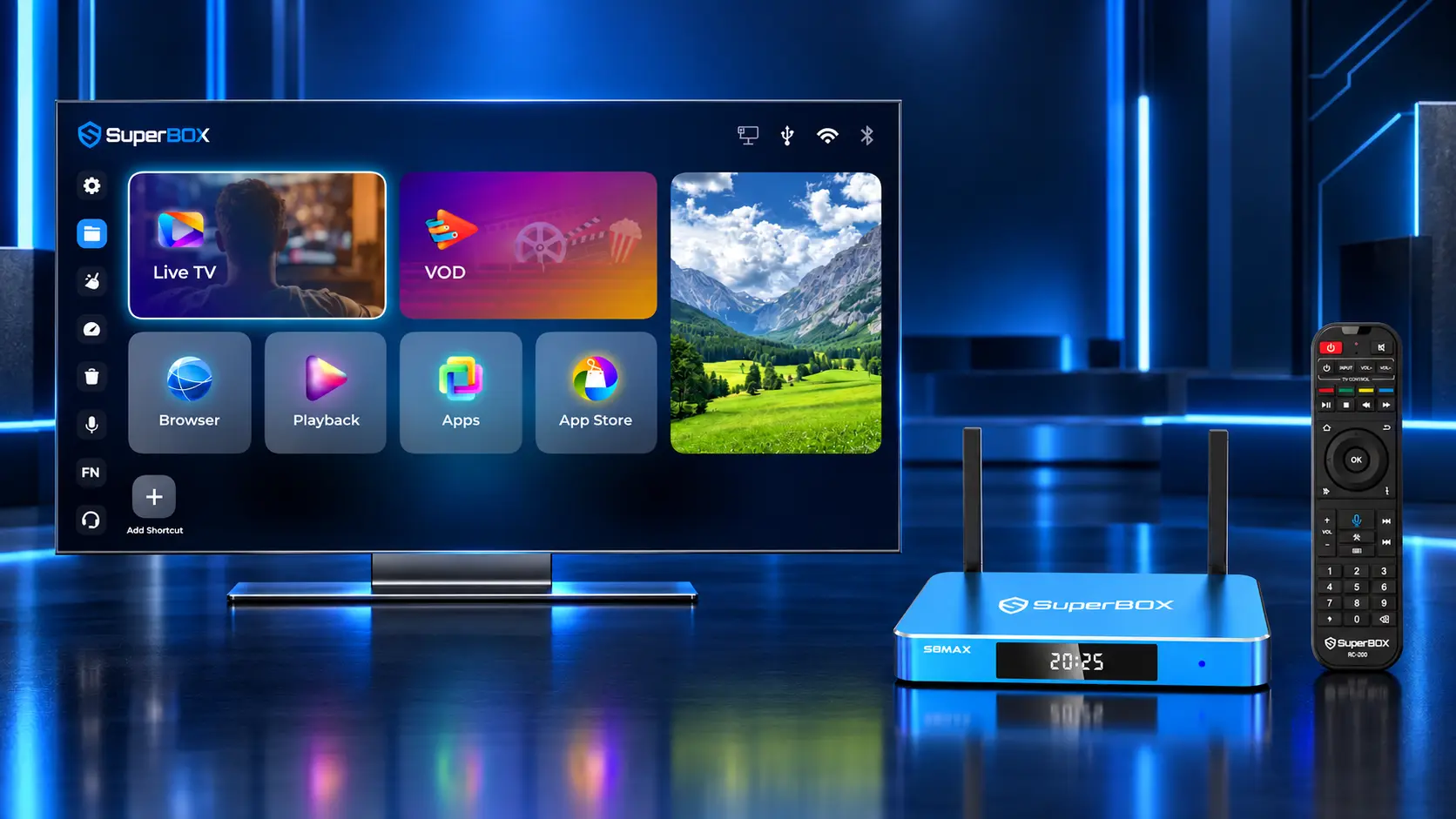
The S8 refresh includes a reorganized Home screen and updated app layouts. Its purpose is to make your main viewing options easier to recognize and reach.
That matters beyond appearance. A household can keep its everyday choices visible instead of depending on one person to remember where everything is. After setup, practice moving between Home, your viewing app and the Back button before exploring more advanced options.
A useful approach is to organize the screen around two or three regular activities. One person may mostly use live television, another prefers movies, and someone else returns to recent programs. Put those choices within easy reach and leave less-used options for later.
Home shortcuts and number keys add convenience
S8 provides two separate ways to reach installed apps more quickly. + / ADD places an app icon in the Home shortcut row. FN → Quick Access assigns an app to a remote number key.
For example, you could assign one number to Playback and another to Blue VOD. Return to Home before testing the number shortcut, because a number pressed inside a viewing app can serve a different purpose. The position of a Home icon does not automatically assign its remote number.
Our S8 shortcuts and number keys guide explains both methods. These are conveniences within the S8 interface; you do not need to fill every shortcut slot to benefit.
5. The upgraded streaming system supports the new experience
SuperBox describes the S8 platform as having an upgraded streaming system designed for faster, smoother and more stable operation. This accompanies the new navigation and viewing functions rather than simply changing the outside of the box.
For buyers, the intended benefit is a more comfortable everyday experience when opening content and moving around the interface. It is reasonable to consider this alongside the features you want, but there is no verified universal speed percentage to quote here.
Your connection and the source still matter. A platform update cannot make a weak Wi-Fi connection strong or guarantee that every online stream will load without interruption. Set the box up with a reliable network before judging its performance.
If the router is nearby, consider Ethernet. If you use Wi-Fi, choose a practical location and test actual playback. Our S8 Wi-Fi and Ethernet setup guide walks through the connection options.
Features you still get on the S8 Series
The new generation builds on familiar SuperBox functions. The following tools continue to handle many everyday viewing needs.
Blue TV for live-channel browsing
Blue TV is the live-viewing app, with channel browsing, search and a program guide. Favorites, Recent and custom groups can help you find regular choices without scrolling through the entire list.
Start by saving a few frequently watched channels and learning the search control. The Blue TV S8 guide explains those familiar functions alongside the newer viewing layouts.
Blue VOD for movies and series
Blue VOD handles on-demand browsing. You can look through categories, search for a title and select an available season or episode. Favorites and History help you return to items later, while the player exposes available subtitles and viewing settings.
For readers who prefer selecting something to watch rather than following a live schedule, this remains a central part of the experience. See how to use Blue VOD on S8 for the controls.
Playback and Time Shift for supported past programming
Playback lets you browse eligible programs by channel, date and time, with access to up to seven days where supported. You do not need to have personally recorded a program first.
Time Shift concerns moving within an available live or recent viewing window. Recorder creates your own supported recording. These functions can help in different situations, but they are not interchangeable.
| What you want to do | Feature to look for |
|---|---|
| Find an eligible program that already aired | Playback |
| Revisit a recent point in a supported stream | Time Shift |
| Create a supported recording yourself | Recorder |
Past-program availability varies by channel and service. Follow the S8 Playback guide to understand the schedule and controls.
Voice control and remote convenience
All four models list voice command. It can make supported searches and navigation more convenient for people who find an on-screen keyboard awkward. Complete the required remote pairing and follow the app’s available voice controls.
S8 Ultra adds illuminated buttons on its included remote. Pro, Plus and Max have voice remotes without backlighting. A voice remote and a backlit remote are therefore separate features. Our S8 remote pairing guide helps with initial setup.
Backup TV and parental controls
Backup TV remains listed across the S8 lineup as an additional viewing option where supported. It does not guarantee that every channel has a permanent alternative or that outages cannot occur.
Parental controls help households manage access to content in supported interfaces. Review the controls in each app your family uses; a restriction in one viewing app should not be assumed to apply to every other application.
4K playback and practical connectivity
The S8 retains 4K playback support, Wi-Fi 6 and Gigabit Ethernet. Its H.265 decoding specification reaches up to 6K, which is a decoding capability rather than a promise of universal 6K output or 6K programming.
Actual picture quality depends on the source, TV and setup. For a fuller explanation, read our 4K playback and 6K decoding guide. Choose the connection and picture settings that fit your own television rather than assuming the largest label always improves the image.
Which features vary between the four S8 models
The main new functions are shared, but the following differences help you choose a model without reading four separate specifications pages.
| Feature | S8 Pro | S8 Plus | S8 Max | S8 Ultra |
|---|---|---|---|---|
| RAM / storage | 4GB / 32GB | 4GB / 64GB | 4GB / 64GB | 4GB / 128GB |
| Built-in manual recording | Yes | Yes | Yes | Yes |
| Multi-Viewing scope | PPV + ESPN | PPV + ESPN | Full supported channels | Full supported channels |
| NFL app | No | No | Yes | Yes |
| Voice command | Yes | Yes | Yes | Yes |
| Backlit remote included | No | No | No | Yes |
| USB ports | USB-C + USB 3.0 | USB 2.0 + USB 3.0 | USB-C + USB 3.0 | USB-C + USB 3.0 |
| Power connection | Type-C | Round plug | Type-C | Type-C |
S8 Plus is the model with the different USB and power layout. Pro, Max and Ultra use the listed Type-C arrangement. Use the correct supplied power adapter for your model.
The NFL app is a listed feature of Max and Ultra, but specific games and availability remain subject to the app and applicable service conditions. Storage capacity gives room for files and applications; it does not establish a measured speed ranking.
For recommendations based on those differences, continue to the full S8 Pro vs Plus vs Max vs Ultra buying guide.
A simple way to start using the new features
You can explore the S8 in a sensible order without making the first setup overwhelming:
- Connect the box to your TV and a working internet connection.
- Pair the remote and follow the S8 app installation guide.
- Open one viewing app and confirm ordinary playback works.
- Arrange the two or three Home shortcuts you will use most.
- Try PiP or Multi-Screen with supported channels.
- Test manual recording with compatible storage before a longer session.
This order makes it easier to understand a new control because you already know the basics. It also helps you spot whether a question concerns the connection, an app or a viewing feature.
You do not have to use every function to get value from the S8. Keep ordinary viewing simple and add the advanced tools when they are useful.
Buy your S8 from SuperBox TV Box Store
SuperBox TV Box Store is an authorized retailer of SuperBox products for customers in the US and Canada. You can verify our retailer authorization using code SP20250414002 at the SuperBox authorization website.
Choose S8 Pro for the core experience with 32GB, S8 Plus for 64GB with its listed viewing scope, S8 Max for broader Multi-Viewing and the NFL app, or S8 Ultra for 128GB and the included backlit remote.
If you are unsure which features your household needs, ask our team before buying. Save your confirmation from customer@superboxtvboxstore.com so order questions reach the right seller. You can also review our return terms before checkout.
The hardware does not have a mandatory monthly device fee. Internet access and any paid third-party services remain separate. Apps need installation, accounts or subscriptions, and programming availability can change. SuperBox TV Box Store sells hardware and does not operate the third-party media libraries.
Frequently asked questions
What are the main new SuperBox S8 features?
The headline additions are manual recording, Picture-in-Picture, Multi-Screen viewing, the redesigned interface and the upgraded streaming system. Model-specific options include the NFL app and Ultra’s backlit remote.
Do all S8 models include recording?
Yes. Recording is listed across Pro, Plus, Max and Ultra. It is manual, with support depending on the content, app and storage setup.
Can SuperBox S8 schedule a recording?
No. It does not offer scheduled recording. Playback is a separate option for eligible programs that have already aired.
What is the difference between PiP and Multi-Screen?
PiP uses one main picture with a smaller second window. Multi-Screen places two supported channels beside each other.
Which models have the NFL app?
The S8 comparison lists the NFL app on Max and Ultra. It is not listed on Pro or Plus.
Which S8 comes with a backlit remote?
Ultra is the model that includes backlighting. All four models list voice command.
Is Playback the same as recording?
No. Playback browses eligible past programming without a prior personal recording. Recorder creates a supported recording that you initiate.
Do I need to replace my TV to use S8?
You can connect S8 to a compatible television through HDMI. Check your TV’s available input and display capabilities; the box does not change the physical resolution of the screen.
More flexibility without learning everything at once
The S8 generation gives you more ways to arrange live viewing, save supported content and reach your favorite apps. Familiar functions remain available, so you can start with the viewing routine you already understand and explore the new tools gradually.
Choose your model around the features you want to use, then follow the linked guides when you are ready. For purchase or setup questions before ordering from us, contact SuperBox TV Box Store for help choosing the appropriate S8.
The article was updated on:
