
Knowledge SuperBox
How to Use Blue VOD on SuperBox S8: Search, Watch, Save and Adjust Playback





Blue VOD gives SuperBox S8 owners a place to browse on-demand movies and TV series. The basics are simple: open the app, choose a title, and select Watch now. Yet the most useful features are a level deeper. Search can look for a title, director, or cast member; a series page lets you choose a season and episode; Favorites keeps a title close at hand; and the player gives you controls for subtitles, aspect ratio, playback speed, and decoding.
This guide is organized around what you want to do on the screen. It applies to the Blue VOD interface demonstrated on the SuperBox S8 Series, including S8 Pro, S8 Plus, S8 Max, and S8 Ultra where the app is available. App menus, title availability, subtitle tracks, and individual settings can change with the installed version and service status. Use the labels displayed on your TV if they differ slightly from the ones below.
Quick answer: Open VOD from the S8 Home screen. Browse Recommend, Newest, Movies, or TV Series, or open Search and enter a title. Select a result to see its detail page. Choose Watch now for a movie, or choose the desired season and episode for a series. During playback, reveal the on-screen controls and open the gear icon to see available subtitles and playback settings.
If Blue VOD is not installed or missing from your Home shortcuts, start with our S8 app installation and shortcut guide. Installation and adding a Home shortcut are separate steps on the redesigned S8 interface.
What Is Blue VOD on the S8?
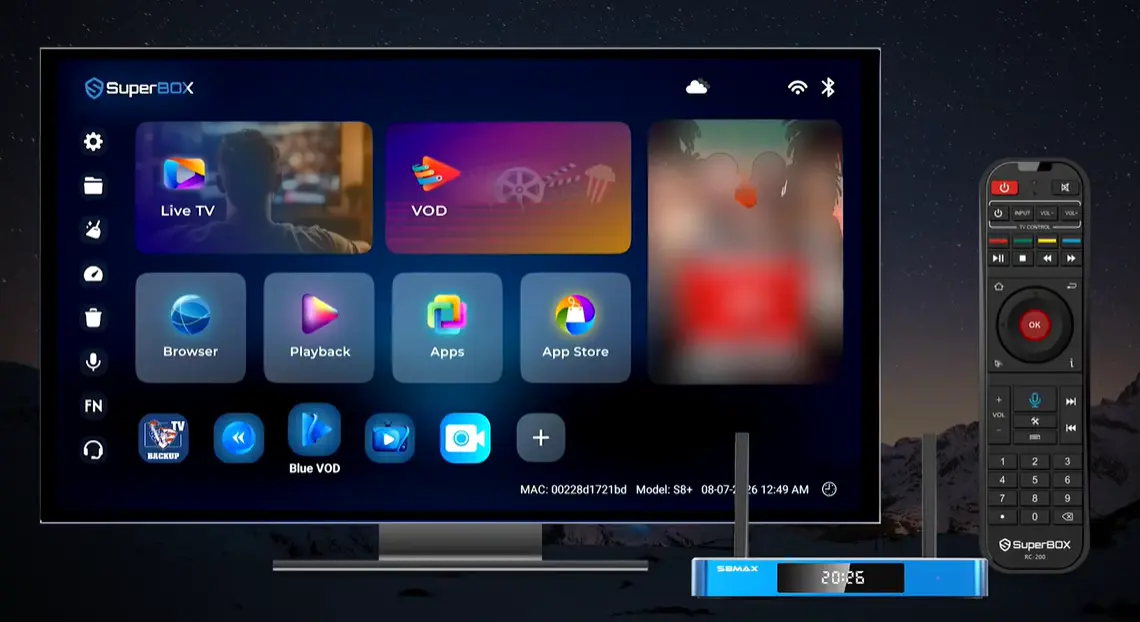
Blue VOD is the on-demand viewing app shown on the S8 Home interface. It is separate from Blue TV, whose primary use is live channel browsing, and from the separately listed Playback app. If you came here looking for a live channel guide, use our How to Use Blue TV on SuperBox S8 article. If your goal is to find a film or select a series episode, stay in Blue VOD.
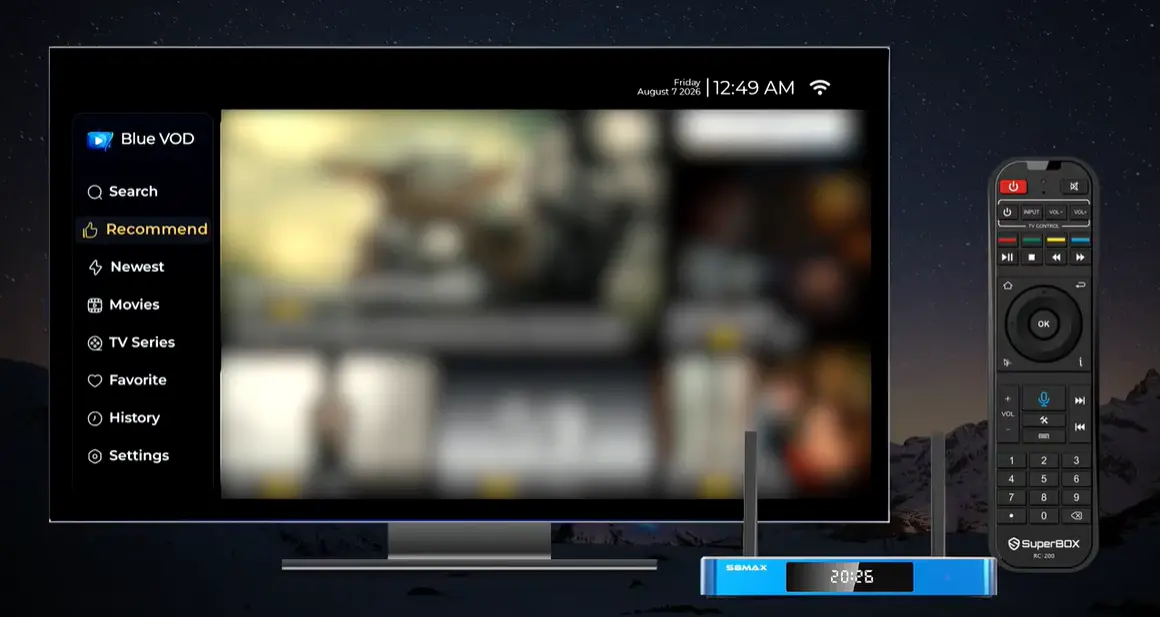
You can enter through the VOD tile or an installed Blue VOD shortcut. After the app opens, the left-hand navigation is the quickest way to move between discovery, saved titles, recent activity, and settings.
| Blue VOD menu | What you can do there | Best use |
|---|---|---|
| Search | Enter text and select title or person-based search filters | Find a specific movie, series, actor, or director |
| Recommend | Explore the app’s featured selections | Browse when you do not have a title in mind |
| Newest | See a recently added selection presented by the app | Check what is new in the current catalog |
| Movies | Browse movie listings | Find a film without searching for an exact name |
| TV Series | Browse series and open the full series list | Choose a show, season, and episode |
| Favorite | Revisit titles you have saved | Build a short personal watch list |
| History | Revisit your recent activity | Return to something you opened or watched |
| Settings | Access support, version, decoding, and Internet Speed options | Check app information or troubleshoot carefully |
The actual posters and listings are supplied through the app and can change. Focus on the menu and controls rather than expecting your screen to contain the same titles as anyone else’s.
How to Find a Movie or TV Series
Browse when you do not know the exact title
Start in Recommend or Newest if you want to explore. Move through the available cards with the S8 remote’s directional controls and press OK to open a title. For a narrower choice, select Movies or TV Series in the left menu. The TV Series area also includes an All TV Series entry, followed by additional browsing options in the full listing.
This is often easier than typing a title you only partly remember. Open a promising result to review its detail page before you begin playback. You can then return to the list and choose another title if it is not what you wanted.
Search for a title, director, or cast member
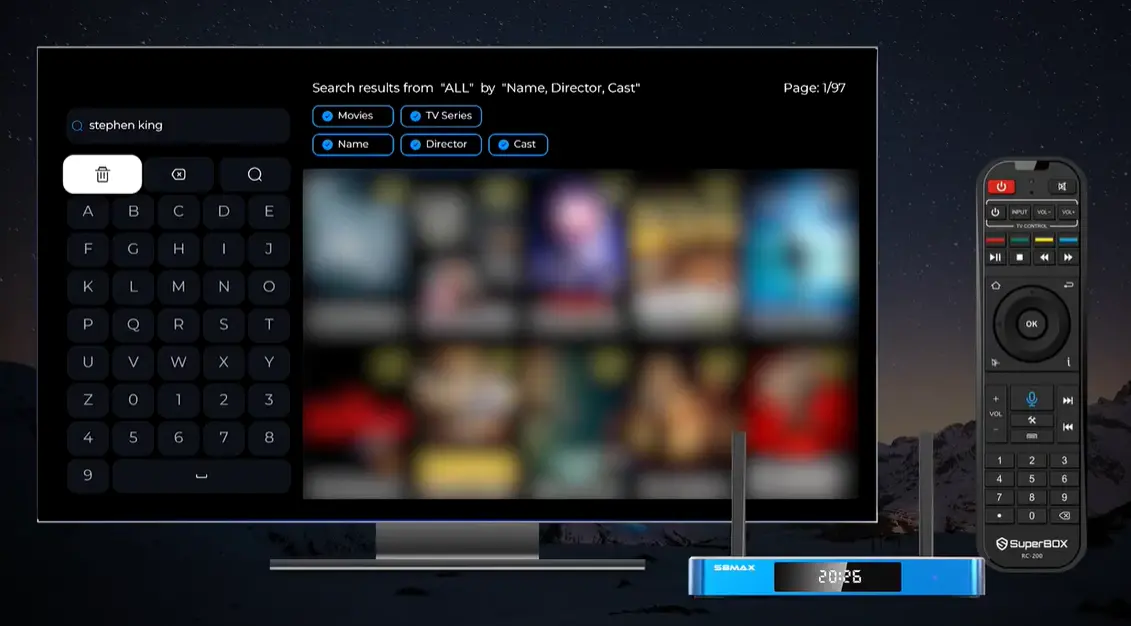
Choose Search in the left menu. Select the input box and use the on-screen keyboard to enter a short, distinctive phrase. Select the search icon to submit it. The results screen may extend across several pages, so move through the grid if the first page does not show the right result.
Look at the selectable filters above the input area. The demonstrated interface lets you include Movies and TV Series and choose whether the query is matched against Name, Director, and Cast. For an exact movie or show title, keep Name selected. If you remember an actor rather than a title, select Cast. If you only know a filmmaker, use Director. Keep both media types enabled when you are unsure whether the result is a film or a series.
Search labels and how multiple filters combine may differ by build. Read the selected check marks on your own screen, run one query, and change only the filter you need if the result is too broad or empty. You do not need to type an entire long title if a distinctive word is enough.
What to do when Search says “No Results Found”
An empty result is a search outcome, not proof that the box has failed. Check the spelling, remove extra words, and try a different short keyword. Make sure the correct Movies or TV Series type is selected. Then check whether you are searching by Name, Director, or Cast. A title typed while only a person-name filter is selected may not give the result you expected.
If the title still does not appear, browse its category to see what the current catalog offers. Availability is subject to the app and content rights; no search trick can guarantee that a specific film or show is present. If search itself fails to load repeatedly, check that your S8 has an internet connection before changing player settings.
How to Open a Title and Choose an Episode
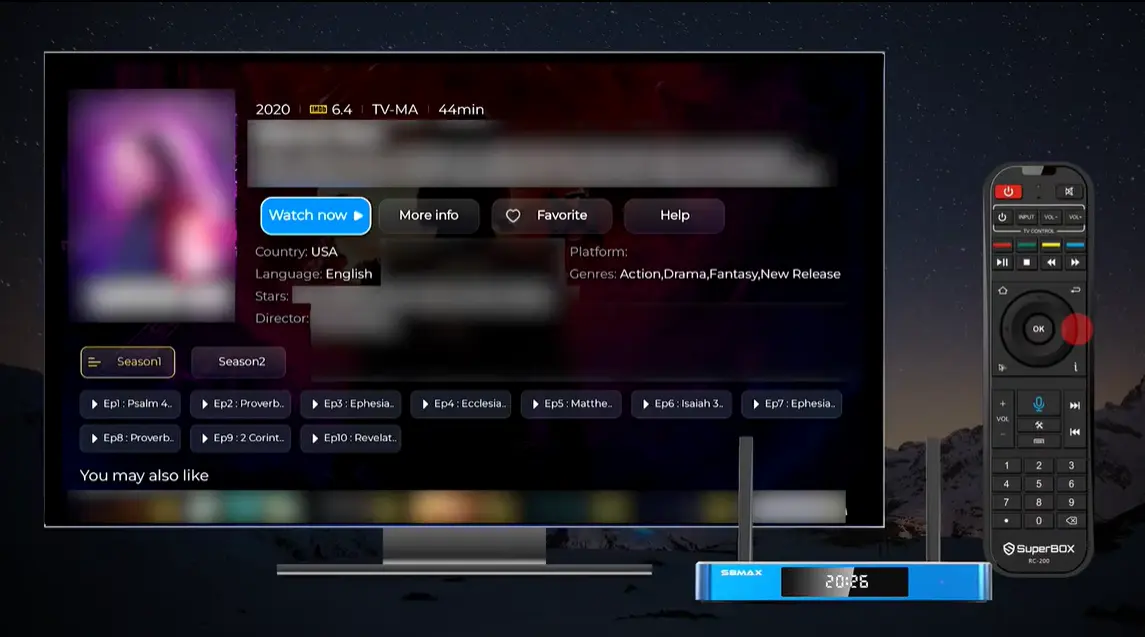
Select a movie or series result to open its detail page. Depending on the title, you may see a description and fields such as release year, rating, length, genre, language, director, or cast. This page is useful for confirming that you selected the right version of a title before pressing play.
For a movie, highlight Watch now and press OK. For a TV series, review the displayed season tabs and episode buttons, choose the season you want, then select its episode. Do not assume that pressing Watch now always starts the episode you intended; make the season and episode selection first when the detail screen presents them. The page may also show More info and suggestions under You may also like. Those are discovery options, not required setup steps.
If you have started the wrong episode, return to the series detail page and choose the correct episode from its row. Within the video player, the episode-list control can also help you navigate where the current title exposes it. The number of seasons and available episodes varies by listing.
Use Favorites and History to Find Your Way Back
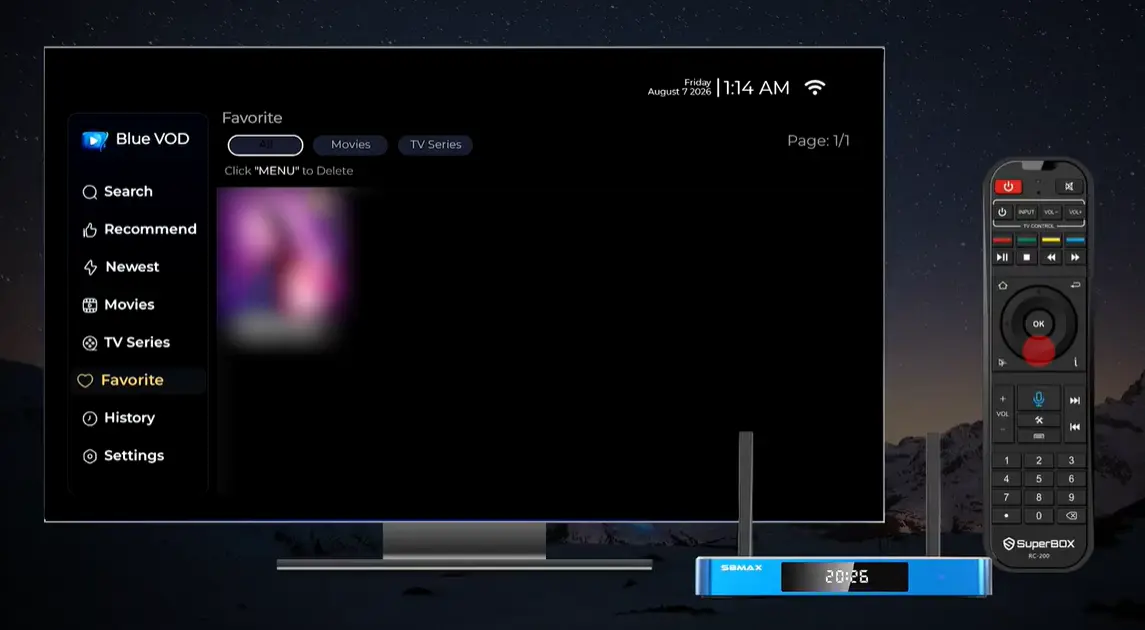
When you find something you would like to revisit, select Favorite on its detail page. A saved title may then display Unfavorite on that same page, making it clear how to remove it later. Open Favorite from the left navigation to see your saved choices. The demonstrated Favorite view has All, Movies, and TV Series tabs, so you can narrow the list when it grows.
The Favorite screen also displays an on-screen instruction to press MENU to delete a saved entry. If your remote and app version show that instruction, highlight the entry and follow it. Another straightforward route is to open the title’s detail page and select Unfavorite. Do not confuse removing a saved title with uninstalling the Blue VOD app; these are different actions.
Use History when you want to revisit a title you opened recently but did not save. Favorites is the intentional watch list; History reflects recent activity. If you share the box with other people in the household, remember that these lists are visible within the app interface to anyone using it. The video does not establish a separate per-person profile or a particular history deletion workflow, so do not rely on either.
Understand the Blue VOD Playback Controls
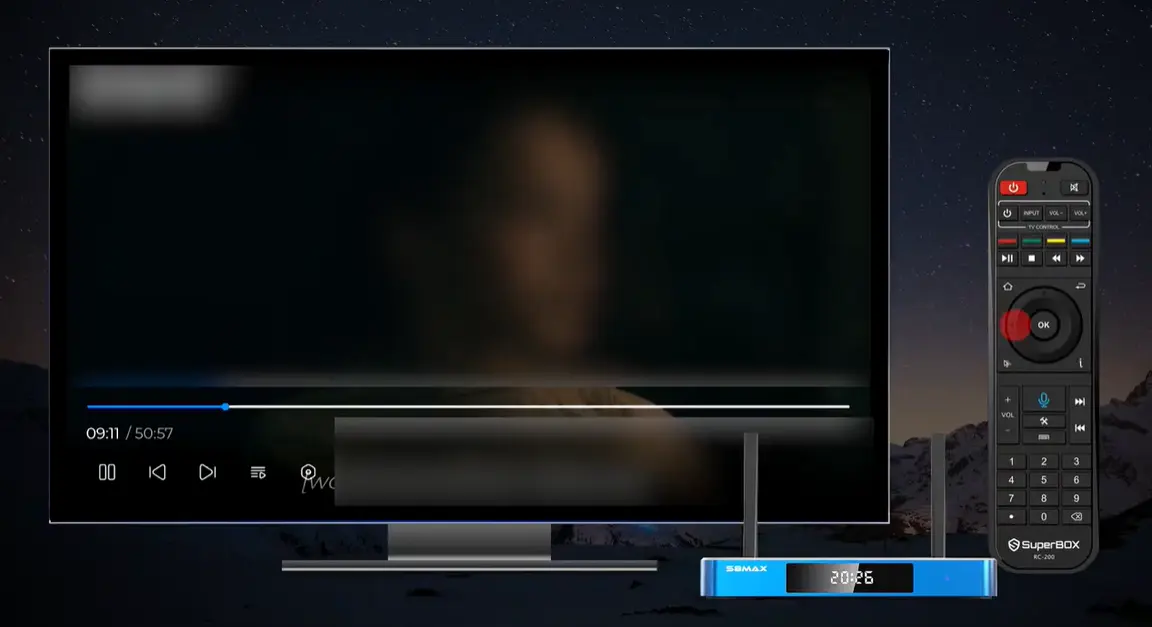
Once playback starts, bring up the on-screen player controls with the remote. The demonstrated player includes a progress bar with elapsed and total time, a pause/play control, previous and next navigation, an episode or playlist icon, and a settings gear. Use the directional controls to highlight an item and press OK to activate it. The exact button you use to reveal the overlay may depend on your remote mapping and current app build; follow the labels on the TV rather than memorizing an undocumented shortcut.
To jump to a different point in a title, use the on-screen timeline when it is active and check the displayed time before confirming. For a series, the previous/next and list controls may help you switch between available episodes. If you only want to pause briefly, use the player pause control; there is no reason to change decode or speed settings for that.
Change the subtitle track
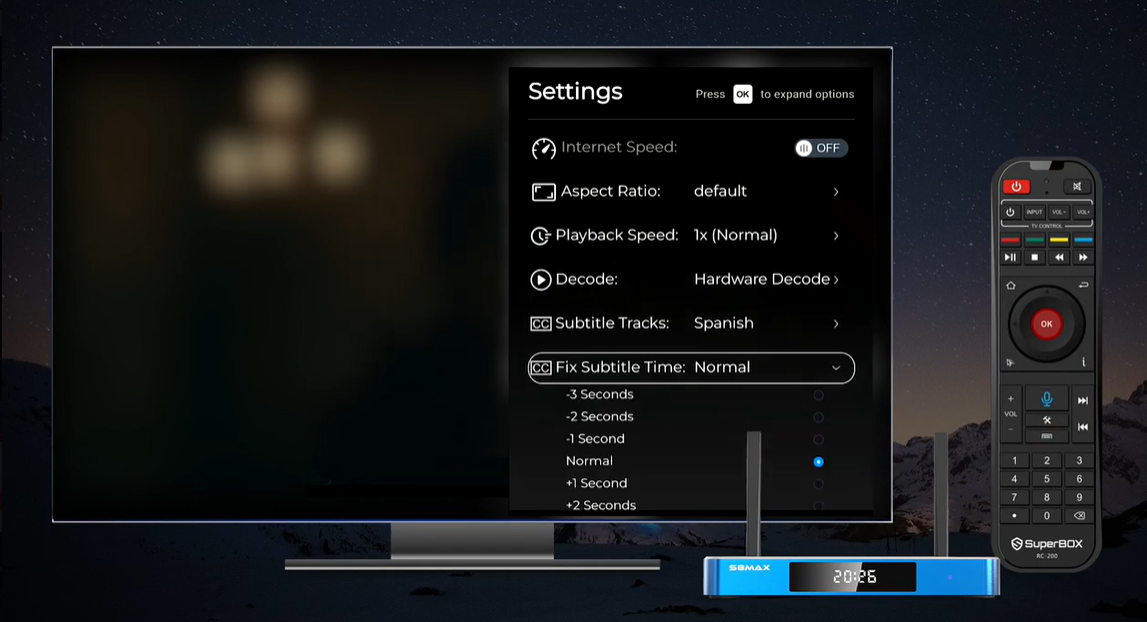
Open the player gear icon, move to Subtitle Tracks, and press OK to expand its choices. Select a track if one is available for that title. The demonstrated player includes an English track and shows additional choices in its menu, but the selection can differ from one video to another. A missing language option is not something the remote can create; try another available track or check a different listing.
If the words appear at the wrong moment, open Fix Subtitle Time in the same player menu. Start from its displayed Normal setting, change one step at a time, and replay a short scene to see whether the subtitle now matches the speech. Return to Normal if your change makes the timing worse. This controls timing; it does not translate the dialogue or guarantee subtitles for every title.
Adjust the picture shape or playback speed
The player Aspect Ratio entry is shown with default as its starting value. Leave it there if the image fills your screen correctly. If the picture looks stretched or squeezed, open the entry and test an available display option, then compare it with default. This setting concerns the shape of the playing video; it is different from adjusting the S8 Home screen to fit your TV.
The separate Playback Speed entry starts at 1x (Normal) in the demonstration. Open it only if you want the current title to play at a different supported speed. When you finish, return to 1x for ordinary viewing. Changing playback speed is not a remedy for an internet connection problem.
Use Decode only when there is a reason
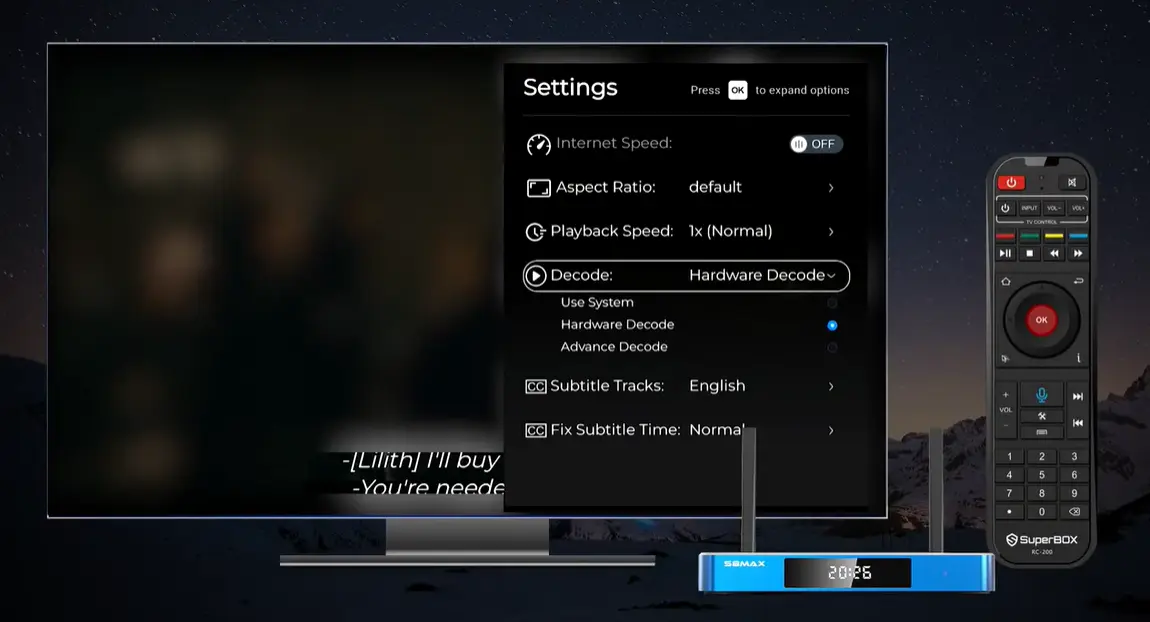
The demonstrated player shows Hardware Decode as the selected mode. Its options include Use System and Advance Decode (the latter is the spelling shown by the app). The general app Settings area also exposes a Decode setting. There is no universal “best” switch for every title or software version. If playback is working, leave it alone. If you see a repeatable playback issue on a specific title, note the current setting, test one alternative, and restore the original setting if the result is worse. If several titles will not load, investigate the network and app status before assuming a decode option is responsible.
What Does the “Internet Speed” Setting Do?
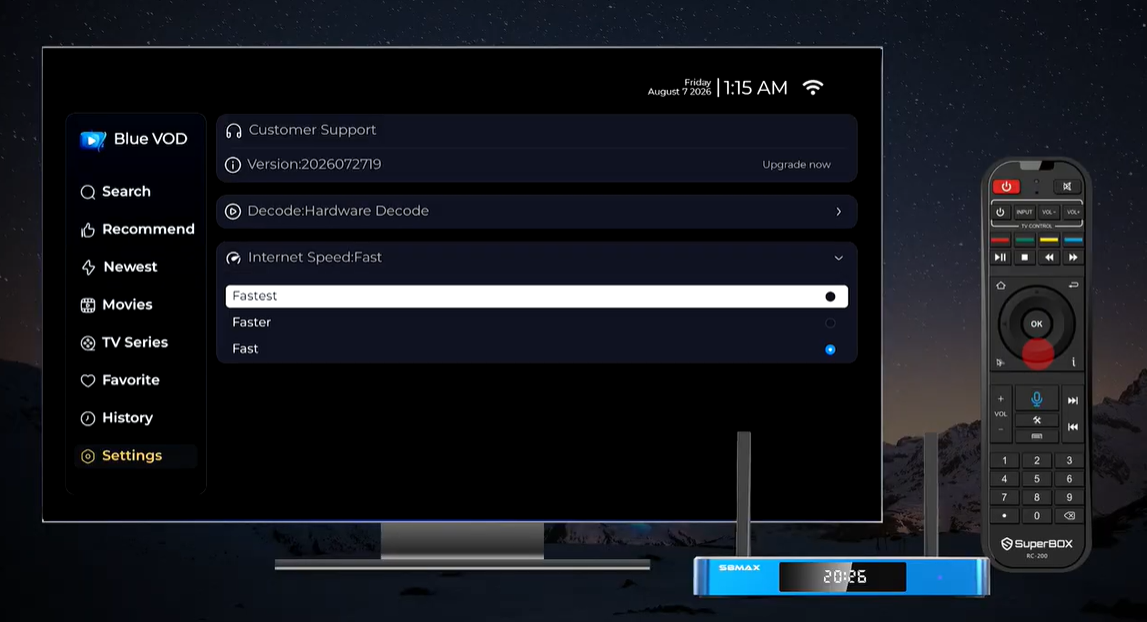
Blue VOD exposes an Internet Speed choice in its main Settings area. The demonstrated menu offers Fastest, Faster, and Fast, with Fast selected on the recorded unit. The player settings panel also includes an Internet Speed switch. These are options inside the Blue VOD app; the labels do not measure the actual speed of your home connection or promise a particular picture quality.
If a title buffers, first test whether other titles or apps load and whether the S8 is connected to the internet. If you then experiment with the Blue VOD setting, write down the current choice and change only one option at a time. Play the same title long enough to compare the result. Restore the original setting if there is no improvement. The clip demonstrates the controls but does not establish that Fastest, Faster, or Fast is universally best on every network. For a fuller sequence of checks, use our SuperBox buffering troubleshooting guide.
A Short Troubleshooting Checklist
Use the symptom to choose the next step. Avoid changing several unrelated settings at once: you will not know which change mattered.
| What you see | First practical check | Next place to look |
|---|---|---|
| Blue VOD is missing from Home | Check Apps and the internal APP Store for installation; then use + / ADD to place its shortcut | S8 app installation guide |
| Search shows “No Results Found” | Shorten or correct the query, confirm Movies/TV Series and Name/Director/Cast filters | Browse the relevant category; availability can change |
| The wrong episode starts | Return to the title page and choose the season and episode explicitly | Check the player episode-list control if available |
| A title buffers | Test another title and the network connection, then compare one app setting at a time | Buffering guide |
| Subtitles are missing | Inspect the current title’s Subtitle Tracks list | Try another available track or title |
| Subtitles are out of sync | Open Fix Subtitle Time and make one small change | Return to Normal if the timing worsens |
| Picture looks stretched | Compare Aspect Ratio options with default | Restore default if the image was already correct |
If the app presents an error rather than one of the situations above, take a photo of the complete message and note your S8 model and the app version shown in Settings. Those details make a support request more useful than “VOD does not work.” Avoid posting your order information or device identifiers in a public comment.
Find Blue VOD Support and Version Information
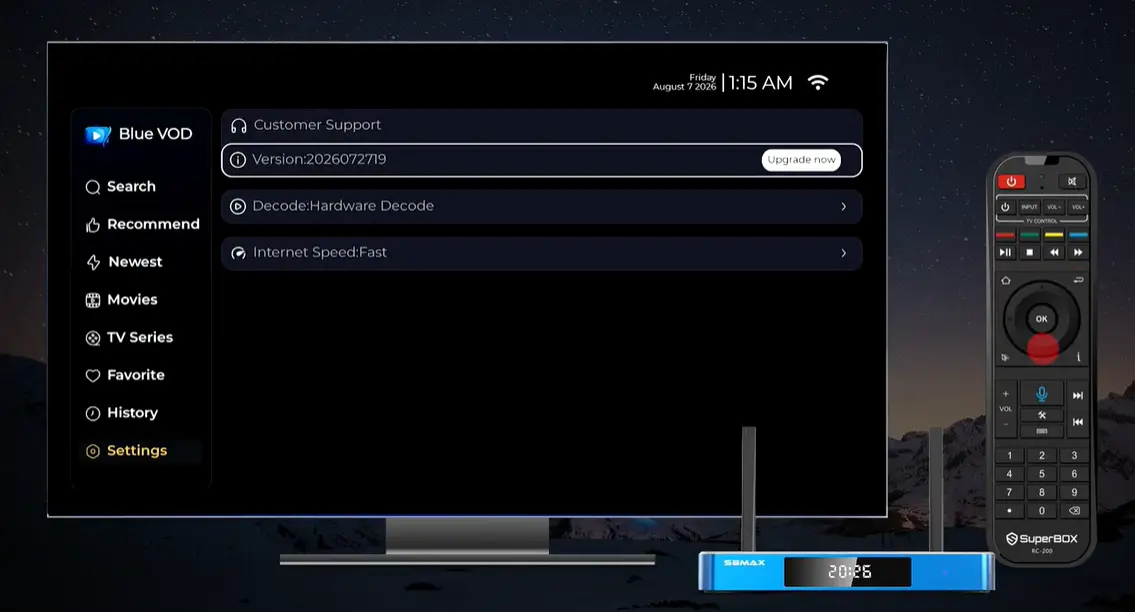
Choose Settings in the app’s left navigation. The demonstrated screen presents Customer Support, Version with an Upgrade now action, Decode, and Internet Speed. Customer Support opens a support card with QR-based contact options. Follow the current details shown on your own device, and verify a seller-specific purchase question with the seller named on your receipt.
Check the displayed app version if support asks you for it. If the app offers an upgrade through its own on-device interface, read the prompt before proceeding. Do not assume a version number seen in a published screenshot is still the latest release, and avoid unrelated installers advertised on random websites. Our support and warranty guide explains what information helps when you contact support.
Blue VOD FAQs for SuperBox S8 Owners
Is Blue VOD the same as Blue TV?
No. Blue VOD is organized around selecting an on-demand movie or series. Blue TV is the separate app for browsing live channels. The S8 internal APP Store presents them as different applications. If you want help installing both, follow the S8 app installation guide.
Does this Blue VOD guide apply to S8 Pro, Plus, Max, and Ultra?
It covers the S8 Blue VOD workflow and common on-screen controls. The S8 lineup lists Blue VOD among the apps for all four models, but the exact interface can vary with app version, region, and service status. Consult the current labels on your device. To choose hardware, see the S8 Pro, Plus, Max, and Ultra comparison.
How do I search for an actor instead of a movie title?
Open Search, enter the person’s name, and use the Cast filter if it appears. Check Movies and TV Series if you are unsure which type contains the result. For a filmmaker, use Director. The search results still depend on the current catalog and available metadata.
How do I save and remove a movie or show?
Open its detail page and select Favorite. Return later through Favorite in the left menu. To remove it, choose Unfavorite on the detail page, or follow the on-screen MENU deletion prompt in the Favorite view if your build displays it.
Can I resume a title from History?
History provides a way back to recent activity. Open the title and inspect the player or title screen for the offered starting point. Do not assume every title or app version restores an exact timestamp; check the on-screen prompt before continuing.
Where do I change subtitles in Blue VOD?
While a title is playing, open the gear icon and expand Subtitle Tracks. Pick one of the tracks offered for that title. Use Fix Subtitle Time separately if a present track appears too early or late.
Which Internet Speed option should I select?
There is no setting shown in the demonstration that can be recommended for every network. The app displays Fastest, Faster, and Fast. Test your connection first, then compare one app option at a time if playback continues to buffer. Return to your prior selection if the change does not help.
Why do I not see the same movies or subtitle languages as someone else?
Listings, tracks, and features may differ by title, version, region, rights, and service status. Use the present app catalog as your reference; a guide cannot guarantee that a particular title or language will be available.
Ready to Choose Your SuperBox S8? Buy from a Seller You Can Verify
An easy-to-use app is only part of the ownership experience. Before buying an S8, check who will be responsible for your order and where you will go when you need help with setup, an app question, or a purchase issue. SuperBox TV Box Store serves customers in the US and Canada as an authorized retailer of authentic SuperBox hardware. You can verify its claimed authorization on the SuperBox authorization website using code SP20250414002. That is a concrete check a buyer can make, rather than a generic “official” badge on a product page.
The store provides S8-specific setup and troubleshooting guides, a contact page, and support for orders placed through its own website. You can compare S8 Pro, Plus, Max, and Ultra before choosing the model that fits your needs, then browse the current S8 products and review the live price, stock, shipping, and warranty terms at checkout. Keep your confirmation email and order number so the right team can find your purchase later. A different seller may be authorized too, but that seller remains responsible for its own order.
If you want a verifiable retailer and practical help after purchase, buy your SuperBox S8 through SuperBox TV Box Store. We can help you choose a model and navigate its features without promising that every title, track, or third-party service will always be available. Install and watch only apps and content you are authorized to use; the retailer sells hardware and does not control third-party media catalogs.
The article was updated on:
