
Knowledge SuperBox
How to Fix SuperBox Buffering Issues in 2026





Buffering can quickly interrupt an otherwise smooth viewing experience. The good news is that many SuperBox buffering problems can be resolved with a short series of practical checks—from restarting your equipment and switching to Ethernet to adjusting the VOD streaming mode and clearing an app’s cache.
This guide walks you through each fix in the best order to try them. Start with the first step, test your SuperBox, and continue only if the buffering remains.
Quick answer: Restart the router and SuperBox first, then test a wired Ethernet connection. In the VOD app, open Settings → Internet Speed and try the middle Faster option shown in the source video. If one app still buffers, clear only that app’s cache. Avoid a factory reset or uninstalling unfamiliar system components as an early fix.
First: Identify What Is Actually Buffering
Before changing settings, answer four questions:
- Does buffering affect every app or only one app?
- Does it affect every program or only one channel/title?
- Does it happen all day or mainly during busy evening hours?
- Does it happen on both Wi-Fi and Ethernet?
The answers immediately narrow the cause:
| Pattern | More Likely Cause | Best First Test |
|---|---|---|
| Every app buffers | Home network, ISP route, device heat, or system performance | Restart network and test Ethernet |
| One app buffers | App cache, app setting, app update, or provider-side issue | Test another app, then clear the affected app’s cache |
| One channel/title buffers | Source availability or route for that specific item | Try another item in the same app |
| Buffering mostly at night | Household or ISP congestion | Pause other traffic and compare another time |
| Wi-Fi buffers but Ethernet does not | Signal strength or wireless interference | Optimize Wi-Fi or keep Ethernet |
| Ethernet and Wi-Fi both buffer | Router, ISP, app, route, or device issue | Try another app and a temporary hotspot test |
Do not skip this diagnosis. If one title fails while five others play normally, the SuperBox hardware and home network may already be working correctly.
Fix 1: Restart the Router and SuperBox Properly
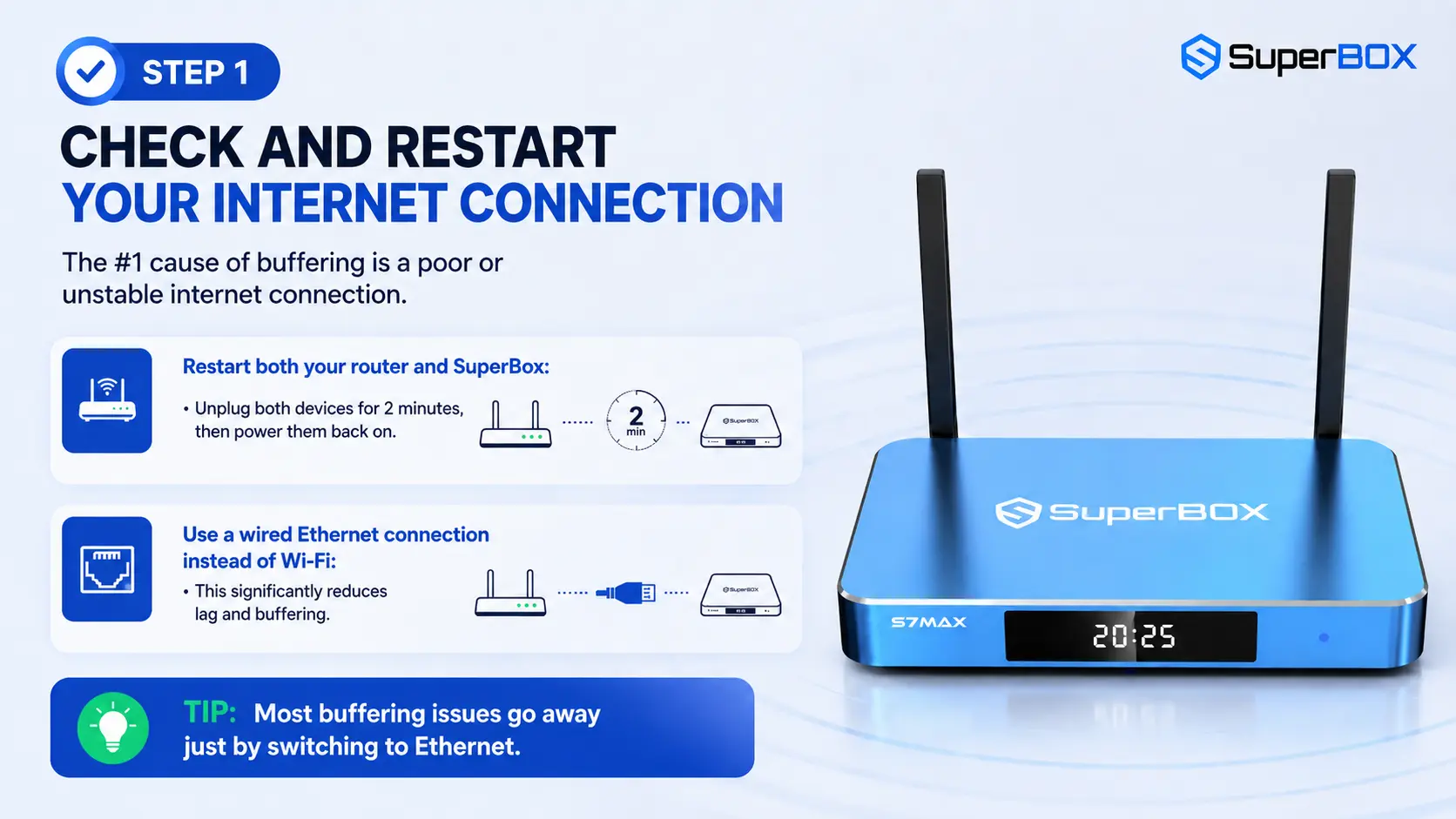
Simplest fix: unplug both the router and SuperBox for approximately two minutes, then reconnect them.
A complete power cycle can clear temporary router sessions, refresh the SuperBox network connection, and close background processes that did not shut down correctly.
Recommended Restart Sequence
- Exit the affected app if the interface still responds.
- Disconnect power from the SuperBox.
- Disconnect power from the router; if your modem is separate, disconnect it as well.
- Wait approximately two minutes, as demonstrated in the video.
- Reconnect the modem first and allow it to establish service.
- Reconnect the router and wait until Wi-Fi and internet indicators stabilize.
- Reconnect the SuperBox.
- Open the same app and test the same content again.
Starting the SuperBox before the router is fully online can produce another failed connection, so give the network equipment time to complete its startup.
Why a Restart May Help Only Temporarily
If playback improves and then deteriorates again, note how long the improvement lasts. A recurring pattern can indicate:
- A router becoming overloaded.
- Wi-Fi interference returning as more devices connect.
- An app cache rebuilding corrupted temporary information.
- Heat increasing during extended use.
- Peak-hour congestion outside the home.
That observation is useful evidence, not a failed test.
Fix 2: Switch from Wi-Fi to Ethernet
If your SuperBox is connected through Wi-Fi, try using a wired Ethernet connection instead.
Ethernet provides a more stable connection, making it a valuable next step when restarting the router and SuperBox does not solve the issue. Connect the SuperBox directly with an Ethernet cable, then reopen the content that was buffering and test it again.
This is a straightforward comparison: if playback becomes smoother after switching to Ethernet, continue using the wired connection.
How to Connect Ethernet
- Connect an Ethernet cable to your SuperBox.
- Connect the other end to your router.
- Open the same app and content you were testing.
- Check whether the buffering improves.
How to Interpret the Result
- Ethernet fixes the issue: the SuperBox and app are probably capable of smooth playback; focus on Wi-Fi placement, band, or interference.
- Ethernet improves but does not eliminate buffering: more than one factor may be involved, such as network congestion plus app cache.
- Ethernet makes no difference: continue to the VOD, cache, heat, and software checks.
Ethernet stability does not guarantee that every media source will always play without interruption. It only proves that the local wireless link was removed from the test.
Fix 3: Improve the Wi-Fi Connection
If running a cable is not practical, optimize Wi-Fi before assuming the SuperBox is defective.
Choose the Appropriate Wi-Fi Band
- 5 GHz: usually faster and less congested at short range, but weaker through walls.
- 2.4 GHz: usually reaches farther and penetrates obstacles better, but may be slower and more crowded.
Use 5 GHz when the router is near the television with few obstacles. Test 2.4 GHz when the SuperBox is farther away or separated by several walls. The best band is the one that remains stable in your actual room – not automatically the one with the higher theoretical speed.
Improve Placement
- Keep the router in an open, elevated location.
- Avoid placing it behind a television, inside a cabinet, or beside large metal objects.
- Keep the SuperBox antennas unobstructed if the model has external antennas.
- Separate the box from equipment that produces heat or radio interference.
- Reposition either the router or SuperBox temporarily to see whether signal quality changes.
Reduce Household Congestion
Pause large downloads, cloud backups, game updates, and simultaneous high-resolution streams for five minutes. If SuperBox playback immediately improves, bandwidth sharing or router load is part of the problem.
Fix 4: Test the VOD Internet Speed Setting
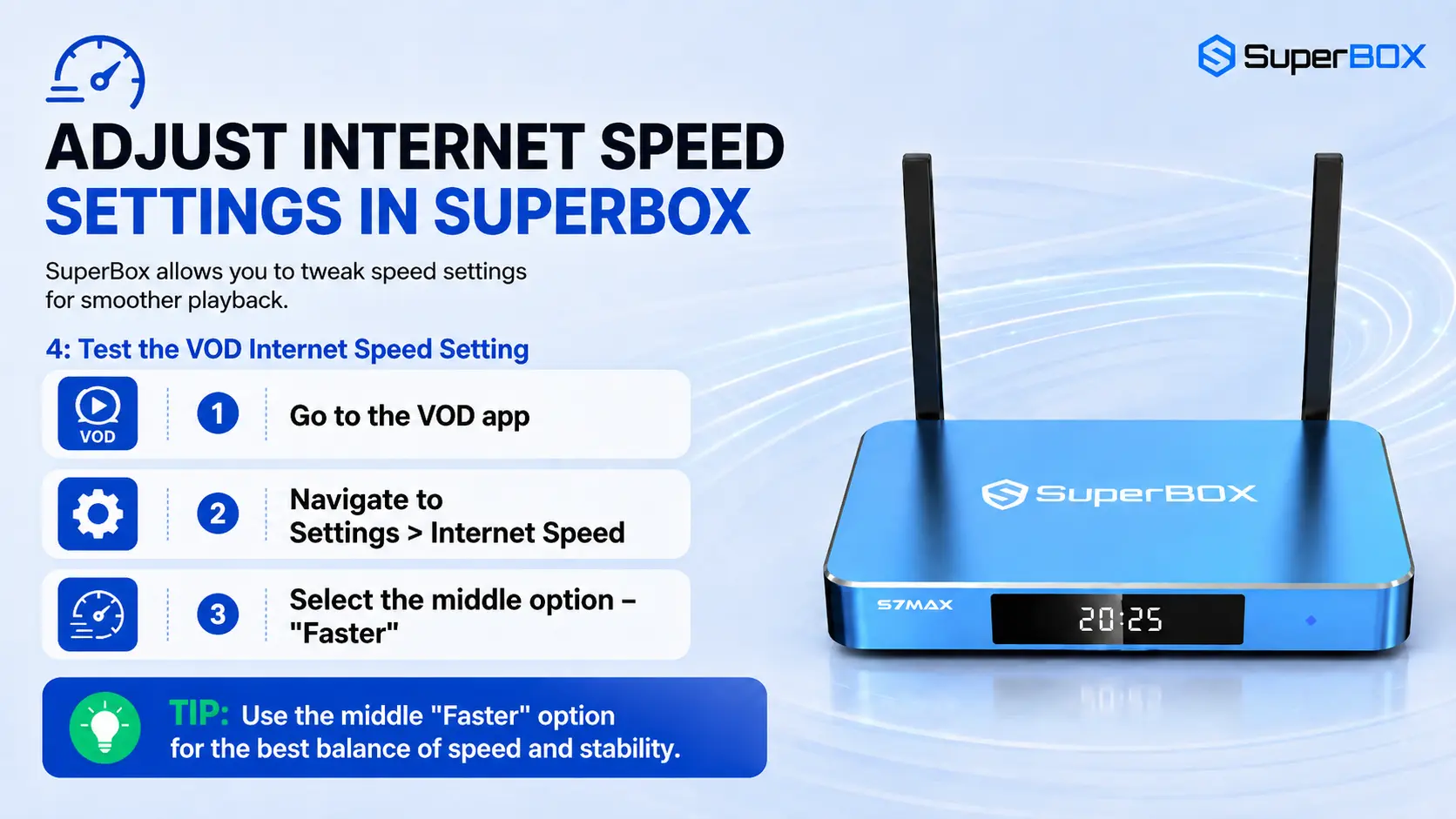
SuperBox provides an Internet Speed setting inside the VOD app. For the recommended balance between playback quality and performance, choose the middle option: Faster.
VOD → Settings → Internet Speed → Faster
The presenter recommends the middle option labeled Faster as a balance between performance and loading behavior.
Interface names can change by app version. If your screen does not show this option, do not install another VOD application or download an unknown configuration file simply to reproduce the menu.
Step-by-Step
- Open the VOD app used for playback.
- Navigate to Settings.
- Select Internet Speed.
- Choose the middle option labeled Faster.
- Exit the app completely.
- Reopen it and test the same title.
Why “Faster” May Work Better Than “Fastest”
The labels can sound counterintuitive. According to the video, Fastest may attempt to load data too aggressively on some connections, while Faster can produce steadier playback.
Treat this as an app-specific behavior, not a universal networking rule. Test one setting at a time, use the same content for comparison, and keep the option that performs more consistently on your connection.
Fix 5: Advanced VOD Streaming-Mode Menu
If the regular Internet Speed setting does not fully resolve the buffering, the VOD app also includes an advanced settings menu.
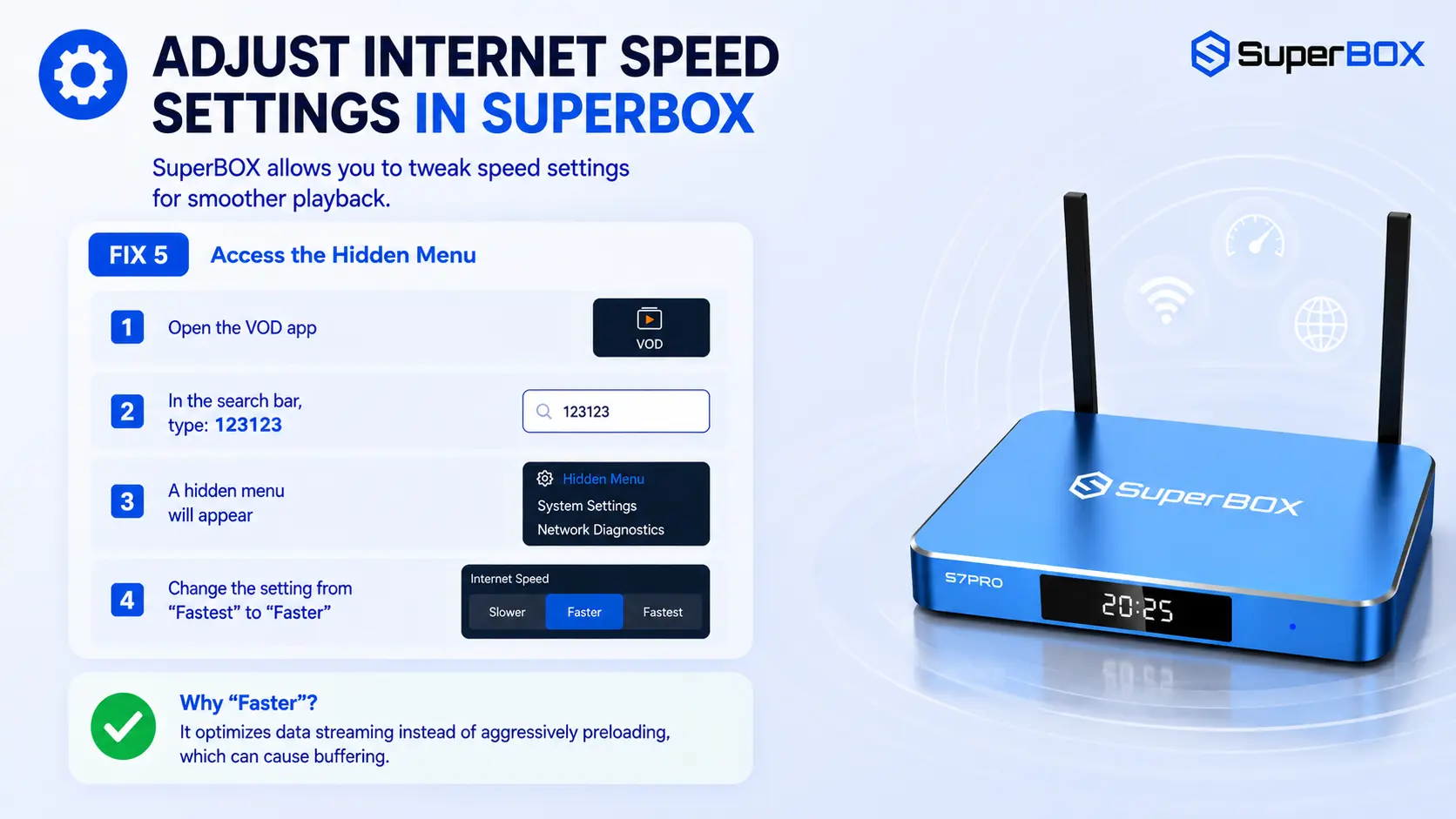
To open it, go to the VOD search screen and enter the code:
123123
This opens the hidden settings menu. Inside that menu, change the streaming mode from Fastest to Faster.
How to open the hidden menu
- Open the VOD app.
- Go to its search field.
- Enter 123123.
- If an advanced menu appears, locate the streaming-mode setting.
- Change Fastest to Faster.
- Exit, reopen the app, and retest.
Advanced-setting warning: This menu may not exist in every app version, region, or device build. If 123123 produces no menu, stop there. Do not try random codes, change unrelated values, or install an APK from an unverified website. Use the normal Internet Speed setting or contact technical support.
The Fastest mode may attempt to load too much too quickly, which can lead to buffering. Selecting Faster reduces that problem while maintaining a practical balance between performance and viewing quality.
Use this advanced option only after checking the standard Internet Speed menu. Both settings should be confirmed before you continue to the app maintenance step.
Fix 6: Clear the Affected App’s Cache
Buffering may also improve after clearing the cache of the app that is having trouble. The cache can contain junk data, and removing it can help playback run more smoothly.
How to clear the app cache
- Open the main Settings menu on your SuperBox.
- Select Apps.
- Choose the app that is experiencing buffering.
- Select Clear Cache.
- Reopen the app and test playback.
Focus on the specific app where the issue appears. Once the cache has been cleared, reopen that app and check the same content again.
This is an important maintenance step because it addresses the app itself after the connection and streaming settings have already been checked.
Clear Cache Is Not Clear Data
These two options are often adjacent but have different consequences:
| Option | Result |
| Clear Cache | Removes temporary files while generally preserving app configuration |
| Clear Data / Clear Storage | Resets locally stored app information and may remove preferences or sign-in state |
Start with Clear Cache. Use Clear Data only when support recommends it or when you are prepared to configure the app again.
Fix 7: Check Ventilation and Heat
Your SuperBox should be placed in a cool, open area. Avoid positioning it where heat can build up around the device.
If the box feels hot, unplug it and leave it disconnected for a while. Once it has had time to cool down, reconnect it and test playback again.
Improve Ventilation
- Place the SuperBox on a firm, open surface.
- Leave space around its ventilation openings.
- Do not place it directly on a receiver, game console, router, or other heat source.
- Keep it away from direct sunlight.
- Remove dust from the surrounding area with the device powered off.
- Do not cover the box with cloth, papers, or accessories.
If the enclosure feels unusually hot and performance degrades over time, power it off and allow it to cool in an open area before testing again.
Fix 8: Contact SuperBox Support
If you have completed every step and the buffering still continues, contact SuperBox support for assistance.
Go to the official SuperBox website, scroll to the bottom of the page, and select the Support tab. From there, send a support request explaining the issue.
Before submitting the request, it is helpful to complete the full troubleshooting sequence so you know which steps have already been tested:
- Router and SuperBox restarted
- Both devices left unplugged for about two minutes
- Ethernet connection tested
- VOD Internet Speed set to Faster
- Advanced streaming mode changed from Fastest to Faster
- Affected app cache cleared
- SuperBox checked for excess heat
Frequently Asked Questions
What should I try first when my SuperBox keeps buffering?
Restart both the router and the SuperBox. Unplug them for about two minutes, reconnect them, and test playback again.
Is Ethernet better than Wi-Fi for this problem?
A wired Ethernet connection is more stable. If you are using Wi-Fi and experiencing buffering, test the SuperBox with Ethernet.
Which Internet Speed option should I choose in the VOD app?
Choose Faster, the middle option. It provides a balance between playback quality and performance.
How do I access the advanced VOD settings?
Open the VOD app, go to Search, and enter 123123. The hidden settings menu will appear.
Which advanced streaming mode should I use?
Change the mode from Fastest to Faster. Fastest can attempt to load too much too quickly and cause buffering.
Can clearing the cache help?
Yes. Go to Settings > Apps, select the app that is having trouble, and choose Clear Cache. Removing junk data can help smooth out playback.
Should I factory reset my SuperBox to stop buffering?
No. Do not factory reset the box as part of this troubleshooting process.
Should I uninstall an AIT app that is buffering?
No. Do not uninstall AIT apps. If an AIT app is removed, it will not return by searching for it in the app store.
What should I do if my SuperBox feels hot?
Unplug it for a while and keep it in a cool, open area. Reconnect it after it has cooled down and test playback again.
When should I contact customer support?
Contact SuperBox support after completing all the troubleshooting steps and confirming that the issue still remains. Visit the official website, scroll to the bottom, and use the Support tab to send a request.
Final Thoughts
SuperBox buffering does not always require a complicated solution. Begin by restarting both the router and the box, then test Ethernet for a more stable connection. If buffering continues, set the VOD Internet Speed option to Faster, use the advanced menu to change Fastest to Faster, and clear the cache of the affected app.
Keep the SuperBox in a cool, open area, and unplug it for a while if it feels hot. Most importantly, do not factory reset the device or uninstall AIT apps while following this process. If none of these steps resolves the issue, submit a request through the Support tab on the official SuperBox website
If you can’t resolve the problem, contact SuperBox TV Box Store Tech Support via Whatsapp.
For a visual demonstration
Reference:
How To Fix SuperBox Buffering Issues (2026)
The article was updated on:
