
Knowledge SuperBox
How to Use Blue TV on SuperBox S8: Complete 2026 Guide





Blue TV is one of the central viewing experiences demonstrated on the new SuperBox S8 Series. Although opening a channel is simple, the interface includes much more than a basic channel list. You can browse organized categories, create a custom group, search by name, open an electronic program guide, jump to a channel by number, switch rapidly between channels, and personalize the viewing screen through a dedicated Settings panel.
This guide explains how to use those tools without turning every viewing session into a hunt through menus. It follows the current Blue TV interface demonstrated on the SuperBox S8 Series and organizes its features around the jobs viewers actually want to complete.
Important: Menu labels and available programming can change with the app version, location, service status, and content rights. SuperBox TV Box Store sells SuperBox; it does not host, transmit, create, or control third-party programming.
Quick Answer: What Can You Do in Blue TV on SuperBox S8?
Blue TV on SuperBox S8 lets you browse channels from category tabs and a left-side navigation menu, open a live preview, search by channel name, use channel numbers for faster access, review schedules in the EPG, save frequently used channels, and build a personalized channel group. Its Settings menu also provides Picture-in-Picture, Multi-Screen, Status Bar, Internet Speed, Aspect Ratio, EPG Style, Resources, Feedback, and Parental Control options.
For most users, the fastest setup is:
- Open the live-TV area from the S8 home screen.
- Learn the category tabs and left navigation menu.
- Add frequently watched channels to Favorites or a custom group.
- Use Search or direct number entry instead of repeatedly scrolling.
- Select the EPG layout you prefer.
- Adjust advanced viewing options only when needed.
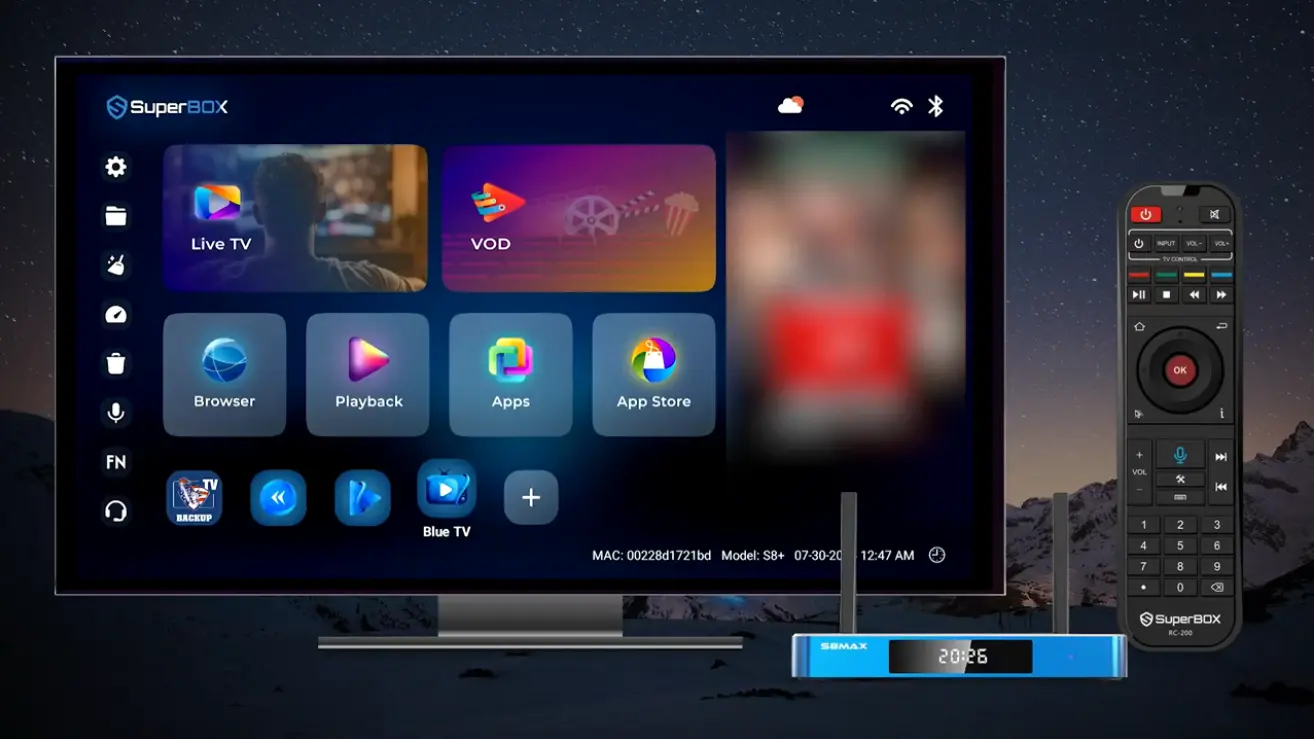
Blue TV Interface at a Glance
The Blue TV screen is designed around three levels of navigation. Tabs across the top help you move between featured or sports-oriented sections. The left menu provides broader library tools and categories. The central panel displays the channels or programs available inside the selected section, while the preview area lets you see what is currently playing before opening it fully.
| Interface area | What it is for | Best time to use it |
|---|---|---|
| Top tabs | Moves between featured and event-oriented sections | When browsing a current sport or highlighted category |
| Left navigation | Opens Search, All, Recent, Favorite, custom groups, Time Shift, and other channel categories | When you know the type of list you want |
| Main channel list | Shows the entries inside the selected category | When comparing nearby channels or programs |
| Live preview | Displays the selected stream before or during navigation | When checking a selection without losing your place |
| EPG | Presents channels against a date-and-time schedule | When deciding what to watch now or next |
| Settings | Controls viewing, layout, source, feedback, and parental options | When personalizing or diagnosing the app |
The exact tabs and list contents can change. Treat category names as navigation aids rather than permanent promises about what will always be available.
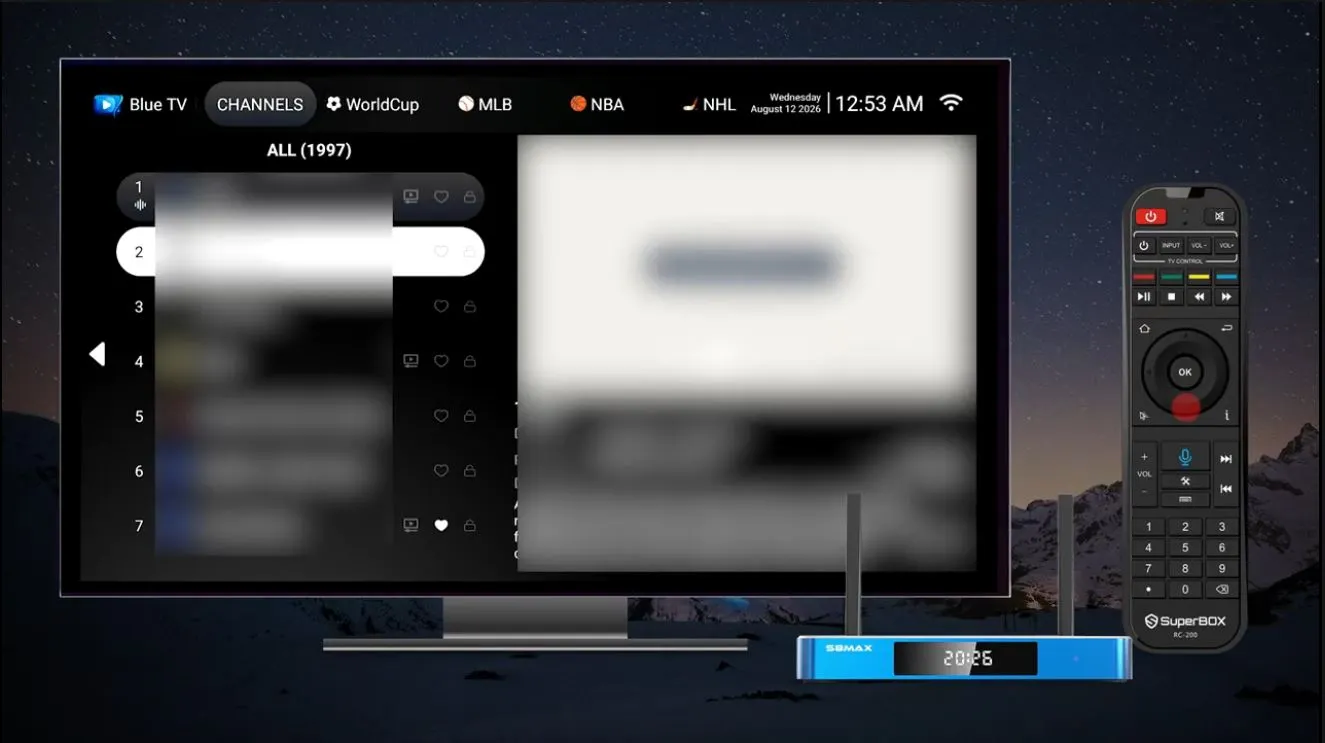
How to Browse Channels Efficiently
When Blue TV opens, start with the broadest navigation method that matches your goal. The top row is useful when the section you want is already visible. For a wider view, open the left navigation panel and choose from the available lists.
The demonstration shows options such as All, Recent, Favorite, Time Shift, and organized channel categories. Each serves a different purpose:
- All is the broad browsing view.
- Recent helps you return to channels you opened lately.
- Favorite keeps your manually selected channels together.
- Custom groups create a separate list around your own theme or household preference.
- Time Shift provides its own organized section where supported.
- Category lists narrow the interface to a particular type of programming.
This structure is more useful than continuously scrolling through the complete list. After a few viewing sessions, Recent and Favorite should handle many everyday choices, while Search and custom groups reduce the work for less frequent ones.
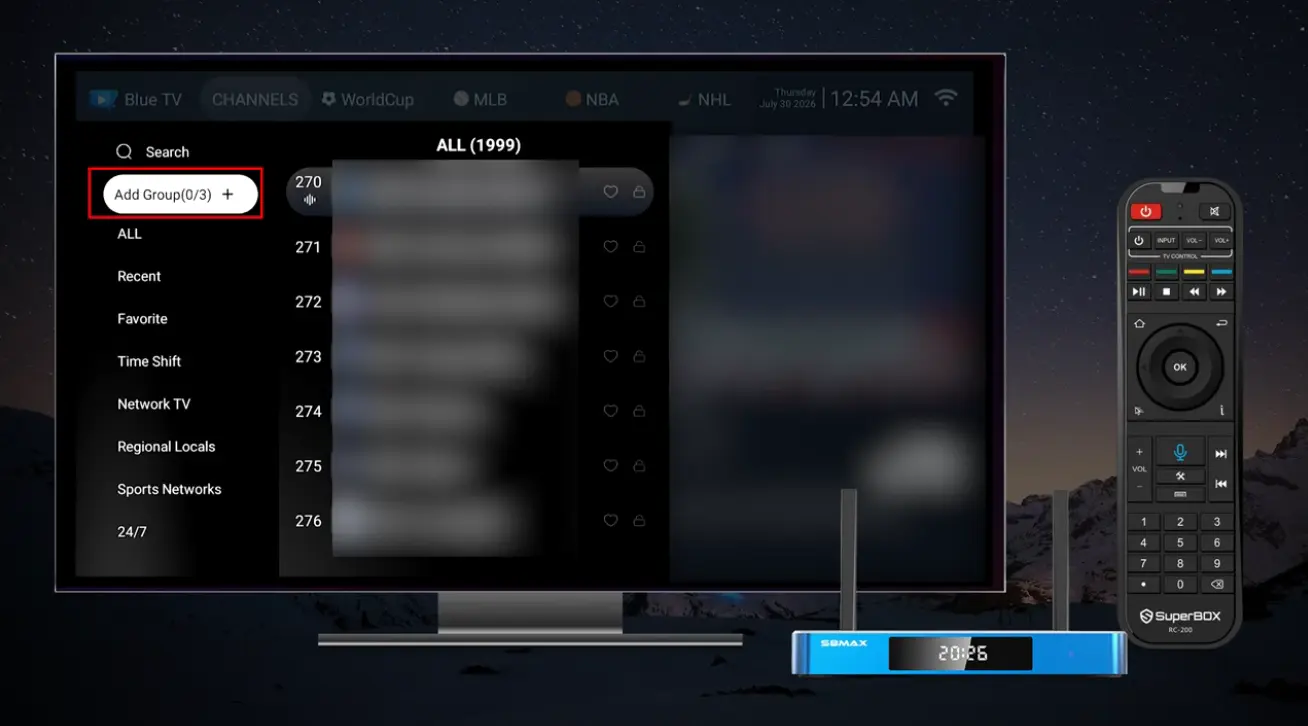
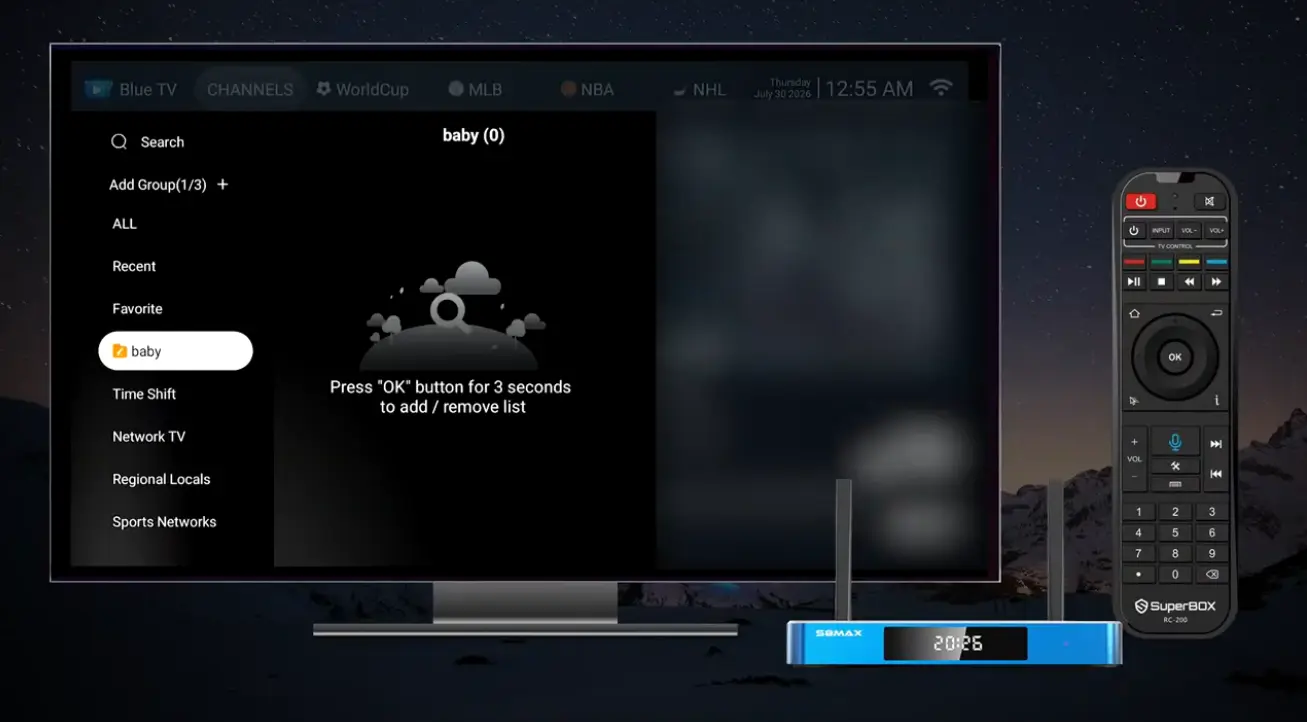
Create a Custom Channel Group
Favorites are useful for a single shortlist, but a custom group gives you another way to organize channels. For example, different household members can maintain a focused list without relying only on the full catalog or one shared Favorites section.
To create a custom group:
- Open the left navigation panel.
- Select the Add Group option marked with a plus sign.
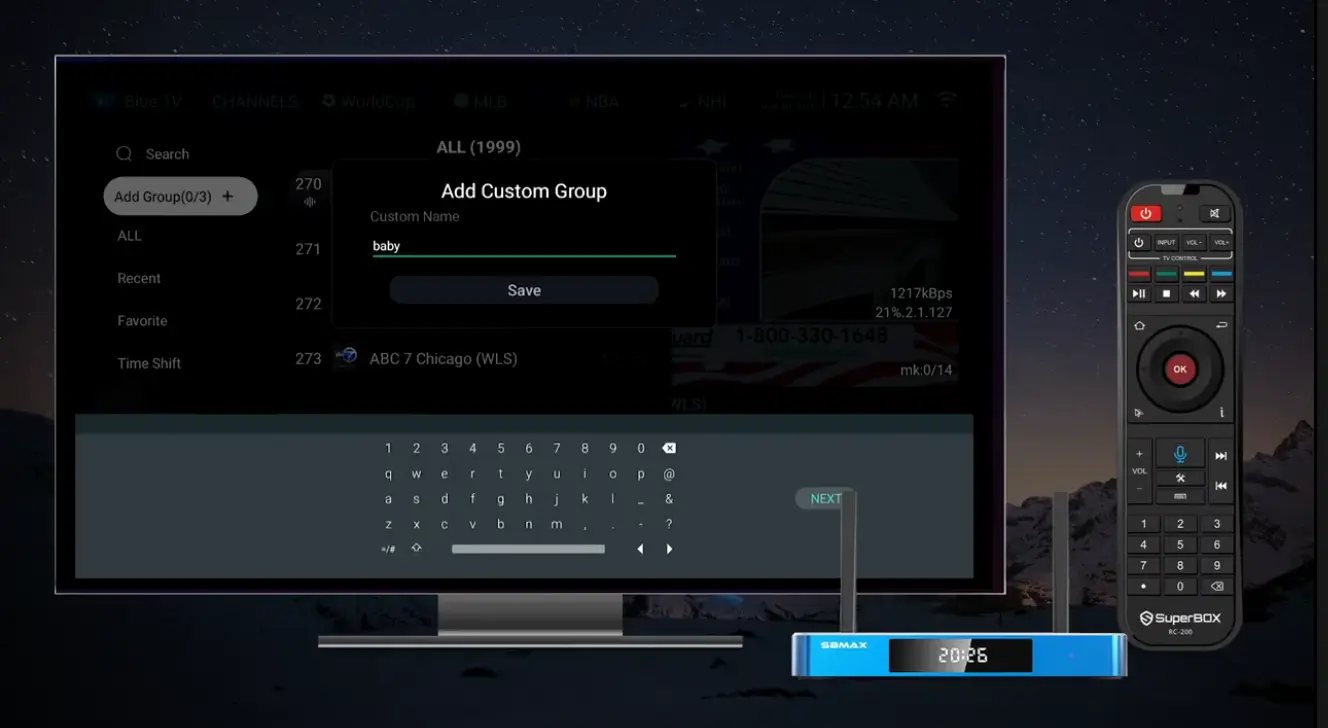
- Enter a name with the on-screen keyboard.
- Confirm the new group.
- Open the channel list and select a channel you want to manage.
- Press and hold OK for three seconds to add the selected channel to or remove it from the group, following the instruction shown by the interface.
Choose a short group name. It is easier to recognize in the sidebar, and the purpose remains clear whenever you return to Blue TV.
Custom Groups vs. Favorites vs. Recent
These features overlap, but they are not identical.
| Tool | Requires manual organization? | Best use |
|---|---|---|
| Recent | No | Reopening something watched lately |
| Favorite | Yes | Maintaining one primary shortlist |
| Custom group | Yes | Building a named list for a topic or household member |
Use Recent for convenience, Favorite for your most-used selections, and custom groups when one flat shortlist is no longer enough.
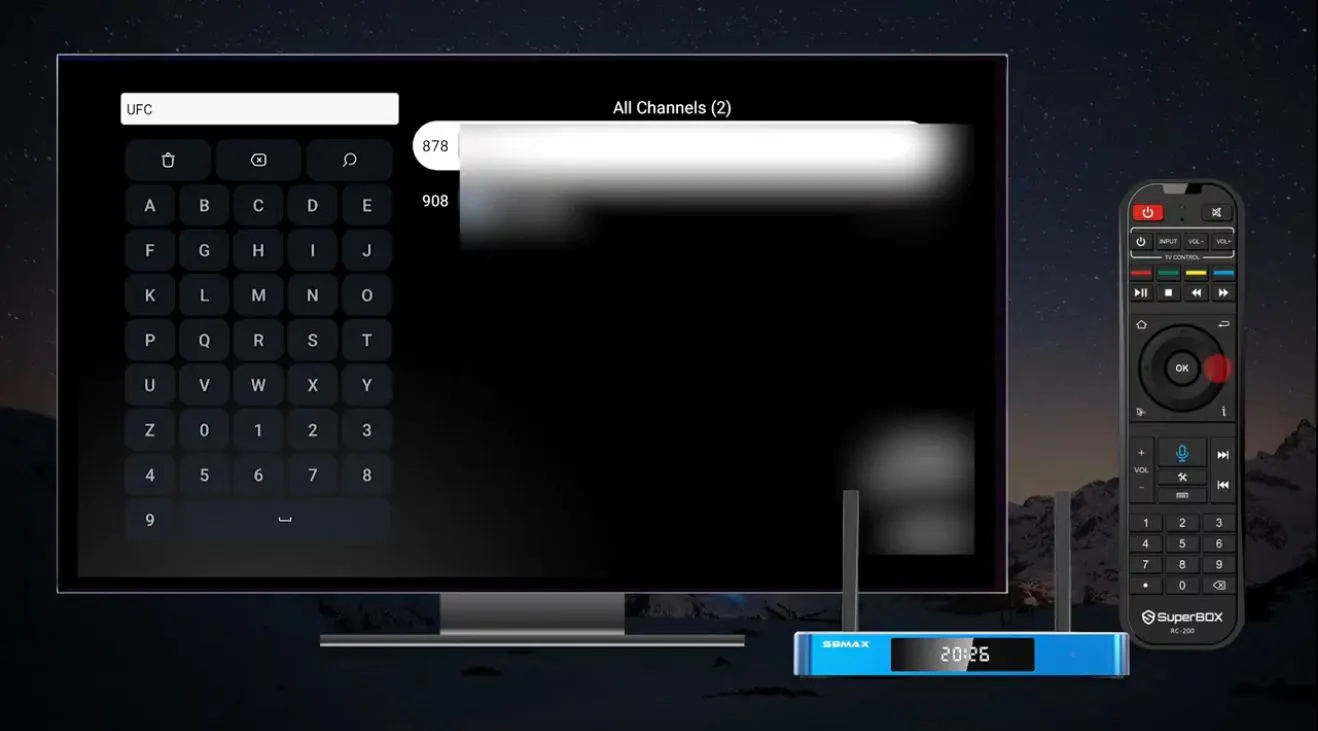
Search for a Channel by Name
Search is the quickest choice when you know a channel or keyword but not its position in the list.
- Open the left navigation panel.
- Select Search.
- Enter letters with the on-screen keyboard.
- Review the matching results as they appear.
- Select a result to open it.
The demonstration uses “UFC” as an example search and returns matching entries. That example illustrates how the text filter works; it is not a guarantee that any particular channel, event, or program will remain available.
A short, distinctive search term is often better than typing a long title. If the first term produces too many results, add another letter and let the result list narrow.
Use the EPG to See What Is On
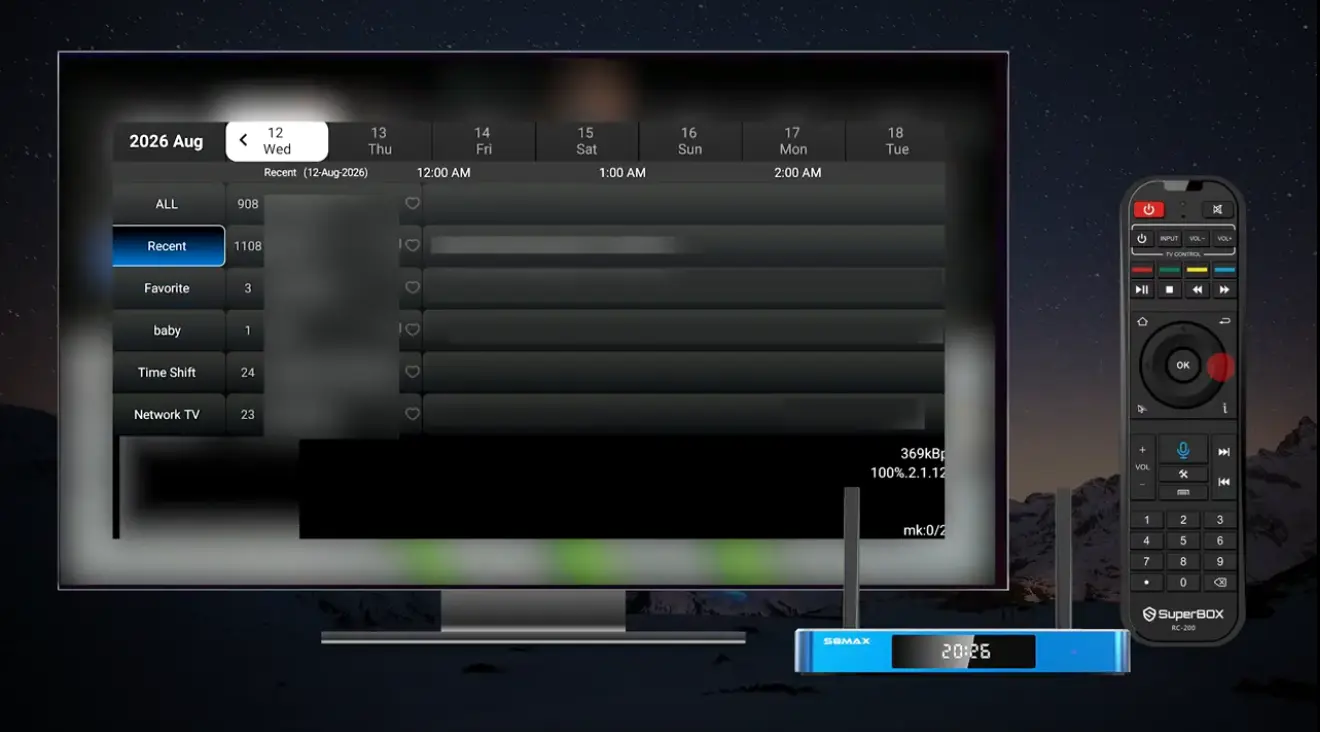
The electronic program guide, or EPG, changes the experience from a simple channel list into a schedule. Instead of opening channels one by one, you can compare multiple rows against time columns and see what is playing across the displayed period.
Use the EPG when you want to:
- Compare what is currently playing across several channels.
- Look ahead in the displayed schedule.
- Move between dates shown in the guide.
- Select a program from a grid rather than a basic channel list.
The Blue TV demonstration shows channel categories at the left and the schedule extending across the screen. Move through the grid with the remote and confirm the highlighted selection with OK.
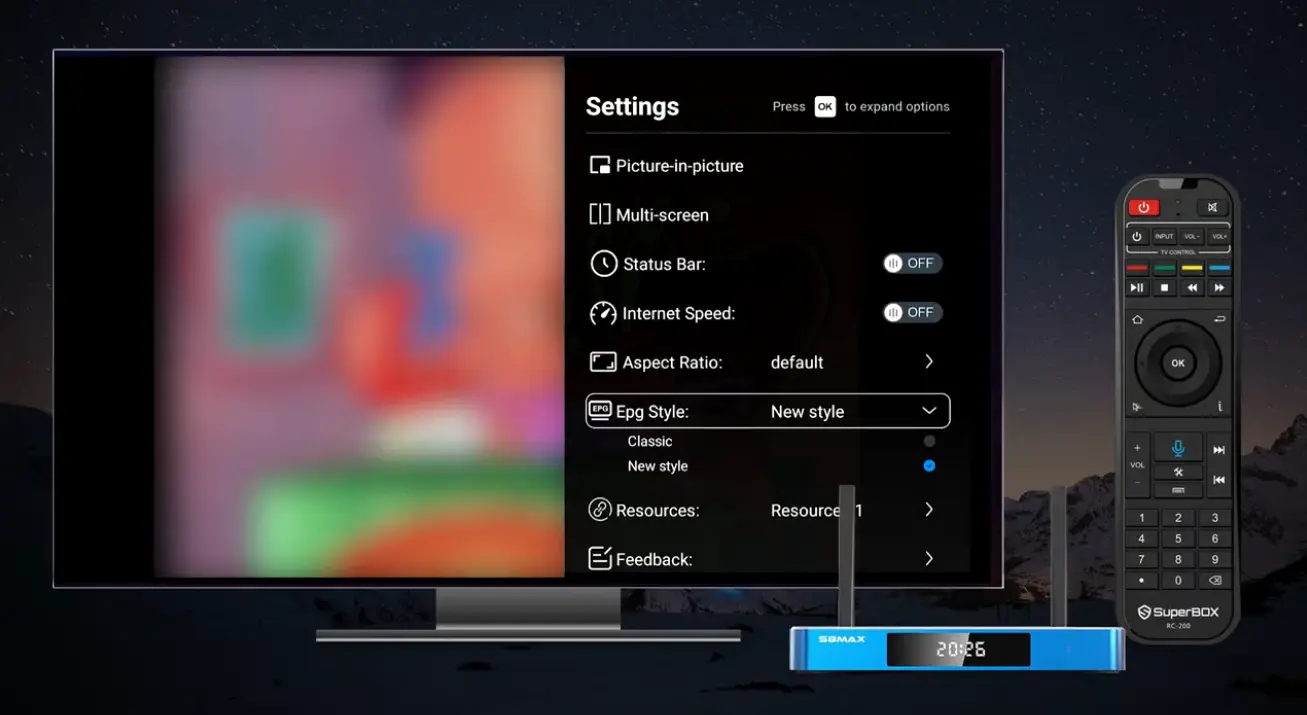
The Settings menu offers two EPG presentations: New style and Classic. Neither is automatically better for everyone. New style may be the natural starting point for the current interface, while Classic provides an alternative arrangement for users who prefer it. Try both and retain the one that makes channel names and time slots easiest for you to scan.
Switch Channels Faster
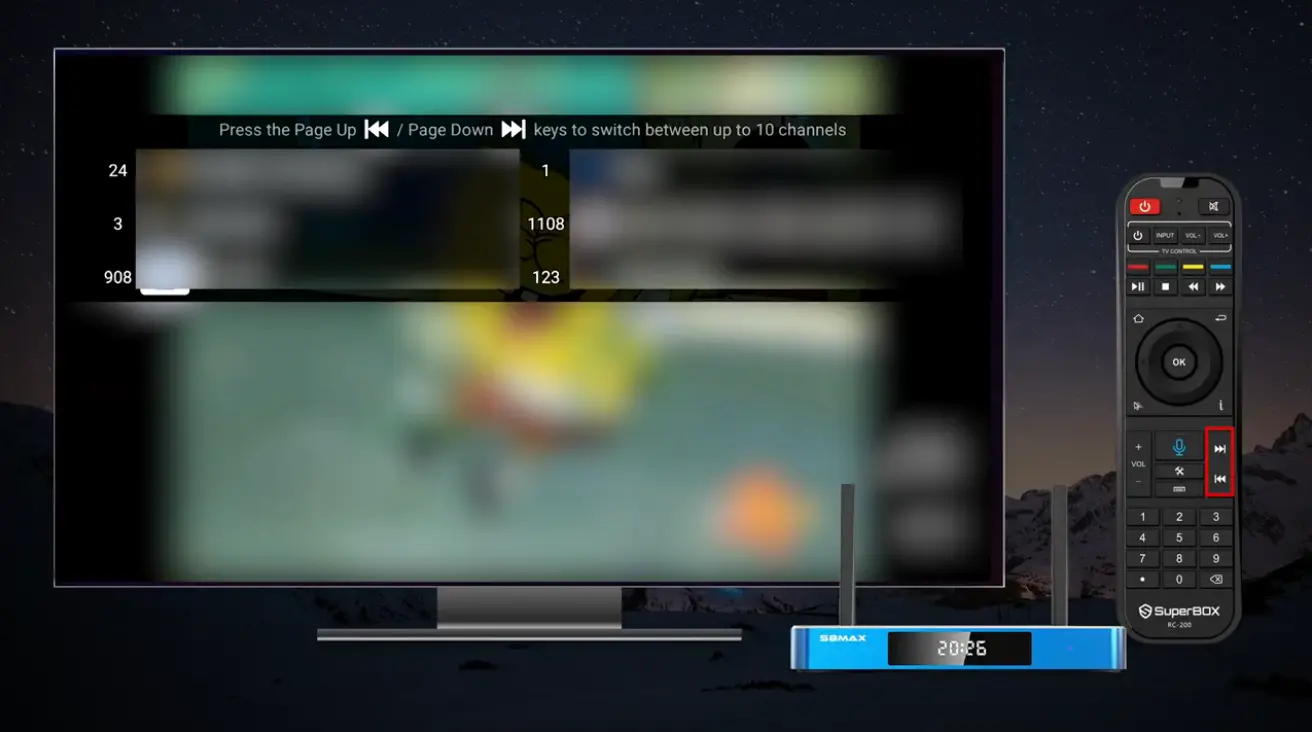
Blue TV provides more than one channel-switching method, so you do not have to return to the complete list every time.
Enter a channel number
If you already know the number, enter it with the remote. The number appears on screen, and the interface moves to the corresponding channel. This is the most direct method for a familiar selection.
Use the quick channel list
During playback, open the compact channel-switching overlay to see nearby numbered entries. The on-screen instruction also demonstrates using the remote’s page controls to move through a larger batch of channels at once. This is useful when the desired channel is close to the current one but you do not remember its exact number.
Use Search or Recent
If you remember a name but not a number, Search is faster. If you just watched it, Recent is usually the shortest route. The best method therefore depends on what you know:
| You know… | Fastest tool |
|---|---|
| Exact channel number | Number entry |
| Part of the name | Search |
| You watched it recently | Recent |
| It belongs to your shortlist | Favorite or custom group |
| You want to browse nearby entries | Quick channel list |
Blue TV Settings Explained
Open Settings when you want to change how Blue TV displays or organizes the viewing experience. The S8 demonstration shows the following menu items.
| Setting | Purpose shown by the interface | When to consider it |
|---|---|---|
| Picture-in-Picture | Opens a smaller viewing window alongside another view | When you want to keep one picture visible while using another screen area |
| Multi-Screen | Provides a multiple-view layout | When you want to monitor more than one supported view |
| Status Bar | Shows or hides on-screen status information | When you want extra viewing details or a cleaner picture |
| Internet Speed | Shows or hides network-speed information | When checking connection information during viewing |
| Aspect Ratio | Changes the screen-shape setting | When the picture needs a different fit |
| EPG Style | Switches between New style and Classic | When choosing your preferred guide layout |
| Resources | Selects among available resource options | When an alternative supported resource is needed |
| Feedback | Reports a defined playback or content issue | When the current item has a problem |
| Parental Control | Opens the parental-control function | When household viewing needs access controls |
Change one option at a time. That makes it much easier to understand which setting affected the screen and to reverse the change if you prefer the previous layout.
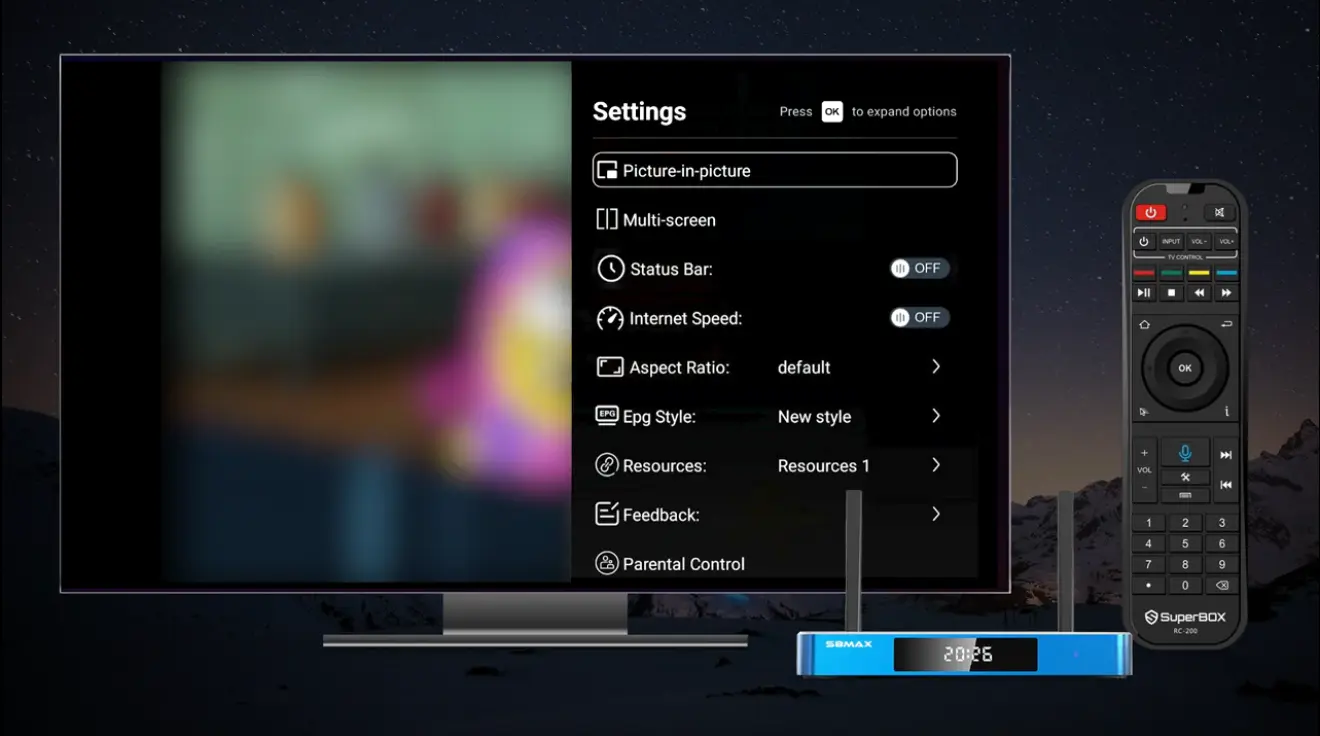
Picture-in-Picture and Multi-Screen
These two options are related but serve different layouts. Picture-in-Picture keeps a smaller picture visible within or alongside a primary view. Multi-Screen is intended for a multiple-view arrangement. Their practical availability can depend on the selected programming and the S8 model or app configuration.
According to the current S8 Series comparison supplied for launch, the Multi-Viewing scope differs by model: S8 Pro and S8 Plus list support for designated PPV and ESPN channels, while S8 Max and S8 Ultra list full supported channels. This distinction matters when comparing the four S8 models; the presence of the menu alone should not be treated as a promise that every selection supports every layout.
Status Bar and Internet Speed
Status Bar and Internet Speed are toggle-style options. Enable them when you want the related information displayed, and disable them when you prefer a less cluttered viewing screen. The demonstration shows technical information appearing over playback after these display options are used.
Aspect Ratio
Aspect Ratio controls how the video fits the display. The menu shows a default selection. If the default already fills the television correctly, there is no reason to change it. Use the alternative choices only when you intentionally want a different fit.
EPG Style: New or Classic
The EPG Style dropdown provides New style and Classic. Switch between them to compare the guide presentations. Because this is a visual preference, the best choice is the one that lets you read channel rows and time slots most comfortably from your normal seating position.
Resources
The Resources row displays selectable resource options. Because those options may change with the service configuration, use only the choices presented by the app. Avoid assuming that a resource name is permanent or that the same list will appear on every device at all times.
Parental Control
Parental Control appears as a dedicated Settings item. Households that need access restrictions should configure this option before regular viewing and keep control credentials away from children or unauthorized users. The video identifies the menu location but does not demonstrate a complete credential-creation or recovery process, so follow the prompts displayed by the current app version rather than relying on an undocumented sequence.
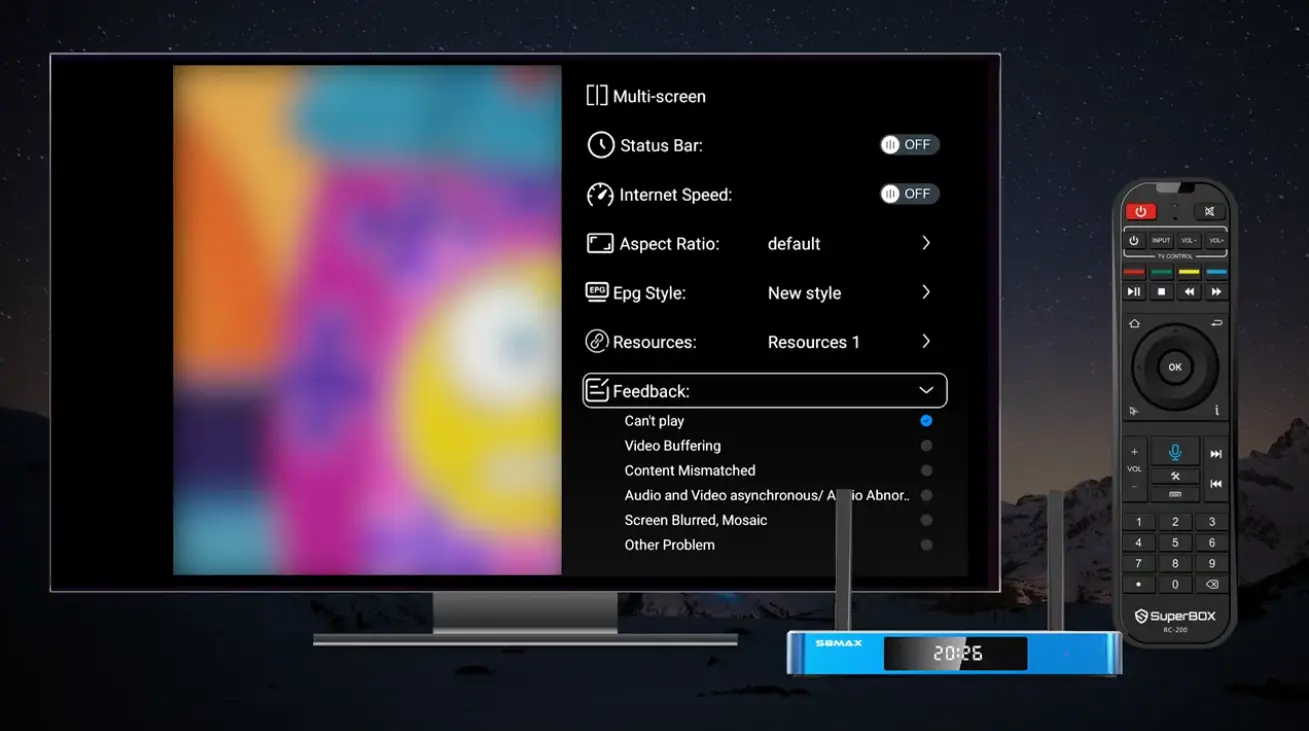
How to Report a Problem Through Feedback
When a particular selection has a problem, Blue TV includes a Feedback menu with predefined categories. The demonstration shows options for issues including:
- Cannot play.
- Video buffering.
- Content mismatch.
- Audio/video or no-audio problems.
- Blurred or mosaic-like picture.
- Another problem not covered above.
To submit the most useful category:
- Leave the affected selection identifiable on screen.
- Open Settings.
- Select Feedback.
- Choose the description that most closely matches what you see or hear.
- Confirm the selection through the interface.
Choose the closest specific category rather than “Other problem” whenever possible. Feedback is meant to identify the type of issue; it does not guarantee an immediate correction or a particular resolution time.
Which SuperBox S8 Model Is Best for Blue TV?
All four S8 models in the launch comparison: S8 Pro, S8 Plus, S8 Max, and S8 Ultra – include Blue TV, Blue VOD, built-in recording, Playback, Backup TV, and voice command. Their differences affect how much local storage you receive and which premium conveniences are included.
| S8 model | Memory and storage | Multi-Viewing scope listed at launch | Standout convenience |
|---|---|---|---|
| S8 Pro | 4GB RAM / 32GB storage | Designated PPV and ESPN channels | Entry model with USB-C and USB 3.0 |
| S8 Plus | 4GB RAM / 64GB storage | Designated PPV and ESPN channels | More storage than Pro |
| S8 Max | 4GB RAM / 64GB storage | Full supported channels | Broader Multi-Viewing scope and NFL app |
| S8 Ultra | 4GB RAM / 128GB storage | Full supported channels | Most storage, NFL app, and backlit remote |
Choose S8 Pro if the core Blue TV experience and lower storage tier fit your needs. S8 Plus doubles the listed storage while retaining the same listed Multi-Viewing scope. S8 Max is the stronger step for broader supported Multi-Viewing and the NFL app. S8 Ultra combines that scope with 128GB storage and the only backlit remote in the current comparison.
Hardware and app features may be revised. Check the current product page before ordering rather than relying only on a launch-period comparison.
Blue TV Workflow for Everyday Use
The most practical way to use Blue TV is to organize once and browse less later:
- Use All or the category lists during your first sessions.
- Allow Recent to become a convenient history of opened channels.
- Save the channels you return to most often in Favorite.
- Create one or two clearly named custom groups for more focused lists.
- Use Search when you know a name and number entry when you know a number.
- Open the EPG when the program matters more than the channel.
- Keep the default viewing settings unless a different layout solves a specific need.
- Use the matching Feedback category when a program has a defined problem.
This approach turns Blue TV from a large directory into a smaller interface shaped around your own viewing habits.
Frequently Asked Questions
How do I open Blue TV on SuperBox S8?
Start from the SuperBox S8 home screen and select the live-TV tile shown in the interface. The available app screen will then display its channel navigation and preview area.
How do I search for a channel in Blue TV?
Open the left navigation panel, select Search, and enter part of the channel name or keyword with the on-screen keyboard. Choose a matching result from the filtered list.
How do I make a custom group?
Select Add Group from the left menu, name the group, and confirm it. When managing its contents, highlight a channel and hold OK for three seconds to add or remove it as directed on screen.
What is the difference between Favorite and a custom group?
Favorite is one primary manually selected list. A custom group is a separate named list, making it useful for a theme, category, or household member.
Does Blue TV have an EPG?
Yes. The demonstrated interface includes an electronic program guide with channel rows, date controls, and time columns. Settings also lets you choose New style or Classic.
Can I switch a Blue TV channel by number?
Yes. The demonstration shows direct number entry during playback. It also shows a compact list for browsing nearby numbered channels.
What do Status Bar and Internet Speed do?
They are display toggles in Blue TV Settings. They show or hide related information over the viewing screen.
Does Blue TV support Picture-in-Picture and Multi-Screen?
Both options appear in the S8 Blue TV Settings menu. Actual use can depend on the selected programming, current app configuration, and S8 model. The current launch comparison lists different Multi-Viewing scopes for Pro/Plus versus Max/Ultra.
Can I change the Blue TV guide layout?
Yes. Open Settings, select EPG Style, and choose New style or Classic.
How do I report buffering or the wrong content?
Open Settings, choose Feedback, and select the closest category, such as Video buffering or Content mismatched. The menu also includes categories for playback, audio/video, picture, and other problems.
Does SuperBox TV Box Store control Blue TV channels?
No. SuperBox TV Box Store sells hardware and does not host, transmit, create, or control third-party channels or programming. Availability can change based on the app, region, service status, and content rights.
Final Thoughts
Blue TV on the SuperBox S8 Series is easiest to use when you combine its navigation tools rather than relying on one long list. Categories are ideal for discovery, Search and number entry provide direct access, Recent and Favorite reduce repeat work, custom groups create personal organization, and the EPG helps you choose by program and time.
The S8 interface also brings its more advanced controls into one Settings panel. Picture-in-Picture, Multi-Screen, display information, aspect ratio, EPG styles, resource selection, feedback, and parental controls are visible without hiding the essential channel experience behind complicated setup.
If you are choosing among S8 Pro, Plus, Max, and Ultra, compare storage, Multi-Viewing scope, app access, ports, and remote features—not just the fact that all four include the main Blue TV experience. Visit SuperBox TV Box Store to review the current S8 specifications and choose the model that matches how you actually watch.
The article was updated on:
