
Knowledge SuperBox
How to Set Date and Time on SuperBox and Fix the Wrong Clock





To set the date and time on SuperBox, open Settings → Device Preferences → Date & time. For everyday use, enable Automatic date & time, choose Use network-provided time if offered, and select your correct local time zone. To enter the clock manually, switch automatic time off first.
The menu wording can vary with your SuperBox model and software. If Device Preferences is missing, look for Date & time directly in Settings or under System. Start from the SuperBox Home screen and use the box’s remote; changing the clock in your television’s own menu changes a different device.
A clock that is one hour behind needs a different check from a box showing the wrong year. This guide walks through both, then explains what to do when the system clock is right but a TV program guide still looks wrong.
Find the SuperBox date and time settings
Before changing anything, compare the SuperBox clock with a phone showing the correct local time. Note the date as well as the hour and minutes. This gives you a clear result to check afterward.
Open the box’s settings
- Select the HDMI input connected to SuperBox if its Home screen is not already visible.
- Press Home on the SuperBox remote.
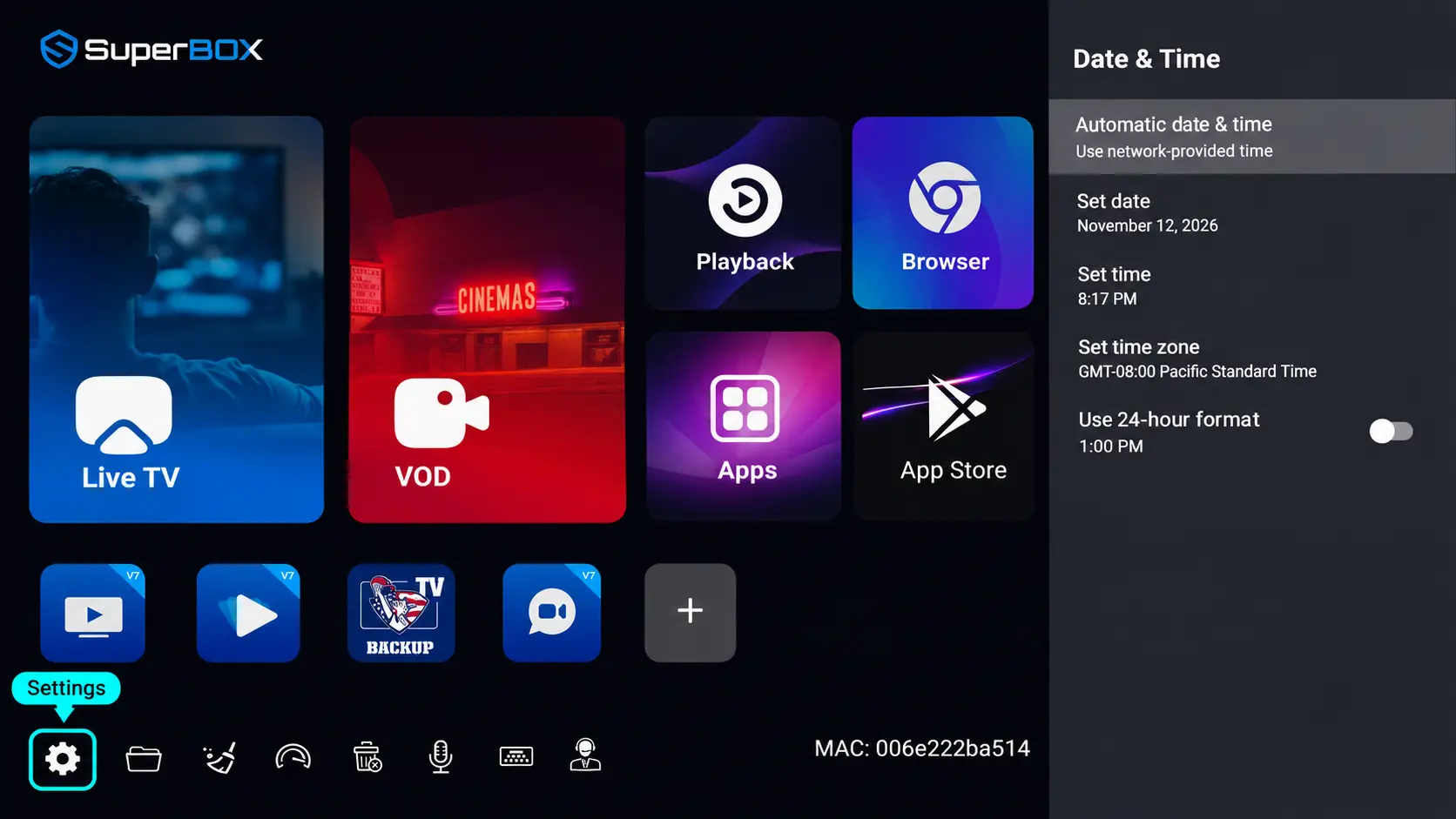
- Highlight the Settings gear and press OK.
- Select Device Preferences, then Date & time.
- If that category is absent, check for Date & time directly or inside System.
On the S8 Series, the Home screen places Settings in the left sidebar. Older layouts can put the gear elsewhere. Follow the label rather than looking for an icon in exactly the same corner.
You are in the right place when you see clock-related choices such as automatic time, setting the date, setting the time, or selecting a time zone. You do not need to open Blue TV or Blue VOD to change the system clock.
Keep the TV remote and box remote separate
If the screen shows your Samsung, LG, Sony, or another television brand’s settings, return to the SuperBox HDMI input. Use the SuperBox remote to reach its Home screen.
The television can show the correct time while SuperBox shows the wrong time. Fix the clock belonging to the device where the problem appears. This distinction also helps if you use more than one streaming device on the same TV.
Set SuperBox to automatic date and time
Automatic time is the practical starting point for a box connected to home internet. Android can obtain a time signal online and use it to correct its system clock. It still needs the correct time zone to display your local hour.
From Date & time:
- Open Automatic date & time.
- Choose Use network-provided time, Use network time, or On, depending on the options displayed.
- Return to the main Date & time screen.
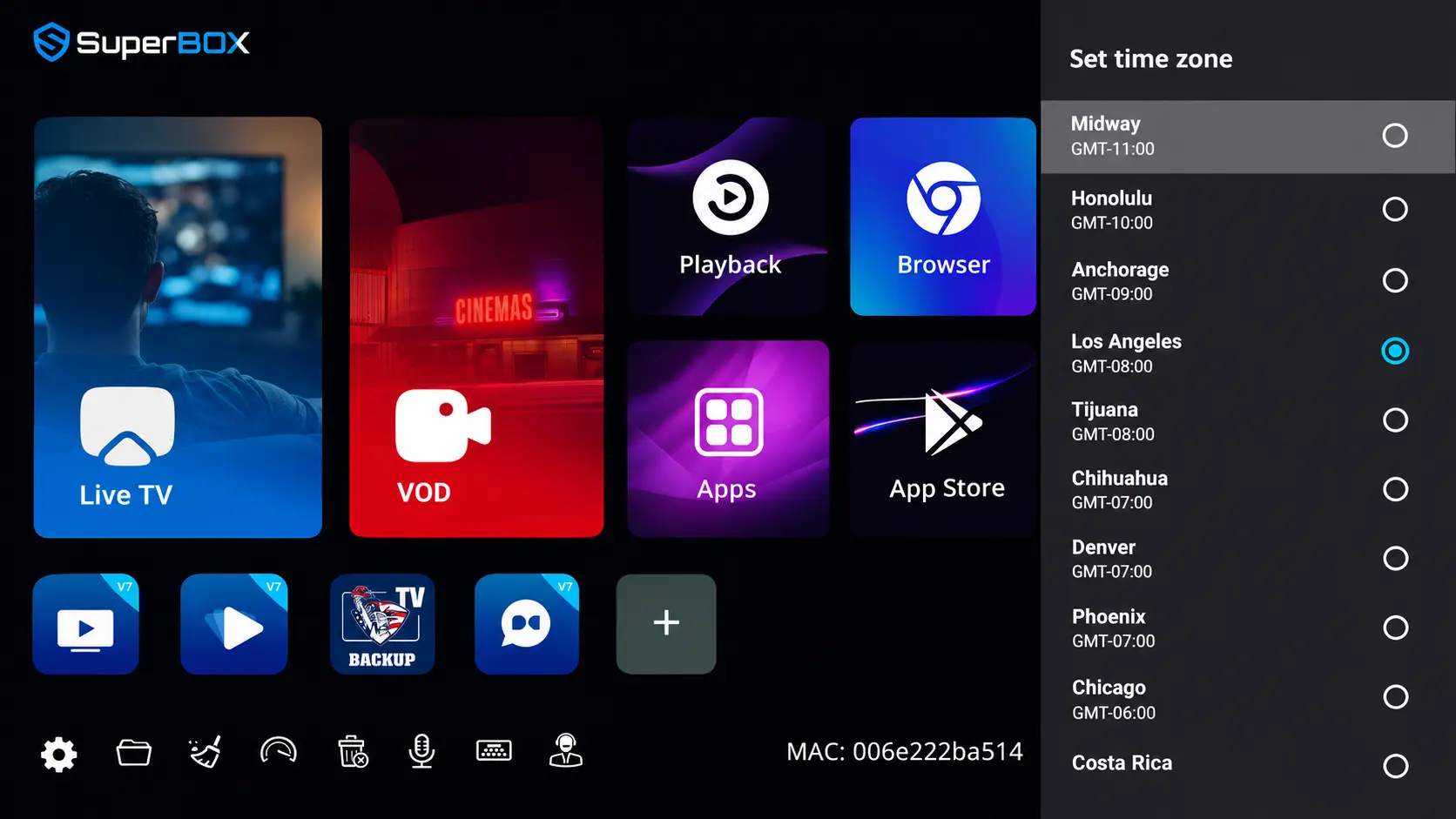
- Open Set time zone or the equivalent time-zone entry.
- Select the city or region that follows your local time.
- Return Home and compare the displayed date and time with your reference.
Android’s time settings treat automatic time and time-zone selection separately. Enabling the first does not mean your box has correctly identified the second.
If you see a separate automatic time-zone setting and it selects the wrong region, turn off that option and choose your region manually. You can leave automatic date and time enabled.
For example, a box can obtain an accurate time signal but display an hour appropriate to another part of the country. In that situation, adjust the zone instead of repeatedly changing the minutes.
Check that SuperBox is actually online
If the date remains incorrect, open the box’s network settings. A saved WiFi name alone does not establish that the current connection can reach the internet.
For S8 owners, the steps to connect through WiFi or Ethernet show where to review the connection. At a hotel or another shared network, complete any required network sign-in before expecting online functions to work.
After restoring internet access, revisit the clock screen. Android’s network time system attempts to obtain time after startup and when connectivity becomes available. Give the box an opportunity to reconnect before deciding the setting failed.
There is no need to change router security settings or install a clock-cleaning app as a first step.
Choose the correct time zone
A time zone tells the box which local time to display. It is separate from the clock format and separate from the broadcaster’s advertised schedule.
Choose your own location’s zone. If your exact town is not listed, select a listed city that follows the same local clock rules. Matching the current hour alone is less useful than matching the region’s seasonal changes too.
For example, someone living in a region that does not observe daylight saving time should not choose a different region simply because both currently show the same hour.
Use these checks before leaving the selection screen:
- Does the chosen region match where the box is being used?
- Does its displayed current time agree with your local reference?
- If you recently traveled or moved, is the old location still selected?
- If the list shows an offset such as GMT minus a number, are you also checking the regional name?
Avoid treating “Eastern” or “Pacific” as a permanent fixed offset for every date. Seasonal clock changes can alter the offset in places that observe daylight saving time.
If SuperBox is exactly one hour wrong
Check the selected zone and daylight saving time before adjusting the clock by hand. Sony’s Android TV time-setting instructions likewise distinguish automatic clock settings from selecting the appropriate city.
For 2026, US daylight saving time ended on November 1 in places that observe it. NIST lists the exceptions, including Hawaii and most of Arizona. Canadian viewers should follow their own province’s and locality’s rules.
If the problem appeared around a seasonal change, verify the region first. Do not move the clock forward or backward as compensation while leaving the wrong region selected. That can leave you correcting the same problem again later.
How to set the date and time manually
Manual entry is useful when automatic synchronization is unavailable or when support asks you to test the clock that way. Use your actual local date and time.
- Open Settings → Device Preferences → Date & time, following the equivalent labels on your box.
- Select Automatic date & time and change it to Off.
- Press Back to return to the date-and-time screen.
- Check the selected time zone.
- Open Set date, select the current year, month, and day, and confirm the displayed prompt.
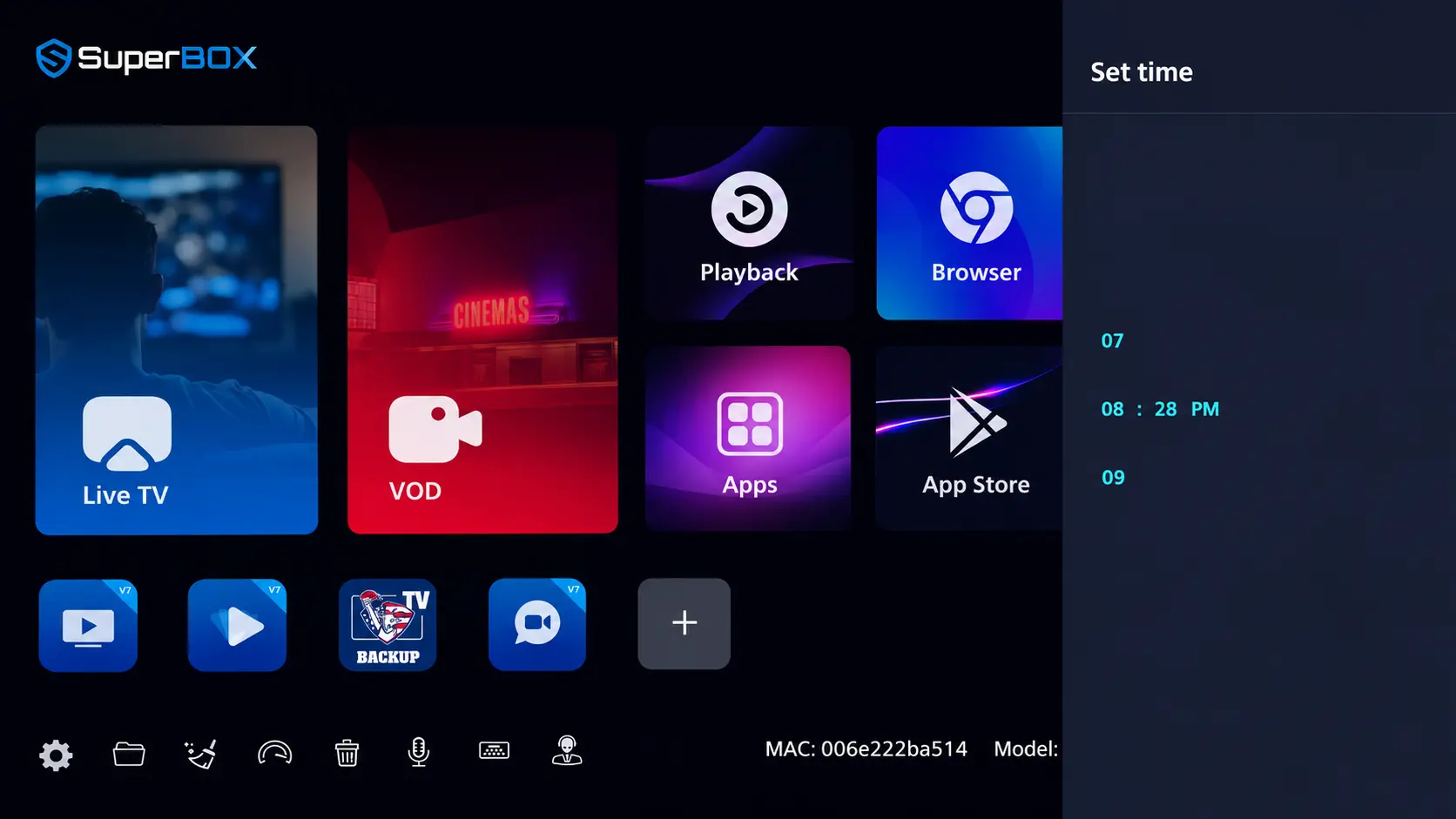
- Open Set time, adjust the hour and minutes, and confirm.
- Return Home and check the result.
Watch the highlighted field as you use the arrow keys. Moving from the month to the day is different from changing the value inside the selected field.
If the picker offers an explicit confirmation button, finish with that button. Then reopen the setting to confirm the new value was retained before leaving the menu.
Why Set date or Set time is grayed out
When automatic time is active, manual date and time controls may be unavailable. Turn automatic date and time off, return to the previous screen, and check again.
That behavior is part of Android’s TV settings design: automatic mode controls the clock, while manual mode enables date and time entry. A dimmed option in automatic mode does not by itself mean the remote or box is faulty.
If the options remain unavailable after switching modes, photograph the full screen for support instead of changing unrelated settings.
Check AM and PM carefully
In a 12-hour picker, confirm AM or PM. Entering 8:30 AM instead of 8:30 PM creates a twelve-hour difference even when the minutes look correct.
Also verify the year. A quick glance at “November 13” can miss an incorrect year, especially when correcting an old saved date.
Read the month and day before confirming
A date written as 03/04 can be confusing because different regional formats put the month and day in a different order. Use the field labels or a spelled-out month in the picker rather than guessing from the numbers.
For instance, if you intend to select April 3, confirm that the month field says April and the day field says 3. After saving, check the date displayed in the settings summary. If the month is still unclear, reopen the picker and inspect the individual fields.
This is especially helpful when setting up a box for someone whose familiar date format differs from yours. Ask them to read back the date in words before leaving the screen.
Do the same near midnight: verify the current day alongside the hour. A correct hour with yesterday’s date is still an incorrect setting, even if it looks reasonable at first glance.
Once your normal internet connection works again, you can return to automatic time and check that the displayed result remains correct.
Change between a 12-hour and 24-hour clock
If your Date & time menu includes Use 24-hour format, turn it on to display times such as 18:30. Turn it off for the corresponding 12-hour display, such as 6:30 PM.
This changes how the hour is written. It does not move a show to another time or select a different time zone.
| What you see | What to check |
|---|---|
| 18:30 instead of 6:30 PM | 24-hour display preference |
| Correct minutes but several hours wrong | Selected time zone |
| Twelve hours wrong after manual entry | AM/PM selection |
| Wrong day, month, or year | Automatic synchronization or manual date |
Choose whichever display your household reads most comfortably. For someone used to cable TV schedules with AM and PM, the 12-hour format may be easier to recognize at a glance.
An app can also use its own display conventions. Changing the system format does not guarantee that every app will present its guide identically.
The clock is correct but Blue TV shows the wrong time
Start by separating the box’s Home-screen clock from the schedule inside an app. If Home agrees with your local time, avoid changing it to force one program listing into place.
Open the Blue TV program guide and inspect the selected channel, date, and time slot. Check a second channel before deciding the entire guide is shifted.
A useful comparison is to write down:
- The local time shown on SuperBox Home.
- The exact channel name, including any regional feed label.
- The program title and time shown in the guide.
- What is actually playing.
An advertised time can belong to another broadcast time zone. A similarly named channel can also carry a different regional feed. Neither situation is fixed by entering a deliberately incorrect system time.
If only one listing is wrong, keep the correct clock and report that listing. If many entries look shifted, include that pattern in your support message.
For Playback, check the original air date
Playback organizes available past programs by channel, date, and scheduled time. A correct system clock does not mean the highlighted date inside Playback is the date you intended to choose.
Return to the date row and verify the original broadcast day. A late-night program can be easy to look for on the wrong day, particularly when comparing schedules written for another region.
The S8 Playback walkthrough explains how to select the channel and date before choosing a program block. Use those controls to locate the item instead of moving the box’s calendar backward.
What to do if SuperBox keeps showing the wrong time
The pattern matters more than repeatedly entering the same number.
| Symptom | Next useful check |
|---|---|
| Wrong time appears after startup but later corrects | Observe whether correction follows the internet connection |
| Clock stays hours wrong despite automatic time | Recheck the local time-zone selection |
| Date remains wrong and online apps also fail | Review the box’s network connection |
| Manual correction disappears when automatic time is enabled | Check the zone and the resulting synchronized time |
| Only an app guide looks wrong | Compare channels, dates, and regional feeds |
| Settings repeatedly revert after a normal restart | Save before-and-after photos and contact support |
Check once after a normal restart
After correcting the settings, restart the box normally when no recording or other important task is running. Check the date and zone again once Home and the network connection return.
If the clock corrects after reconnecting, note that sequence. If it remains wrong, record whether the automatic-time option or the selected zone also changed.
Those are different observations. A wrong clock alone does not establish a failed internal battery, a defective power supply, or a need for replacement hardware.
Get help with the exact screen
If you purchased directly from SuperBox TV Box Store, email customer@superboxtvboxstore.com for technical help or order questions. We are an authorized retailer serving US and Canadian customers, and we value making everyday setup easier.
Include your model, a photo of the Date & time menu, your location’s time zone, and what happens after restarting. Send order details privately so we can review your purchase and coordinate assistance.
A helpful message is: “My S8 Max shows [time], but my local time is [time]. Automatic time is [on/off], the selected zone is [region], and after restart it [stays correct/changes again].”
You do not need to erase apps or factory-reset the box before asking for help with its clock.
Frequently asked questions
Can I change SuperBox time from the Blue TV settings?
Use the SuperBox system settings for the box’s date and time. Blue TV’s own menu controls the app’s viewing features. Returning Home first helps ensure you are adjusting the system clock rather than the guide’s appearance.
Does setting the clock erase my apps or favorites?
Changing the date, time, time zone, or clock format is a settings adjustment. It does not require Clear Data, uninstalling an app, or factory reset. Avoid those separate actions when all you need is a corrected clock.
Will changing the date unlock older Playback programs?
No. Changing your calendar is not a way to extend the app’s available archive. Leave the system date correct and select from the channel and dates actually offered in Playback.
Should I change the time zone when traveling with SuperBox?
Check it when using the box in a different time zone. Select the region where you want local time displayed, then compare the result with a reliable local reference. Do not assume connecting to a new WiFi network automatically changes the zone.
Can I use the same instructions on SuperBox S6, S7, and S8?
Use the same basic approach: find Date & time in the box’s system settings, choose automatic or manual time, and verify the zone. The gear’s position and intermediate menu labels can differ between generations and software versions.
How do I know the change worked?
Return Home and compare the full date, hour, and minutes with your reference. Reopen Date & time to confirm the chosen zone. Then check the app you were using. Once those results agree, leave the clock alone and resume watching.
The article was updated on:
