
Knowledge SuperBox, Knowledge SuperBox S8
How to Use the SuperBox S8 Playback App: Complete Guide





Missing the beginning of a game or forgetting to watch a scheduled program does not always mean you have missed it completely. On supported channels, the SuperBox S8 Playback App provides a simple way to browse recently available programs and play them from the beginning.
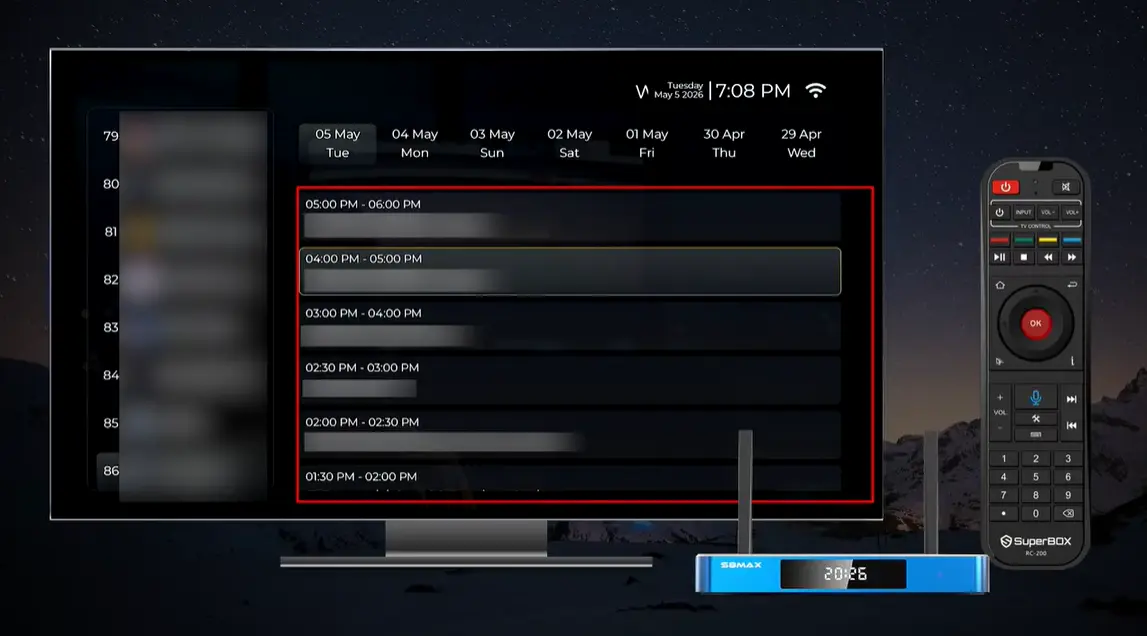
The app is integrated into the redesigned S8 home interface. Instead of searching through an unorganized archive, viewers can choose a channel, move across a seven-day date row, select an available time block, and press OK to begin. Once playback starts, the on-screen controls provide a progress timeline, pause and navigation tools, a Programs shortcut, and video settings.
This guide explains the complete process for the SuperBox S8 Pro, S8 Plus, S8 Max, and S8 Ultra. It also clarifies the difference between Playback, Time Shift, and the S8 Series’ new built-in recording feature three useful functions that should not be treated as interchangeable.
Quick answer: From the SuperBox S8 home screen, open Playback. Select a supported channel from the left column, choose one of the displayed dates, highlight the desired program time, and press OK. During playback, press OK to display the timeline and controls. Choose Programs to return to the schedule or open Settings to view Internet Speed, Aspect Ratio, and Decoder options.
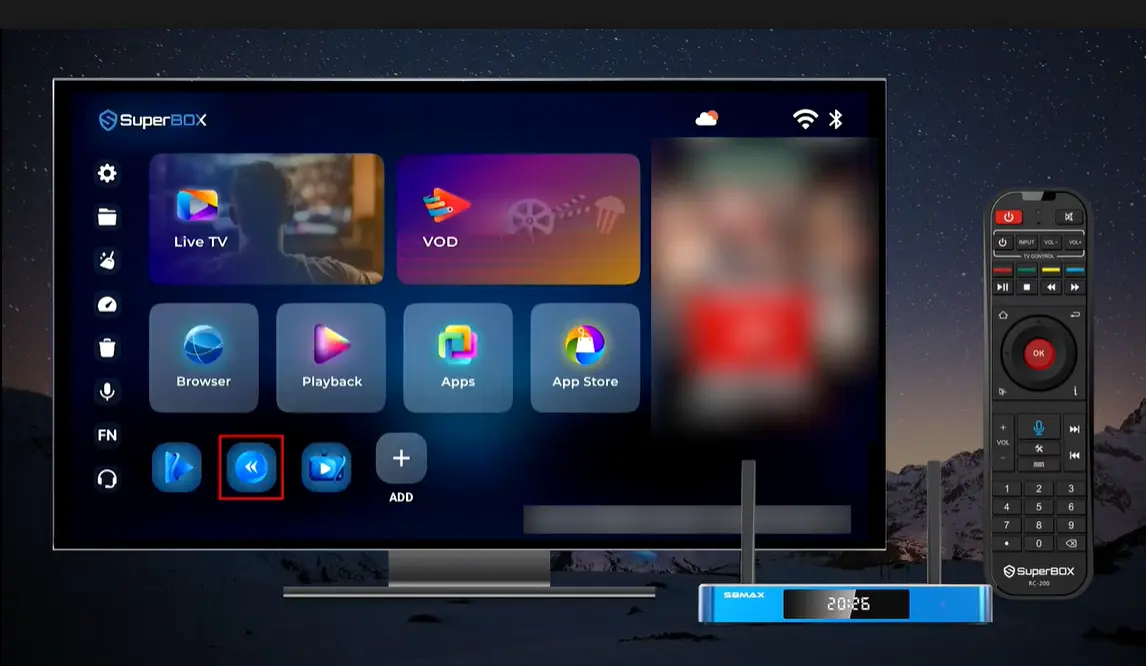
What Is the SuperBox S8 Playback App?
Playback is the S8 interface for finding supported programs that have already aired. Its layout combines three pieces of information:
- A channel list on the left.
- A row of recent dates across the top.
- A schedule of available program time blocks in the main panel.
That structure makes Playback especially useful when you know roughly where and when the desired program aired. Rather than entering a title one letter at a time, you can navigate directly to the channel, day, and time.
The date row shown in the S8 interface covers the current day and six earlier dates—up to seven days in total. Availability is still dependent on the individual channel, program, region, application version, and current service conditions. A seven-day interface is not a guarantee that every program from every supported channel will remain playable for the entire period.
Playback is included across the S8 lineup, alongside other major S8 features such as the new user interface, built-in recording, Picture-in-Picture, Multi-Screen viewing, and the upgraded streaming system.
Playback vs. Time Shift vs. Built-in Recording
These three features all give viewers more control over live television, but they operate differently.
| Feature | Main purpose | What the viewer selects | Best used when |
|---|---|---|---|
| Playback App | Browse and watch recently available past programs on supported channels | Channel, date, and scheduled time block | The program has already aired and is still available in Playback |
| Time Shift | Control supported live content and revisit a recent point in the available stream | A point on the live or recent timeline | You are watching around the time of the live broadcast |
| Built-in Recording | Record supported content using the S8 recording function | A program or recording action initiated by the user | You want to create and keep a recording through the available S8 controls |
The most important distinction is that Playback does not require you to have manually recorded the program first. It presents eligible past programming made available through the supported Playback service. Built-in Recording, by contrast, is an S8 flagship feature that creates a user-initiated recording where supported.
This difference also prevents a common misunderstanding: the Playback schedule is not a personal DVR library. Content can expire, availability can change, and not every channel or program must appear.
What You Need Before Using Playback
Before opening the app, confirm the following:
- Your SuperBox S8 is connected to the internet.
- The Playback App appears on the S8 home screen and opens normally.
- You have the S8 remote available for directional navigation and OK selection.
- The program you want aired on a channel supported by Playback.
- The desired air date remains inside the dates displayed by the app.
Playback streams past content over the internet, so a stable connection still matters. The existence of a past program in the schedule does not download it permanently to the box.
How to Use Playback on the SuperBox S8
Step 1: Open the Playback App
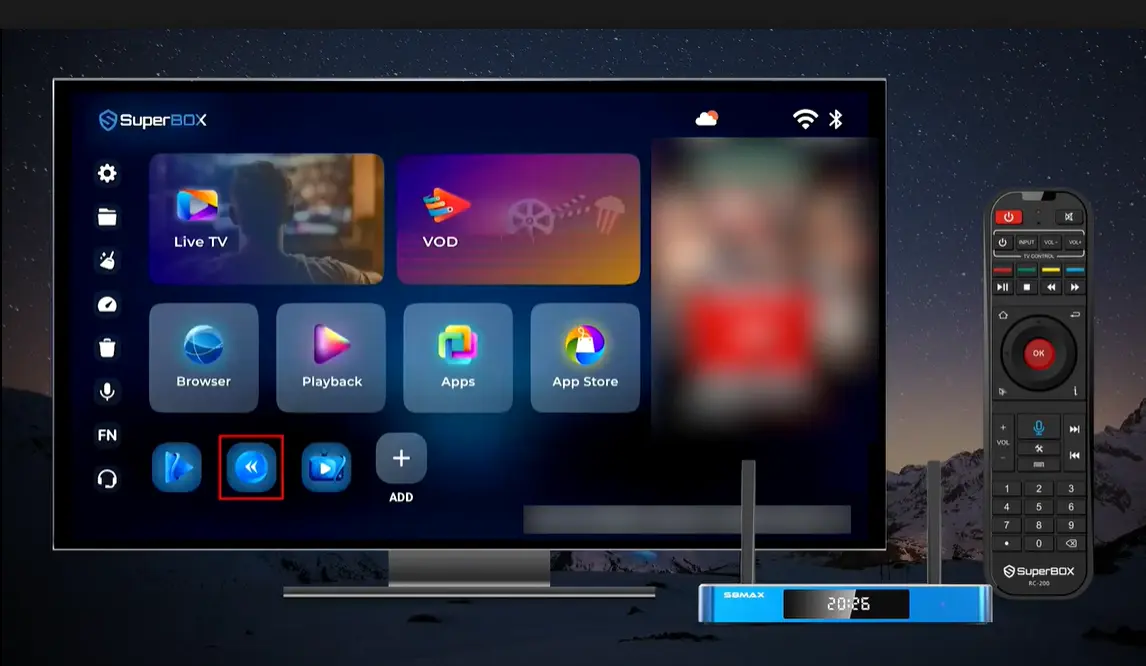
Turn on the SuperBox S8 and wait for the home interface to load. Use the directional pad to highlight Playback, then press OK.
The app displays a short loading screen before opening the program browser. If it does not move beyond loading, first confirm that the S8 has a working internet connection, then close and reopen the app.
Step 2: Select a channel
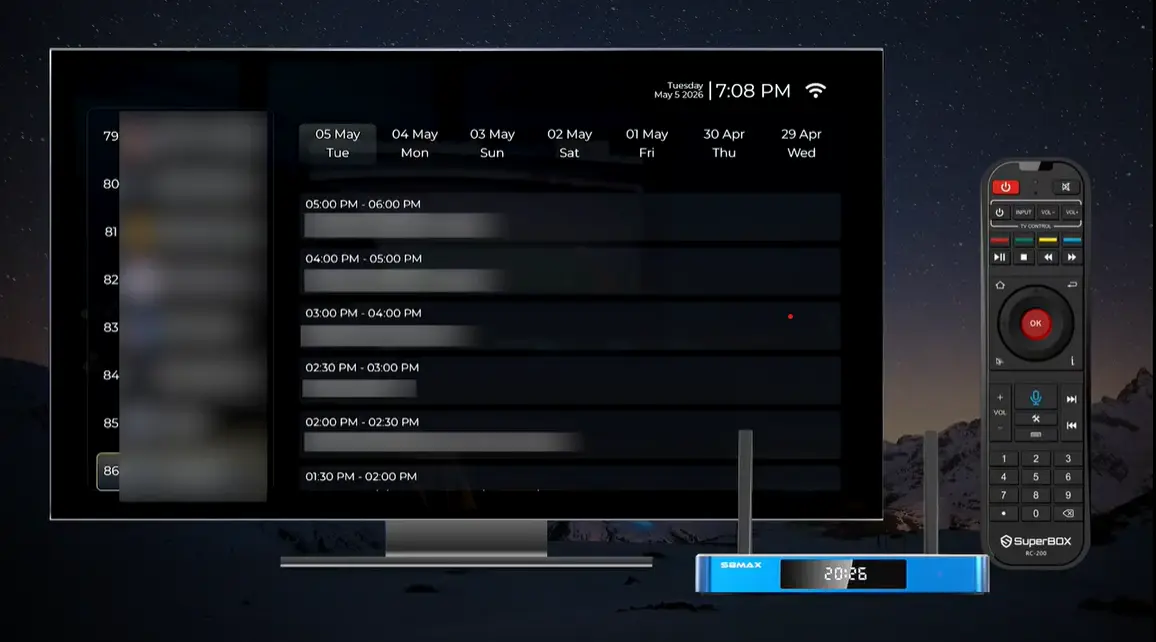
When the Playback guide opens, the channel list appears in the left-hand column. Move up or down to highlight the desired channel.
The main schedule updates for the selected channel. If the schedule is empty, try another supported channel before assuming the app is malfunctioning. Playback availability is channel-specific.
Step 3: Choose a date
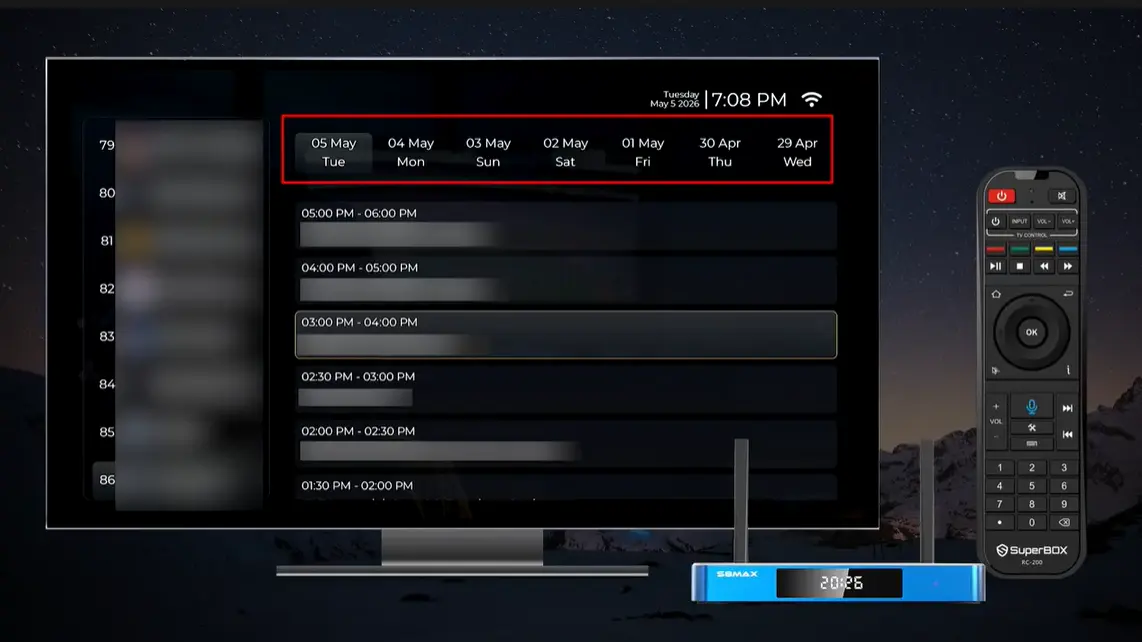
Move focus to the date row at the top of the screen. The demonstrated interface displays seven dates, beginning with the most recent day and moving backward.
Highlight the day on which the program aired. After a date is selected, the schedule underneath displays the available program blocks for that channel and day.
Step 4: Select the program time
Move into the schedule and highlight the time block that matches the desired program. The S8 guide presents scheduled start and end times, making the correct item easier to identify even when a title is shortened or unavailable.
The interface also shows how many programs are listed for the selected date. Scroll as needed because the complete day may contain more entries than can fit on one screen.
Step 5: Press OK to begin
With the correct program highlighted, press OK. The selected content opens in the player and begins loading.
Give the stream a moment to start. Repeatedly pressing buttons during the initial load can trigger another navigation action before the app finishes responding.
How to Use the Playback Controls
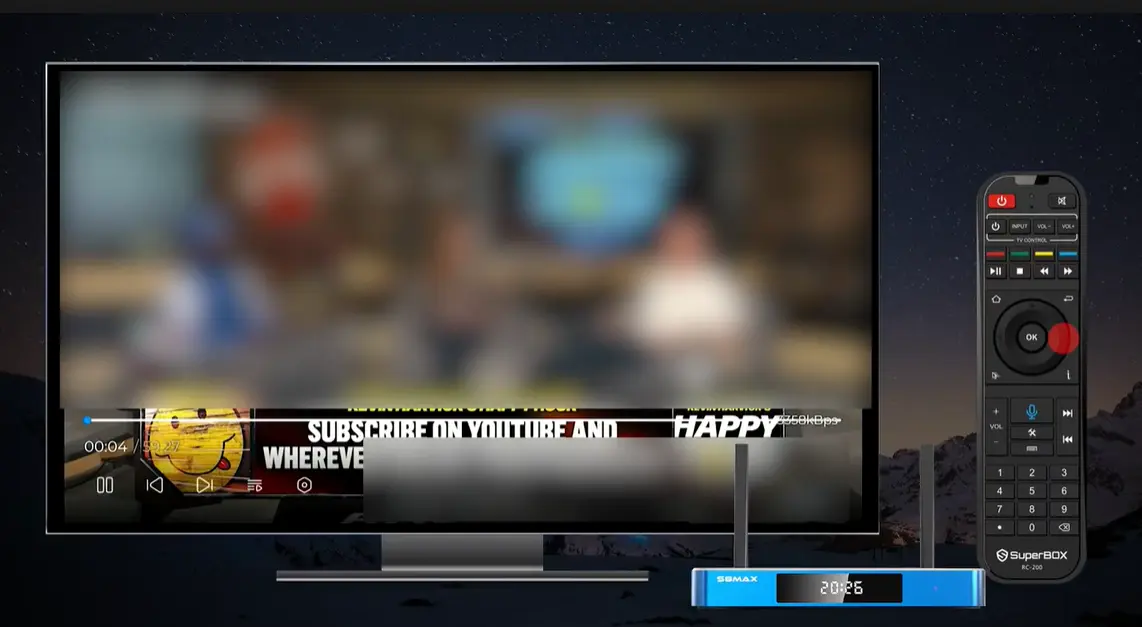
Once a program is playing, press OK to display the control bar. The player shows the current position and total program length above a horizontal timeline.
The exact availability of individual controls can depend on the program and app version, but the demonstrated interface includes:
- Pause/Play to stop and resume the program.
- Timeline navigation to move through the available portion of the program.
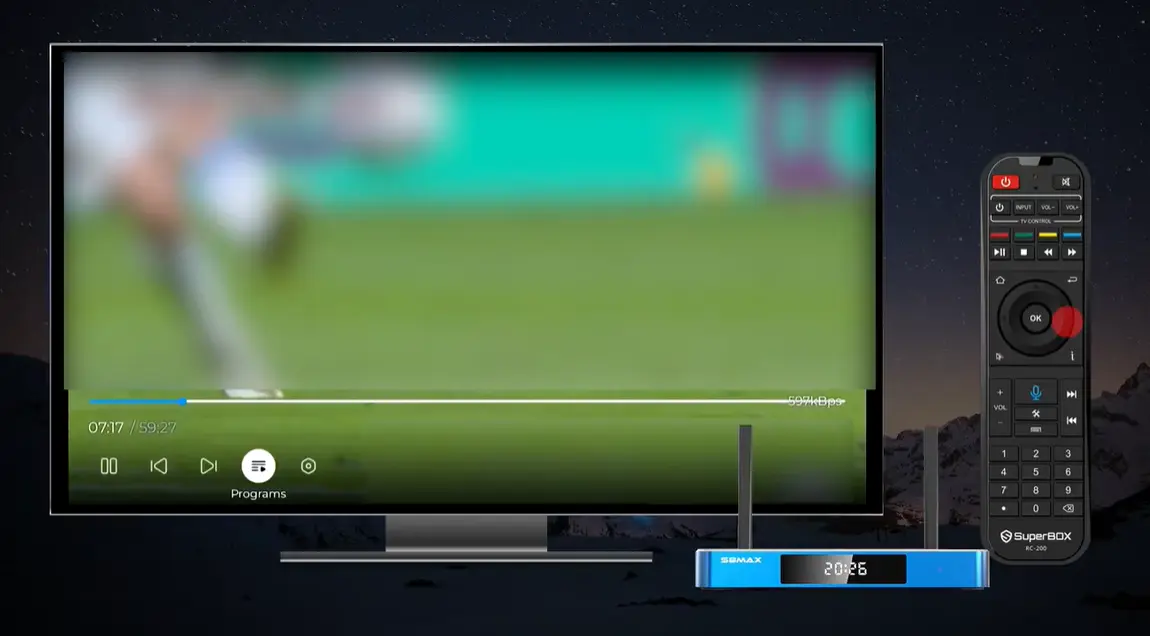
- A Programs control that reopens the channel/date schedule.
- A Settings control for stream information and video options.
The timeline is particularly useful when you join a replay to watch one specific segment. Use it carefully; moving too far can skip the moment you intended to watch.
Return to the program schedule without leaving the app
Select Programs from the control bar to bring the guide back over the current video. You can then choose a different date or scheduled time without returning all the way to the S8 home screen.
This is faster when comparing multiple events from the same channel or looking for the exact time block that contains the desired segment.
Understanding the Playback Settings
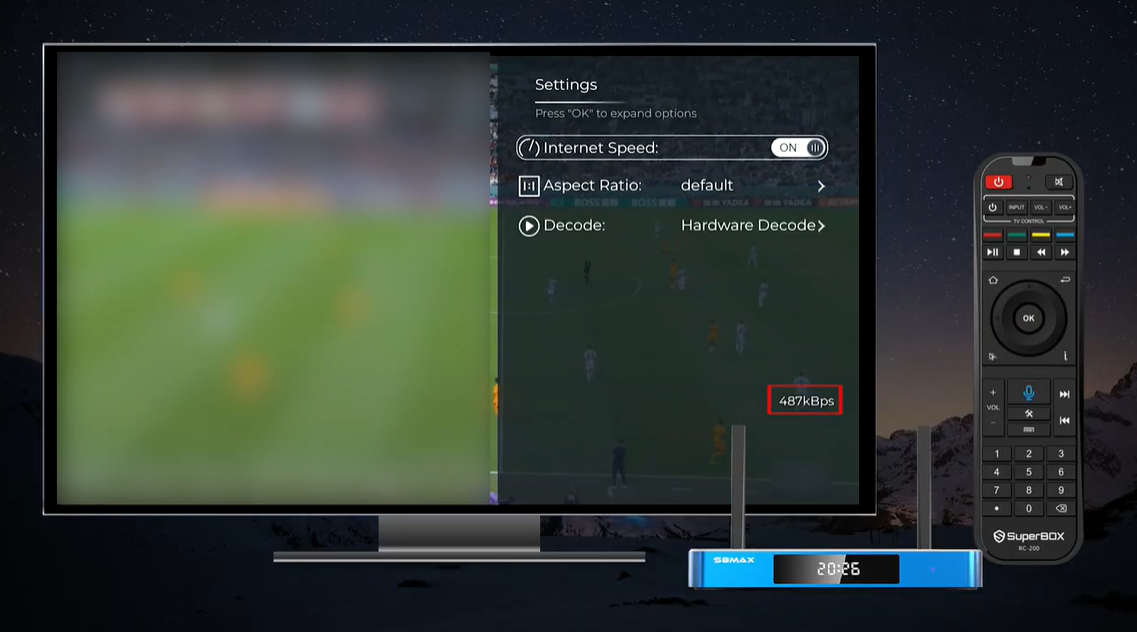
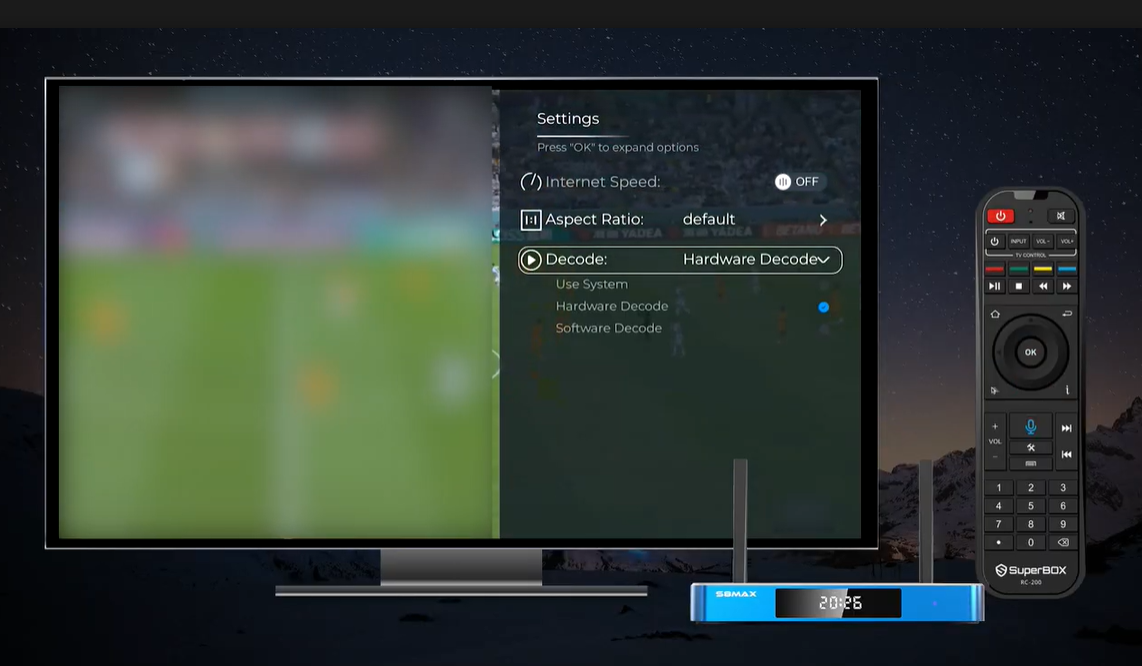
To open Settings, choose Settings icon on control bar. The Settings panel includes Internet Speed, Aspect Ratio, and Decode. These options are useful, but they should be changed for a specific reason rather than adjusted at random.
Internet Speed display
The Internet Speed switch controls whether the current transfer rate is displayed over the video. Turning it on can help during troubleshooting because it provides an immediate indication that data is being received.
The number shown is a live reading, not a promise of the maximum speed supplied by the internet plan. It may rise and fall as the stream buffers and plays.
Aspect Ratio options
Aspect Ratio controls how the video fits the television screen. The demonstrated S8 Playback interface includes five choices:
| Aspect Ratio option | What it is intended to do |
|---|---|
| Default | Uses the player’s normal display behavior and is the best starting point |
| Adapt | Fits the content within the available display area |
| Extrude | Expands the picture to occupy more of the screen |
| 16:9 | Uses the widescreen television format |
| 4:3 | Uses the older, narrower television format |
Leave the setting on Default when the picture already looks correct. Try another choice only if the video appears stretched, squeezed, cropped, or surrounded by unexpected space. A setting that fills the screen is not automatically the most accurate; expanding 4:3 content to 16:9 can distort people and objects. Use Aspect Ratio only when a Playback video does not fit the television correctly.
Decoder options
The Decode menu determines which playback method the app uses to render the video. The demonstrated choices are:
- Use System
- Hardware Decode
- Software Decode
Hardware Decode is selected in the video and should generally remain the starting choice when playback works normally. If Technical Support asks you to test another decoder because of a specific picture or compatibility problem, change one option at a time and observe the result.
Do not treat Decoder as an internet-speed control. Changing it cannot repair a weak Wi-Fi signal, an unavailable program, or a source-side interruption.
Which S8 Models Include Playback?
Playback is listed across the entire SuperBox S8 family:
| Model | RAM / storage | Playback | Other notable S8 differences |
|---|---|---|---|
| S8 Pro | 4GB / 32GB | Yes | Entry S8 model; PPV and ESPN Multi-Viewing scope |
| S8 Plus | 4GB / 64GB | Yes | More storage than Pro; PPV and ESPN Multi-Viewing scope |
| S8 Max | 4GB / 64GB | Yes | Full supported Multi-Viewing scope and NFL app |
| S8 Ultra | 4GB / 128GB | Yes | Full supported Multi-Viewing, NFL app, maximum storage, and backlit remote |
Playback itself is not a reason to choose only the Max or Ultra because all four models include it. Choose among the models based on storage, Multi-Viewing scope, NFL app availability, ports, power connection, and remote preference.
Troubleshooting the SuperBox S8 Playback App
| Problem | Likely explanation | Recommended action |
|---|---|---|
| Playback remains on the loading screen | Internet connection or temporary app issue | Confirm the S8 is online, return to Home, reopen Playback, and test again |
| A channel has no program list | Playback is not available for that channel or date | Select another date or supported channel |
| The desired date is missing | It falls outside the dates currently displayed | Check the seven-day row; older content may no longer be available |
| A time block appears but does not play | Temporary program or source availability issue | Try a different program, then return later if only one item is affected |
| Video buffers or pauses | Connection or source is unstable | Test the internet connection, reduce other network activity, and retry the program |
| Picture looks stretched | Aspect Ratio does not match the content | Return to Default, then test Adapt, 16:9, or 4:3 as appropriate |
| Picture plays incorrectly with one decoder | Compatibility issue may affect that playback method | Return to the working decoder or test another only when necessary |
| Remote selection seems stuck | Focus may be in the timeline, schedule, or Settings panel | Press Back once and watch the highlight before using the directional pad |
| Playback tile is missing | App installation or interface issue | Check the S8 Apps/App Store area and contact Technical Support rather than installing an unknown APK |
Frequently Asked Questions
What does the SuperBox S8 Playback App do?
It lets users browse and watch recently available past programs from supported channels by selecting a channel, date, and scheduled time.
How far back does SuperBox S8 Playback go?
The demonstrated interface displays up to seven dates: the current day plus six previous days. Actual program retention and availability can vary.
Do I need to record a program before using Playback?
No. Playback is separate from the S8 built-in recording function. If an eligible program appears in Playback, you can select it without having created a personal recording beforehand.
Is Playback available on S8 Pro, Plus, Max, and Ultra?
Yes. Playback is listed across all four SuperBox S8 models.
Why can’t I find a specific show in Playback?
The program may be outside the displayed dates, unavailable on that channel, not included in Playback, or temporarily unavailable. Check the correct channel, date, and original air time.
Can I fast-forward while using Playback?
The player provides timeline navigation for the available program. Control availability can vary by program and application version, so use the controls displayed for the selected content.
How do I return to the schedule while a program is playing?
Press OK to open the control bar, then choose Programs. The schedule opens over the current Playback session.
What does Internet Speed do in Playback Settings?
It displays the current transfer rate on screen. It is a diagnostic display and does not increase the speed of the connection.
Which Aspect Ratio should I use?
Start with Default. Change it only if the picture is visibly stretched, squeezed, or incorrectly fitted to the television.
Should I use Hardware Decode or Software Decode?
Keep the working default when playback is normal. Hardware Decode is selected in the demonstrated interface. Test another decoder only for a specific compatibility problem or when instructed by Technical Support.
Does Playback download programs to S8 storage?
No. Playback streams eligible past content. It should not be confused with locally keeping a user-created recording.
Is every channel available for seven-day Playback?
No guarantee should be made for every channel or program. Availability can depend on the model, channel, region, app version, and current service conditions.
Final Thoughts
The SuperBox S8 Playback App turns recent-program discovery into a clear, remote-friendly process. Choose a channel, select one of the displayed dates, find the correct time block, and press OK. During playback, the timeline handles viewing control, Programs returns to the schedule, and Settings provides useful picture and decoder options.
Its strongest advantage is convenience: viewers do not have to plan every supported replay in advance. At the same time, Playback should be understood accurately. It is not permanent storage, not a promise that every channel retains every program, and not the same function as the S8 Series’ built-in recording feature.
Together with built-in recording, Picture-in-Picture, Multi-Screen, the redesigned interface, and the upgraded streaming system, Playback helps make the S8 Series a more flexible platform for viewers who cannot always watch live television on schedule.
Retail and availability notice: SuperBox TV Box Store sells hardware and provides customer support. It does not host, transmit, maintain, or control third-party content. Applications, channels, programs, Playback periods, and features may change by model, software version, region, and service provider.
The article was updated on:
