
Knowledge SuperBox S8, Knowledge SuperBox
SuperBox S8 Picture-in-Picture and Multi-Screen: Complete Guide





Watching television often means choosing between two things happening at the same time. A second game begins before the first one ends. Breaking news develops while a live event is still playing. Two matchups overlap, and constantly changing channels makes it easy to miss the moment that matters.
The SuperBox S8 Series addresses that problem with two flagship viewing features: Picture-in-Picture (PiP) and Multi-Screen, also described as Multi-Viewing. Both modes let you monitor two supported live channels from Blue TV on one television, but they organize the screen differently.
Picture-in-Picture keeps one channel large and places a smaller second window over it. Multi-Screen divides the display into two side-by-side viewing panels. That distinction makes PiP ideal when one program is clearly the priority, while Multi-Screen is better when both channels deserve similar attention.
These are not cosmetic menu changes. They change how viewers follow overlapping live events and represent one of the most useful interface upgrades introduced with the SuperBox S8 generation. This guide explains how both modes work, how to turn them on, which mode to choose, and how Multi-Viewing access differs among the S8 Pro, S8 Plus, S8 Max, and S8 Ultra.
Quick answer: Open Blue TV, enter its Settings menu, and choose either Picture-in-picture or Multi-screen. PiP retains a full-size primary channel with a movable secondary window. Multi-Screen displays two channels beside each other, with program information shown below the previews. Available channels can vary by S8 model, application version, region, and service availability.
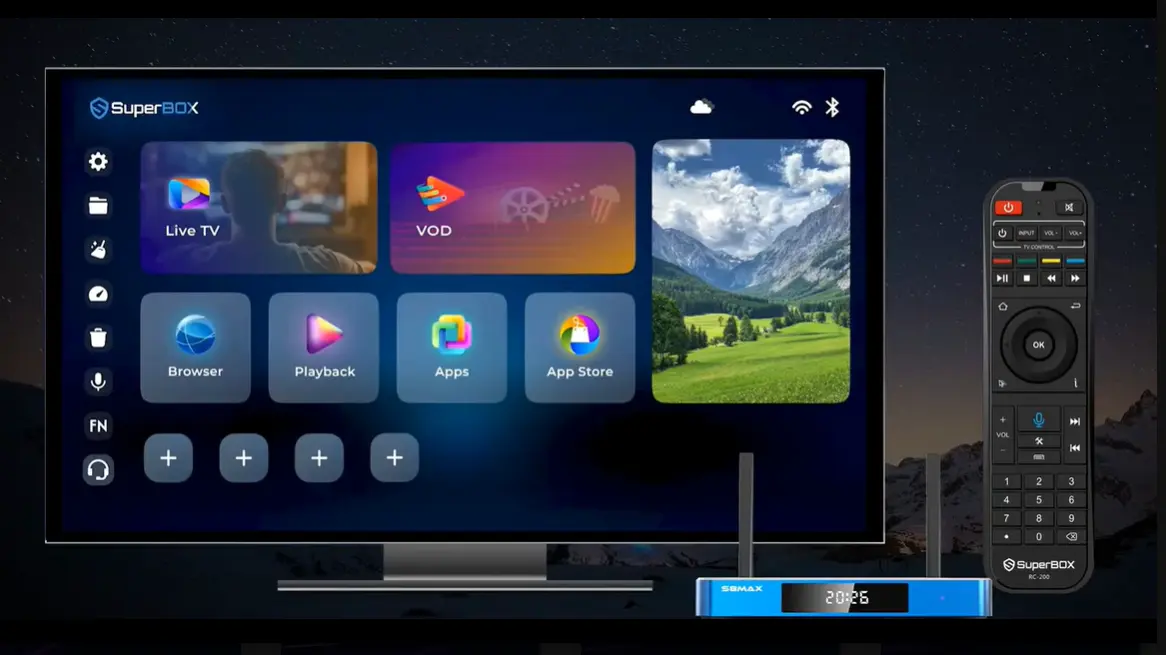
Why PiP and Multi-Screen Matter on the SuperBox S8
Most streaming interfaces are built around a one-screen, one-channel routine. To check another event, viewers must leave the current channel, browse the guide, open a second channel, and then repeat the process to return. That works, but it is inconvenient during live programming.
The S8 Series introduces a more flexible approach inside Blue TV. Instead of forcing the viewer to abandon one live channel to inspect another, the interface can keep two supported channels visible at once. This is especially useful when timing is unpredictable—such as two games entering their final minutes, a pregame show overlapping an earlier event, or a news update breaking during another broadcast.
The upgrade has three practical advantages:
- Fewer blind channel changes. You can monitor a second channel without completely losing sight of the first.
- Better control over screen priority. PiP emphasizes one channel; Multi-Screen gives both channels similar visual weight.
- A viewing layout built for overlapping events. The feature is designed around simultaneous live viewing rather than merely switching faster between channels.
PiP and Multi-Screen are flagship features of the S8 lineup. Buyers comparing an S8 with an earlier SuperBox generation should treat this as a meaningful functional difference, not simply a redesigned icon or menu.
Picture-in-Picture vs. Multi-Screen: What Is the Difference?
Although both modes display two channels, they serve different viewing habits.
| Feature | Picture-in-Picture (PiP) | Multi-Screen / Multi-Viewing |
|---|---|---|
| Screen layout | One large main channel plus a smaller overlay window | Two side-by-side channel panels |
| Visual priority | Main channel remains dominant | Both channels receive similar space |
| Best for | Watching one main event while monitoring another | Following two events of similar importance |
| Channel selection | Select the secondary window and choose a channel | Select a panel and assign the desired channel |
| Window behavior | Secondary view can appear in different screen positions | Fixed two-panel layout |
| Program details | Focus stays on the main picture and secondary preview | Program, duration, and description information can appear beneath each preview |
| Good example | A main game plus a quick look at another score | Two simultaneous games or live events |
The simplest decision rule is this: choose PiP when one channel matters more, and choose Multi-Screen when both matter nearly equally.
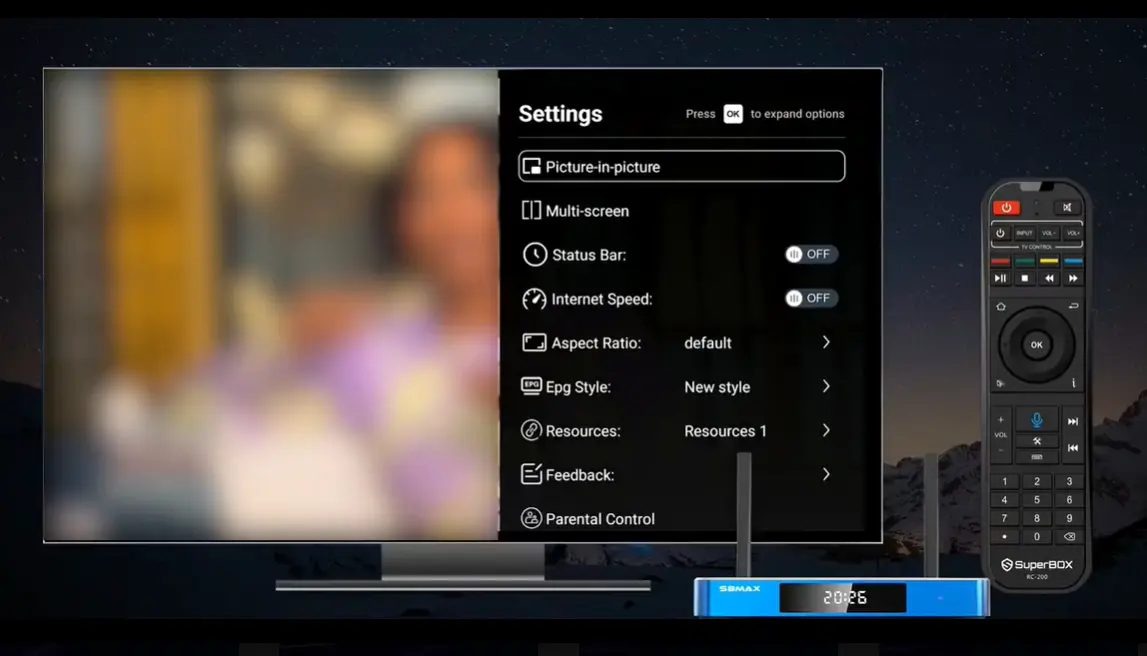
How to Use Picture-in-Picture on SuperBox S8
Picture-in-Picture is the better choice when you want to continue watching a primary channel at full size while keeping a smaller channel visible for updates.
Step 1: Open Blue TV and play the main channel
Launch Blue TV from the S8 home screen. Choose the channel you want to treat as the main program and let it begin playing normally. This channel will remain the large background view after PiP is enabled.
Step 2: Open Blue TV Settings
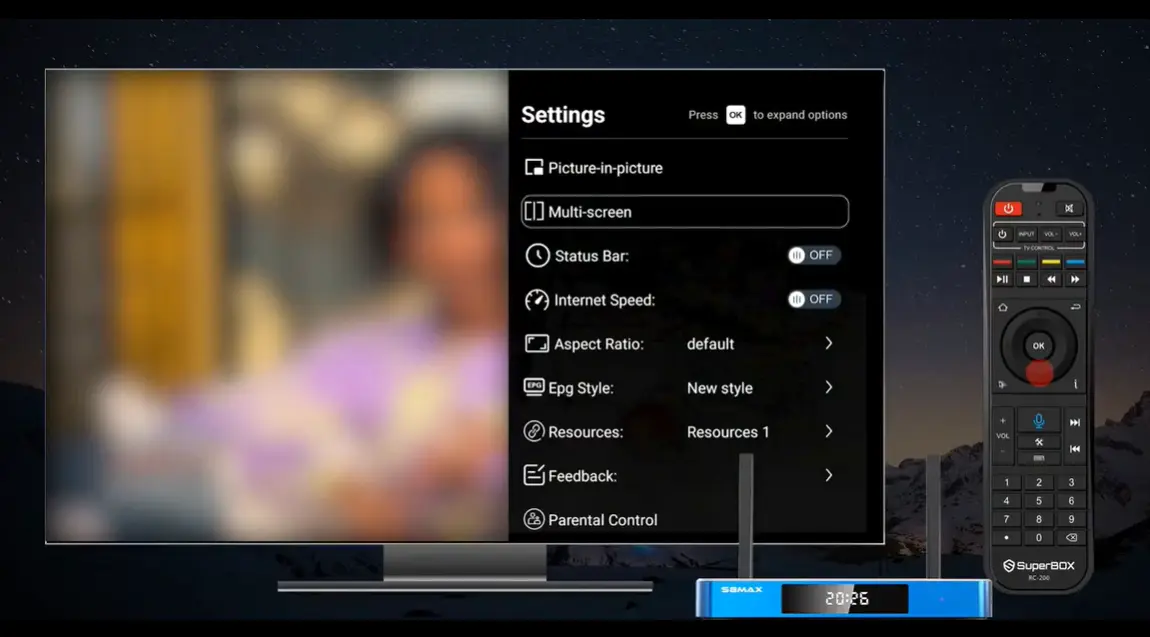
Bring up the Blue TV Settings panel. The S8 interface lists Picture-in-picture and Multi-screen as separate options, so select the mode by its exact name.
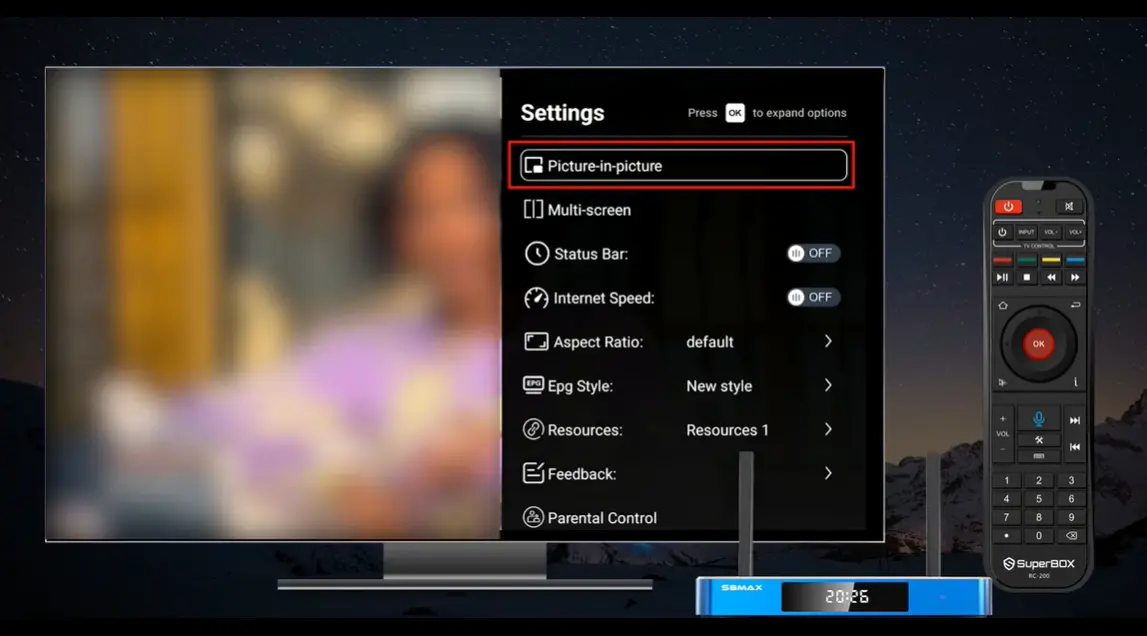
Step 3: Select Picture-in-picture
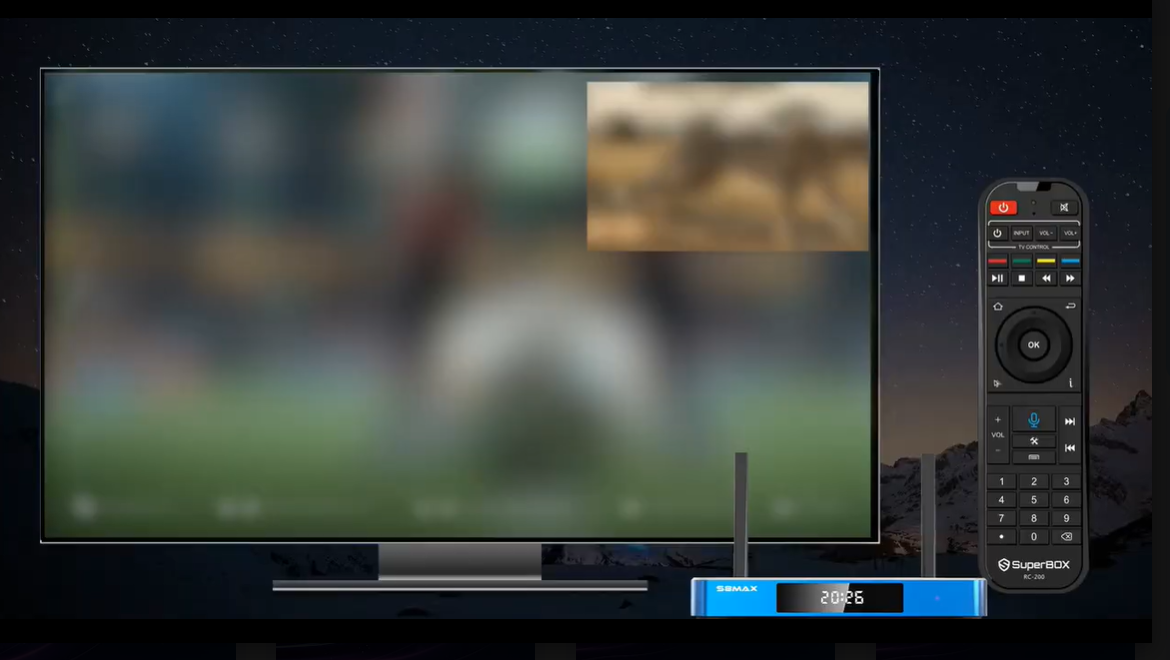
Move the highlight to Picture-in-picture and press OK. The main channel remains visible while a smaller viewing pane opens over it.
The new pane initially prompts you to press OK to select a channel. This is the secondary PiP window – not an error or a frozen black box.
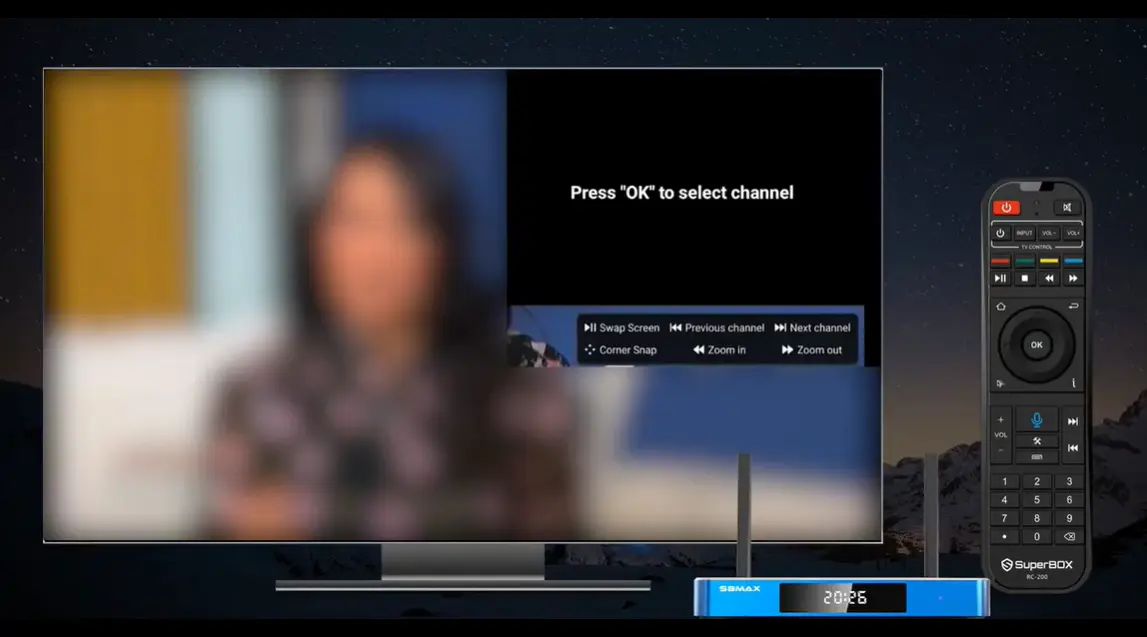
Step 4: Choose the second channel
With the smaller window active, press OK and browse the available channel choices. Select the second channel you want to monitor. The main program stays in the background while the chosen secondary channel appears in the overlay.
This arrangement is useful because the primary picture does not have to surrender the entire display. You can glance at the smaller window and decide whether the other event is important enough to receive your full attention.
Step 5: Navigate or reposition the PiP window
Use the remote according to the control hints shown around the active PiP window. The demonstration shows the secondary view appearing in different corners, helping prevent it from covering an important part of the main picture. You can easily swap the positions of the two PiP screens by pressing the Play/Pause button on your remote.
Step 6: Return to standard viewing
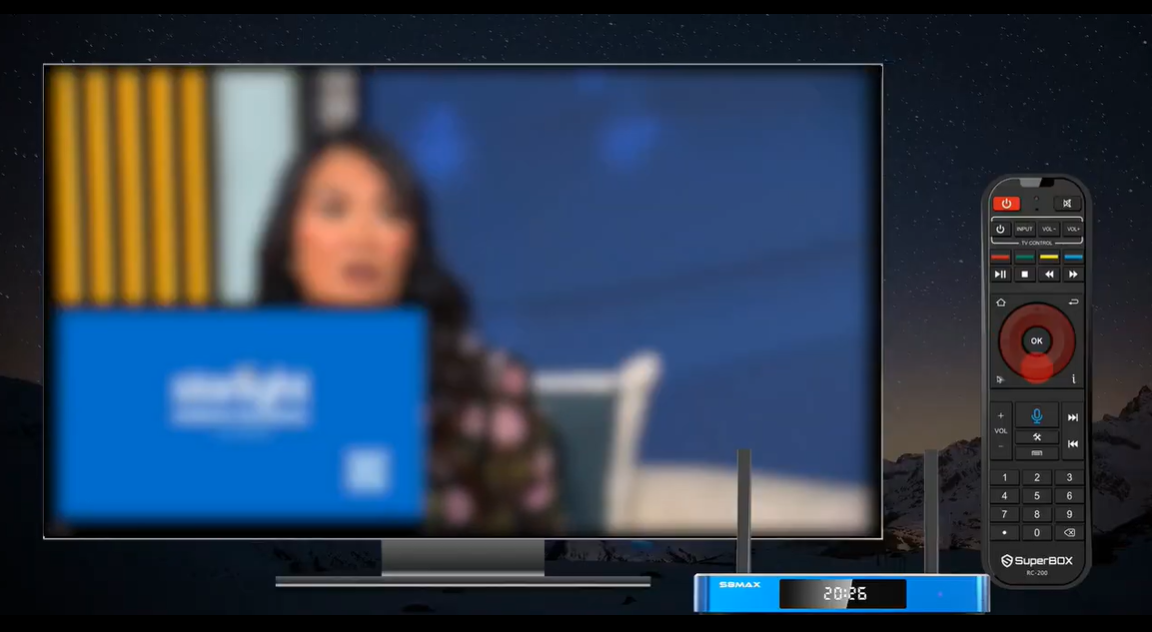
When you no longer need the secondary view, use the on-screen controls or Back/Return navigation to leave PiP and return to normal full-screen playback. If you want two equally sized views instead, exit PiP and open Multi-Screen from Settings.
How to Use Multi-Screen on SuperBox S8
Multi-Screen changes the layout more dramatically. Instead of maintaining a large background channel, it creates two adjacent viewing panels. This makes comparison easier when neither channel is clearly secondary.
Step 1: Start from a playing Blue TV channel
Open Blue TV and begin normal live playback. As with PiP, it is best to confirm that the first channel works correctly before starting a two-view mode.
Step 2: Open Settings and select Multi-screen
Open the Blue TV Settings panel, move to Multi-screen, and press OK.
Step 3: Assign channels to the viewing panels
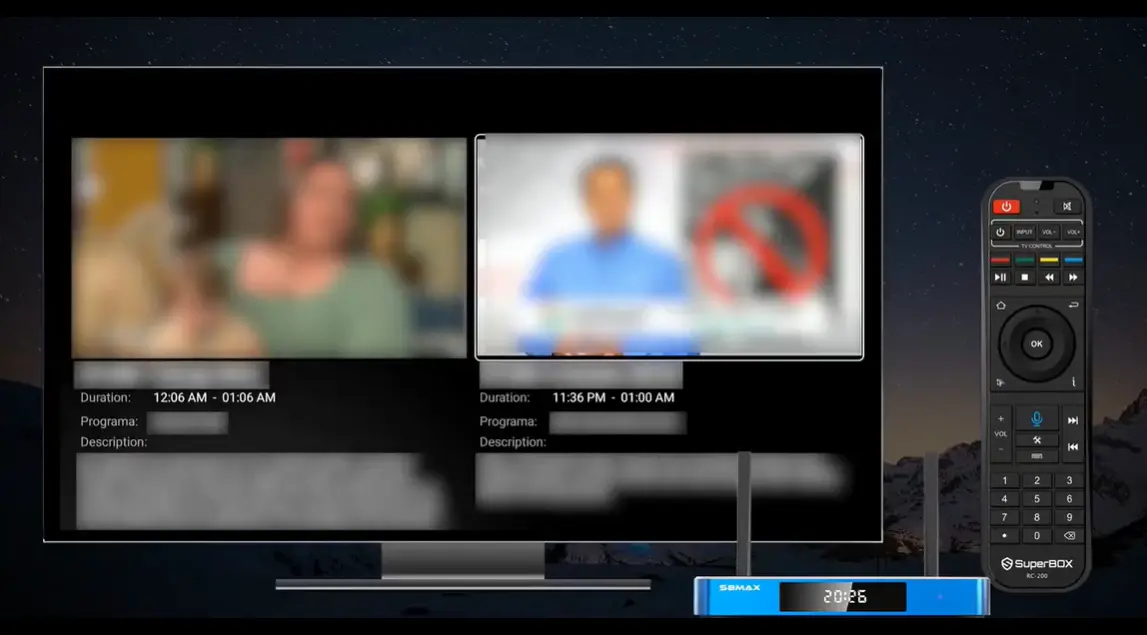
The interface opens two side-by-side panels. Move the selection to the panel you want to configure, press OK, and select an available channel. Repeat the process for the other panel when needed.
A visible border indicates the selected panel. Watch that border before pressing OK so you do not change the wrong side.
Step 4: Use the program information beneath each view
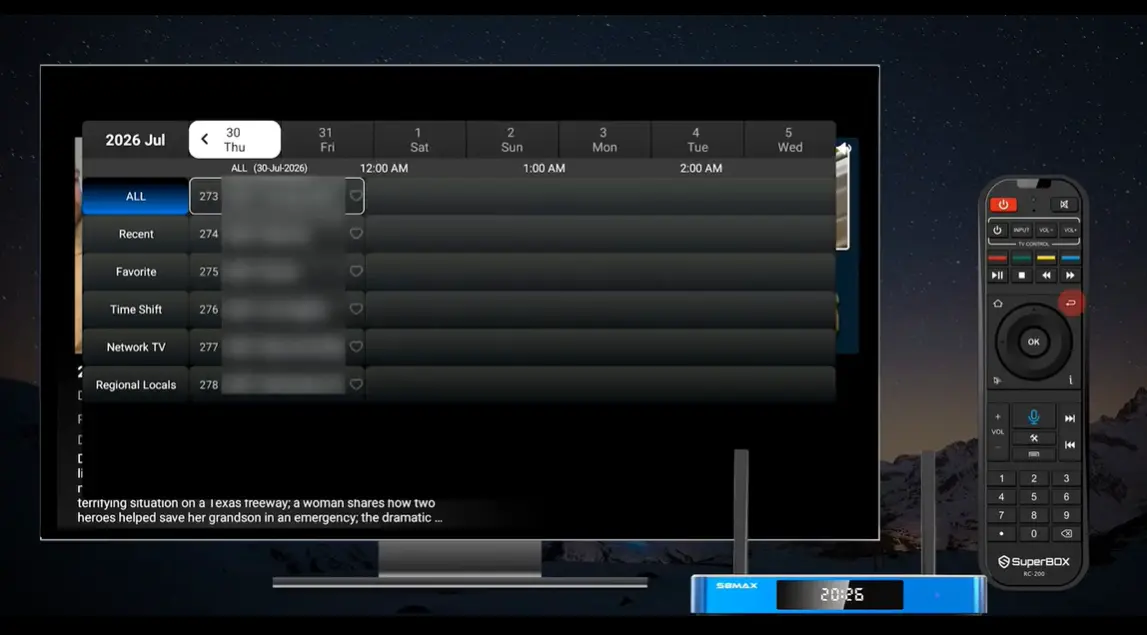
The Multi-Screen layout can show useful details below the channel previews, including Duration, Program, and Description. This helps you identify what is playing before deciding which event deserves closer attention.
Step 5: Switch focus as the action changes
Use the directional pad to move between the panels. The selected border provides a clear visual cue. This makes Multi-Screen particularly useful near the end of two simultaneous events: keep both visible, then focus your controls on the panel that needs attention.
Which SuperBox S8 Models Support Multi-Viewing?
All four S8 models introduce the new Multi-Viewing experience, but the advertised channel scope differs. That distinction should be part of the buying decision.
| S8 model | Memory and storage | Advertised Multi-Viewing scope | Best fit |
|---|---|---|---|
| S8 Pro | 4GB RAM / 32GB storage | PPV + ESPN channels | Buyers who want the S8 interface and core new features at the entry point |
| S8 Plus | 4GB RAM / 64GB storage | PPV + ESPN channels | Buyers who want more local storage while retaining the focused Multi-Viewing scope |
| S8 Max | 4GB RAM / 64GB storage | Full supported channel scope | Sports-focused viewers who want broader Multi-Viewing access and the S8 NFL app |
| S8 Ultra | 4GB RAM / 128GB storage | Full supported channel scope | Buyers who want maximum S8 storage, broader Multi-Viewing access, the NFL app, and a backlit remote |
The practical split is straightforward. Choose the S8 Pro or S8 Plus if PPV and ESPN Multi-Viewing cover your priorities. Choose the S8 Max or S8 Ultra if broader supported-channel Multi-Viewing is central to why you are upgrading.
Channel lineups and app availability can change.
Best Ways to Use the Two Viewing Modes
Follow two sports events
Keep the preferred matchup large in PiP while monitoring a second game, or use Multi-Screen when both events are approaching decisive moments. The ability to see both reduces unnecessary guide navigation.
Monitor a live event and related coverage
Use the main view for the event and the secondary view for pregame, postgame, analysis, or another supported channel covering the same developing story.
Decide what to watch without fully leaving the current channel
PiP can act as a live preview. Instead of switching away and hoping the other channel is more interesting, inspect it in the secondary window first.
Share one television more flexibly
When two viewers want updates from different supported channels, Multi-Screen provides a practical compromise. It does not replace two independent televisions, but it allows both events to remain visible.
Tips for a Smoother Two-Channel Experience
Two simultaneous live views place more demand on the connection than ordinary single-channel playback. No universal internet-speed number guarantees perfect results because network congestion, Wi-Fi quality, source availability, and other household activity all matter.
For the most reliable experience:
- Confirm one channel plays smoothly before opening the second.
- Use a stable internet connection and reduce unnecessary network activity if both panels buffer.
- Keep the SuperBox reasonably close to the router when using Wi-Fi, or use a wired connection where practical.
- If a two-view mode struggles, return to one full-screen channel and test again.
- Use only the supported choices presented by the S8 interface rather than installing unknown applications or changing undocumented settings.
The S8 can organize two views, but it cannot correct an unstable internet connection or an unavailable source.
Troubleshooting SuperBox S8 PiP and Multi-Screen
| Problem | Likely explanation | What to do |
|---|---|---|
| PiP or Multi-screen is not listed | Wrong device generation, older interface, or app version difference | Confirm the device is an S8 model, reopen Blue TV, and check for the current supported interface; contact the seller if the option remains absent |
| PiP window is black and says “Press OK to select channel” | No secondary channel has been assigned yet | Highlight the PiP pane, press OK, and choose an available channel |
| A particular channel cannot be selected | The channel may not be supported for that model or mode | Try another supported channel and compare your model’s Multi-Viewing scope |
| One or both views buffer | The connection or source may not sustain two live views at that moment | Test each channel alone, stabilize the connection, then reopen the two-view mode |
| Remote changes the wrong panel | Focus is on the other pane | Look for the active border or highlight, move focus with the directional pad, then press OK |
| PiP covers important action | The secondary window is in an inconvenient position | Use the displayed PiP controls to move it to another available corner |
| Multi-Screen text appears but video does not | Channel selection or loading has not completed | Select each panel separately, assign a supported channel, and allow it to load |
| The interface looks different from this guide | Blue TV’s design can change by software version | Follow the labels and control hints displayed on the current interface rather than relying only on screenshot placement |
Avoid factory resetting the SuperBox merely because a viewing option is missing or a second channel fails to load. A reset is disproportionate to most PiP or Multi-Screen issues and may remove settings without fixing channel eligibility, connection quality, or temporary service availability.
Frequently Asked Questions
Does SuperBox S8 let you watch two channels at once?
Yes. The S8 Series offers Picture-in-Picture and Multi-Screen viewing within Blue TV for supported channels. PiP uses one large view plus a small overlay; Multi-Screen uses two adjacent panels.
Are Picture-in-Picture and Multi-Screen the same feature?
No. They solve the same general problem with different layouts. PiP gives priority to one main channel, while Multi-Screen gives the two views similar space.
Is PiP a flagship SuperBox S8 feature?
Yes. PiP and Multi-Screen are defining viewing upgrades introduced with the S8 generation and are key reasons to consider an S8 over an earlier model.
Where are the PiP and Multi-Screen controls?
Open Blue TV, bring up its Settings panel, and select either Picture-in-picture or Multi-screen.
Why does the PiP window tell me to press OK?
The secondary pane is waiting for a channel assignment. Highlight it, press OK, and select an available channel.
Can the PiP window be moved?
The S8 interface shows the PiP view in different screen positions. Use the control prompts displayed around the active window to place it where it blocks the least important part of the main picture.
Which S8 model has the broadest Multi-Viewing access?
The S8 Max and S8 Ultra are advertised with full supported-channel Multi-Viewing. The S8 Pro and S8 Plus list Multi-Viewing for PPV and ESPN channels.
Does Multi-Screen work on every channel?
Do not assume every channel is eligible. Support varies by S8 model, application version, source, region, and current service availability. Choose from the channels offered inside the mode.
Does Multi-Screen show program information?
The demonstrated S8 interface displays fields such as Duration, Program, and Description beneath the two previews, helping viewers compare what is currently playing.
Should I buy S8 Max or S8 Ultra for Multi-Viewing?
Both offer the broader advertised Multi-Viewing scope. The Ultra adds 128GB storage and a backlit remote, while the Max offers 64GB storage. Choose Ultra for maximum capacity and remote convenience; choose Max if its storage level already meets your needs.
What should I do if the feature is missing?
Confirm that the device is an S8 Series model and that you are checking inside Blue TV Settings. Reopen the application and contact your authorized seller with the exact model and a photo of the menu if the option still does not appear.
The Bottom Line
Picture-in-Picture and Multi-Screen make the SuperBox S8 Series more useful when live programs overlap. PiP is the focused option: keep one channel large and monitor another in a smaller window. Multi-Screen is the balanced option: place two channels side by side and use the program details to decide where to focus.
For buyers, the most important distinction is not whether the S8 Series includes Multi-Viewing – it does – but how broad the advertised viewing scope is on each model. The S8 Pro and S8 Plus target PPV and ESPN Multi-Viewing, while the S8 Max and S8 Ultra expand that scope across the fuller supported channel selection. The Ultra then adds the most storage and a backlit remote.
If watching overlapping sports, news, or live events is a priority, PiP and Multi-Screen are among the strongest reasons to move to the new S8 platform. Compare the four models based on channel scope, storage, and remote preference, then purchase from an authorized retailer that can provide model-specific setup help.
Retail and availability notice: SuperBox TV Box Store sells hardware and provides device-related customer support. It does not host, transmit, maintain, or control third-party content. Applications, channels, features, and availability may change by model, software version, region, and service provider.
The article was updated on:
