
Knowledge SuperBox
Exclusive Channels on SuperBox S8? What Max and Ultra Really Add





SuperBox S8 gives you plenty to watch: Blue TV offers access to 2,000+ live TV channels, while Blue VOD provides movies and television series without a separate monthly app subscription after you purchase the device.
But are there exclusive channels on SuperBox S8, and do the more expensive models unlock a different live-TV package?
The core Blue TV channel system is shared across SuperBox models. S8 Max and S8 Ultra add a dedicated NFL app and broader supported Multi-Viewing; they do not replace the shared Blue TV lineup with a separate premium channel package.
That distinction makes choosing an S8 easier. Start with what you want to watch, then choose the features that make watching it more enjoyable. Here is what the word “exclusive” means for a SuperBox buyer, what Max and Ultra actually add, and how to check the channels that matter to your household.
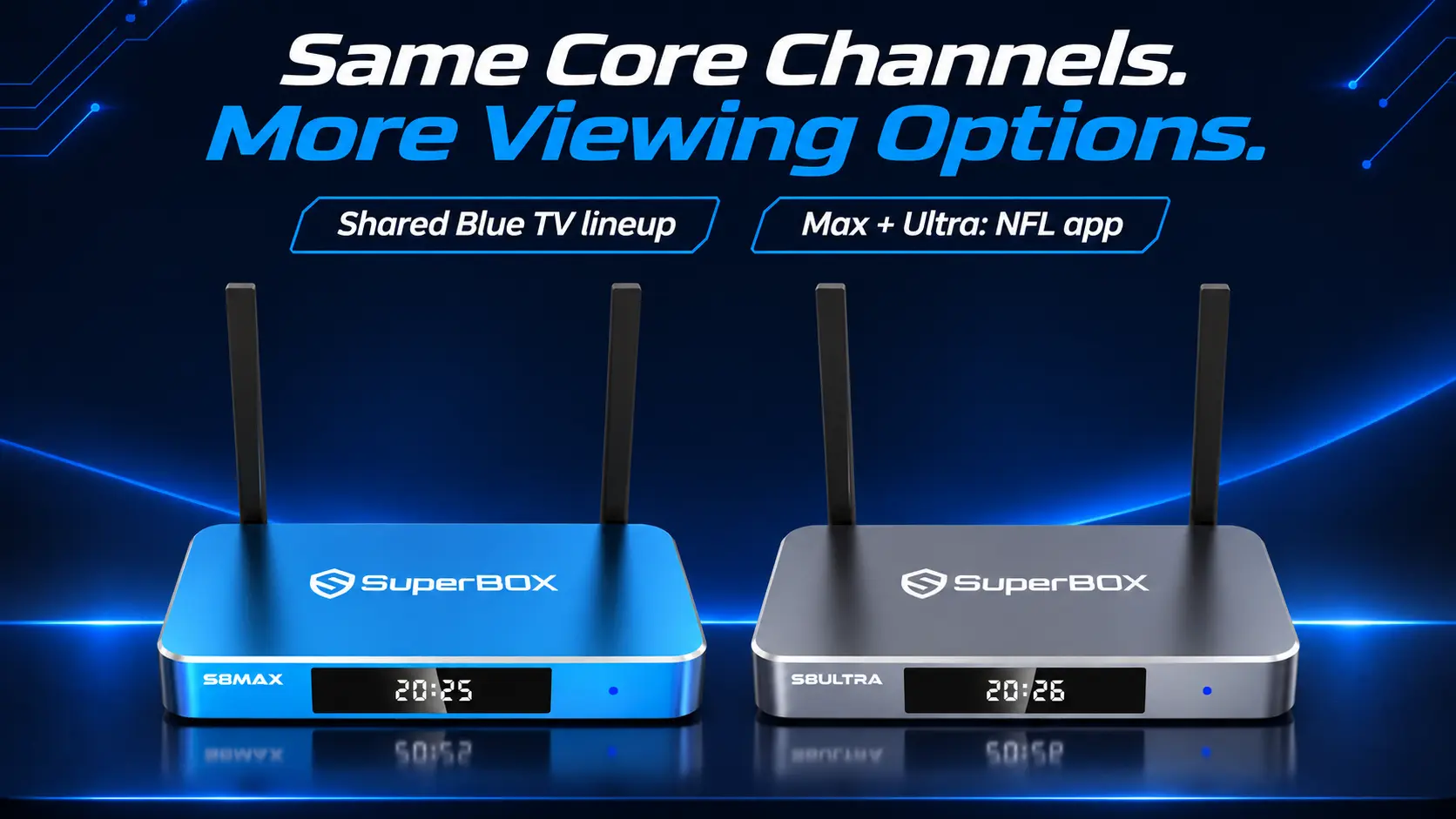
A Channel Lineup, an App and a Viewing Feature Are Different Things
When comparing SuperBox models, three separate ideas can become mixed together.
A channel lineup is the selection you browse inside a live-TV app. If your question is whether a station or network is available, this is what you need to check.
An additional app gives you another place to access a particular viewing experience. The dedicated NFL app listed for S8 Max and Ultra is a model-specific difference from Pro and Plus.
A viewing feature changes how you use supported programming. Multi-Viewing lets you follow two supported live channels on one television. Its scope varies across the S8 range.
For example, being able to show a channel in a two-picture layout is different from being able to watch that channel normally. You should compare those capabilities separately.
This is particularly important for S8 Pro and S8 Plus: their advertised PPV/ESPN restriction applies to Multi-Viewing. It does not mean their ordinary Blue TV selection consists only of PPV and ESPN.
Read a Channel Offer by the Viewing Job
Before comparing model names, decide whether you want a live broadcast, an on-demand title or a particular app. A movie channel plays its scheduled selection; Blue VOD lets you look for a title to start yourself. A channel carrying sports is also different from a dedicated football app.
For example, someone asking for “more movies” might mean a channel to leave on through the evening, or a library where they can choose a specific film. Those needs lead to different app searches, even on the same box.
When asking about a package, use the description closest to your need: “I want this live station,” “I want to find this series,” or “I want this football app.” This makes the answer easier to verify and helps you get useful viewing options from the device you choose.
What You Get Through SuperBox’s Shared Entertainment Apps
The main attraction is a broad selection of entertainment with a one-time device purchase, rather than another collection of monthly app bills.
Blue TV for Live Channels
Blue TV is the live-television app. You can browse channels for everyday viewing, including news, sports, entertainment and international programming.
SuperBox promotes access to 2,000+ live TV channels, giving households a wide range of choices beyond a small selection of free streaming channels. The useful next step is to find the networks and stations you actually watch regularly.
Think about a normal week: morning news, an afternoon program, your favorite sport and something for the family in the evening. That personal shortlist tells you more about the product’s value than the largest channel count in an advertisement.
On the S8 Blue TV interface, categories, Search, Recent and Favorite help you move around the selection. Our guide to browsing and organizing Blue TV explains those controls when you are ready to set up your daily routine.
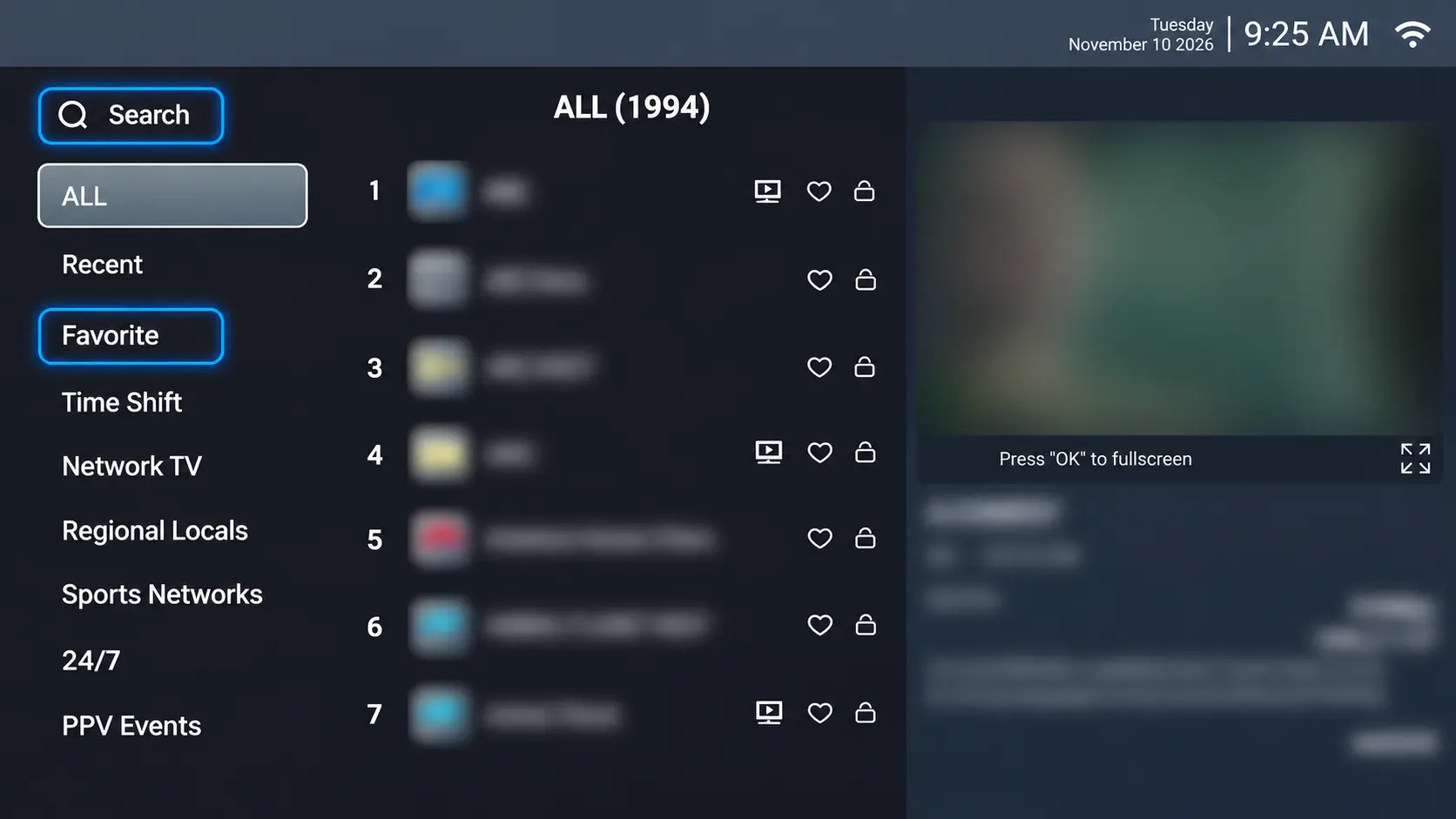
Blue VOD for Movies and Series
Blue VOD is the on-demand side of the experience. Instead of tuning into a channel at its scheduled time, you find a movie or series and choose what to play.
Blue VOD is also free to use after purchasing a compatible SuperBox, without an additional monthly app subscription. That gives the same household a way to move from live television to an evening movie or a favorite series.
A movie available in Blue VOD is an on-demand title, not another live channel. Keeping those categories separate makes channel-list claims easier to understand and helps you search in the right app.
For title searches and episode selection, follow the Blue VOD viewing instructions for S8.
The Savings Come From What You Can Replace
Free core apps are a practical reason to consider SuperBox. If Blue TV and Blue VOD meet your regular viewing needs, you can reduce the paid television services you keep.
You still need internet, and any separately subscribed services remain separate purchases. Compare the recurring TV charges you can actually remove with the cost of the device. Our SuperBox monthly-fee and budgeting guide explains that calculation without treating every household’s bill as the same.
An effective comparison starts with the cable services your household uses, rather than the number printed beside the package name. Separate your regular viewing from channels you pay for but rarely open.
For each must-have item, identify the replacement route: a live channel in Blue TV or an on-demand search in Blue VOD. Keep any unresolved item on your checklist before changing an existing service. This turns cord-cutting into a practical household decision instead of a guess based on a large catalog.
Also consider who uses the television. One person may follow the local news while another mainly watches series. Checking both routines gives you a more useful picture of the potential savings and whether SuperBox can become the household’s main viewing option.
What Is Different on S8 Max and S8 Ultra?
Here is the comparison that matters for this channel question:
| Viewing option | S8 Pro | S8 Plus | S8 Max | S8 Ultra |
|---|---|---|---|---|
| Shared core Blue TV lineup | Yes | Yes | Yes | Yes |
| Blue VOD access | Yes | Yes | Yes | Yes |
| Dedicated NFL app listed for the model | No | No | Yes | Yes |
| Multi-Viewing scope | Supported PPV/ESPN channels | Supported PPV/ESPN channels | Full supported channel scope | Full supported channel scope |
The NFL App Is an Additional Football-Focused Option
If football is a major part of your viewing, the dedicated NFL app is a clear reason to consider Max or Ultra. It is an additional app feature on those models, alongside the shared Blue TV experience.
Buying Pro or Plus does not mean football-related programming is automatically absent from Blue TV. The model comparison describes whether the dedicated app is included, while the channel lineup answers which broadcasts you can find in the live-TV app.
When a particular game matters, check its current listing and start time. Choose the hardware for the app access and viewing features you want, then use the actual program listing to plan the event.
Broader Multi-Viewing Gives You More Flexibility
Max and Ultra also offer the broader supported Multi-Viewing scope. That is useful when the two channels you want together fall outside the Pro/Plus PPV and ESPN scope.
Picture-in-Picture keeps one picture large with another in a smaller window. Multi-Screen gives two supported channels a side-by-side layout. These are ways to follow live programming on one TV, not separate channel subscriptions.
Consider a household that wants a game and a news channel visible together. First, find each channel separately in Blue TV. Then check whether that pair fits the chosen model’s Multi-Viewing scope. These are two useful tests, rather than one question about how many channels the box has.
If the household normally watches only one broadcast, the second-picture capability may be an occasional convenience. If checking another live program is part of the regular routine, the broader Max/Ultra scope becomes a stronger reason to move up. Either way, compare the actual pair you want to use.
For the remote operations, use the S8 Picture-in-Picture and Multi-Screen guide. This channel overview does not require you to learn the feature before deciding whether you want it.
Why Choose a Higher S8 Model If the Core Channels Are Shared?
The reason is how the device fits your everyday routine.
SuperBox S8 Max is a strong fit when you want the dedicated NFL app and broader supported Multi-Viewing, together with 64GB storage and the High performance tier. It brings the expanded viewing options into a package that costs less than the flagship.
SuperBox S8 Ultra adds 128GB storage, the Premium tier and an included backlit voice remote. The illuminated buttons can be especially useful in a dark living room or bedroom. Choose Ultra for that combination of everyday conveniences and capacity.
Pro and Plus remain options for buyers who want the core S8 experience without needing the dedicated NFL app or broader Multi-Viewing scope. The complete four-model S8 comparison covers the hardware differences separately.
For a first-time buyer, that separates two decisions cleanly: check the entertainment you want, then choose the device features you will use. For an existing owner, identify the feature you want to add before replacing a box that already meets your channel needs.
For a shared family television, consider the person who finds the remote hardest to use. If watching usually happens with the lights lowered, Ultra’s illuminated buttons may be a more noticeable everyday benefit than an extra specification on a comparison chart. If the household wants the NFL app and broader Multi-Viewing but has no particular need for those remote or storage extras, Max offers a straightforward alternative.
A useful purchase decision should be easy to explain in one sentence: “We chose this model because we will use this feature.” That keeps the upgrade connected to a real improvement in your routine, rather than an assumption about additional channels.
Questions About SuperBox S8 Channel Access
Does 128GB Storage Give S8 Ultra More Channels?
No. The storage figure describes space on the device, not a larger Blue TV channel package. Ultra’s capacity can give you more room for apps and files. Its dedicated NFL app and broader Multi-Viewing scope are shared with S8 Max.
Do I Need S8 Max or Ultra Just to Watch One Channel Full Screen?
Not simply because you prefer full-screen viewing. The Pro/Plus PPV and ESPN limitation concerns Multi-Viewing. Check your must-have channels in the shared lineup, then choose the model around the additional features you need.
Is the Dedicated NFL App the Same as Buying NFL+ or Sunday Ticket?
Treat it as the NFL app listed in the SuperBox Max and Ultra feature set. Buying the device does not establish a paid account with a separate NFL-branded service. For a specific game, check the app’s actual listing rather than relying on the name alone.
Will Upgrading From S7 to S8 Unlock a New Core Channel Package?
The core channel system is shared. Compare the S8 viewing features you want to add, such as supported Multi-Viewing and the model-specific NFL app, rather than expecting the generation number alone to provide a different Blue TV package.
Can I Use the Same Web Channel Guide for All Four S8 Models?
Yes. Use the shared guide to look up channels, then check model-specific features separately. To see whether a particular pair can be watched together, refer to the model’s Multi-Viewing scope. A channel appearing in the ordinary list and working in a two-picture layout are separate checks.
How to Check Your Must-Have Channels Before Buying
A useful channel check begins with names, not a claim that one model has “more.”
1. Make a Short Household List
Write down the stations and networks your household would miss if you cancelled cable. Include the exact local station where that matters, plus any language or regional requirements.
For a local affiliate, a city or call sign is more useful than only “ABC” or “FOX.” For sports, distinguish the channel you follow from one particular event. This gives you specific items to look for instead of expecting a broad category name to answer every question.
A simple worksheet can keep the conversation specific:
| Household priority | Write down | What to check |
|---|---|---|
| Local news | Station name, city and call sign | Exact station match |
| Regular sports | Network and usual event | Channel listing and program time |
| International viewing | Channel name and language | Matching regional or language entry |
| Movies and series | Title and release year | Blue VOD search |
| Two live pictures | Both channel names | Model’s Multi-Viewing scope |
Mark each item as essential or optional. A long list of unfamiliar channels should not outweigh the few selections your family uses every week. If two people share the TV, have both contribute before you settle on a model.
2. Search the Companion Channel Guide
Visit our SuperBox channel list. It has a search field and filters for categories such as sports, US locals, Canada and international programming.
Search a distinctive part of the name, then review matching entries. Use the result as a way to identify what to look for in Blue TV. For a purchase that depends on one particular channel, ask us to help check it before ordering.
The web guide is a reference for the shared lineup. It is not a separate list of Ultra-only channels or the dedicated NFL app’s schedule.
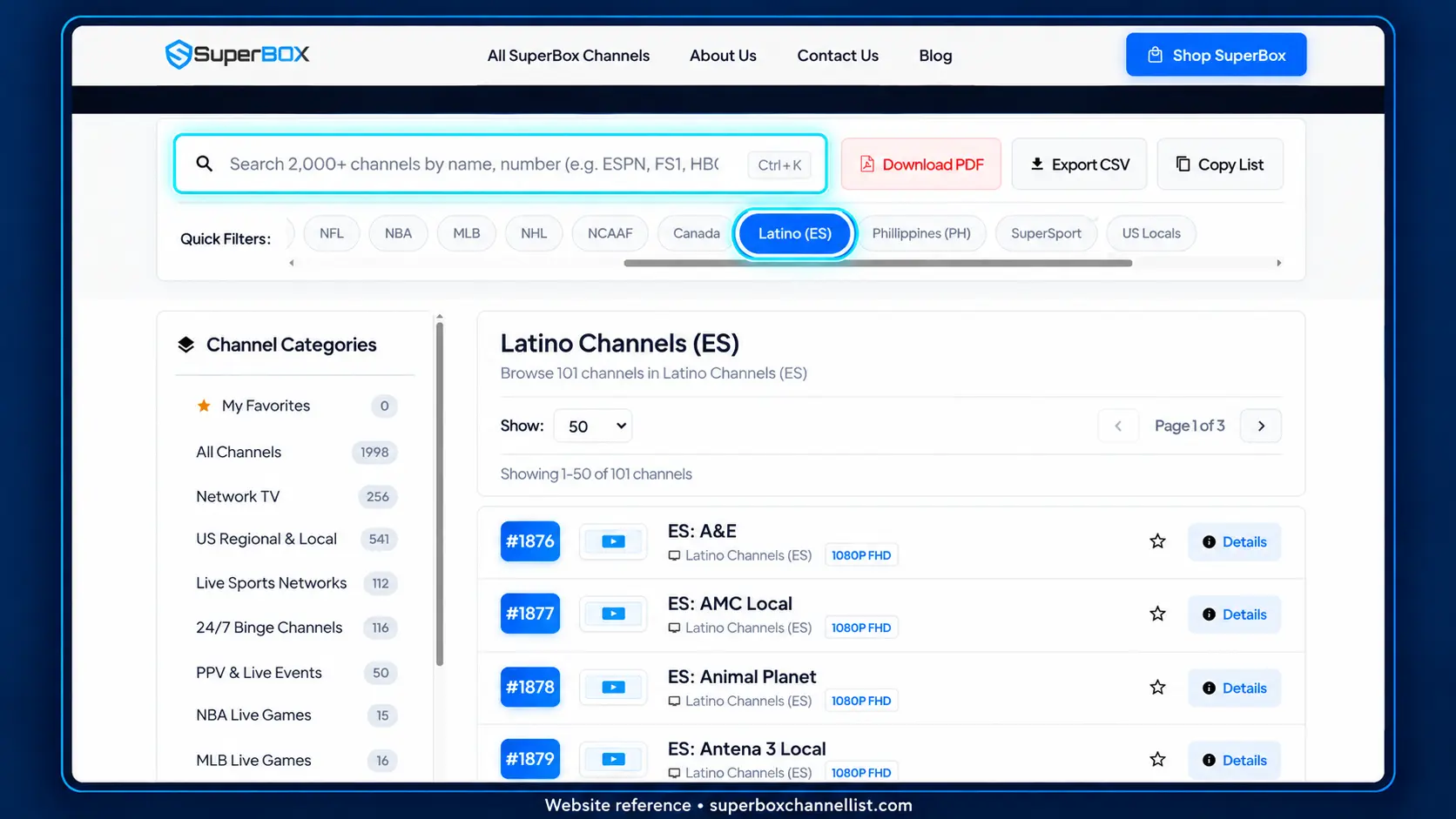
3. Confirm in Blue TV Once Your Box Is Connected
On the S8 interface, open Blue TV’s left navigation, select Search and enter part of the channel name. Select a matching result and check the channel identity, picture and sound.
This is a different task from opening the NFL app or selecting a movie in Blue VOD. Start in the app that matches what you are trying to find.
If a channel is missing, send us its name and a screenshot of your search. A missing result should be investigated before assuming your model needs an upgrade.
It also helps to describe what happened after searching. “No matching name appeared,” “the channel opened but showed a different program,” and “it works full screen but not in my second picture” are different results. Include which of those you see so support can address the right question.
For a pre-purchase enquiry, a short message is enough:
“I’m considering an S8 for our living room. We regularly watch [station and city], [sports network] and [language channel]. We also want to use [two channel names] together. Can you help check those needs and recommend the right model?”
Replace the brackets with your own choices. This gives our team a clear starting point and helps you compare models around the entertainment you want, with less back-and-forth.
SuperBox TV Box Store is an authorized retailer serving the US and Canada. Tell us your channel shortlist and how you watch, and we can help you choose around those needs. For technical or order questions about a purchase made directly at superboxtvboxstore.com, email customer@superboxtvboxstore.com. We value the experience after delivery as much as the purchase itself.
The article was updated on:
