
Knowledge SuperBox S8, Knowledge SuperBox
How to Install Blue TV, Blue VOD, Playback, and More Apps on SuperBox S8





The SuperBox S8 Series introduces a redesigned home interface, but one important principle remains the same: an app can be installed on the device without automatically appearing as a shortcut on the Home screen. That distinction matters when you are setting up a new S8, restoring an app that was removed, or wondering why an installed app seems to be missing.
On S8 Pro, S8 Plus, S8 Max, and S8 Ultra, the complete process has two parts:
- Open the device’s internal APP Store and install the available applications you want.
- Return Home, select the + / ADD tile, and choose which installed apps should appear in the shortcut row.
This guide explains both parts as one practical workflow. It covers Blue TV, Blue VOD, Playback, Backup TV, the recording app shown by the interface, and other applications currently offered through the device. It also explains how to read the download indicators, recognize a completed installation, and avoid confusing the internal APP Store with Google Play Store.
Important: App availability, names, icons, features, and content can change by model, software version, account, region, or service status. SuperBox TV Box Store sells open-platform media-player hardware and does not host, transmit, create, pre-install, or maintain third-party channels or media databases. Install and use only applications and content you are authorized to access.
Quick Answer: How Do You Install Blue TV on SuperBox S8?
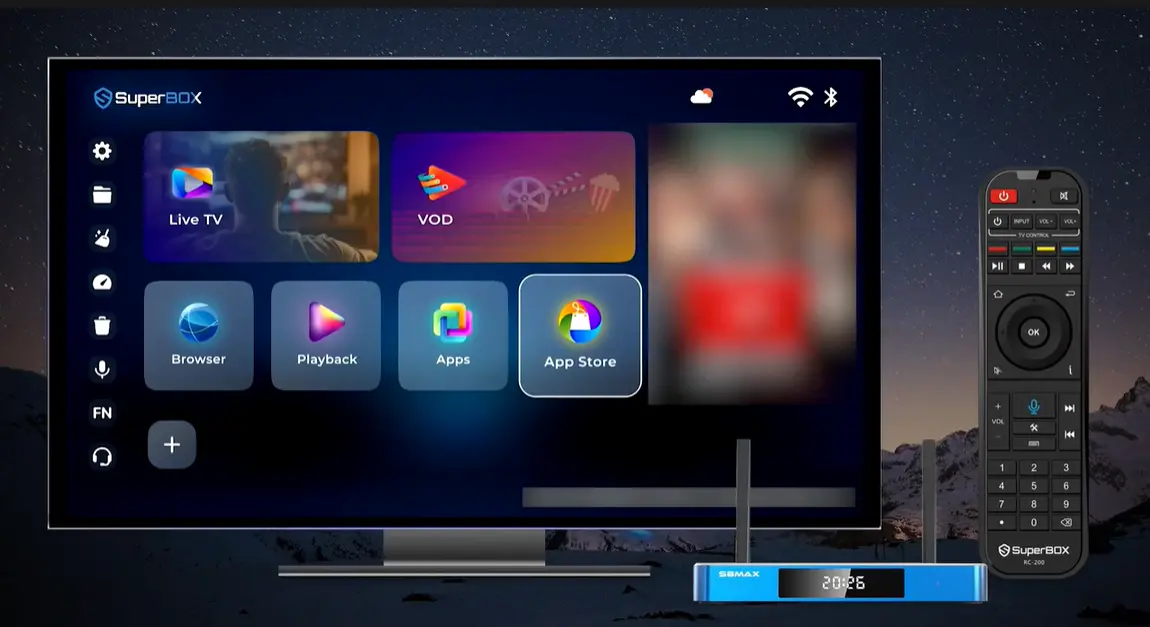
From the S8 Home screen, open Apps, select the blue APP Store icon – not Play Store and acknowledge the displayed disclaimer. In the APP Store catalog, highlight Blue TV and press OK to start the download. Wait until the progress indicator finishes and the app shows the installed marker. Repeat the same process for Blue VOD, Playback, Backup TV, or other apps available to your device.
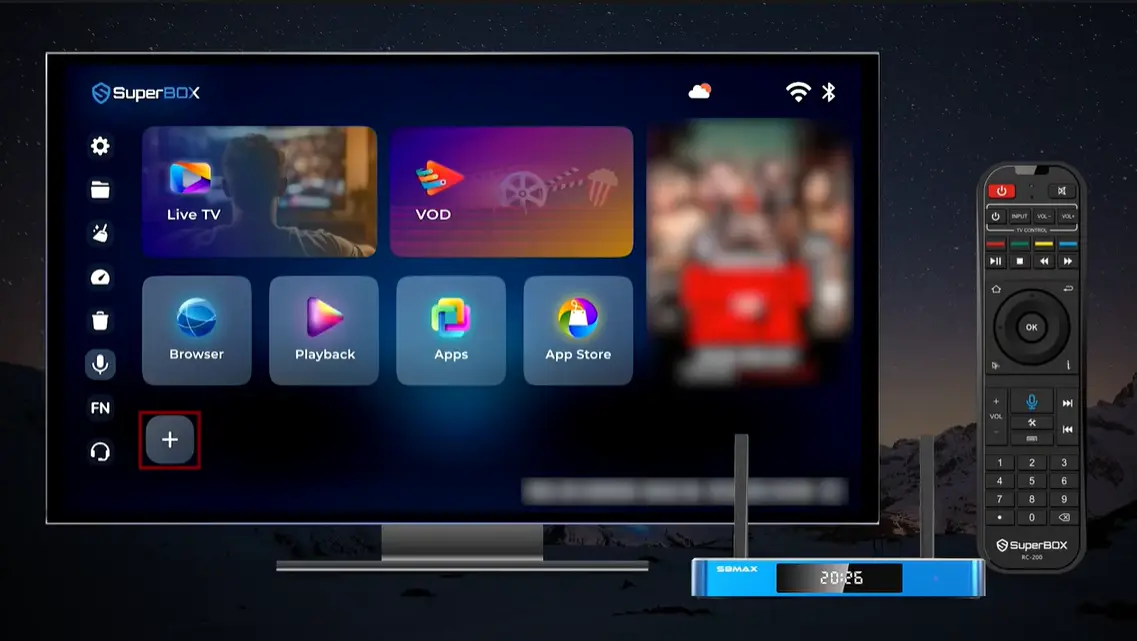
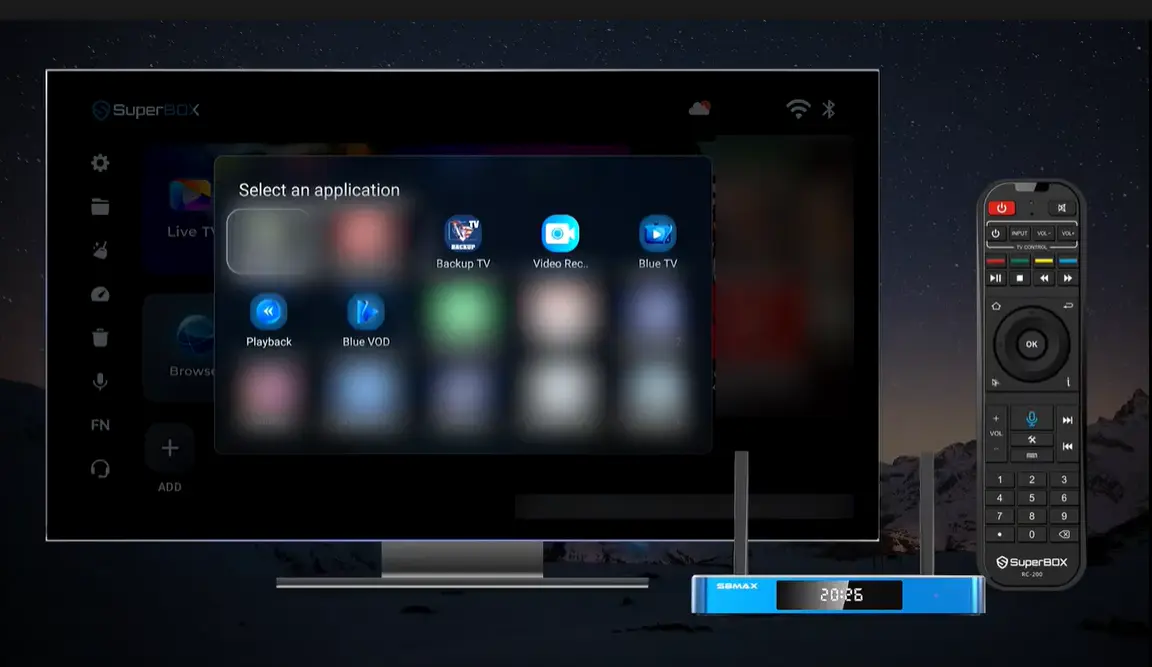
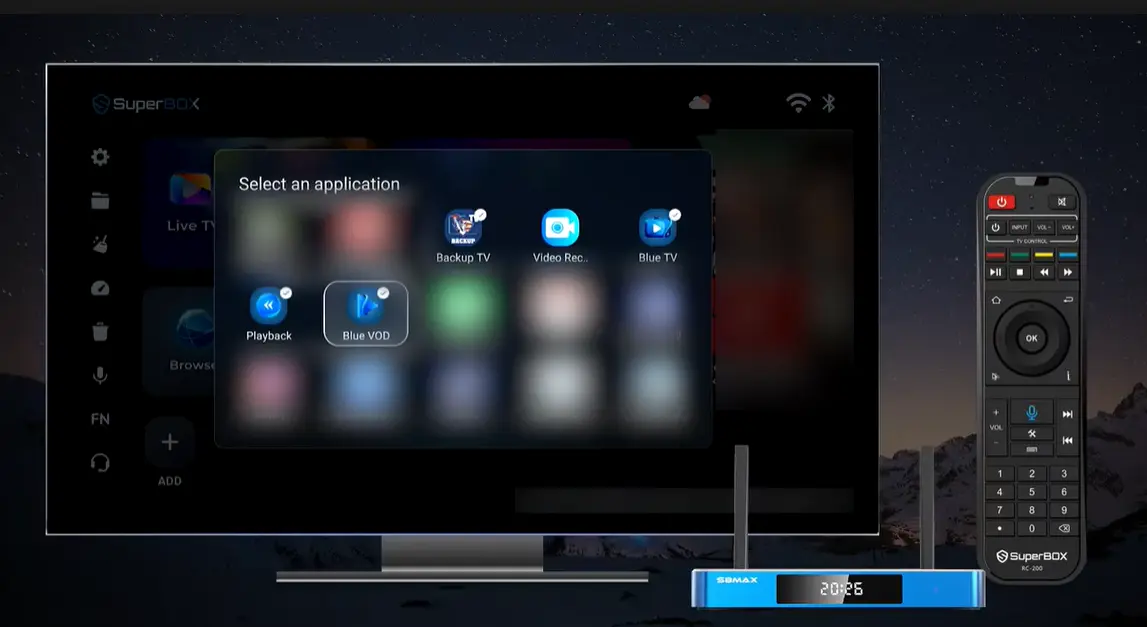
To place an installed app on the S8 Home screen, return Home, select the + / ADD tile, press OK, choose the app in Select an application, and confirm it. A check mark indicates that the app has been selected for the shortcut row.
Understand the Three Different App Areas
The S8 interface includes three app-related locations that perform different jobs. Knowing the difference prevents most navigation mistakes.
| Area | What it does | When to use it |
|---|---|---|
| Apps | Opens the app hub and other installed applications | Use it as the first step when you need the internal APP Store |
| APP Store | Displays device-specific apps available through the SuperBox interface | Use it to download or restore Blue TV, Blue VOD, Playback, and other listed apps |
| Play Store | Provides compatible Android applications through Google’s store | Use it for ordinary supported Android apps, not as a substitute for the internal catalog shown in this guide |
| + / ADD | Places an already installed app in the S8 Home shortcut row | Use it after installation when an app is not visible on Home |
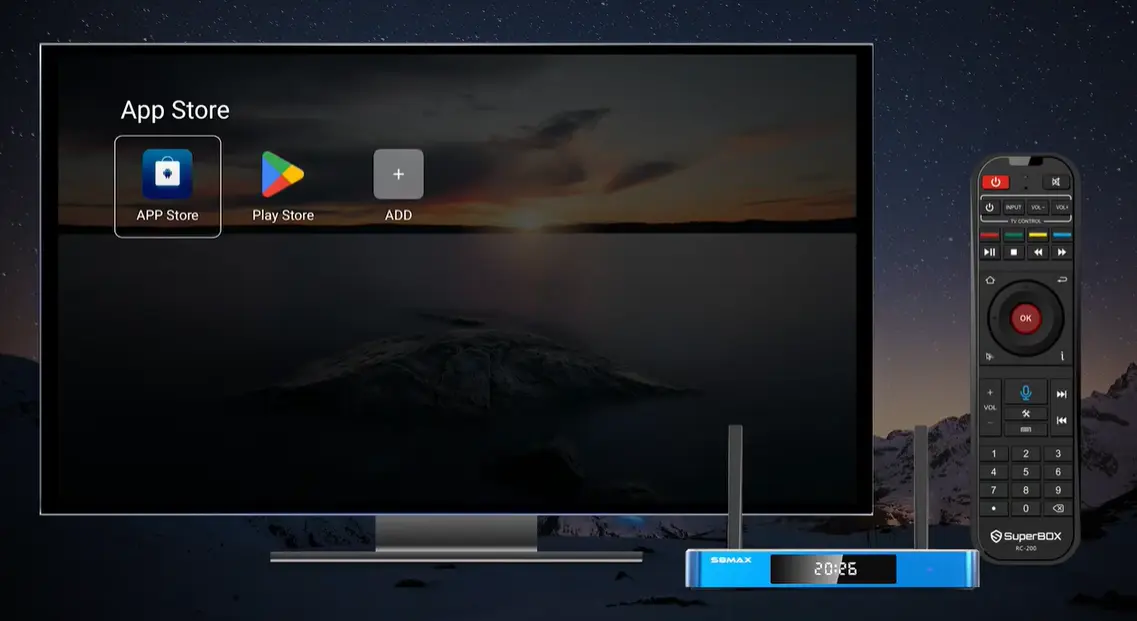
The internal APP Store and Play Store appear beside each other in the app hub, but they are not interchangeable. If your goal is to install one of the device-specific apps shown in this tutorial, choose the blue shopping-bag icon labeled APP Store.
Apps Shown in the SuperBox S8 Installation Interface
The catalog and Home-screen selector in the current demonstration show several recognizable applications:
- Blue TV
- Blue VOD
- Playback
- Backup TV
- Video Recording or the recording shortcut shown by the interface
- TV ROM Updater
- Additional apps whose availability may depend on the current device configuration
These applications do not all serve the same purpose. The most useful way to think about them is by function rather than treating them as duplicate viewing icons.
| App | Role in the S8 interface | Availability note |
|---|---|---|
| Blue TV | Live-viewing application | Content and access can change |
| Blue VOD | On-demand viewing application | Library and access can change |
| Playback | Accesses supported playback or time-shift functions | Supported programs and periods may vary |
| Backup TV | Provides an alternative supported TV application | Availability depends on device/app configuration |
| Video Recording | Supports the S8 built-in recording workflow where available | Recording capability and storage needs vary by model and app |
| TV ROM Updater | Device update utility displayed in the APP Store | Use only the official option presented by the device |
The S8 launch comparison lists Blue TV, Blue VOD, built-in Recording, Playback, and Backup TV across all four S8 models. The comparison also identifies feature differences elsewhere in the lineup, so app presence should not be interpreted to mean that S8 Pro, Plus, Max, and Ultra have identical storage or every identical premium feature.
Before You Install or Restore S8 Apps
Complete these checks first:
- Confirm the S8 is connected to the internet.
- Keep the device powered on during downloads.
- Use the internal APP Store rather than downloading an unknown APK from a website.
- Read the disclaimer displayed by the store before proceeding.
- Decide which apps you actually want on the Home screen; installation and shortcut placement are separate.
If the internal APP Store itself is missing, do not replace it with a similarly named website or random installer. Contact the technical-support channel connected to the retailer responsible for your device.
How to Install Blue TV, Blue VOD, and Playback on SuperBox S8
Step 1: Open Apps from the S8 Home screen
Use the remote’s directional pad to highlight Apps, then press OK. The app hub opens and displays APP Store, Play Store, and an ADD tile among the available choices.
The large App Store tile visible directly on the S8 Home screen may also provide quick access depending on the current layout. This guide uses the Apps hub because it clearly shows the internal APP Store beside Play Store and makes the distinction easy to verify.
Step 2: Select the internal APP Store
Highlight the blue bag icon labeled APP Store and press OK. Do not select Play Store for this procedure.
On first entry or when required by the current version, a Disclaimer notice appears with a countdown. Read the notice and wait for the interface to allow you to continue.
Step 3: Find the app in the catalog
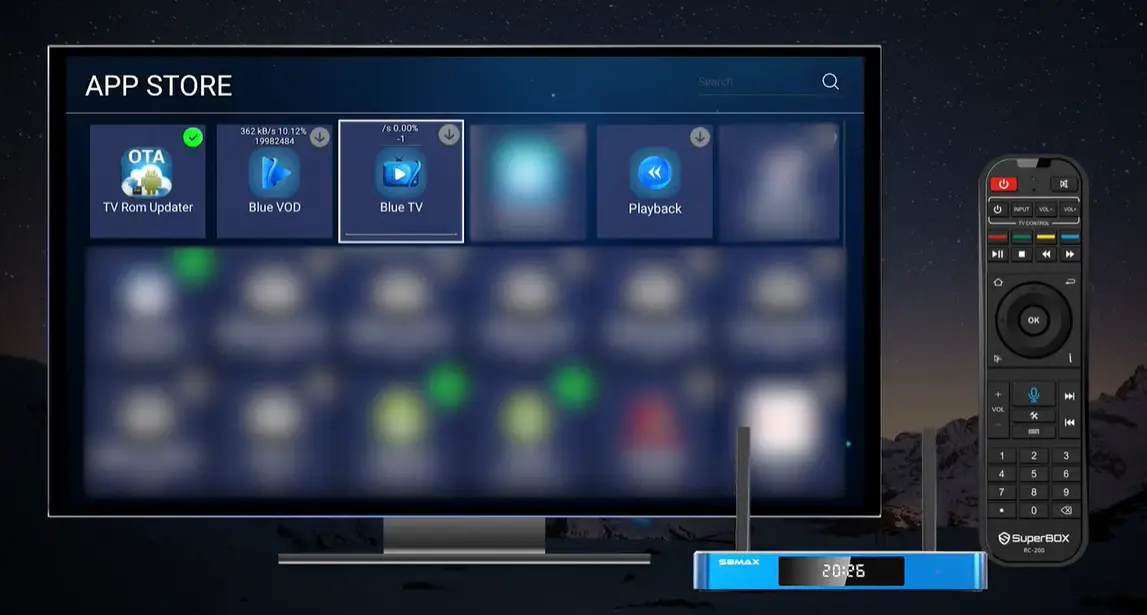
The APP Store opens as a grid. The demonstrated top row includes TV ROM Updater, Blue VOD, Blue TV, Playback, and additional available applications. A Search field with a magnifying-glass icon also appears in the upper-right corner.
Use the directional pad to move between cards. If the catalog contains more apps than are visible on the first screen, use the Search field or continue navigating through the grid.
Step 4: Press OK to download the selected app
Highlight the app card and press OK. A download icon or progress readout appears on the card. The demonstration shows a transfer speed, percentage, and downloaded-file count while Blue VOD and Blue TV are being installed.
Allow each download to finish. Repeatedly pressing OK will not make the transfer faster and may make it harder to tell which app is currently processing.
Step 5: Confirm the installed indicator
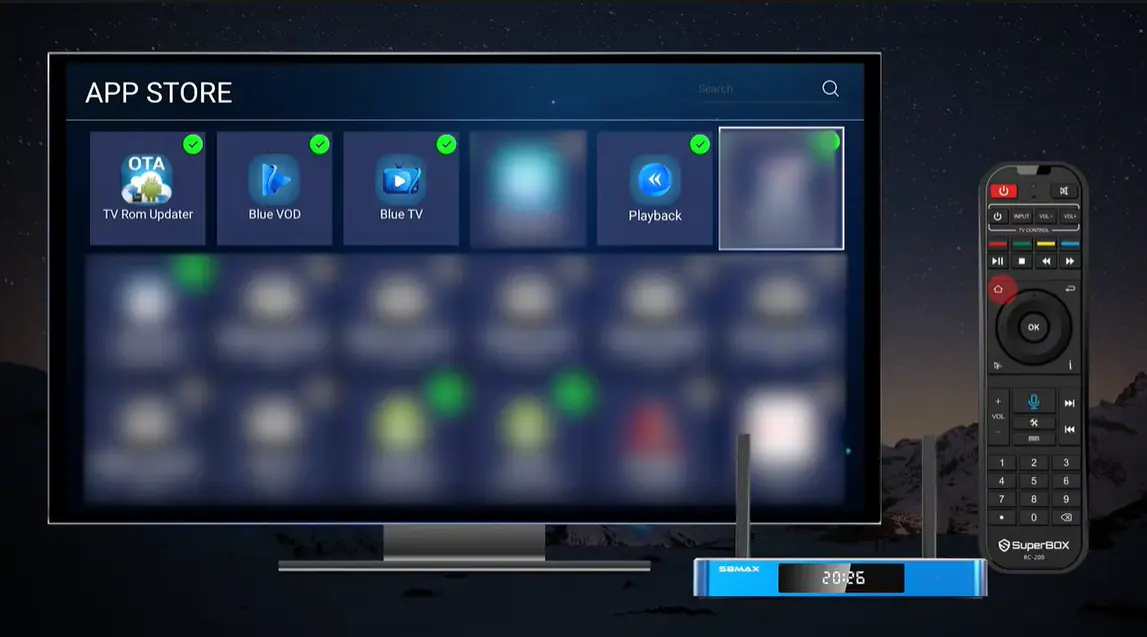
After the process finishes, the app card changes from its download state to an installed state. In the demonstrated catalog, a green check mark identifies a completed installation.
Do not leave the store while the app still displays an active percentage unless you intentionally want to stop waiting. Verify the completion marker for Blue TV, Blue VOD, Playback, or any other app you selected.
Step 6: Repeat only for the apps you need
Blue TV, Blue VOD, and Playback install as separate applications, so complete the selection for each one you want. You can also install Backup TV, Video Recording, or other currently available apps when they are presented by the official device interface and appropriate for your model.
Installing every catalog item is not necessary. A smaller, intentional app selection makes the redesigned Home screen easier to navigate.
How to Add Installed Apps to the S8 Home Screen
An installed app may still be absent from the shortcut row. That does not necessarily mean installation failed. The S8 launcher lets you control which installed applications appear on Home.
Step 1: Return to Home and select + / ADD
Press the Home button or back out of the store until the main S8 interface appears. Move to the square tile displaying a + symbol and ADD, then press OK.
Step 2: Choose apps in “Select an application”
The Select an application window displays eligible installed apps. The demonstrated panel includes Backup TV, Video Recording, Blue TV, Playback, and Blue VOD, along with other installed options.
Highlight an app and press OK. A check mark appears on the selected icon. Continue selecting the apps you want quick access to.
Step 3: Check the selection marks
Before closing the panel, confirm that every intended app shows a check mark. A visible icon without a check does not indicate that it has been selected for the Home row.
If you change your mind, highlight a selected app and press OK again where the current interface supports toggling the selection.
Step 4: Confirm the shortcuts on Home
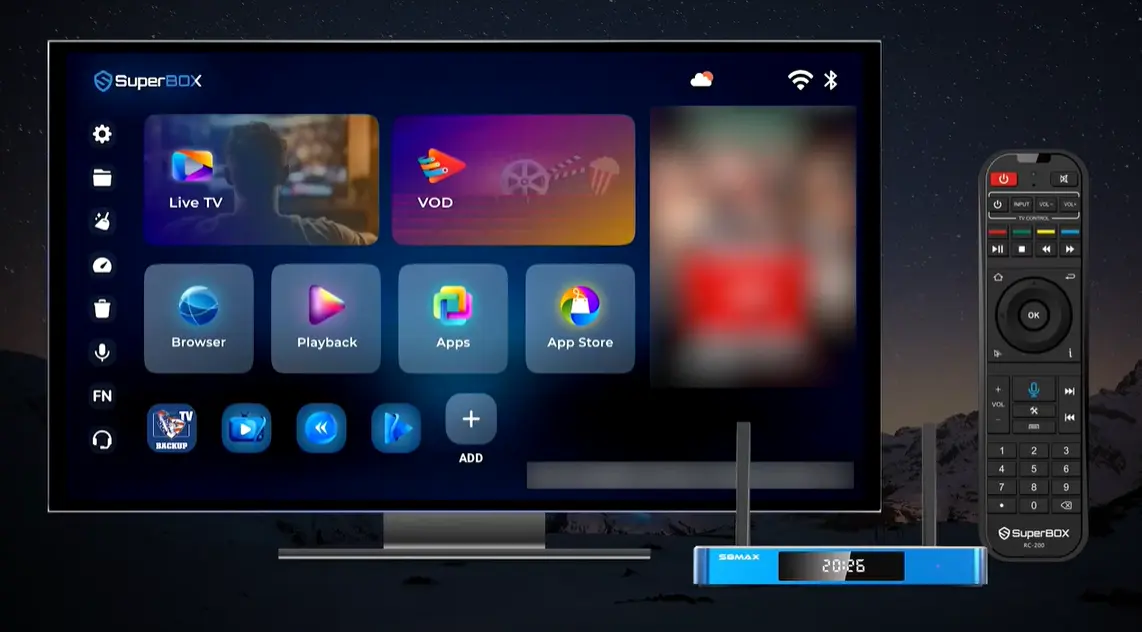
Close the selection panel and review the lower shortcut row. The chosen application icons now appear beside the + tile, giving you direct access without reopening the Apps hub.
Installing an App vs. Adding a Shortcut
This is the most important distinction in the entire process:
| Action | Where it happens | Result |
|---|---|---|
| Install | Internal APP Store | Downloads the application to the device |
| Add to Home | + / ADD tile | Places an installed app in the shortcut row |
| Remove from Home | Application selector, where the current launcher allows | Removes the shortcut selection, not necessarily the installed app |
| Open | Home shortcut or Apps area | Launches the installed application |
If an app displays an installed check in the APP Store but is missing from Home, do not immediately reinstall it. Open + / ADD first and look for the app in Select an application.
SuperBox S8 Apps Missing: Troubleshooting Guide
APP Store and Play Store were confused
Return to the Apps hub and choose the blue APP Store icon. The device-specific catalog shown in this guide is separate from Google Play Store.
The app card still shows a download arrow
The app has not reached its completed installed state. Highlight it, press OK, and allow the download to finish. Look for progress followed by the completion marker.
The download percentage stops changing
Confirm that the S8 still has an internet connection. Then return to the catalog and retry through the same official APP Store. Do not respond by downloading an unknown package from a search result or third-party website.
The app is installed but missing from Home
Select the + / ADD tile, locate the app in Select an application, and press OK until its check mark appears. This is a launcher-shortcut issue, not necessarily an installation failure.
The app does not appear in Select an application
Return to the APP Store and verify that installation completed. If the app is not offered in the current catalog or still does not appear after installation, contact the technical-support team responsible for the device rather than installing an unofficial APK.
APP Store itself is missing
Do not assume Google Play Store is a replacement for the internal store. Contact support and explain that the blue APP Store icon is absent from both the S8 Home screen and Apps hub. SuperBox TV Box Store can support orders placed through superboxtvboxstore.com; customers who purchased elsewhere should contact their original seller.
A selected app opens but does not provide expected content
Installation only confirms that the application is present. Availability inside an app can depend on the current version, activation, region, service status, and content rights. Avoid repeatedly uninstalling a correctly installed app when the issue is actually inside the service.
| Symptom | Most likely stage to check | First action |
|---|---|---|
| Blue TV absent from catalog | Store availability | Confirm you opened internal APP Store and contact support if still absent |
| Download arrow remains | Installation | Press OK and wait for completion |
| Progress is frozen | Network/download | Check S8 internet connection and retry through APP Store |
| Green check present, no Home icon | Shortcut placement | Use + / ADD and select the app |
| App absent from shortcut picker | Installation status | Verify the app completed installation |
| APP Store icon missing | Device interface | Contact the seller’s technical support |
| App opens but content differs | In-app/service status | Contact appropriate support; do not assume reinstall will fix it |
S8 Pro vs. Plus vs. Max vs. Ultra: App and Storage Considerations
The main installation workflow is the same across the S8 Series, but storage and selected features differ.
| Model | RAM / storage | Apps included in the launch comparison | Practical consideration |
|---|---|---|---|
| S8 Pro | 4GB / 32GB | Blue TV, Blue VOD, Recording, Playback, Backup TV | Install intentionally and manage the smallest storage tier |
| S8 Plus | 4GB / 64GB | Blue TV, Blue VOD, Recording, Playback, Backup TV | More local space for apps and supported recordings |
| S8 Max | 4GB / 64GB | Same core apps plus NFL app in the comparison | Strong all-round feature set with full supported Multi-Viewing |
| S8 Ultra | 4GB / 128GB | Same core apps plus NFL app in the comparison | Most storage for apps and supported built-in recording use |
The larger storage tiers do not change the steps for opening APP Store or adding shortcuts. They mainly affect how much local space is available as you install applications and use storage-dependent features.
Frequently Asked Questions
How do I install Blue TV on SuperBox S8?
Open Apps, select the internal APP Store, acknowledge the disclaimer, choose Blue TV, and press OK. Wait for the download to finish and the installed marker to appear.
How do I install Blue VOD on S8?
Use the same internal APP Store workflow, but select the separate Blue VOD card. Blue TV and Blue VOD install independently.
Where can I download the SuperBox Playback app?
Playback appears as its own card in the internal APP Store demonstrated on S8. Select it and press OK, then wait for the completion indicator.
Should I install these apps from Google Play Store?
Use the blue internal APP Store shown in this guide for the device-specific apps presented there. Play Store is a separate catalog for compatible Android applications.
Why is Blue TV installed but not showing on Home?
Installation and shortcut placement are separate. Select + / ADD on Home, open Select an application, choose Blue TV, and confirm that its check mark appears.
Can I add Blue VOD and Playback to the Home screen?
Yes, when they appear in Select an application. Choose each app from the + / ADD panel to include it in the shortcut row.
What does the green check mark in APP Store mean?
In the demonstrated interface, it identifies an app that has completed installation.
Why do I see a percentage above an app card?
It is the active download progress. Wait until the transfer completes before leaving the store.
Does the S8 Series support built-in recording?
Built-in Recording is listed across S8 Pro, Plus, Max, and Ultra in the S8 launch comparison. The app selector also displays a Video Recording shortcut. Available recording behavior can depend on the app, storage, and current software.
Is Blue TV available on every S8 model?
Blue TV is listed for all four S8 models in the launch comparison. App access and content can still vary by version, configuration, region, service status, and rights.
What should I do if APP Store is missing?
Contact the technical-support team connected to the retailer responsible for your device. Avoid downloading unofficial installers from unknown websites.
Will uninstalling and reinstalling restore missing content?
Not necessarily. Reinstallation can restore an absent application, but it does not guarantee that a particular in-app program, channel, or service will be available.
Final Thoughts
Installing applications on SuperBox S8 is straightforward once you separate the process into two jobs. The internal APP Store downloads Blue TV, Blue VOD, Playback, Backup TV, Video Recording, and other available apps. The + / ADD tile controls which installed applications receive convenient shortcuts on the redesigned Home screen.
That distinction gives S8 owners a cleaner way to organize the interface. You can install the tools supported by the device, then keep only the apps you use most in the Home row. The procedure is consistent across S8 Pro, S8 Plus, S8 Max, and S8 Ultra, while the models’ different storage capacities influence how much room is available for apps and storage-dependent features.
For the safest setup, use only the internal store supplied through the device, read the displayed disclaimer, confirm downloads have finished, and contact the retailer responsible for your order if the store or a required app is missing.
The article was updated on:
