
Knowledge SuperBox
SuperBox S8 Shortcuts and Number Keys Setup Guide





When you use the same apps every day, you should not have to search for them every time. On the SuperBox S8 Home screen, you can add an app to the bottom shortcut row or give it a number key on your remote. This guide walks you through both options using the labels you will see on the TV.
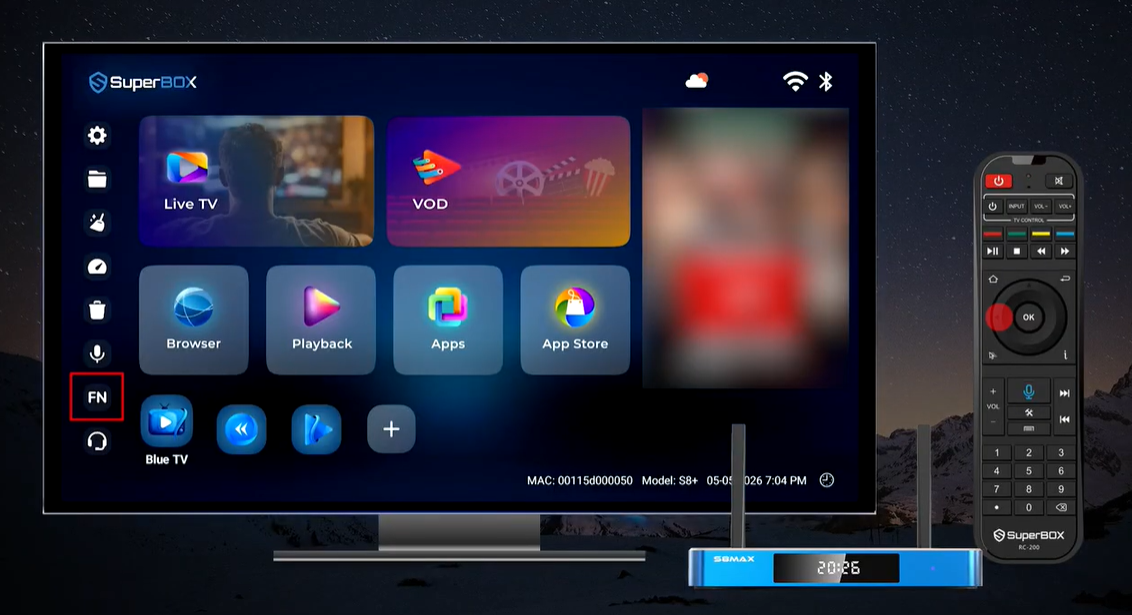
Quick answer: Select + / ADD on Home to add an app icon to the bottom row. To use a remote number key, select FN on the left side of Home, pick an empty numbered slot in Quick Access, and choose an app. Return to Home and press that number on the remote.
Home shortcut or number key?
These are two separate settings. Adding an icon to the bottom of Home gives you something to select on screen. Assigning an app under FN lets you open it with a number on the remote. You can use both for the same app if you like.
| What you want | Where to go | How to open the app later |
|---|---|---|
| See an app on Home | + / ADD below the main tiles | Select its icon and press OK |
| Open an app with a remote number | FN → Quick Access → numbered slot | Press the assigned number from Home |
The order of the icons on the bottom row does not set the remote numbers. If you want an app on key 1, assign it to slot 1 in Quick Access, even if it is the third icon on Home.
Before you start
Turn on your S8 and get to the main Home screen. Keep the remote nearby. The app you want to add should already be installed on the box; the shortcut picker shows apps available on your device.
If you have not installed Blue TV, Blue VOD, Playback, or another app yet, follow our S8 app installation guide first. Come back here once the app appears on the box. If your remote is not responding, use our S8 remote pairing guide before trying to assign a key.
The screens below follow the S8 interface shown in the setup demonstration. A launcher update may move an icon slightly or change its wording. Look for ADD, FN, and Quick Access on your own screen.
Add an app to the S8 Home screen
Use this option when you want a favorite app visible at the bottom of Home. It is helpful if more than one person uses the box and everyone wants an easy way to find the same app.
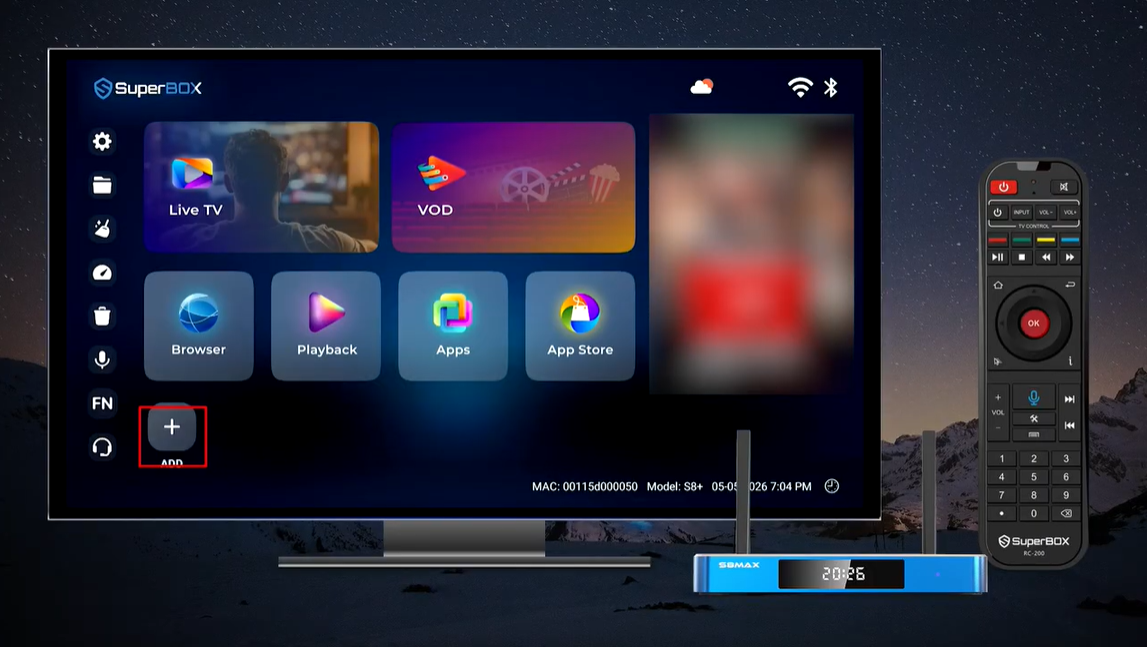
- From Home, move the selection to the small + / ADD tile below the large main tiles.
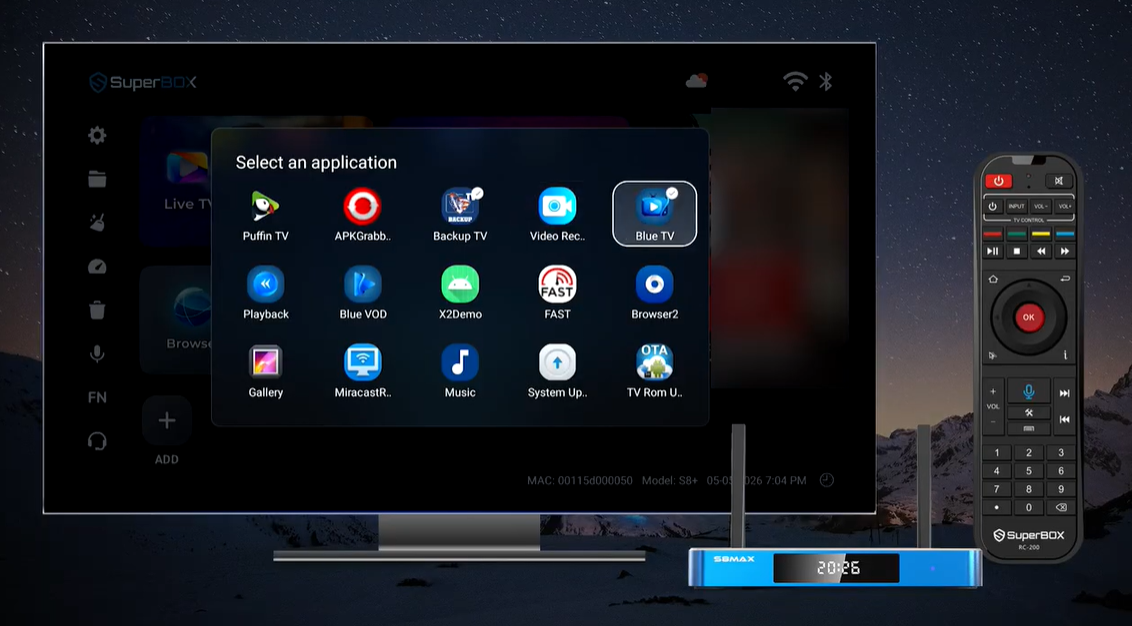
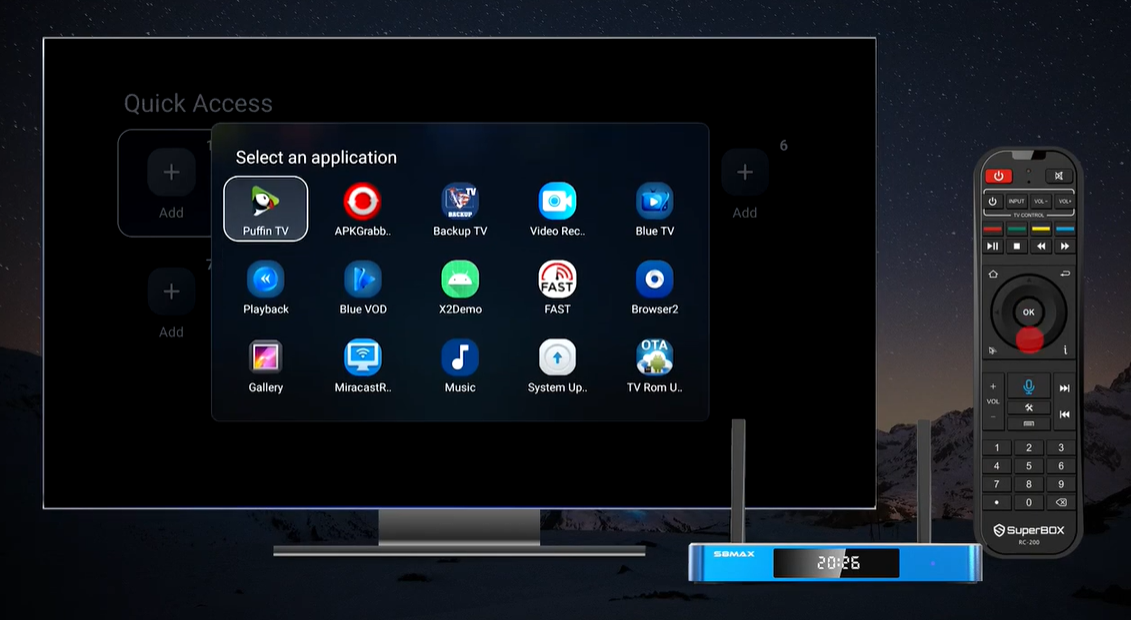
- Press OK on the remote. The Select an application screen opens.
- Move to the app you want, such as Blue VOD or Playback, and press OK.
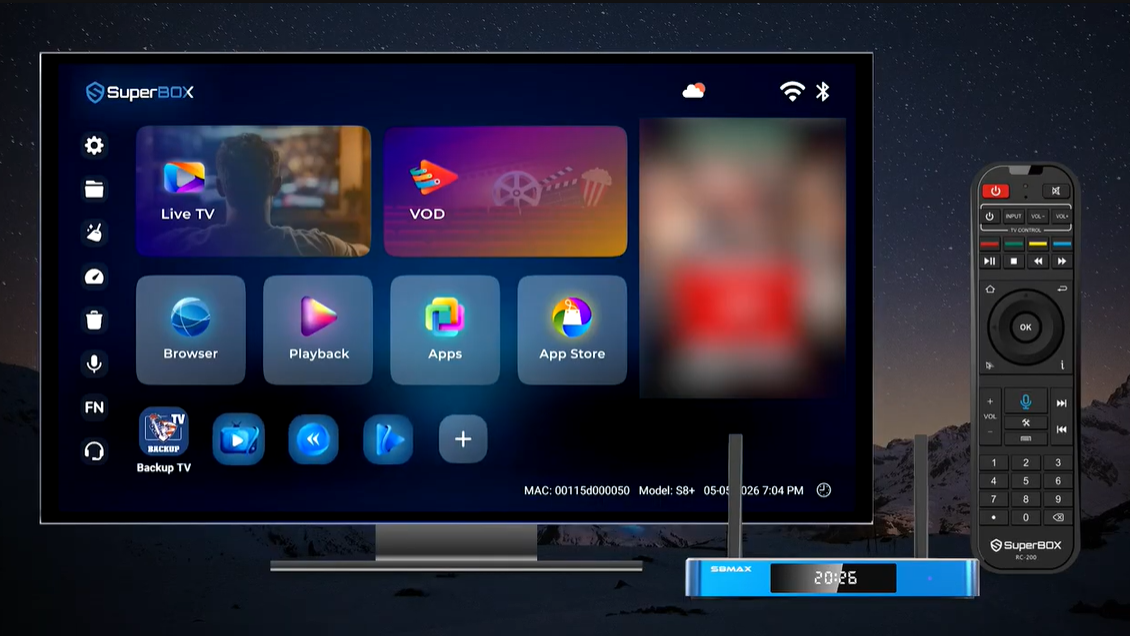
- Return to the Home row and look for the new app icon. Select it and press OK whenever you want to open that app.
The large tiles and the small shortcut row are easy to mix up. Aim for the + in the lower row, not the large Apps or App Store tile. If the screen does not change when you press OK, check which tile is highlighted and try again.
Remove an icon you no longer want on Home
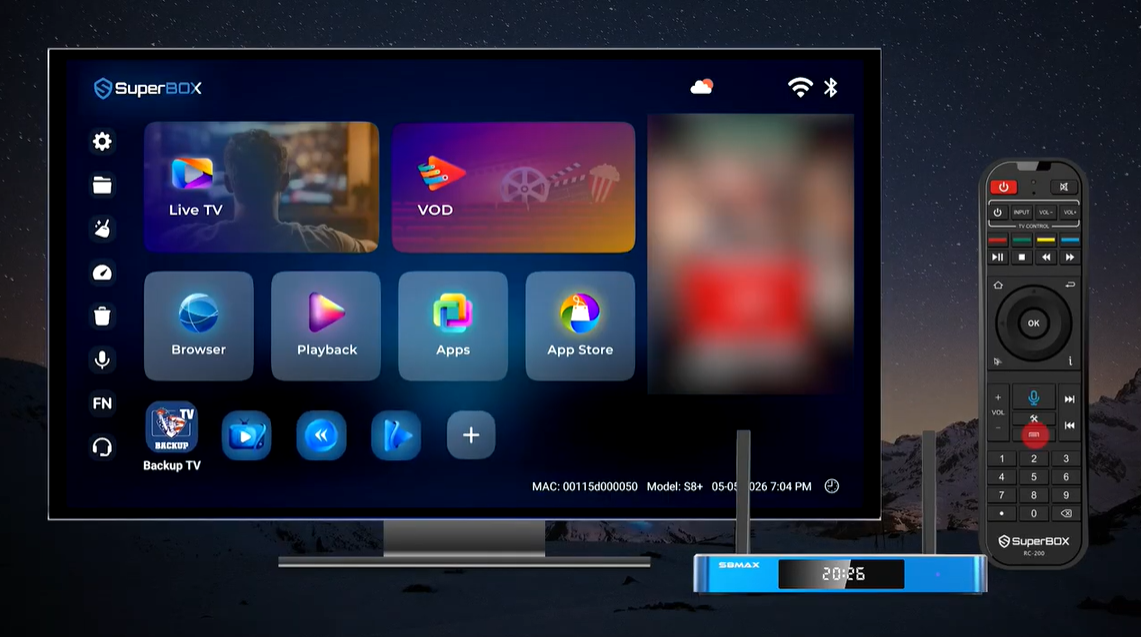
Move to that app icon in the bottom shortcut row and press the Menu button on the remote. Use the removal option shown on screen. This clears the Home shortcut; it is different from choosing an uninstall option in an app management screen. If you still want the app, leave it installed and simply remove its Home icon.
Assign an app to a number on the S8 remote
Number shortcuts are handy when you already know which app you want. For example, you could set 1 to Playback and 2 to Blue VOD. Those are examples from the S8 setup, not required assignments; pick numbers that make sense to you.
- Go back to Home.
- Select FN in the left sidebar. The Quick Access screen opens.
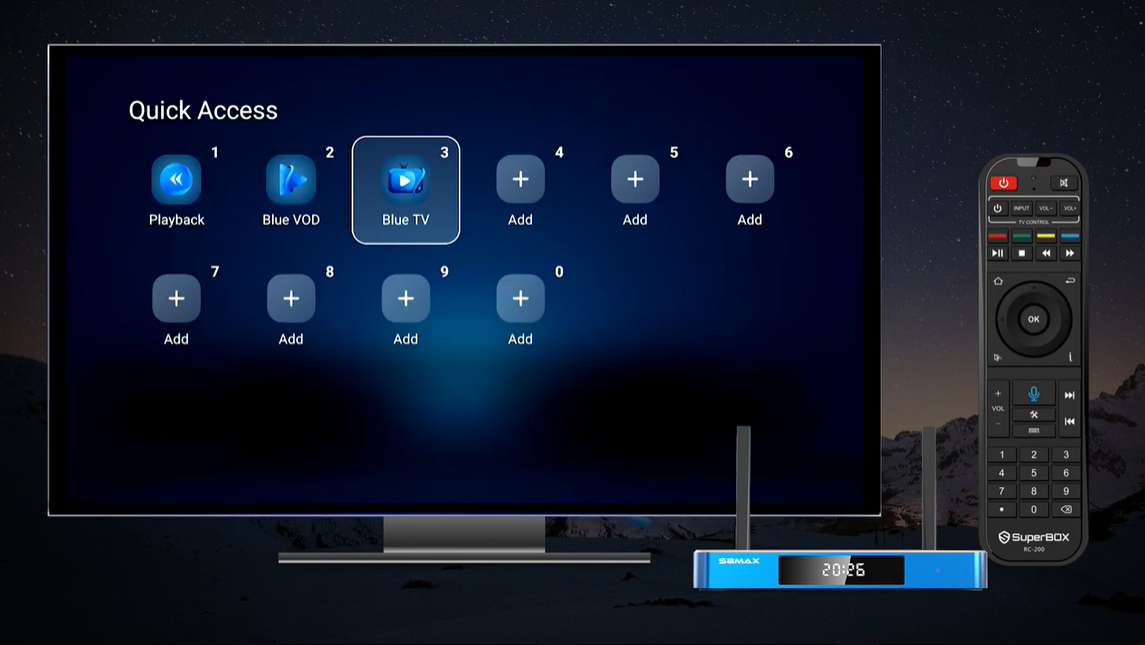
- Choose an empty numbered slot, such as 1, and press OK.
- In the app list, select the app you want for that number and press OK.
- Check that the chosen app appears in the numbered slot.
- Repeat for another number if you want more shortcuts.
- Return to Home and press the matching physical number button on the remote. The assigned app should open.
The FN icon is the place where you set the shortcuts. Once you have set one, use the actual number button on the remote to open it. In the demonstrated setup, Playback is assigned to 1 and Blue VOD to 2. Pressing 1 from Home opens Playback.
Which numbers can you use?
The Quick Access screen shows slots 0–9. You can assign more than one favorite app, one per slot. Start with the apps you open most often and numbers you can remember. You do not need to fill every slot.
If you cannot remember what you assigned, open FN again and read the app names in the numbered grid. This is simpler than trying every button on the remote. You can also keep frequently used apps in the Home row so someone else in the household can see them without memorizing numbers.
If a shortcut does not work
Most problems come down to being in the wrong menu, selecting an app that has not been installed, or pressing a number outside the Home screen. Use the check that matches what you see.
| What you see | What to try |
|---|---|
| The app is missing from Select an application | Check whether the app is installed. The shortcut menu chooses from apps on the box; see the S8 installation steps. |
| The app is on Home, but its position does not match a number key | That is expected. Open FN and assign the app to the number you want. |
| A number key does not open the app | Return to Home, open FN to confirm the slot shows the correct app, then try the physical number again from Home. |
| You cannot find Quick Access | Look for FN in the left Home sidebar, rather than + / ADD in the bottom row. |
| You press OK and nothing happens | Check the highlighted item. Move onto the + tile, an empty number slot, or an app in the picker before pressing OK. |
The demonstrated number-key test starts from Home. A number pressed inside a TV or video app may do something else, so return to Home for a reliable test. If the remote itself does not navigate or select menus, check how to pair an S8 remote.
An app shortcut also does not fix a connection problem inside the app. If the app opens but cannot load online content, start with our S8 Wi-Fi and Ethernet setup guide. That keeps you from repeatedly changing a shortcut that is already working.
A simple setup for everyday use
You do not have to use all ten numbers to get value from this feature. Choose the two or three apps your household opens most. Put their icons on Home so everyone can see them, then assign the same apps to easy-to-remember numbers for the person who prefers the remote. After setting each number, go back to Home and test it once.
For example, you might keep Blue TV and Blue VOD visible in the bottom row and assign 1 and 2 to the apps you personally open most. Another household could put Playback on 1. There is no special app or number you must choose. What matters is that the name in the Quick Access slot matches the button you plan to press.
When you change your mind, return to the same place where you made the shortcut: the bottom Home row for an on-screen icon, or FN → Quick Access for a number assignment. This distinction saves time whenever you adjust your setup later.
Common questions
Do Home shortcuts and remote number shortcuts do the same thing?
They both help you reach an app quickly, but you set them up separately. + / ADD puts an icon on Home. FN assigns an app to a number. You may use either one or both.
Do I need to install an app before assigning it?
Yes. The selection screen lists available apps on the box. If you cannot see the app there, check the S8 app installation guide before setting the shortcut.
Can I assign several apps to the number keys?
Yes. Quick Access displays the numbers 0–9. Choose a separate slot for each app you want to open with the remote.
Will the number key open an app while I am watching live TV?
The demonstrated shortcut opens the assigned app from Home. Return to Home before pressing the number; number keys can serve another purpose within an app.
Does removing an icon from Home delete the app?
The Home row’s Menu action is for removing that shortcut. It is not the same as uninstalling an app from the device. Check the app list separately if you need to confirm it is still installed.
Need an S8 and help getting started?
SuperBox TV Box Store is an authorized SuperBox retailer serving customers in the US and Canada. You can check our authorization code SP20250414002 on the SuperBox authorization site. We publish practical setup guides and help customers with orders placed through our store.
If you are deciding which box to buy, compare the S8 Pro, Plus, Max, and Ultra before ordering. If you already bought from us and need help with your order, contact SuperBox TV Box Store. Once your S8 is ready, the Home row and FN menu take only a few steps to make your favorite apps easier to reach.
The article was updated on:
