
Knowledge SuperBox, Knowledge SuperBox S7
SuperBox S7 Pro, S7 Max and S7 Ultra Blue TV Demonstration: A Complete User Guide





The SuperBox S7 series is designed to make large-screen navigation feel direct, visual, and remote-friendly. Blue TV is one of the clearest examples of that design approach: its interface brings channel discovery, search, program information, favorites, playback controls, and connection monitoring into one consistent experience.
This guide walks through the Blue TV demonstration shown for the SuperBox S7 series, translating every important on-screen action into simple instructions. Whether you use an S7 Pro, S7 Max, or S7 Ultra, the core workflow is built around the same familiar remote controls: directional buttons, OK, Menu, number keys, page controls, and the microphone command button.
At a glance: Open Blue TV, review the remote guide, browse with the directional pad, press OK to confirm a channel and enter full screen, use voice or keyboard search to find a channel, open the EPG with OK, and hold OK to save a favorite.
Model note: The source video is titled for the S7 Pro and S7 Max and describes the experience as part of the broader S7 series. The S7 Ultra may use the same core navigation, but exact screens, labels, features, and app availability can vary by model, region, app version, and system build.
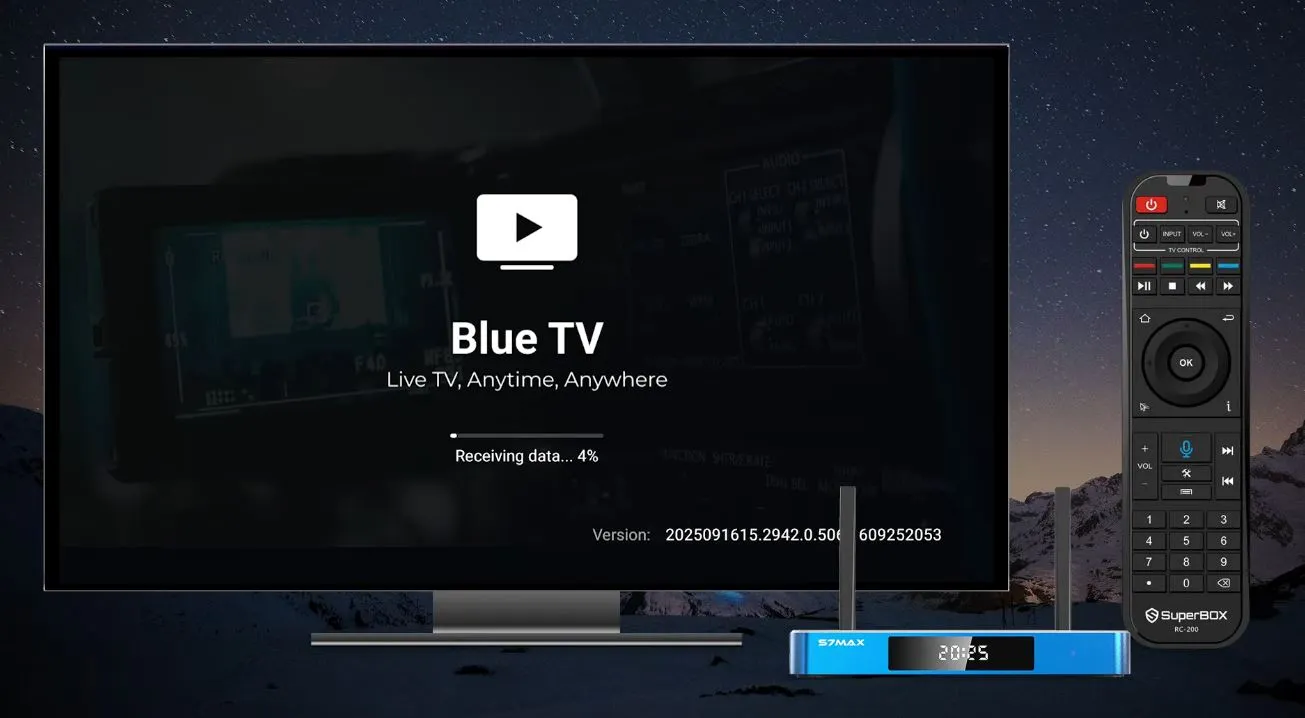
What the Blue TV Demonstration Covers
The video focuses on the everyday controls customers are most likely to use:
- understanding the on-screen remote guide;
- browsing channels without interrupting the current preview;
- entering and leaving full-screen mode;
- searching by voice or with the on-screen keyboard;
- opening the electronic program guide;
- saving channels to Favorites;
- switching directly by channel number;
- moving through recently viewed channels;
- displaying the date, time, and internet speed;
- adjusting decode settings and EPG style; and
- sending feedback from within the app.
The result is not simply a list of features. It is a practical operating guide that shows how the S7 interface reduces the number of steps between choosing a channel and watching it.
1. Start with the Blue TV Remote Guide
When Blue TV opens, an on-screen remote guide may appear. Instead of dismissing it immediately, take a moment to review the controls. The guide explains which remote buttons are assigned to navigation, search, settings, and playback functions.
Press the Right directional button to move through the guide and explore the available remote functions. If you are already comfortable with the controls and do not want the guide to appear each time, select Don’t show again.
This choice is not permanent. The demonstration later shows that the remote guide can be reopened from the Blue TV settings menu whenever you need a refresher.
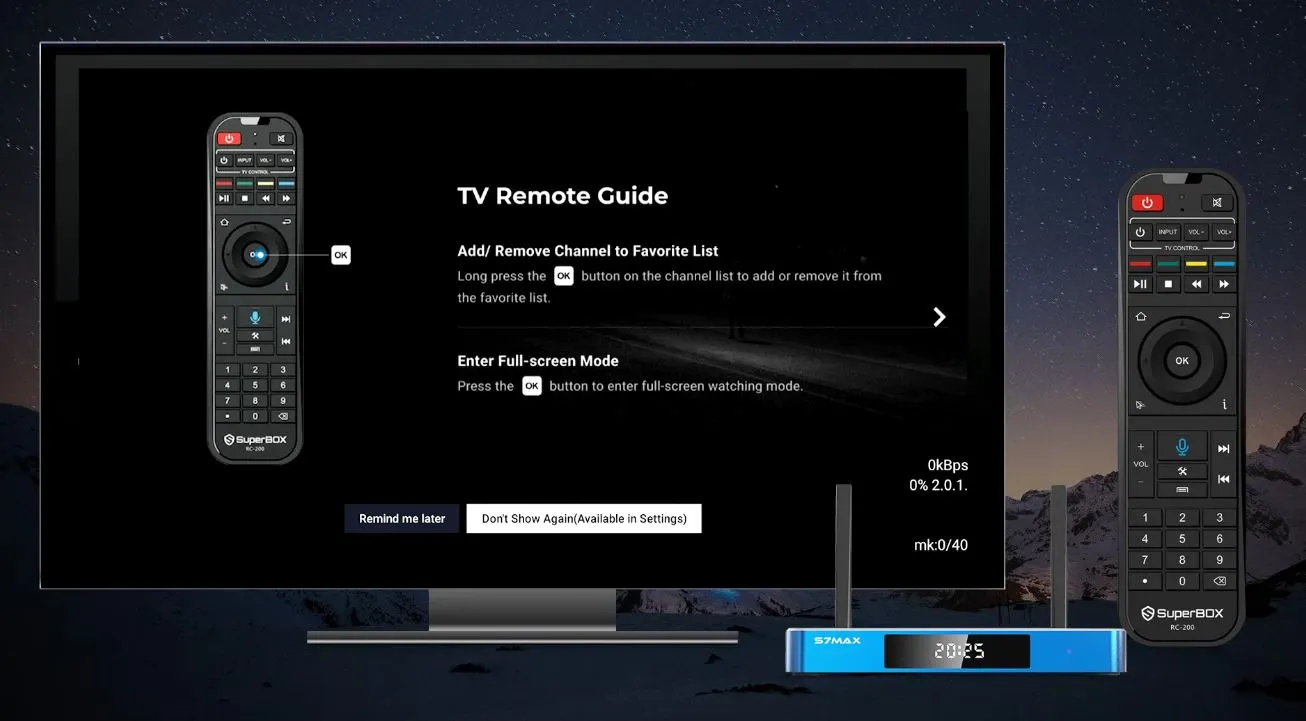
A better onboarding experience
The guide is particularly useful for a new customer because Blue TV assigns more than one action to certain buttons. A normal press may open a menu, while pressing and holding the same button can perform a different function. Learning these shortcuts early makes the interface much faster to use.
2. Browse Channels in Preview Mode and Enter Full Screen
While browsing the channel list, moving the highlight does not immediately replace what is playing in the preview window. This allows you to explore other options without changing the current selection every time the cursor moves.
To switch to a highlighted channel:
- Move to the desired channel with the directional buttons.
- Press OK to confirm the selection.
- Press OK again to enter full-screen mode.
The demonstration also shows an alternative: move the cursor onto the preview window itself and press OK to expand it.
This confirm-first behavior is a thoughtful detail. It prevents accidental channel changes while users are moving quickly through a long list.
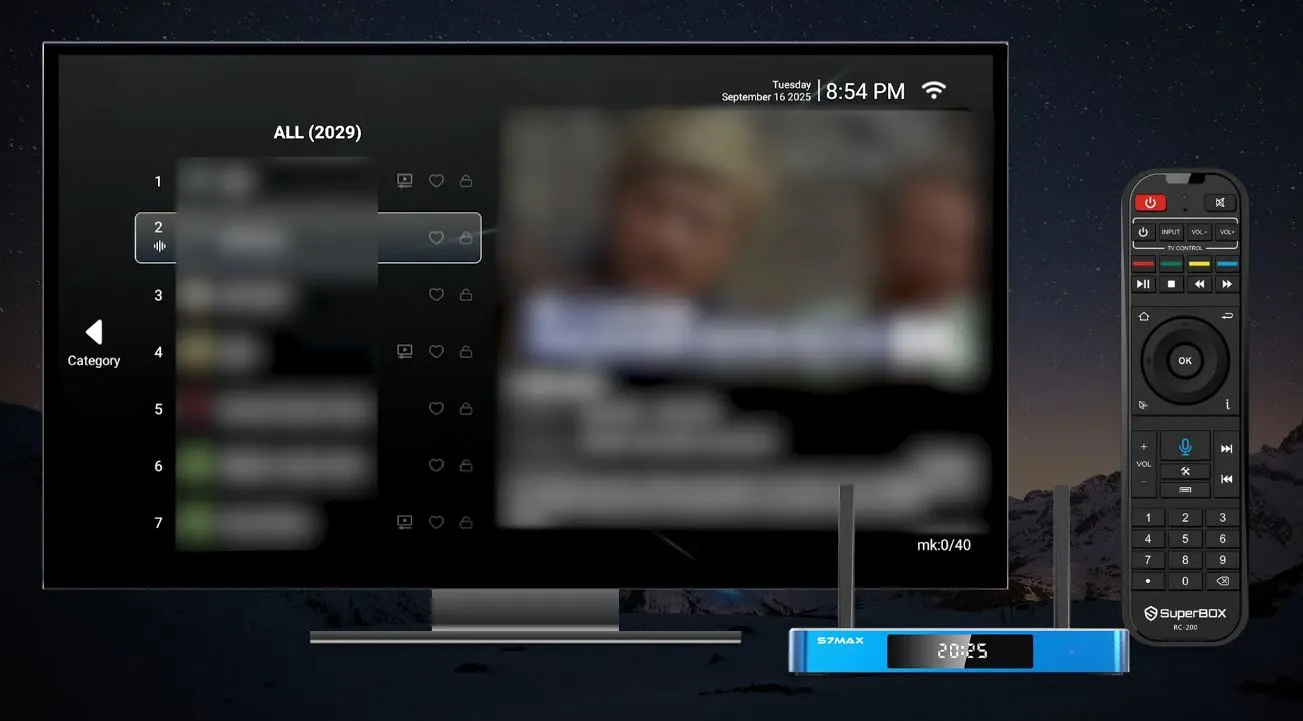
3. Search for Channels by Voice or Keyboard
Scrolling is useful for discovery, but search is much faster when you already know what you want. The S7 demonstration provides two search methods.
Voice search
Press and hold the microphone command button on the remote, then clearly say the channel name. The demonstration shows that the interface can return a direct match when a specific name is spoken.
You can also speak a broader keyword. Blue TV may display several related results, allowing you to choose the appropriate channel from the list.
For the best response:
- hold the microphone button while speaking;
- use a clear, natural voice;
- keep the remote reasonably close;
- say the complete name when possible; and
- release the button after finishing the command.
On-screen keyboard search
If voice search does not recognize the name—or you prefer not to use voice input—press the Right button to open the on-screen keyboard. Enter the channel name manually, review the results, and select the correct match.
The two methods complement each other: voice is faster, while the keyboard is precise when a name is unusual or several channels have similar titles.
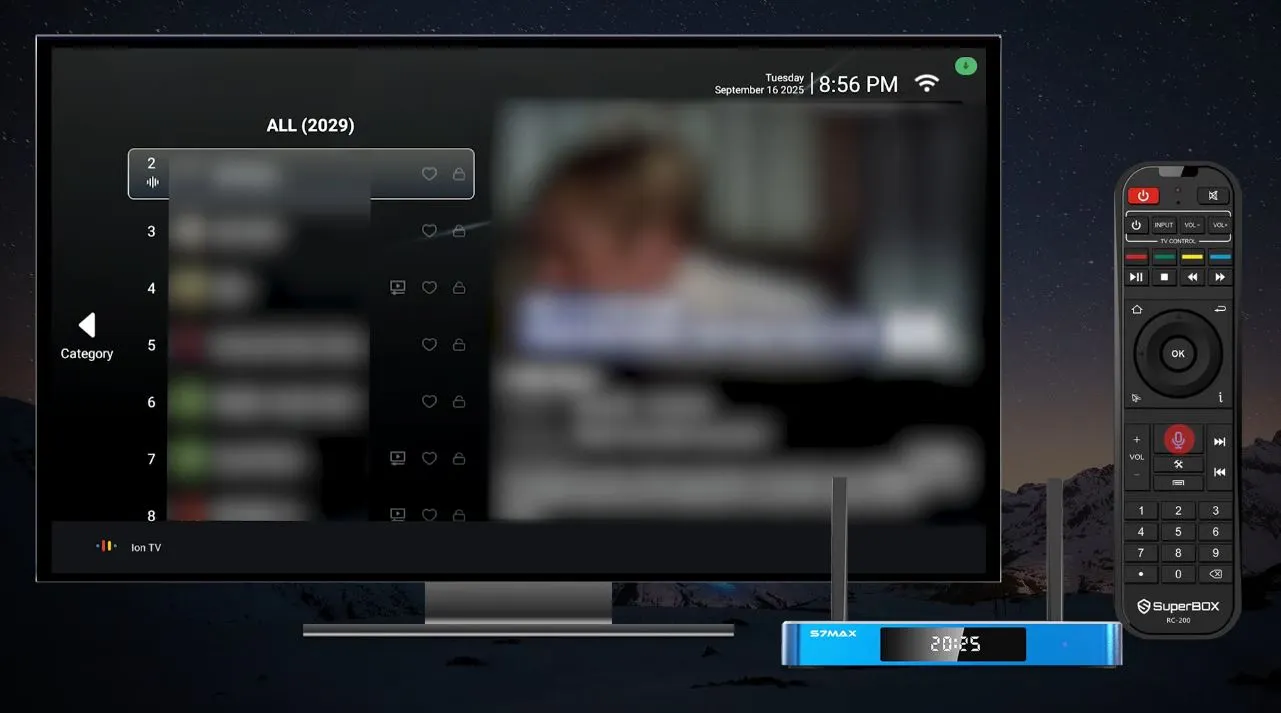
4. Open the EPG and Save Favorite Channels
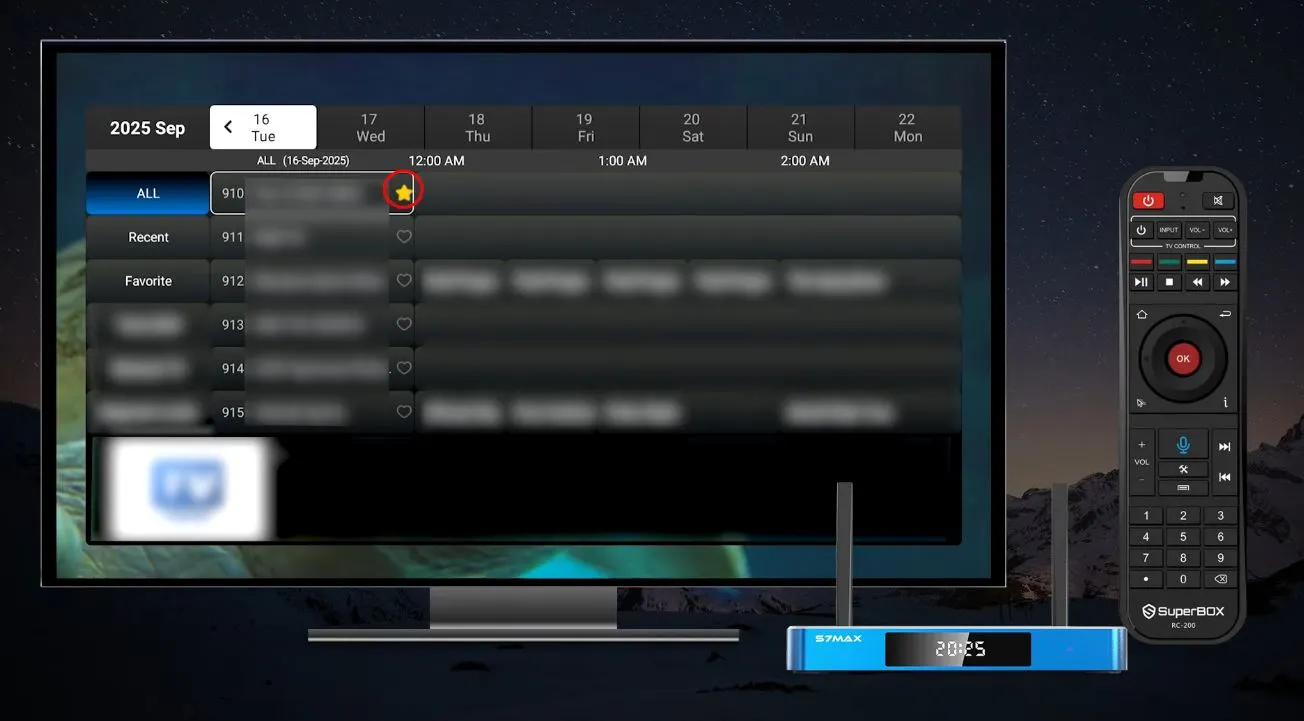
The Electronic Program Guide, or EPG, helps organize channel and program information in a schedule-based view. From Blue TV, press OK on the remote to open the EPG shown in the demonstration.
To save a channel to Favorites:
- Open the EPG or channel view.
- Move the highlight to the channel you want to save.
- Press and hold OK.
- Wait for the favorite icon to turn yellow.
The yellow icon confirms that the channel has been added to the Favorites list. Repeat the same process for the channels you use most often.
Favorites are valuable because they reduce repetitive browsing. Instead of scanning the full directory each time, customers can build a smaller list around their own viewing habits.
5. Switch Channels More Efficiently
Blue TV provides several ways to move between channels, and each is useful in a different situation.
Enter a channel number
If you know the number, enter it directly with the number buttons on the SuperBox remote. This is the shortest route to a specific channel.
Open your Favorites
For channels you return to regularly, use the Favorites list instead of searching from the full directory. A well-organized Favorites list is often the fastest everyday navigation method.
Move through recently viewed channels
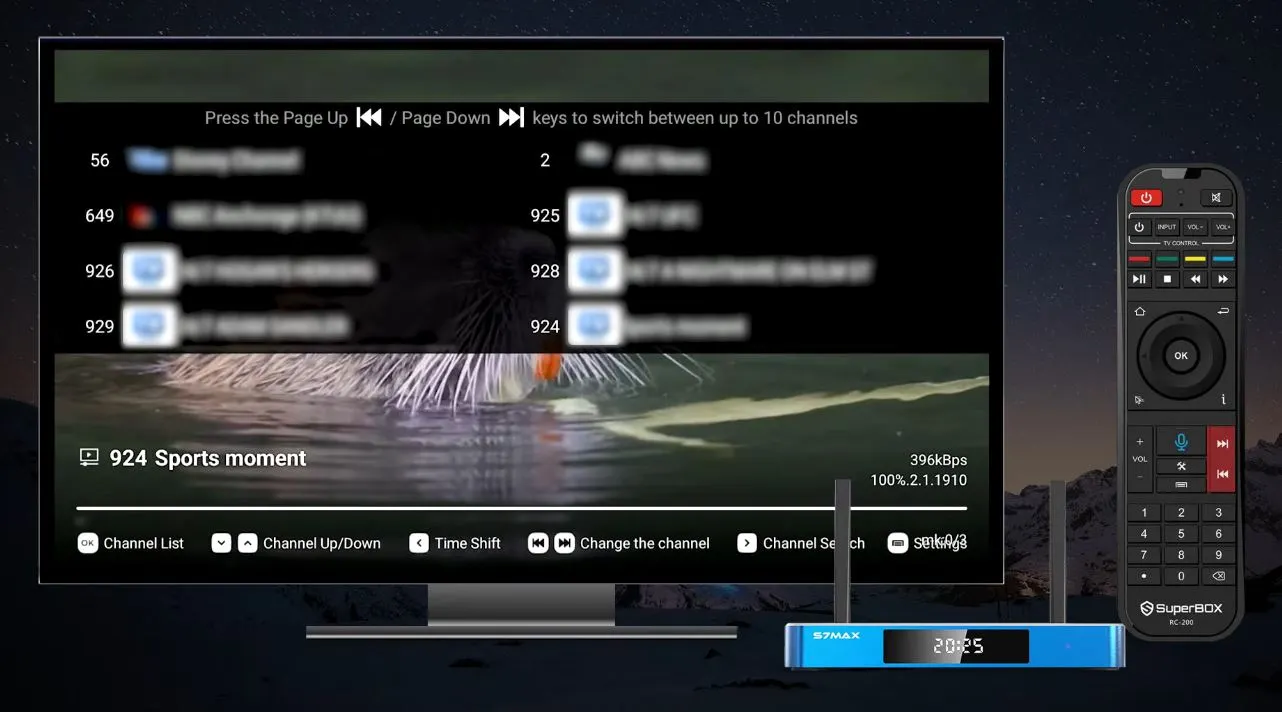
Use Page Up or Page Down to move through the last ten channels viewed, as demonstrated in the video. This is especially convenient when following multiple programs or events and moving back and forth between them.
These shortcuts make the app feel less menu-dependent. Once customers remember their preferred method, channel changes require only one or two remote actions.
6. Customize Blue TV Settings
Press the Menu button on the remote to open Blue TV settings. The demonstration highlights several controls that improve visibility and help customers understand playback performance.
Show the date and time
Enable the Status Bar to display the date and time in the upper-right corner. This is helpful when watching in full screen because basic system information remains visible without leaving the app.
Monitor internet speed
Turn on the internet-speed display to show live connection information in the lower-right corner. This can be useful during troubleshooting because it provides an on-screen indication of current network activity.
The number should be treated as a diagnostic indicator rather than a guaranteed measurement of the customer’s full internet plan. Network conditions, server response, router performance, Wi-Fi interference, and other devices can all affect the value displayed.
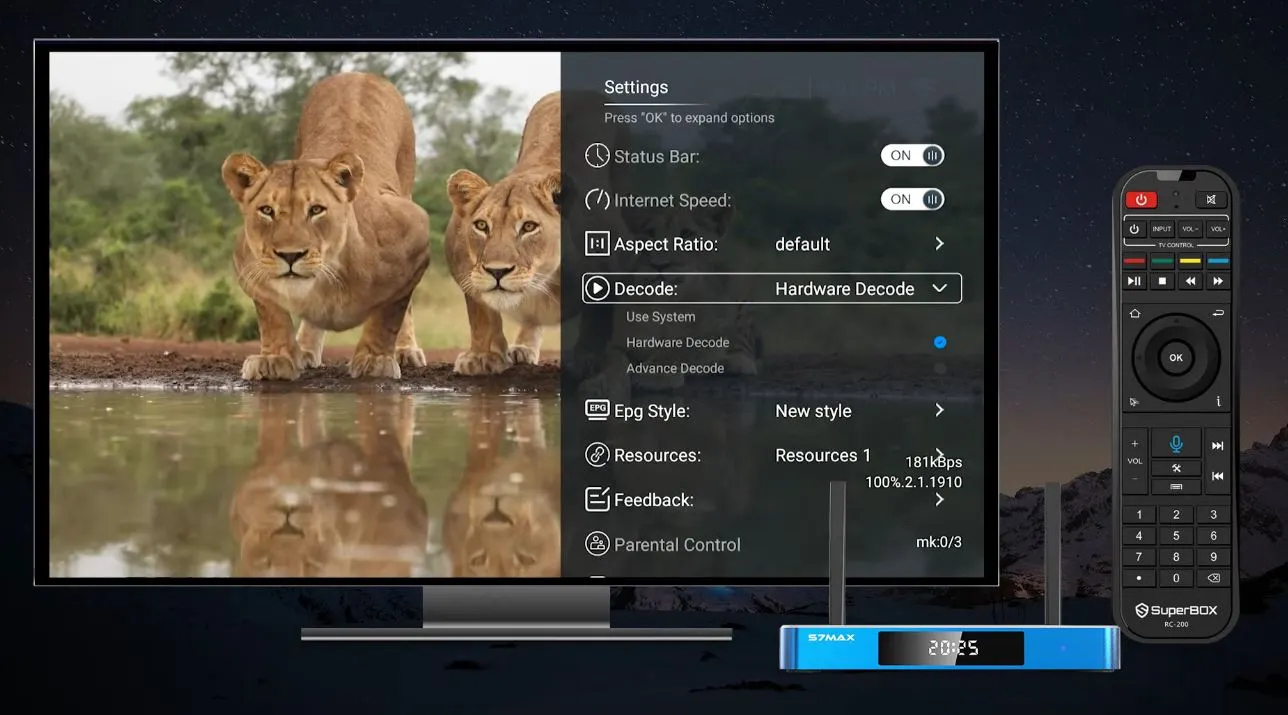
Review decode settings
Blue TV includes decode options intended to help optimize playback and reduce buffering. Settings should be changed carefully and one at a time. If playback is already stable, there may be no reason to change the default configuration.
If you test another decode option, note the original setting first. This makes it easier to return to the previous configuration if performance does not improve.
7. Choose an EPG Style and Use Built-In Feedback
The demonstration shows two EPG presentation styles. Selecting the New Style provides a cleaner, more visual layout designed to make programs easier to find. Customers can compare both options and keep the layout that feels most intuitive from their normal viewing distance.
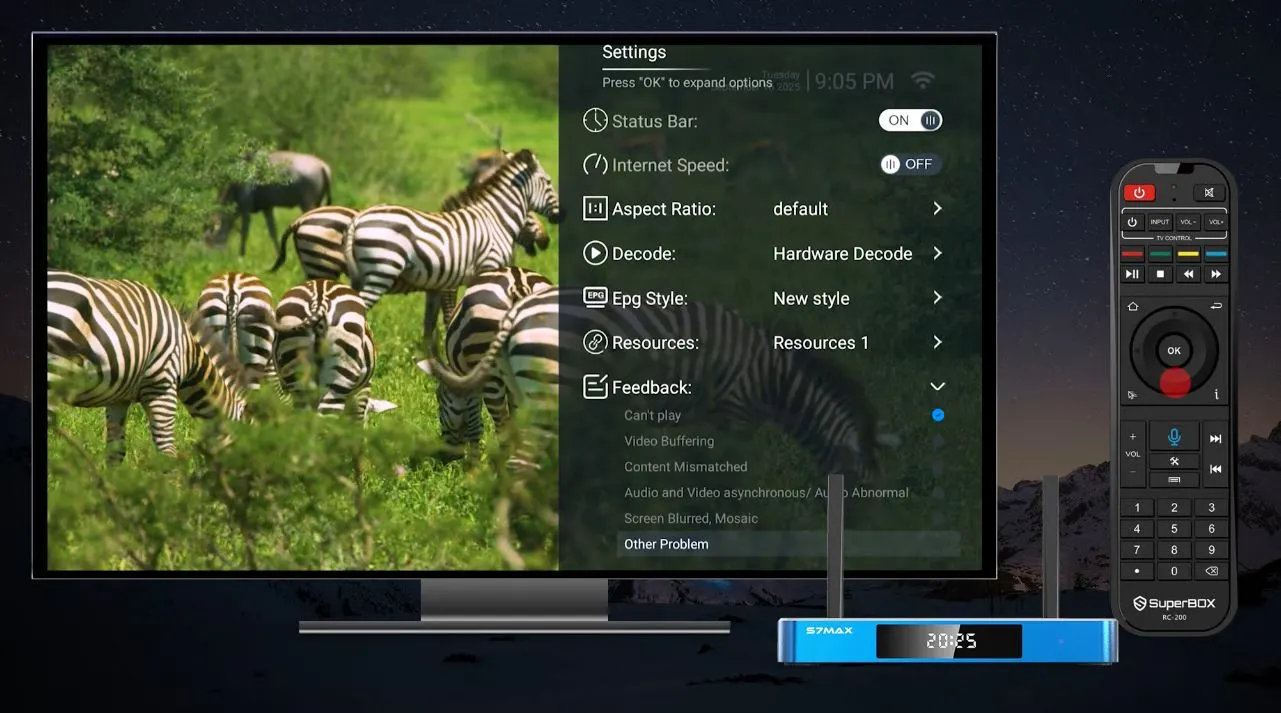
The same settings area also includes a Feedback option. Use it to report an issue from within the app. A useful report should include:
- the SuperBox model;
- the date and approximate time of the issue;
- the exact channel or menu involved;
- the error message, if one appears;
- whether other channels or functions are working; and
- whether the box is connected through Wi-Fi or Ethernet.
Finally, the remote guide can be opened again from this menu. Customers who previously selected Don’t show again can still revisit every control explanation without resetting the app.
Blue TV Controls: Quick Reference
| Goal | Remote action | What happens |
|---|---|---|
| Review the opening guide | Press Right | Moves through remote-control instructions |
| Stop the guide appearing at launch | Select Don’t show again | Hides the automatic opening guide |
| Confirm a highlighted channel | Press OK | Loads the selected channel |
| Enter full screen | Press OK again or select the preview window and press OK | Expands playback |
| Search by voice | Hold the microphone command button and speak | Searches for the spoken name or keyword |
| Search by typing | Press Right in search | Opens the on-screen keyboard |
| Open the EPG | Press OK as shown in the guide | Displays program and channel information |
| Add a favorite | Highlight a channel and hold OK | Favorite icon turns yellow |
| Open a known channel | Enter its number | Jumps directly to that channel |
| Browse recent channels | Press Page Up/Page Down | Moves among the last ten viewed channels |
| Open Blue TV settings | Press Menu | Opens display, decode, EPG, feedback, and guide options |
Blue TV on S7 Pro vs S7 Max vs S7 Ultra
This video is an interface demonstration, not a hardware comparison. The central Blue TV actions are presented as an S7-series experience, so the practical guide is useful across the family. However, the article should not imply that every device always displays identical menus.
| Model | What this guide establishes | What customers should verify |
| SuperBox S7 Pro | The source demonstration explicitly covers the S7 Pro and the shared Blue TV workflow | Current app version, available settings, and regional availability |
| SuperBox S7 Max | The source demonstration explicitly covers the S7 Max and the shared Blue TV workflow | Current app version, available settings, and regional availability |
| SuperBox S7 Ultra | The guide can be used for the core S7-series navigation pattern | Whether the current Ultra software build uses the same labels, layout, and supported functions |
If a customer’s screen differs from the demonstration, check for system and app updates before assuming that a control is missing. Software interfaces can change over time.
About the S7 Series Features Mentioned with the Video
The source video description identifies several broader S7-generation features, including a redesigned interface, Android 12, Wi-Fi 6, Gigabit Ethernet, USB/Type-C connectivity, parental controls, upgraded voice commands, and an extended time-shift function.
The walkthrough itself focuses on Blue TV navigation. It does not fully test every hardware specification or demonstrate every time-shift scenario. For that reason, customers should use the current product page for the exact specifications of the S7 Pro, S7 Max, or S7 Ultra they are considering.
Feature availability can depend on software version, app version, model, region, network conditions, and service status.
Tips for the Best Blue TV Experience
Keep the S7 software current
Install approved updates offered through the device. Interface refinements, compatibility fixes, and playback improvements may be delivered over time.
Use a stable network connection
For consistent playback, use reliable Wi-Fi or Ethernet. If the speed display drops sharply or playback buffers, test another app or website to determine whether the issue affects the entire connection.
Build a Favorites list early
Adding frequently used channels to Favorites turns a large interface into a personalized shortlist. It is one of the easiest ways to improve the day-to-day experience.
Learn three high-value controls
New users do not need to memorize everything at once. Start with:
- OK to confirm, expand, and open the EPG;
- Menu to access settings; and
- the microphone button to search by voice.
Once these are familiar, add the Favorites and Page Up/Page Down shortcuts.
Change decode settings only when necessary
Decode controls are troubleshooting tools, not settings that must always be changed. If playback is stable, retain the default. When testing, change one option at a time so the result can be evaluated clearly.
Frequently Asked Questions
Does the Blue TV interface work the same way on every S7 model?
The source video presents a shared S7-series workflow and explicitly names the S7 Pro and S7 Max. The S7 Ultra may follow the same core control pattern, but interface details can differ with model and software version.
How do I stop the remote guide from appearing every time?
Select Don’t show again on the opening guide. You can still reopen the TV Remote Guide later from the Blue TV settings menu.
Why does the preview not change when I move to another channel?
Moving the highlight is only browsing. Press OK to confirm the highlighted channel. Press OK again—or select the preview window and press OK—to enter full screen.
How do I add a channel to Favorites?
Highlight the channel, then press and hold OK until the favorite icon turns yellow. The yellow state confirms that the channel was saved.
Can I search without using voice control?
Yes. Open search and press the Right directional button to display the on-screen keyboard, then type the channel name manually.
How do I return to a recently viewed channel?
Use Page Up or Page Down to move through the last ten channels viewed, according to the demonstration.
Does the internet-speed display show my full internet-plan speed?
Not necessarily. It indicates current connection activity within the app environment. Router performance, Wi-Fi conditions, servers, background traffic, and other factors may affect the number.
What should I do if Blue TV buffers?
Check whether other online functions work, restart the router and SuperBox, test Ethernet if available, install approved updates, and review decode settings carefully. Change only one decode option at a time.
What if my EPG or channel list looks different from the video?
Your app version, software build, model, or region may use a different layout. Open settings to check the EPG style and install available updates. Contact support if important controls remain unavailable.
Responsible Use and Availability
SuperBox devices are open Android-based hardware platforms. Applications, channel lineups, program information, and individual features may be supplied or operated by third parties and can change without notice.
The demonstration explains how to navigate the interface shown in the source video. It does not guarantee the availability of any particular channel, program, app, or service in every location. Customers are responsible for using applications and content in accordance with applicable laws, licensing requirements, and provider terms.
Final Thoughts
The strength of the Blue TV interface is not a single dramatic feature. It is the collection of small, practical choices that make television navigation easier: preview before switching, two search methods, a visual EPG, press-and-hold Favorites, direct channel numbers, recent-channel shortcuts, connection monitoring, and built-in feedback.
For S7 Pro and S7 Max owners, the video provides a clear introduction to the interface. For S7 Ultra owners, it serves as a useful core navigation guide while leaving room for model- and software-specific differences.
If you need help finding a setting or your Blue TV screen does not match the demonstration, contact SuperBox TV Box Store Technical Support on WhatsApp Send your model, software version, a photo of the screen, and the exact step you are trying to complete.
For a visual demonstration
Video Reference
This guide is based on the following video:
SuperBox S7 Pro and Max Blue TV Demonstration
The article was updated on:
