
Knowledge SuperBox
How to Optimize WiFi for Streaming: A Practical SuperBox S8 Guide





Your internet plan looks fast, your phone works fine, and your SuperBox still pauses during a movie. Before buying a more expensive router or upgrading your internet package, check the connection that actually reaches your television.
Streaming needs enough data delivered consistently. A strong connection in the kitchen does not prove you have a strong connection behind the living-room TV. And if only one channel is failing, Wi-Fi may not be the cause at all.
This guide explains how to optimize WiFi for streaming through a clear sequence: test the problem, improve placement, compare wireless bands, manage household traffic and use Ethernet or mesh where it makes sense. It also explains how SuperBox S8’s networking features fit into that setup.
Quick answer: what is the best way to improve WiFi for streaming?
Start by testing beside the streaming device, then compare playback over Wi-Fi and a direct Ethernet connection. If Ethernet works better, focus on wireless coverage, interference and band selection. Use 5GHz when the signal is strong, improve router or mesh placement, and pause competing downloads. If both connections struggle, investigate the internet service, app or content source before replacing equipment.
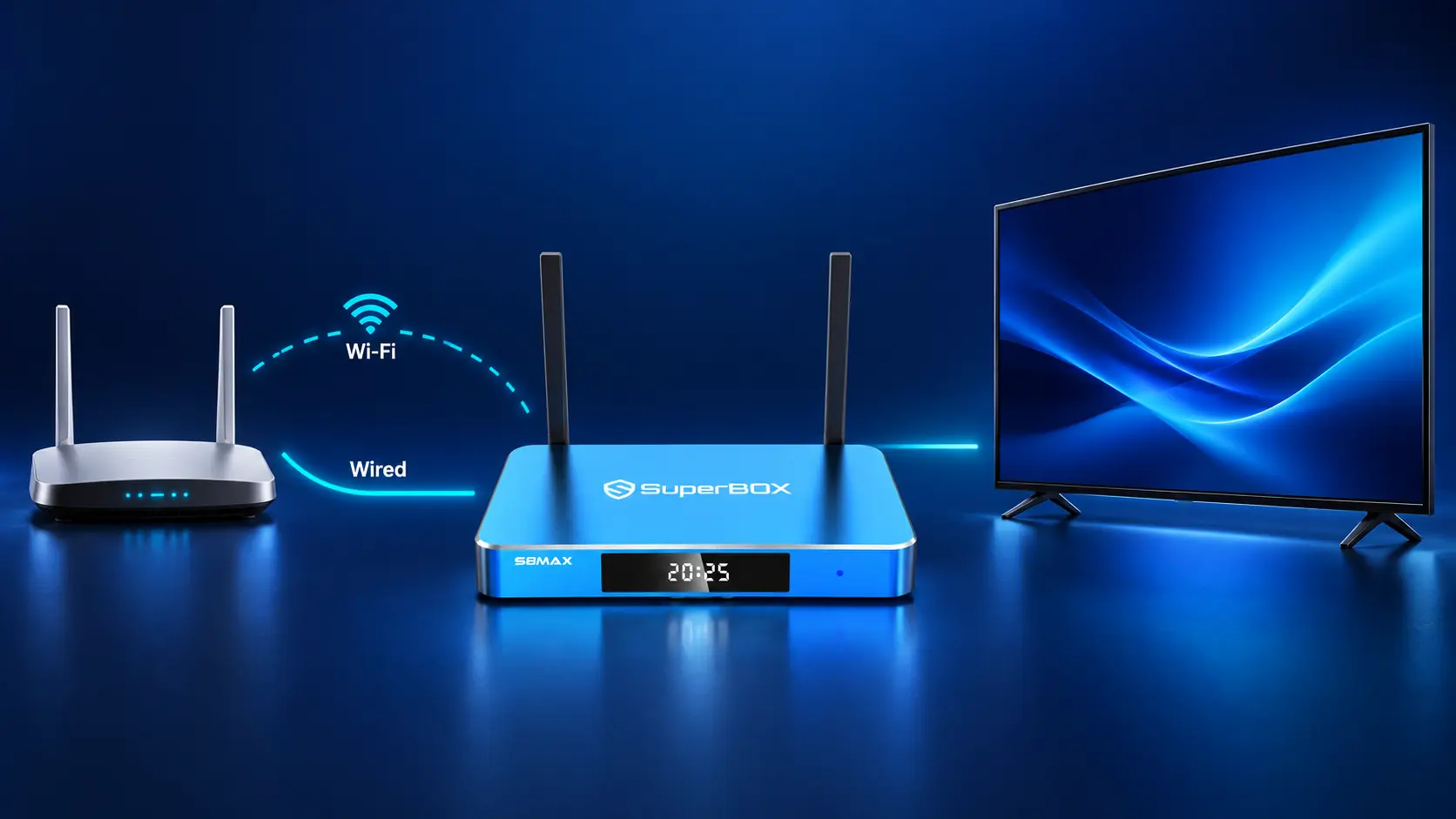
First check whether WiFi is actually the problem
Spend a few minutes identifying the pattern. This prevents you from changing router settings to fix a problem that belongs to a particular channel or application.
Try another channel or video in the same app, then try another supported app. Note whether other devices lose internet access at the same time. If possible, repeat the test during the period when the interruptions usually happen.
| What you notice | What it suggests | Useful next check |
|---|---|---|
| Several devices struggle together | A shared network or internet issue is more likely | Check the router, household traffic and ISP status |
| Streaming improves near the router | Coverage may be limiting the connection | Test a better placement or closer access point |
| Direct Ethernet works, Wi-Fi struggles | The wireless part of the connection deserves attention | Compare bands and check obstructions |
| One channel fails while others play | A content-source issue is possible | Compare another channel before changing the router |
| Trouble begins during large downloads | Household congestion may be involved | Pause downloads and repeat playback |
| A wired mesh satellite still struggles | The satellite’s upstream connection may be weak | Check its backhaul connection |
These are clues rather than final diagnoses. The strongest evidence comes from repeatable comparisons where you change one thing at a time.
If your S8 is not connected yet, begin with how to connect SuperBox S8 to WiFi or Ethernet. If the issue seems limited to an application, use our buffering and freezing troubleshooting guide alongside the network checks below.
Step 1: test the connection where your SuperBox sits
Run a speed test on the streaming device if a supported tool is available. Otherwise, test with a phone or laptop beside the box while connected to the same home Wi-Fi. A nearby phone is a useful comparison, but its radio and connected band may differ from the box.
For a browser-based check, FAST.com is one option. Avoid testing only beside the router and assuming that result applies throughout the house.
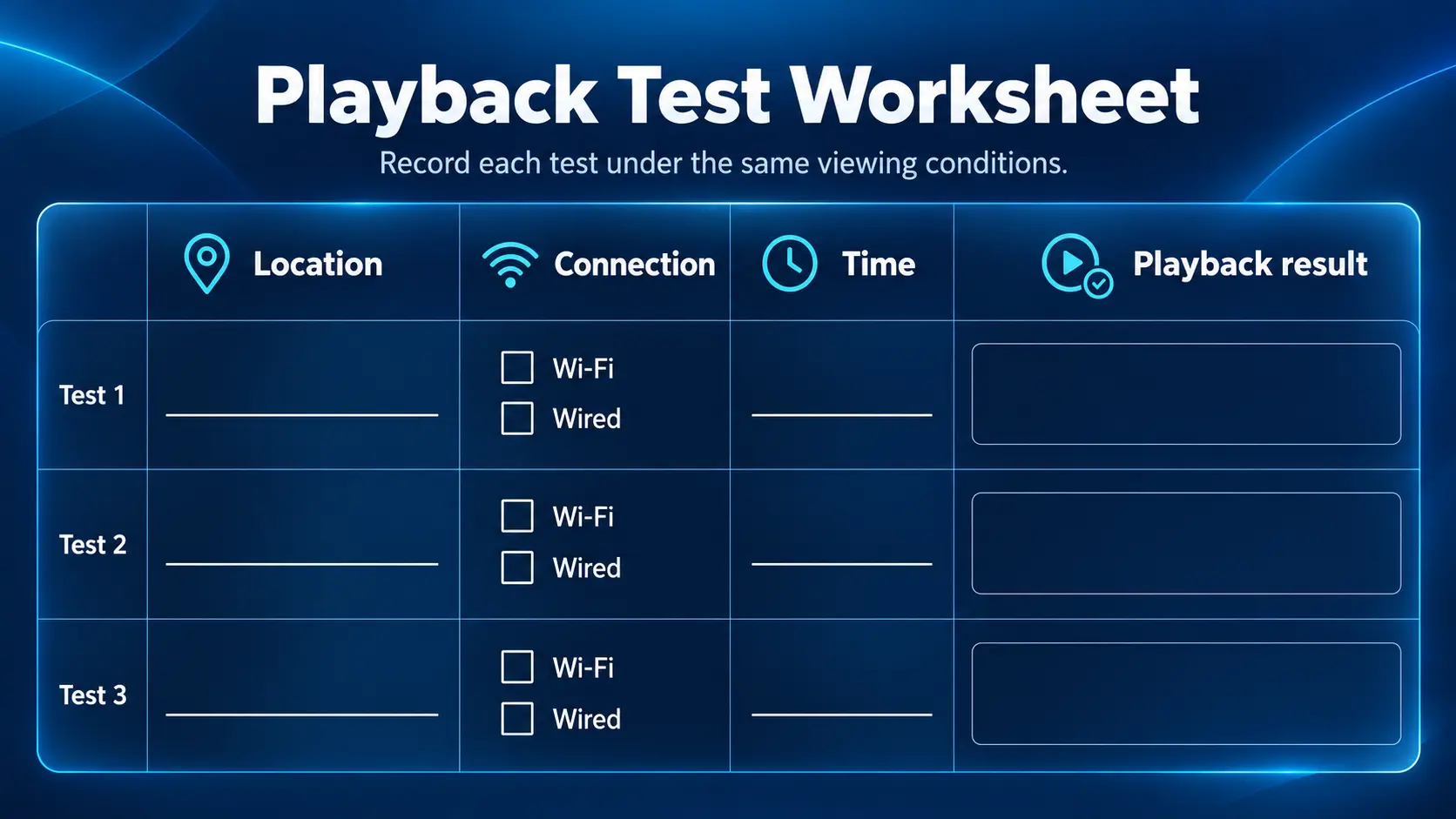
Record the time, test location and connection type. Then repeat under two conditions: normal household use and a quieter period with large downloads paused. Compare the results with actual playback, not only the biggest speed-test number.
If results vary, look for the pattern. Does moving closer help? Does the problem appear only in the evening? Does Ethernet improve the same stream? Those answers tell you which change to try next.
How much internet speed does streaming need?
As a service-specific reference, Netflix recommends a stable connection of at least 3 Mbps for 720p, 5 Mbps for 1080p and 15 Mbps for 4K.
| Netflix video quality | Netflix recommended speed |
|---|---|
| HD 720p | 3 Mbps or higher |
| Full HD 1080p | 5 Mbps or higher |
| Ultra HD 4K | 20 Mbps or higher |
These figures are not official requirements for Blue TV, Blue VOD or every live stream. Different services and video formats have different demands. Multiple simultaneous streams also share the home connection, so leave capacity for the rest of the household.
A speed test is a snapshot of one route at one moment. It does not guarantee that every content provider will deliver a stream equally well.
Step 2: improve router and box placement
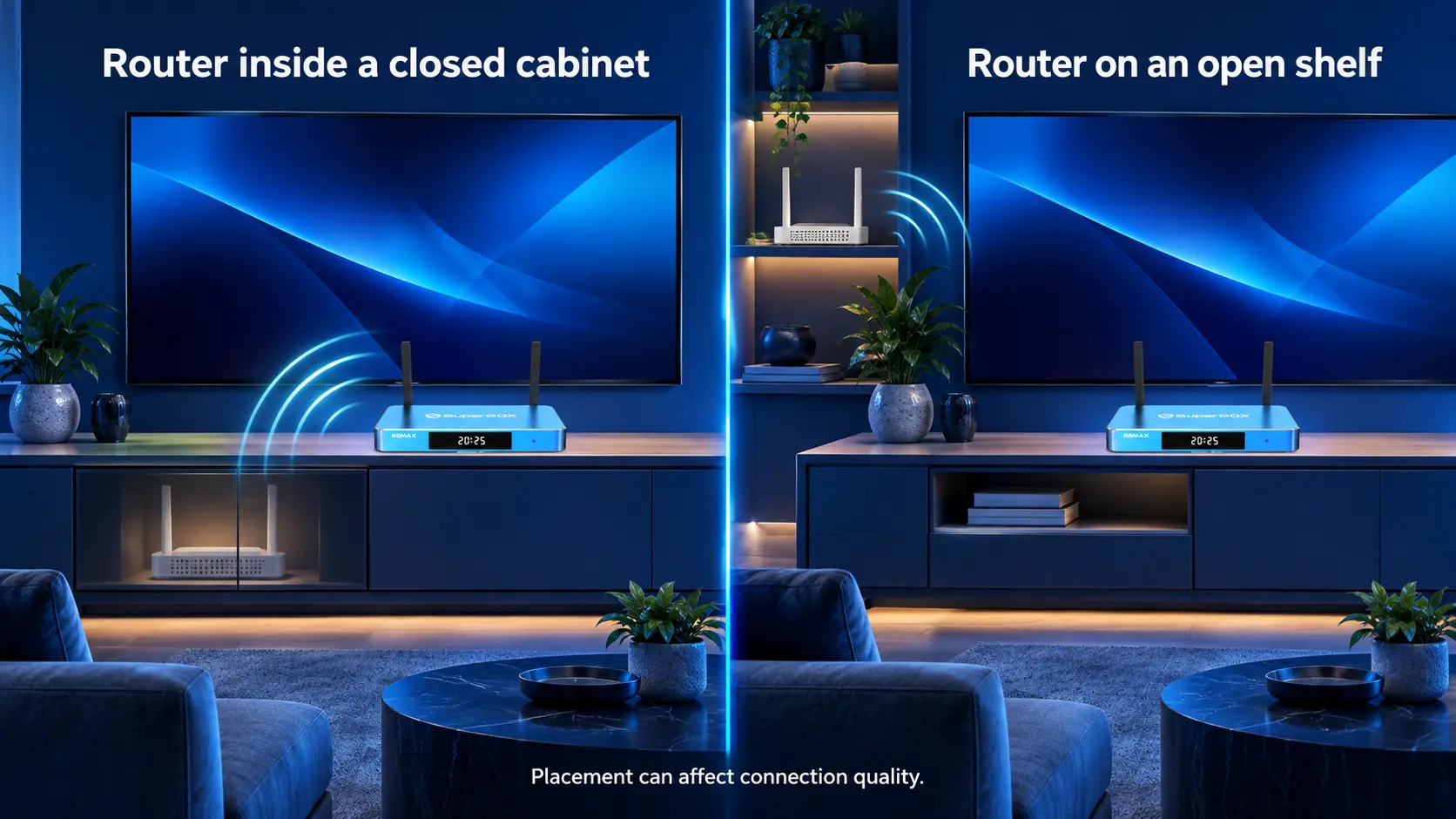
Try the free changes before buying hardware. Put the router in an open, elevated position, ideally closer to the areas where you use Wi-Fi most. Avoid enclosing it in a cabinet or hiding it behind large metal objects.
Google’s Wi-Fi placement guidance emphasizes that layout and construction affect the best location. There is no universal placement that works for every home.
Move the SuperBox into an open, ventilated position if it is tucked behind the TV or inside crowded furniture. Test playback again before making another change.
Keep the comparison simple: same app, same viewing position and similar household use. A consistent improvement is more useful than a single impressive test.
Check nearby sources of interference
Walls, dense materials and nearby electronics can complicate wireless reception. Google’s interference troubleshooting guidance recommends moving devices closer, testing suspected interference sources and considering automatic channel selection.
If interruptions seem connected to a nearby appliance, compare playback with that appliance inactive when practical. Avoid relocating everything at once; you want to identify which change helped.
Step 3: compare 5GHz with 2.4GHz
The best Wi-Fi band is the one that gives your streaming device a reliable connection in its actual location.
5GHz is a sensible first choice when the router or access point is nearby and reception is strong. It can offer more wireless capacity than a crowded 2.4GHz connection. However, 2.4GHz generally reaches farther, which may help across rooms or floors. Google explains the range distinction in its Wi-Fi band guidance.
| Connection | When to try it | What to watch for |
|---|---|---|
| 5GHz Wi-Fi | Router or access point is reasonably close | Weak reception across walls or floors |
| 2.4GHz Wi-Fi | Longer-distance coverage is needed | Congestion and lower available capacity |
| Direct Ethernet | A cable route is practical | Cable, port and upstream connection issues |
Some routers use one network name for both bands and select the band automatically. Others offer separate names. Check your router’s app or manual before trying to select a band; do not assume every system exposes the same controls.
If both bands are available separately, compare them with the same content. Keep the connection that works more consistently. If neither performs well, placement or a closer access point may matter more than repeatedly switching bands.
Step 4: pause heavy traffic and test again
A household can run several demanding activities at once: game downloads, cloud backups, video calls and multiple TV streams. Being connected is not the same as consuming a large amount of bandwidth, so focus on active traffic rather than the number of devices on a list.
Temporarily pause a large download or backup, then replay the stream. If the interruptions ease, schedule those transfers outside your usual viewing hours where possible.
This test can also prevent an unnecessary purchase. If the connection works well when the household is quiet, first decide whether traffic scheduling is enough or whether your internet plan needs more capacity for simultaneous use.
Use device priority if your router supports it
QoS, or Quality of Service, lets supported routers prioritize selected traffic or devices. For example, TP-Link documents device and activity priority options that vary across its router families.
Find your router model’s instructions, identify the SuperBox in the connected-device list, and test a temporary priority setting during busy periods. If the router asks for total bandwidth, follow its guidance rather than entering the largest advertised number on your internet plan.
Priority settings cannot create additional internet capacity or repair a weak wireless link. Keep them only if the comparison shows a useful improvement without making other household activities unreasonably difficult.
Step 5: compare with a direct Ethernet connection
A cable test is one of the clearest ways to investigate Wi-Fi. Connect an Ethernet cable from a working LAN port on the router to the SuperBox’s Ethernet port. Follow the S8 connection guide and confirm the box is using the wired connection for your test.
Replay the same content. If it consistently works better, consider keeping Ethernet or improving the wireless path. If it still struggles, Wi-Fi is less likely to be the only cause.
A wired connection bypasses the wireless link between those two devices. It still depends on the router, internet service and content source; it is not a promise of uninterrupted playback.
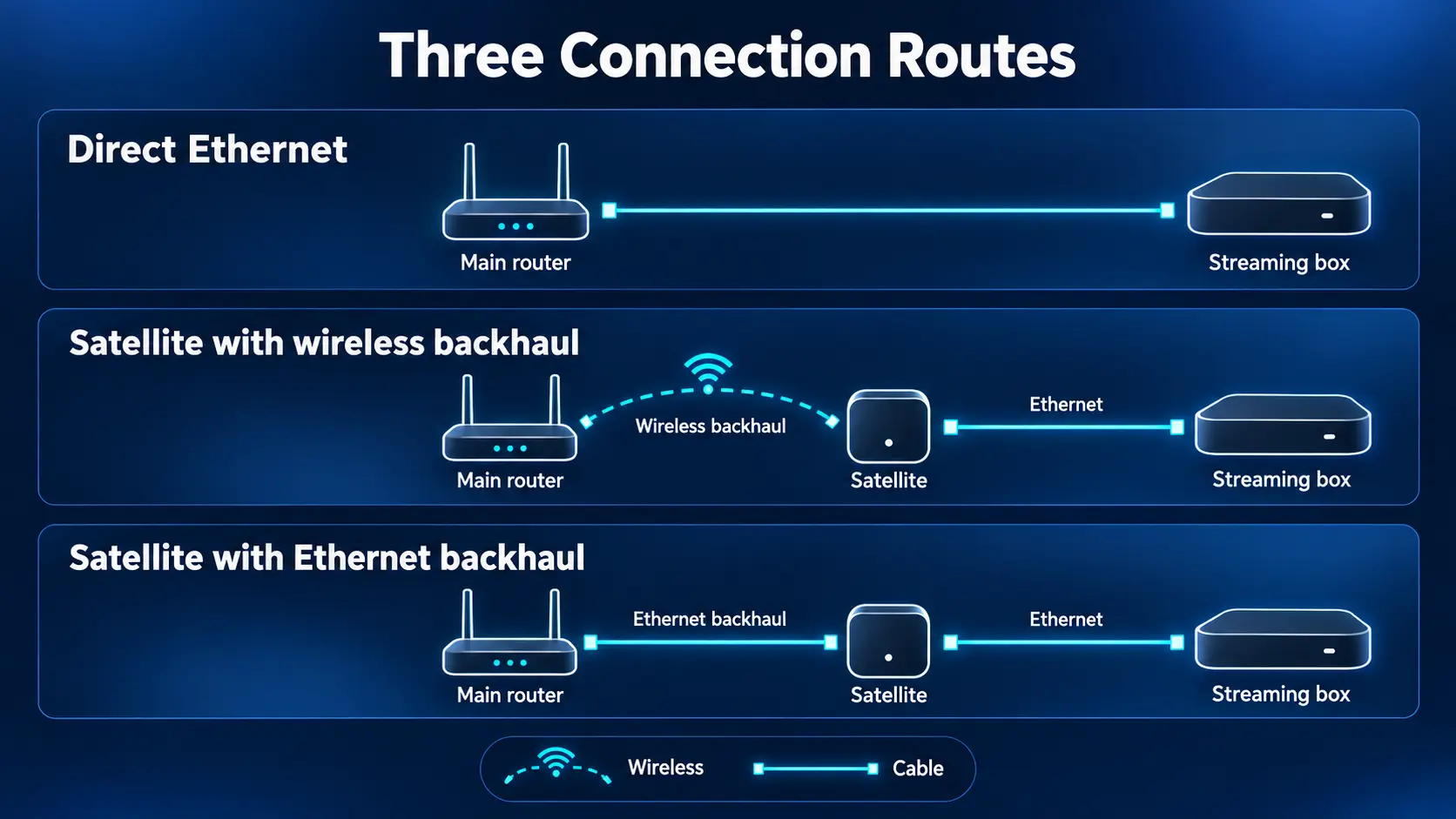
A cable into a mesh satellite is a different test
If you connect the SuperBox to a mesh satellite, check how that satellite connects back to the main router. A wireless backhaul still uses Wi-Fi for part of the journey.
Where your mesh system supports it, Ethernet backhaul connects the mesh units by cable. TP-Link’s Deco documentation explains the distinction and the wiring rules for its operating modes. Follow your own system’s documentation rather than applying Deco instructions to every brand.
This matters when diagnosing a bedroom TV: a wired box connected to a poorly placed wireless satellite may still suffer from the satellite’s weak upstream connection.
Step 6: use mesh or an access point for a coverage problem
If the connection works near the router but fails in a distant room, investigate coverage before paying for a faster internet plan. A supported mesh system or an additional access point may help extend the network to that location.
A wireless mesh satellite needs a good connection to the rest of the mesh. Place it where it can receive a usable signal, then check connection quality in the system’s app. Putting it at the far end of a dead zone may leave its upstream link weak. TP-Link’s placement guide explains this for Deco systems.
An extender can help some layouts too. Choose based on placement options, compatibility and the route back to the router rather than assuming mesh always wins.
| Home situation | Upgrade to investigate |
|---|---|
| One TV beside the router | Direct Ethernet or improved placement |
| One distant room with existing network cabling | A compatible wired access point |
| Several rooms with inconsistent coverage | A suitably placed mesh system |
| Mesh node has a weak upstream signal | Better placement or supported wired backhaul |
| Wired tests are poor throughout the house | Internet service or router troubleshooting first |
Step 7: check router settings without changing everything
Use your router manufacturer’s current instructions and save the original settings before experimenting. Managed ISP equipment may require help from the provider.
Start with automatic channel selection. For 2.4GHz, a 20MHz channel width is a useful compatibility and congestion starting point; Apple’s router recommendations discuss this alongside settings for other bands. Wider channels are not automatically better in a crowded environment.
Install supported router updates through its official management app or website. Avoid random firmware files. Keep modern wireless security enabled; do not make the network open to chase a speed improvement.
After a change, repeat your earlier playback test. If it does not help, restore the setting before trying another. This keeps the results understandable and makes it easier to explain the situation to support.
Does SuperBox S8 need a Wi-Fi 7 router?
No. The S8 lineup lists dual-band Wi-Fi 6 and Gigabit Ethernet. That gives you a choice between a compatible wireless connection and a wired path; it does not make a new router mandatory.
Wi-Fi 6 is not the same as Wi-Fi 6E. Wi-Fi 6E adds 6GHz capability for compatible equipment. TP-Link explains that the client device must support that band to use it.
Do not assume S8 gains 6GHz connectivity or Wi-Fi 7 client features just because the router supports them. Evaluate an upgrade by coverage, reliability and your household’s compatible devices not only the largest generation number on the box.
Choose an S8 model for its viewing features
Pro, Plus, Max and Ultra are not listed as separate Wi-Fi generations. Choose between them for the features you need rather than expecting storage capacity alone to fix a weak signal.
S8 Pro is the entry option, while S8 Plus adds storage. S8 Max and S8 Ultra include the listed NFL app and broader supported Multi-Viewing scope; Ultra also includes more storage and a backlit remote. See the complete S8 model comparison.
When using multiple streams, remember that they share the connection. Test ordinary single-stream playback first, then add views using the S8 Multi-Screen guide.
Three fixes that are easy to misunderstand
Changing HDMI resolution does not necessarily reduce stream data
The television’s output resolution and the app’s downloaded video quality are separate settings. Switching HDMI output to 1080p does not prove the app has stopped downloading a higher-quality stream.
If an app offers a playback-quality control, lowering that quality can be a useful test. For display settings, read the Android TV box resolution guide. For the difference between decoding and output, see whether a 6K TV box is worth it.
A VPN does not strengthen the Wi-Fi signal
A VPN changes the connection route, not the physical link between your box and router. SuperBox does not require a VPN simply to connect to your home network.
If you already use one, compare playback with and without it where appropriate. A different result may reflect the route or VPN service rather than better radio reception. Our SuperBox VPN guide explains the broader considerations.
Clearing cache does not fix weak coverage
Cache management belongs to app troubleshooting. It does not move the router closer or improve the satellite’s backhaul. Use the S8 cache and support guide when the symptoms point toward an application rather than repeatedly clearing data to fix Wi-Fi.
What to send support if streaming still struggles
Collect a short comparison rather than sending only “my box buffers.” Include:
- Your SuperBox model and the affected app or channel.
- Whether other channels and devices work normally.
- Your connection type and approximate router location.
- Whether a mesh satellite or extender sits between the box and router.
- The time of the problem and whether direct Ethernet changed the result.
- A photo or short video of the symptom, plus relevant test results.
If several devices struggle even on direct Ethernet, contact your ISP about the shared connection. If the problem follows one app or channel, explain that pattern to technical support.
Buy SuperBox S8 from a retailer you can identify
A useful streaming setup includes a clear route to help after the purchase. SuperBox TV Box Store is an authorized retailer serving customers in the US and Canada. Check authorization code SP20250414002 at the SuperBox authorization website.
Our published guides help you connect, configure and use your S8. If you need help selecting a model or identifying an order from our store, contact SuperBox TV Box Store. You can also use our seller identification guide to confirm where you purchased.
Choose the model for your household’s viewing needs, then give it a connection that performs well beside the TV. That combination is more useful than expecting any streaming box to compensate for poor coverage.
Frequently asked questions
Is 5GHz always better for SuperBox streaming?
No. It is a good option with strong reception, but a weak 5GHz connection can be less useful than a steadier alternative. Compare playback at the actual TV location.
Why does SuperBox buffer when my phone is fast?
The phone may use a different band, location or wireless radio. Test beside the box, compare other content and try direct Ethernet before deciding the box or ISP is responsible.
Will buying faster internet fix a Wi-Fi dead zone?
A faster plan does not automatically improve wireless coverage inside your house. If nearby tests work but distant-room tests fail, investigate placement, an access point or mesh first.
Can mesh Wi-Fi improve streaming upstairs?
It can help when correctly placed, but the satellite also needs a reliable upstream connection. Check that link in the mesh app and consider supported wired backhaul where practical.
Does SuperBox S8 support 6GHz Wi-Fi?
The published specification lists dual-band Wi-Fi 6, not Wi-Fi 6E. Do not infer 6GHz support from the Wi-Fi 6 name. Use the listed compatible bands or Ethernet.
Will Ethernet stop all buffering?
No. It bypasses the tested wireless link, but playback still depends on the internet service, app and source. It is valuable both as a connection option and as a diagnostic comparison.
Should I factory reset SuperBox to improve Wi-Fi?
Start with connection and placement checks. A factory reset is not a first-line response to weak coverage and can erase settings. Discuss persistent device problems with support before taking that step.
Is a speed test enough to prove streaming will work?
No. Compare real playback as well. A test measures a particular route at a particular time; the video provider and your network conditions can differ during viewing.
The article was updated on:
