
Knowledge SuperBox
How to Fix a SuperBox That Keeps Buffering or Freezing: Full Troubleshooting Guide 2026





Few things interrupt a good viewing experience faster than a SuperBox that keeps buffering, pausing, or freezing. The good news is that you do not have to jump straight to a full reset. A more effective approach is to troubleshoot in order: stabilize the internet connection first, optimize the playback settings next, and use a factory reset only when the earlier fixes do not resolve the problem.
This guide walks you through that complete process. Follow each section in sequence and test playback after every change. Once streaming is smooth again, you can stop—there is no need to continue to the more disruptive steps.
Quick Answer: What Should You Try First?
If your SuperBox keeps buffering or freezing, work through these three stages:
- Restart the router and SuperBox, test the connection speed, and use Ethernet or a mobile hotspot to isolate a network problem.
- Test both hardware and software decoding, set Blue VOD Speed Mode to Faster, and clear the affected app’s cache.
- If the issue continues, back up important information and perform a factory reset.
The order matters. The first two stages preserve your data, while a factory reset erases it.
Before You Start: Test After Every Change
Do not change every setting at once. Complete one step, reopen the content that was buffering or freezing, and check the result. Testing between steps makes it easier to identify what fixed the problem and prevents an unnecessary factory reset.
Fix 1: Check and Optimize the Internet Connection
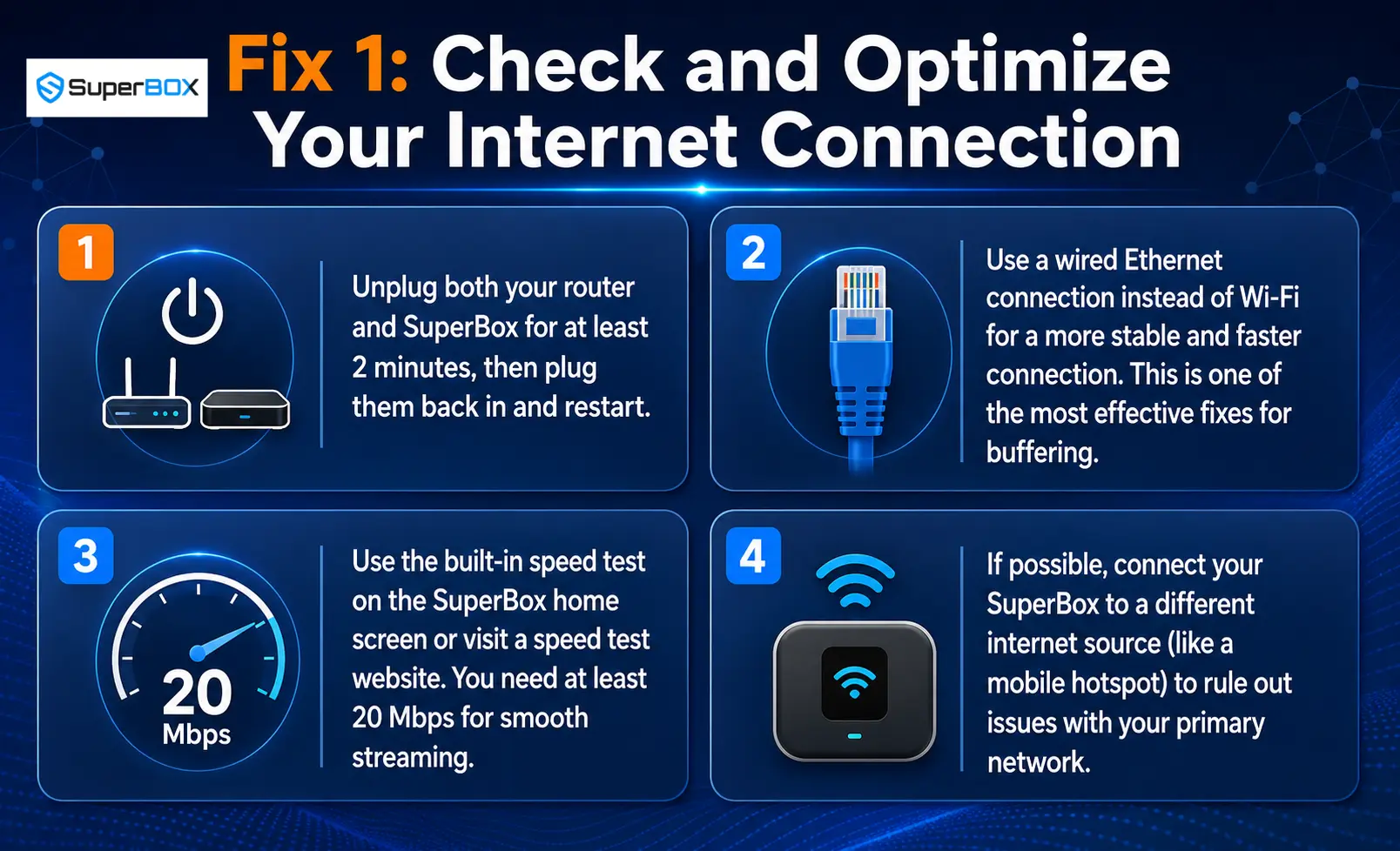
The first troubleshooting stage focuses on the connection used by your SuperBox. Complete all four checks below before moving to the device and app settings.
1. Restart Both the Router and the SuperBox
Unplug the router and the SuperBox from power. Leave both devices unplugged for at least two minutes. Then reconnect them, allow them to restart, and test streaming again.
Be sure to restart both devices – not just the SuperBox. This gives the complete connection a fresh start before you test any other setting.
2. Switch from Wi-Fi to a Wired Ethernet Connection
If your SuperBox is connected through Wi-Fi, test it with a wired Ethernet connection. The video identifies Ethernet as a more stable and faster option – and one of the most effective fixes for buffering.
Connect the SuperBox directly by Ethernet, reopen the same stream, and compare the result with Wi-Fi playback. If the buffering stops, you have already narrowed the issue to the connection being used rather than the stream itself.
3. Run a Speed Test
Next, verify that the connection is fast enough for smooth streaming. Use the built-in speed test on the SuperBox home screen, or open a speed test website.
The target is at least 20 Mbps. If the result is below that level, the connection has not met the speed recommended in this troubleshooting process.
4. Test a Different Internet Source
If possible, connect the SuperBox to another internet source, such as a mobile hotspot. This is a comparison test: it helps you rule out a problem with the primary network.
Play the same content after connecting to the alternative source. A different result gives you a much clearer direction before you begin changing app settings.
Fix 2: Adjust SuperBox and App Settings
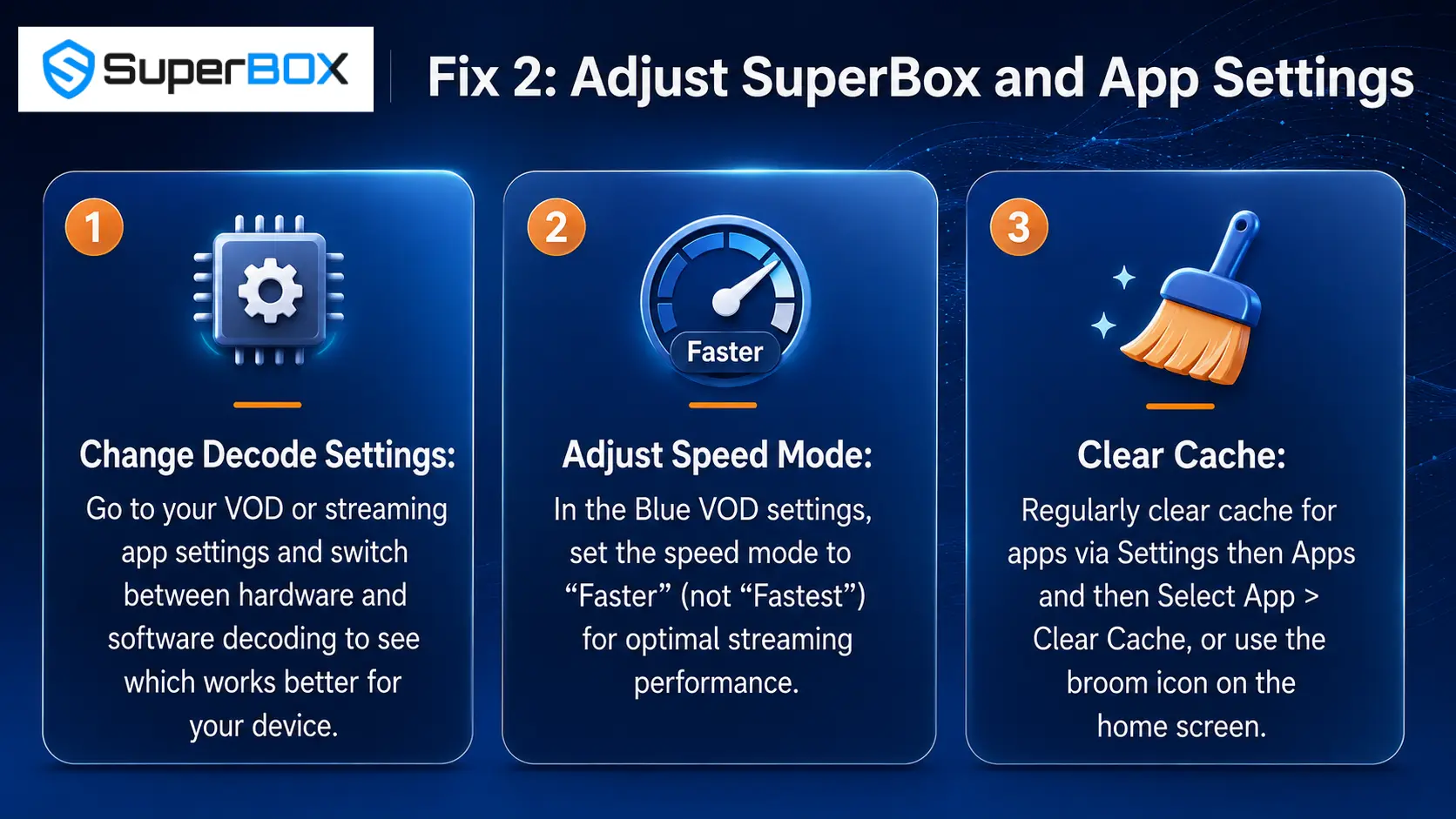
If the connection checks do not stop the buffering or freezing, move to the playback and app settings. The video recommends three targeted adjustments: decode mode, Blue VOD Speed Mode, and app cache.
5. Switch Between Hardware and Software Decoding
Open the settings inside your VOD or streaming app and locate the decode option. Switch between hardware decoding and software decoding, testing playback after each selection.
There is no single mode identified as the universal choice in the video. The correct approach is to try both and keep the option that works better on your device.
6. Set Blue VOD Speed Mode to “Faster”
Open the settings in Blue VOD and locate Speed Mode. Select Faster – not Fastest – for the optimal streaming setting recommended in the video.
The wording matters here. Confirm that the selected option is Faster before returning to playback and testing the same title again.
7. Clear the App Cache
Cached app data should be cleared regularly as part of this troubleshooting process. You can do it through the app menu:
- Open Settings.
- Select Apps.
- Choose the app that is buffering or freezing.
- Select Clear Cache.
This path lets you target the individual app experiencing the playback issue.
Quicker route: select the broom icon on the SuperBox home screen. Use whichever of the two demonstrated methods is more convenient, then reopen the app and test playback.
Fix 3: Perform a Factory Reset
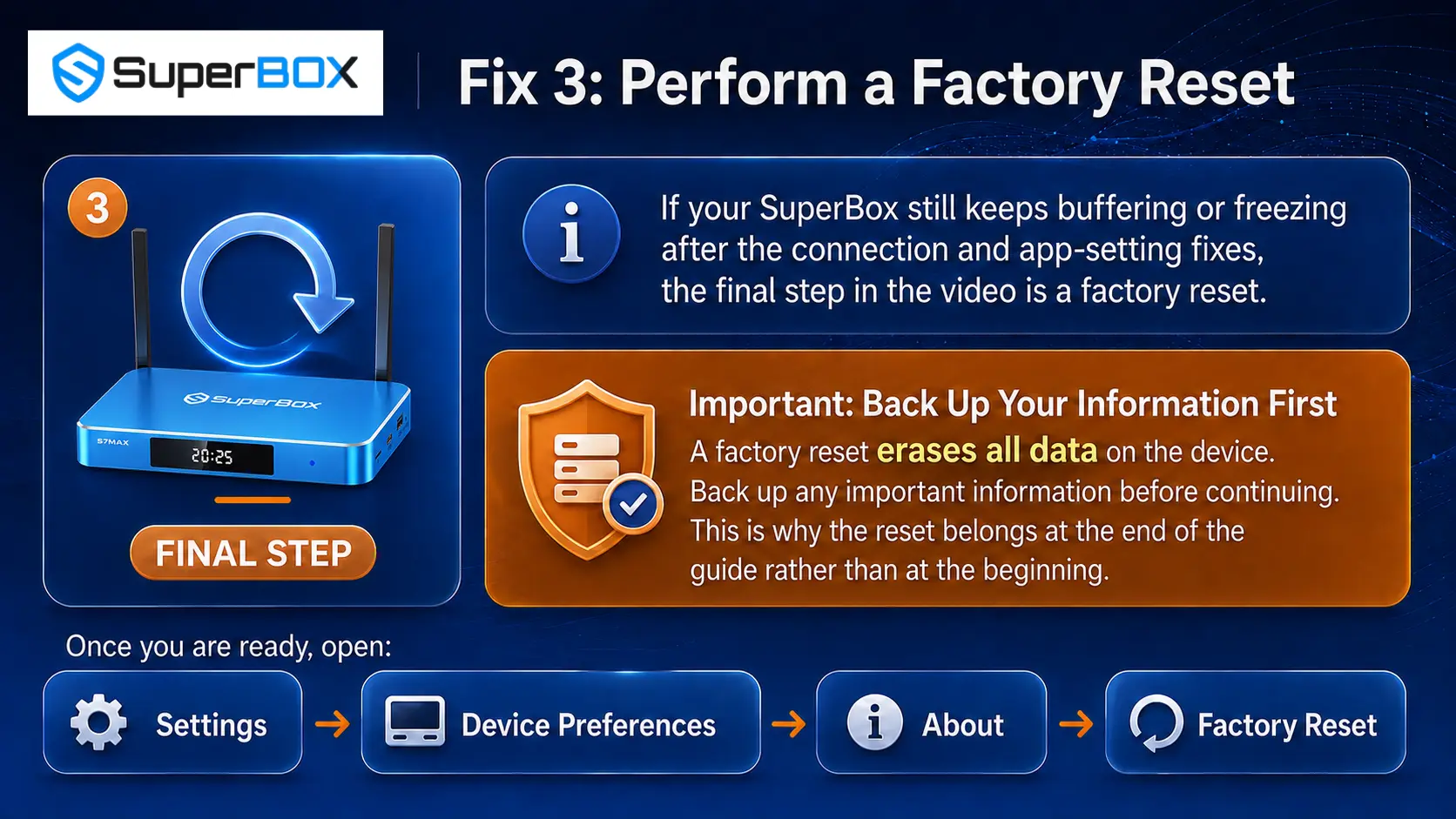
If your SuperBox still keeps buffering or freezing after the connection and app-setting fixes, the final step in the video is a factory reset.
Important: Back Up Your Information First
A factory reset erases all data on the device. Back up any important information before continuing. This is why the reset belongs at the end of the guide rather than at the beginning.
Once you are ready, open:
Settings → Device Preferences → About → Factory Reset
If your device provides a reset button, the video also identifies that as an available reset method. Follow the reset option available on your SuperBox.
After the reset is complete, reinstall the necessary apps from the App Store. Then reopen your streaming app and test playback on the newly reset device.
SuperBox Buffering and Freezing Troubleshooting Checklist
Use this checklist to make sure no step has been missed:
- Router and SuperBox unplugged for at least two minutes
- Wired Ethernet connection tested
- Connection speed tested for at least 20 Mbps
- Different internet source or mobile hotspot tested
- Hardware and software decoding both tested
- Blue VOD Speed Mode set to Faster, not Fastest
- Affected app cache cleared
- Broom-icon cache cleanup tried
- Important information backed up before factory reset
- Necessary apps reinstalled after the reset
Frequently Asked Questions
What should I do first when my SuperBox keeps buffering?
Restart the router and SuperBox first. Unplug both for at least two minutes, reconnect them, and test playback before changing other settings.
Is Ethernet better than Wi-Fi for SuperBox buffering?
The video recommends testing a wired Ethernet connection because it can provide a more stable and faster connection. It is presented as one of the most effective fixes for buffering.
What internet speed does the video recommend for smooth streaming?
The recommended target is at least 20 Mbps, measured with the built-in SuperBox speed test or a speed test website.
How can I tell whether my main internet connection is the problem?
Connect the SuperBox to a different internet source, such as a mobile hotspot, and test the same content. This helps rule out an issue with the primary network.
Should I use hardware or software decoding?
Test both options in the VOD or streaming app settings. Keep the decode mode that performs better on your device.
Should Blue VOD Speed Mode be set to Faster or Fastest?
Set it to Faster, not Fastest, as recommended in the video for optimal streaming performance.
How do I clear the cache on SuperBox?
Go to Settings → Apps, select the affected app, and choose Clear Cache. You can also use the broom icon on the SuperBox home screen.
Will a factory reset delete my SuperBox data?
Yes. A factory reset erases all data, so back up important information first. After the reset, reinstall the necessary apps from the App Store.
Final Thoughts
When a SuperBox keeps buffering or freezing, a structured troubleshooting process is faster and clearer than changing random settings. Begin with the connection: restart both devices, test Ethernet, confirm at least 20 Mbps, and compare a second internet source. If the problem remains, test both decode modes, set Blue VOD Speed Mode to Faster, and clear the app cache. Reserve the factory reset for last, and always back up important information before using it.
Working through the fixes in this order gives you the best chance to restore smooth playback without erasing data unnecessarily. If you do every step but your SuperBox still keep freezing , contact SuperBox TV Box Store Technical Support on WhatsApp
The article was updated on:
