
Knowledge SuperBox
How to Fix a SuperBox Remote Not Working or Responding (2026 Guide)





A SuperBox remote that suddenly stops responding does not always need to be replaced. In many cases, the real problem is much simpler: weak or incorrectly installed batteries, a blocked infrared signal, a remote that has lost its Bluetooth pairing, or dirt preventing the buttons from making proper contact.
The key is to diagnose the symptom before changing settings. Does the remote show no light at all? Do the navigation buttons work while voice control does not? Does it respond only when pointed directly at the box? Each pattern points toward a different solution.
This complete troubleshooting guide starts with the fastest, least disruptive checks and progresses to cleaning, resetting, Bluetooth re-pairing, and only as a final option: a SuperBox factory reset.
Quick Answer: How Do You Fix a SuperBox Remote That Is Not Working?
Try these fixes in order:
- Confirm that the SuperBox, television, power cable, and HDMI connection are working.
- Replace both remote batteries and verify the positive and negative positions.
- Remove objects blocking the remote’s signal path.
- Clean the buttons and battery contacts if the remote is dirty or sticky.
- Remove the batteries and hold the Power button for 10–30 seconds to reset the remote.
- Reinsert the batteries and pair the remote again by holding OK + Return/Back.
- Remove the old Bluetooth connection and pair RC200 again from SuperBox Settings.
- Use a factory reset only after the other fixes fail.
Diagnose the Problem Before You Start
Use the table below to match the symptom with the most relevant starting point.
| What you notice | Most likely area to check | Start with |
|---|---|---|
| No LED and no buttons respond | Batteries, polarity, or battery contacts | Replace both batteries |
| LED flashes but the SuperBox does not respond | Pairing, signal path, or device state | Check the box, then re-pair |
| Remote works only when pointed at the box | Infrared is working, but Bluetooth may not be connected | Re-pair Bluetooth |
| Navigation works but the microphone does not | Bluetooth or voice-control connection | Verify Bluetooth pairing |
| One or two buttons are difficult to press | Dirt or contamination around the keypad | Clean the remote safely |
| Remote disconnects or responds intermittently | Weak batteries or unstable pairing | Replace batteries, then re-pair |
| TV screen is blank and the remote appears dead | Power, HDMI, or selected TV input | Check the SuperBox and TV first |
This symptom-first approach prevents unnecessary resets and helps separate a remote problem from a SuperBox, TV, or HDMI problem.
IR vs. Bluetooth: Why Some Remote Functions Work and Others Do Not
Modern SuperBox voice remotes can use more than one communication method. Understanding the difference is essential when only part of the remote has stopped working.
| Feature | Infrared (IR) | Bluetooth |
| Requires a clear line of sight | Yes | No direct line of sight required |
| Basic navigation | Available on compatible remote/device combinations | Available after pairing |
| Voice input | No | Yes, on compatible voice remotes |
| Works before Bluetooth pairing | Often for basic setup | No |
| Typical failure symptom | Remote must be pointed directly at the box | Voice or extended-range control stops working |
SuperBox TV Box Store’s S7 voice-control guide explains that basic navigation may operate through IR, while the microphone requires a Bluetooth connection. That is why a remote can appear partially functional while voice control remains unavailable.
Fix 1: Make Sure the Problem Is Actually the Remote
Before opening the battery compartment, confirm that the SuperBox itself is powered and that the television is displaying the correct input.
Check the following:
- The SuperBox power adapter is connected securely.
- The HDMI cable is firmly connected to both the SuperBox and television.
- The television is set to the HDMI input used by the SuperBox.
- The SuperBox has completed its startup process.
A loose power or HDMI connection can make the device appear unresponsive even when the remote is functioning normally.
Fix 2: Replace Both Remote Batteries
Install a fresh, matching pair of high-quality batteries. Replace both batteries at the same time instead of combining a new battery with an older one.
Even if the indicator light still flashes, the remaining battery power may not be sufficient for consistent Bluetooth communication or stable button response. Fresh batteries remove that uncertainty immediately.
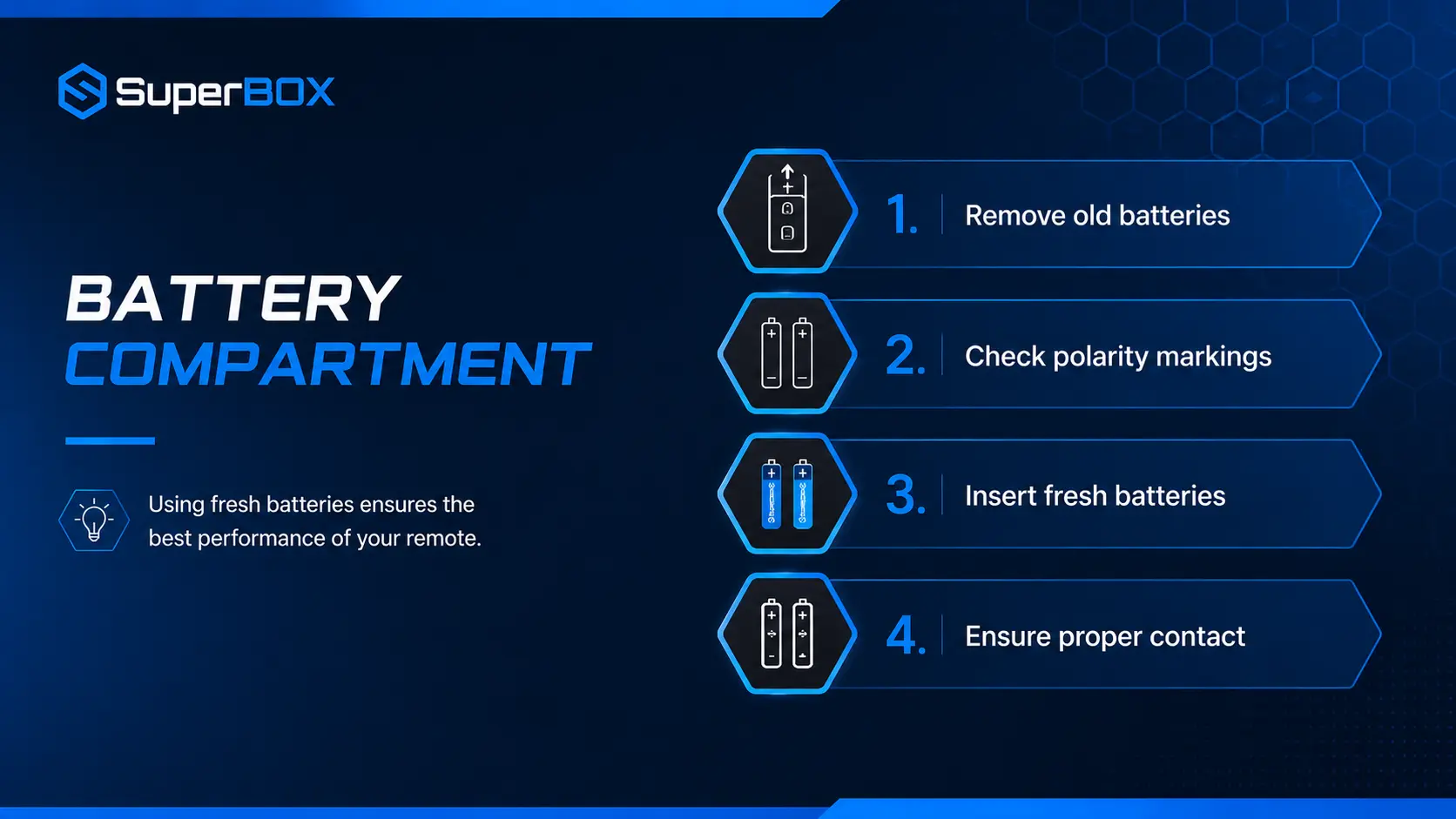
Verify Battery Polarity
Match the positive (+) and negative (–) ends with the markings inside the battery compartment. A battery can fit inside the remote while still being installed in the wrong direction.
After installing the batteries, close the compartment and press a normal navigation button while watching the remote’s LED.
Fix 3: Clear the Infrared Signal Path
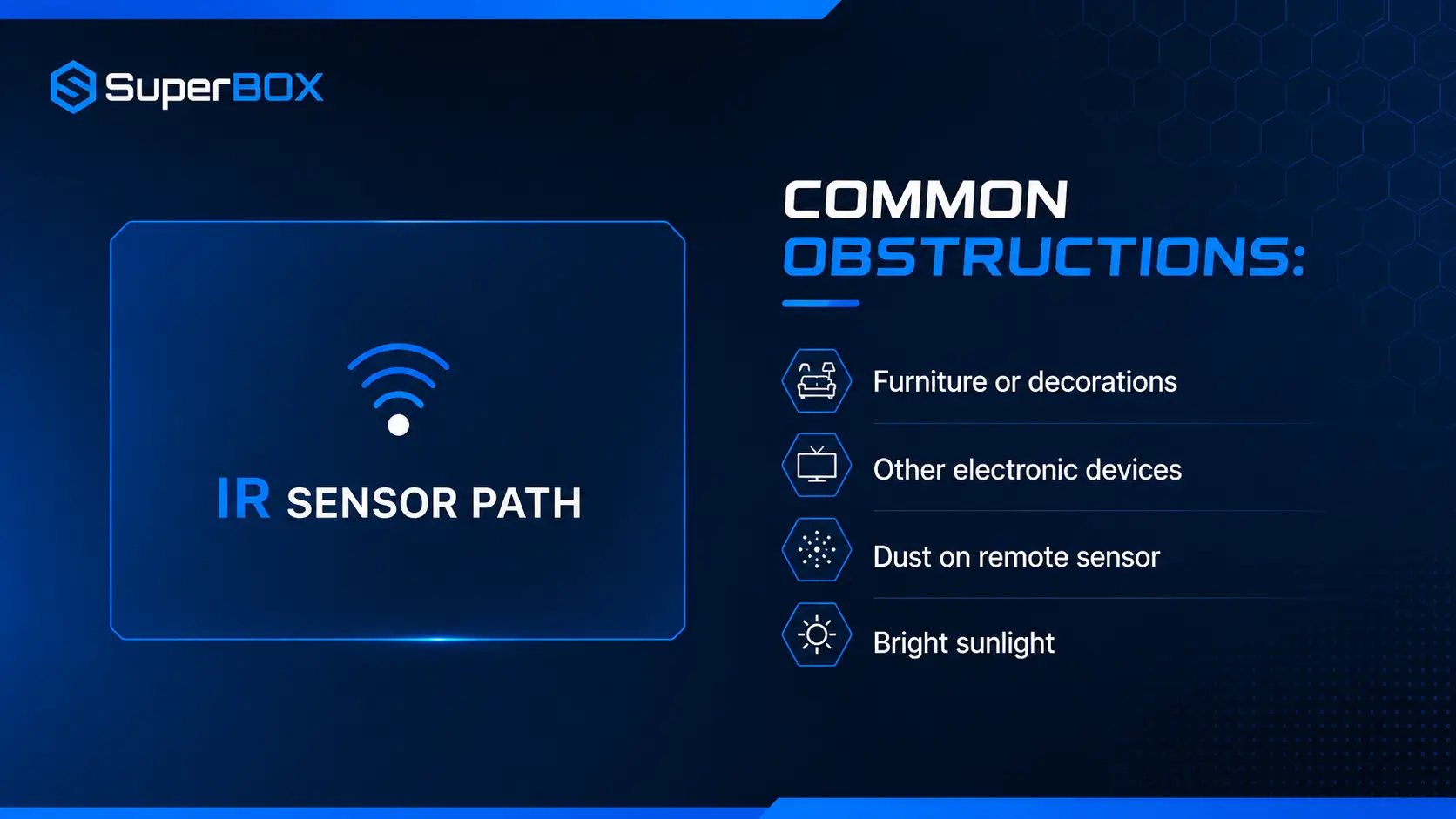
If the remote relies on infrared for the command you are testing, it needs a clear path to the receiver. Remove decorations, cabinet doors, cables, or other objects positioned between the remote and the SuperBox.
Stand in front of the box, point the remote directly toward it, and test again from a short distance. If direct pointing works but extended-range or voice functions do not, move to the Bluetooth pairing section below.
Pay Attention to the Indicator Light
The source video recommends watching the remote’s warning or indicator light. A light response can help distinguish a remote that is receiving power from one that is completely inactive. Repeated flashing can also accompany low battery, pairing, or signal-related trouble.
Do not diagnose the remote from the LED alone. Use it together with the on-screen response and the symptom table above.
Fix 4: Clean an Unresponsive or Sticky Remote
If the remote has power but individual buttons do not register, dirt may be interfering with the button contacts.
Begin with the safest method:
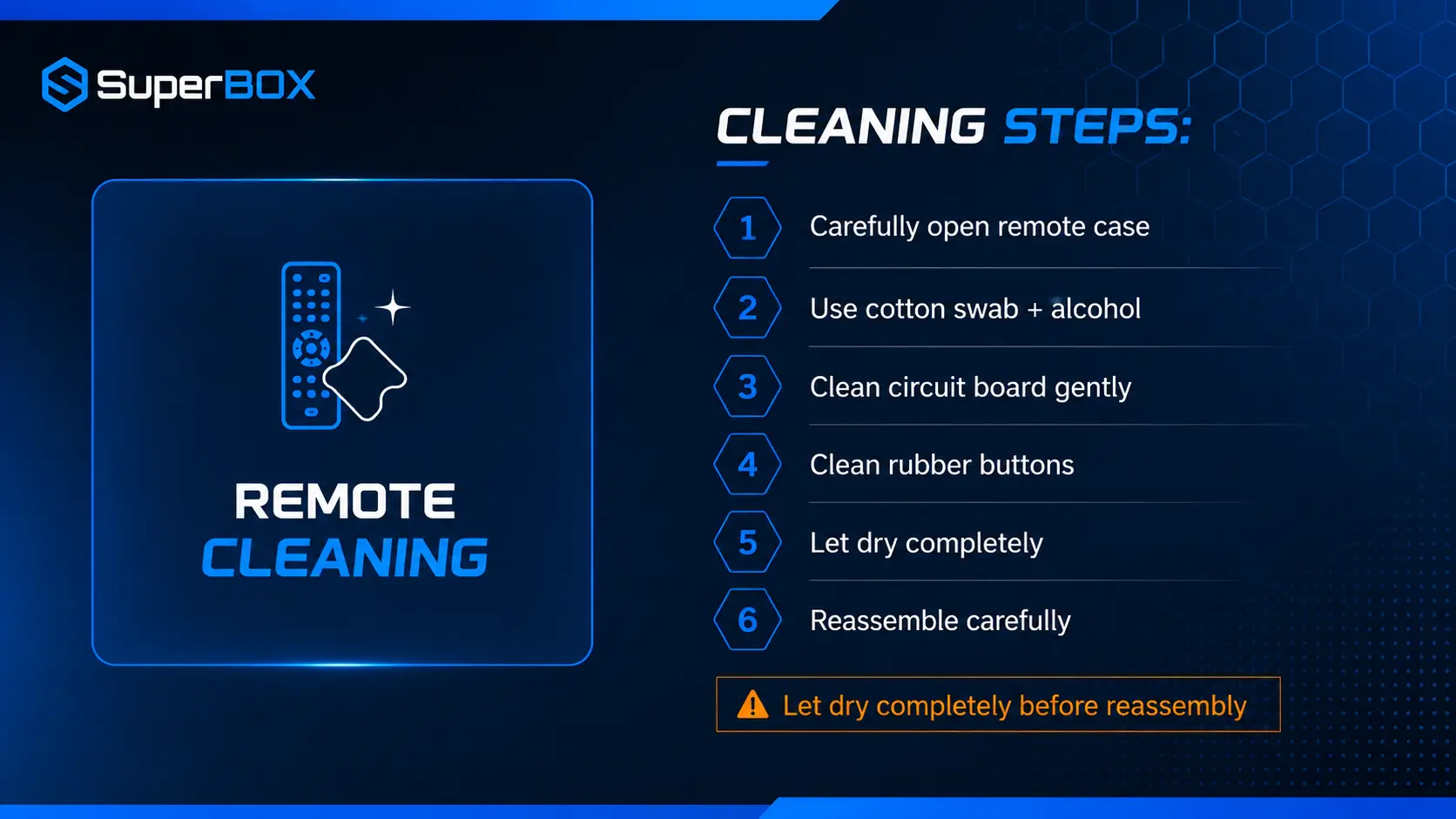
- Remove both batteries.
- Wipe the exterior with a soft, dry microfiber cloth.
- Clean around the button edges with a cotton swab lightly moistened with high-concentration isopropyl alcohol.
- Never spray liquid directly onto the remote.
- Allow the remote to dry completely before reinstalling the batteries.
If deeper cleaning is necessary and the remote is not protected by a warranty that prohibits disassembly, carefully open the casing. The source video demonstrates cleaning the internal circuit board and rubber button membrane with isopropyl alcohol.
Important: Do not force the casing open, soak the components, or reinstall batteries while any part remains damp. If the remote is under warranty, contact the seller before disassembling it.
Fix 5: Reset the SuperBox Remote
When basic battery and signal checks do not work, reset the remote itself before changing the SuperBox settings.
- Remove both batteries from the remote.
- Press and hold the remote’s Power button for 10–30 seconds.
- Release the Power button.
- Reinsert the batteries using the correct polarity.
- Test the remote again.
Holding the Power button while the batteries are removed drains residual electrical charge and can clear a stuck remote state.
Fix 6: Pair the SuperBox Remote Through Bluetooth
If the remote still does not work correctly—or navigation works but voice control does not—pair it again through Bluetooth.
Standard Pairing Method for Current SuperBox Voice Remotes
- Turn on the SuperBox and remain close to the device.
- Install fresh batteries in the remote.
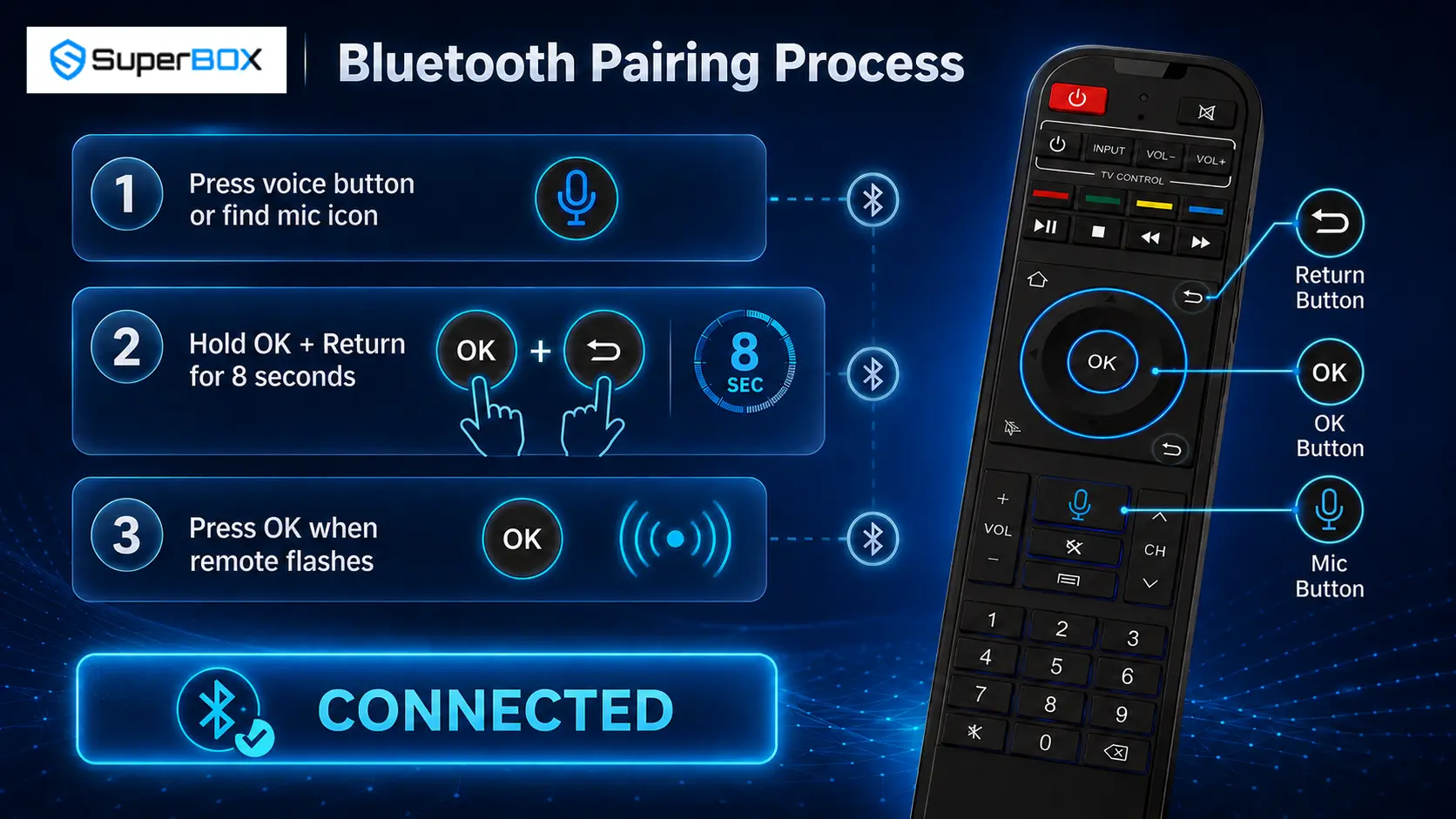
- Press and hold OK + Return/Back simultaneously.
- Continue holding until the remote’s red LED begins flashing.
- Follow the on-screen pairing prompt or open the Bluetooth menu manually.
- Select the remote when it appears and wait for the connection confirmation.
For the SuperBox S7, the site’s complete S7 setup guide recommends holding OK + Return for approximately eight seconds.
Manual Bluetooth Menu Path
Menu wording can vary by SuperBox model and software version. Look for one of these routes:
- Settings → Bluetooth → Pair New Device
- Settings → Remote & Accessories → Add Accessory
When RC200 or the name of your remote appears, select it and wait for the paired or connected confirmation.
Fix 7: Factory Reset the SuperBox Only as a Last Resort
The source video presents a factory reset as the final troubleshooting option. Use it only after batteries, cleaning, remote reset, and Bluetooth re-pairing have failed.
A factory reset can erase accounts, downloaded apps, saved settings, and stored information. Record or back up anything you need before confirming the reset.
For the full menu path, warnings, and post-reset steps, use the existing guide: How to Factory Reset SuperBox Pro, Max and Ultra.
Do not use a factory reset when only one sticky button is failing or when the remote has no power. Those symptoms point to the remote hardware, batteries, or contacts—not the SuperBox operating system.
Which Fix Should You Use?
| Test result | What it tells you | Recommended next action |
| Fresh batteries restore normal operation | Battery power was the issue | No further action needed |
| Direct pointing works, but voice does not | IR works; Bluetooth may be disconnected | Re-pair the remote |
| LED works, but no commands reach the box | Pairing or device state needs attention | Restart, unpair, and re-pair |
| Only certain buttons fail | Button contacts may be dirty or worn | Clean safely; replace if necessary |
| Remote works after power-button reset | Remote was stuck in an unstable state | Continue using and monitor it |
| Remote never lights with fresh batteries | Battery contacts or remote hardware may be faulty | Contact the seller or replace the remote |
| A second compatible remote also cannot pair | The problem may be on the SuperBox side | Contact technical support before resetting |
When Should You Replace the Remote?
Consider a compatible replacement when:
- The remote produces no LED response with correctly installed fresh batteries.
- Battery contacts are damaged or badly corroded.
- Buttons remain unresponsive after safe cleaning.
- The remote cannot enter pairing mode after the battery-removal reset.
- Another compatible remote works correctly with the same SuperBox.
Confirm the exact SuperBox model and remote revision before ordering. The standard RC-200 and backlit RC-200L are not identical, and product bundles can vary by model, region, seller, and production batch.
When to Contact SuperBox Support
Contact the original seller when every troubleshooting step fails, the remote has visible damage, or no compatible remote can pair with the box.
To speed up diagnosis, provide:
- Your SuperBox model
- The remote model shown inside the battery compartment
- A short description of which buttons still work
- Whether the LED lights or flashes
- Whether the remote appears in the Bluetooth device list
- A photo or short video of the pairing attempt
- Your order information if warranty service may be required
Frequently Asked Questions
Why is my SuperBox remote not responding?
Common areas to check include the batteries, battery polarity, signal path, button contacts, and Bluetooth pairing. Also confirm that the SuperBox and television are powered and connected correctly.
How do I reset a SuperBox remote?
Remove the batteries, hold the remote’s Power button for 10–30 seconds, release it, and reinstall the batteries with the correct polarity.
How do I pair a SuperBox remote?
On current SuperBox voice remotes, hold OK + Return/Back until the indicator flashes. Then open Settings → Bluetooth → Pair New Device or Settings → Remote & Accessories → Add Accessory and select the remote.
Why does the SuperBox remote work only when I point it at the box?
That pattern suggests infrared control is working while Bluetooth may not be paired. Reconnect the remote through the Bluetooth settings.
Why do the buttons work but voice control does not?
Voice input requires a compatible Bluetooth connection. Verify that the remote is paired and that voice input is enabled on supported models.
Why is the SuperBox remote blinking red?
A flashing indicator can occur during pairing and may also accompany low-battery or connection trouble. Check the batteries and observe whether an on-screen pairing message appears.
Can I use my phone when the SuperBox remote is not working?
Possibly. Supported Android TV or Google TV configurations can use the Google TV app as a virtual remote when the phone and device can connect. Availability depends on the software configuration.
Should I factory-reset the SuperBox to fix the remote?
Only as a last resort. A reset can erase accounts, apps, settings, and stored data. Try new batteries, remote cleaning, power-button reset, and Bluetooth re-pairing first.
Do all SuperBox remotes use the same pairing shortcut?
No. Pairing instructions can vary by model and remote revision. Use OK + Return/Back for the current S7/S8 procedure described above, but follow the on-screen instructions if your device displays a different combination.
Is the RC-200L backlight shortcut the same as Bluetooth pairing?
No. OK + 0 controls the RC-200L backlight mode. Bluetooth pairing is a separate procedure and commonly uses OK + Return/Back on current models.
Final Thoughts
When a SuperBox remote stops working, begin with the simplest explanation and progress carefully. Confirm the box and HDMI connection, install fresh batteries correctly, clear the signal path, and clean the remote only when necessary. If those steps fail, reset the remote by draining residual charge and establish a new Bluetooth connection.
Most importantly, treat infrared control, Bluetooth pairing, voice input, and RC-200L backlighting as separate functions. Identifying which function has failed leads to the correct fix faster – and helps avoid an unnecessary factory reset or replacement purchase.
Reference:
How To Fix Superbox Remote Not Working or Responding – Battery, Sync & Signal Troubleshooting
The article was updated on:
