
Knowledge SuperBox
How to Set Up and Use Voice Control on SuperBox S7 Like a Pro





Setting up voice control on your SuperBox S7 (S7 Pro, S7 Max, S7 Ultra) takes less than two minutes and allows you to search 2,000+ live broadcast channels, launch 15,000+ VOD movies, and control system volume hands-free using the included RC-200L Backlit Voice Remote.
First, navigate to Settings > Device Preferences > Voice Input (or Google Assistant) and ensure microphone permissions are turned on. Next, hold the remote within 12 inches of the console, press and hold the [OK + Return] buttons simultaneously for eight seconds until the red indicator light flashes, and select RC200 under Settings > Remote & Accessories. Once paired over Bluetooth 5.2, press and hold the blue microphone button while speaking clearly to navigate with zero typing.
Below is your complete guide to setting up, using, and troubleshooting voice control on the SuperBox S7, including IR TV remote learning and master voice commands.
Quick Verdict: The Fastest Way to Enable Voice Control
Fastest Bluetooth Pairing: Stand within 12 inches of the console. Press and hold [OK + Return] simultaneously for 8 seconds until the top red LED flashes rapidly. On your TV, navigate to Settings > Remote & Accessories > Add accessory and select RC200.
Issuing Voice Commands: Press and hold the Voice (Microphone) button while speaking clearly into the top of the remote (e.g., “Watch ESPN” or “Find action movies”), then release the button immediately after speaking.
All-in-One TV Control: Use the programmable TV Control box on the remote to clone your television’s Power, Volume, and Input buttons so you only need one remote for your entire entertainment setup.
Anatomy of the RC-200L Backlit Voice Remote
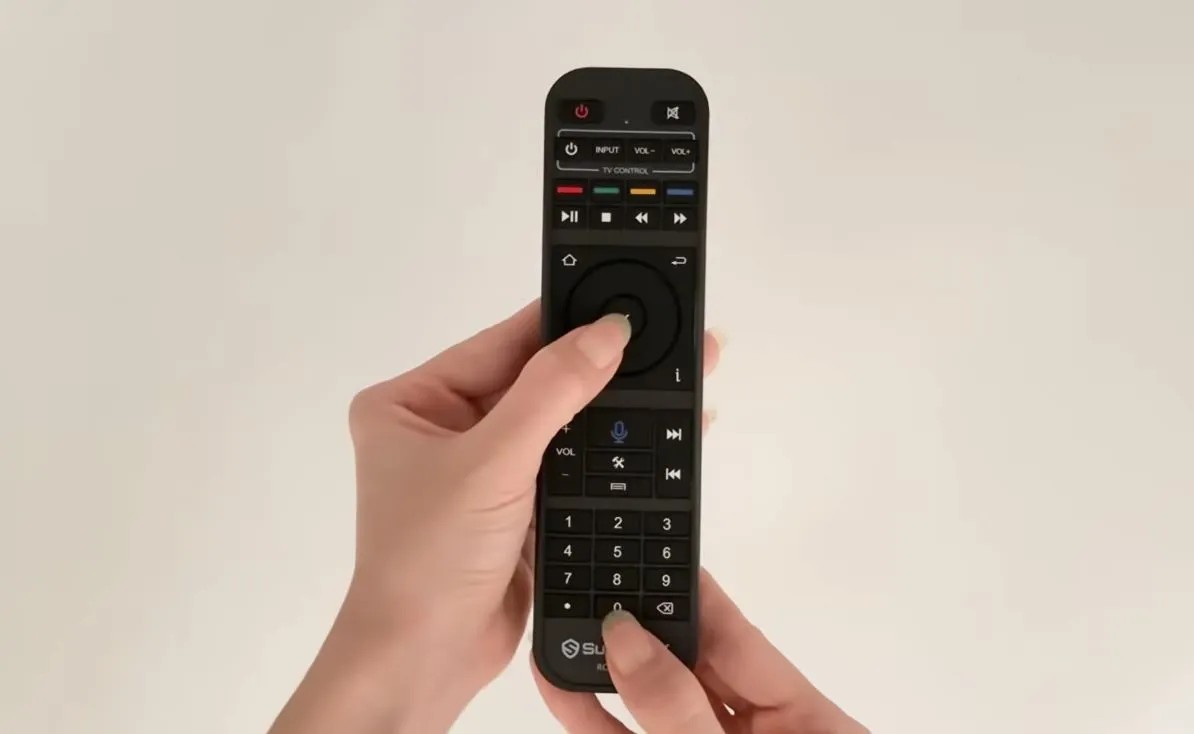
High-Sensitivity MEMS Microphone
Positioned at the very top edge of the remote, the integrated MEMS acoustic microphone captures clear speech while dampening ambient living room audio. This acoustic noise rejection ensures the Google voice engine transcribes movie titles and channel numbers accurately.
Bluetooth 5.2 vs Standard Infrared Transmission
Out of the box, the remote communicates via basic line-of-sight infrared (IR). Pairing over Bluetooth 5.2 activates the microphone audio stream and provides 360-degree wireless freedom up to 30 feet, allowing you to control the box without pointing directly at the television.
Smart Backlight and Battery Management
Every button on the RC-200L lights up with soft illumination whenever picked up or pressed, making late-night movie watching in dark rooms easy. Powered by two standard AAA alkaline batteries, the controller enters an ultra-low-power sleep state automatically when idle.
How to Enable Voice Services and Permissions
Step 1: Activate Google Assistant in Android Settings
From the main home screen, select Settings (Gear Icon) > Device Preferences > Google Assistant (or Voice Input). Confirm that the master toggle switch is turned On so the operating system can register external voice input hardware.
Step 2: Confirm System Microphone Permissions
Verify that system voice services are granted microphone authorization. If you wish to use Google Assistant across third-party apps like YouTube, you can sign into a Google account; however, native Blue TV and Blue VOD voice searches function fully even without any Google login.
How to Pair the RC-200L Remote via Bluetooth 5.2
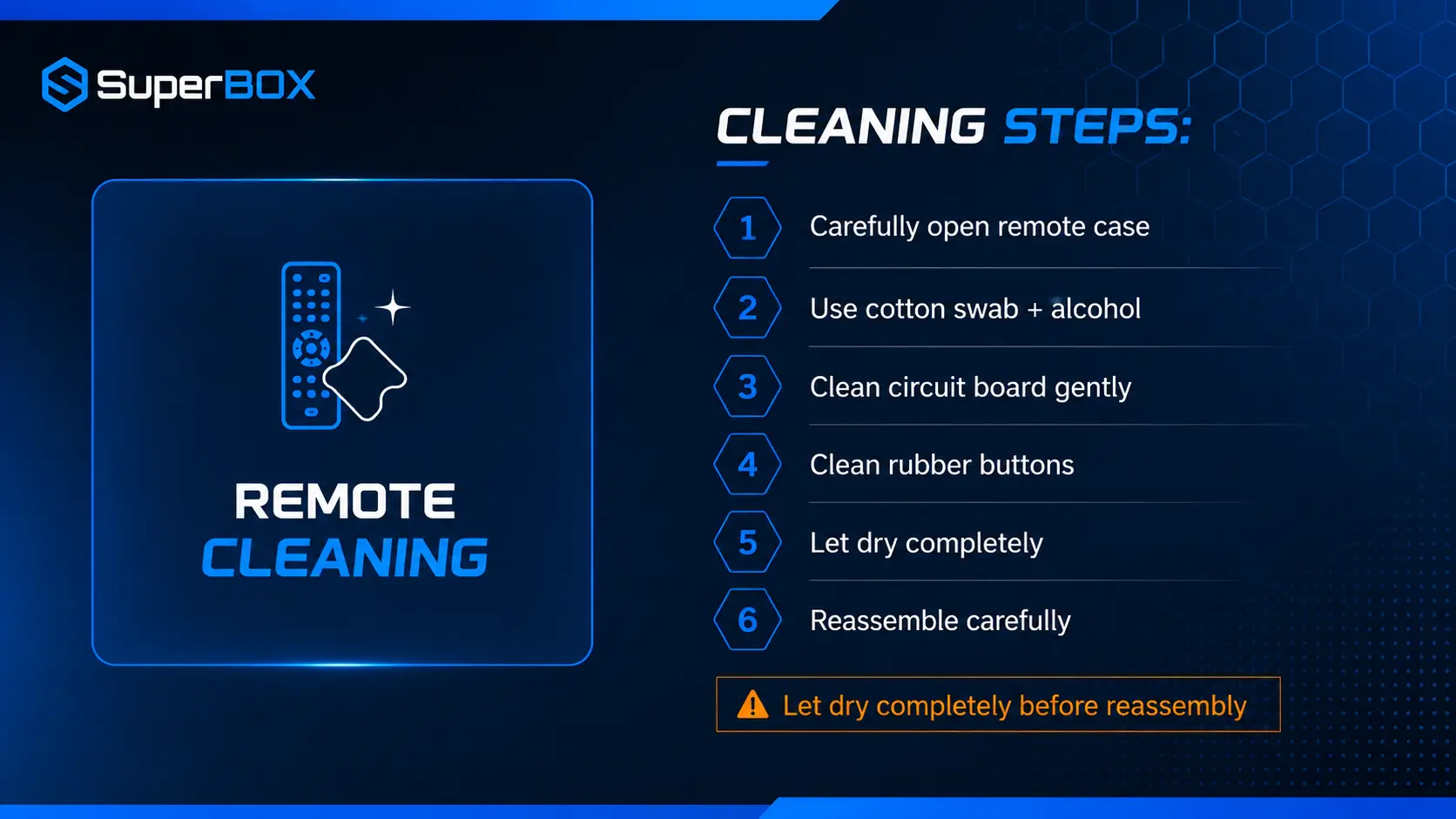
Follow these three simple steps to transition your RC-200L remote from basic infrared to high-speed Bluetooth 5.2 voice operation:
Step 1: Install Fresh AAA Batteries and Stand Nearby
Install two fresh AAA alkaline batteries into the rear compartment of the remote. Stand within 10 to 12 inches of the SuperBox S7 console with your TV powered on and set to the home screen.
Step 2: Initiate the 8-Second [OK + Return] Pairing Sequence
Press and hold the OK and Return (Back) buttons simultaneously for approximately 8 seconds. (On select remote versions, holding OK + Volume Down also triggers pairing). Release both buttons when the red LED indicator at the top of the remote begins flashing rapidly.
Step 3: Connect to RC200 in Bluetooth Settings
On your television screen, go to Settings > Remote & Accessories > Add accessory. When RC200 appears on the device list, select it. The screen will display “Connected,” and the remote LED will stop flashing, indicating voice control is fully active. For full out-of-the-box configuration details, review our how to guide SuperBox S7.
How to Program TV Power and Volume with IR Learning
The RC-200L remote features programmable Infrared (IR) TV Learning buttons, allowing you to control your television’s power, volume, and input source with the same remote.
Step 1: Position Remotes Head-to-Head and Enter Learning Mode
Place your original TV remote and the RC-200L head-to-head on a flat surface, with their front IR emitters 1 to 2 inches apart. On the RC-200L, hold the white Power button in the outlined “TV Control” box for 5 seconds until the red LED stays solid bright.
Step 2: Clone Television Power, Volume, and Input Signals
Press the button on the RC-200L you wish to program (e.g., Power). The LED will flash slowly. Immediately press and hold the Power button on your TV remote for 2 seconds. The RC-200L LED will flash three times quickly and return to solid, confirming the code is learned. Repeat for Vol+, Vol-, and TV In.
Step 3: Save Configuration and Test TV Control
Press any button outside the TV Control box to save and exit learning mode. Point the RC-200L at your television to confirm you can now power the TV on, adjust volume, and switch inputs directly.
Master Voice Command Directory for SuperBox S7
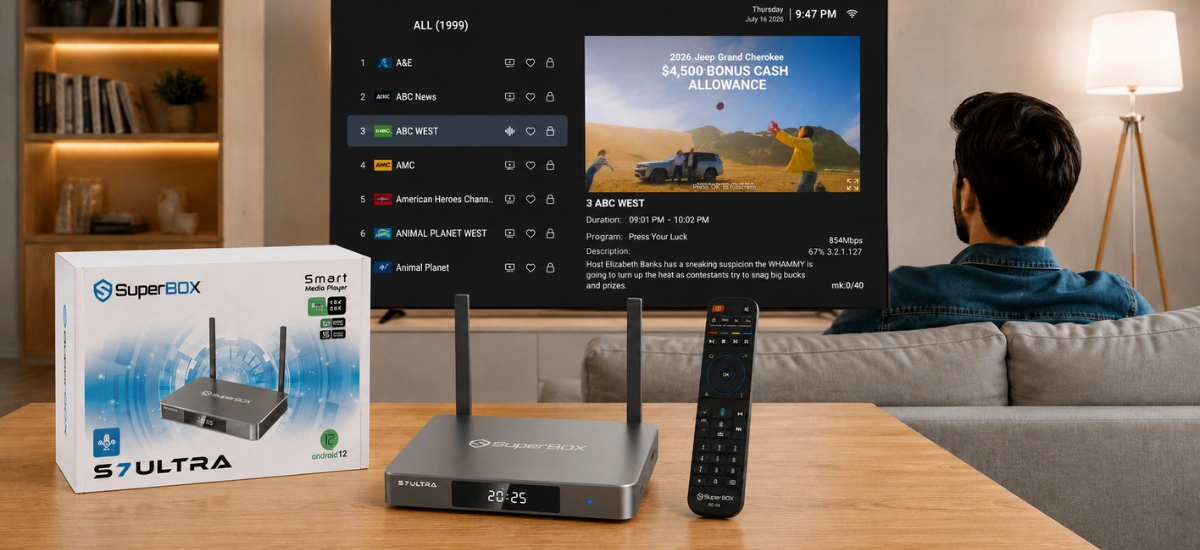
To issue a command, simply press and hold the Voice button, speak clearly toward the top of the remote, and release the button after speaking. The directory below outlines common voice commands across daily viewing scenarios:
| Category | Voice Prompt Example | System Action | Target App |
|---|---|---|---|
| Channel Tuning | “Watch ESPN” or “Go to CNN” | Tunes directly to the requested channel | Blue TV Live Streaming |
| Movie Search | “Search Top Gun Maverick” | Displays matching title poster in VOD | Blue VOD / Prime VOD |
| Actor & Genre | “Find Tom Hanks comedies” | Filters catalog by actor and genre tags | Blue VOD / Assistant |
| App Launching | “Open Blue TV” or “Open YouTube” | Directly opens target application | Home Screen Launcher |
| Volume Control | “Volume up” or “Mute audio” | Adjusts system audio output level | Media Playback |
| Navigation | “Go to Home screen” or “Settings” | Jumps directly to system menus | Android System UI |
How to Fix Voice Remote Pairing and Recognition Errors
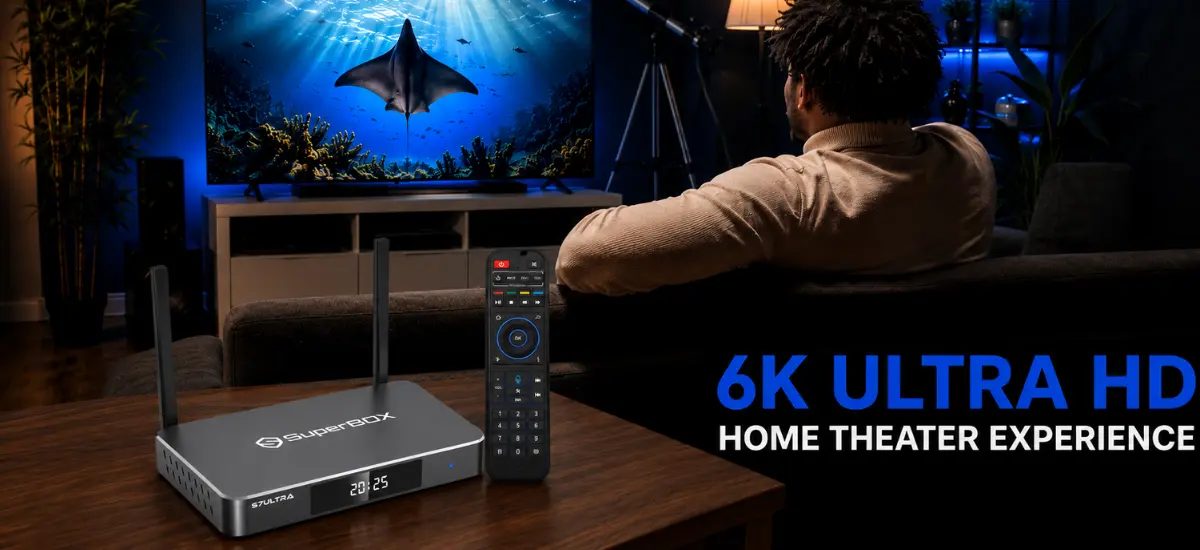
Step 1: Unpair and Reconnect Bluetooth Profile
Navigate to Settings > Remote & Accessories, highlight RC200, and select Unpair. Turn the box off and on, then hold [OK + Return] for 8 seconds to put the remote into pairing mode again and reconnect. If you also own newer models, compare with our guide on how to pair SuperBox S8 remote.
Step 2: Replace Depleted AAA Batteries
When battery voltage drops below 2.4V, the infrared signals may still work while the high-drain Bluetooth transmitter and microphone shut off. Replace both batteries with brand-new AAA alkaline cells to resolve voice dropouts.
Step 3: Clear Voice Input Cache and Reboot Console
Go to Settings > Apps > See all apps > Show system apps > Google / Voice Input, and click Clear Cache. Unplug the Type-C power adapter from the console, wait 30 seconds, and plug it back in. If the box exhibits persistent sluggishness, review our guide to fixing a SuperBox S7 running slow.
Voice Remote Troubleshooting Diagnostic Matrix
The diagnostic table below outlines common voice remote failure symptoms and their immediate verified remedies:
| Symptom Observed | Likely Root Cause | First Check | Verified Solution |
|---|---|---|---|
| Microphone button does nothing when pressed | Remote connected via IR only, not Bluetooth | Check Settings > Remote & Accessories | Hold [OK + Return] 8 seconds and pair RC200 |
| Screen displays “Can’t reach Google” | No active internet connection | Verify Wi-Fi or LAN cable status | Reconnect to 5GHz Wi-Fi or plug in Gigabit LAN |
| Voice input transcribes gibberish words | High ambient background room noise | Distance from mouth to remote mic | Hold remote 2-3 inches from mouth and speak clearly |
| Red LED flashes constantly during use | Battery voltage critically low (<2.4V) | Test battery health with voltmeter | Install 2 brand-new AAA alkaline batteries |
| TV Power / Volume buttons do not respond | IR learning code lost or not programmed | Check if LED lights up in TV Control box | Re-run IR Learning procedure head-to-head |
Advanced AI Voice Engine on SuperBox S8
If you love voice-guided entertainment and want even deeper integration, explore the newer SuperBox S8 series. The S8 lineup (featuring S8 Pro, S8 Plus, S8 Max, and S8 Ultra) features an upgraded AI Voice Command Engine capable of semantic natural language understanding, actor queries, and direct scheduled recordings. Learn more in our review of SuperBox S8 AI voice command.
Frequently Asked Questions About SuperBox S7 Voice Control
Why doesn’t the voice button work right out of the box?
Out of the box, the remote communicates via infrared (IR), which cannot transmit audio data. You must pair the remote over Bluetooth 5.2 by holding [OK + Return] for 8 seconds before voice commands can function.
Do I need to hold the microphone button while speaking?
Yes. Press and hold the Voice button down, speak your command clearly into the top of the remote, and release the button immediately after you finish speaking.
Can I use voice control to search for channels inside Blue TV?
Yes. You can say “Watch ESPN”, “Go to CNN”, or speak the channel number, and Blue TV will jump directly to that live broadcast.
Does voice control work without a Google account login?
Yes. Native searches inside Blue TV and Blue VOD function fully without logging into a Google account. A Google login is only needed if you want personalized Google Assistant features across third-party apps.
How far away can I be from the TV when using the voice remote?
Once paired over Bluetooth 5.2, the remote has an operating range of up to 30 feet (10 meters) and does not require direct line-of-sight to the TV box.
Why did my remote stop responding to voice commands after a few weeks?
The most common cause is low battery voltage. Bluetooth transmission requires more power than basic infrared. Replace both batteries with fresh AAA alkaline batteries.
Can I program the RC-200L remote to control my soundbar or audio receiver?
Yes. The IR learning buttons in the “TV Control” box can learn signals from any standard infrared remote, including soundbars and AV receivers.
How do I turn the remote backlight on or off?
The backlight on the RC-200L is automated. It illuminates whenever a button is pressed or the remote is moved, and automatically shuts off after several seconds of inactivity to preserve battery life.
Can I pair a Bluetooth keyboard or gaming controller alongside the remote?
Yes. The SuperBox S7 supports multiple simultaneous Bluetooth 5.2 connections. You can connect wireless gamepads, keyboards, and headphones while keeping the voice remote active.
Does re-pairing the voice remote affect my SuperBox 1-year warranty?
No. Bluetooth pairing and unpairing are standard operational functions that have no impact on your official 1-Year Manufacturer Replacement Warranty.
Final Thoughts
Pairing your RC-200L remote via Bluetooth 5.2 elevates your SuperBox S7 experience from standard channel-surfing to effortless voice-directed entertainment. Spending two minutes to pair the remote and program your TV power buttons gives you true single-remote living room control.
Whether navigating thousands of channels on the SuperBox S7 Pro ($305.00), SuperBox S7 Max ($339.00), or SuperBox S7 Ultra ($381.00), voice search eliminates on-screen keyboard typing so you can sit back and enjoy your favorite programming!
The article was updated on:
