
Knowledge SuperBox
How to Connect SuperBox to a Soundbar or Home Theater System






You have connected SuperBox to the television, and the picture looks right. Now you want the sound through your soundbar or home theater speakers.
The right connection depends on your equipment. Some soundbars receive audio back from the TV through HDMI ARC or eARC. Others have a separate HDMI input for the SuperBox. Older systems may use an optical audio cable.
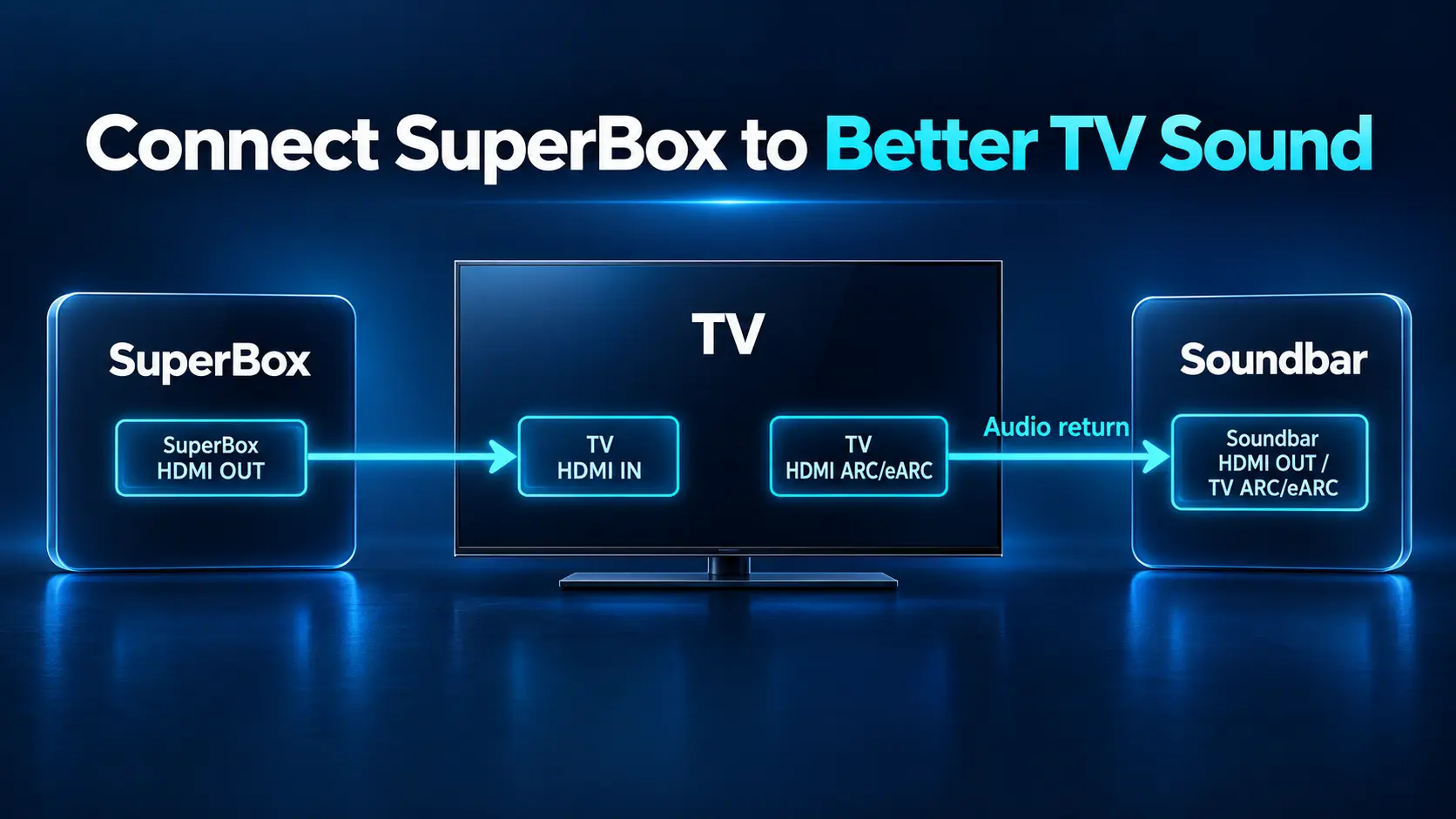
For many homes, the simplest setup is SuperBox into a TV HDMI input, with the TV’s ARC/eARC port connected to the soundbar’s matching TV connection. If your soundbar or receiver has a suitable HDMI input, you can connect SuperBox through it instead.
This guide applies to SuperBox devices with HDMI output. Match the instructions to the labels on your TV and audio system; menu names and available settings differ between models.
Choose the Connection That Matches Your Equipment
Look at the ports before buying cables or changing settings. A photo of each device’s connections can make the decision easier.
| What your equipment has | Connection to consider | What to check |
|---|---|---|
| TV and soundbar both have HDMI ARC/eARC | SuperBox into TV; TV returns audio to soundbar | Use the labeled ARC/eARC connections |
| Soundbar has separate HDMI IN and HDMI OUT | SuperBox into soundbar; soundbar into TV | Soundbar must pass your intended video format |
| AV receiver has HDMI inputs and a monitor output | SuperBox into receiver; receiver into TV | Select the matching receiver input |
| TV has Optical OUT and audio system has Optical IN | SuperBox into TV; optical cable carries sound onward | Choose compatible digital audio settings |
An AV receiver, or AVR, is the unit that handles sources and drives the speakers in many home theater systems. Connect SuperBox to the receiver rather than trying to connect it directly to passive speakers.
Keep the equipment’s remotes nearby during setup. Start at a moderate volume and turn devices off before reconnecting cables.
If the equipment has never worked together, first test SuperBox connected directly to the TV with TV speakers selected. Play a familiar program and a second selection. Establishing that picture and sound work here gives you a useful baseline before adding the soundbar or receiver.
Know Which HDMI Port Does Which Job
The labels matter more than the position of a connector.
- SuperBox HDMI output sends picture and sound to another device.
- Soundbar HDMI IN receives a source such as SuperBox.
- Soundbar HDMI OUT or TO TV connects to the television.
- TV HDMI ARC/eARC can receive video and return TV audio to a compatible soundbar or receiver.
A soundbar with only one HDMI connector labeled HDMI OUT (TV ARC/eARC) normally uses that connector for the television. It is not a spare source input for SuperBox.
You do not need an ARC output on SuperBox for the TV-first arrangement. ARC/eARC describes the return-audio link between the television and audio system.
If you are still connecting the box itself, our SuperBox S8 Ultra setup guide covers HDMI, power, and initial setup.
Method 1 Connect SuperBox to the TV and Use ARC or eARC
Use this route when both the TV and audio system have compatible ARC or eARC connections. It also keeps SuperBox connected directly to the TV for video.
Connect the Two HDMI Cables
- Connect SuperBox’s HDMI output to an available HDMI input on the TV. Leave the TV’s ARC/eARC port for the audio system.
- Connect the TV port labeled ARC, eARC, or eARC/ARC to the soundbar’s HDMI OUT (TV ARC/eARC) connection.
- Reconnect power and turn on the equipment.
- Select the TV input where SuperBox is connected.
- Select the soundbar’s TV-audio input according to its manual.
Some soundbars display TV ARC or TV eARC after detecting the connection. Others initially use a label such as D.IN; do not expect every brand to use the same wording.
Tell the TV to Use the Soundbar
Open the television’s sound settings and choose the external audio system or HDMI ARC output rather than TV speakers.
Enable the TV’s HDMI-control setting where its instructions require it. This may be called HDMI-CEC, Anynet+, or another manufacturer-specific name. If both devices support eARC, enable the appropriate eARC setting as their manuals describe.
Sony’s audio-system connection guide illustrates this TV-first arrangement and its audio-output settings.
Play a familiar program on SuperBox. Confirm that sound comes from the soundbar before testing additional audio formats or remote-control features.
Method 2 Connect Through a Soundbar or AV Receiver
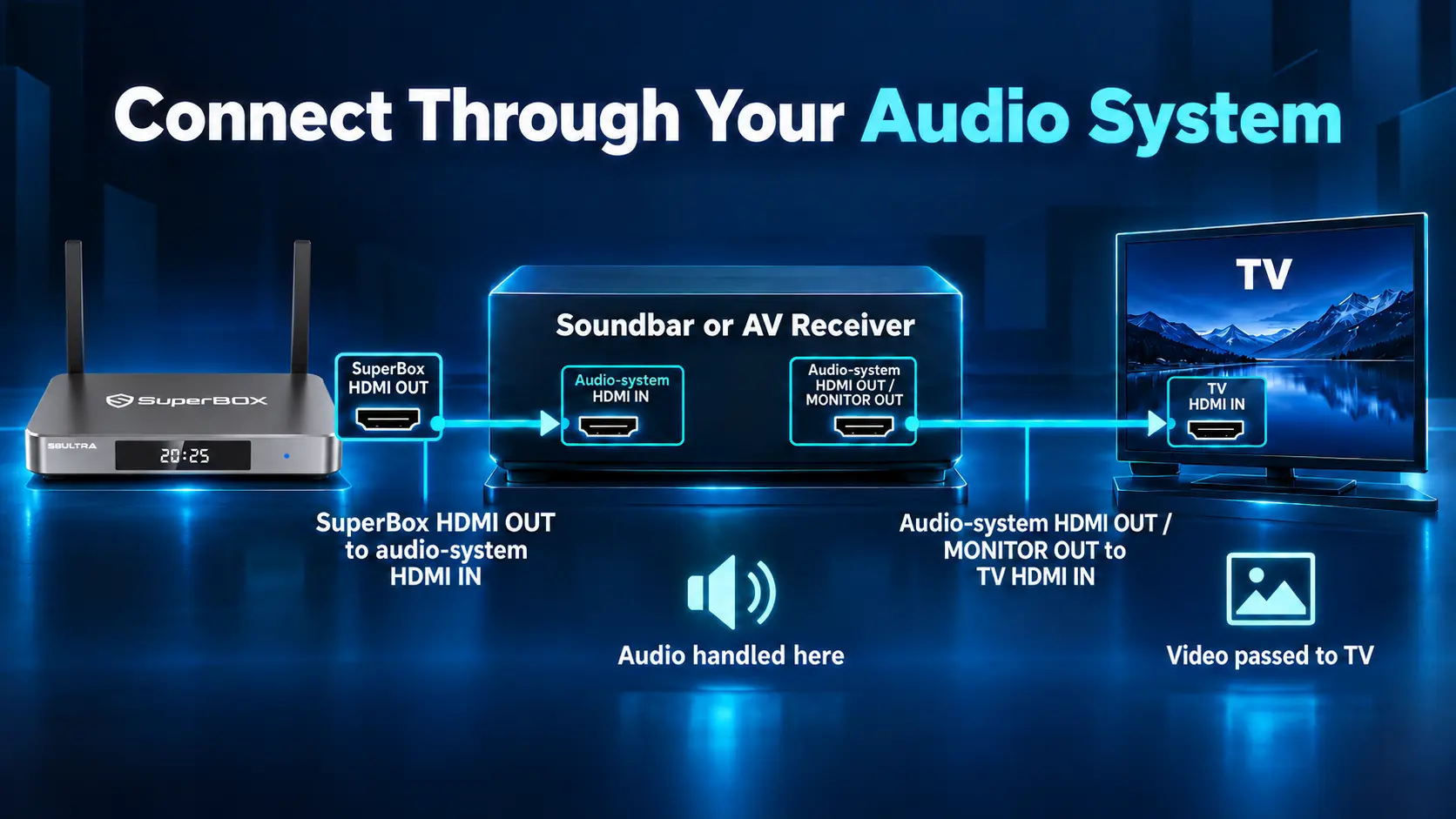
This route requires an actual HDMI IN on the audio system.
It can be useful when you want the soundbar or receiver to handle SuperBox audio directly. It also avoids relying on the TV to pass that source’s audio onward.
Connect SuperBox Through a Soundbar
- Connect SuperBox HDMI OUT to the soundbar’s HDMI IN.
- Connect soundbar HDMI OUT/TO TV to a TV HDMI input.
- Turn on the equipment.
- Select the soundbar input that receives SuperBox.
- Select the TV input connected to the soundbar.
- Play a program and check both picture and sound.
If you also want the soundbar to play the TV’s own apps, use the compatible ARC/eARC ports and configure that return connection separately.
Samsung’s soundbar setup instructions describe the source-to-soundbar connection and input selection.
Connect SuperBox Through a Home Theater Receiver
Connect SuperBox to a suitable receiver HDMI input, then connect the receiver’s HDMI monitor output to the TV. Select that receiver input and the corresponding TV input.
Input names may include Media Player, CBL/SAT, or another assigned label. Match the selected name to the connector you used. On configurable receivers, check input assignment if the label no longer matches the physical port.
Make sure the receiver is configured to play audio through its connected speakers. Denon’s playback-device guide explains HDMI source connections and input assignment.
Check Video Compatibility Before Using This Route
The soundbar or receiver must pass the picture format you want to use. An older unit may limit resolution or fail with a particular video setting even when it handles audio successfully.
If SuperBox works when connected directly to the TV but loses picture through the audio system, check that system’s supported video formats, relevant input settings, and cables.
You can use Method 1 instead when the TV and audio system support the required return-audio connection. Our Android TV box resolution guide can help with the separate display-setting decision.
Method 3 Use Optical Audio From the Television
Optical is useful when the TV and soundbar lack a suitable ARC/eARC connection but have matching optical audio ports.
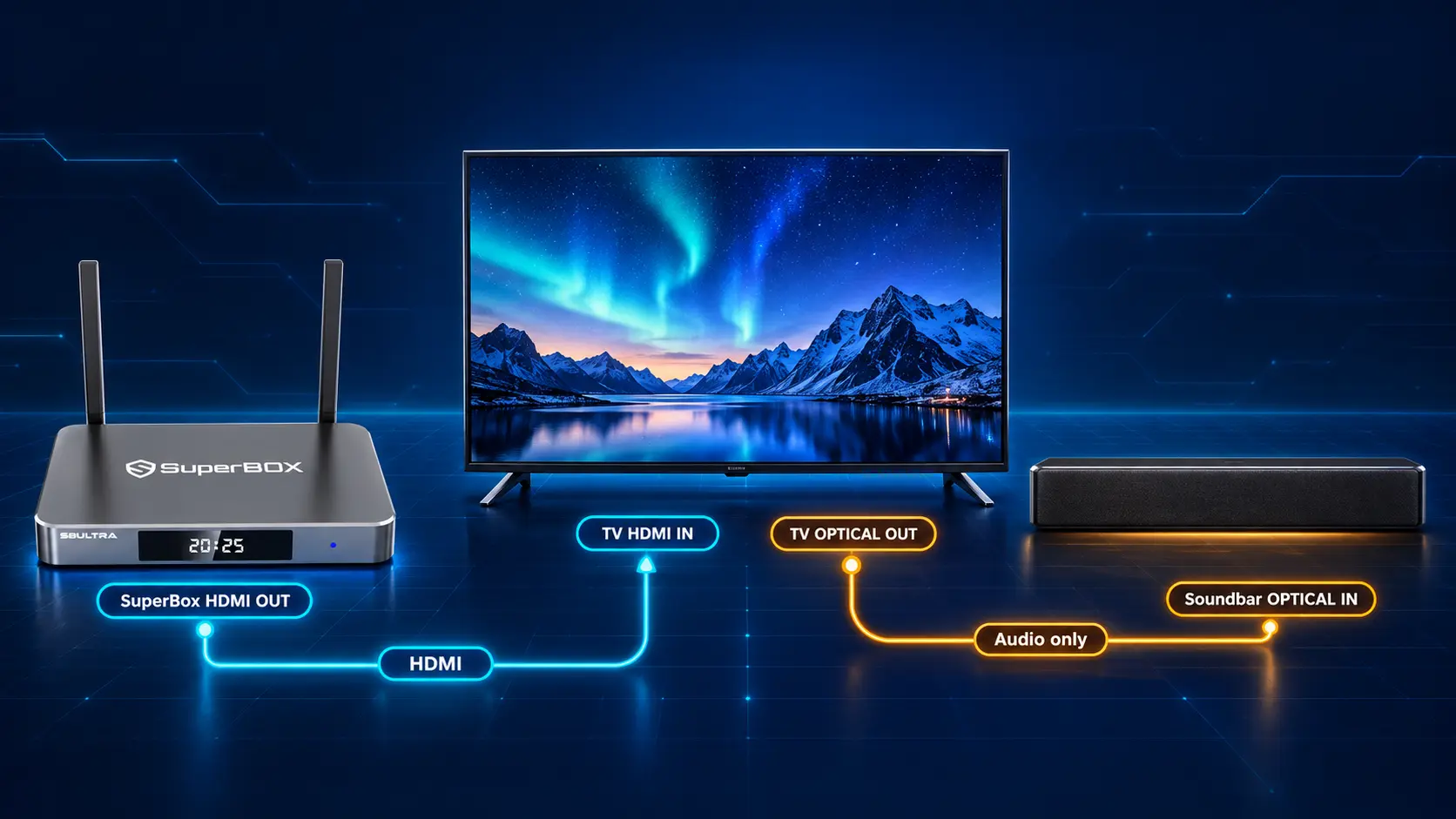
SuperBox stays connected to the TV through HDMI. A separate optical cable carries sound from the TV to the audio system.
Connect and Select Optical
- Connect SuperBox HDMI OUT to the TV’s HDMI input.
- Connect the TV’s DIGITAL AUDIO OUT (OPTICAL) to the soundbar or receiver’s OPTICAL IN.
- Remove any protective caps from the cable ends and insert them gently in the correct orientation.
- Select the audio system’s optical input.
- Set the TV to use its optical or external digital audio output.
- Play a program from SuperBox and check the sound.
Sony’s optical connection guide covers a TV, external source, and soundbar in this arrangement.
This method does not assume that your SuperBox has its own optical output. If you want to connect directly from a port on the box, check the exact model and the receiving system first.
Optical can carry stereo and some compatible compressed surround formats, but it does not carry Dolby TrueHD or Dolby Atmos. HDMI is the more flexible route for supported higher-bandwidth audio.
Check the Audio Format if You Have Picture but No Sound
Start with the selected inputs, mute settings, and volume. Then check digital audio settings.
Look in the TV’s Sound or Audio Output menu. SuperBox may also provide sound-output controls, but use the labels available on your model rather than expecting one universal menu.
| Setting | What it means for troubleshooting |
|---|---|
| PCM or Stereo PCM | A useful compatibility test; some TV outputs will be limited to stereo |
| Auto | Lets the device choose an output according to its available options |
| Pass-through or Bitstream | Can forward encoded audio for a compatible audio system to decode |
| Dolby Digital | An option for compatible compressed surround output where supported |
These labels can describe different stages on different devices. Follow your equipment’s manual before forcing a particular format.
If sound returns with PCM, the connection can carry audio. Check format compatibility before trying Auto or a supported pass-through setting again.
For example, Samsung TVs may place this under Settings / All Settings → Sound → Expert Settings → Digital Output Audio Format. Sony models may use Display & Sound → Audio output for speaker and eARC options. These are TV-menu examples; follow your model’s manual if the labels differ.
Sonos recommends testing Stereo/PCM when diagnosing interruptions. Samsung’s format guide explains common TV output choices.
PCM is a practical starting point for testing. It is not a promise that every PCM connection supplies multichannel sound.
Understand Surround Sound and Dolby Atmos
A surround-capable soundbar does not make every channel or movie surround sound. The selected program must have a suitable audio track, and the app, SuperBox output, connection, TV when used, and audio system must support the required format.
eARC provides more audio bandwidth than ARC. HDMI’s eARC overview identifies support for higher-bandwidth formats. That describes the connection’s capabilities, not a guarantee about a particular SuperBox stream.
Some compatible ARC systems can carry Dolby Atmos in Dolby Digital Plus, while higher-bandwidth Atmos formats require a suitable HDMI path. Sonos’s supported-format list shows why the model and connection matter.
Check the soundbar’s app or receiver’s information display to see the format actually arriving. A surround listening mode or illuminated speaker icon alone may not identify the original audio track.
Fix Echo, Audio Delay, or Intermittent Sound
Echo or Two Sets of Speakers Playing
If TV speakers and the soundbar play together unexpectedly, select the intended external audio output and disable the unwanted TV-speaker output. Some systems deliberately support combined playback; use that feature only when configured for your exact equipment.
Voices Do Not Match the Picture
Check another channel or title first. A problem affecting one selection may be in that source rather than your entire setup.
Look for Audio Delay, Lip Sync, or A/V Sync in the TV or audio system. Note the current value before changing it.
If sound arrives before the picture, adding audio delay may help. If sound already arrives late, adding more audio delay can make it worse. Consult the equipment’s instructions because some TV sync controls adjust picture timing instead.
Sony’s audio-sync guidance explains these timing differences. A soundbar with HDMI IN may also let you test the direct-source route in Method 2.
Sound Cuts Out
Check cable seating and try another known-working cable. Test PCM and compare TV-speaker playback with external-system playback.
If the whole online stream freezes, investigate the source or connection using our SuperBox buffering guide. If the picture continues normally while only external audio drops, focus first on the audio route and settings.
Make Everyday Volume Control Easier
Once sound works, test volume control with the TV and audio-system remotes.
HDMI-CEC can provide shared control on compatible equipment, but it must be enabled and supported by the devices involved. Optical itself does not carry HDMI-CEC control commands.
Pairing the SuperBox remote with the box is a separate task from programming volume buttons for a television or soundbar. Do not assume Bluetooth pairing to SuperBox automatically controls the audio system.
Our S8 remote pairing guide covers the box connection. For supported TV or soundbar learning controls, use our SuperBox remote programming guide and check compatibility with the original remote. Test the copied volume buttons separately from box navigation.
Frequently Asked Questions
Should SuperBox Connect to the TV or Soundbar First?
Use the TV-first route when ARC/eARC works well with your equipment. Use the soundbar-first route when it has a suitable HDMI input and supports the video you want to pass.
Does SuperBox Need an HDMI ARC Port?
No. In the TV-first setup, SuperBox sends audio and video to a TV HDMI input. ARC/eARC handles the separate TV-to-audio-system connection.
My Soundbar Has Only One HDMI Port Can I Plug SuperBox Into It?
If that connector is labeled HDMI OUT or TV ARC/eARC, use it for the TV. Connect SuperBox to another TV input. Direct source connection requires a suitable soundbar HDMI input.
Can I Use Optical Without an Optical Port on SuperBox?
Yes, if the TV has optical output and the audio system has optical input. Connect SuperBox to the TV by HDMI and send TV audio onward through optical.
Why Does PCM Work When Another Setting Is Silent?
The other format may not be supported somewhere in the audio path. PCM can provide a compatible test output. Check the manuals before restoring encoded or surround output.
Will This Setup Guarantee Dolby Atmos?
No. Atmos depends on the program’s audio, app output, device support, and complete connection path. Confirm the received format on your audio system.
Why Do the TV’s Own Apps Have Sound but SuperBox Does Not?
Check the SuperBox input’s audio handling, the box’s mute/output settings, and another program. A working TV app confirms part of the audio path, but external HDMI sources may be handled differently.
What Should I Send Support if I Still Have No Sound?
Send your SuperBox, TV, and soundbar or receiver model names, photos of port labels, the connection route, and the settings tried. Include whether TV speakers and other sources work.
Enjoy SuperBox With the Audio System You Already Own
A soundbar or receiver can make your existing SuperBox setup more enjoyable without replacing the television. Start with a simple working connection, then adjust sound preferences around your room.
SuperBox’s dedicated Blue TV and Blue VOD apps offer free live and on-demand viewing on compatible devices without separate monthly app subscriptions. For buyers considering the current lineup, S8 Max and S8 Ultra provide options for different storage and remote preferences. Choose audio equipment by its actual connections and supported formats.
SuperBox TV Box Store is an authorized retailer serving customers in the US and Canada. Verify our authorization using SP20250414002 at the SuperBox authorization website.
If you purchase directly from superboxtvboxstore.com, contact customer@superboxtvboxstore.com for any technical issue or order-related question. We value your experience and can help you identify the next step. You can also use our contact page before ordering to discuss your existing setup.
The article was updated on:
