
Knowledge SuperBox
How to Set Up a Football Watch Party with SuperBox S8 Ultra





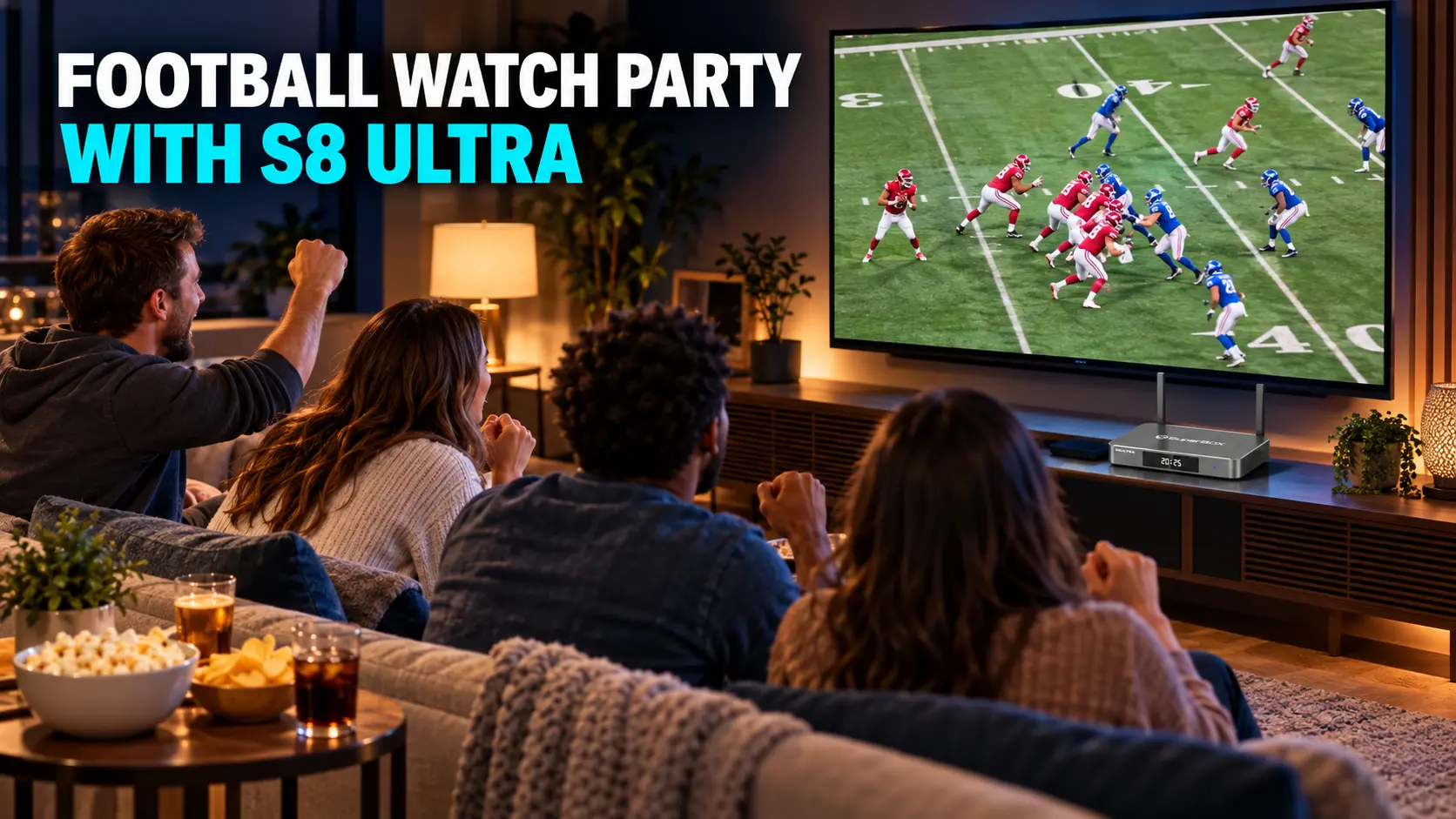
A football watch party should feel like a good seat at the game, with your favorite people and better snacks. The television setup should be ready before the conversation, food, and first drive compete for your attention.
SuperBox S8 Ultra gives you useful tools for hosting: dedicated live-TV apps, supported two-channel viewing, a backlit remote, and wired or wireless networking. The difference between an enjoyable afternoon and a last-minute scramble is preparing those tools around the game you want to watch.
To set up a football watch party with SuperBox S8 Ultra, confirm the game first, test the actual viewing source, check picture and sound from your guests’ seats, and practice your chosen layout before kickoff. Keep one person responsible for the remote and have a simple troubleshooting plan.
Choose the Main Game Before Planning the Screens
Start with the event your guests are coming to watch. Write down the matchup, date, kickoff time in your time zone, and planned viewing source.
For NFL games, check kickoff and broadcaster details on the official NFL schedule. For college football, use the team’s or competition’s current listings.
Then check the intended game inside the app or service you plan to use. A channel name or an app icon alone does not confirm that a particular event will be available in your location. S8 Ultra lists an NFL app among its features.
If two games overlap, agree which one is the main event. That decision makes it easier to choose a viewing layout and commentary when the room fills up.
Why S8 Ultra Works Well for a Football Gathering
The Ultra’s advantages are most useful when connected to practical hosting needs.
| S8 Ultra feature | How it helps at a watch party |
|---|---|
| Full supported Multi-Viewing scope | Gives you broader supported channel choices for following two live broadcasts |
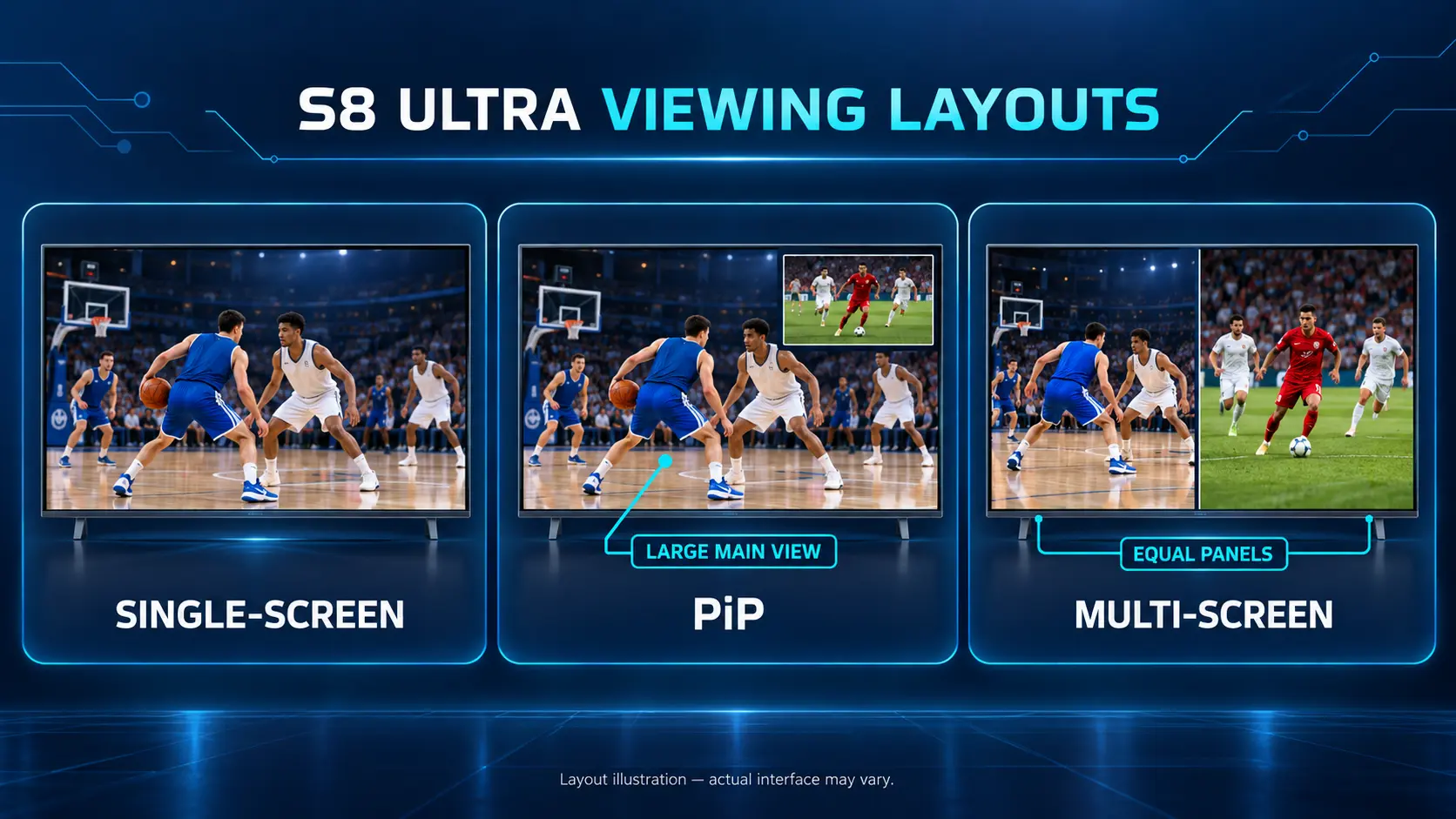
| Picture-in-Picture and Multi-Screen | Lets you prioritize one event or give two channels equal space |
| Backlit voice remote | Makes buttons easier to identify in a dim room |
| WiFi 6 and Gigabit Ethernet | Provides wireless and wired connection options |
| 128GB internal storage | Provides room for compatible apps and general device use |
| NFL app listed | Adds a football-focused viewing option to check before the party |
The S8 Ultra product page lists Premium performance speed. Your home connection and chosen source still affect playback, so an early test matters even with the flagship model.
Set the Ultra up for everyday viewing as well as the event. A comfortable remote, familiar shortcuts, and a reliable connection remain useful after the guests go home.
Connect the Ultra and Finish Setup Ahead of Time
If the box is new, complete its initial setup before party day.
- Connect the S8 Ultra’s HDMI output to a compatible HDMI input on the television.
- Connect the supplied Type-C power equipment.
- Select the corresponding TV input.
- Complete the on-screen setup and connect to the internet.
- Pair the remote if prompted.
- Install the viewing apps you intend to use and test them.
Our S8 Ultra unboxing and setup guide covers the complete process. If remote pairing needs attention, use the S8 pairing instructions.
Place the box where it has ventilation and the cables are secure. Keep food and drinks away from the equipment, and route cables outside the path people use to reach the sofa.
Turn the setup off and on once during preparation. Confirm that you can return to the correct input and app without having to remember unfinished installation steps.
Prepare Blue TV and Your Other Viewing Apps
SuperBox offers apps designed for its devices, including Blue TV, Blue VOD, Backup TV and Playback. These core apps are free to use on a compatible SuperBox without separate monthly app subscriptions.
Blue TV offers access to 2,000+ live TV channels across categories that include sports, news, and entertainment. Blue VOD provides a large selection of on-demand movies and series, useful if guests want to stay for something different afterward.
Download the supported apps from the SuperBox App Store after connecting the box. Follow our S8 app installation guide if needed.
For game day, concentrate on the live source you have checked. Save the relevant channel to a supported favorites list or practice finding it by name. The Blue TV guide explains those navigation tools.
Keep your preparation focused. You can add more apps later; the immediate goal is reaching the correct broadcast confidently.
Test the Connection Where the Party Will Happen
Test the S8 Ultra in its final position, using the television and network connection you will use during the party.
If a suitable Ethernet connection is available, it can remove the wireless link between the box and router. WiFi can also work well when the room has dependable coverage. Our WiFi and Ethernet guide explains both routes.
Let a live channel play long enough to assess normal viewing. Change to another available selection, then return. If you plan to use two channels together, test that exact arrangement too.
Run the test while the household is using the internet normally. Ask whether someone plans a large download or backup during the game, and schedule flexible heavy activity for another time if necessary.
A good result beside the router does not tell you everything about a room farther away. Address weak coverage before guests arrive using our WiFi optimization guide.
Avoid rearranging a working network just before kickoff. Make any changes early enough to test the result.
Choose Single-Screen, PiP, or Multi-Screen for the Group
The best layout depends on what the room wants to follow.
| What guests want to watch | Layout to use | Hosting advantage |
|---|---|---|
| Everyone is following the same game | Single-screen | The main action and score graphics get the largest view |
| One main game with occasional checks elsewhere | Picture-in-Picture | Keeps the priority broadcast large |
| Two supported live games matter equally | Multi-Screen | Gives both channels similar space |
Start full screen when your team is the reason everyone came over. Two pictures can be useful, but a smaller score graphic may be harder to read from a chair across the room.
Set Up the Two-Channel Option Before Guests Arrive
In Blue TV, start the main live channel, open its Settings panel, and select Picture-in-picture or Multi-screen. Choose the available secondary channel or assign channels to the panels as shown.
PiP creates a small secondary window over the main picture. Multi-Screen uses two side-by-side panels. Use the on-screen hints and our PiP and Multi-Screen instructions to practice changing or closing the layout.
Check commentary too. PiP uses the main channel’s audio; Multi-Screen lets you select which channel to hear. Both arrangements let you monitor two pictures while listening to one commentary feed.
These modes cover supported live channels, rather than any two apps. Check the intended pair before relying on it.
For more help choosing a layout, see our SuperBox sports-viewing guide.
Check the Picture and Commentary From the Sofa
Sit where the farthest guest will sit. Read the score, game clock, and on-screen text from there.
If details are uncomfortable to follow in Multi-Screen, use one full-screen broadcast. With PiP, position the smaller window so it does not cover the main game’s score or important action.
Use a picture setting you already enjoy for sports. Avoid a last-minute tour of unfamiliar processing options. S8 Ultra supports 4K playback and 6k decoding with suitable content and equipment, but the broadcast itself determines the available source quality.
Test audio through the speakers or soundbar that will stay connected. Make sure commentary remains understandable at a comfortable volume, including when people are talking.
If dialogue seems out of step with the picture, address it during preparation using the TV or audio system’s own controls. Give yourself time to test the result before leaving that setting in place.
Arrange the Room Around Viewing and Conversation
Keep the best viewing positions available to guests who want to follow every play. Make space for people who prefer conversation without placing them in front of the screen.
Put food on a side table so guests can help themselves without blocking the picture. Keep drinks away from the remote and box.
Use enough room lighting for people to move around comfortably. The Ultra’s backlit remote can make buttons easier to see without needing to darken the whole room.
Choose one person to handle channel and layout changes. Agree to check the secondary game during a break rather than letting several people compete for the remote.
Ask guests who dislike spoilers to silence score notifications. Keep the focus on enjoying the broadcast together.
Use a Simple Countdown to Kickoff
This is a suggested preparation schedule; adjust it to your event and household.
| When | What to do |
|---|---|
| The day before | Confirm the game, viewing source, installed apps, and connection |
| About an hour before | Test live playback, sound, and any two-channel arrangement |
| Before guests arrive | Arrange seats, refreshments, lighting, and the remote |
| About fifteen minutes before | Open the intended broadcast and settle on the main layout |
| At kickoff | Leave the working setup in place and enjoy the game |
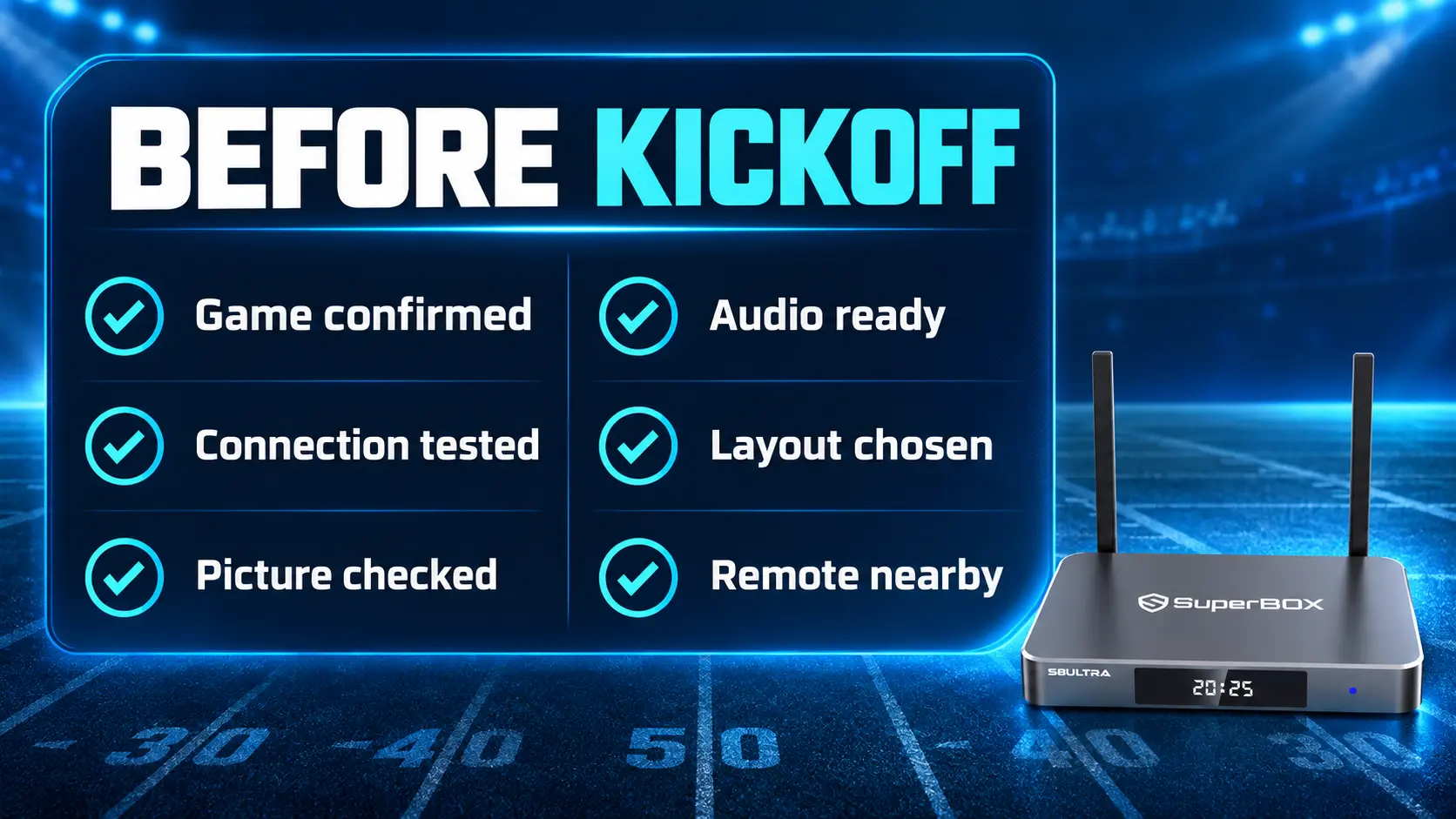
Before you call the room ready, check:
- The correct game and viewing source have been identified.
- Picture and commentary work on the final setup.
- Scores are readable from the seats.
- Any second channel has been tested.
- The remote responds and is easy to find.
- Cables, drinks, and food are clear of the equipment.
- Recording has been tested if you intend to use it.
Prepare Manual Recording if You Want to Use It
Test recording separately before the party with content that supports capture.
S8 recording requires connected USB storage. It starts and stops manually, saves to USB, and does not offer scheduled recording. Ultra’s 128GB internal capacity does not replace the required recording drive.
Use this short preparation sequence:
- Connect a compatible USB drive and open Video Recorder.
- Check that the app recognizes the drive and shows available space.
- Select the recording control and confirm the timer starts.
- Return Home and open the supported program you want to capture.
- Return to Recorder and stop the capture manually when finished.
- Allow saving to finish, then play the saved file briefly to check it.
Do not disconnect power or remove the drive to stop a recording. The complete S8 Recorder guide covers the controls in detail.
Have a Calm Plan if Playback Stops
If a problem appears, describe it before changing settings. A missing picture, one failed channel, and several apps failing need different checks.
| What happens | First useful check |
|---|---|
| The television says No Signal | Confirm the TV input, HDMI connection, and box power |
| One live channel stops | Try another available channel and note the affected selection |
| PiP or Multi-Screen struggles | Return to one channel and test normal playback |
| Several online apps fail | Check the home connection and whether other devices are online |
| The remote stops navigating | Check batteries and use the pairing guide if needed |
Change one thing at a time. Avoid a factory reset during the party as an opening response to a single failed stream.
Our buffering and freezing guide provides further help. When contacting support, include the model, app, exact symptom, and a photo or short video if useful.
Frequently Asked Questions
Is SuperBox S8 Ultra a Good Choice for a Football Watch Party?
Its supported two-channel viewing, backlit remote, and network options can suit a home gathering. Confirm the intended game and test the setup beforehand.
Can I Watch Two Football Games at Once?
You can follow two supported live channels through PiP or Multi-Screen in Blue TV. Test the specific channel pair before the party.
Does the NFL App Guarantee Every Game?
The NFL app is listed for S8 Ultra, but that does not guarantee every matchup or regional broadcast. Check the current selections and intended game before inviting guests around it.
Will Both Games Have Sound at the Same Time?
No. PiP uses the main channel’s audio, while Multi-Screen lets you choose which channel to hear. Pick the commentary the group wants to follow.
Should I Use Ethernet Instead of WiFi?
Use whichever works reliably in the final room. Ethernet removes the wireless hop to the router; strong WiFi can also be suitable. Test before changing a working setup.
Does Football Viewing Require a Monthly SuperBox Subscription?
The core SuperBox viewing apps do not require separate monthly app subscriptions on a compatible device. Internet remains necessary, and separately chosen paid services have their own terms.
Can S8 Ultra Automatically Record Kickoff While I Am Busy?
No. Recording is manual and requires USB storage. Someone must start and stop it; the files save to the connected drive.
Does 128GB of Storage Make Every Football Stream 4K?
No. Internal storage is capacity for the device’s apps and data. Picture quality depends on the available source, output settings, and connected equipment.
Build a Setup You Will Enjoy Beyond Game Day
The strongest reason to choose S8 Ultra is its usefulness across many evenings: flexible live viewing, a backlit remote, generous internal storage, and a premium place in the S8 lineup.
Free access to the supported Blue TV and Blue VOD apps also gives your household live and on-demand choices after the party. When that setup replaces an expensive cable package, it can help reduce ongoing TV spending.
SuperBox TV Box Store is an authorized retailer serving customers in the US and Canada. Verify our authorization using SP20250414002 at the SuperBox authorization website.
View the SuperBox S8 Ultra product page for current specifications and ordering options. If you purchase directly from superboxtvboxstore.com, email customer@superboxtvboxstore.com for any technical issue or order-related question. We value your experience and are here to help you get comfortable with your SuperBox.
The article was updated on:
