
Knowledge SuperBox
SuperBox Backup TV Explained: What It Does and How to Use It





What Is Backup TV on SuperBox?
Backup TV is an additional SuperBox viewing app that combines live television with on-demand movies and TV series. Instead of opening one app for channels and another for films, you can browse both categories within the same application.
For a viewer who already knows Blue TV and Blue VOD, the idea is straightforward. Backup TV offers another place to look for entertainment, with a live section and separate areas for on-demand browsing.
The important difference is functionality: the Backup TV layout covered here does not include the Time Shift or Playback features provided through the separate supported apps. If you want to revisit earlier programming, choosing the correct app matters.
Backup TV is used on supported SuperBox devices, including the S6, S7, S8 generation. Menu appearance and app availability can vary by model and software version, but the main approach remains simple: install the app, open it, and choose live or on-demand viewing.
What Does the Name Backup TV Mean?
Think of Backup TV as another viewing option you can open when you want it. The name does not mean that it copies your settings, saves every program, or creates a personal recording library.
It also should not be confused with a second television or a separate physical box. Backup TV is an app running on your SuperBox, using the device’s internet connection like other online viewing apps.
For example, you might normally watch through Blue TV, then open Backup TV to see whether a desired channel is available there. Or you might prefer browsing channels and movies from one starting point during a quiet evening.
There is no need to stop using your familiar apps. Keep the applications that help you do different things, and treat Backup TV as an additional choice rather than assuming it replaces every function of the others.
Backup TV vs Blue TV vs Blue VOD vs Playback
The easiest way to choose an app is to begin with what you want to watch.
| What you want to do | App to consider | Why it fits |
|---|---|---|
| Browse live channels and on-demand content together | Backup TV | Both viewing categories are available within one app. |
| Use the dedicated live-TV interface | Blue TV | It focuses on live channels and their supported viewing controls. |
| Browse the dedicated on-demand library | Blue VOD | It is organized around movies and TV series. |
| Look for an eligible program that already aired | Playback | It provides the separate supported catch-up route. |
These apps can overlap in content categories without having identical controls. Finding a live channel in Backup TV does not mean you will also find the same replay options there.
Likewise, an on-demand movie is different from a replay of a live broadcast. If you want a film you can start from the beginning, check the movie section. If you missed a program’s broadcast, check whether it is available through Playback.
That distinction is useful for everyone in the household. A simple explanation such as “Backup TV has channels and movies; Playback is where we check missed programs” is easier to remember than treating every icon as interchangeable.
How to Find and Install Backup TV on SuperBox
Start with the App Store available through your SuperBox interface. The exact location can differ between generations, so look at the labels on your television rather than expecting every Home screen to match a tutorial image.
1. Check the Connection and Remote
Make sure the box is online and the remote can move between icons and confirm selections. If another online app already plays normally, you have a useful starting point for installing or opening Backup TV.
If nothing online works, address the connection first. Repeatedly starting a download will not solve a device that has lost internet access. Check whether other devices can use your home connection as well.
2. Open the Device’s App Store
Select the App Store presented by your SuperBox launcher or app list. Read any on-screen notice and locate Backup TV in the available catalog.
Use the store supplied through the device. Searching the web for a similarly named application can lead to a different product with different behavior. If the supported store is missing, ask for help before substituting an installer.
3. Complete the Available Download or Installation
Choose Backup TV and follow the download or installation action displayed. Allow the process to finish before trying to launch it.
If an installed indicator appears, check it before repeating the download. If Backup TV is not offered in the catalog, note your model and ask support about current availability rather than assuming every older screenshot describes your configuration.
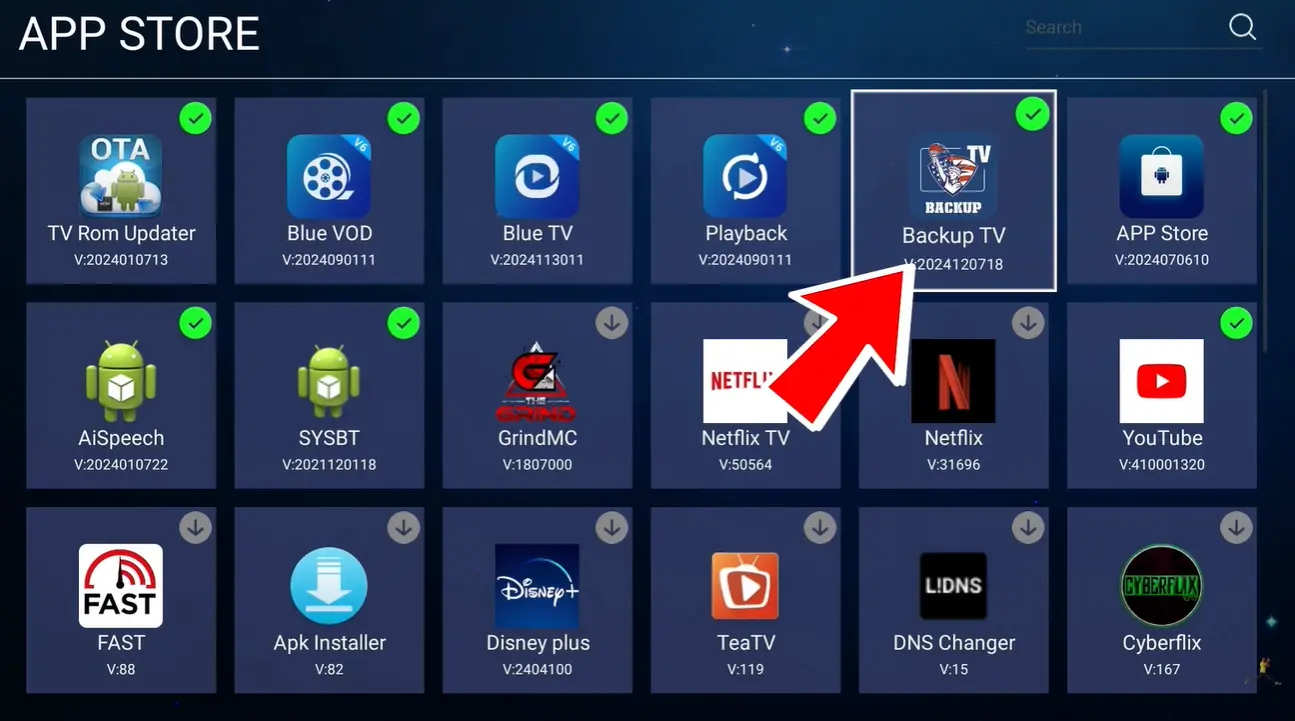
4. Open the Installed App
Look for Backup TV in your app list or on Home. Some launchers allow you to add an installed app as a Home shortcut; use that option if your interface provides it.
An absent shortcut is not the same as a failed installation. If the app opens from the app list, it is already usable. You do not need to uninstall it merely because its icon is not where you expected.
How to Watch Live TV in Backup TV
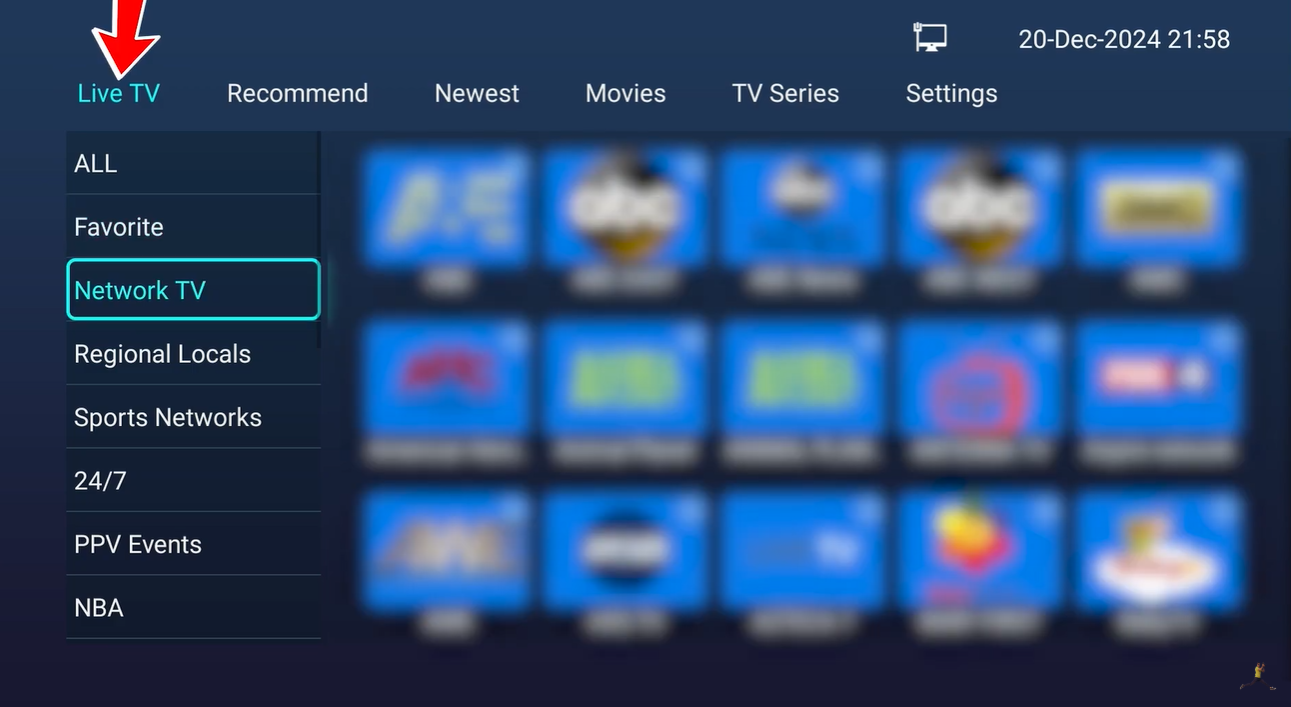
Open Backup TV and enter its live-TV section. Browse the current listings and select the channel you want with the remote’s navigation and confirmation controls.
For the first test, choose one available channel and let it load. Confirm that picture and sound work before moving through several more selections. This gives you a clearer result than quickly switching between channels while each is still opening.
When looking for something familiar, read the listings inside Backup TV. Do not assume a channel must occupy the same place or use the same number as in another app.
If a particular channel does not start, try a different available channel. One successful stream tells you the app can open content, even if the original selection needs further checking. If nothing plays, move to the troubleshooting section below.
How to Browse Movies and TV Series
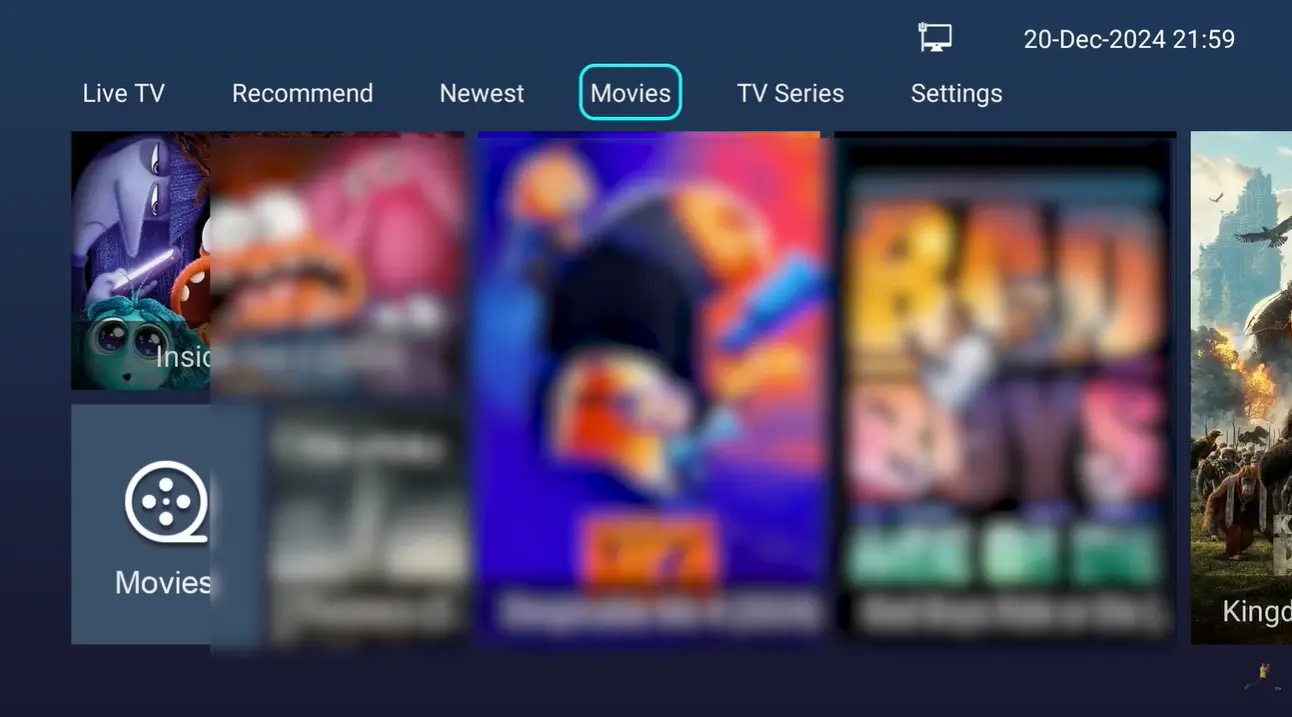
For on-demand entertainment, move to the app’s movie and series areas. The covered layout includes recommended selections, newest additions, movies, and TV series.
Start with the section closest to what you want. Browse movies for a film, or TV series when you are looking for a show. Recommended and newest selections can help when you have not chosen a particular title.
Open a listing and review the information shown before using its available viewing options. Check the title carefully, especially when a film has several versions or when names are similar. For a series, follow the choices the app presents for the item you want to watch.
The convenience is having this route in the same app as live television. You can finish browsing channels, then move to an on-demand category without first choosing a different application.
However, check specific titles in the current catalog. Similar content categories do not establish a permanent one-to-one match between Backup TV and Blue VOD. If you cannot find a title, you can look in your usual on-demand app as well.
When Should You Switch to Backup TV?
You do not need to wait for a problem to use it. Backup TV can simply suit a viewer who likes live and on-demand choices together.
It is also worth checking when one viewing route is unavailable. If your usual app cannot open a channel, return to the app list, open Backup TV, and see whether that channel is currently offered and plays there.
If it works, you have another way to continue watching. That does not identify the exact cause of the original issue, but it helps you separate a problem in one viewing route from a wider connection failure.
Do not assume an automatic switch will happen for you. Open Backup TV yourself and check the result. It still depends on working internet access and available programming, so it is an alternative to try rather than a guarantee that every interruption disappears.
A helpful habit is to open the app before an important viewing session. Confirm that you know where its sections are, rather than learning the interface while trying to follow a live event.
Where to Go for Time Shift and Missed Programs
Backup TV’s combined layout does not include the Time Shift and Playback functions discussed for the separate apps. If you are searching for those controls, move to the app designed for the task.
For an earlier broadcast, open Playback and check the supported channel and available program listings. For supported live-stream controls, use Blue TV and the options available for that channel.
Consider two common situations. You want to watch a movie tonight: browse the on-demand section. You missed a live program earlier: check Playback. The title may sound similar in conversation, but the viewing routes are different.
Available replay windows and controls depend on the program, service, and device configuration. The important point is to check the appropriate app before concluding that your SuperBox has lost a feature.
For a broader explanation of the viewing setup, see how SuperBox works. Follow the current labels on your own device when using a setup guide, particularly if its interface has changed with a software update.
What to Check if Backup TV Is Not Working
Describe the symptom first. “The icon is missing,” “the app will not open,” and “one channel will not load” are different problems.
| Symptom | First useful check |
|---|---|
| No Backup TV icon on Home | Look in the installed-app list before downloading it again. |
| Backup TV is not installed | Check the device’s supported App Store for current availability. |
| One channel or title fails | Try another available item and note the exact selection that failed. |
| Everything inside Backup TV fails | Test another online app and check the internet connection. |
| Replay controls are absent | Use the separate supported Playback or Blue TV route. |
Compare One Thing at a Time
If another channel works, keep that information. If another app works but Backup TV does not, note that too. Those observations help support understand the scope of the problem.
Avoid changing several unrelated settings at once. You will have a harder time knowing what helped, and may create another issue while investigating the first one.
For ongoing loading or buffering problems, use our SuperBox buffering and freezing guide. A factory reset is not a useful opening response to an app icon being absent from Home or a single listing being unavailable.
Prepare a Clear Support Request
Purchased directly from superboxtvboxstore.com? Contact us right away at customer@superboxtvboxstore.com for any technical issue or order-related question. Whether you need help using Backup TV, setting up your device, or checking an order, our team is here to help. We value your experience as our customer and want you to feel supported after your purchase. For order questions, include your order number and the email address used at checkout.
Include your SuperBox model, the app name, the exact error message, and whether other apps or channels work. A photo of the screen or a short video can show what happens more clearly than “nothing works.”
For manufacturer technical assistance, message SuperBox technical support on WhatsApp or email customerservice2@mysuperboxtv.com. Explain the steps already tried so the team can continue from there.
For example: “I use a SuperBox S6 [your exact model]. Backup TV opens, but [channel or title] will not load. I tested [another item], which [worked or failed]. [Another app] is [working or not working]. The screen says [exact message].” Replace the brackets with your own results. This gives support a useful starting point without guessing the cause.
Keep device identifiers and order information in private support messages. If you purchased directly from our website, send those details to our team at customer@superboxtvboxstore.com. If your receipt names another retailer, contact that seller for purchase-specific questions because different sellers have separate order records.
Frequently Asked Questions
What Is Backup TV Used for on SuperBox?
It provides live television and on-demand movie and series browsing in one application. It is an additional viewing option alongside the separate Blue TV and Blue VOD apps.
Is Backup TV Only Available on Newer SuperBox Models?
No. Backup TV has appeared on supported earlier devices, including the S6 generation. Check the app catalog and current software for your particular box.
Does Backup TV Replace Blue TV and Blue VOD?
You can use it for both viewing categories, but keep the separate apps if you use their controls or prefer their layouts. A combined app does not necessarily reproduce every function.
Can I Use Time Shift or Playback in Backup TV?
The layout covered here does not include those functions. Use the separate supported apps for eligible catch-up programming and live-stream controls.
Why Can I Open the App but Not a Particular Channel?
Test another available channel first. A problem affecting one listing is different from every online app failing. Note the exact channel and result when asking for help.
Will Backup TV Work Without Internet?
Online live and on-demand viewing requires an internet connection. Switching applications does not replace or repair that connection.
Is Backup TV a Recording or Device Backup Tool?
No. It is a viewing app. Its name should not be confused with saving device settings or creating a personal recording file.
Should I Reinstall It if the Home Shortcut Is Missing?
Check your installed-app list first. If Backup TV opens there, the installation works; use your launcher’s available shortcut option if you want it on Home.
Get More From Your SuperBox With the Right App
Backup TV is useful when you understand its role: live channels and on-demand browsing together, with the separate apps available for their own viewing functions. Knowing where to go can make an existing SuperBox easier to enjoy without changing hardware.
SuperBox TV Box Store is an authorized retailer serving the US and Canada. Verify our retailer authorization using SP20250414002 at the SuperBox authorization website.
Our SuperBox guides help customers understand their equipment and viewing tools. Ready to choose a device? Browse our SuperBox product range or visit the SuperBox S8 Max product page to review its features before ordering. If you need help choosing, contact our team for guidance.
When you buy directly from SuperBox TV Box Store, you have a clear point of contact for technical questions and order assistance: customer@superboxtvboxstore.com. We value your experience, from choosing your SuperBox to getting comfortable using it at home.
Reference Video
SUPERBOX: Backup TV Demonstration — Liakouras Momentz. The demonstration uses an S6-generation SuperBox.
The article was updated on:
