
Knowledge SuperBox
Horror Movie Marathon Checklist: Get Halloween-Ready with SuperBox






Get the Whole Marathon Ready Before the First Scare
A horror marathon asks more of a host than a single movie. You need several films people want to watch, breaks that do not drag on, and a television setup that stays easy to use as the evening gets later.
The simplest approach is to prepare the choices and test the equipment before anyone arrives. SuperBox S8 can give your compatible TV a dedicated place for on-demand browsing, with shortcuts that make the evening’s apps easy to reach.
Your essential horror movie marathon checklist is: confirm the films, test their viewing sources, check picture and sound, plan breaks, prepare snacks, and keep a backup choice ready. A little preparation lets you spend the evening watching with your guests rather than searching through menus.
Use the checklist below in order. The focus is a complete multi-film evening, from the first title to the final credits. For broader decorating inspiration, see our Halloween movie night guide.
1. Agree on the Kind of Horror Everyone Wants
Before opening an app, ask what the group would enjoy. A supernatural mystery, a creature feature, and a graphic slasher can all be called horror, but they create very different evenings.
Choose one shared direction, then allow some variety within it. You might build a haunted-house night, compare older and newer scares, or move from horror comedy into something more suspenseful.
| Marathon direction | A useful film order | Best fit |
|---|---|---|
| A lighter Halloween evening | Horror comedy, creature feature, optional mystery | A group with mixed enthusiasm for scares |
| A supernatural theme | An accessible opener, a haunted-house story, a stronger finish | Viewers who enjoy atmosphere and ghost stories |
| A discovery night | One familiar favorite, one new choice, an optional third | Friends who want something fresh without gambling the whole night |
| A classic-and-modern pairing | An older film followed by a related modern choice | Film fans who enjoy discussing style and storytelling |
Ask about content preferences before settling the list. If children are attending, choose suitable films and check ratings and content descriptions; a poster or genre label is not enough.
Make the final film optional. Some guests will enjoy two movies and head home, while others want to keep going. Giving the evening a natural stopping point makes it easier for everyone to enjoy their part of it.
2. Lock In the Watchlist and a Backup
Choose two main films and one optional third, then identify a backup you would be happy to watch. A short list keeps the evening moving without taking away the group’s choice.
For each film, record the exact title and year. That helps avoid opening a remake, sequel, or unrelated film with a similar name. Note the runtime so the schedule reflects the versions you intend to play.
Check the Actual Viewing Source
Do not build the evening around a title you have only seen mentioned online. Open its current listing and confirm it can play through the source you plan to use.
In Blue VOD, use Search or browse Movies, then open the title’s detail page. Review what is shown before selecting Watch now. Catalogs and language options can change, so verify each selection on your own setup.
Our Blue VOD guide for S8 explains the browsing and player controls. If you use another service, confirm its device support, account access, and any rental or subscription requirements separately.
Save the Choices Somewhere Easy to Find
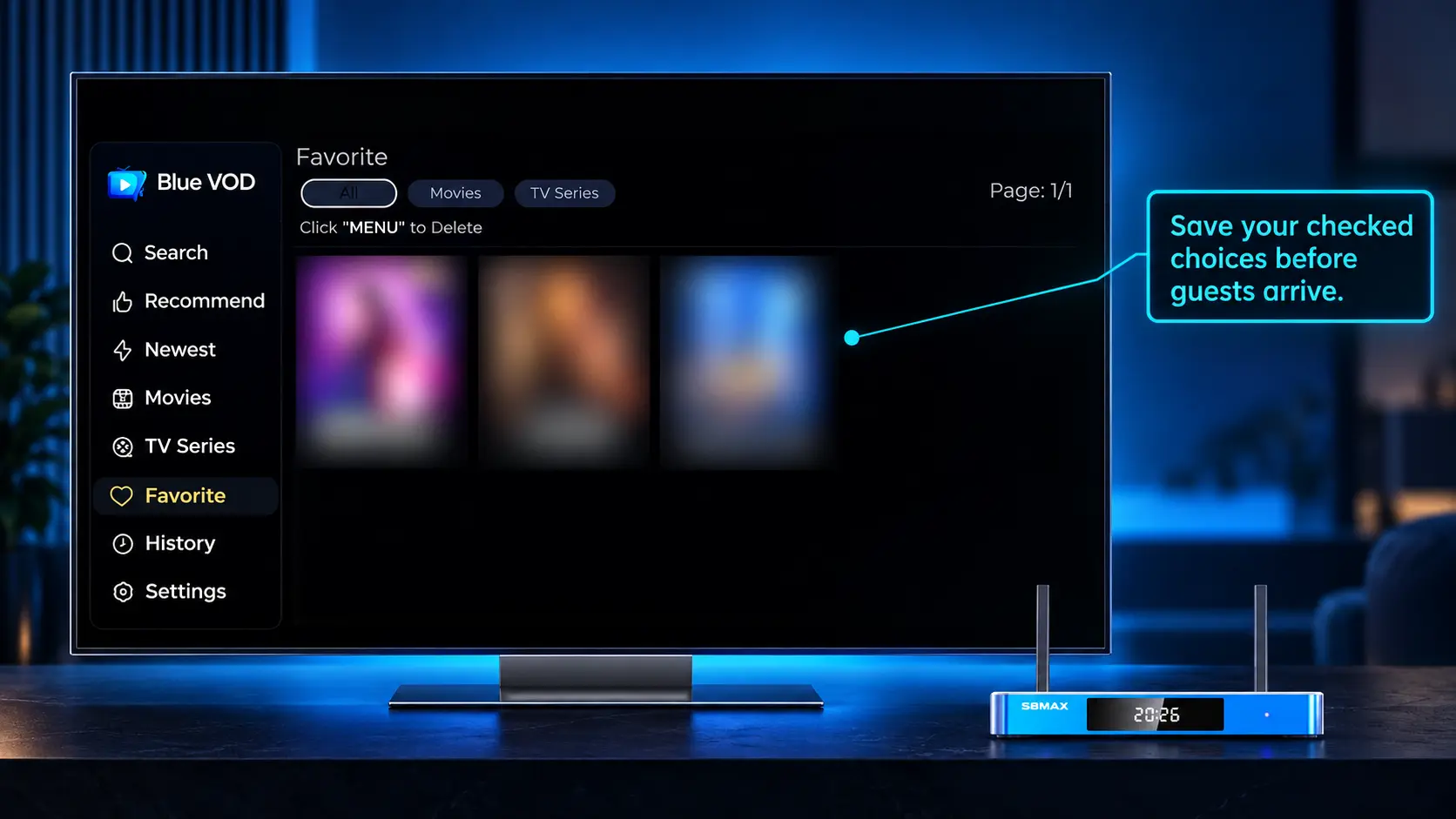
Blue VOD lets you save a title using Favorite on its detail page, then revisit it through Favorite in the app menu. Use that list for the films you have checked.
Keep a separate note of the intended order. Saving several films does not necessarily arrange them into the sequence you want or create an automatic marathon playlist.
A useful watchlist note contains four details: title and year, viewing source, runtime, and whether the required language or subtitles are available. Once those are checked, stop browsing and move on to preparing the room.
3. Prepare Your SuperBox Before Guests Arrive
If the S8 is new, finish the basic installation well before the event. Connect HDMI and the supplied power equipment, select the correct television input, and make sure the box can open its Home screen.
Our S8 Max setup guide covers that process for Max. Use the instructions and power equipment appropriate to your own model.
Connect and Test the Internet
S8 supports Wi-Fi and Ethernet. Choose the connection that works reliably where the television stands. Ethernet is worth considering when a cable can be routed neatly; Wi-Fi is convenient when running a cable is impractical.
Follow the S8 internet connection guide if needed. Then play part of a real title. A connected status icon is useful, but successful playback is the more practical test for your evening.
Test during similar household conditions to the planned marathon. If several people will be using the network, a quiet morning test alone may not reflect the evening’s experience. Leave time to investigate a problem rather than discovering it when the first film should start.
Install the Apps and Check the Remote
A Home tile does not necessarily mean the app is already installed. Open the apps you plan to use and complete any required installation through the appropriate on-device route. Our S8 app installation guide explains the SuperBox apps.
Check that the remote navigates, selects, and opens the player controls normally. If it does not, use the S8 remote pairing guide before moving on.
Add the evening’s installed apps to the Home shortcut row. You can also assign an app to a remote number through FN Quick Access and test it from Home. The S8 shortcuts guide shows the details. These shortcuts open apps; they do not select a specific film automatically.
4. Run a Picture and Sound Check From the Sofa
Horror often relies on quiet dialogue and dark scenes. A television that looks fine on a bright menu can still be awkward to watch once the room lights change.
Use a short dark scene and a quiet conversation to test the actual seating positions. Adjust the room first: move a lamp that reflects across the screen, close a bright curtain, or reposition a chair that has a poor view.
Keep some light available near the doorway and refreshments. You can create atmosphere without making it difficult for guests to move around.
Check Readability Before Changing Settings
If the picture is stretched, faces look unusually wide, or text is cut off, resolve that before the marathon. Use settings appropriate to the connected television rather than selecting the highest number on every menu.
S8 supports 4K playback and 6K decoding with compatible content and equipment. It cannot turn every source into native 4K or replace the display’s own capabilities. Our TV box resolution guide can help if you are unsure about output choices.
Listen for Dialogue and Test Subtitles
Set the volume so conversation is understandable without making louder moments uncomfortable for the room. If you use a soundbar, confirm that sound is coming through the expected speakers.
Check any subtitles the group needs before the film begins. Blue VOD exposes available subtitle tracks through its player settings; the choices depend on the title. Test a short scene rather than assuming every film has the same language options.
Once the picture and sound work, leave them alone. A working setup does not need a last-minute overhaul simply because guests are about to arrive.
5. Build Breaks Into the Marathon Schedule
Three films can fill much more of the evening than you expect. Add the actual runtimes, then include time for drinks, conversation, and stretching between movies.
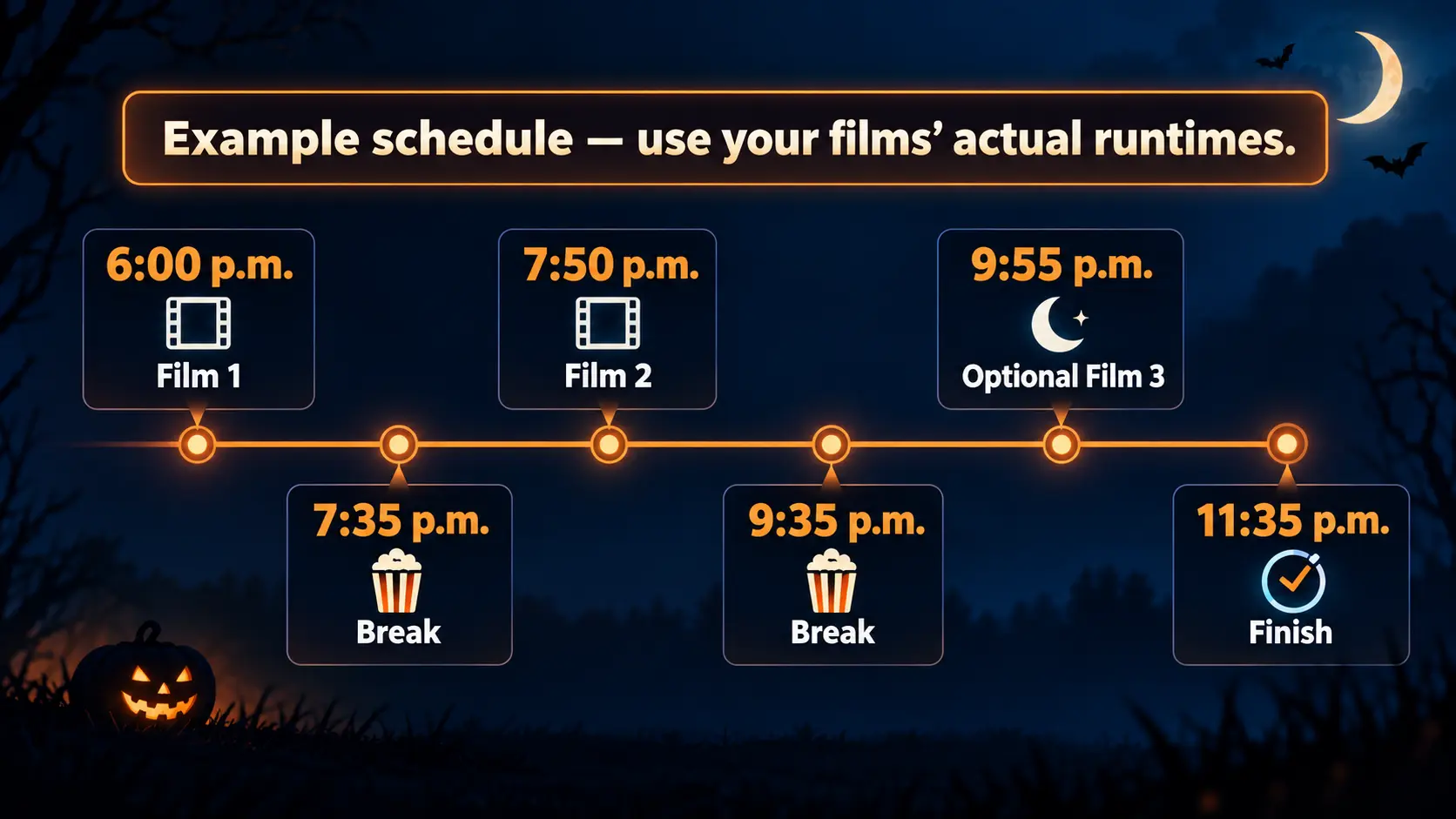
Here is an illustrative schedule using three placeholder runtimes. Replace them with your own selections.
| Time | Activity | Duration |
|---|---|---|
| 6:00–7:35 p.m. | Film one | 95 minutes |
| 7:35–7:50 p.m. | First break | 15 minutes |
| 7:50–9:35 p.m. | Film two | 105 minutes |
| 9:35–9:55 p.m. | Longer break | 20 minutes |
| 9:55–11:35 p.m. | Optional film three | 100 minutes |
That is five hours and 35 minutes, including breaks. It does not include guests arriving, choosing seats, or searching for a film. Have those parts settled before the planned start.
Agree on a finish time as well as a start time. If the group only wants a shorter evening, finish after the second film rather than treating the third as a requirement.
Make the Film Order Work for the Group
A familiar or more accessible opener gives everyone time to settle in. Put the film the group most wants to see second, when attention is still strong. Reserve the optional slot for the remaining enthusiasts.
If Halloween doorbell interruptions are likely, schedule the main feature after the busiest period or assign someone to handle the door. Do not assume live programming can be paused like an on-demand movie; check the controls of the actual source you selected.
6. Set Up Snacks and the Room for a Long Evening
Prepare food before playback, and choose things that are easy to serve between films. Popcorn, pretzels, fruit, and a sweet option can be enough. Ask about dietary preferences when planning the menu.
Use bowls and wrappers that will not need constant attention. Put napkins and drinks within reach, and leave a clear place for empty dishes. A small refreshment table can reduce trips across the picture.
For a longer evening, decide whether guests should eat beforehand or whether a simple meal belongs in the longer break. A bowl of sweets is not a substitute for planning dinner when the event spans several hours.
Check comfort from every seat. Have a few blankets available, leave space to move, and keep drinks away from the streaming box and other equipment. Decorations should add atmosphere without covering vents or blocking access to cables.
Place the remotes in one agreed location. If the TV remote controls volume while the S8 remote handles browsing, explain that arrangement to anyone helping host.
7. Have a Small Backup Plan
One unavailable title or playback problem should not force the group back into a long search.
If a film will not load, try your already-checked backup. If another title plays, that helps distinguish a title-specific issue from a wider problem. If everything online fails, check the connection before changing unrelated picture or app settings.
Our SuperBox buffering guide provides a fuller troubleshooting sequence. During the event, avoid changing several settings at once or starting a factory reset as a first reaction.
A separate viewing source you already use can be a useful fallback too. Confirm it beforehand, including any account or payment requirements. The purpose is to preserve the evening while leaving a longer investigation for another time.
The Final Horror Movie Marathon Checklist
Before pressing play, confirm:
- The group agrees on the films and level of horror.
- Exact titles, years, sources, and runtimes are checked.
- The main films and backup can play on the actual setup.
- The S8, internet connection, apps, and remote work.
- Picture, dialogue, subtitles, and room lighting have been tested.
- Breaks and the optional final film are included in the schedule.
- Food, drinks, seating, and clear walkways are ready.
- The remotes are easy to find and the first film is selected.
Frequently Asked Questions
How Many Movies Should a Horror Marathon Include?
Two main films with an optional third is a manageable starting point. Use actual runtimes and agree on the finishing time. A shorter event everyone enjoys is better than continuing only to complete a list.
Are Specific Horror Films Guaranteed on SuperBox?
No fixed title list should be assumed. Check the exact film and current viewing source on your device before planning around it. Catalogs, languages, and access requirements can change.
Can I Save a Marathon Watchlist in Blue VOD?
You can save titles through Favorite and revisit them from the app menu. Keep the intended order separately; a Favorite list should not be assumed to queue and play all films automatically.
Do I Need a 4K TV for a Halloween Marathon?
No. Use a compatible HDMI television and suitable display settings. A comfortable picture, readable subtitles, and clear dialogue matter more than buying a new screen for one evening.
Should I Use Wi-Fi or Ethernet With S8?
Use the option that works reliably in the room. Ethernet removes the wireless link between the box and router, while Wi-Fi allows more placement flexibility. Test actual playback before guests arrive.
Which S8 Model Should I Consider for Regular Movie Nights?
S8 Max is worth comparing for a household wanting movies and broader supported live-viewing features in a 64GB model. Its remote is voice-enabled but not backlit. If included illuminated controls matter, compare Ultra in our complete S8 model guide.
Get Ready for Halloween With SuperBox TV Box Store
A dedicated streaming device can stay useful long after the horror marathon finishes. The S8 interface, app shortcuts, and on-demand browsing help make it part of regular movie nights as well as seasonal events.
If you are choosing a device for your home, explore SuperBox S8 Max and others model match its features to the way your household watches. Confirm must-have viewing sources before making a purchase.
SuperBox TV Box Store is an authorized retailer serving customers in the US and Canada. Verify our retailer authorization with SP20250414002 at the SuperBox authorization website. Our practical setup guides help you prepare, and you can contact our team with purchase or model questions.
Have the first film ready, put the checklist aside, and join your guests. The preparation has done its job when the host gets to enjoy the scares too.
The article was updated on:
