
Knowledge SuperBox
How to Connect SuperBox to a Samsung TV





To connect SuperBox to a Samsung TV, run an HDMI cable from the box to a TV HDMI input, connect the correct power supply and select that same HDMI input on the Samsung remote. Then connect SuperBox to your home internet and finish its app setup.
You do not need to find a SuperBox app in Samsung’s app store. SuperBox runs on its own hardware; the Samsung TV displays the picture and plays the sound received through HDMI.
This guide covers compatible Samsung televisions with HDMI inputs, including Smart TV models and older HDMI-equipped sets. The basic connection also applies across SuperBox generations. S8 owners will find links to the current interface guides where the software steps differ.
What You Need Before Connecting SuperBox
Have these ready:
- Your Samsung TV and its remote.
- Your SuperBox and its remote.
- An HDMI cable.
- The correct power equipment supplied for your SuperBox model.
- A working home internet connection.
- Your WiFi password, or an Ethernet cable and an available router LAN connection.
Look for an unused port labeled HDMI IN on the TV. Note its number before plugging anything in. If you use HDMI 2, you will select HDMI 2 on the television.
If your Samsung model uses a One Connect Box, its HDMI inputs may be on that unit. Connect there according to the TV’s instructions; do not buy a One Connect Box for a television that does not use one.
Place SuperBox where its cables fit without strain and where you can reach the connections during setup. Begin with a direct connection to the television. Add an existing soundbar or receiver after you have confirmed that picture and sound work.
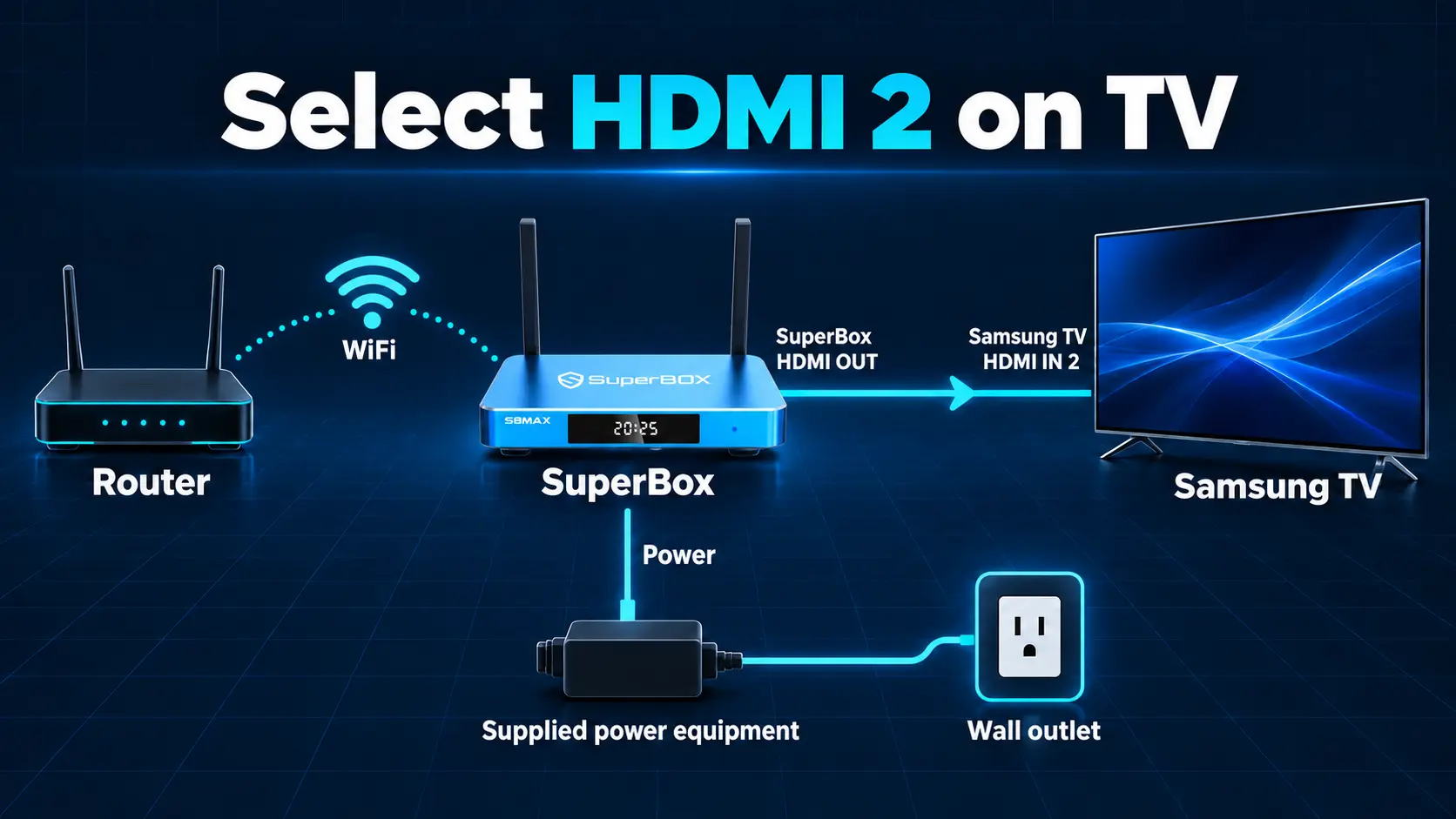
Step 1 Connect the HDMI Cable
Turn off the TV and SuperBox before arranging the cables.
- Locate the HDMI output on SuperBox.
- Insert one end of the HDMI cable into that output.
- Connect the other end to an available HDMI input on the Samsung TV or its required One Connect unit.
- Check that both ends are seated securely.
- Write down the TV port number.
HDMI carries both picture and sound for this connection. A USB cable between SuperBox and the television is not a substitute.
You can use a compatible HDMI input even if it also carries an ARC/eARC label. However, if that port already connects your soundbar, leave it available for the soundbar and use another HDMI input for SuperBox.
For the first test, avoid adding HDMI switches, splitters or converters. A direct connection makes it easier to see whether the basic setup works.
Step 2 Connect Power and Turn On the SuperBox
Connect the supplied power equipment to the designated power input on your SuperBox, then to a suitable outlet. Turn on the television and the box.
Check the exact SuperBox model before connecting power. Within the S8 Series, Pro, Max and Ultra use Type-C power; S8 Plus uses a round power connector. Older models may differ.
Use the equipment intended for the model rather than assuming any plug of the same shape will work. The TV’s USB socket is not the recommended power source for this setup.
If you have an S8 Max and want the complete first-use sequence, our S8 Max unboxing and setup guide covers the box-side connections.
A powered box may need a moment to start. If the Samsung screen still shows its own home page, the next step is to select the HDMI input.
Step 3 Select the Correct HDMI Input on the Samsung TV
Use the Samsung remote for this step.
If Your Remote Has a Source Button
Press Source, then choose the HDMI input matching the port you used. Confirm the selection if prompted.
For example, a cable plugged into HDMI 2 requires HDMI 2 in the source list. Choosing HDMI 1 will not show the box connected to HDMI 2.
If Your Remote Has a Home Button
Press Home, find Connected Devices or Source, and select the matching HDMI input. On Samsung interfaces with a left sidebar, Connected Devices appears there.
Samsung’s external-device and input guide explains this layout. Menu names vary with the television and software version.
The input may appear as HDMI, Unknown or a detected device name. You do not need the television to display “SuperBox” as the source name before using it.
Once you see the SuperBox startup or home screen, the HDMI connection is working. Keep the Samsung remote nearby for TV input and sound settings; use the SuperBox remote to continue inside the box.
Step 4 Connect SuperBox to WiFi or Ethernet
The TV and SuperBox have separate network connections. Connecting the Samsung TV to WiFi does not automatically connect SuperBox.
For an S8, use the initial Set your network screen, or open Settings → Network & Internet afterward.
Connect With WiFi
Select your home network, enter its password and choose Connect. Check the connected status, then open an app to confirm it can load content.
If your network name does not appear, refresh the list and check whether other devices can see that network from the TV area.
Connect With Ethernet
Connect the SuperBox Ethernet port to an available LAN port on your router or network equipment. Confirm the wired connection and test an app.
You need a working router connection; connecting the box to an unused TV network socket does not provide internet through the television.
Our SuperBox S8 WiFi and Ethernet guide gives the full screen-by-screen process. For unreliable wireless coverage, use the WiFi optimization guide to compare placement and connection options.
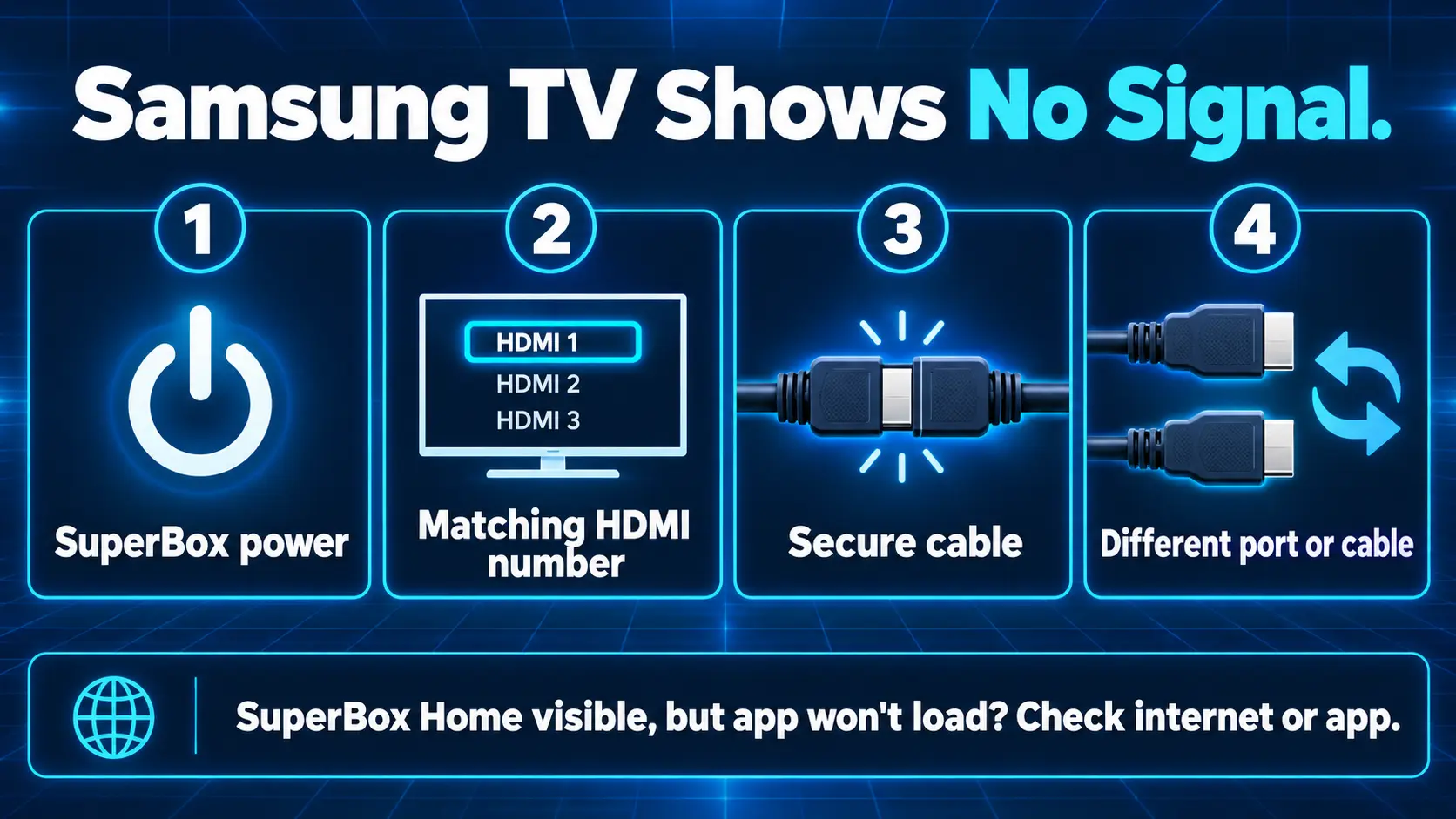
If you can see the SuperBox home screen but an app cannot load, investigate the network or app. That is a different problem from the Samsung television showing No Signal.
Step 5 Install Apps on SuperBox
Use the SuperBox interface for its app installation. Samsung Smart TVs use their own TV platform, including Tizen on current models; Samsung’s app store is separate from the app area on your box.
On the S8 interface:
- Open Apps.
- Select the internal APP Store.
- Choose the supported app you want and start its download.
- Wait for the installed indicator.
- Open it and test playback.
- Add a Home shortcut if wanted.
App installation and adding a shortcut are separate tasks. Our S8 app installation guide explains both.
Blue TV is for live channel browsing, while Blue VOD is for on-demand movies and series. The advertised SuperBox offering includes 2000+ live channels through Blue TV and a varied Blue VOD library, with no additional monthly subscription for those core apps after the compatible hardware purchase. Internet and separately chosen paid services remain separate costs.
Start with the Blue TV guide for channels or the Blue VOD guide for finding a movie or episode. Check the current app for the programming you want.
Step 6 Check Picture and Sound
Open a program, listen for sound and test another selection. Check that the Home screen and app menus are readable before changing advanced settings.
Choose a Picture Format the TV Supports
A 4K television and a 1080p television have different display capabilities. Choose an output supported by the SuperBox, TV and HDMI connection.
For compatible 4K setups, Samsung provides Input Signal Plus, called HDMI UHD Color on some older models. It enables the expanded HDMI input capabilities used by supported 4K formats.
Look in External Device Manager under Connection or General, depending on the TV, and select the port used by SuperBox. Follow your TV manual for the intended signal.
This setting does not turn an HD television into a 4K display or upgrade the resolution of a source program. See our Android TV box resolution guide if you need help choosing a display setting.
Test With TV Speakers First
For a simple starting setup, open the Samsung TV’s Settings → Sound → Sound Output and select TV Speaker or the equivalent.
Check mute and volume on the equipment you are using. If you previously listened through Bluetooth headphones, the sound may still be directed there.
After confirming TV speakers work, configure your external audio system. Our SuperBox soundbar connection guide explains TV-first HDMI ARC/eARC, receiver and optical arrangements.
Can You Use the Samsung Remote With SuperBox
Start with both remotes so you can finish setup confidently. Samsung’s Anynet+ uses HDMI-CEC to control compatible external equipment, but available functions depend on both devices.
Samsung gives these example paths:
| Samsung TV group | Anynet+ location |
|---|---|
| 2022 and newer models in its guide | Settings → All Settings → Connection → External Device Manager |
| 2021 and older models in its guide | Home → Settings → General → External Device Manager |
Enable Anynet+ (HDMI-CEC) if you want to test compatible control. Check the box’s corresponding HDMI-CEC settings where available. Basic power or navigation support does not guarantee every SuperBox app command, number shortcut or voice function will work from the Samsung remote.
Keep using the SuperBox remote for its dedicated controls. If it is not responding to the box, follow the S8 remote pairing guide.
Teaching compatible TV commands to a SuperBox remote is another option. Our remote programming guide covers the learning process; it requires compatible commands from the original remote and is separate from Bluetooth pairing.
Fix SuperBox No Signal on a Samsung TV
A No Signal message usually means the TV is not receiving a usable signal on the selected input. Check the connection before resetting either device.
Work through these comparisons:
- Confirm SuperBox has power and is turned on.
- Check that the selected HDMI number matches the physical connection.
- Turn off the equipment and reseat the HDMI cable.
- Try another TV HDMI port, then select its new number.
- Compare with a known-working HDMI cable.
- Remove a switch or receiver temporarily and test the box directly on the TV.
Samsung’s HDMI detection guide also recommends restarting the connected equipment and comparing another HDMI device.
If another source works on the same TV port and cable, that narrows the investigation toward SuperBox or its output settings. If SuperBox works on another compatible television, report that result too.
Some Samsung models offer HDMI Troubleshooting under Support → Device Care → Self Diagnosis. Use it if present; availability and labels vary.
When the TV Says Mode Not Supported
Check whether SuperBox is sending an output the TV accepts. A compatible lower resolution can be a useful test, particularly with an older TV.
If no picture is available to navigate settings, ask support for help or use another compatible display to access the box’s display settings. Avoid guessing through invisible menus.
Other Samsung TV Setup Problems
| What you see or hear | What to try |
|---|---|
| Samsung Home appears instead of SuperBox | Select the box’s HDMI source with the Samsung remote |
| The TV does not recognize the device name | Open the matching numbered HDMI input manually |
| SuperBox Home appears but apps will not load | Check the box’s network and app installation |
| Picture works but there is no sound | Check mute, Sound Output and another program |
| TV speakers work but the soundbar does not | Review the external audio connection and selected output |
| The TV or another device powers on unexpectedly | Review HDMI-CEC/Anynet+ behavior |
| Only one app or channel has a problem | Compare another selection before changing TV-wide settings |
For persistent silence, Samsung’s no-audio guide includes a built-in Sound Test. If the TV’s own test is also affected, include that result when contacting Samsung.
If you test turning Anynet+ off to investigate unexpected switching or power behavior, remember that this can also remove convenient linked controls and affect a connected audio system. Record the original setting and restore it if the change does not help.
Frequently Asked Questions
Does SuperBox Work With Samsung Smart TVs
Yes, through a compatible HDMI input and supported output format. SuperBox runs separately from the Samsung TV’s built-in apps. Check the ports and display capabilities of your exact television.
Can I Connect SuperBox to an Older Samsung TV
Yes. An older Samsung TV with a compatible HDMI input can use this setup. Select an output it supports. A set without HDMI needs a different connection assessment; our non-smart TV guide explains the options.
Can I Connect SuperBox to Samsung TV With USB or Bluetooth
Use HDMI for the picture and sound in this guide. USB and Bluetooth are not substitutes for that display connection. WiFi connects SuperBox to the router, not to the TV screen.
Do I Need a Samsung Account to Watch SuperBox
No. Samsung states that external HDMI connections remain available without signing in to a Samsung account. Its network-based smart services have separate account requirements. Complete the TV’s basic setup so you can select the HDMI input.
Does My Samsung TV Need WiFi if SuperBox Has Internet
The TV does not need its own WiFi connection just to display HDMI from SuperBox. The box needs internet for streaming. Samsung’s built-in online apps require their own working network connection.
Why Is SuperBox Missing From Samsung Apps
It is a separate device, so select its HDMI input. Install its supported apps on SuperBox rather than searching for them in Samsung’s TV app store.
Do I Need to Scan Samsung TV Channels
No channel scan is needed for the SuperBox HDMI connection. Samsung’s antenna tuning is separate. Open Blue TV or another installed app on the box to browse its available programming.
Which HDMI Port Should I Use
Use an available compatible HDMI input. If a soundbar already uses the ARC/eARC port, connect SuperBox to another suitable input and select its matching source number.
Will SuperBox S8 Make Every Samsung TV Show 4K
No. A 4K picture requires a compatible TV, supported source and suitable connection and settings. On an HD television, use a supported HD output.
Why Does the Samsung Remote Work but the SuperBox Remote Does Not
They control different equipment. First make sure you are viewing the box’s HDMI input, then troubleshoot the SuperBox remote separately. HDMI-CEC control and the box remote’s pairing are different functions.
Get Help With Your Samsung TV Setup
If setup is still incomplete, send support your SuperBox model, Samsung TV model, HDMI port number and the exact screen message. Include whether the SuperBox home screen appears and whether another device works on that HDMI port.
A photo of the connections and screen helps distinguish a cabling issue from an app problem. Keep order details in private messages.
For orders placed directly at superboxtvboxstore.com, email customer@superboxtvboxstore.com about technical questions or your order. We value your experience and want the setup to be clear and manageable.
SuperBox TV Box Store is an authorized retailer serving customers in the US and Canada. Verify our retailer status with SP20250414002 at the SuperBox authorization website.
If you are choosing a box for your Samsung television, compare the S8 Series models, view the S8 Max or explore the S8 Ultra. Choose the viewing features you need, then follow the same HDMI-first setup.
The article was updated on:
