
Knowledge SuperBox
How to Fix SuperBox Audio Out of Sync and Sound Delay





You are watching a show on SuperBox, but the words do not match the person’s mouth. Perhaps you hear a sentence before their lips move. Perhaps the picture moves on and the sound follows afterward.
The best starting point is to find out where the mismatch happens. A problem on one live channel calls for different checks from a delay that appears whenever you use a soundbar.
Start by comparing several channels and a movie, then try the television’s own speakers. Those simple tests can help you avoid changing settings that were already working.
This guide applies to SuperBox viewing setups, including S6, S7 and S8 models with HDMI output. Available app controls and device menus vary, so use the labels on your own equipment.
Quick Answer for SuperBox Audio Out of Sync
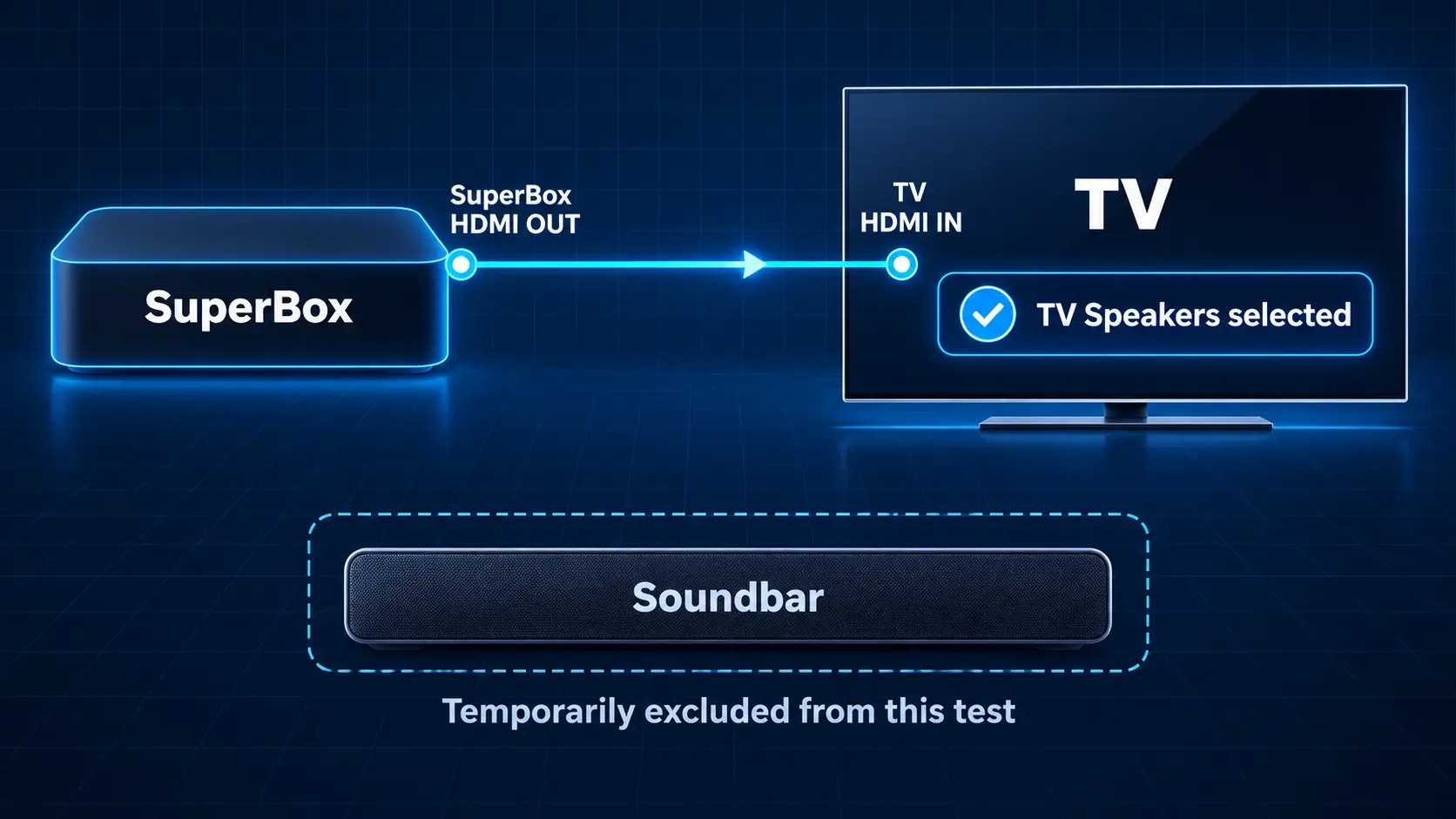
Switch to another channel or title, then reopen the affected selection. If several selections are out of sync, restart SuperBox and the TV. Next, connect SuperBox directly to the television and select TV Speakers to compare with your usual sound system.
If TV speakers work correctly, investigate the soundbar, receiver, Bluetooth connection or TV audio-output settings. Before adjusting a delay slider, check whether the sound is early or late. Adding audio delay can help early sound; it makes already-late sound arrive even later.
First Identify the Type of Audio Problem
Use a scene with clearly visible speech. Watch a presenter or actor speaking directly toward the camera rather than judging timing from crowd noise or background music.
| What you notice | What to check next |
|---|---|
| One live channel is affected | Compare other channels, reopen it and report it if the problem persists |
| One movie or episode is affected | Compare another title and check the selected playback options |
| Several selections in one app are affected | Restart that app and compare another app |
| Several apps are affected | Test TV speakers and review the HDMI and audio setup |
| TV speakers work but the soundbar is late | Review the external audio route, format and processing |
| Bluetooth audio is late but TV speakers are correct | Compare with a supported wired audio connection |
| Timing worsens after freezing or stuttering | Investigate playback stability as well as sound settings |
These patterns narrow the investigation; they do not prove which component has failed. For example, one working app does not establish that every setting or format in another app is correct.
Write down the result before moving on. “Two live channels work, but this movie is late through both TV speakers and the soundbar” gives you a much more useful starting point than “the audio is bad.”
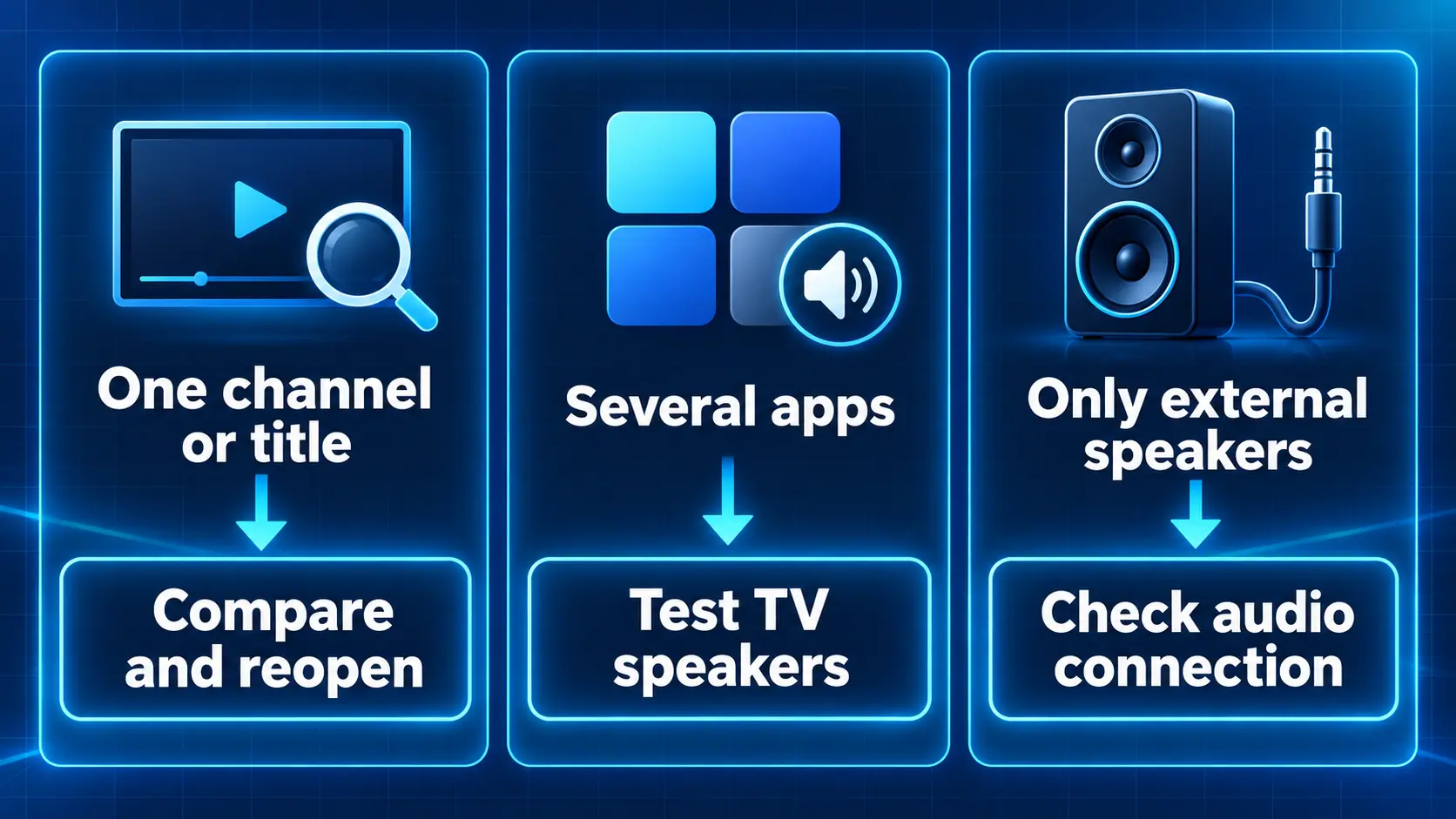
1 Compare Channels and Titles Before Changing Settings
When Only One Live Channel Is Out of Sync
Change to a different channel and listen to visible dialogue. Try another unrelated channel, then return to the affected one.
If the mismatch remains limited to that selection, the channel’s stream may need attention. Both Sony and LG identify a single-channel mismatch as a possible broadcast or signal issue.
Report the exact channel and when it happened. On the S8 Blue TV interface, open Settings, select Feedback, choose the closest audio/video problem category and confirm through the on-screen prompts. Use the options shown by your installed version. You can also send the details to support.
Avoid applying a large TV-wide delay just to correct one troublesome feed, because that adjustment may affect channels that already sound right.
If you need help navigating the live guide, use our Blue TV guide for SuperBox S8.
When Only One Blue VOD Movie or Episode Is Affected
Open a different movie or episode and compare the result. If possible, return to the same part of the original title so you can reproduce the problem.
Check that ordinary viewing uses normal playback speed. If subtitles are the only thing arriving at the wrong moment, that is a separate issue: changing subtitle timing will not move spoken audio.
On the S8 Blue VOD interface, the player has subtitle timing and decoding controls. Our Blue VOD settings guide explains them. For a repeatable playback problem, note the current decode option before testing one alternative. Restore it if nothing improves.
There is no single decoder setting that fixes every title or app version.
2 Reopen the App and Restart the Equipment
Exit the affected app, return to Home and open it again. For a movie, replay the same section. For live TV, check the affected channel and one that previously worked.
If the problem continues across selections, restart the equipment:
- Stop playback and finish any active recording.
- Use the normal restart or shutdown controls on SuperBox.
- Restart the TV, and the soundbar or receiver if you use one.
- Select the correct TV input and audio output after startup.
- Repeat the same comparison.
If normal controls are unresponsive, follow the equipment’s power-restart instructions. Avoid interrupting a software installation.
A restart is worth trying before deeper changes. Sonos’s sync guidance also starts with restarting the TV and external source when audio arrives late.
If reopening helps briefly but the delay returns, note how it comes back. Does it follow a freeze, happen after changing channels or appear during the same scene? That detail helps support reproduce the issue.
3 Test SuperBox With the TV Speakers
This comparison is especially useful if your normal setup includes a soundbar, home theater receiver or wireless headphones.
With the equipment turned off before reconnecting cables:
- Connect SuperBox’s HDMI output directly to an HDMI input on the TV.
- Turn the equipment back on and select that input.
- Open the TV’s sound settings and select TV Speakers or the equivalent.
- Disconnect Bluetooth audio for the test.
- Play the affected selection, then compare a second one.
Keep the test simple: one box, one TV and its own speakers.
If timing improves, the difference points toward the external audio route or its settings. It does not automatically mean the soundbar is defective.
If nothing changes, investigate the app, source and TV settings next. Where practical, comparing SuperBox on another HDMI-equipped TV can provide another useful result.
For connection examples, see our SuperBox soundbar and home theater guide.
4 Check Audio Format and Sound Processing
If the delay appears with external speakers, look at the TV’s digital audio-output setting. Depending on the TV, it may offer PCM, Auto or a pass-through option.
PCM is a useful compatibility test, particularly when surround-sound processing is involved. It is not a universal requirement for SuperBox.
Take a photo of the original setting, select PCM if your TV offers it, then compare the same scene. This can change the audio format reaching your sound system and may reduce available surround features.
If it does not improve timing, restore the original setting. If it helps, consult the TV and soundbar instructions to find a working format that also suits your listening preferences.
Additional sound effects can introduce processing. Try the manufacturer’s simpler or Standard sound mode where available, changing only one setting at a time.
Do not assume that “Pass-through” is always the fastest choice either. The result depends on the source, TV and receiving audio system. For a specific soundbar, follow its supported connection and format instructions.
Check the Soundbar Connection Labels
For a TV-first arrangement, SuperBox connects to a TV HDMI input. The TV’s ARC/eARC connection returns sound to the soundbar’s matching HDMI OUT / TV ARC/eARC connector.
Some soundbars also have a separate HDMI IN for a source. That allows a different arrangement: SuperBox into the soundbar, then its HDMI output into the TV.
Only try that route if the soundbar has an actual source input and supports the video format you need. A soundbar’s lone HDMI OUT connector is not a spare input for SuperBox.
Check connections before buying extra equipment. A compatible route may already be available with the devices you own.
5 Adjust Lip Sync in the Correct Direction
Describe what you see before touching a slider.
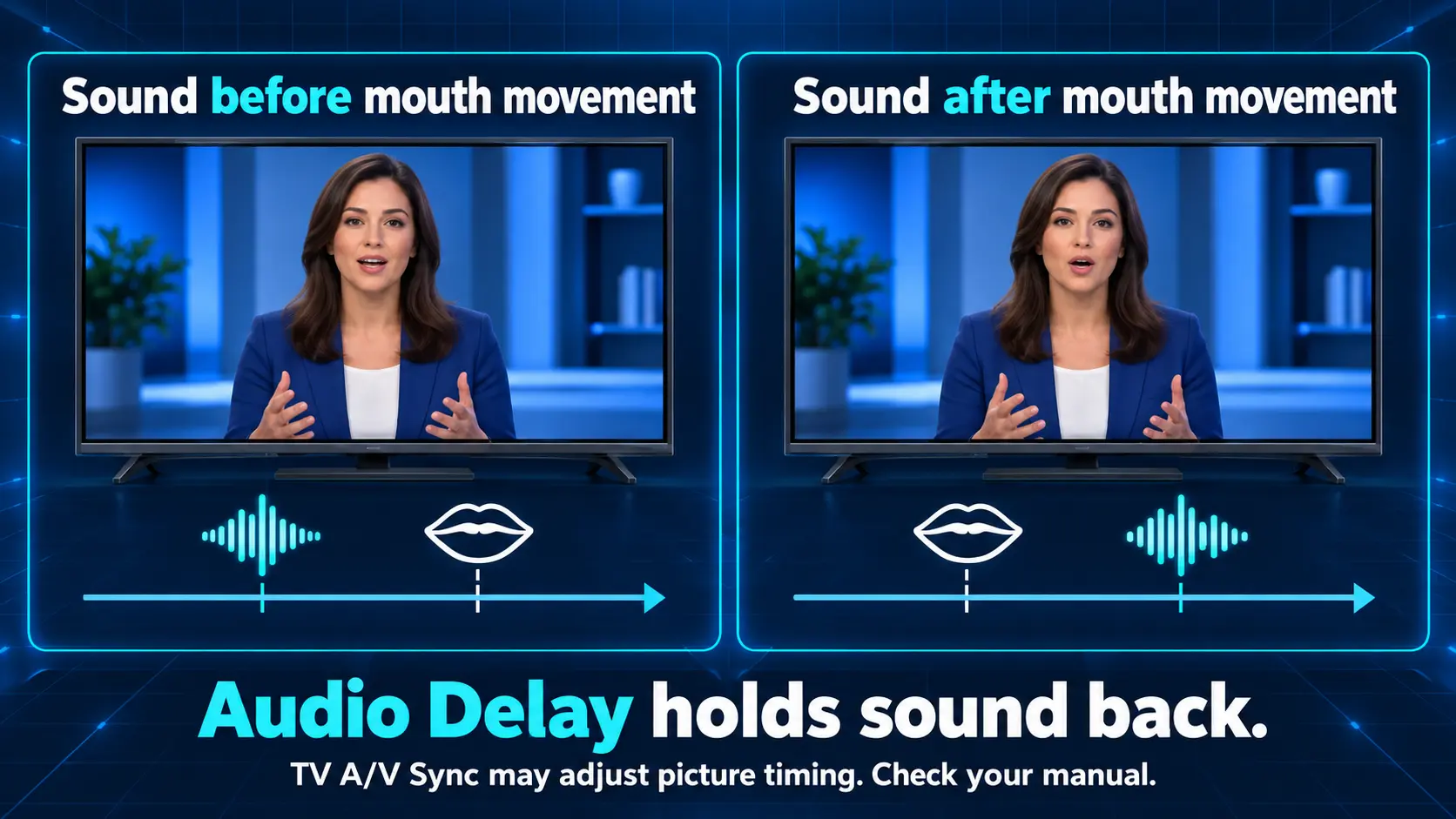
- Sound is early: you hear the word before the matching mouth movement.
- Sound is late: the mouth movement happens before you hear the word.
An audio-delay control holds sound back. It can help early audio catch up with the picture. If sound is already late, reduce any added audio delay toward its minimum before considering other changes.
Some TV controls instead delay the picture. That is why a setting called A/V Sync can behave differently from a soundbar’s Audio Delay control.
Examples From TV and Soundbar Brands
These are examples for the named equipment, not SuperBox menu paths.
| Equipment | Control to look for | How to approach it |
|---|---|---|
| Samsung TV | Sound → Expert Settings → Digital Output Audio Delay, where available | Increase audio delay when sound is ahead of the picture |
| LG TV | Match Screen and Sound, or AV Sync Adjustment on older models | Follow the model’s Bypass and speaker-delay instructions |
| Sony TV | A/V Sync | Check whether the setting delays the picture; use guidance for early or late sound |
| Sonos home theater | TV Dialog Sync in the Sonos app | Delays sound when it is ahead of the picture |
Samsung’s audio-delay instructions explain the direction of its slider. LG’s current guide gives different menu paths for newer and older webOS models. Follow the instructions matching your TV.
Record the starting value, make a small adjustment and watch visible speech again. Stop if the result worsens, then return to the recorded value.
Avoid stacking adjustments on the TV, soundbar and app simultaneously. You need to know which change helped. There is no universal millisecond value to copy from another household.
6 Compare Bluetooth With a Wired Audio Route
If the mismatch appears only with Bluetooth headphones or a Bluetooth soundbar, compare the same program using TV speakers.
Bluetooth audio can introduce delay. A newer Bluetooth version on a streaming device does not guarantee perfect timing with every speaker or headphone.
Sony’s Bluetooth sync guidance recommends TV speakers or supported wired audio connections as alternatives. For your own equipment, check which sync features are available while Bluetooth is active.
Samsung also notes that the Audio Sync feature described in its soundbar support guide is unavailable with Bluetooth or USB as the source.
If wired sound works correctly, keep that result for support. Repeatedly changing the live-TV feed or clearing app data will not tell you why Bluetooth behaves differently.
7 Investigate Buffering When the Delay Follows a Freeze
A steady mismatch from the beginning is different from playback that freezes and resumes with the sound displaced. Treat the second pattern as a playback-stability problem as well.
Compare a few selections, then test the local connection:
- Pause large downloads elsewhere in the home.
- If using WiFi, compare with a direct Ethernet connection where practical.
- Test long enough to see whether the original freezing returns.
- Reopen the affected selection after the connection is stable.
Our WiFi optimization guide explains how to compare wireless coverage with Ethernet. S8 owners can follow the WiFi and Ethernet setup steps.
An Ethernet cable can improve an unreliable local wireless link, but it cannot repair every app or channel problem. Likewise, paying for a faster internet plan is not a reliable fix for a mismatch limited to one title.
For persistent freezing, continue with our SuperBox buffering guide.
8 Keep App Maintenance Separate From Audio Adjustment
If one app remains unreliable, check for its supported update and record the version before contacting support. Also check the TV and audio system’s own update tools when the issue follows those devices.
Clearing an app’s cache may be a reasonable maintenance step when the app behaves poorly. Use the Clear Cache option in that app’s information screen if available. Clear Data, uninstalling and factory reset are different actions and can remove settings or require setup again.
On the S8 home interface, the broom-shaped Clean Up shortcut checks system memory and installation-package residue. It is not a dedicated lip-sync adjustment or the same as selecting an individual app’s cache. Our S8 Clean Up guide explains the distinction.
Do not begin with a factory reset simply because dialogue is late. First collect the channel, app and speaker-test results.
Should You Follow SuperBox Audio Fixes From Reddit
Reddit can suggest comparisons worth trying, but a comment may describe different hardware or software. For example, this SuperBox S7 Max settings discussion contains several suggestions about buffering, network tests and decoder choices. It does not establish one verified lip-sync fix for every model.
Before copying advice, check the app name, box model, TV and speaker connection. A menu from another streaming-box brand may not exist on SuperBox.
Use your own before-and-after results to decide whether a change helped.
What to Send Support if the Audio Is Still Out of Sync
Include:
- Your exact SuperBox model and affected app.
- Channel name and number, or movie and episode.
- Date, time and time zone.
- Whether sound is early, late or gradually drifting.
- Whether other channels and apps work.
- TV and soundbar models, plus the connection used.
- The TV-speaker comparison and changes already tried.
A short video showing visible speech and the sound can help. A still screenshot alone cannot demonstrate a timing mismatch.
For example:
“I use an S8 Max with [TV model]. In Blue TV, [channel] has late audio. Two other channels and a Blue VOD title are correct. The issue remains with TV speakers. It happened on [date/time/time zone]. Reopening and restarting did not resolve it.”
Replace the brackets with your results. Send order information privately.
If you purchased directly from superboxtvboxstore.com, email customer@superboxtvboxstore.com for technical or order help. We value your experience and can help you identify the next step.
Manufacturer assistance is also available through SuperBox technical support on WhatsApp, by text, or customerservice2@mysuperboxtv.com. Our support guide explains the available routes.
Frequently Asked Questions
Why Is My SuperBox Audio Out of Sync on Only One Channel
The stream for that channel may be affected. Compare other channels, reopen the selection and report the exact channel and time if it persists. One affected feed does not automatically mean the box needs replacing.
Why Is Blue VOD Audio Out of Sync on One Movie
The issue may be limited to the title or how it plays in the app. Compare another title, check normal playback speed and record any decoder test. Report the movie or episode if it remains affected.
Should I Increase Audio Delay
Only if the control delays sound and sound is arriving too early. If sound is already late, adding delay makes it later. Check the equipment manual because some TV sync controls adjust picture timing.
Will PCM Fix SuperBox Sound Delay
PCM can help identify an audio-format or processing issue, especially with external speakers. It is a test rather than a guaranteed fix, and it may change available surround features.
Why Does the Soundbar Lag When TV Speakers Work
That comparison points toward the external audio route, format or sound-system settings. Check the TV output and soundbar controls before assuming hardware has failed.
Can Bluetooth Cause Lip Sync Delay
Yes. Compare with TV speakers or a supported wired connection. Available correction settings depend on the TV and audio device, so do not assume every Bluetooth setup offers the same controls.
Should I Factory Reset SuperBox for Audio Delay
Start with channel comparisons, restarting and the TV-speaker test. A reset removes configuration and may not address a source or soundbar issue. Ask support before taking that step.
Will a New SuperBox S8 Fix Every Audio Sync Problem
No device upgrade guarantees a fix for an affected feed or external audio setup. Diagnose the current problem first. Choose a new model for its supported features and your viewing needs.
Buy SuperBox With Setup Help You Can Reach
If you are choosing a new device, compare the SuperBox S8 models or view the S8 Max and S8 Ultra.
SuperBox TV Box Store is an authorized retailer serving the US and Canada. Verify our retailer status with SP20250414002 at the SuperBox authorization website.
Buying directly from our store gives you an identifiable team to contact about your purchase and setup. Keep your order confirmation, and reach out when you need help.
The article was updated on:
