
Knowledge SuperBox
SuperBox Blue TV Not Working After Update Fast Fixes Guide





There is nothing quite as frustrating as settling onto the couch after a busy day, turning on your television, and discovering that your favorite live TV app refuses to open. When your television box performs an automatic system update or installs a new software patch, it is supposed to make things smoother, faster, and more reliable. Yet, occasionally, an update leaves Blue TV spinning on a loading circle, crashing back to the home screen, or displaying a blank screen.
If this happened to your box recently, take a deep breath: your hardware is not broken, your channel access has not disappeared, and you do not need to be an IT professional to get everything running again. In nearly every case, post-update glitches are simply caused by leftover digital clutter, a misaligned system clock, or a temporary network hiccup that can be resolved in under five minutes.
Quick Check for Immediate Relief: Over 90% of Blue TV issues following an update are solved by two simple actions: doing a full sixty-second wall plug power reset and clearing the app cache inside device settings.
If you ever run into a persistent screen freeze, you can switch immediately to Backup TV to keep watching your live games and news without missing a minute while you follow these steps.
These easy solutions work across all hardware generations, including the newest SuperBox S8, S7 models, and earlier media editions.
Why Blue TV Sometimes Acts Up After an Automatic Update?
To understand why an app might misbehave after a software upgrade, think of an update like remodeling a room in your house. When contractors install brand-new cabinets, they might leave behind cardboard boxes, leftover sawdust, and displaced furniture that gets in the way of opening the door.
In the digital world of streaming devices, software updates deliver fresh programming libraries and player improvements. However, if your TV box holds on to outdated temporary files from the previous version, the new code trips over the old files. This mismatch is what causes an app to crash upon opening or freeze while buffering.
Another very common culprit is the internal clock of your television box. Streaming servers require strict timestamp security handshakes to ensure authorized streaming. If an operating system reboot resets your time zone or shifts your device clock by even a few minutes, the servers may reject the connection, resulting in a black screen.
Finally, temporary network hiccups during the download process can leave an installation package slightly incomplete. Fortunately, none of these situations cause permanent harm, and each has a direct, effortless fix that any family member can perform with the handheld remote.
Easy Troubleshooting Checklist for Everyday Viewers
| What You See on Screen | What Is Happening | The Best Quick Solution |
|---|---|---|
| App opens for two seconds then kicks you back home | Old cache memory conflict with the new update | Clear App Cache and App Data in Settings |
| Continuous spinning wheel or black screen | Device time and date are out of sync with servers | Check Date and Time settings and select Network Time |
| Audio plays clearly but screen stays totally black | Video decoder format needs a quick refresh | Toggle video playback decoder inside player menu |
| Channel list is completely blank or missing categories | Electronic guide data failed to refresh during boot | Press Menu on your remote and choose Refresh Guide |
| Pop-up says package installation failed or corrupted | Incomplete download during the update process | Uninstall Blue TV and download fresh from App Store |

Knowing the exact behavior of your screen allows you to jump directly to the right step without guessing or resetting things unnecessarily.
Step by Step Fixes to Get Your Live Channels Back Fast
Step 1: Give Your Box a Proper Sixty Second Power Reset
Tapping the red power button on your remote control usually puts your TV box into a standby sleep state rather than shutting it down completely. While sleep mode is great for quick daily starts, it keeps temporary memory alive in the background.
To give your hardware a clean slate, turn off your television, walk over to your SuperBox, and unplug the small black power adapter cord from the back of the box. Leave the cord unplugged for a full sixty seconds. This allows all electrical charge to drain from the internal circuits, wiping away stuck background tasks.
Plug the power cord firmly back in, wait for the home screen launcher to finish loading all icons, and try launching Blue TV again. You may be pleasantly surprised to see it open instantly without further adjustments.
Step 2: Clear the App Cache and Temporary Data in Settings
If a simple power reset does not resolve the issue, clearing out the old cached files is the single most effective solution. This takes less than two minutes and cleans out all digital clutter.
From your device home screen, click on the gear icon to open Settings. Scroll down and click on Apps or Application Management. Scroll through your list of installed applications until you locate Blue TV, and click on it.
First, click on Clear Cache and confirm. Next, click on Clear Data and select OK. Clearing data wipes away any corrupt guide fragments and lets the app build a brand-new, clean database the next time you open it.
Step 3: Check and Synchronize Your Device Date and Time
It sounds almost too simple to be true, but an incorrect system clock is responsible for a huge percentage of streaming connection errors. Live broadcast servers require exact time synchronization to authenticate streams securely.
Go back to the Settings menu and select Device Preferences, then open Date & Time. Look at the date and time displayed on screen. If the year says an earlier date, or if the clock is off by several hours, your streams will not connect.
Toggle the option labeled Automatic date & time to Use network-provided time. Make sure your Time Zone matches your actual physical location (such as Eastern, Central, Mountain, or Pacific). Once the correct local time appears, restart your app.
Step 4: Reinstall a Clean Copy from the SuperBox App Store
If an app update was interrupted by a brief internet dip, the application file itself might be missing critical code pieces. In that case, doing a fresh install is quick and completely free.
Under Settings > Apps > Blue TV, click on the Uninstall button and confirm removal. Once uninstalled, press the Home button on your remote to return to your main dashboard.
Click on the official App Store icon on your home screen. Scroll through the featured media apps until you see Blue TV. Click Install or Download, and allow the system to fetch the latest verified software build directly from the cloud repository. Launch the app once installation finishes.
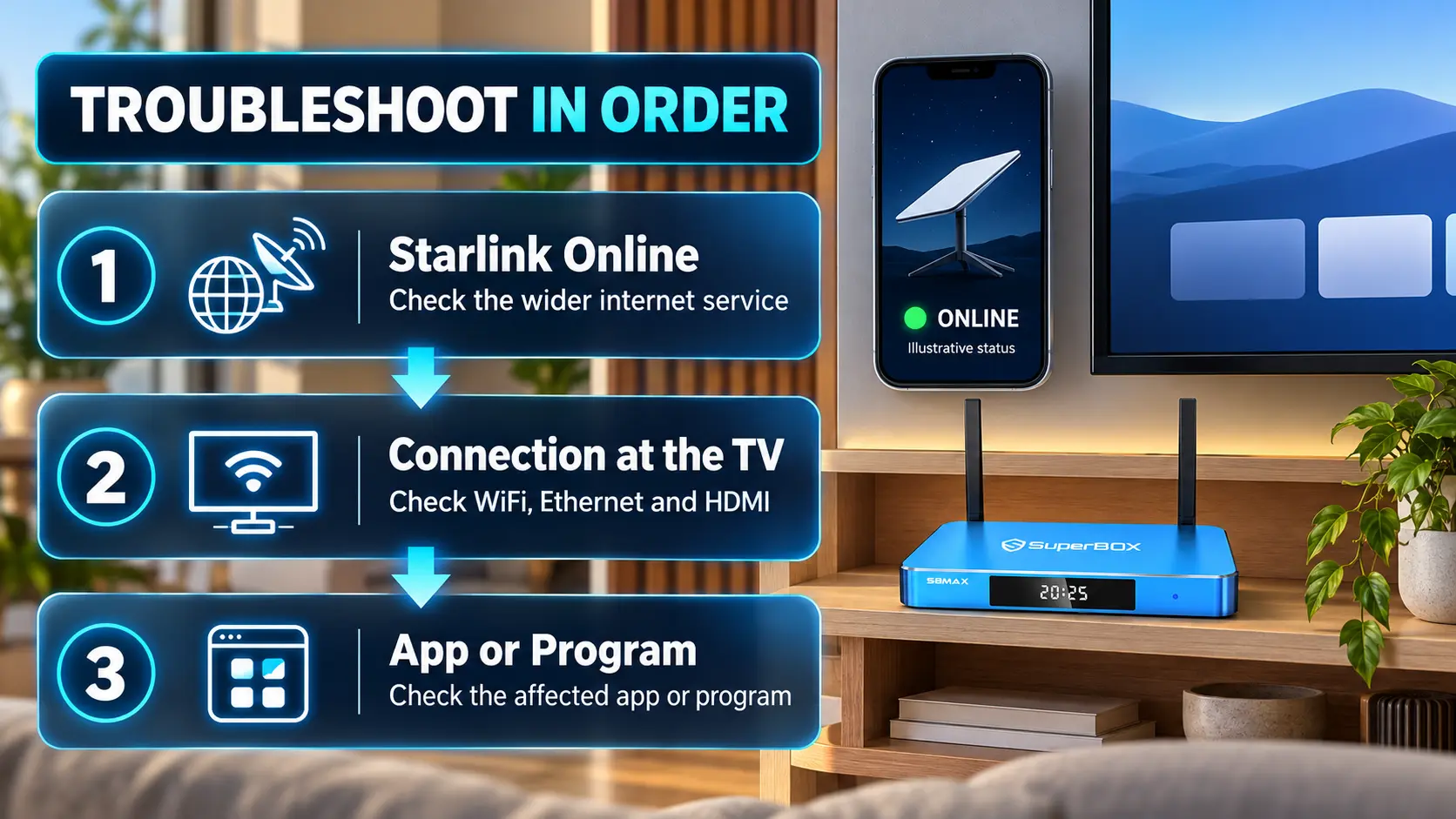
Step 5: Restart Your Home Internet Router and Check Wi-Fi Connection
Sometimes the issue is not with the box or the app at all, but rather with your home Wi-Fi router. Home routers handle hundreds of connection requests daily and can hold on to outdated routing paths after server updates.
Unplug your home router and modem from their electrical outlets. Wait thirty seconds, plug them back in, and give them two to three minutes until all status lights return to steady green. This flushes the router memory and assigns a fresh, clean connection path to your TV box.
If your television box sits far from your router, wireless signal drops can cause video feeds to stall. Check our detailed guide on resolving SuperBox Wi-Fi problems and connectivity drops to ensure your setup enjoys maximum wireless strength.
Helpful Adjustments Inside the Blue TV Player Settings
Once you are able to open the application, there are a few simple internal player adjustments that can make your viewing experience much smoother and prevent future playback stutters.
While watching any live channel, press the Menu button on your remote control to bring up the player options sidebar. Look for an option titled Decoder or Video Player Engine.
Most boxes default to Hardware decoding, which uses the physical processor to unpack video streams. If you notice that audio plays while video stutters, switching the decoder setting to Hardware Plus or Software can instantly smooth out the broadcast.
You can also check the Buffer Size setting. Changing the buffer from Normal to High gives your box a five-second data cushion, which eliminates micro-pauses during live sports broadcasts when network traffic spikes.
Simple Maintenance Habits to Prevent Future Update Issues
Keeping your television box healthy does not require ongoing effort, but developing a few simple habits will ensure you rarely encounter update hiccups again.
Whenever you see a system notification alerting you that a firmware or app update is downloading, leave the device alone until it finishes. Never turn off the box, unplug the cord, or press random buttons while an update progress bar is moving across the screen.
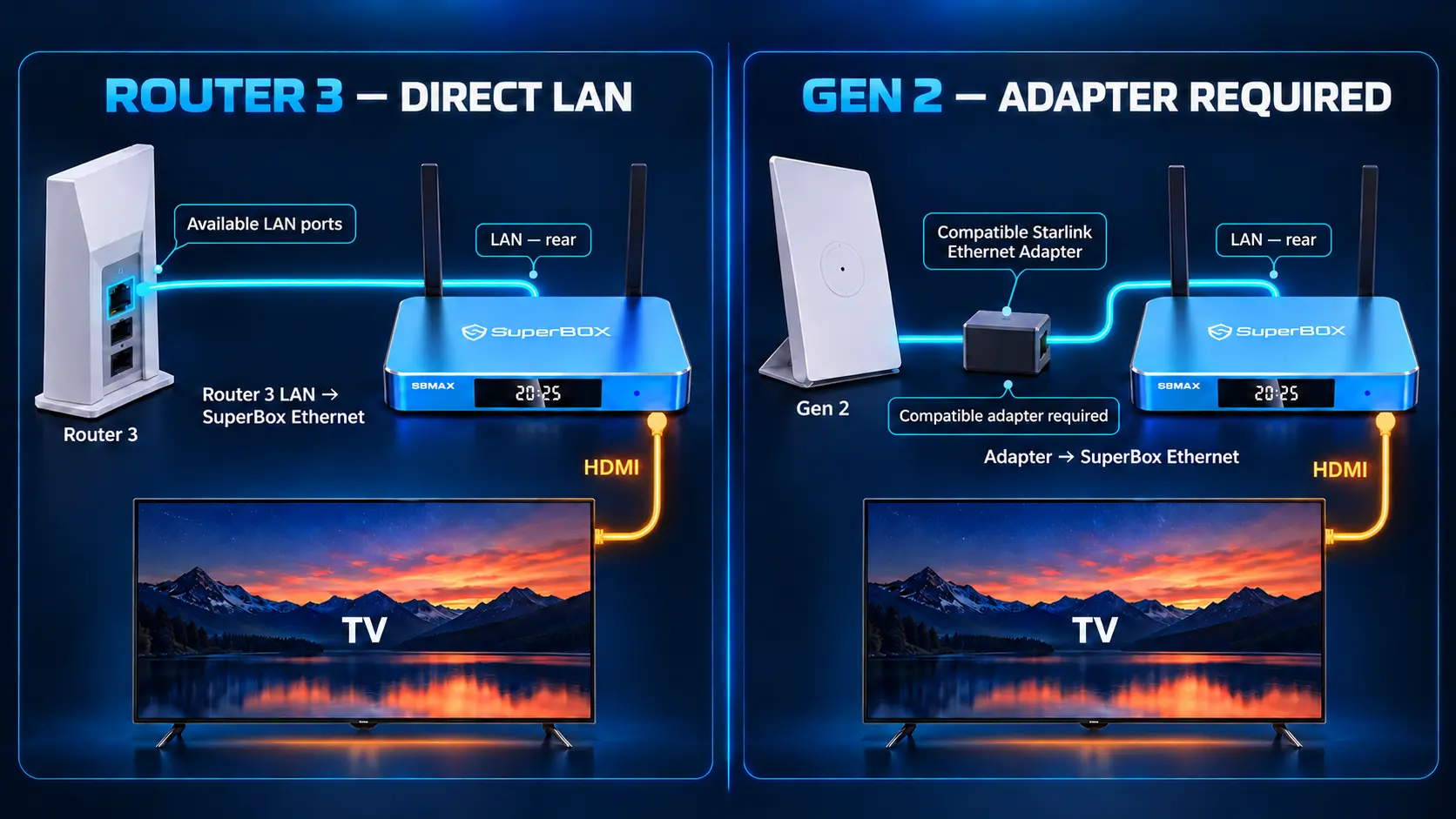
If possible, connect your media box directly to your home router with an Ethernet cable. Wired connections provide uninterrupted data delivery, ensuring that software downloads never suffer from packet drops or file corruption.
Once a month, take thirty seconds to perform a power cycle by unplugging the power cord for a minute. Just like a smartphone or a laptop computer, streaming media hardware benefits tremendously from a regular memory refresh.
What to Do If Only Specific Channels Are Buffering
It is important to distinguish between an app failure and an isolated channel feed maintenance. If ninety percent of your channels play flawlessly, but one specific premium sports or movie channel spins, the app itself is functioning perfectly.
Major live events, such as championship boxing matches, playoff games, or major tournaments, draw millions of simultaneous viewers. Streaming content providers occasionally perform rapid load-balancing adjustments on specific servers to handle peak viewer surges.
When an individual channel buffers, check if there is an alternate stream listed in the guide (such as Channel Name Line 2 or Channel Name Backup). Switching to the secondary stream will almost always provide an instant, crisp feed while engineers finish server balancing.
You can also explore on-demand entertainment through Blue VOD, which operates on independent content distribution networks and remains unaffected during live broadcast maintenance.
Frequently Asked Questions About SuperBox Blue TV Updates
Why did Blue TV start crashing right after the update finished?
Post-update crashing happens when temporary cached files from the older version conflict with newly installed system code. Clearing the app cache and data in the device settings resolves this conflict instantly.
Will clearing cache or data erase my saved favorite channels?
Clearing the cache leaves your favorites intact, while clearing data resets the channel guide to its clean default state. While you may need to re-star your favorite channels, doing so takes just two minutes and guarantees stable playback.
Do I need to pay anything or enter a subscription code after updating?
No. SuperBox devices operate without monthly subscriptions, and legitimate system updates never require you to purchase renewal keys, passcodes, or ongoing service fees. Access remains fully active automatically.
How long does a normal Blue TV reinstallation take?
Uninstalling the old app and downloading a fresh copy from the built-in SuperBox App Store takes between two and three minutes on standard home high-speed internet.
Can I use Backup TV while Blue TV is updating or downloading?
Yes. Backup TV is an entirely independent companion app built into your system. If Blue TV is updating, reinstalling, or refreshing its channel database, you can open Backup TV and continue watching your live shows immediately.
Why does my screen stay black even though I hear sound?
Hearing sound without picture indicates a video decoding mismatch. Press Menu on your remote while the channel is playing, locate the Decoder option, and switch between Hardware and Software decoding to immediately bring the picture back.
How do I know if the problem is my home internet or the server?
Open other apps on your home screen, such as YouTube, Blue VOD, or a web browser. If other apps stream video smoothly, your home internet is fine and you simply need to clear the Blue TV cache or check your device clock.
What should I do if the SuperBox App Store says download failed?
A download failed message usually means your TV box briefly lost its internet connection or internal storage is full. Restart your router, verify your Wi-Fi connection in Settings, and delete any unused apps before attempting the download again.
Is it safe to factory reset my SuperBox if Blue TV still does not work?
Factory resets should always be a last resort. Clearing app cache, syncing device date and time, and reinstalling from the App Store fix over ninety-nine percent of issues without wiping your box clean.
Who can I contact if none of these simple steps fix my issue?
If you have worked through all five steps and your app still fails to load, reach out directly through our verified Contact Us page. Our dedicated support team can review your device model and provide direct guidance to restore your service.
Final Thought
Experiencing an unexpected interruption when you sit down to relax is never fun, but software updates are an essential part of keeping your television box modern, secure, and compatible with the latest broadcast standards. When temporary post-update hiccups occur, they are almost never a sign of hardware failure.
By keeping a cool head, doing a sixty-second power reset, clearing out old cached files, and ensuring your system clock matches network time, you can resolve virtually every app issue in just a few minutes. You do not need to be a technology wizard to maintain an incredible home entertainment experience.
Bookmark this practical troubleshooting guide so you have it ready whenever a new update rolls out. With these simple habits in your toolkit, you can enjoy seamless, crystal-clear live television, news, and world-class sports every day of the year.
The article was updated on:
