
Knowledge SuperBox
What Is Rewind Feature on SuperBox ? How to Use It?





We have all been there. You rush home from work, hurry into the living room, and turn on the television, only to realize the big football game kicked off twenty minutes ago. Or perhaps you are watching a suspenseful mystery drama, and the doorbell rings right as the detective reveals the secret.
In the past, missing a live television moment meant waiting for late-night reruns or setting up clunky recording machines hours ahead of time. Today, modern streaming media hubs like SuperBox offer a built-in rewind feature that gives you total control over live television, letting you turn back the clock with a simple press of a button.
Quick Viewer’s Summary: The SuperBox rewind feature lets you pause live TV, jump backward to replay key moments, and catch up on full shows aired over the last seven days.
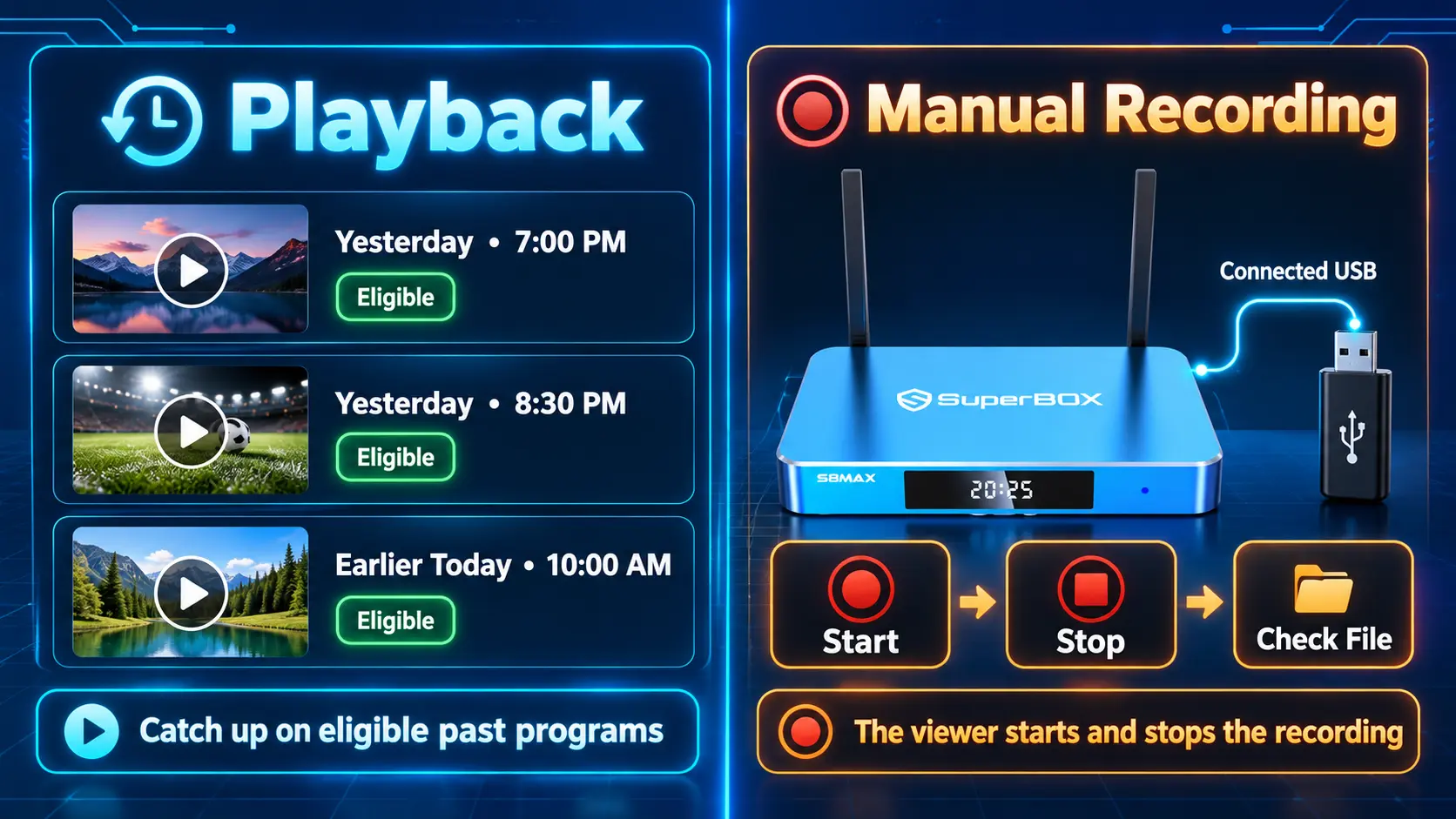
Everything runs smoothly in the cloud through the built-in Playback application. You do not need to buy external hard drives, set complicated recording timers, or pay monthly DVR subscription fees.
This friendly guide breaks down how the rewind function works on the SuperBox S8 and previous models, with simple step-by-step instructions for everyday viewers.
What Is the TV Rewind Feature in Simple Everyday Terms?
Think of the rewind feature like having a digital time machine for your television screen. On standard traditional TV, live broadcasts flow in one direction. Once a scene passes across your screen, it is gone forever unless you had a recording device actively running.
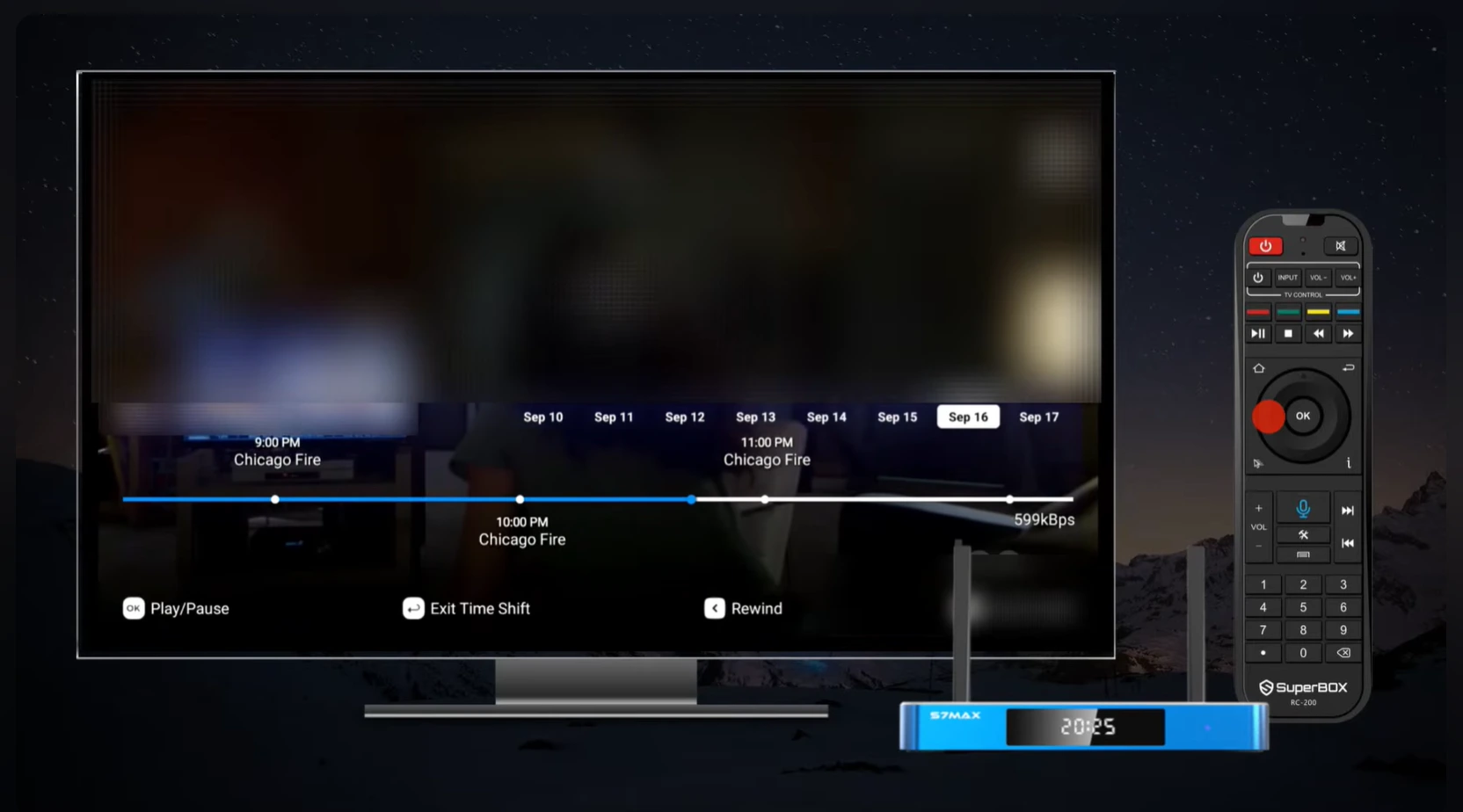
With modern streaming technology, television networks continuously save broadcast streams on powerful cloud servers. When you watch on your SuperBox, the device allows you to travel backward along that stream timeline whenever you please.
Did someone speak too softly during a dramatic scene? You can tap a button on your remote to jump back 10 seconds and hear the dialogue again. Did your favorite team score an unbelievable goal while you were grabbing a snack in the kitchen? Simply rewind and watch the action in full detail.
This capability transforms passive television into an active, convenient entertainment hub that fits around your life, your family routines, and your personal schedule.
The Magic of Seven Day Playback Without Monthly DVR Fees
For decades, cable companies charged customers heavy monthly equipment rental fees for digital video recorders (DVRs). These physical set-top boxes had noisy spinning hard drives that could only hold a limited number of recorded hours before running out of space.
SuperBox replaces all that expensive clutter with an effortless feature called 7-Day Playback. Behind the scenes, central high-speed cloud networks automatically record popular live channels 24 hours a day, seven days a week.
This means you do not have to remember to hit record before leaving for work or heading out for dinner on the weekend. If a major award show, championship playoff game, or primetime series aired on Tuesday evening, it sits waiting for you to watch whenever you sit down on Friday night.
Because these recordings are stored securely in the cloud, they do not consume any internal storage space on your device. You can enjoy hundreds of hours of television catch-up without ever seeing a storage full error message.
Comparing Everyday Live TV with Cloud Rewind Streaming
| Viewing Experience | Traditional Cable Television | SuperBox Cloud Rewind & Playback |
|---|---|---|
| Live Control | Only watch what is playing right now | Pause, jump back, and replay anytime |
| Missed Shows | Must wait for network reruns | Browse back up to 7 full calendar days |
| Hardware Storage | Requires bulky DVR boxes with fee | Zero local drive storage needed (Cloud-hosted) |
| Monthly Expenses | $15 to $25 monthly DVR rental costs | $0.00 / month (Included with hardware ownership) |
| Scheduling Hassle | Must manually program recording timers | Automatic continuous cloud recording |
| Fast Forwarding | Limited to shows manually scheduled | Scrub through full programs on your own schedule |
Step by Step Guide to Using the SuperBox Rewind Feature
Step 1: Open the Playback App from Your Home Screen
Turn on your television and your SuperBox. On the main home screen, look for the circular blue icon labeled Playback and press the central OK button on your remote.
If you are already watching live television in Blue TV, you can also press the OK button on your remote to bring up the channel guide, then navigate to the Playback category listed on the left menu.
Step 2: Choose Your Channel and Past Date
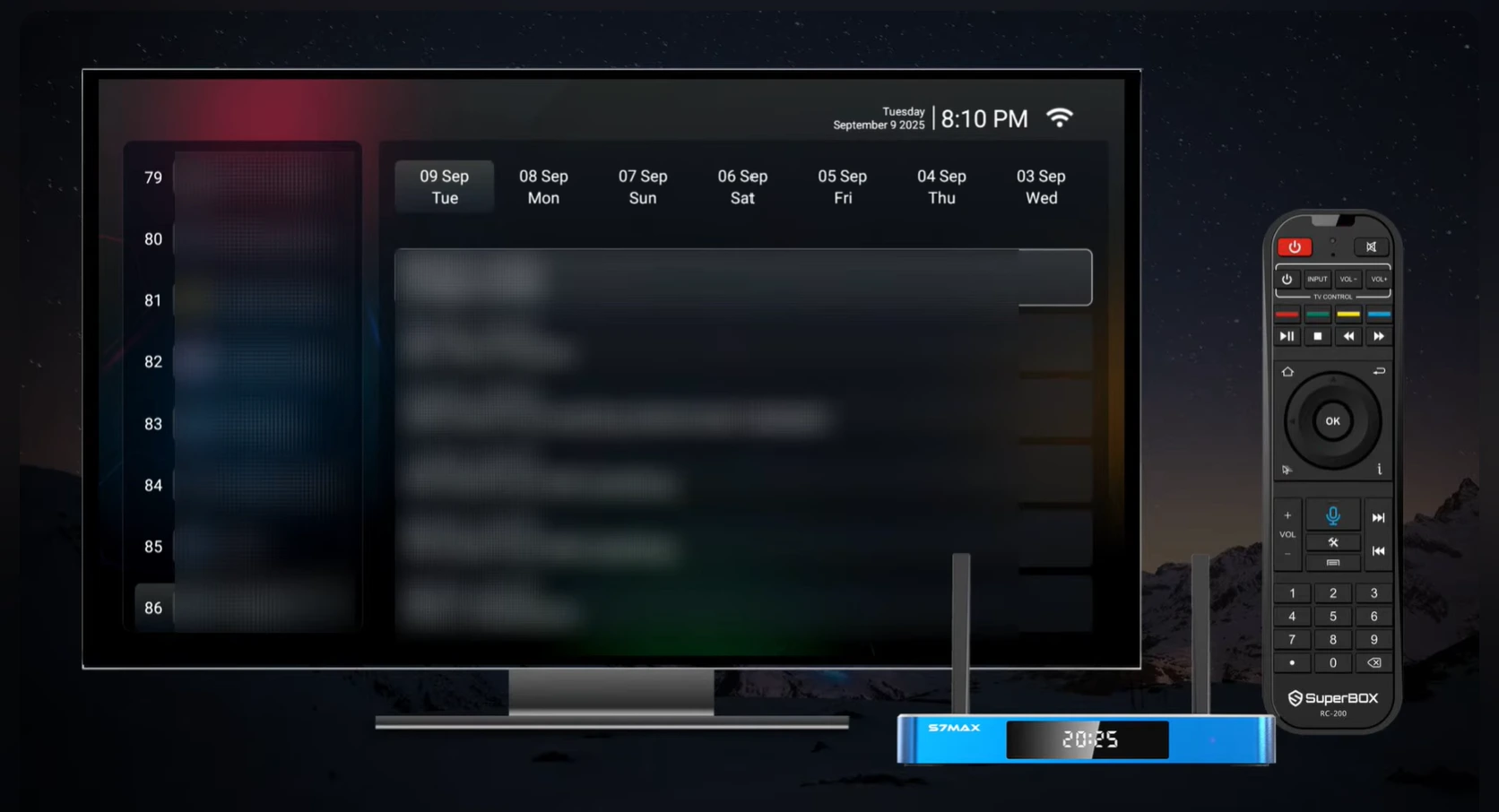
Once the Playback screen opens, you will see a clean, organized television guide. On the left side, channels that support 7-day catch-up are clearly displayed with channel numbers and recognizable logos.
Across the top of the screen, you will see the last seven calendar days. Use your remote arrow keys to highlight the specific date when your show originally aired, whether that was yesterday, three days ago, or last Sunday.
Step 3: Select the Exact Program You Want to Watch
After picking a date, scroll vertically through the scheduled program list. You will see show titles, episode descriptions, and original broadcast start times listed down to the minute.
Highlight the episode or sports match you wish to view and press the OK button. The video stream will start playing immediately from the very beginning of the broadcast.
Step 4: Use Remote Shortcuts to Pause and Skip Ahead
While enjoying your show, your remote control gives you full freedom over the playback timeline.
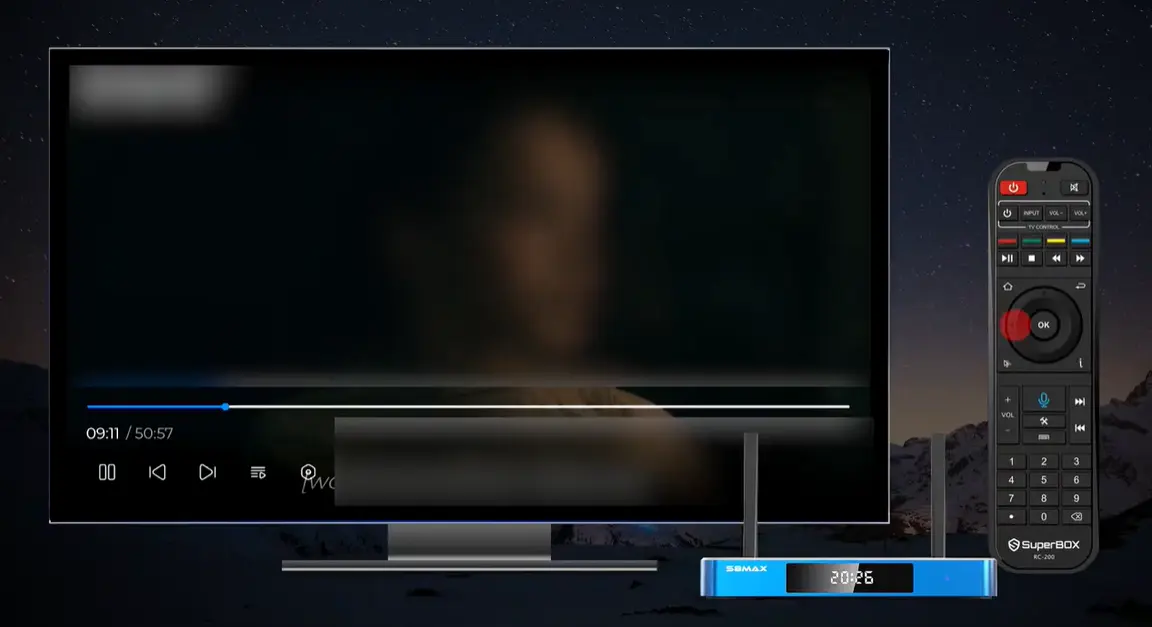
Press the Play/Pause button to pause the video if you need to step away from the room. Press the Left Arrow key to jump backward by 10 or 30 seconds to rewatch an exciting play.
Press the Right Arrow key to skip forward through commercial breaks or halftime studio discussions, letting you jump right back into the core action.
Real Life Situations Where the Rewind Feature Shines
Having instant rewind and 7-day playback changes the rhythm of your household in wonderful ways. Here are a few common everyday moments where this feature makes all the difference.
Busy Family Dinners: If evening dinnertime overlaps with the nightly news or a favorite reality competition, there is no need to rush your meal. Let the show start, sit down with your family, and simply launch the playback feed when everyone is ready to relax.
Weekend Sports Marathons: When multiple football or soccer games kick off at the exact same hour on Saturday afternoon, you no longer have to choose between them. Watch one live, and then rewind the second game later that evening without spoiling the score.
Bedtime for Kids: If a family animated movie or holiday special begins late on a school night, you can send the children to bed on time and rewatch the entire telecast together on Saturday morning.
Helpful Tips for Smooth and Buffer Free Playback
Because recorded playback streams high-definition video directly from cloud servers, keeping your home internet connection healthy ensures a silky smooth experience.
A steady download speed of 25 Mbps to 50 Mbps is plenty for high-definition streaming. If multiple people in your household are streaming movies or playing online games at the same time, a 75 Mbps or 100 Mbps home plan provides comfortable headroom.
Whenever practical, connecting your SuperBox directly to your home router with an Ethernet network cable provides the most reliable connection. If using wireless Wi-Fi, make sure your box is connected to the faster 5GHz network band or modern Wi-Fi 6 wireless networks found on newer models.
Taking a moment every few weeks to click the built-in system cleaner app on your home screen clears out temporary memory, keeping your menus fast and snappy.
Frequently Asked Questions About SuperBox Rewind
Can I rewind any live TV channel or only specific ones?
The 7-day Playback feature covers a wide selection of top sports networks, major national broadcast channels, news networks, and popular entertainment stations. Inside the guide, eligible channels are indicated with an interactive clock icon.
How many days back can I watch missed programs?
You can browse back up to seven full calendar days, or 168 hours from the current broadcast time. Programs older than seven days are gradually cycled out to make room for fresh daily recordings.
Do I need to buy a USB stick or hard drive to save shows?
No extra storage devices are needed. All recordings live on cloud servers, so you can access thousands of hours of past television without buying thumb drives or external hard drives.
Can I pause a live sporting event while taking a phone call?
Yes, you can pause live sports at any moment. When your call finishes, simply press Play to pick up the action right where you paused it, or fast forward to rejoin the live action.
Will rewinding live TV use up all my internet data?
Rewinding uses standard streaming bandwidth similar to watching any regular high-definition video. If you have standard home broadband with unlimited data, you can rewind as often as you like with zero concerns.
What happens if I rewind past the start of a program?
In the Playback application, shows are segmented by their official scheduled air times. If you scroll all the way to the start, the video pauses at the opening frame, or you can select the preceding show in the guide.
Can I fast forward through commercials during playback?
Yes, while watching past broadcasts inside the Playback app, you have complete freedom to fast forward across commercial segments using your remote arrow keys.
Why is the playback screen showing the wrong air time?
If program times seem off by an hour or two, your device timezone may simply need a quick adjustment. Go to Settings, open Date & Time, and confirm your local timezone is selected.
Does the rewind feature work on all SuperBox models?
Yes, the Playback and rewind capability is standard across the entire SuperBox lineup, including the latest S8 series as well as popular previous models like the S7 and S6.
What should I do if a playback video starts buffering?
If a video pauses to buffer, check your Wi-Fi signal strength or restart your home router. If you ever need personal troubleshooting help, our team is always happy to assist through our official Contact Us page.
Final Thoughts
Television should bring relaxation and joy to your household, not stress over missed start times or rigid broadcast schedules. The SuperBox rewind and 7-day playback feature puts you in the director’s chair, giving you the freedom to pause, replay, and catch up whenever life permits.
Whether you are keeping up with dramatic series, savoring championship sports plays with friends, or making sure the children never miss their favorite weekend shows, cloud playback delivers effortless convenience without expensive monthly DVR bills.
Take a few moments this evening to explore the Playback app on your home screen. Once you experience the comfort of watching television on your own terms, you will wonder how you ever managed without it.
The article was updated on:
