
Knowledge SuperBox
What Is Blue TV ? Complete Guide to the Live Streaming App





Blue TV is a dedicated live television streaming application developed for SuperBox Android TV hardware, designed to organize and stream live sports, news, entertainment, and regional broadcast channels through a clean, intuitive electronic program guide without monthly subscription fees. Instead of charging recurring bills like traditional cable or paid streaming packages, access to the Blue TV network is tied directly to your authorized SuperBox device hardware.
Here is what you need to know about Blue TV at a glance:
- It functions as an electronic program guide and media streaming interface specifically engineered for SuperBox media devices.
- It does not come preloaded out of the box; customers easily download and install it in under two minutes from the App Store or App Installer on their device.
- It includes advanced viewing features such as 7-Day Time-Shift playback, customized favorite channel groups, parental controls, and multi-screen viewing on supported models.
- Access is 100 percent subscription-free with no monthly contracts, renewal fees, or hidden service charges.
Understanding the Basics: What Makes Blue TV Different?
If you are exploring cord-cutting options to eliminate expensive cable packages, you have likely heard people talking about Blue TV in connection with SuperBox. Many newcomers wonder whether Blue TV is a subscription service like Sling or YouTube TV, or if it is a built-in channel tuner.
At SuperBox TV Box Store, we describe Blue TV as a specialized media portal built directly for the Android TV operating system. Unlike generic streaming apps that you download on a smartphone, Blue TV is optimized specifically for home television screens and handheld remote controls.
It brings the familiar convenience of traditional cable television, including number-based channel tuning, grid-style program schedules, and instant category switching, into a modern, internet-connected media player.
The biggest difference between Blue TV and conventional television is how content is delivered. Traditional cable depends on physical coaxial cables screwed into your wall, while satellite television requires a dish mounted outside that can lose signal whenever heavy rain or snow rolls in. Blue TV streams digital video streams over your standard home broadband internet connection, whether through high-speed Wi-Fi or a wired Ethernet cable.
Because the software works hand-in-hand with SuperBox hardware decoders, video streams load rapidly, channels transition smoothly, and audio stays locked in perfect synchronization.
Hardware Independence: Clean Devices and the App Store System
One of the most important concepts to understand about SuperBox devices sold by authorized retailers like SuperBox TV Box Store is that the consoles arrive as clean, open Android TV media players.
Our products do not ship with preloaded media applications or pre-installed copyright streams. When you take your new SuperBox S8 Ultra, S8 Max, S8 Plus, or S8 Pro out of its retail box, you will find a pristine, responsive Android TV desktop.
To start using Blue TV, you simply use the pre-installed App Store or App Installer tool located on your home screen:
- Connect your SuperBox to your home Wi-Fi or Ethernet cable and complete the initial setup.
- Open the App Store or App Installer tile on your home launcher screen.
- Locate the Blue TV icon among the available media utilities.
- Click Install or Download. The box will download the application package, unpack it, and create an icon on your home screen in under two minutes.
- Click Open to launch Blue TV for the first time.
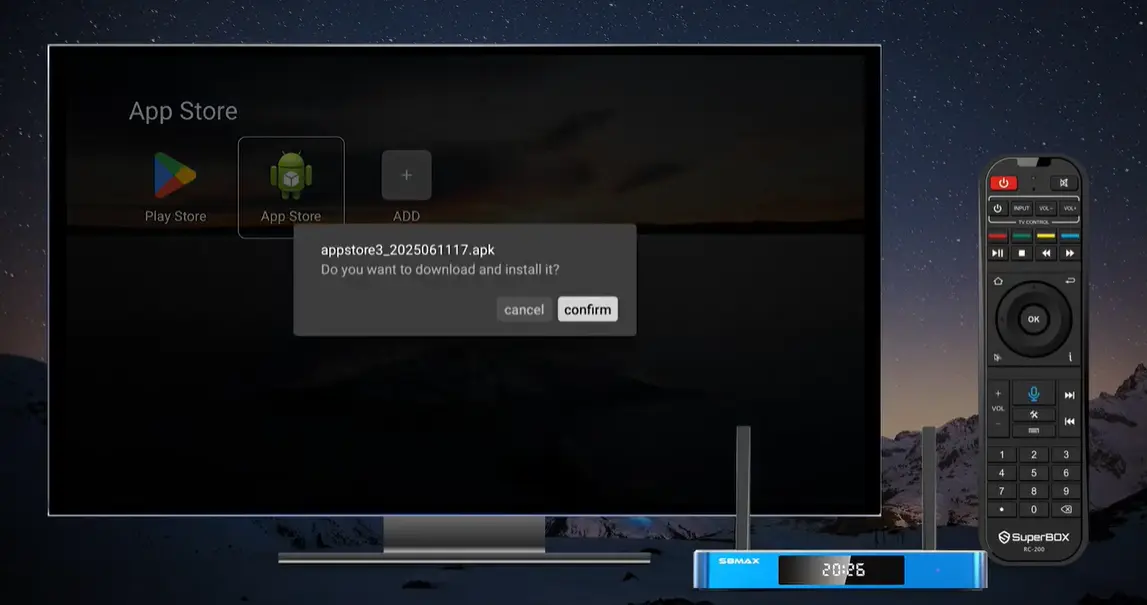
This clean-device approach ensures compliance, protects customer privacy, and guarantees that you always download the newest, most stable build of the software directly from the application repository.
Comparing Blue TV Against Traditional Cable and Paid Streaming Subscriptions
To see why Blue TV has become so popular among cord-cutters across the United States and Canada, it helps to compare it directly against the monthly costs and restrictions of legacy cable providers and popular streaming subscriptions.
The average American household paying for traditional cable or satellite TV spends between $110 and $180 every month once you factor in broadcast TV surcharges, regional sports fees, and monthly box rental charges. Over three years, that adds up to more than $4,000 in recurring bills.
Popular streaming services like YouTube TV or Hulu + Live TV offer internet-based alternatives, but their monthly fees have steadily climbed to $75 to $90 per month, plus extra fees for add-on sports tiers or commercial-free upgrades.
The table below breaks down the major differences:
Key Features and Navigation Capabilities Inside Blue TV
Comprehensive Electronic Program Guide (EPG)
The Electronic Program Guide is the heart of Blue TV. When you press the Guide or OK button on your remote, an intuitive on-screen schedule opens over your current broadcast.
You can browse through channels while your current program continues playing in a live preview window in the corner. The EPG displays what is currently playing, what program is up next, and the exact start and end times for every broadcast.
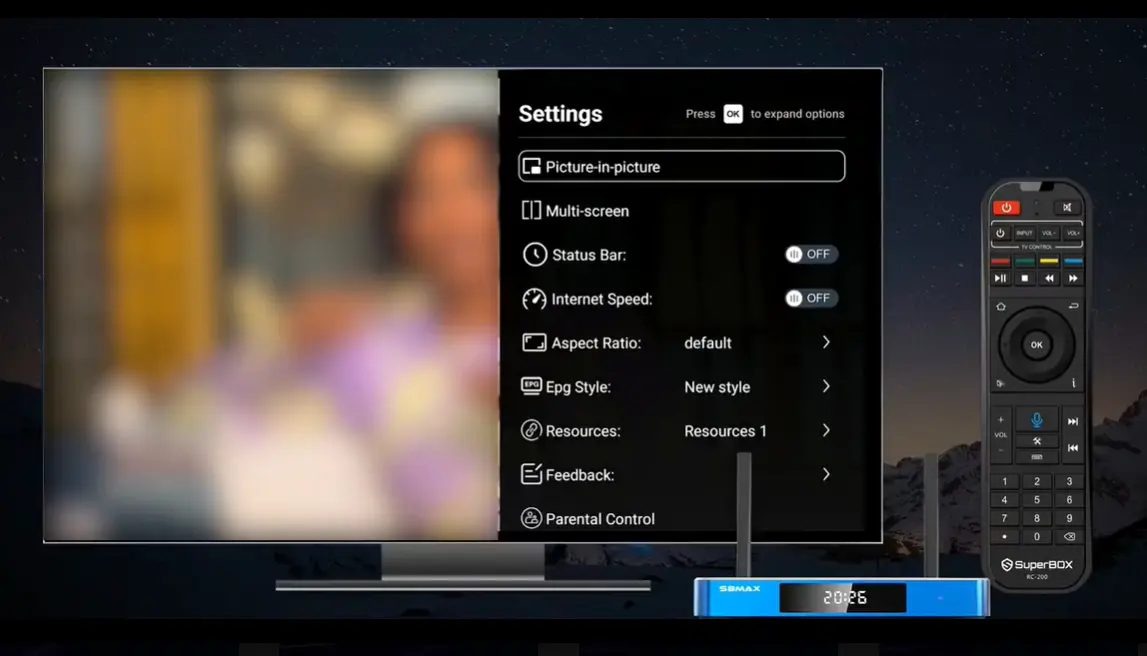
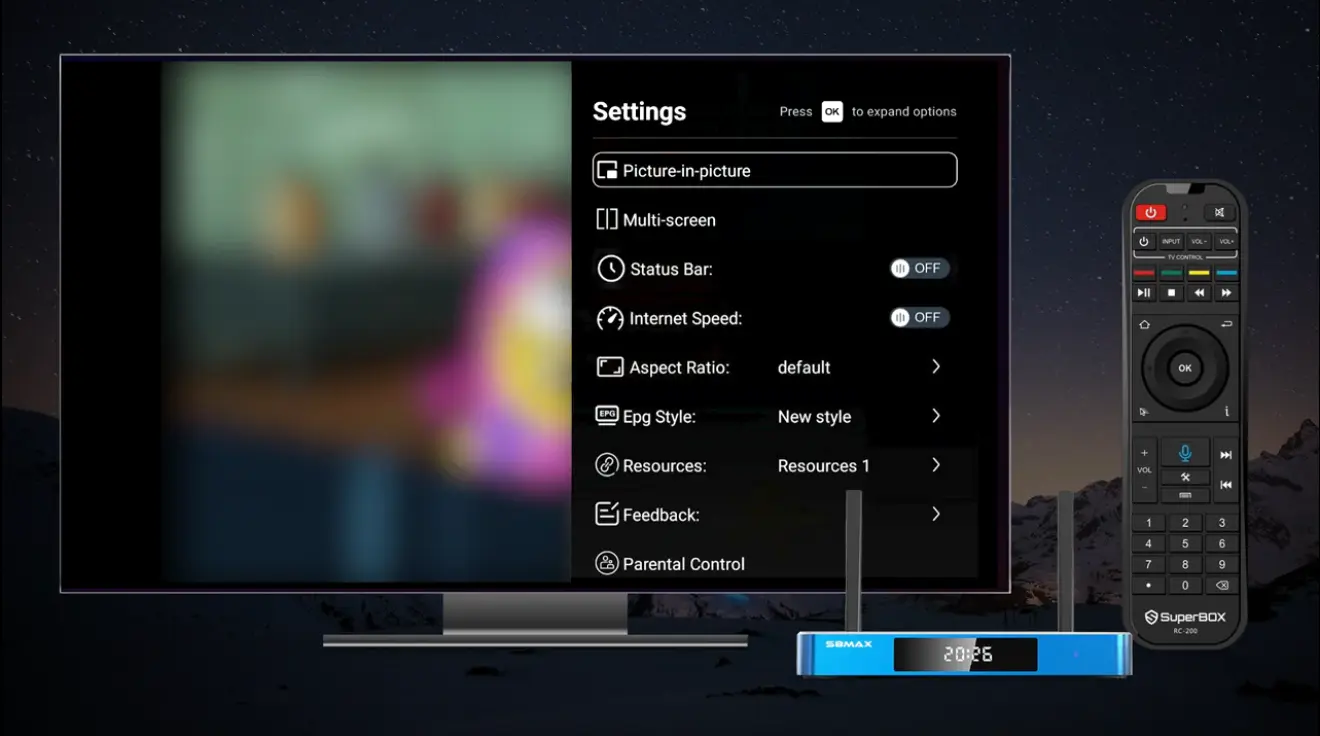
You can also customize the layout of your EPG. Inside Blue TV Settings, you can switch between a classic list style, an expanded grid style, or a compact preview mode to suit your personal viewing preference.
Channel Categories and Organization
Channels inside Blue TV are systematically grouped into organized categories along the left side of the screen. Instead of scrolling through hundreds of channels you do not watch, you can jump straight to your favorite genre:
- Live Sports: National sports networks, collegiate athletics, professional leagues, motorsports, golf, and combat sports.
- News Networks: 24/7 national news broadcasts, international reporting, and financial updates.
- Entertainment and Lifestyle: Premium drama, sitcoms, reality programming, cooking, travel, and home improvement channels.
- Movies and Film: Dedicated movie channels categorized by action, comedy, classic cinema, and family films.
- Regional Broadcasts: Local network affiliates spanning major broadcast markets across North America.
- Kids and Family: Cartoon channels, educational shows, and family-friendly morning programs.
- International Programming: Regional language broadcasts and international news from around the globe.
7-Day Time-Shift and Playback Functionality
Have you ever come home from work thirty minutes after your favorite evening news program started, or missed an exciting Sunday football game because of family errands?
Blue TV includes a built-in 7-Day Time-Shift feature on major supported broadcast channels. Whenever you see a small circular clock icon next to a channel name in the guide, that channel maintains an automatic seven-day broadcast buffer on the server network.
You can scroll back in the program guide by several hours or several days, select the show you missed, and press OK. The stream begins playing from the very beginning. You can pause the playback, rewind to rewatch a critical play, or fast-forward through intermissions just like an expensive digital video recorder, without paying any monthly cloud storage fees.
Creating and Managing Custom Favorites
With so many channels available, browsing through the entire guide every time you turn on your TV can be time-consuming. Blue TV solves this with an easy-to-use Favorites system.
When you find a channel you love:
- Highlight the channel in your guide or while watching it full-screen.
- Press the Yellow button on your SuperBox remote control, or press and hold the OK button until a yellow star appears next to the channel name.
- The channel is instantly copied into your personal Favorites category folder.
The next time you open Blue TV, simply press the Left arrow on your remote to select the Favorites tab. All your preferred channels will be waiting in one convenient list, making channel surfing instant and personalized.
Multi-Screen Viewing and Picture-in-Picture (PiP)
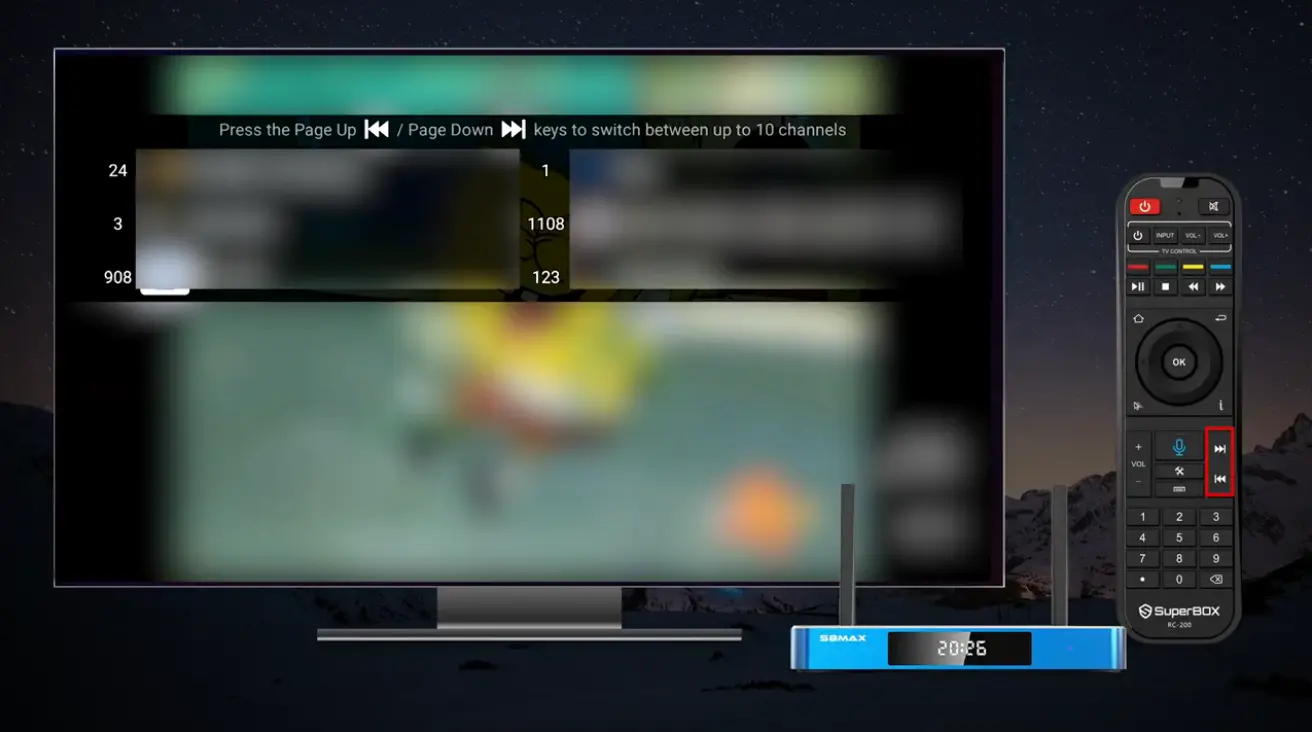
On modern SuperBox hardware such as the flagship SuperBox S8 Ultra and SuperBox S8 Max, Blue TV introduces advanced multi-channel viewing capabilities:
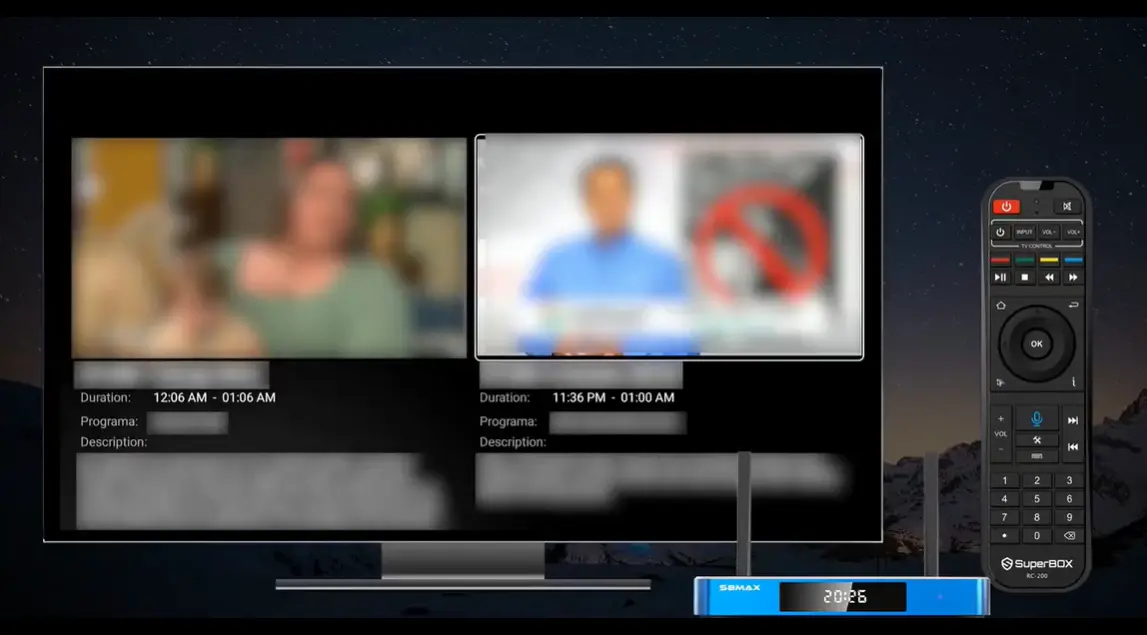
- Picture-in-Picture (PiP): Keeps your primary broadcast playing full screen while displaying a secondary channel in a miniature floating window in the corner. You can move the floating window to any corner of the screen or swap between the two channels with one button.
- Multi-Screen (Multi-Viewing): Splits your television screen into multiple live viewports. This feature is a game-changer for sports enthusiasts during busy football Sundays, March basketball tournaments, or major race weekends, allowing you to monitor multiple games simultaneously without missing a touchdown or a photo finish.
Note: Full-channel Multi-Screen viewing is supported on the high-end SuperBox S8 Ultra and S8 Max models powered by 4GB of high-speed RAM and the latest Mali graphics processors. Entry-level units support Multi-Viewing on select primary channels.
Blue TV vs Blue VOD: What Is the Difference?
New users frequently ask whether Blue TV and Blue VOD are the same application. While both are built for the SuperBox ecosystem, they serve two distinct entertainment purposes:
- Blue TV is dedicated exclusively to live broadcast television. It functions like your cable tuner, delivering real-time sports, news broadcasts, live awards shows, and linear television channels as they air live.
- Blue VOD (Video on Demand) is an on-demand movie and television series streaming library. It functions like Netflix or Prime Video, allowing you to search for specific movies, binge-watch complete seasons of popular TV shows, and watch recorded content on your own schedule with complete pause, rewind, and fast-forward controls.
Most SuperBox owners install both applications from the App Store. When you want to watch the big game, check the weather, or watch the evening news live, you open Blue TV. When you want to unwind with a classic movie or catch up on a multi-season drama series, you open Blue VOD.
Handy Remote Control Shortcuts for Blue TV
Troubleshooting Common Blue TV Issues
How to fix channel buffering or video freezing
If a channel freezes or displays a spinning loading wheel, the cause is almost always local Wi-Fi congestion or an internet provider slowdown:
- Run an in-app speed test: Open Blue TV Settings by pressing the Blue button on your remote and choose Speed Test. You should see a download speed of at least 25 Mbps for smooth HD streaming.
- Switch to a wired Ethernet cable: A direct cable connection from your router into the Gigabit Ethernet port on the back of your SuperBox eliminates wireless interference completely.
- Check your Wi-Fi band: If using Wi-Fi, ensure your box is connected to your router 5GHz or Wi-Fi 6 wireless band rather than the congested 2.4GHz band.
- Change your DNS server: In Android Network Settings, switch your IP configuration to Static and enter Google Public DNS addresses (8.8.8.8 and 8.8.4.4). This bypasses slow lookup servers operated by local internet providers.
What to do if the Electronic Program Guide is blank
If the program guide shows channel names but leaves the schedule descriptions blank:
- Check your date and time: Ensure Automatic Date and Time is enabled in Android Settings and that your time zone is correct. If your clock is off, the guide cannot match upcoming schedules.
- Clear the app cache: Go to Android Settings, choose Apps, select Blue TV, and click Clear Cache. This flushes old schedule data and forces the app to download a fresh guide from the server.
- Restart the app: Exit Blue TV completely and reopen it from your home screen. Give the guide sixty seconds to download the latest schedule metadata.
How to resolve a Devices Abnormal notification
If launching Blue TV displays a Devices Abnormal alert:
- Restart your router and box by pulling both power plugs for sixty seconds.
- Check that your date and time match your local watch.
- If the message remains, locate the twelve-digit MAC address on the bottom of your console and contact official 24/7 customer support via live chat on our website for an instant, free server authorization refresh.
Frequently Asked Questions
What is Blue TV and how does it work?
Blue TV is a dedicated live television streaming application designed for SuperBox Android TV boxes that streams sports, news, and entertainment channels through an electronic program guide over your home internet connection without monthly fees.
Does Blue TV require a monthly subscription fee?
No, Blue TV does not require any monthly subscription fees, service contracts, or renewal charges. Access to the network is included permanently with the purchase of your authorized SuperBox hardware.
Is Blue TV pre-installed on the SuperBox when it arrives?
No, SuperBox devices sold by authorized retailers arrive as clean Android TV hardware without preloaded streaming apps. You can download and install Blue TV in less than two minutes from the pre-installed App Store or App Installer on your device.
How do I install Blue TV on my SuperBox?
From your SuperBox home screen, click on the App Store or App Installer tile, locate the Blue TV icon, click Download or Install, and the application will be ready to launch in under two minutes.
What is the difference between Blue TV and Blue VOD?
Blue TV is designed specifically for watching live broadcast television as it airs in real time, while Blue VOD is an on-demand movie and TV series library that allows you to stream recorded content on your own schedule.
What internet speed do I need to stream Blue TV smoothly?
We recommend an internet connection speed of at least 25 to 30 Mbps for smooth, uninterrupted high-definition streaming. For 4K streams or multi-screen viewing, a connection speed of 50 Mbps or higher is ideal.
Can I watch previous shows with the 7-day playback feature?
Yes, on supported major channels marked with a clock icon in the guide, you can scroll back up to seven days, select past programs, and play them from the beginning with full pause and rewind controls.
How do I add my favorite channels to a custom list in Blue TV?
While watching a channel or browsing the guide, press the Yellow button on your remote control (or press and hold the OK button) to add the channel to your personal Favorites folder for one-click access.
Can I install Blue TV on a phone, tablet, or smart TV from other brands?
No, Blue TV is proprietary software engineered specifically to run on authorized SuperBox hardware decoders and cannot be installed on standard mobile phones, tablets, or non-SuperBox third-party devices.
What should I do if Blue TV displays a buffering or abnormal status alert?
First, verify that your box date and time are accurate, restart your router and box for sixty seconds, and clear the app cache in Android settings. If the alert persists, contact official 24/7 live chat support with your hardware MAC address for a free two-minute server refresh.
Final Thoughts
Blue TV has transformed how hundreds of thousands of households across the United States and Canada watch live television. By pairing a comprehensive electronic program guide, live sports coverage, and advanced features like 7-Day Time-Shift with a one-time hardware purchase model, it offers a practical, high-value alternative to bloated cable bills and fragmented streaming subscriptions.
Whether you are enjoying live games on a flagship SuperBox S8 Ultra with backlit remote controls, or catching the evening news on an S8 Max or S7 model, Blue TV delivers a smooth, dependable living room entertainment experience. If you ever have questions about setting up or optimizing Blue TV, our team at SuperBox TV Box Store is always here to provide official support and guidance.
The article was updated on:
