
Knowledge SuperBox
SuperBox Wi-Fi Problems? Fix Them Fast





A SuperBox without a reliable internet connection cannot update its software or access online applications. The frustrating part is that Wi-Fi problems do not always look the same: your network may disappear from the list, the password may be accepted but the connection still fails, or the box may connect temporarily and then drop offline again.
In most cases, the problem can be resolved without erasing the device. The key is to troubleshoot in the right order, starting with the safest, fastest fixes and treating a factory reset as the final option.
This guide covers the complete process shown in the reference video, along with the checks that should be completed before and after a reset.
Quick answer: Restart the SuperBox and router first. If the problem continues, forget the Wi-Fi network and reconnect using the correct password. When possible, connect an Ethernet cable and install any available system update. Only perform a factory reset if both Wi-Fi and Ethernet remain unavailable after the earlier steps.
Identify the Type of Wi-Fi Problem
Before changing any settings, confirm what the SuperBox is actually doing.
| Symptom | Most likely first step |
|---|---|
| Your Wi-Fi name does not appear | Restart the router and SuperBox, then rescan for networks |
| The password is rejected | Forget the network and carefully enter the password again |
| The box connects but has no internet | Restart the router and test another device on the same network |
| Wi-Fi disconnects repeatedly | Restart both devices, reduce distance from the router, and test Ethernet |
| Neither Wi-Fi nor Ethernet works | Check for a system update over any temporary connection; consider a factory reset only as a last resort |
This distinction matters. A missing network, an authentication failure, and a router with no internet access are different problems even though they can produce similar messages on screen.
Fix 1: Restart the SuperBox and Your Router
Begin with a complete restart—not simply turning the television off.
- Disconnect the SuperBox power adapter.
- Unplug the router or modem from power.
- Wait approximately 60 seconds.
- Reconnect the router and wait until its internet lights stabilize.
- Reconnect the SuperBox and allow the home screen to load completely.
- Open Settings > Network & Internet and try connecting again.
Restarting clears temporary network states on both devices and forces the SuperBox to request a fresh connection from the router.
Fix 2: Forget the Wi-Fi Network and Reconnect
If the network appears but the connection repeatedly fails, remove the saved profile and create it again.
- Open Settings from the SuperBox home screen.
- Select Network & Internet.
- Choose your Wi-Fi network.
- Select Forget Network.
- Return to the available network list and select the same Wi-Fi name again.
- Re-enter the password carefully and select Connect.
Wi-Fi passwords are case-sensitive. Check uppercase letters, spaces, numbers, and similar-looking characters such as 0 and O before assuming the box is faulty.
If the network name does not appear, move the SuperBox closer to the router temporarily and scan again. Thick walls, enclosed cabinets, televisions, and other electronic equipment can weaken wireless reception.
Fix 3: Test the Connection With Ethernet
When possible, connect an Ethernet cable directly from the router to the SuperBox.
Ethernet serves two purposes here. First, it shows whether the problem is limited to Wi-Fi. Second, it may provide the temporary internet connection needed to download a firmware update.
- Ethernet works: The internet service is active and the issue is likely limited to wireless settings, signal strength, or Wi-Fi software.
- Ethernet also fails: Restart the router, try another Ethernet cable or router port, and continue to the next step.
Wait at least 30 seconds after connecting the cable. Some routers need a moment to assign an IP address to the SuperBox.
Fix 4: Install Available System Updates
If Ethernet provides a working connection, use it to check for and install any available SuperBox system update before trying Wi-Fi again.
Firmware updates may contain improvements to network compatibility and system stability. Keep the SuperBox connected to reliable power throughout the update, and do not disconnect the Ethernet cable until the installation has finished and the device has restarted.
After the update:
- Restart the SuperBox.
- Disconnect the Ethernet cable.
- Open Settings > Network & Internet.
- Select the Wi-Fi network and test the connection again.
If Wi-Fi and Ethernet both remain unavailable after completing the earlier checks, a factory reset is the final software-level recovery option shown in the reference video.
Last Resort: Factory Reset the SuperBox
Important: A factory reset erases downloaded apps, user accounts, saved files, network information, and personalized settings. You will need to set up the SuperBox again afterward.
Before resetting the device:
- Confirm that you know your Wi-Fi name and password.
- Save any account information you will need again.
- Take photos of important settings or app arrangements.
- Keep the SuperBox connected to stable power.
- Use this method only after the non-destructive fixes have failed.
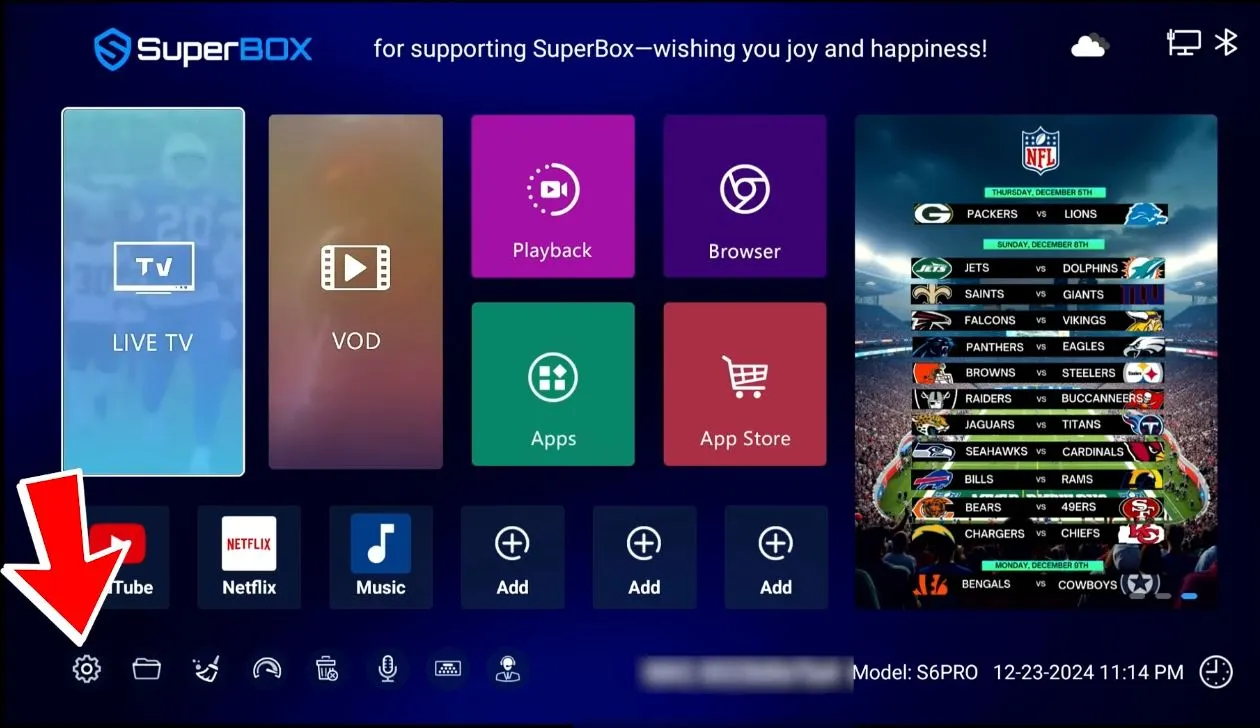
Step 1: Open Settings
From the SuperBox home screen, move down to the Settings icon and open it.
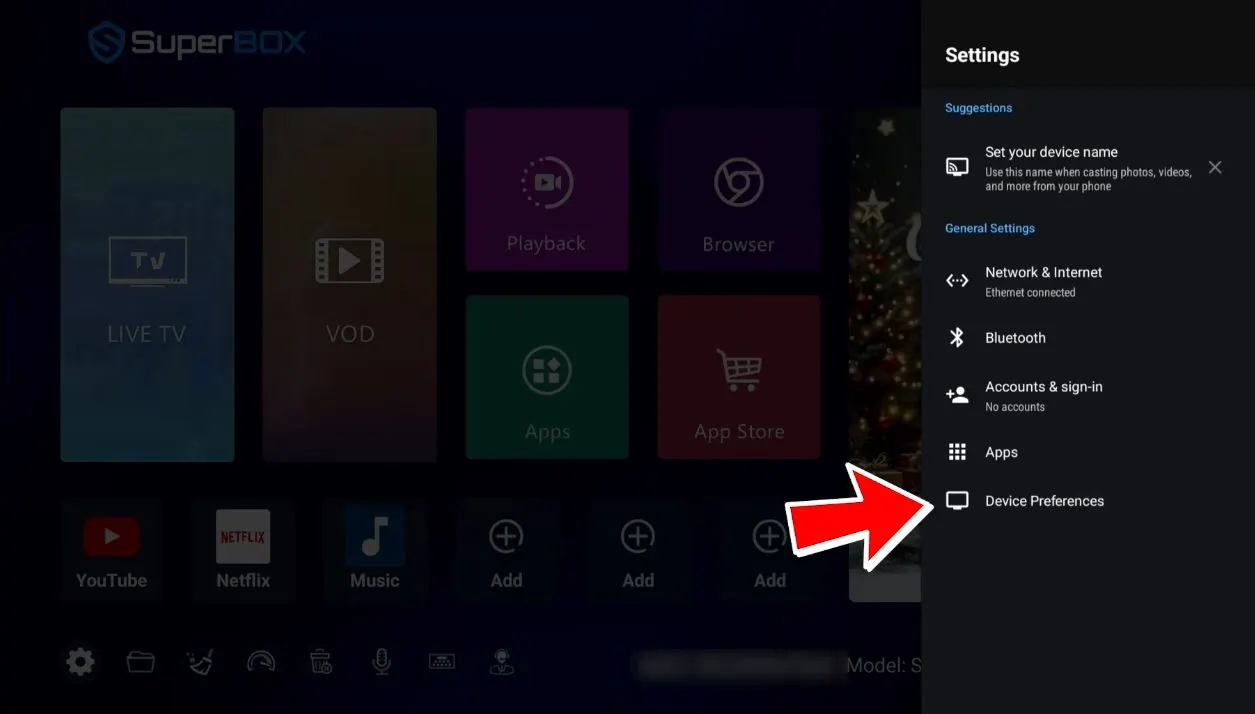
Step 2: Open Device Preferences
Inside Settings, select Device Preferences. Depending on the model and firmware version, the wording or position may vary slightly.
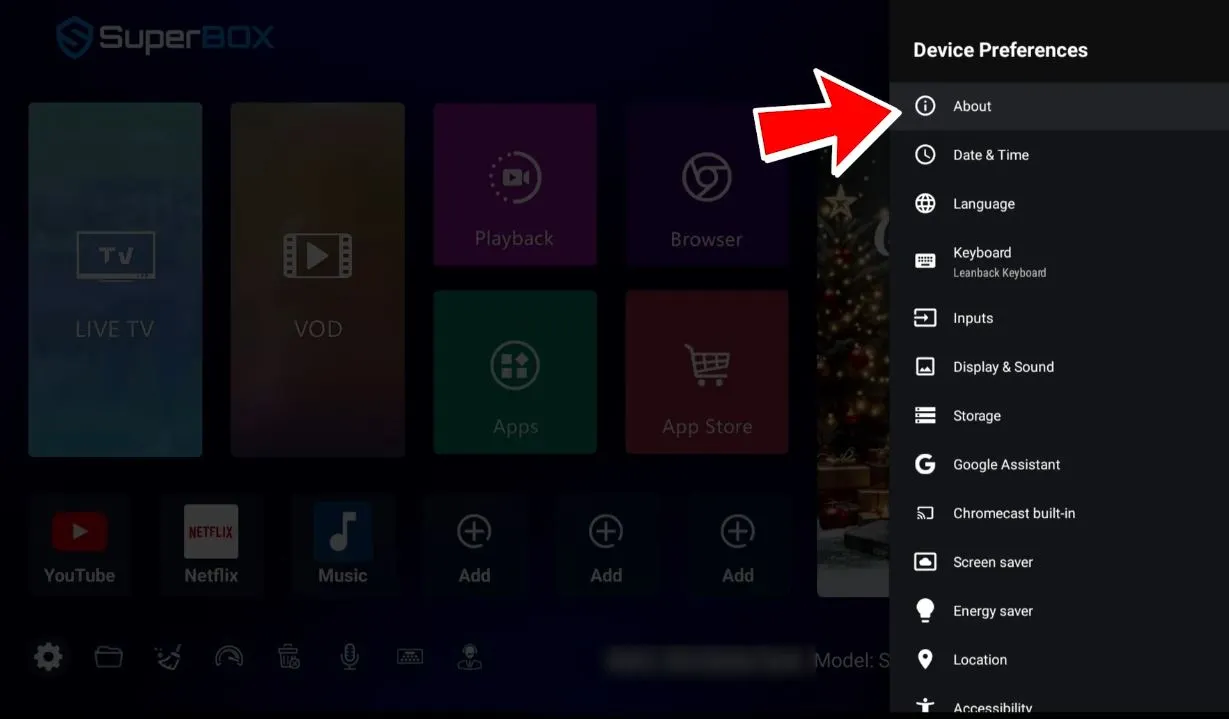
Step 3: Select About
Open About to access the device information and reset controls.
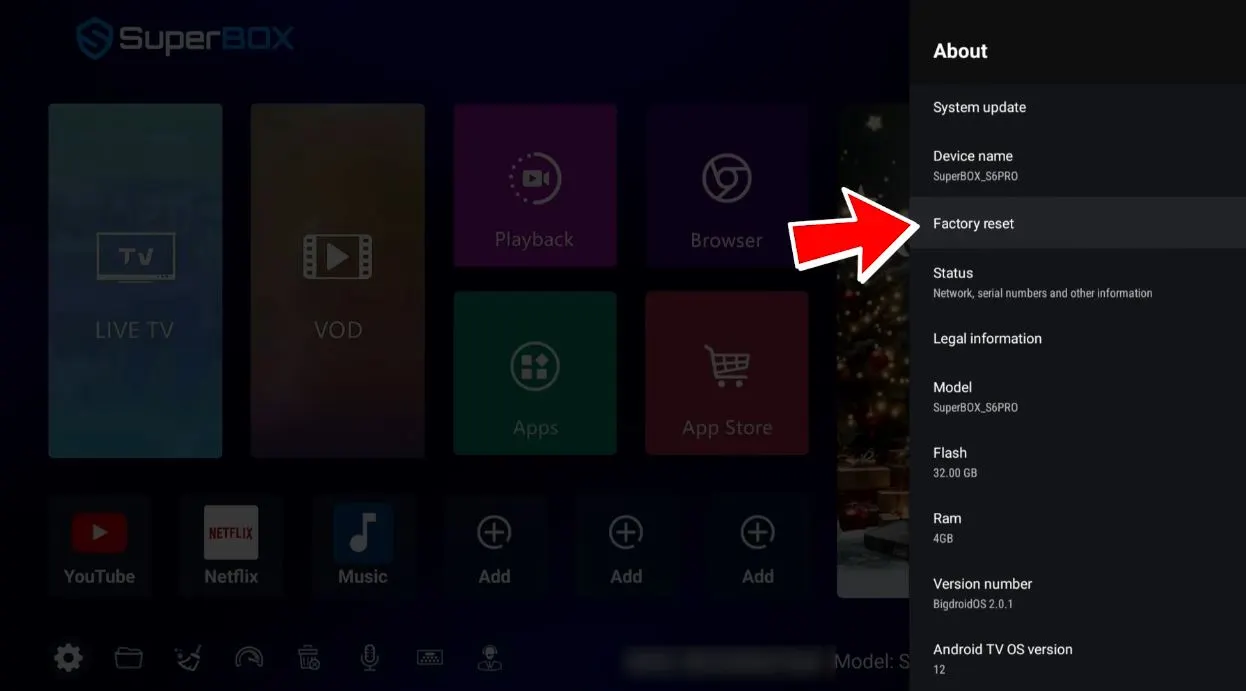
Step 4: Choose Factory Reset
Within the About menu, locate and select Factory Reset. In the interface shown in the video, it appears as the third option.
Step 5: Review the Data-Erasure Warning
The SuperBox will display a warning explaining that the reset restores default settings and removes data, accounts, files, and downloaded apps.
Read the message before continuing. If you are not prepared to set up the box again, press Cancel and stop here.
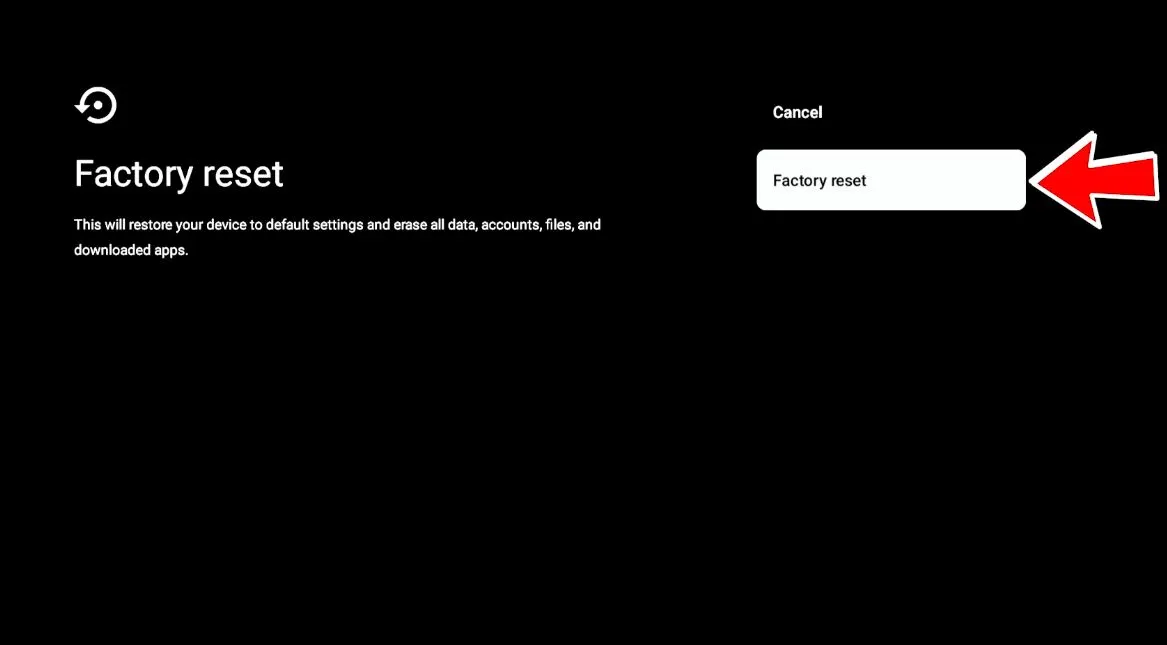
Step 6: Confirm Factory Reset
Select Factory Reset, then choose Erase Everything on the final confirmation screen.
This is the point of no return. Once confirmed, allow the SuperBox to erase its data and restart automatically. Do not disconnect the power.
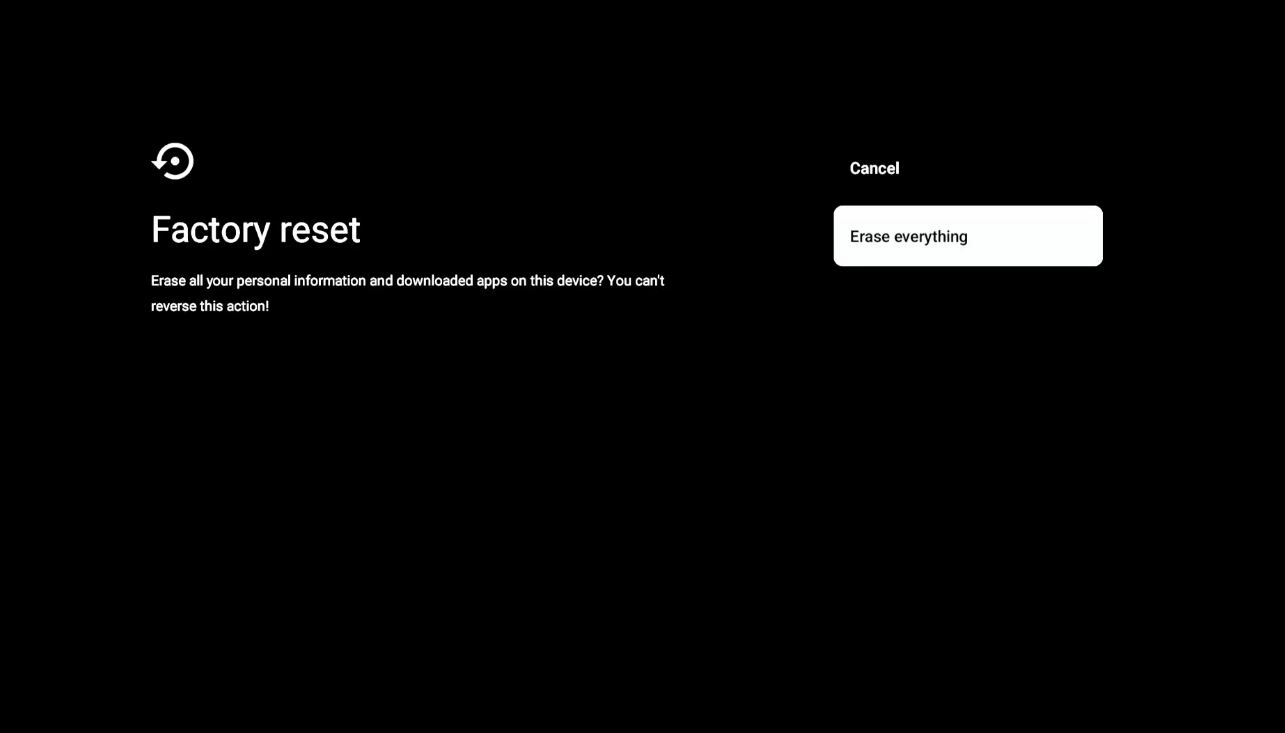
Step 7: Complete the Initial Setup Again
After the reset, the SuperBox restarts and returns to the same setup process used when the device was first powered on.
Select the language, adjust the display if prompted, and reconnect to the Wi-Fi network using the correct password.
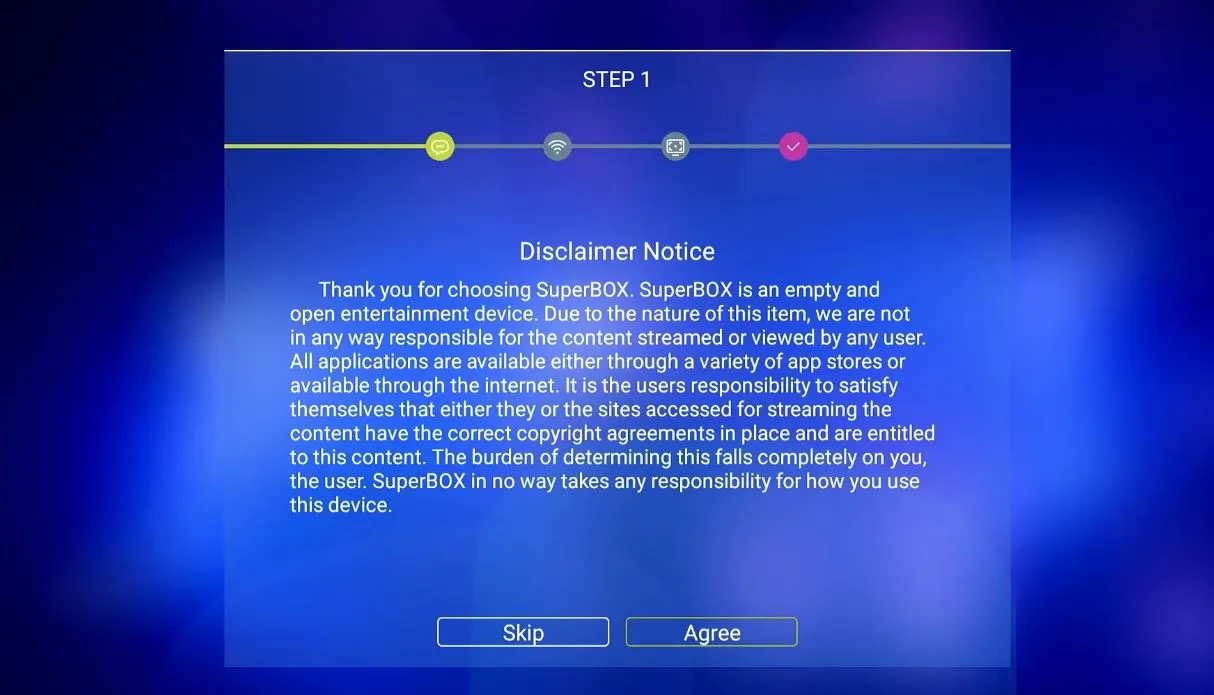
Step 8: Verify Wi-Fi and Ethernet
Once setup is complete, confirm that the SuperBox connects to Wi-Fi and can access the internet. If available, test Ethernet as well.
The video demonstrates that both Wi-Fi and Ethernet worked normally after the reset. Results can vary depending on the cause of the original problem, so verify the connection before reinstalling every app.
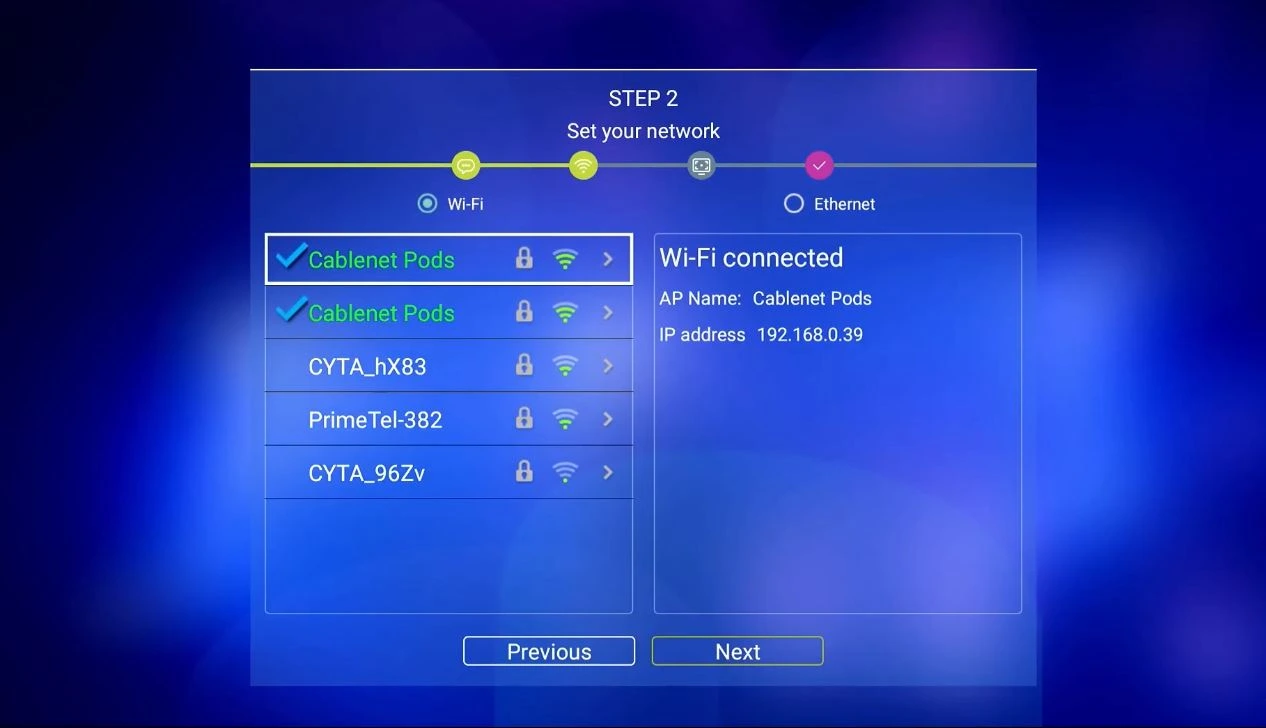
What to Do After the Factory Reset
Once the connection is stable:
- Complete any available system update first.
- Restore only the apps and settings you use.
- Recheck the connection after each major installation or update.
- Return to the network menu and confirm the box remains online.
If the App Store is missing after the reset, follow our guide: How to Restore a Missing App Store on SuperBox After a Factory Reset.
Do not repeatedly factory reset the device. If the connection fails again immediately after a clean setup, the cause may be the router configuration, local interference, an Ethernet cable or port, or a hardware issue that requires technical support.
Additional Checks if the Problem Returns
Test Another Device on the Same Network
Connect a phone or laptop to the same Wi-Fi network. If every device is offline, the problem is more likely to involve the router or internet service rather than the SuperBox.
Check the Distance From the Router
Temporarily move the SuperBox closer to the router. If the connection becomes stable, improve router placement or use Ethernet for a more reliable connection.
Check the Date and Time
An incorrect system date or time can sometimes prevent apps and online services from authenticating correctly even when Wi-Fi shows as connected. Set the correct time zone and enable automatic date and time when available.
Avoid Repeated Power Interruptions
Allow the SuperBox to shut down and restart normally. Frequent power interruptions during updates or startup can lead to incomplete system processes and unstable behavior.
Frequently Asked Questions
Why does my SuperBox show “Connected” but still have no internet?
The box may be connected to the router while the router itself has no active internet connection. Test another device on the same network, restart the router, and then reconnect the SuperBox.
Why can’t my SuperBox find my Wi-Fi network?
Restart the router and SuperBox, move the box closer to the router, and rescan. If other devices also cannot see the network, check the router. If only the SuperBox is affected, test Ethernet and check for a system update.
Should I factory reset the SuperBox first?
No. A factory reset removes apps, accounts, files, network information, and personalized settings. Restart both devices, forget and reconnect to the network, test Ethernet, and install available updates before resetting.
Will a factory reset fix every Wi-Fi problem?
No. It can correct damaged settings or a persistent software problem, but it cannot repair an internet outage, weak router signal, incorrect password, damaged Ethernet cable, router configuration problem, or hardware fault.
What if the App Store disappears after the reset?
Use the dedicated App Store recovery procedure to reinstall it and complete the TV ROM OTA update. Avoid downloading installation files from unverified third-party websites.
What if both Wi-Fi and Ethernet still fail after the reset?
Confirm that other devices have internet access, try a different Ethernet cable and router port, and contact technical support. Include the SuperBox model, the exact error message, and a photo of the Network & Internet screen.
Final Thoughts
SuperBox Wi-Fi problems are usually easier to solve when the troubleshooting is performed in the correct order. Start with a restart, rebuild the saved Wi-Fi connection, test Ethernet, and install available updates. These steps solve many connection failures without removing personal settings or downloaded apps.
A factory reset is appropriate only when the earlier methods fail and both Wi-Fi and Ethernet remain unavailable. Prepare for the data loss, follow the on-screen warnings carefully, keep the device powered on, and verify the connection before reinstalling your apps.
If your SuperBox still cannot connect after completing this guide, contact SuperBox TV Technical Support. Send your device model, a photo of the error, and a short description of the troubleshooting steps you have already completed.
For visual demonstration:
Source reference: SuperBox Wifi Problems
The article was updated on:

Nice perspective on the topic.