
Knowledge SuperBox
How to Restore a Missing App Store on SuperBox After a Factory Reset and Keep It Installed





A factory reset can give your SuperBox a clean start, but in some cases it may also leave the App Store missing from the home screen. That can be unsettling especially when the device has restarted successfully, the internet is connected, and everything else appears normal.
The good news is that the App Store can be restored without performing another reset. The process has two parts: first, reinstall the App Store through the browser; second, complete the TV ROM OTA update so the App Store remains available after future resets.
This guide walks you through both stages in the correct order, with clear checkpoints at every step.
Quick answer: Connect your SuperBox to the internet, open the browser, and use the current download address shown in the official SuperBOX TV instructions. Install the App Store, then open it and update the TV ROM Updater. Launch the updater, install the OTA package, and reboot when prompted.
Before You Begin
Set aside approximately 10–15 minutes and make sure you have the following:
- A stable Wi-Fi or Ethernet connection
- The original SuperBox remote control
- Access to the built-in web browser or Chrome
- Reliable power throughout the installation and OTA update
Do not unplug the SuperBox, turn off the power strip, or disconnect the device while the OTA package is being installed. Interrupting a firmware update can prevent the system from restarting correctly.
Download-source note: The official video referenced for this guide lists
143326.ccfor the automatic download and143325.ccfor the manual download page. These short download addresses may change over time. If neither address works, do not use an unverified third-party APK site, contact SuperBox TV Technical Support for the current official address.
Part 1: Restore the SuperBox App Store
Step 1: Confirm That Your SuperBox Is Online
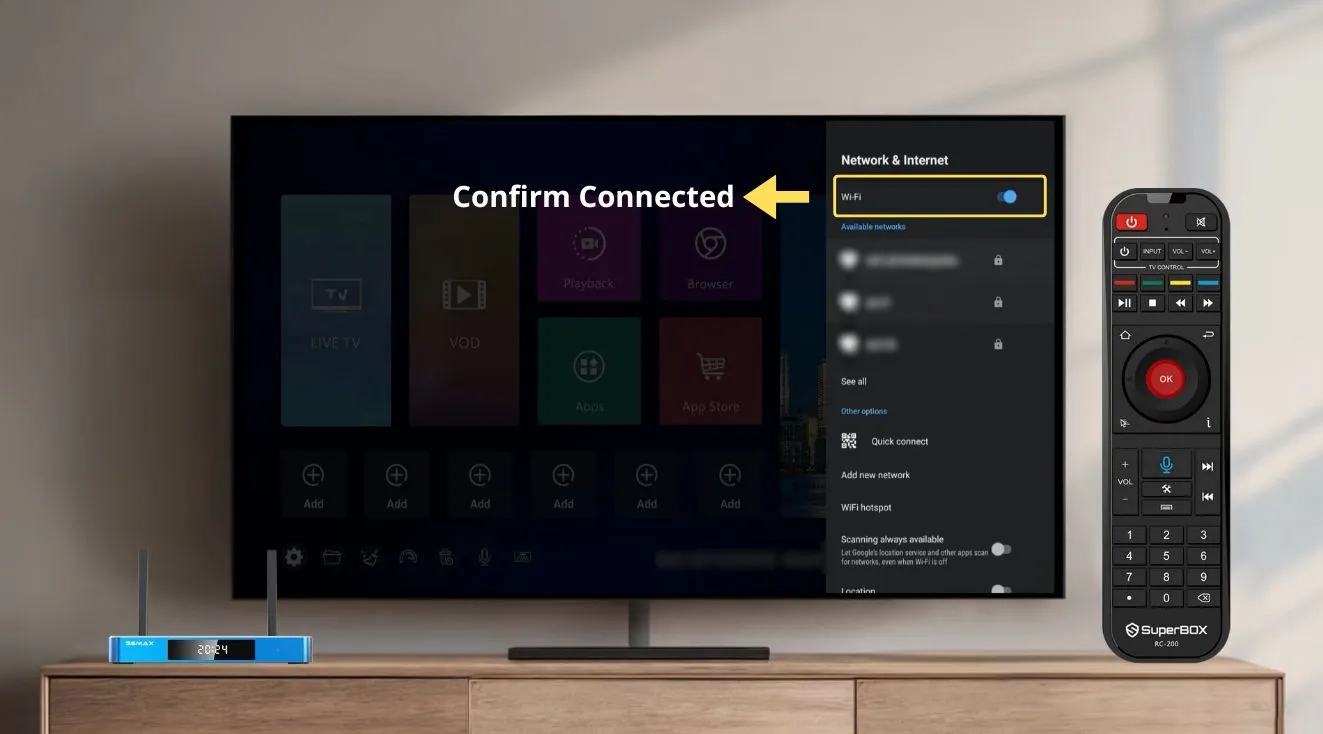
From the home screen, open Settings, select Network & Internet, and choose your Wi-Fi network. Confirm that the status shows Connected.
If you use Ethernet, check that the cable is securely connected to both the SuperBox and your router. The App Store installer and OTA package cannot download without a working internet connection.
Step 2: Open the Browser and Switch the Remote to Mouse Mode
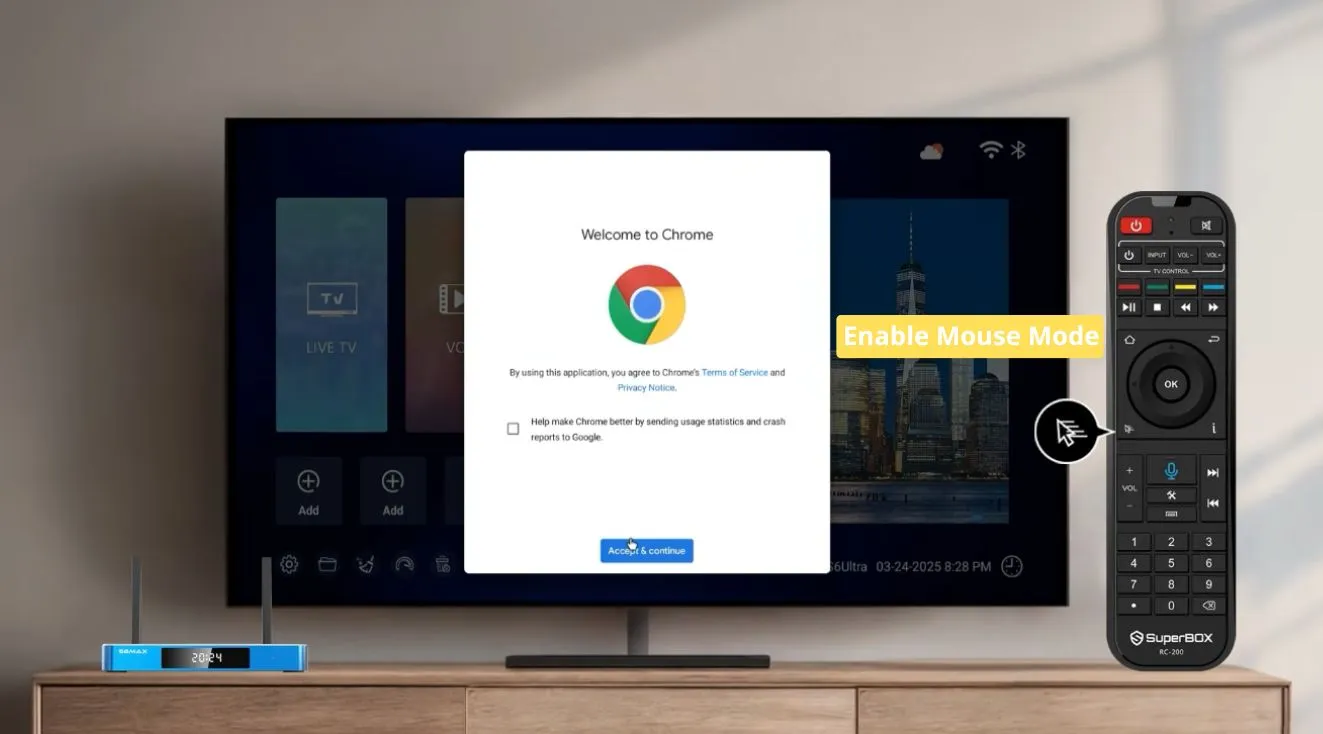
Return to the home screen and open the built-in browser or Chrome. Press the mouse/cursor button on the remote so you can move the on-screen pointer and select the browser address bar.
Mouse mode is especially useful on browser pages that are not optimized for directional navigation. Press the same remote button again whenever you want to return to normal navigation mode.
Step 3: Choose One of the Two Official Download Methods
The video provides two ways to retrieve the App Store installer. Start with the automatic method. If it does not begin downloading, use the manual page.
Method A: Automatic Download
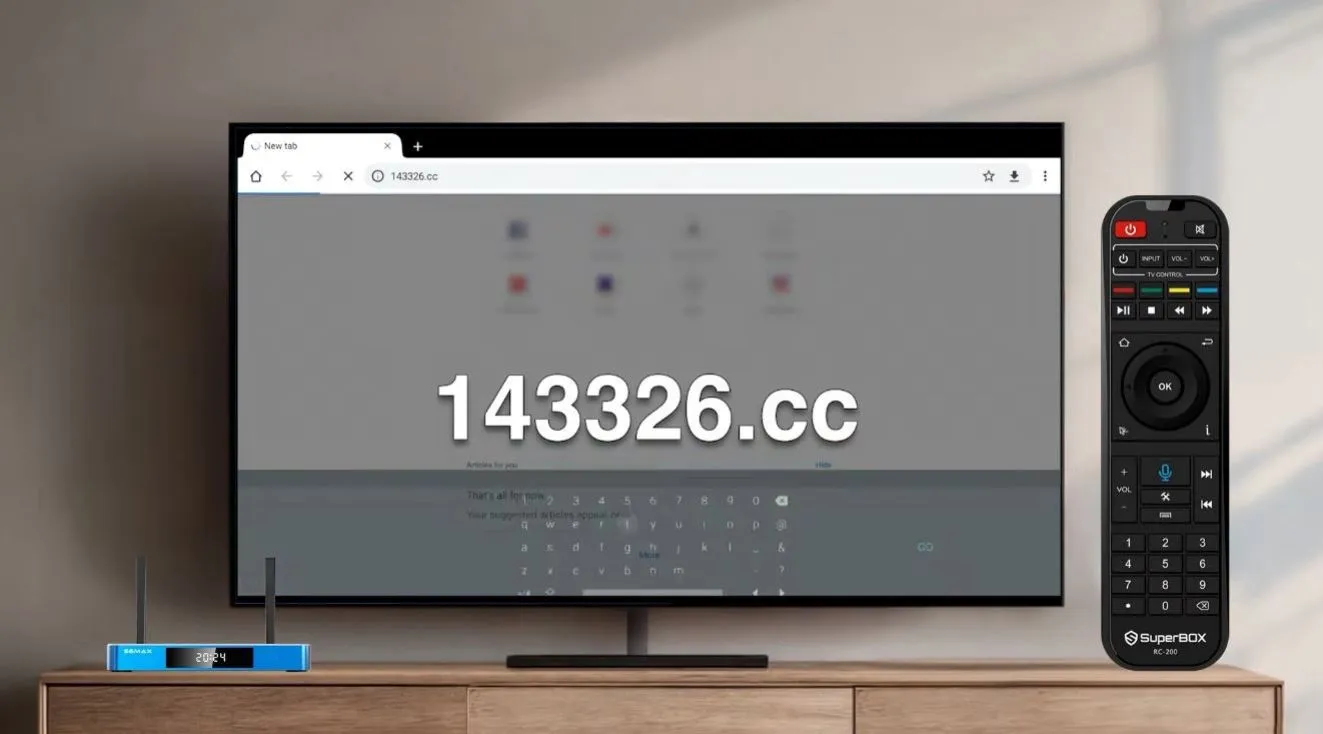
Select the browser address bar, enter:
143326.cc
Then press Enter or Go. The App Store installation file should begin downloading automatically.
Method B: Manual Download Page
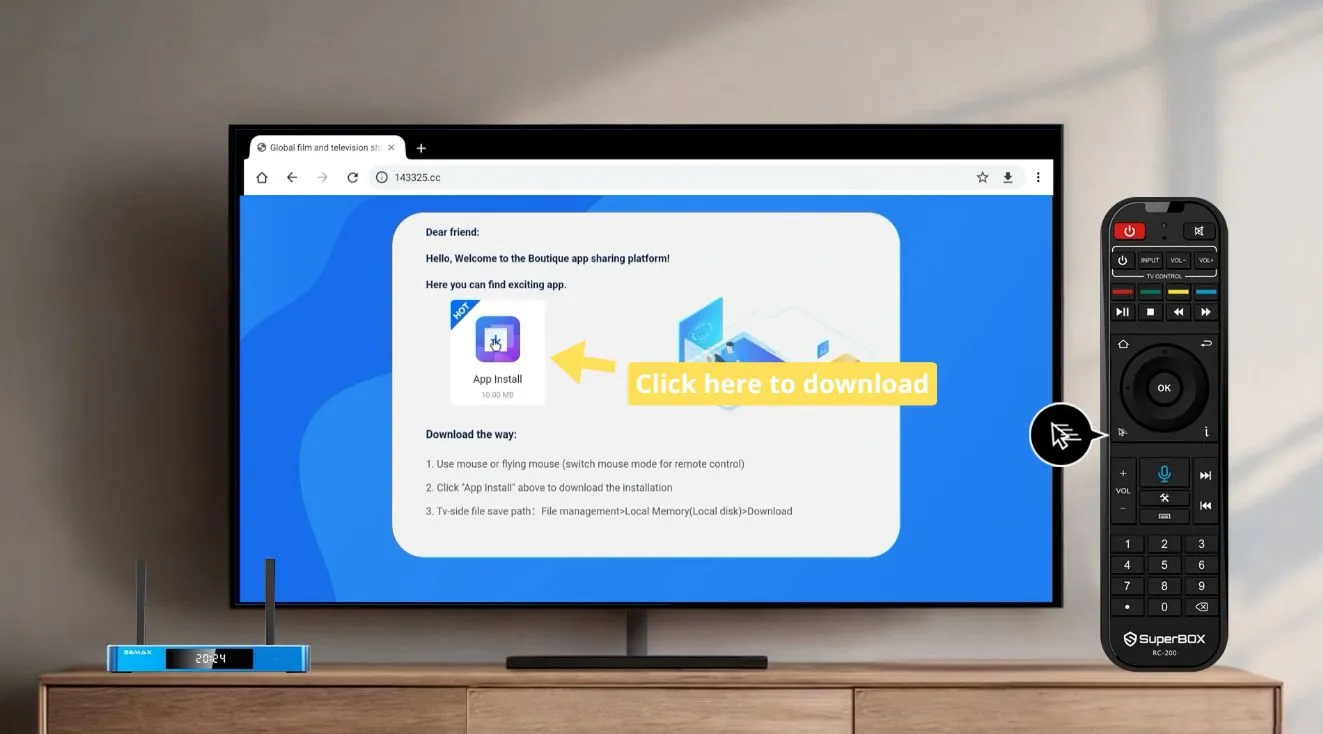
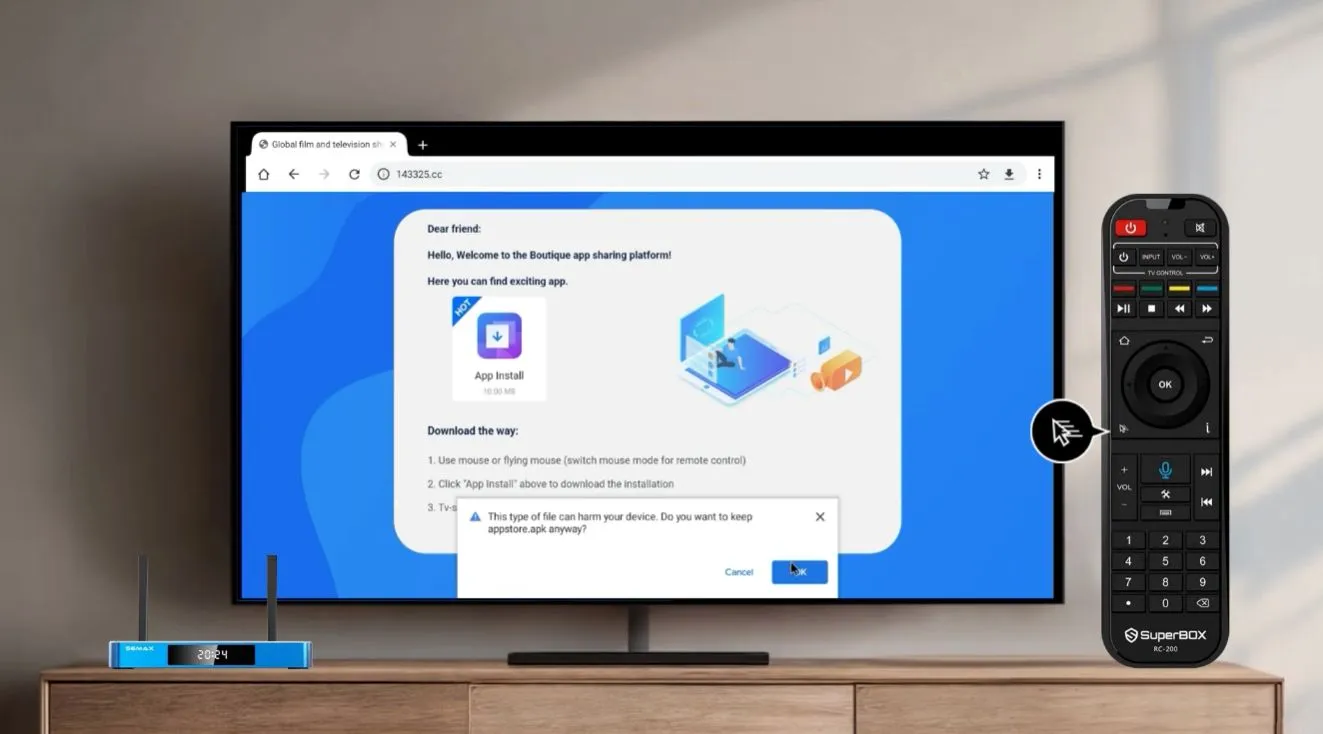
If the automatic download does not start, clear the address bar and enter:
143325.cc
When the page opens, use mouse mode to select the App Store icon. The installation file should then begin downloading.
Only one method is required. If Method A downloads the file successfully, skip Method B and continue to the next step.
Step 4: Open the Downloaded File
When the download finishes, open the file from the browser notification or the device’s Downloads section. Android may display a security message because the installer was downloaded through Chrome rather than an existing app marketplace.
This is expected for this recovery procedure. Continue only when the file came from the official address provided in the SuperBOX TV instructions.
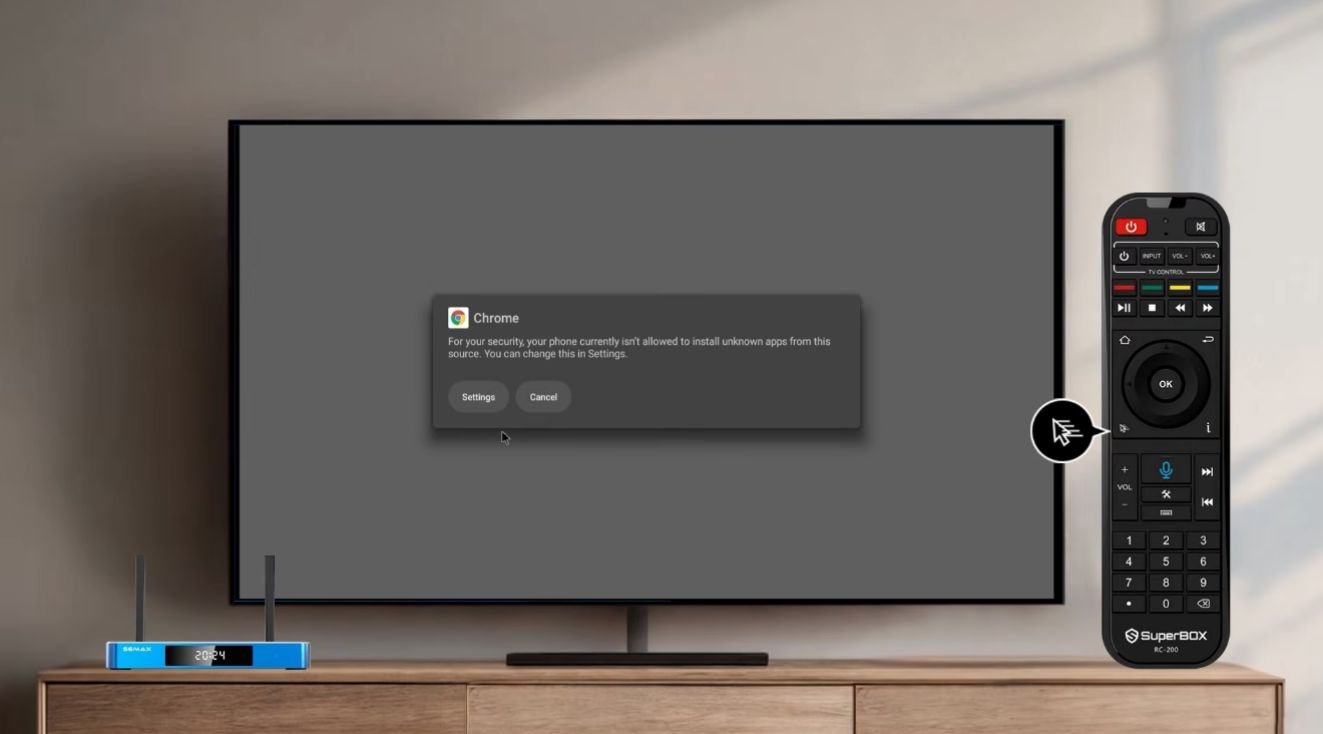
Step 5: Allow Chrome to Install the App
If Android displays an installation restriction, select Settings. On the Install unknown apps screen, enable Allow from this source for Chrome or the browser you used.
Press Back to return to the installer, then select Install.
This permission applies only to the selected browser. For better security, you can return to the same screen and switch Allow from this source off after the installation is complete.
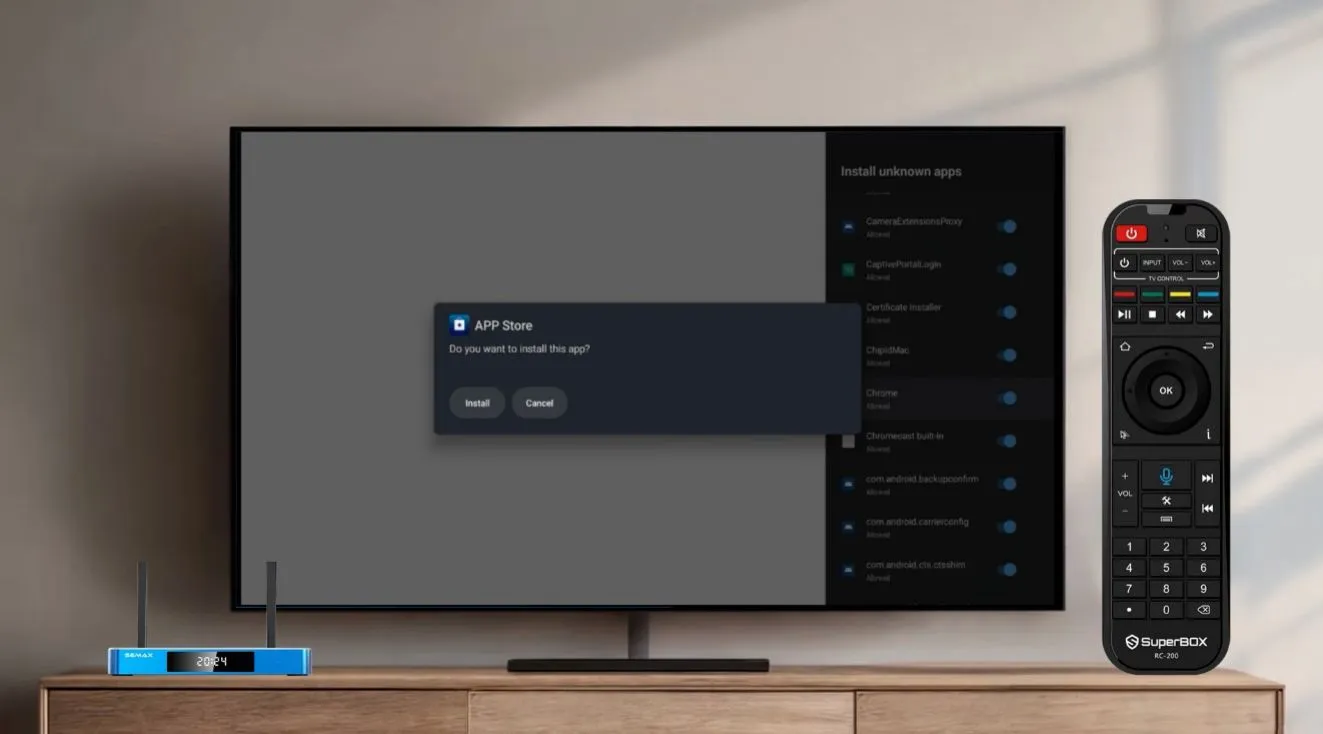
Select Install to restore the App Store on your SuperBox.
Once Android confirms that the installation is complete, return to the home screen or Apps menu and open the App Store.
At this point, the App Store has been restored. However, do not stop here: without the OTA update, it may disappear again after another factory reset.
Part 2: Install the OTA Update for the Permanent Fix
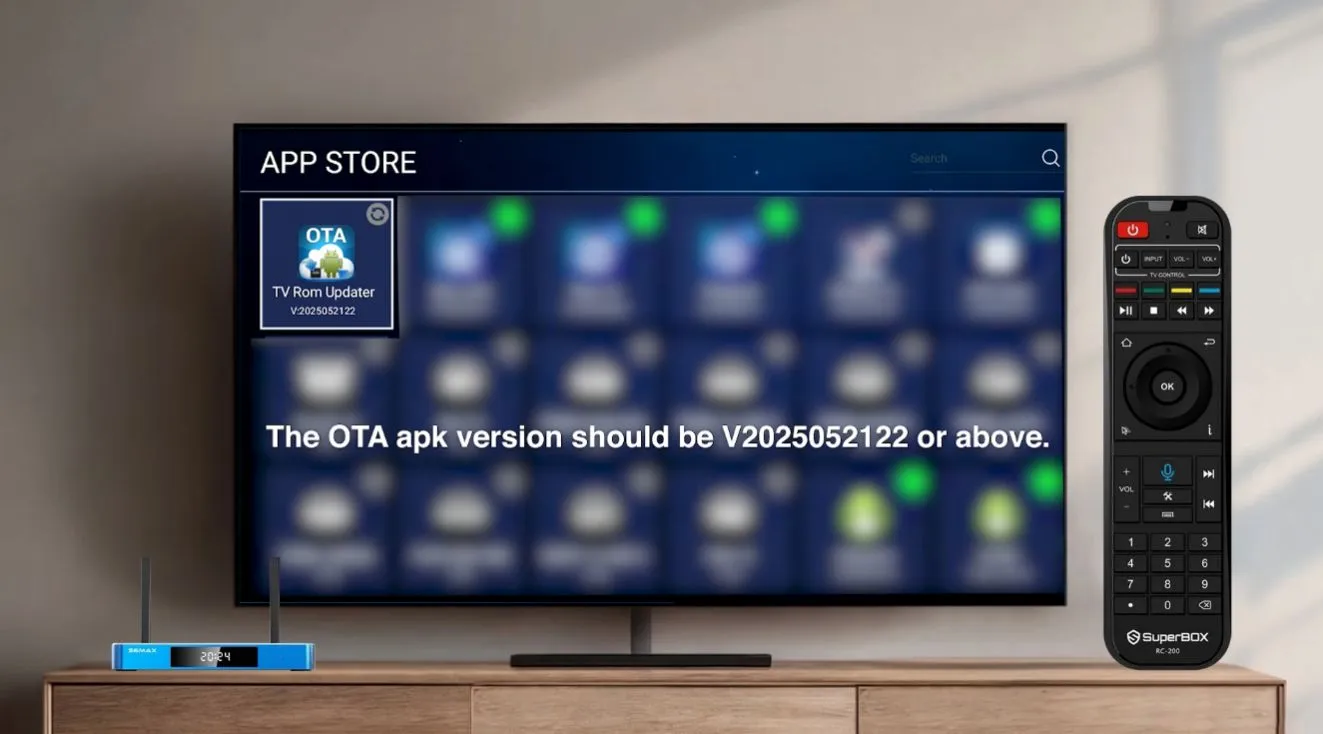
Step 6: Update the TV ROM Updater From the App Store
Open the restored App Store and locate TV ROM Updater. If an update indicator is displayed, select the app once to install its latest version.
Wait until the update is complete before opening the tool. Keeping the updater current helps ensure that it can retrieve and apply the correct OTA package for your device.
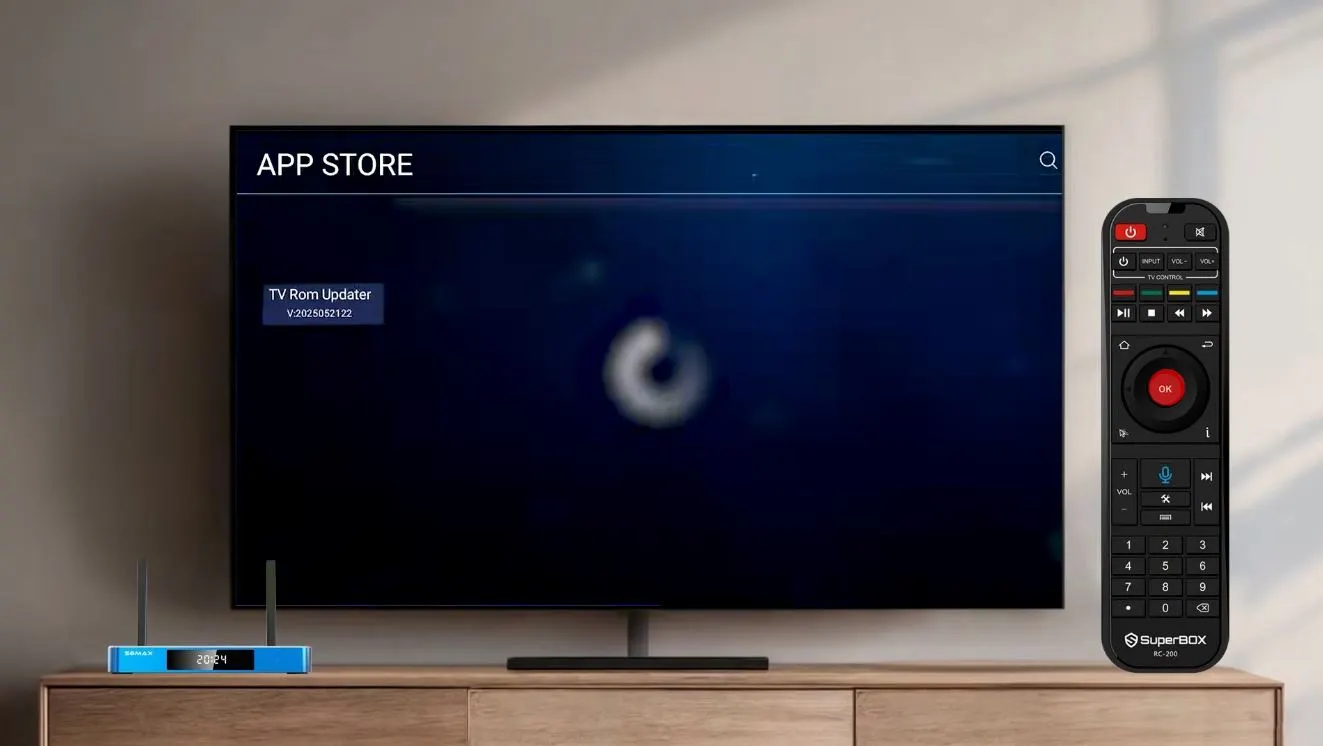
Step 7: Open TV ROM Updater
After the app update finishes, open TV ROM Updater directly from the App Store or find it in the Apps menu.
Step 8: Download and Install the OTA Package
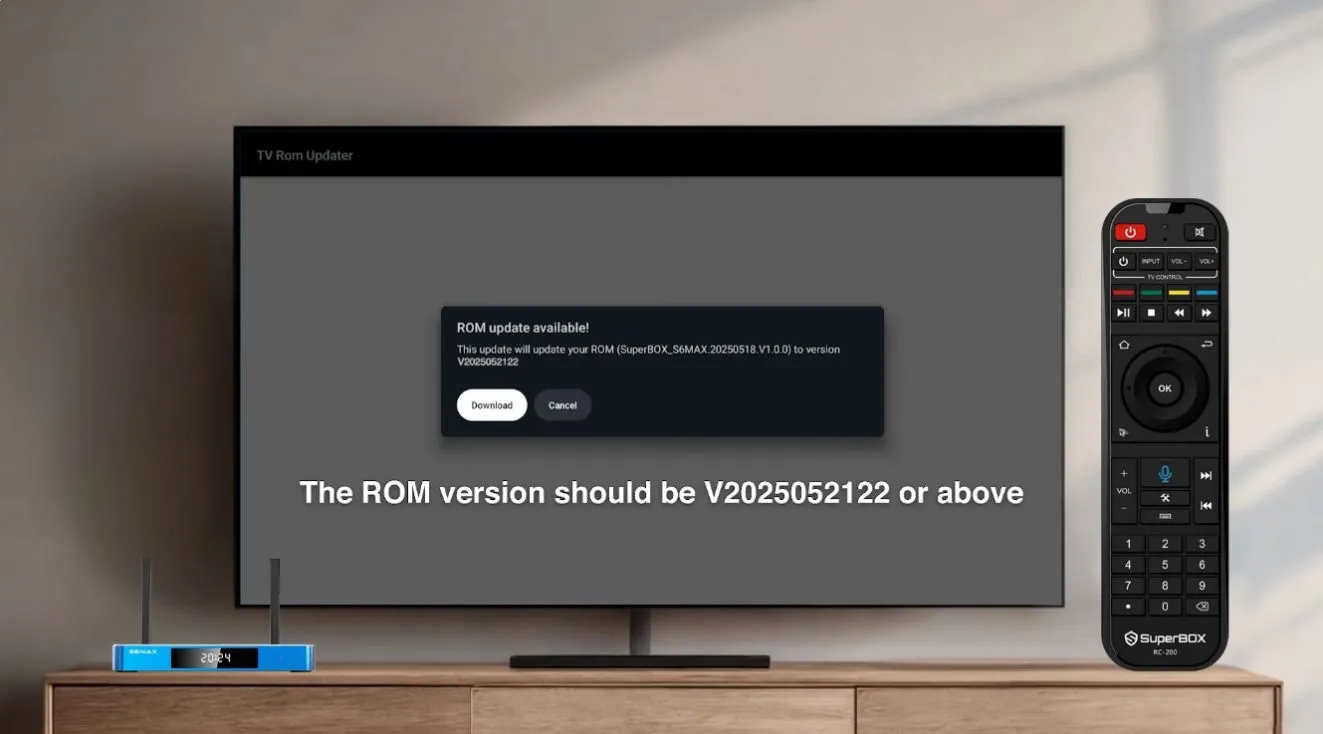
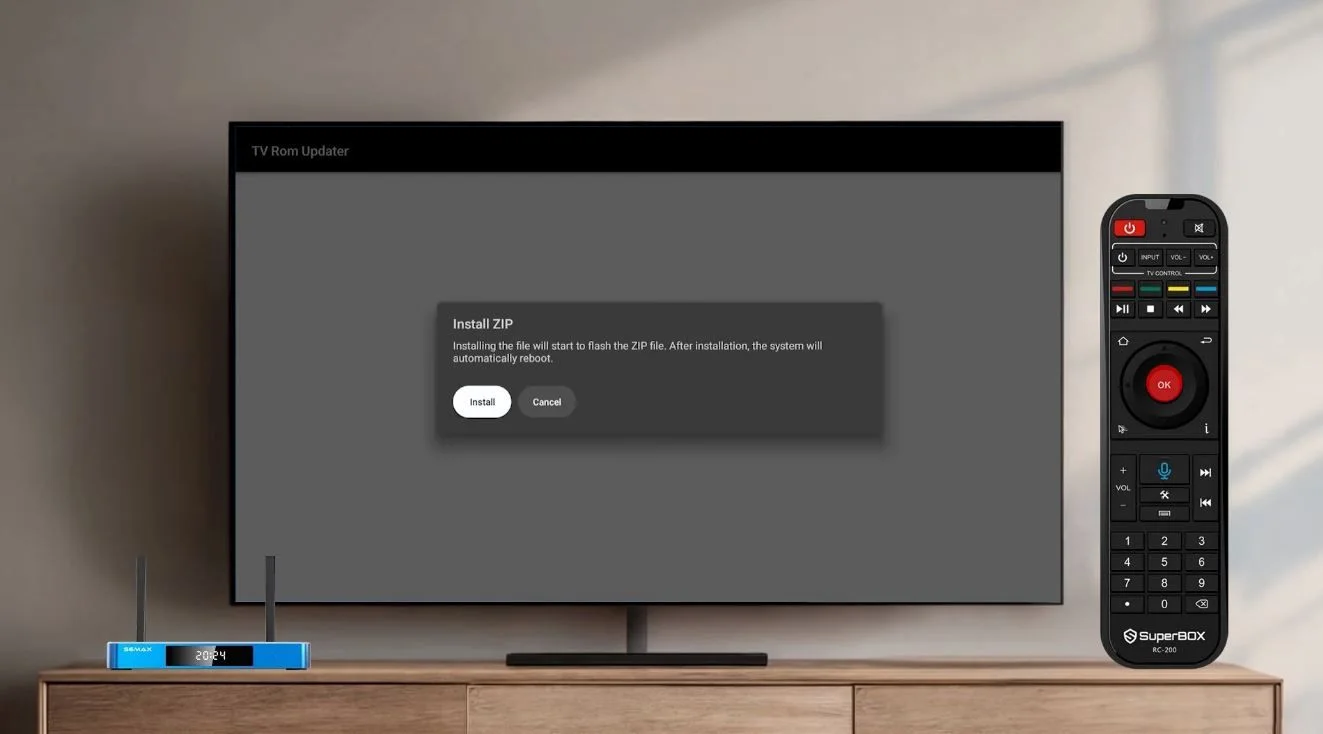
Inside TV ROM Updater, confirm the download prompt and wait for the OTA package to finish downloading. When the on-screen guide asks to install the ZIP file, approve the installation.
The system will begin applying the update. This stage may take several minutes. The progress indicator can pause temporarily; that does not necessarily mean the update has failed.
Important: Keep the SuperBox connected to power and do not press remote buttons while the system update is being applied.
Step 9: Reboot When Prompted
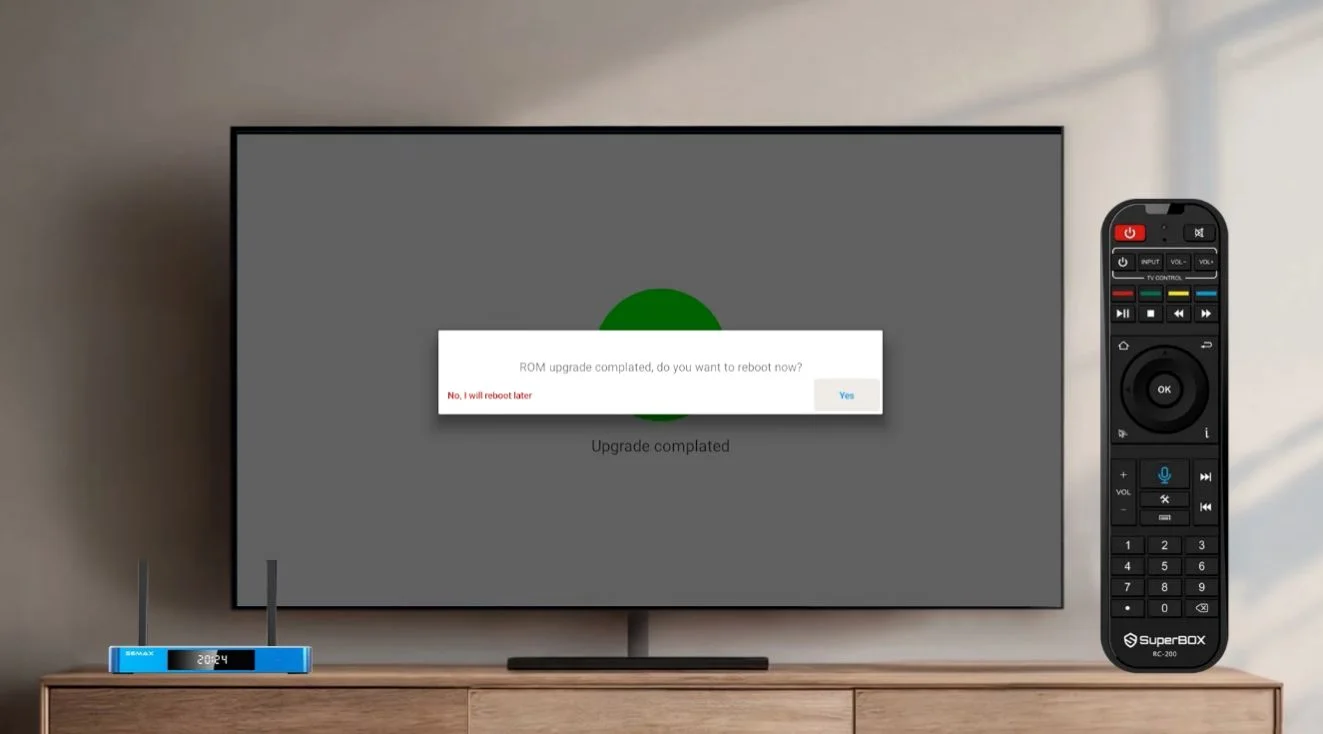
When the OTA installation finishes, the system will request a reboot. Confirm the prompt and allow the SuperBox to restart on its own.
The first startup after an update may take longer than usual. Wait until the home screen loads fully before opening any apps.
How to Verify That the Fix Worked
After the SuperBox restarts:
- Wait for the home screen to finish loading.
- Open the Apps menu and confirm that the App Store is present.
- Launch the App Store and verify that it opens normally.
- Reopen TV ROM Updater and confirm that no additional OTA update is pending.
You do not need to perform another factory reset simply to test the result. The completed OTA installation is the relevant confirmation; another reset would erase your local settings and require device setup again.
Troubleshooting Common Problems
| Problem | What to Do |
|---|---|
| The download address does not open | Confirm the internet connection, re-enter every digit, and make sure there are no spaces. If both official addresses fail, contact technical support for the current link. |
| The automatic download does not start | Use the manual address 143325.cc, enable mouse mode, and select the App Store icon. |
| The file downloads but will not open | Open the browser’s Downloads section and select the completed file. If the file is incomplete, delete that download and try again on a stable connection. |
| Android blocks the installation | Select Settings, enable Allow from this source for the browser, return to the installer, and choose Install. Disable the permission again afterward. |
| TV ROM Updater does not appear | Refresh or reopen the App Store, then check the Apps menu. Make sure the App Store itself has finished installing before searching again. |
| The OTA download is unusually slow | Keep the box powered on and allow additional time. If the progress has not changed for an extended period, contact support before disconnecting power. |
| The App Store disappears after another reset | Restore it again using Part 1, then complete every OTA step in Part 2. Reinstalling the App Store alone is only the immediate recovery step. |
Why Did the App Store Disappear?
A factory reset removes locally stored apps, user settings, network credentials, and temporary system data. On affected firmware versions, the reset may also remove the App Store shortcut or installation package before the device receives the corrective OTA update.
Reinstalling the App Store solves the immediate problem. Completing the OTA update addresses the underlying firmware issue and is the step that helps keep the App Store installed after another factory reset.
Frequently Asked Questions
Do I need to factory reset my SuperBox again?
No. If the box starts normally and only the App Store is missing, another factory reset is unnecessary. Restore the App Store through the browser and install the OTA update.
Which download address should I use first?
Use 143326.cc first because it is designed to start the download automatically. If it does not work, use 143325.cc and select the App Store icon manually.
Is “Allow from this source” safe to leave enabled?
It is safer to disable the permission after the App Store has been installed. Return to Settings > Apps > Special app access > Install unknown apps, select Chrome or your browser, and turn the permission off.
Will the OTA update erase my settings?
The update shown in the official procedure is intended to update the device software, not perform a factory reset. Even so, always keep important login and network information available before any system-level update.
Can I turn off the SuperBox during the OTA update?
No. Keep the SuperBox connected to reliable power until the update finishes and the device requests a reboot. Interrupting the process may damage the software installation.
What if my screen looks different from the video?
Menu names and icon positions can vary slightly by SuperBox model and firmware version. Follow the equivalent options on your device. If the relevant setting or TV ROM Updater is not available, contact technical support rather than installing files from an unofficial source.
Final Thoughts
A missing App Store after a factory reset is inconvenient, but the recovery itself is straightforward when the steps are completed in the correct order. Restore the App Store through the official browser download, update TV ROM Updater, install the OTA package, and allow the SuperBox to reboot normally.
The critical detail is the OTA update. Reinstalling the App Store gets the device working again; updating the system is what helps prevent the same issue from returning after a future reset.
If you have completed the guide and still cannot restore the App Store, contact SuperBox TV Technical Support on WhatsApp. Include your SuperBox model, a photo of the error message, and the step where the process stopped so the support team can assist you faster.
Source Reference
This article is based on the official SuperBOX TV video: Newly Updated! Manually Download APP Store & OTA Update After Factory Reset.
The article was updated on:
