October 12 Update: Due to high demand, the SuperBox S8 Ultra is temporarily out of stock. Expected to be back in stock in approximately 5 days! Dismiss
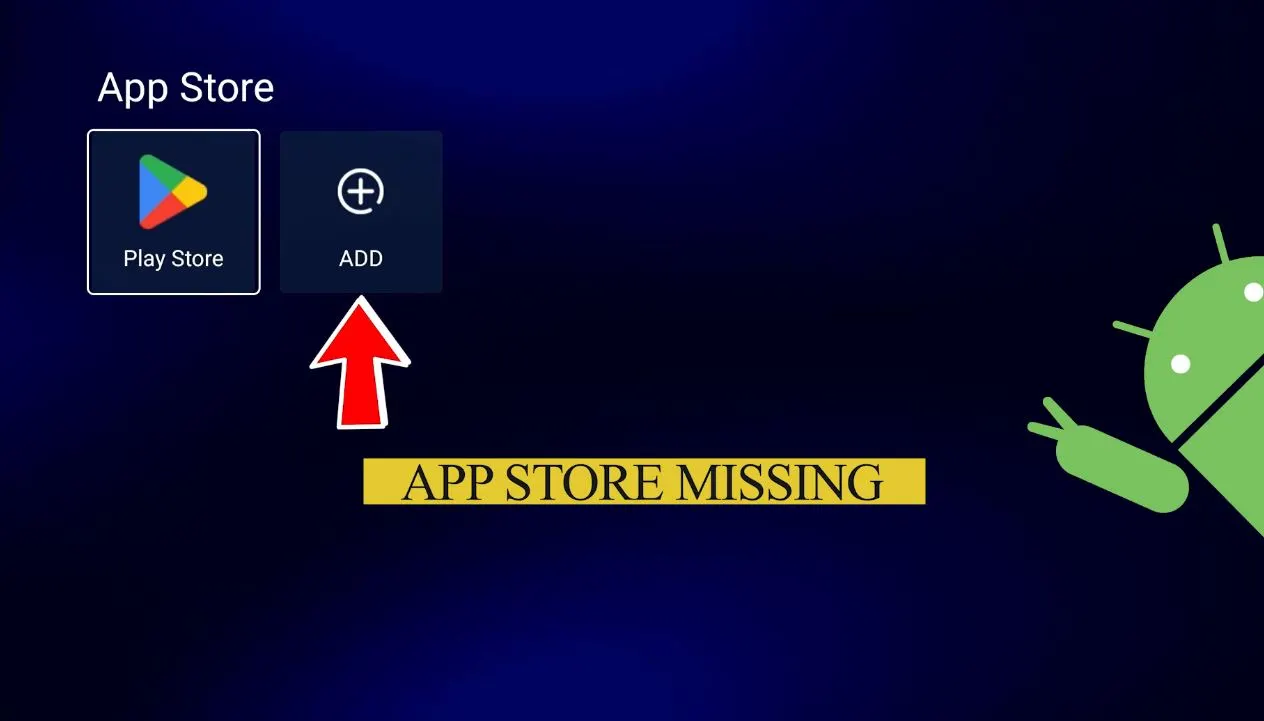
The green App Store has disappeared from your SuperBox home screen. Your apps are no longer easy to reinstall, and the box may suddenly feel incomplete. Before you consider returning the device, take a breath: in many cases, this is a software setup issue not a hardware failure.
The App Store can go missing after a factory reset, when an important over-the-air update is skipped, or during the initial setup of a new device. The recovery process shown below takes only a few minutes: download the App Store installer through Chrome, install it, and then update the TV ROM so the repair remains in place after the device restarts.
Quick answer: Open Chrome on your SuperBox, enter 143326.cc in the address bar, download and install the App Store package, then open TV ROM Updater, install the latest update offered for your device, and restart the box.
A missing App Store is commonly noticed after a reset or an incomplete update.
How to Restore the Missing App Store on SuperBox
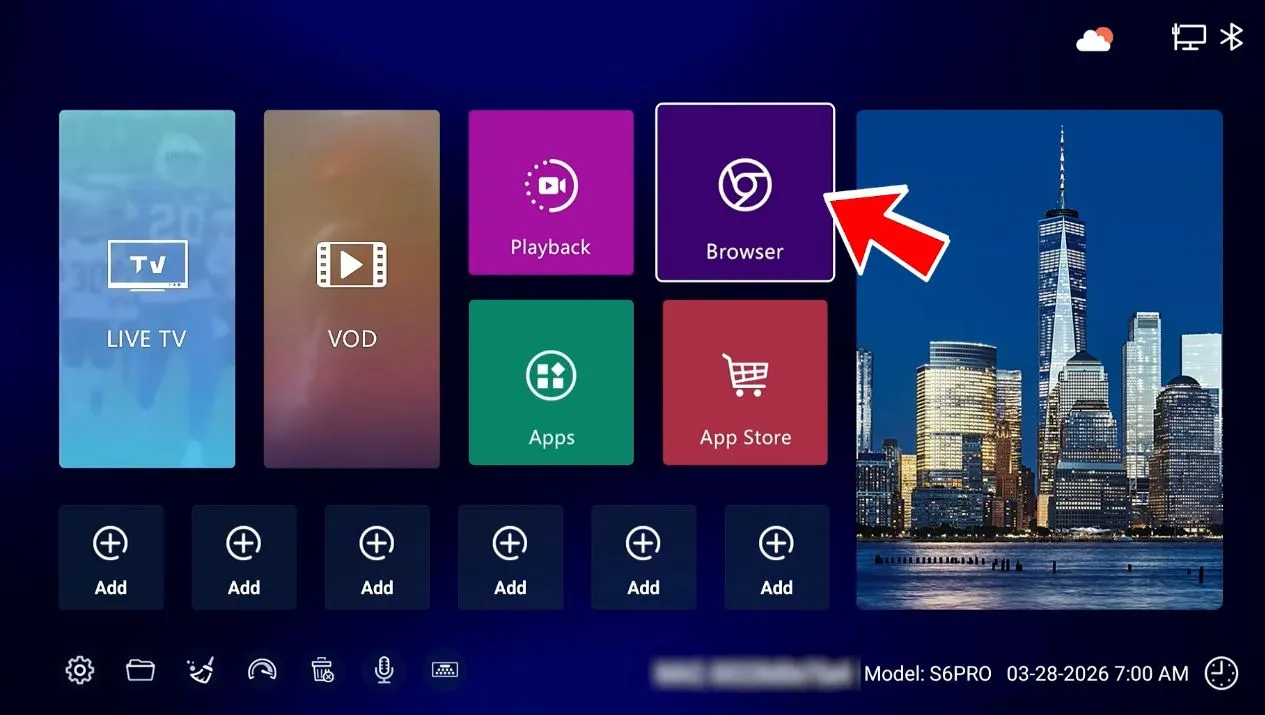
Step 1: Open Chrome from the SuperBox home screen
From the home screen, select the browser. Chrome may display its first-run setup if it has not been opened since the factory reset.
Start the recovery from the browser on your SuperBox.
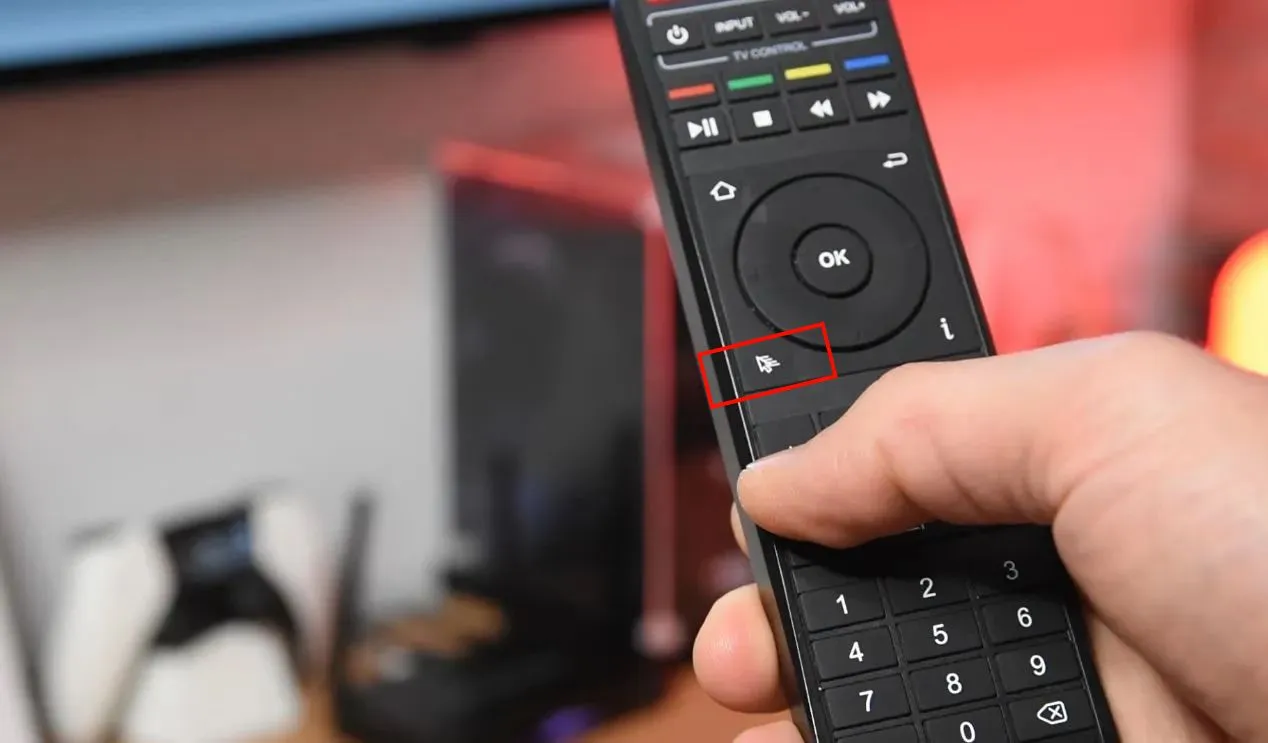
Step 2: Turn on Mouse Mode
Press the Mouse Mode button on the SuperBox remote. A pointer will appear, allowing the directional buttons to move the cursor around the Chrome interface. Press OK to select an item.
If navigating with the remote feels slow, connect a USB mouse and keyboard. This is optional, but it can make entering the download address easier.
Mouse Mode makes Chrome easier to navigate with the SuperBox remote.
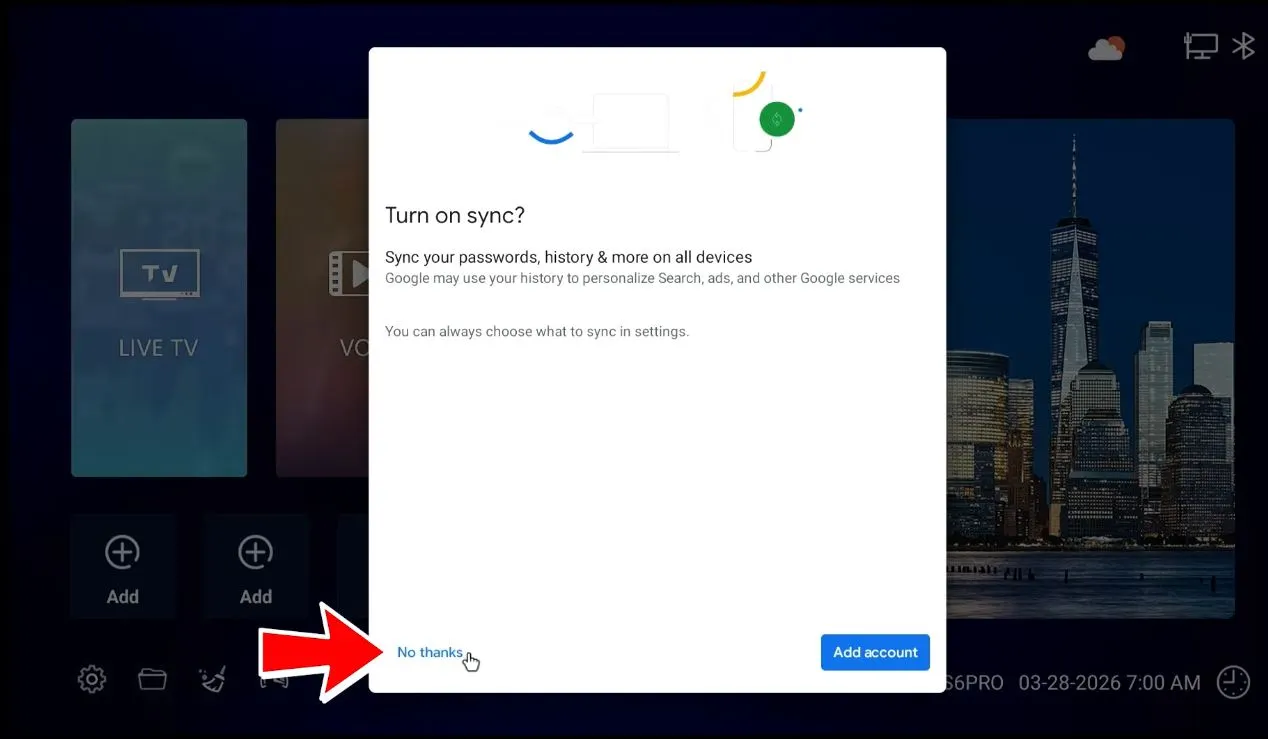
Step 3: Complete Chrome’s first-run screen
On Chrome’s welcome page, review the available checkbox, adjust it if desired, and select Accept & continue. When Chrome offers sign-in or synchronization, select No thanks to proceed without adding a Google account.
These screens may not appear if Chrome has already been configured. If the browser opens directly to a normal tab, continue to Step 4.
Complete Chrome’s initial setup to reach the address bar.
Step 4: Enter the App Store recovery address
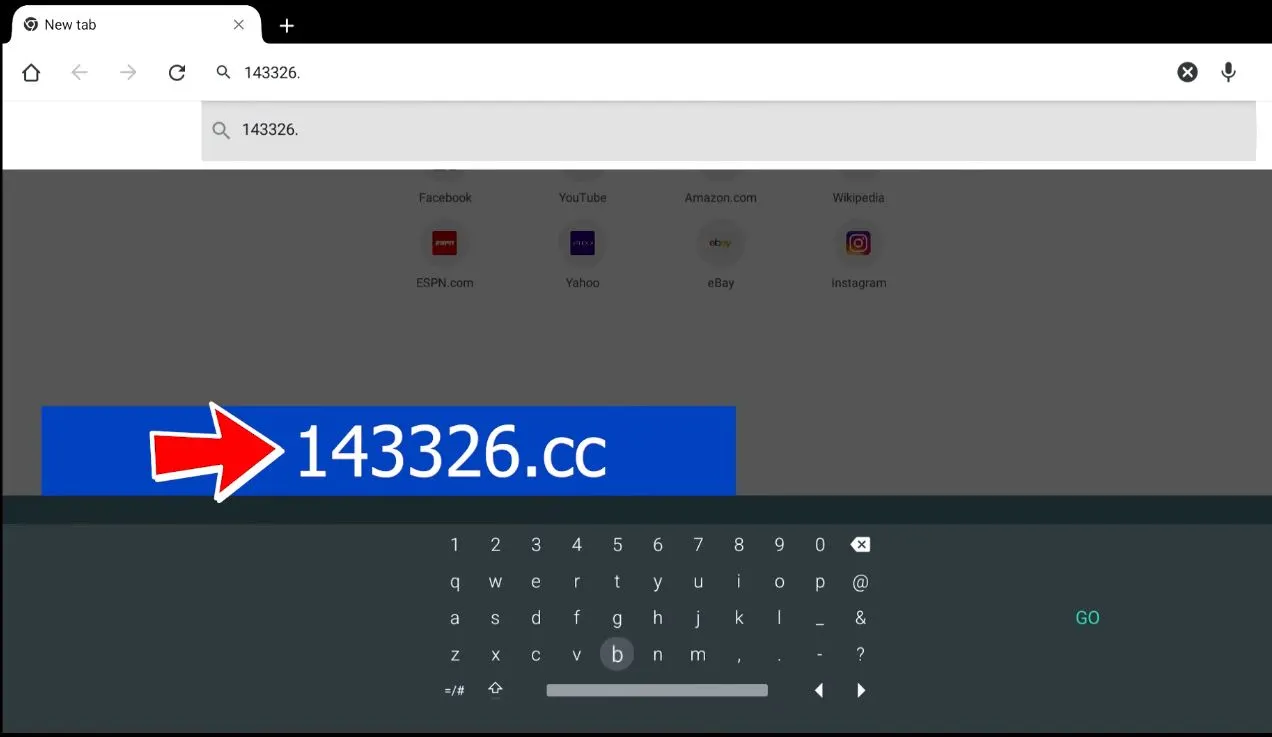
Select the address bar at the top of Chrome and enter:
143326.cc
Check every digit before selecting Go. Do not enter the number into a Google search box or add spaces. The address should begin the App Store package download.
If Mouse Mode makes typing difficult, press the Mouse Mode button again to return to standard remote navigation, then use the on-screen keyboard. You can turn Mouse Mode back on whenever you need to select a small browser control.
Enter the recovery address directly into Chrome’s address bar.
Important: At the time the source video was published, 143326.cc was the address demonstrated for this recovery. If it redirects to a login page, requests credentials, displays unrelated content, or does not download the installer, do not enter personal information. Skip to the troubleshooting section below.
Step 5: Confirm the download
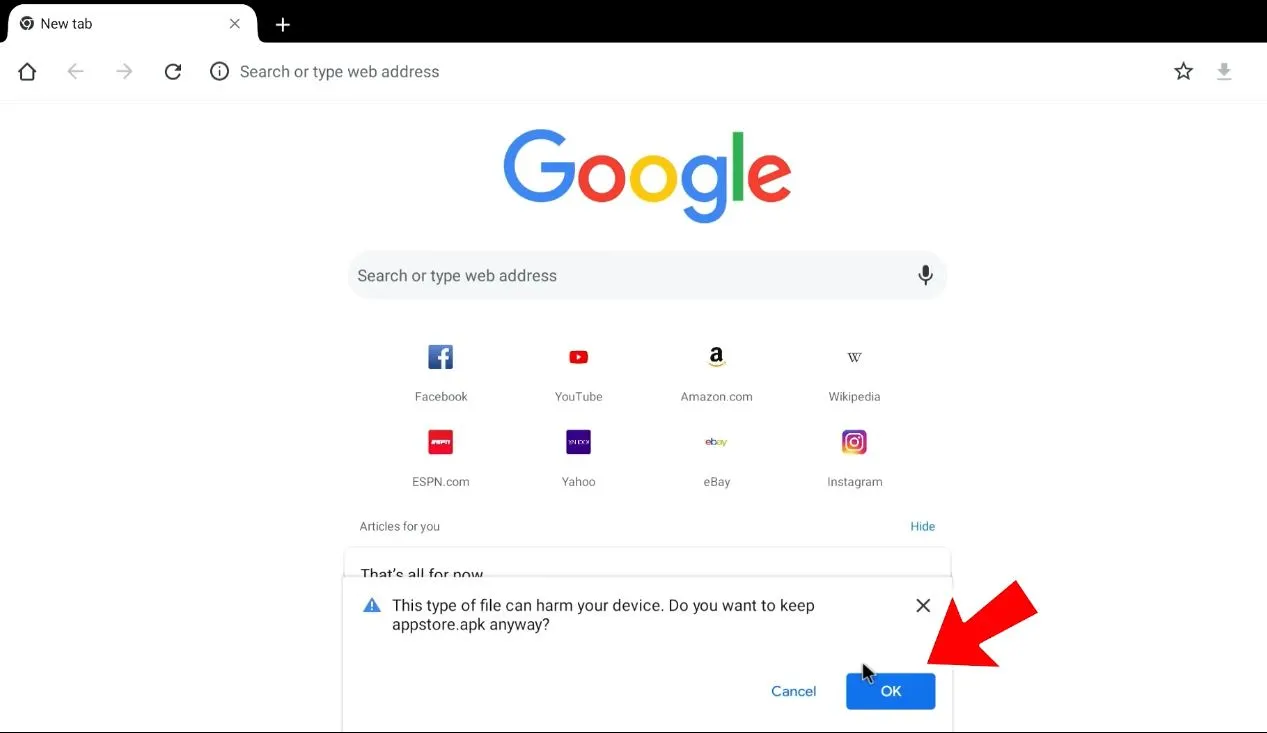
Chrome may warn that this type of file can harm your device. This is a standard Android warning shown when an APK is downloaded outside Google Play. Confirm only if the address and file match the recovery process described above.
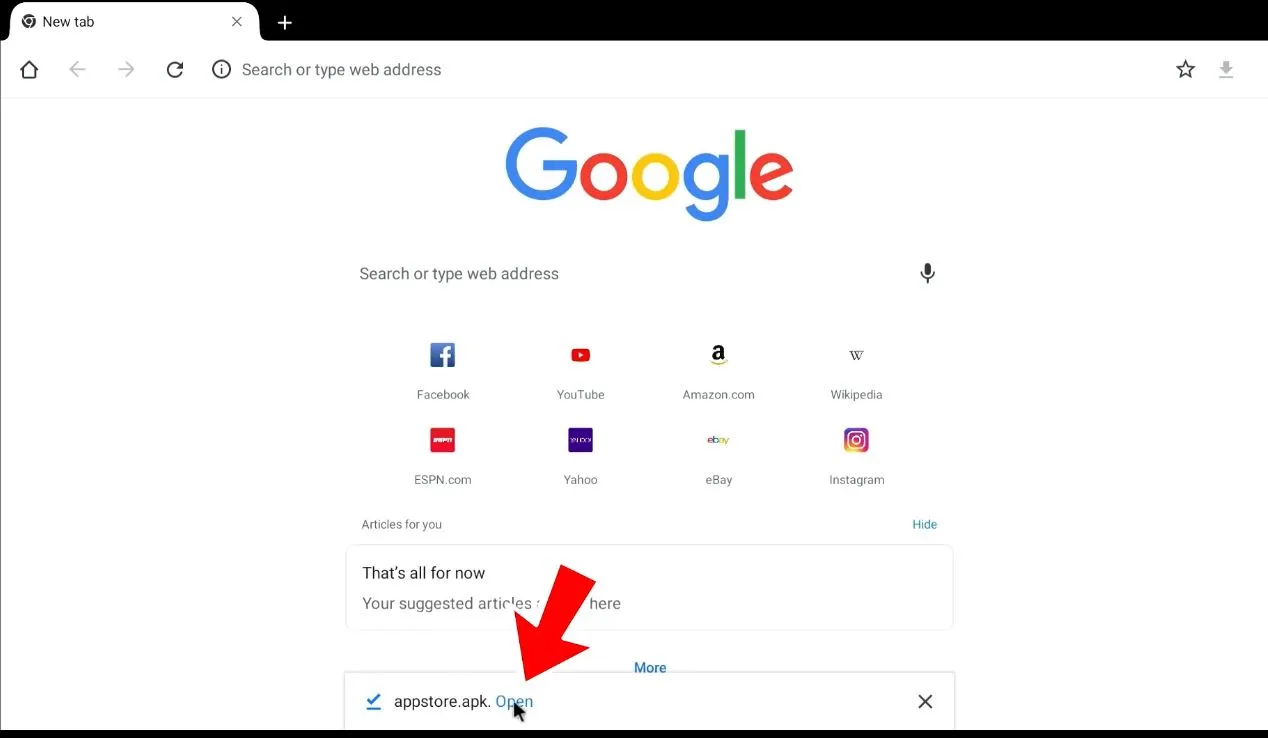
Select OK or Download anyway, depending on the message displayed. Wait for the download to finish, then select Open from the download notification at the bottom of the screen.
Wait for the installer to download completely before opening it.
Step 6: Install and open the App Store
The Android installer will ask whether you want to install the application. Select Install and wait until the process finishes. Do not unplug the box or close the installer.
When App installed appears, select Open. The green App Store should now launch normally.
If Android blocks the installation, follow the on-screen prompt to allow Chrome to install unknown apps, return to the installer, and select Install again. For better security, disable that permission after the installation is complete:
Settings > Apps > Special app access > Install unknown apps > Chrome > Not allowed
Menu wording can vary slightly by model and software version.
The green App Store should open immediately after installation.
Do Not Skip This Step: Update the TV ROM
Reinstalling the App Store restores it for the current session, but the video includes one more critical step. Updating the TV ROM completes the system repair and helps prevent the App Store from disappearing again after another restart or reset.
Return to the SuperBox main menu.
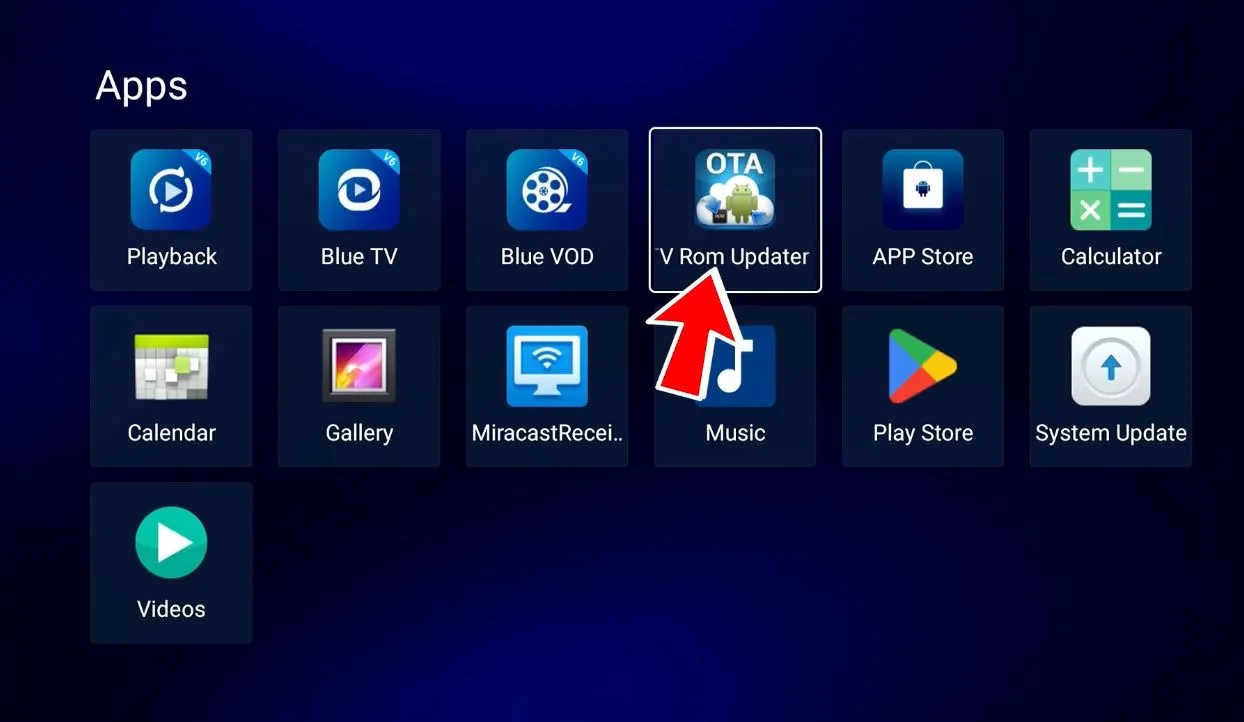
Open Apps.
Find and launch TV ROM Updater.
Install the newest ROM version offered for your exact device.
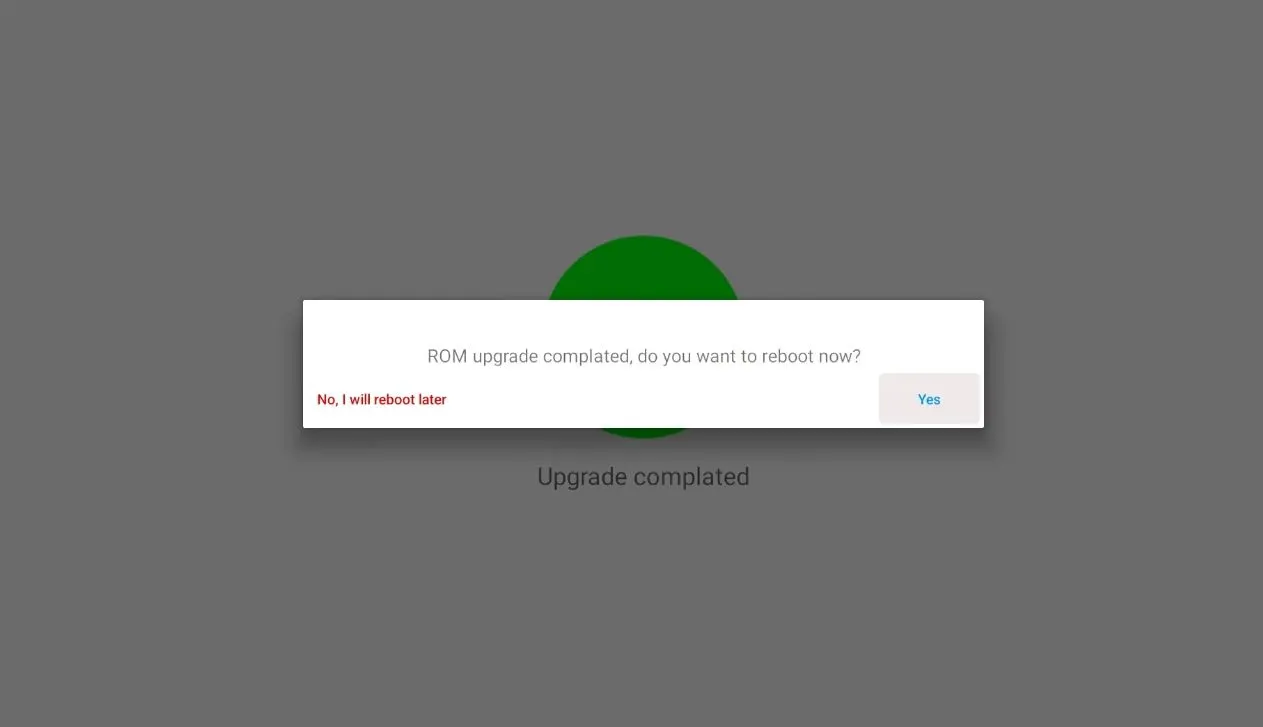
Wait for the update to finish.
When prompted to restart, select Yes.
The update version shown on another box may not match yours. Use only the update offered by the built-in TV ROM Updater for your model. Never interrupt power during a ROM installation.
Install the latest compatible ROM update offered by the device.Allow the SuperBox to reboot and finish applying the update.
After the restart, return to Apps and open the green App Store once more. It should remain available and ready to install the compatible applications offered for your device.
How to Confirm the Repair Was Successful
The fix is complete when all of the following are true:
the green App Store appears in the Apps section;
the App Store opens without immediately closing;
available app listings load normally;
a compatible app can begin downloading; and
the App Store remains present after a normal restart.
Do not judge the repair solely by the icon appearing. The restart test is important because it confirms that the ROM update and App Store installation are both active.
Troubleshooting: If the App Store Still Does Not Work
Symptom
Likely cause
What to do
143326.cc opens a login page
The address may have changed, the redirect may be unavailable, or the request may be intercepted
Do not enter a username, password, payment information, or personal data. Confirm your connection and contact the original seller or technical support for the current installer route.
The download never starts
Browser cache, connection instability, or a temporary server issue
Reload once, test another website, restart Chrome, and try again on a stable network. Avoid repeatedly tapping the link while a download is already pending.
Chrome says installation is not allowed
Chrome does not have permission to install APK files
Follow the Android prompt to temporarily allow installs from Chrome, complete the installation, then turn the permission off again.
“App not installed” appears
The APK may be incomplete, incompatible, or already partially installed
Delete the failed download, restart the box, download a fresh copy, and confirm that the package is intended for your model.
App Store opens but app downloads fail
Network, storage, server, or system-version issue
Check available storage, restart the router and box, install the TV ROM update, and retry later.
Error 0-12, 0-14, token, host, or network message
The App Store cannot complete a server request
Confirm the date/time and internet connection, reboot the device and router, and try again. If the same error persists, contact support with a clear photo of the full error.
“Device Forbidden” appears
Device authorization or seller-side activation issue
Reinstalling the App Store usually does not resolve authorization. Contact the original seller or SuperBox support with the model, order details, and a photo of the message.
App Store disappears after restarting
The ROM update was skipped, interrupted, or not applied
Reopen TV ROM Updater, install the latest compatible update, allow the box to reboot, and test again.
Why Did the SuperBox App Store Disappear?
The most common trigger is a factory reset. A reset returns the device to a clean software state and removes user-installed applications and local settings. If the setup process is interrupted—or the required TV ROM update is not completed—the green App Store may not return automatically.
You may also encounter the issue when:
the device did not finish an over-the-air update;
an update was skipped during initial setup;
the App Store installer was removed or did not install correctly; or
the system restarted before an update completed.
This guide is specifically for a missing green App Store icon. If the App Store is visible but cannot download apps, or the box displays Device Forbidden, use the troubleshooting section later in this article; those symptoms may have a different cause.
Before You Start
Allow approximately 10 minutes and prepare the following:
a stable internet connection;
the original SuperBox remote;
optional USB mouse and keyboard for easier typing; and
uninterrupted power while the installer and ROM update are running.
Confirm that web pages can open in the browser before continuing. If Chrome cannot connect, fix the Wi-Fi or Ethernet connection first. Do not factory-reset the box again simply because the App Store is missing; repeated resets do not complete the missing update.
Security note: This walkthrough follows the address displayed in the referenced video. Download addresses can change. Type it exactly, avoid look-alike websites, and do not install unofficial APK files from random download pages. If the address no longer behaves as shown, stop and contact your original seller or SuperBox technical support for the current recovery method.
Frequently Asked Questions
Is my SuperBox broken if the App Store is missing?
Usually, no. When the rest of the system starts normally, a missing App Store is often a recoverable software or update issue. Hardware failure becomes more likely only when the box cannot boot, repeatedly loses power, or shows broader system instability.
Will reinstalling the App Store erase my settings?
Installing the App Store package should not perform another factory reset. However, the factory reset that caused the issue may already have removed locally stored apps, preferences, and sign-in information.
Do I need a Google account?
No Google sign-in is required for the Chrome steps shown in the video. Select No thanks during Chrome setup and continue to the address bar.
Why is TV ROM Updater necessary if the App Store already opens?
The installer restores the application, while the ROM update addresses the underlying system state described in the video. Completing both parts helps the App Store survive a normal restart and reduces the chance of the same issue recurring.
Can I use any APK website instead?
That is not recommended. Random APK mirrors may distribute outdated, modified, or malicious files. If the demonstrated recovery address no longer works as expected, contact a trusted support channel instead of searching for an unknown replacement download.
Which SuperBox models does this method support?
The menu layout may vary across SuperBox generations and software versions. The key sequence—Chrome download, App Store installation, and TV ROM update—is the method demonstrated in the source video. If your model does not include Chrome or TV ROM Updater, stop and request model-specific instructions.
What information should I send to support?
Include your SuperBox model, order number, software or build version, a photo of the full error, and the exact step where the process stopped. This allows support to distinguish a download issue from a ROM, network, or device-authorization problem.
Final Thoughts
A missing App Store can look serious, but the repair is straightforward when completed in the correct order: install the App Store first, update the TV ROM second, and restart only when prompted. The final ROM update is what many rushed fixes overlook—and it is the step that helps make the recovery last.
If the address no longer works as shown, the updater reports an error, or the device displays Device Forbidden, do not continue guessing or install files from unknown sources. Contact your original seller or reach SuperBox TV Box Store Technical Support on WhatsApp and send your model, order details, and a clear photo of the screen.