
Knowledge SuperBox
SuperBox S8 for Parents and Seniors: What Makes a TV Setup Easier?






A Good TV Setup Should Feel Familiar
Buying a TV box for your parents is easy. Making sure they enjoy using it after you leave takes more thought.
Perhaps they want to watch the evening news without opening several menus. Perhaps entering a movie title with an on-screen keyboard feels tiring. Or perhaps the problem is simply remembering which remote controls the television and which one opens their shows.
SuperBox S8 can make everyday viewing more convenient through its updated home interface, app shortcuts, and voice-command remote. The best results come from setting up those tools around the person who will use them.
For parents and seniors, start with three goals: a familiar starting screen, a short route to favorite entertainment, and a clear way to get help. This guide explains how to achieve those goals, which S8 differences matter, and what to test before calling the setup finished.
What Actually Makes a TV Easier for Older Adults?
A feature is useful when it removes a real difficulty. More menus, more apps, and more viewing modes do not automatically make television easier.
Ask the viewer what bothers them about their current setup. Their answer gives you a better shopping checklist than age alone.
| Everyday difficulty | A practical improvement |
|---|---|
| “I cannot find the app I used yesterday.” | Keep a small set of familiar apps visible on Home. |
| “Typing a title takes too long.” | Test voice input in the apps they actually use. |
| “I cannot see the buttons at night.” | Compare remote visibility, including Ultra’s backlit remote. |
| “The TV says there is no signal.” | Write down the correct HDMI input and which remote selects it. |
| “I do not know who to ask.” | Leave the purchase details and a clearly labeled support contact. |
Someone comfortable exploring apps may want more flexibility. Someone who watches the same programs daily may prefer an almost unchanged routine. Let that preference guide the setup.
Give the S8 Home Screen a Clear Purpose
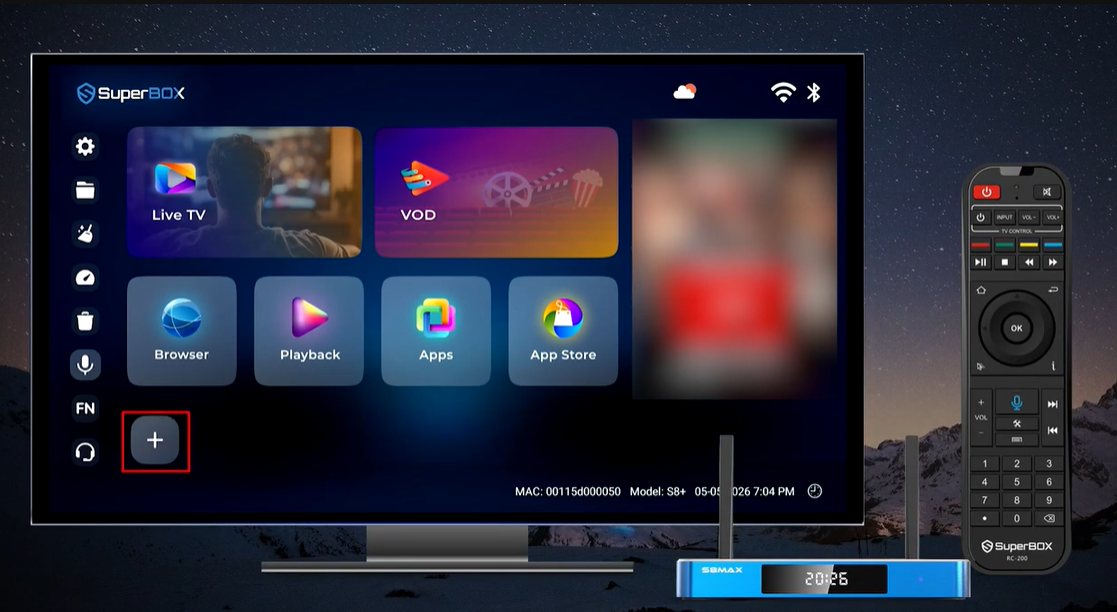
The S8 generation introduces a redesigned interface and customizable Quick Access. For a family setting up a box for parents, the useful benefit is straightforward: frequently used entertainment can stay close to the starting screen.
First, identify what the viewer actually watches. Live television, movies, and previously aired programs are different activities, so explain them in everyday language. Introduce Blue TV for live viewing, Blue VOD for on-demand browsing, and Playback when an eligible earlier program is available.
You do not need to teach all three on the first day. If your parent mostly watches live television, make that the first successful experience.
After installing the required apps, use the Home screen’s + / ADD control to place familiar apps in the shortcut row. Keep the initial selection small, perhaps two or three. Our S8 app installation guide covers the installation stage separately.
Then agree on the layout. Once the viewer recognizes where things are, avoid rearranging icons during every visit. A predictable screen is easier to learn than a constantly “improved” one.
Use Number Shortcuts to Reduce Searching
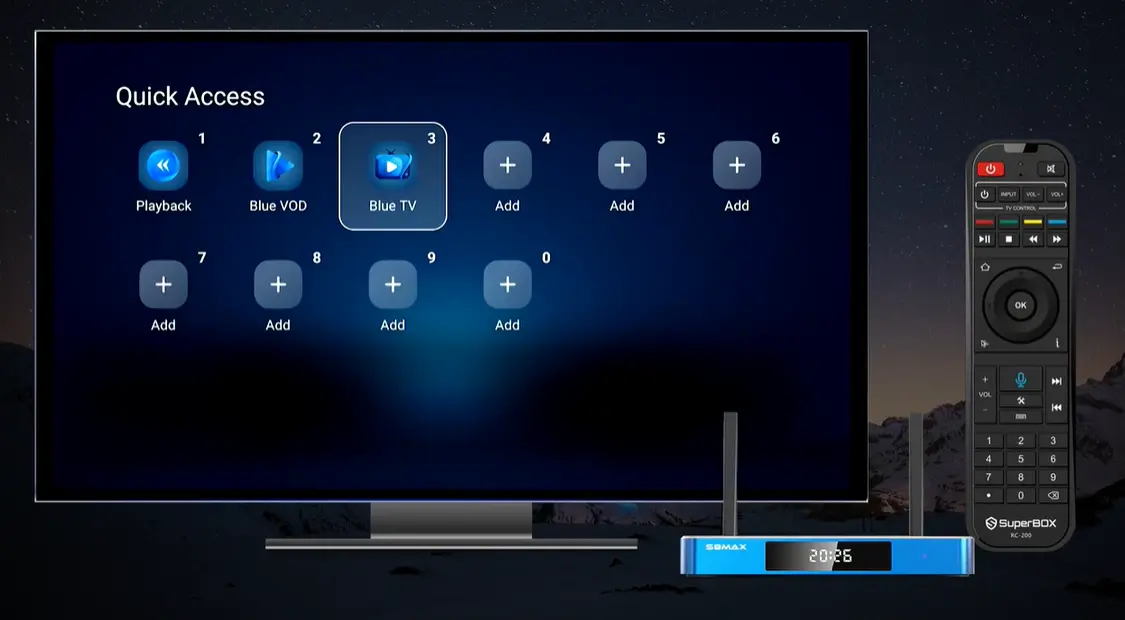
A useful S8 convenience is assigning an installed app to a remote number key. This creates a repeatable instruction such as “Go Home, then press 1.”
Set it up through FN → Quick Access, select a numbered slot, and assign the installed app. Return to Home to test the assigned number. The complete S8 number-key guide explains the settings in detail.
These are app shortcuts, not channel presets. Assigning Blue TV to 1 opens that app; it does not mean key 1 will directly select a particular news channel. Also, the visual order of Home shortcuts does not automatically determine the number assignments.
Choose numbers together rather than deciding everything for the viewer. If “1 means live TV” is memorable to them, write exactly that on a small card. Two reliable shortcuts are more useful than ten forgotten assignments.
Keep the instructions consistent: begin from Home, open the app, then select the program. Do not promise a shortcut will behave the same way from every screen inside every app.
Make the Remote Comfortable Before Teaching Voice Control
All four S8 models list voice-command support. Voice input can reduce the need to enter text letter by letter, but its usefulness depends on the app and the task.
Set up the remote connection first using our SuperBox S8 remote pairing instructions. Then test a real search with the person who will use it. Let them hold the remote, speak naturally, and see what happens.
Do not stop at a demonstration performed by a confident family member. The important question is whether the viewer finds it comfortable and repeatable. Keep ordinary button navigation available as an equally valid option.
Consider Backlighting for Evening Viewing
S8 Ultra is the only model in the four-model comparison supplied with a backlit remote. Pro, Plus, and Max include voice support without that included backlighting.
For someone who has difficulty locating buttons in a dim room, this may matter more than additional storage. Backlighting illuminates the controls; it does not enlarge the buttons or guarantee they will suit every viewer. Whenever possible, let the person try the remote before choosing.
Choose an S8 Model Around Everyday Use
There is no single best SuperBox S8 for every senior. The right choice depends on viewing habits, remote comfort, and budget.
| Model | Listed internal storage | Included backlit remote | A sensible reason to consider it |
|---|---|---|---|
| S8 Pro | 32GB | No | Core everyday viewing with a smaller app collection. |
| S8 Plus | 64GB | No | More app storage when the higher viewing tier is unnecessary. |
| S8 Max | 64GB | No | A household that also wants broader supported Multi-Viewing. |
| S8 Ultra | 128GB | Yes | Included illuminated controls and the largest storage capacity. |
All four have voice-command support. Higher storage capacity does not itself make an interface simpler or an internet connection faster. Advertised storage also differs from the space available after system files and installed apps.
Read our full S8 model comparison if advanced viewing features matter to other people in the household. For a parent watching one program at a time, remote comfort and a familiar routine may be more valuable than multitasking.
Prepare the Room and Connection Before the First Lesson
A well-organized menu cannot compensate for a confusing physical setup. Connect the box, establish internet access, and confirm a program plays before introducing the controls.
Use our S8 Wi-Fi and Ethernet setup guide for the connection steps. Where a cable can be routed neatly, Ethernet is worth considering. With Wi-Fi, check performance where the box will actually sit, especially during the hours your parent usually watches.
Keep cables out of walking routes and position the remote within comfortable reach. From the normal seat, ask whether menu labels and program information are readable. If they are difficult to see, consider television placement, seating distance, and room lighting before assuming another box will solve the problem.
Test the sound at a comfortable level, too. If subtitles are important, check them in the actual app and program. Availability varies, so verify this need before relying on it.
Finally, turn the equipment off and start again. A setup that works only while everything is already open is not ready to hand over.
Teach One Complete Viewing Routine
The first lesson should end with the viewer choosing something they enjoy. Keep advanced features for later, unless they specifically ask.
Practice the Daily Sequence
Have the viewer perform these actions themselves:
- Turn on the television and box using the controls you have agreed on.
- Confirm the TV is showing the S8 input.
- Go to Home and open the familiar app.
- Choose a program and adjust the volume.
- Return to the starting screen when finished.
Watch where they hesitate. If the same step is confusing twice, improve the instruction or arrangement rather than simply repeating it louder.
Leave a Short Help Card
Make the card specific to their television. For example:
- TV input: HDMI 2 — confirm this matches the actual connection.
- Live TV: Home, then 1 — after you assign and test that shortcut.
- Movies: Home, then 2 — after you assign and test it.
- Need help? Call the named family helper or use the saved support contact.
Write in a comfortable print size and place the card where it will be used. Do not include passwords on a card visible to visitors.
Before leaving, step back and let the viewer repeat the routine without prompts. Their successful attempt is a better test than your ability to explain it.
Plan for Small Problems Without Overwhelming the Viewer
Troubleshooting should begin with what is on the screen, not a long list of settings to change.
If the television displays “No Signal,” check power and the selected input first. If the S8 screen appears but a program will not load, note the app and message. If the buttons stop responding, check the remote and its connection.
Ask the viewer to describe or photograph the problem. “Blue TV opens, but this channel does not load” is more useful than “the whole box is broken.” Avoid asking someone unfamiliar with the menus to factory reset or uninstall apps as an opening step.
Save our S8 maintenance and support guide for the family helper, and keep the model name and purchase details accessible. After a software change, check that the familiar shortcuts still work and update the help card if necessary.
Frequently Asked Questions
Is SuperBox S8 a Good Choice for Seniors?
Yes. It can be, especially when the home screen and shortcuts are organized around a few familiar activities. Suitability depends on the viewer’s comfort with the remote, the apps they want, and the support available. Let the person try the routine rather than choosing by age alone.
Which S8 Model Is Easiest for Parents to Use?
The models share core navigation conveniences. Ultra deserves consideration when its included backlit remote solves a real visibility problem. Pro may be enough for straightforward viewing. Choose around the person’s needs instead of assuming the highest model is automatically the easiest.
Can My Parent Open an App With a Number Key?
Yes. Assign an installed app in FN Quick Access, then test its number from Home. The assignment opens the app, not a specific channel. Write down only the shortcuts the viewer actually uses.
Does Voice Control Replace All Remote Buttons?
No. Voice can help with supported tasks, but viewers should still know how to navigate with buttons. Test it inside their preferred apps and teach a simple button route for the same everyday activity.
Does Every S8 Remote Have Illuminated Buttons?
No. Only S8 Ultra includes a backlit remote in the four-model comparison. Pro, Plus, and Max have voice-command support but are not listed with included remote backlighting.
Can SuperBox Help Reduce Monthly TV Costs?
It may help households replace services they no longer need. SuperBox promotes 2,000+ live channels and varied media content without a separate monthly subscription for the included apps. Internet remains necessary; optional paid services cost extra. Check must-have programs and current availability before canceling an existing service.
Can Parents Rewatch a Program They Missed?
Playback offers access to eligible previously aired programs, with up to seven days available on supported programming. It is useful for a missed show, but it is not a guarantee that every channel or episode will be available.
Buy From a Retailer You Can Identify and Contact
For a family buying on someone else’s behalf, a clear purchase record and accessible guidance are part of a good setup.
SuperBox TV Box Store is an authorized retailer serving customers in the US and Canada. Our authorization code, SP20250414002, can be checked on the SuperBox authorization website. Our site also brings together model comparisons and practical S8 setup guides so you can prepare before handing over the remote.
Order directly from our website and keep the confirmation from customer@superboxtvboxstore.com. For help with your purchase, use our contact page and provide the order number and checkout email. Review the applicable purchase terms before ordering.
Choose the S8 features your parent will appreciate, set up the few actions they repeat daily, and let them practice. The real benefit is a television routine they can enjoy with confidence
The article was updated on:
