
Knowledge SuperBox
How to Stream on a Non-Smart TV in 2026: Connect, Set Up and Start Watching





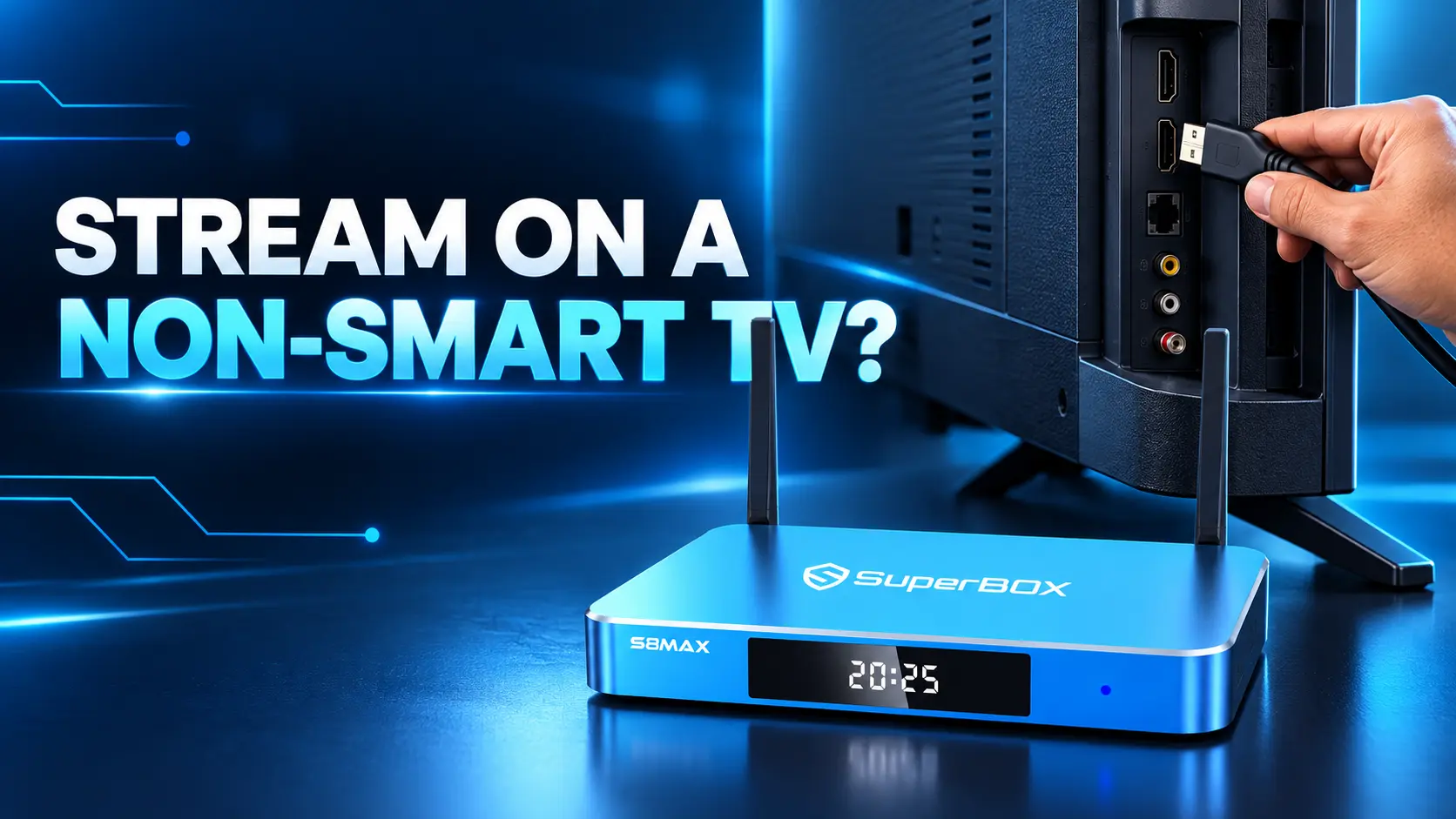
The easiest way to stream on a non-smart TV
Connect a compatible streaming device to the TV’s HDMI input, power it correctly, select that HDMI input on the television, then connect the device to the internet. Install or open a supported viewing app and complete any required account setup.
Your TV does not need its own Wi-Fi connection. The streaming device handles the apps and internet connection, while the TV displays the picture and plays the sound.
If your screen still looks good, this gives you a way to keep using it without replacing the whole television. You can choose a compact stick, a box such as SuperBox S8, or a suitable computer you already own.
Start with the sockets on your TV. That tells you whether the setup will be a straightforward HDMI connection or whether older connections need closer checking.
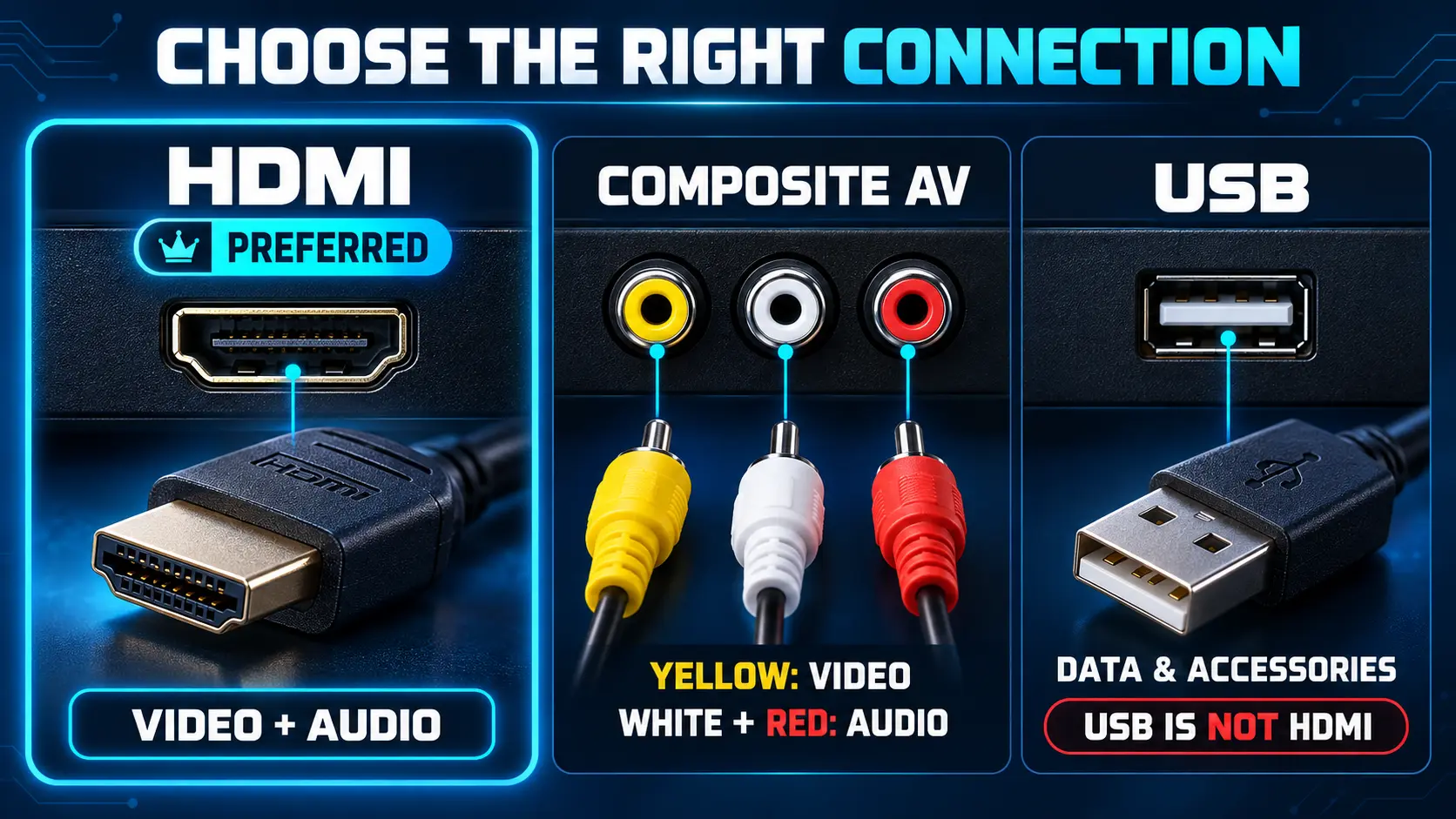
1 Check the inputs on your television
Look on the back or side for labels such as HDMI IN, AV IN or VIDEO IN. Take a clear photo if the labels are difficult to read.
| What your TV has | What it means for streaming |
|---|---|
| HDMI input | The simplest route for a compatible modern streaming stick, box or laptop |
| Yellow video plus red/white audio inputs | Composite AV; a compatible analog output or suitable active converter is needed |
| Green/blue/red video sockets | Component video; these are different from yellow composite video |
| USB socket only | Does not establish support for a streaming stick’s video output |
| Antenna/coaxial input only | No straightforward HDMI connection; compare conversion costs with another television |
If the TV has HDMI
Note the port number, such as HDMI 1 or HDMI 2. You will select that same number using the TV remote after connecting the device.
You do not need a smart television for an HDMI streamer. However, the device must support your display’s resolution and any requirements of the streaming service. For example, Google’s streaming-device requirements specify HDMI content-protection compatibility. A very old HDMI television is worth checking against the device’s requirements before purchase.
If the TV only has AV connections
Do not buy a cable just because its plugs fit. Composite, component and HDMI carry different types of signals. The appropriate connection depends on the TV’s input and the source device’s actual output.
The no-HDMI section below explains what to check before ordering an adapter. For the general difference between television types, see our Smart TV and non-smart TV guide.
2 Choose the streaming method that suits your household
| Method | What you need | Best suited to |
|---|---|---|
| Streaming stick, such as Roku or Fire TV | Compatible HDMI TV, power, internet and supported apps | A compact remote-controlled setup |
| Streaming box, such as SuperBox S8 | Compatible HDMI TV, correct adapter, HDMI cable and internet | A dedicated viewing interface with the box’s supported features |
| Laptop through HDMI | Laptop video output, suitable cable or adapter and internet | Occasional use without another dedicated streamer |
| Phone with a supported display adapter | Phone video-output support, correct adapter and app compatibility | Short sessions or showing compatible phone content |
| Existing games console or media player | An installed, currently supported app for that exact device | Trying equipment you already own |
Roku’s player setup guide and Amazon’s Fire TV connection guide show the HDMI, power and network workflow for their products. Check the app selection on the exact device you intend to buy.
For everyday use, a physical remote can be more comfortable than operating everything from a laptop or phone. For occasional viewing, an existing computer may be enough.
If you mainly want one paid streaming service, confirm its device support and subscription requirements first. A box with more storage is not automatically the right choice for that one task.
3 Gather the essentials before starting
For a box-based HDMI setup, have these items ready:
- The streaming device and its remote.
- The correct power supply for that device.
- An HDMI cable and an available HDMI input on the TV.
- The TV remote for selecting the input.
- Your Wi-Fi network name and password, or Ethernet where supported.
- Account details for any services you plan to use.
The two remotes do different jobs. The TV remote selects the input; the device remote operates its menus and apps. Some remotes can also control TV power or volume after setup, but learn the basic two-remote method first.
Do not unplug the cable box until you know which cable and input belong to it. You can keep cable television on one input and test a streamer on another before making a larger change.
4 Connect the device to HDMI and power
With the equipment switched off, connect the streaming box’s HDMI output to the TV’s HDMI input. A stick usually plugs directly into the TV; use an appropriate extension if the manufacturer recommends it for a tight space.
Connect power using the supplied or manufacturer-approved adapter. Then turn on the television and the streaming device.
For SuperBox S8, Pro, Max and Ultra use Type-C power; Plus uses a round plug. Use the correct adapter for your unit. A phone charger is not automatically suitable just because its plug fits.
Do not assume the TV’s USB socket can power the device reliably. Some sticks support certain TV-powered setups, while others require their own adapter or cable arrangement. Follow the instructions for your exact model; repeated restarts warrant checking power, not an automatic conclusion that the TV is broken.
For the full S8 Max connection sequence, see our S8 Max unboxing and setup guide.
5 Select the correct input on the TV
On the TV remote, press the button labeled Input, Source or a similar name. Select the port used for the streamer: HDMI 1 if the cable is connected to HDMI 1, for example.
You should now see the device’s startup or Home screen. Selecting an app is the next stage; there is no need to retune the television’s antenna channels to find an HDMI device.
If the screen says No Signal, check the input number, power and cable connections. Move through the available HDMI choices carefully rather than changing unrelated picture settings.
Once it works, write down the input number for the household. A small note such as “Streaming: HDMI 2” can save repeated setup questions.
6 Connect the streaming device to the internet
Use the device remote to follow its network setup. Choose your home Wi-Fi name, enter the password and wait for a connection result. Where the device has an Ethernet port, you can connect it to the router instead.
The TV remains a display. It does not need built-in Wi-Fi or a separate internet adapter for this HDMI setup.
On SuperBox S8, follow our Wi-Fi and Ethernet connection guide. Confirm ordinary playback before trying multiple simultaneous streams.
How much internet speed do you need
Requirements depend on the service and picture quality. As one specific example, Netflix recommends at least 3 Mbps for 720p, 5 Mbps for 1080p and 15 Mbps for 4K. Those are Netflix figures, not universal requirements for Blue TV or every other app.
A stable connection at the television matters as well as your plan’s advertised speed. Other people using the connection can affect available capacity. Test your actual viewing rather than buying a higher internet tier without checking the problem.
Complete the device’s initial setup, then install or open the apps you want. Some platforms require a device account; individual viewing services may require their own accounts or subscriptions.
For S8, use our Blue TV, Blue VOD and Playback installation guide. Do not assume all viewing apps are preloaded. Installing an app and placing its shortcut on Home are also separate actions.
Open one app and test a program before personalizing everything else. Check that the remote selects items, the sound is audible and the picture fits the screen.
For the S8 viewing controls, follow how to use Blue TV for live-channel browsing or the Blue VOD guide for on-demand navigation.
Afterward, put your most-used apps on Home. The S8 shortcuts and number-key guide can help make daily use easier, particularly for someone who prefers a few familiar choices.
What if your TV has no HDMI input
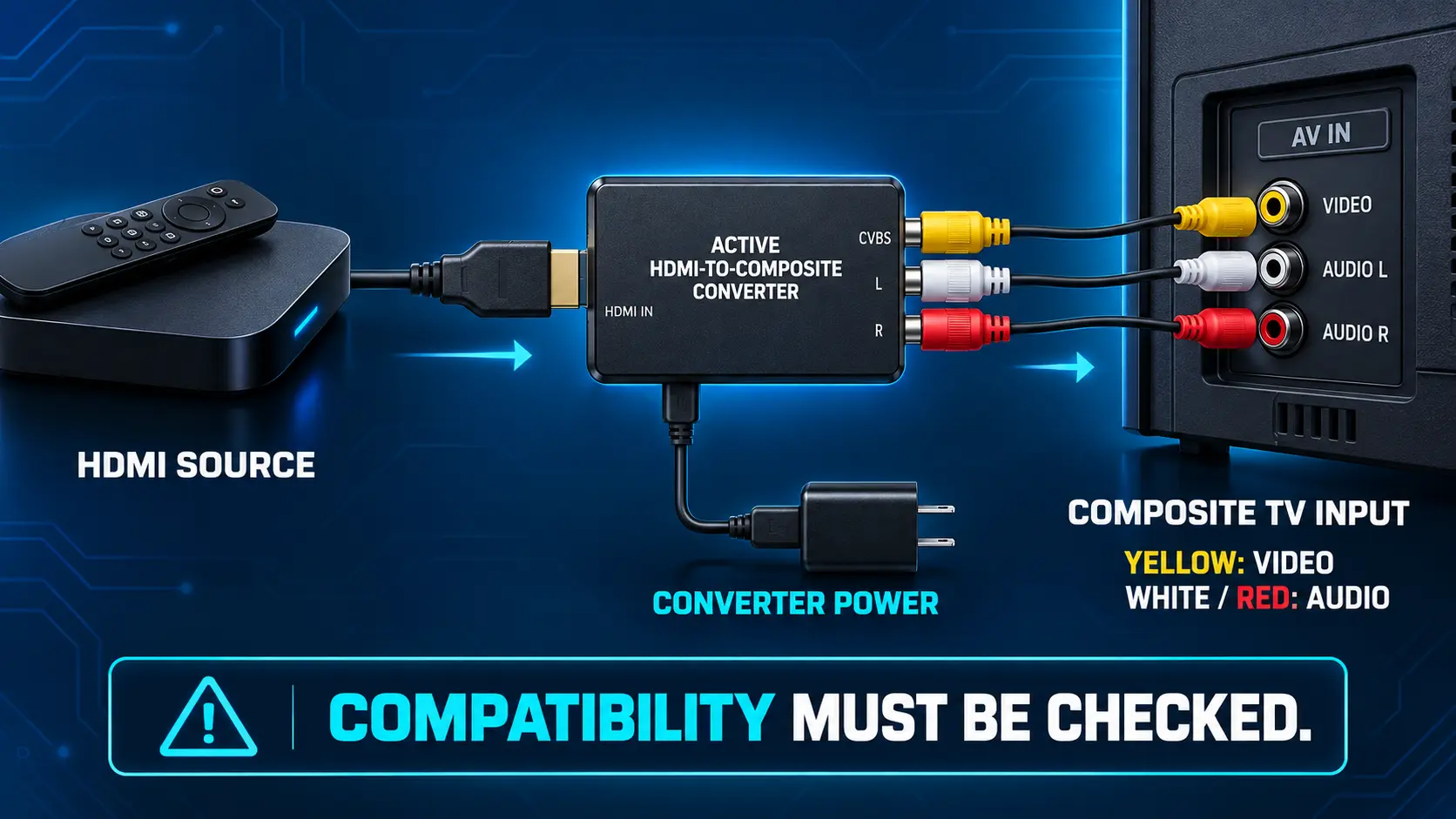
For a television with yellow/red/white composite inputs, one possible route is an active HDMI-to-composite converter. It accepts the streamer’s digital HDMI signal and converts it to an analog signal the older TV can display.
The direction matters: HDMI source → converter → composite TV input. A composite-to-HDMI converter is for the opposite job. A passive cable with different plugs does not perform this conversion.
StarTech’s HDMI-to-composite documentation illustrates the distinction between digital input, analog output and external power. Check your chosen converter’s supported input resolution, output standard and audio connections.
Check compatibility before buying
Ask the converter manufacturer whether your streamer and intended services are supported. Some protected services require compatible HDMI content protection, so converting to an older analog display should not be assumed to work with every app.
Composite video also limits picture detail. A converter does not turn an older screen into an HD or 4K television. Check subtitle readability and picture shape before committing to that setup.
If the TV has component sockets, a combined AV jack or only an antenna input, send a photo of the labels to a knowledgeable seller before ordering accessories. Do not assume an AV-labeled socket on a box uses the same cable wiring as another brand.
For a very old TV, compare the total adapter cost and complexity with a basic HDMI television. Keeping an existing screen can be sensible, but several conversion devices may make it less convenient than expected.
Other ways to use equipment you already own
Connect a laptop through HDMI
A laptop can use the television as an external display. Connect its HDMI output—or a supported video adapter – to the TV, select that input and open the service in a supported browser or app.
Apple’s Mac HDMI instructions explain supported connections and audio settings. On any computer, check the display and sound output if the picture appears but audio stays on the laptop.
This is useful for occasional viewing. A dedicated device may be more convenient if you want to leave a remote by the sofa and keep the computer free for other tasks.
Connect or cast from a phone
A USB-C socket does not automatically mean a phone supports video output. Check the exact phone model and adapter. Apple’s wired display guide describes the appropriate adapter route for supported iPhones.
Wireless casting also needs a compatible receiver. A TV without casting hardware does not gain that ability just by joining a Wi-Fi network. Google’s Chrome casting instructions require a supported receiver, such as a Google streaming device or television with Google Cast.
App behavior varies, so test the service you actually use. Do not assume that a phone’s Home screen appearing on the TV guarantees every protected video will play through that route.
Try a supported console or media player
If you already have an Xbox, PlayStation or disc player with supported streaming apps, it may cover your needs. Check current app availability for that specific model before buying another device. Older app logos on the box or remote do not establish that a service still works today.
What SuperBox S8 adds to an existing TV
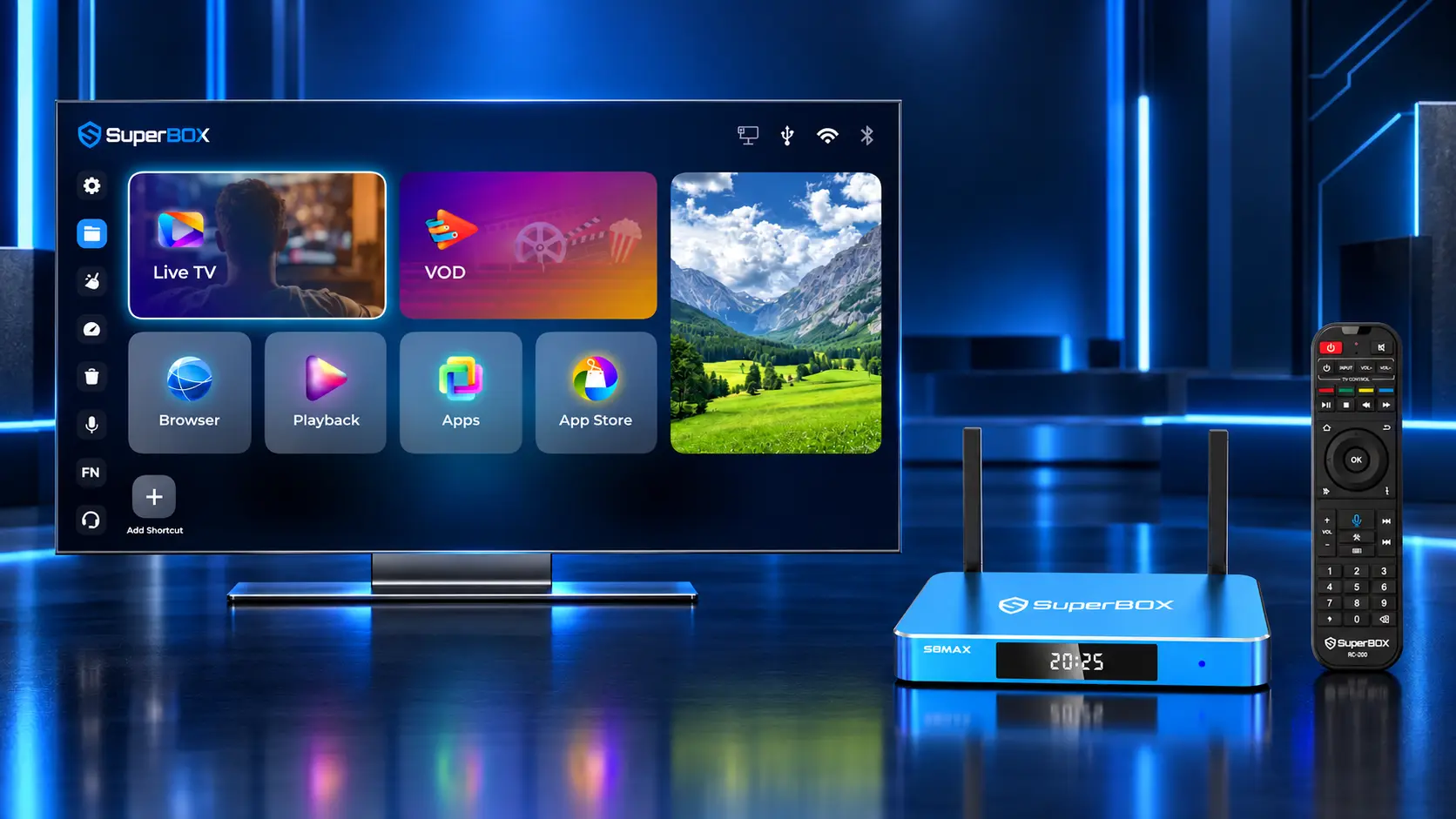
SuperBox S8 provides a separate viewing interface, so the television does not have to run the apps itself. You can keep a compatible HDMI screen and change the device connected to it when your needs change.
The series includes manual recording, supported Picture-in-Picture and Multi-Screen viewing, plus the familiar Blue TV, Blue VOD and Playback functions. Recording is manual rather than scheduled; our S8 Recorder guide explains the supported workflow.
Here is a short starting point for choosing a model:
| Model | Storage | Main choice to consider |
|---|---|---|
| S8 Pro | 32GB | Core S8 functions for lighter storage needs |
| S8 Plus | 64GB | More storage with the Pro/Plus viewing scope |
| S8 Max | 64GB | Broader supported Multi-Viewing and the NFL app |
| S8 Ultra | 128GB | More storage and the included backlit remote |
Pro and Plus list PPV/ESPN Multi-Viewing; Max and Ultra list full supported channels. The NFL app is listed on Max and Ultra. All four have voice command, while Ultra alone includes remote backlighting. See the full S8 comparison for the differences.
S8 supports 4K playback and H.265 decoding up to 6K. Those capabilities do not change the physical resolution of your television. A 1080p screen remains a 1080p screen; choose a supported output setting that fits it. Our TV box versus Smart TV guide explains the screen-and-device relationship further.
Fix common setup problems
| Problem | What to check first |
|---|---|
| No Signal | Device power, HDMI cable and matching TV input |
| Menus appear but online content does not load | Device internet connection, app status and account access |
| Picture works but there is no sound | TV mute/volume, cable connection and device audio setting |
| Picture is stretched or cut off | TV picture-size controls and device output settings |
| Repeated restarts | Correct adapter, power cable and ventilation; seek support if it continues |
| One service plays a black screen | That service’s device, adapter and content-protection requirements |
| Video buffers | Test another program, then check the connection and app separately |
| Phone cannot find the receiver | Compatible casting hardware and network setup |
If possible, test a direct HDMI connection without extra adapters or an audio receiver to narrow down a problem. For picture-and-sound basics, keep the setup simple before adding more equipment.
For S8 playback problems, our buffering troubleshooting guide can help you separate connection issues from app-specific symptoms. Avoid a factory reset as the first response to an incorrectly selected HDMI input.
Buy from SuperBox TV Box Store with a clear starting point
SuperBox TV Box Store is an authorized retailer serving customers in the US and Canada. Verify our retailer authorization with code SP20250414002 at the SuperBox authorization website.
If you are unsure whether your TV is suitable, contact our team before buying and send the television’s model number plus a clear photo of its input labels. That is more useful than guessing from the TV’s age or brand.
Compare the S8 models, read our return policy and save your confirmation from customer@superboxtvboxstore.com. Knowing the exact device, connection and seller gives you a clearer route from purchase to setup.
Frequently asked questions
Can I make a non-smart TV stream without replacing it?
Yes. With a compatible HDMI input, a suitable external streamer handles apps and internet access while the TV displays the result.
Does the TV itself need Wi-Fi?
No. In this setup, the streaming device connects to Wi-Fi or supported Ethernet. The TV receives picture and sound through HDMI.
Is plugging a streamer into USB enough?
No. USB power and HDMI video serve different purposes. Follow the device’s power instructions and connect its video output to a supported TV input.
Can SuperBox S8 work with a 1080p television?
Yes. It can be used with a compatible HDMI display at a supported output setting. A 4K-capable box does not require you to view everything in 4K.
Can I use a TV with only red, white and yellow inputs?
A suitable analog connection or active HDMI-to-composite converter may provide a route. Check the exact source, display and app compatibility before buying; not every service works through conversion.
Can I connect a phone with any USB-C-to-HDMI cable?
No. The phone must support video output and the adapter must be compatible. Check the phone manufacturer’s instructions and the intended app.
Will a streaming device make an old TV display 4K?
No. The television’s physical screen resolution remains unchanged. You need a 4K-capable display and an appropriate source for 4K viewing.
Do I have to cancel cable first?
No. Use another available input and test streaming while keeping the existing service. Cancel only after checking the content, costs and controls your household needs.
Start with the TV you already have
Check the input, choose the device, connect HDMI and power, select the correct source, then set up internet and apps. For many HDMI televisions, those steps provide a practical way to add streaming without buying another screen.
If you are considering SuperBox S8, compare the lineup and ask SuperBox TV Box Store about your television before ordering. A clear connection plan makes the first setup easier and helps you choose equipment that fits the way you watch.
The article was updated on:
