
Knowledge SuperBox
Streaming Devices for Hotels in 2026: What to Bring and How to Connect





Can you use a streaming device in a hotel
Yes, when the hotel allows it, the TV has an accessible HDMI input and your device can use the available internet connection. The main difficulty is often the hotel’s Wi-Fi sign-in process rather than the television picture quality.
Some networks accept a Wi-Fi password. Others require a web page where you enter a room number, surname or access code. A streamer that connects easily at home may need a different login method in that room.
The right choice therefore depends on how you travel. A small streaming stick can be convenient for a short trip. A familiar box such as SuperBox S8 can suit someone who already uses it at home and wants the same remote and interface during a longer stay. Both still need working connections.
This guide covers choosing a device, preparing it before departure, connecting it in the room and solving the common problems. There is also a short section for hotel operators considering equipment for guests.
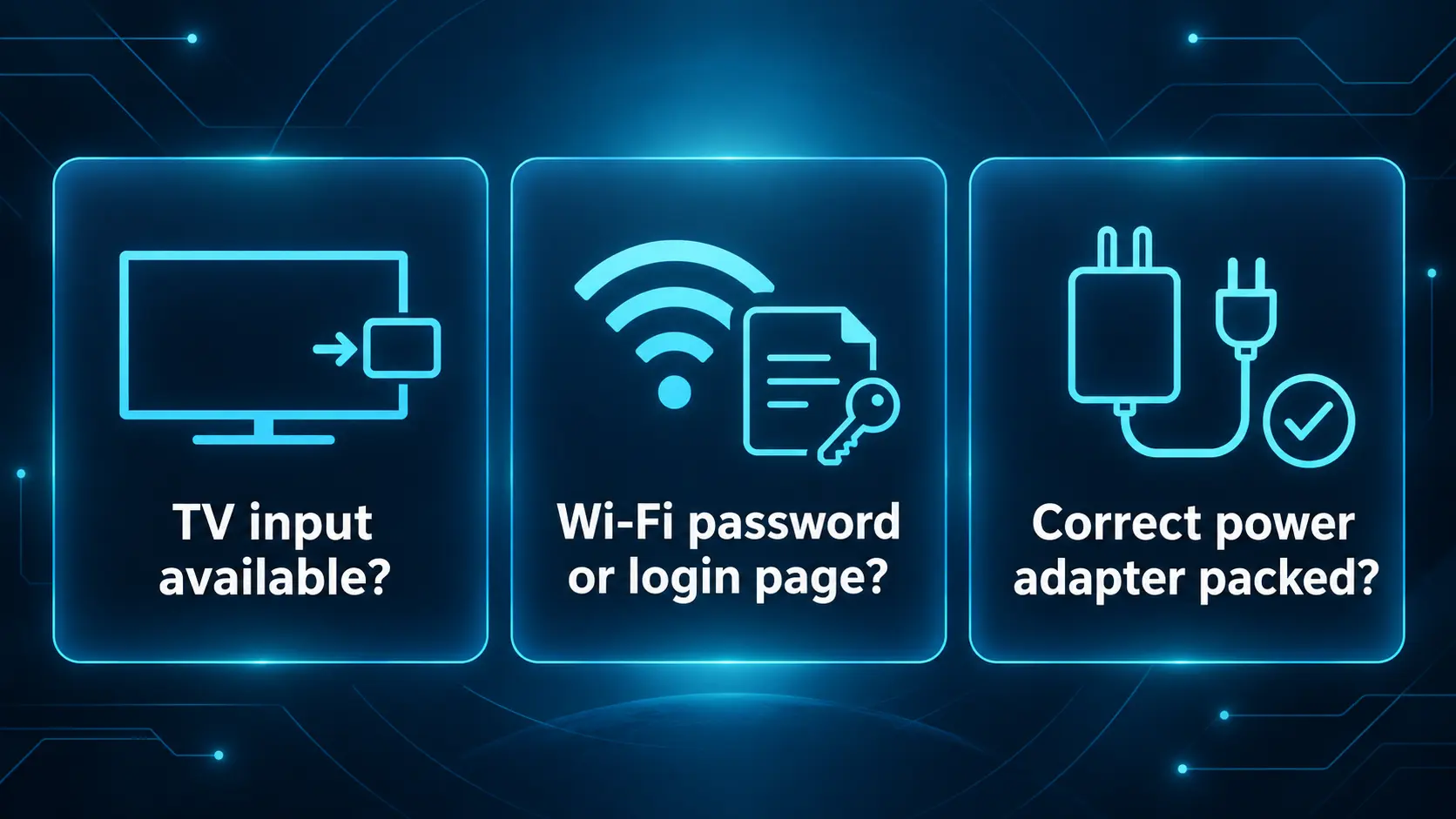
Check these three things with the hotel first
Before packing extra equipment, ask the front desk:
- Can guests connect a personal device through HDMI? Ask whether the input can be selected using the room remote.
- How does Wi-Fi sign-in work? Find out whether there is a password, a browser login or a staff-assisted process for streaming devices.
- Are alternative connections allowed? Ask about an in-room Ethernet socket or a personal travel router if you plan to use one.
A simple message can prevent a frustrating arrival:
“I would like to connect my own streaming device to the room TV. Is a guest HDMI input available, and does your Wi-Fi support streaming devices that cannot complete a browser login?”
If the TV or network is unavailable for personal equipment, ask whether the hotel offers its own casting system. Some properties provide a room-specific pairing process that is easier than connecting another device.
Why hotel Wi-Fi behaves differently from home Wi-Fi
A Wi-Fi connection may still need a login page
A hotel login page is sometimes called a captive portal. In plain language, it is the extra web page you must complete before the network allows internet access.
That is why a device may show the Wi-Fi name as connected but still fail to load a program. Joining the wireless network and being allowed onto the internet are two separate steps.
If this happens, ask staff for their supported streaming-device procedure. Do not keep entering the same password when the missing step is the web login.
The network may keep guest devices separate
Some hotel networks prevent guests’ devices from discovering one another. This can make a phone unable to find a streaming device even when both show the same Wi-Fi name.
Google’s streaming-device connection guidance specifically describes difficulties with hotel networks using device isolation and says its streaming devices do not support captive-portal networks directly.
A remote-controlled app on a box avoids needing the phone to cast for that viewing session. It still needs an internet connection that the hotel permits and can authorize.
Shared bandwidth can affect playback
A connection that loads email may still struggle with sustained video when other guests are online. Before changing lots of settings, test one ordinary stream and see whether the problem also affects your phone.
An approved wired connection can be worth trying if available. A premium Wi-Fi option is not automatically faster in your room, so ask what changes before paying for it.
Compare streaming devices for hotel travel
| Device option | Hotel-network consideration | A useful fit |
|---|---|---|
| A supported Roku player or stick | Hotel & Dorm Connect uses a phone or computer to help authenticate | Travelers wanting a documented hotel-login workflow |
| Amazon Fire TV Stick | Amazon provides browser-login instructions for supported Fire TV setups; test the exact model | Travelers wanting a stick with remote-controlled apps |
| Apple TV 4K | Apple documents captive-network sign-in using an iPhone or iPad | Travelers who already use Apple devices |
| Google TV Streamer or Chromecast | Google lists direct captive-portal connections as unsupported | Rooms with an appropriate approved network alternative |
| SuperBox S8 | Confirm the hotel’s login method; ordinary Wi-Fi support alone does not establish portal compatibility | Existing owners wanting a familiar S8 setup away from home |
The comparison is about connection methods, not a promise that any device works in every hotel. Check the exact model and software before buying a travel-only unit.
Roku has a dedicated hotel connection flow
Roku’s Hotel & Dorm Connect instructions describe authenticating from a phone or computer after selecting the hotel network. On a supported unit, the network flow includes “I am at a hotel or college dorm.”
Bring an activated device, its remote and power adapter, plus the phone or computer needed for login. Roku directs buyers to its device comparison to confirm support, so do not assume every product has the feature.
Fire TV and Apple TV have their own login methods
Amazon introduced browser-based hotel Wi-Fi support for Fire TV and Fire TV Stick in its captive-portal feature announcement. Check the exact current model and follow its available sign-in prompts rather than assuming all generations behave identically. If the hotel page does not appear or respond, ask staff for assistance.
For Apple TV 4K, Apple’s current network guide describes selecting “Continue on iPhone or iPad” when a captive network is detected, then completing the login on that device. Some networks require sign-in again after the session expires.
Choose around the equipment you already own and the hotel’s actual connection options. Buying another streamer solely because it advertises 4K does not answer the login question.
When SuperBox S8 makes sense for a hotel stay
For an existing owner, the S8’s main travel advantage is familiarity. You bring the box and remote you know rather than learning the hotel’s menus or entering personal details into a television you will leave behind.
S8 supports HDMI television connection, Wi-Fi 6 and Gigabit Ethernet. A wired socket is useful only if the hotel authorizes it and provides internet through it; the presence of a socket does not establish that it is a guest connection.
The S8 interface also offers Home shortcuts and number-key app access. Set those up before departure if they make your everyday viewing easier. Our S8 shortcuts guide explains the two separate shortcut methods.
The main models differ in practical conveniences:
| Model | Storage | Travel consideration |
|---|---|---|
| S8 Pro | 32GB | Core S8 functions for lighter app and file use |
| S8 Plus | 64GB | Uses the Plus-specific round-plug power connection |
| S8 Max | 64GB | Broader supported Multi-Viewing and the listed NFL app |
| S8 Ultra | 128GB | More storage and an included backlit remote |
Pro, Max and Ultra use Type-C power; Plus uses a round plug. Pack the correct supplied adapter rather than assuming a phone charger is suitable just because the connector fits.
For sports viewing, Pro and Plus list PPV/ESPN Multi-Viewing, while Max and Ultra list full supported channel access. Specific games and app availability still depend on the relevant service and location. Read the full S8 model comparison before choosing.
Keep the network and content checks separate
The S8 does not provide automatic access through every hotel login page. Confirm an authorized connection method before relying on it for the trip. Likewise, bringing the box does not guarantee that every app or title available at home will work in another country.
The hardware has no mandatory monthly device fee. Internet charges, hotspot data and paid third-party subscriptions remain separate. These checks help you plan the trip without treating the box as a universal hotel-network solution.
What to pack for a complete hotel streaming setup
| Item | Why bring it |
|---|---|
| Streaming device and physical remote | Operate the interface without depending only on a phone app |
| Correct power adapter and cable | Use the power supply intended for the device |
| HDMI cable where required | Connect a box to the TV |
| Short HDMI extension or suitable adapter if needed | Reach an awkward accessible port without straining it |
| Phone or tablet | Complete supported login or account-verification steps |
| Plug adapter appropriate to the destination | Match the outlet; check the power supply’s input rating too |
| Ethernet cable if the hotel confirms a guest socket | Use an approved wired alternative |
| Travel router if permitted and needed | Share an authorized connection with your own devices |
Pack everything together and take a photo of the kit before leaving home. That gives you a quick inventory at checkout, especially for the small remote and power cable.
If the TV is fixed to the wall and you cannot reach the input comfortably, ask staff. An adapter helps with accessible connections; it is not a reason to move hotel equipment or disconnect unfamiliar cables.
Set up your streaming device in the hotel room
1 Connect to the permitted HDMI input
Check the hotel’s instructions, connect the device to the available input and select the matching HDMI source on the TV. Use your device’s power adapter and an appropriate outlet.
If the room remote cannot change the input, ask staff whether personal HDMI use is supported. Do not try service-menu codes to remove hotel settings.
2 Confirm the device starts normally
Wait for the Home screen before opening apps. If there is no picture, check the selected input, HDMI connections and power first. If the box repeatedly restarts, verify that you are using the intended power supply rather than the TV’s USB socket.
For S8 remote setup, follow our remote pairing guide. Pair and test at home where possible so it is one less task on arrival.
3 Connect using the hotel’s approved method
Choose the correct guest Wi-Fi network and enter its password if required. If it needs a login page, follow the device’s supported process or ask staff to assist.
For an S8 on a suitable password-based network or authorized Ethernet connection, use our S8 Wi-Fi and Ethernet setup guide. That guide covers normal connection settings; a hotel’s authorization step may be additional.
4 Test one ordinary program first
Open one app and check playback before trying multiple channels or higher-resolution content. If basic viewing struggles, resolve the connection first rather than adding more simultaneous streams.
For S8, the Blue TV guide and Blue VOD guide explain their respective controls. If the app is not installed, follow the S8 app installation guide.
5 Keep account access under your control
Prefer using your own prepared device when practical. If you sign into a hotel-owned TV or streamer, sign out of each account before leaving. Do not assume returning to Home or switching the television off signs you out.
When the hotel provides a casting or guest-login system, follow its room-specific instructions and checkout process. Your personal subscriptions retain their normal terms.
Can a travel router help with hotel Wi-Fi
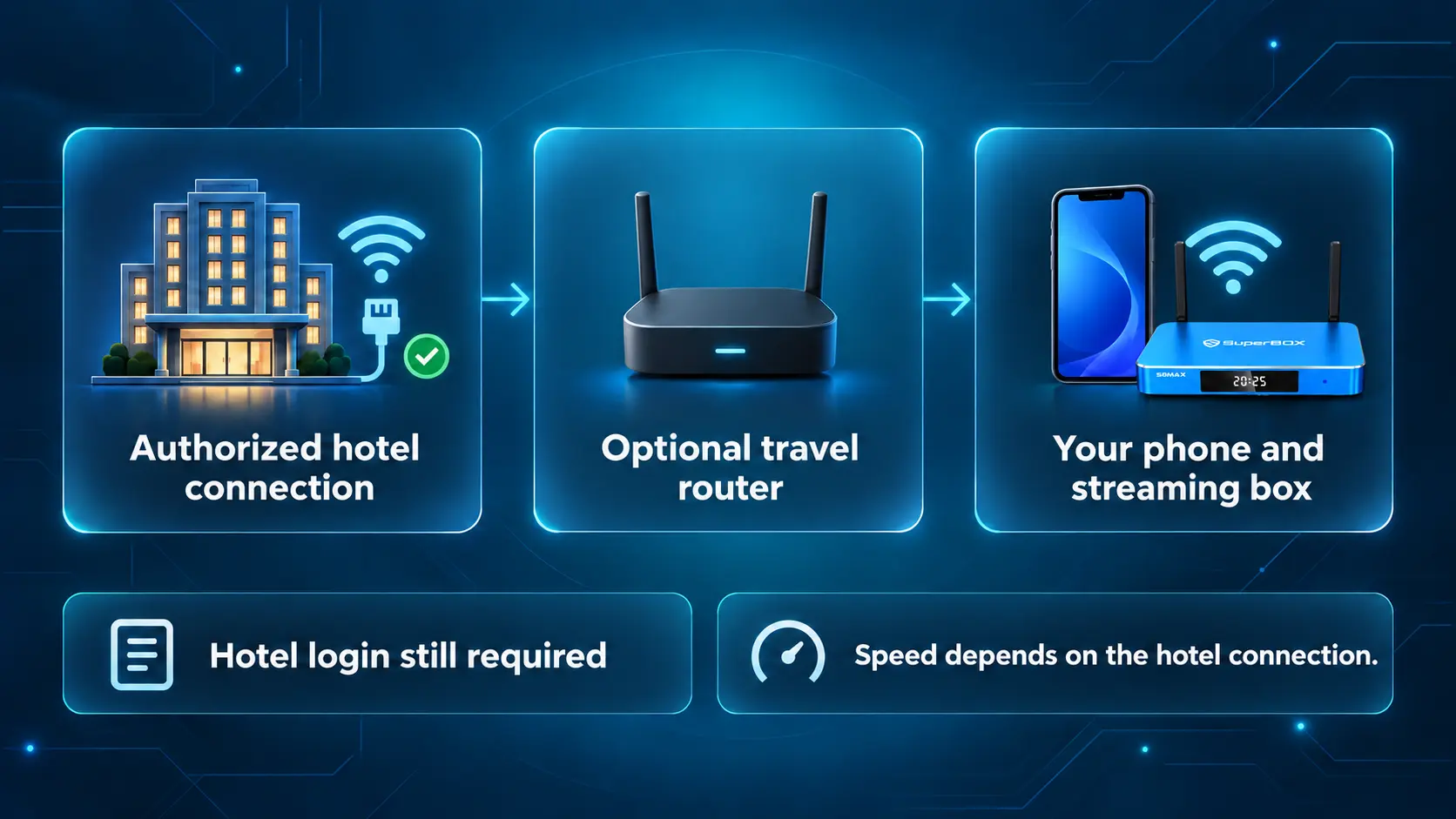
A travel router can create a small network for your own devices after connecting to an approved hotel connection. That can simplify connecting a phone and streamer together when the hotel’s system permits it.
For example, GL.iNet documents repeater setup and a login mode for public hotspots in its router instructions. Follow the guide for your actual model and firmware, complete the hotel’s required login and check that the router itself has internet before connecting the box.
A travel router does not increase the hotel’s available bandwidth or guarantee privacy from the upstream network. It also does not make an unsupported or prohibited connection automatically permitted. Check the hotel’s rules before buying one for this purpose.
A phone hotspot is another possible alternative where your plan, signal and device support it. Check data allowances, roaming and costs first. Keep a fallback viewing option on the phone or tablet rather than depending on one connection method.
Quick troubleshooting for hotel streaming
| What you see | What to check next |
|---|---|
| No picture | Correct HDMI input, secure cable and device power |
| Input selection is unavailable | Ask hotel staff whether guest HDMI use is enabled |
| Wi-Fi connects but apps cannot load | Whether hotel web sign-in or authorization is still required |
| Phone cannot find the streamer | Network device isolation or the hotel’s required casting process |
| Playback buffers | Test another app and device; ask about room signal and network conditions |
| Device repeatedly restarts | Correct adapter and power connection |
| A title is unavailable while traveling | App access, subscription terms and regional availability |
| Connection works then stops later | Whether the guest login session has expired |
If the connection works but one app still fails, diagnose that app separately. Our SuperBox buffering guide can help with ordinary playback troubleshooting. A network login problem is not solved by repeatedly clearing app cache.
For hotels providing streaming devices to guests
Providing equipment for changing guests involves different requirements from a traveler bringing a personal box. Think about account cleanup, content permissions, network design and staff support before purchasing for multiple rooms.
Roku’s Guest Mode documentation describes guests using their own accounts, setting a sign-out date and clearing added apps on sign-out. This is separate from Hotel & Dorm Connect, which helps a traveler connect to the network. Confirm feature availability in the property’s region and software.
Hospitality-specific systems are another option. Samsung’s HU8000F hospitality TV information lists guest casting, AirPlay and remote display management. That illustrates the difference between a consumer device and equipment designed around property operations.
For SuperBox S8, verify the required account-clearance, network-management and content-use workflow rather than assuming it offers an automatic hotel checkout mode. Test one room before considering a wider deployment.
Also confirm service rights. For example, Netflix’s terms describe personal, non-commercial use. A hotel should not assume one owner’s consumer subscription can simply be shared across rooms. Obtain appropriate service guidance for the intended use.
For related property planning, see our Airbnb TV buying guide. A short printed instruction card and a repeatable room-turnover check can make the equipment much easier for guests and staff to manage.
Buy your SuperBox S8 from a retailer you can verify
SuperBox TV Box Store is an authorized retailer serving customers in the US and Canada. You can verify our status with authorization code SP20250414002 at the SuperBox authorization website.
If you are considering S8 for home use and travel, ask our team about the model and setup requirements before buying. Check the hotel’s connection rules separately so the device you choose fits the actual trip.
Read our return policy and save your confirmation from customer@superboxtvboxstore.com. For a previous purchase, our seller-identification guide helps you determine who processed the order.
Frequently asked questions
What is the best streaming device for a hotel?
Choose based on the hotel login method, permitted TV input and apps you use. Supported Roku devices and Apple TV 4K have documented hotel-network login flows; an existing S8 can be convenient on an approved compatible connection.
Can I bring my SuperBox S8 to a hotel?
Yes, when the hotel permits personal equipment and provides compatible TV and internet access. Bring its remote, HDMI cable and correct power supply, and verify the network login before relying on it.
Does S8 automatically connect through any hotel login page?
Do not assume that. Standard Wi-Fi connection support does not establish compatibility with every hotel’s web authorization. Ask the hotel for its supported connection method.
Why does the Wi-Fi say connected but streaming does not work?
The device may still need the hotel’s internet authorization. Confirm the login or ask staff before changing app settings.
Can I use a hotel TV USB socket to power the box?
Use the device’s intended power adapter. A USB socket’s presence does not establish that it supplies the power your device needs.
Do I need a travel router?
Not always. It can help organize personal devices on an authorized connection, but a device with a working direct login flow may not need one.
Will my usual programs be available abroad?
Availability can change by country, app and subscription terms. Verify important content before the trip and keep a fallback option.
Are Roku Guest Mode and Hotel & Dorm Connect the same?
No. Guest Mode manages visitors’ account access on a shared device. Hotel & Dorm Connect helps a supported personal Roku authenticate to a hotel or dorm network.
Prepare the connection before choosing the device
A good hotel streaming setup starts with three confirmed basics: access to the TV input, the right power supply and an authorized internet connection. Then choose the device and apps that suit your viewing habits.
For an existing SuperBox owner, taking a prepared S8 can keep the experience familiar. For a new purchase, compare the models and contact SuperBox TV Box Store with your requirements before ordering. Preparation is what turns a bag of cables and hardware into a useful travel setup.
The article was updated on:
