
Knowledge SuperBox S7
How to Clear Cache on SuperBox S7: Step-by-Step Maintenance Guide





Clearing the cache on your SuperBox S7 (S7 Pro, S7 Max, S7 Ultra) is the fastest and safest routine maintenance step to eliminate buffering, free up RAM, and restore rapid channel switching across 2,000+ live broadcast channels in under 30 seconds: unlike resetting the device, clearing cached temporary files never deletes your saved apps, login credentials, or personalized channel favorites.
- Method 1: One-Click Sweeper Tool (Fastest): Navigate to the bottom icon row on your home screen, highlight the Cleaner (broom/trash icon), and press OK to automatically clear system memory and temporary APK caches.
- Method 2: Per-App Manual Cache Clearing: Open Settings > Apps > See all apps > select Blue TV or Blue VOD > Clear Cache to remove corrupted video stream fragments.
- Clear Cache vs. Clear Data: Always choose “Clear Cache” for regular maintenance; “Clear Data” resets the application to its original installation state and removes saved logins.
- Recommended Schedule: Run the Cleaner tool once every 1–2 weeks (followed by a quick system restart) to maintain optimal responsiveness on Android 12.
What Is Cache?
A cache is a high-speed, temporary data storage layer that holds copies of frequently accessed information so that future requests for that data can be fulfilled much faster
As you continue using your SuperBox S7, the amount of cached data gradually increases. Although cache is beneficial in the short term, older temporary files may become outdated or unnecessary.

When too much cache builds up, it can consume storage space, reduce available system memory, and contribute to slower performance, buffering during streaming, delayed app launches, or occasional app crashes.
Regularly clearing the cache helps remove these unnecessary files, allowing apps to create fresh temporary data when needed. As a result, your SSuperBoxS7 can operate more efficiently without affecting your personal content or installed applications.
Ensure all initial video and network parameters are properly calibrated by following our complete tutorial on how to set up superbox.
Method 1: Use the Built-In Cleaner Tool
The quickest way to remove temporary system files is by using the built-in Cleaner feature. This tool automatically scans your device and removes unnecessary files that have accumulated over time.
Follow these steps:
- From the Home screen, use your remote to scroll to the bottom row of icons.
- Locate the Cleaner icon, which typically appears as a broom or cleaning tool.
- Highlight the icon and press OK on your remote.
- The Cleaner will automatically scan your system for temporary memory files and leftover installation packages created during previous app installations or updates.
- Wait a few moments while the cleanup process completes.
Once finished, the system will have more available memory and fewer unnecessary files, which may help improve overall responsiveness. Using the Cleaner regularly is a simple way to keep your SuperBox running smoothly without requiring any manual configuration.
While system cleaners flush general junk files, lingering background app data can severely bog down CPU cycles. If your device takes excessively long to launch applications or load channel lists, learn proven speed-tuning steps for a SuperBox S7 running slow to optimize RAM allocation.
Method 2: Clear Cache for Individual Apps
If only one application is experiencing problems, such as buffering, freezing, or slow loading, you can clear the cache for that specific app instead of performing a full system cleanup.
To clear an individual app’s cache:
- Open Settings from the Home screen by selecting the gear icon.
- Scroll down and choose Apps or Applications.
- Select See all apps to display the complete list of installed applications.
- Choose the app you want to troubleshoot. Streaming apps and web browsers usually accumulate the largest amount of cached data because they continuously store temporary content.
- Select Clear cache and press OK.
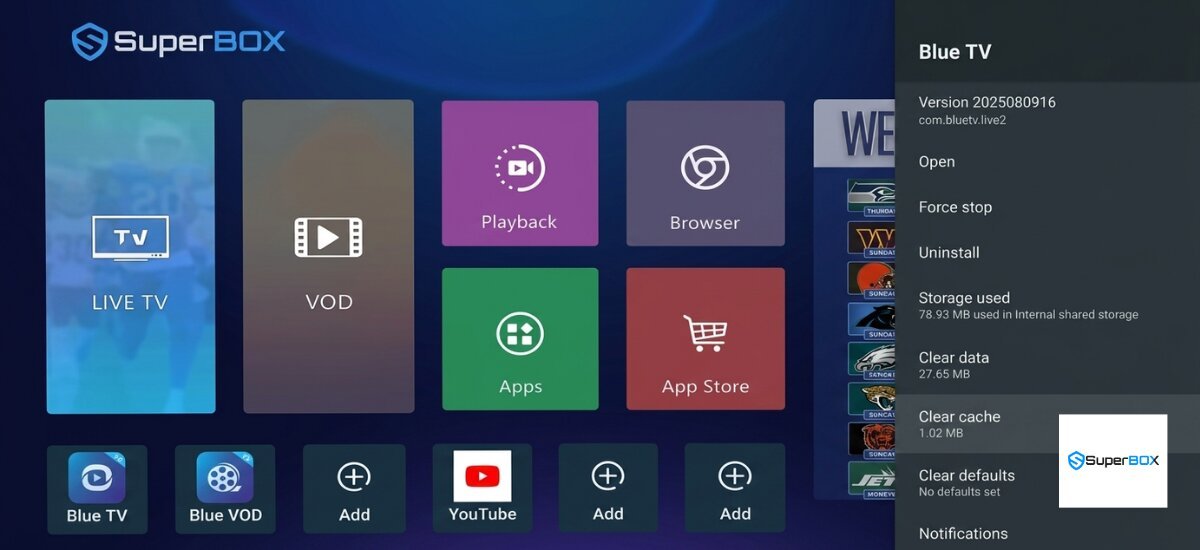
The cache will be removed immediately, and the app will automatically rebuild fresh temporary files the next time it is opened.
If the Clear cache button is unavailable or grayed out, it simply means there are no cached files available to remove at that time.
Difference Between Clear Cache and Clear Data
When viewing an app’s storage options, you’ll typically see both Clear Cache and Clear Data. Although they appear similar, they serve very different purposes.
- Clear Cache removes only temporary files created by the application. This option is completely safe for routine maintenance and does not affect your account, preferences, watch history, or saved settings.
- Clear Data, on the other hand, restores the application to its original state. Choosing this option removes all locally stored information, including login credentials, saved preferences, downloaded content, and personalized settings. After clearing data, you’ll need to sign in again and reconfigure the app as if it were newly installed.
For regular maintenance or troubleshooting, always choose Clear Cache unless you intentionally want to reset the application.
Unresolved streaming buffer loops and network packet loss often mimic memory issues during high-bitrate live television playback. If wiping application cache fails to restore steady stream playback, consult our targeted troubleshooting guide to resolve SuperBox S7 buffering issues across 5GHz Wi-Fi networks.
How Often Should You Clear the Cache?
There is no fixed schedule for clearing cache, but doing so every few weeks can help maintain consistent performance, especially if you use your SuperBox daily.
You may also want to clear the cache whenever you notice:
- Frequent buffering during streaming
- Apps taking longer than usual to open
- Apps freezing or crashing unexpectedly
- Slower navigation through menus
- Reduced overall system responsiveness
Regular maintenance helps prevent temporary files from accumulating excessively and keeps your device operating efficiently.
Restart Your SuperBox After Clearing the Cache
Once you’ve finished clearing cached files, it’s a good idea to restart your SuperBox S7. Restarting allows the operating system to refresh system resources and begin using newly available memory.
To restart your device, use the standard restart option or power the SuperBox off and back on after a few seconds.
After rebooting, many users notice smoother navigation, faster app launches, and improved streaming performance, particularly if a significant amount of temporary data was removed.
Final Thoughts
Clearing the cache is one of the easiest ways to maintain your SuperBox S7 and resolve common performance issues without affecting your personal data. Whether you use the built-in Cleaner for a quick system-wide cleanup or manually clear the cache for individual apps, the process only takes a few minutes and can help improve speed, responsiveness, and streaming stability.
Performing this simple maintenance regularly, along with restarting your device afterward, can help keep your SuperBox S7 running at its best for everyday entertainment.
The content of this article was referenced from the following sources:
