SuperBox S7 Buffering? 7 Easy Fixes to Stream Faster Without Lag

Summarize this article with:
ChatGPTClaudeGoogle GeminiGrokPerplexity
Troubleshooting Common Superbox S7 Streaming Issues

Slow streaming and constant buffering on your Superbox S7 can turn an enjoyable viewing experience into a frustrating ordeal. Whether you are trying to catch up on your favorite shows, watch live sports, or dive into a movie, interruptions can quickly ruin the moment. This common issue often stems from a variety of factors, ranging from your internet connection and Wi-Fi signal to the device’s settings and the applications running on it.

Many users encounter these problems due to network congestion, outdated software, or simply not optimizing their device correctly. Without addressing these underlying causes, you might continue to face lag and freezes, missing out on seamless entertainment.

The good news is that there are numerous effective strategies to combat these issues. This comprehensive guide from SuperBox TV Box Store will walk you through the most common solutions, helping you identify the root cause of your Superbox S7’s slow streaming and apply the best fixes to get your entertainment back on track.

Overview of Superbox S7 Streaming Issues: Why Your Entertainment Stalls

Experiencing buffering, lagging, or freezing while streaming on your Superbox S7 can be incredibly frustrating. You are likely wondering why your device, designed for seamless entertainment, is struggling to deliver smooth playback. This common problem often arises from a combination of factors, including an unstable internet connection, weak Wi-Fi signals, outdated device software, or too many applications consuming your Superbox S7’s resources.

Overview of Superbox S7 Streaming Issues Why Your Entertainment Stalls

If left unaddressed, these issues can significantly diminish your viewing pleasure, making it difficult to enjoy your favorite content on apps like Blue TV or Blue VOD. The good news is that there is not a single “one-size-fits-all” solution, allowing you to choose the most appropriate method based on your specific situation and technical comfort level.

This article compiles the most effective ways to improve your Superbox S7’s streaming speed, providing clear instructions to help you optimize your device and network for a superior entertainment experience. Understanding these common Superbox S7 buffering issues is the first step toward a Superbox S7 slow streaming solution.

Quick Fixes: Top Ways to Boost Your Superbox S7 Streaming Speed

This section is for those who want to quickly review the available options to improve their Superbox S7’s streaming performance. These methods offer a quick path to speed up Superbox S7 performance and resolve Superbox S7 lagging.

  • Way 1: Restart Your Superbox S7 and Network Devices suitable for resolving temporary glitches and minor connectivity issues, with the main benefit of being quick and easy. This is a common Superbox S7 streaming issues fix.
  • Way 2: Optimize Your Wi-Fi Connection suitable when experiencing weak or unstable Wi-Fi signals, offering improved wireless stability and speed.
  • Way 3: Switch to a Wired Ethernet Connection ideal for achieving maximum streaming stability and speed, especially for high-bandwidth content.
  • Way 4: Clear Cache and Data on Your Superbox S7 effective for resolving app-specific performance issues and freeing up device resources.
  • Way 5: Update Superbox S7 Firmware and Apps crucial for addressing software bugs, enhancing performance, and ensuring compatibility.
  • Way 6: Manage Background Apps and Storage beneficial for improving overall device responsiveness and preventing resource depletion.
  • Way 7: Adjust Streaming Quality Settings suitable for users with consistently slower internet speeds or data caps, allowing for smoother playback at lower resolutions.

Diagnose Your Superbox S7: Pinpointing the Root Cause of Slow Streaming

Before diving into solutions, it is essential to understand why your Superbox S7 might be streaming slowly. This quick diagnostic guide will help you identify the specific issues affecting your device. By answering these questions, you can troubleshoot slow internet on Superbox S7 and understand why is my Superbox S7 streaming slow.

Diagnose Your Superbox S7 Pinpointing the Root Cause of Slow Streaming
  • Is the buffering constant across all streaming apps (e.g., Blue TV, Blue VOD) or only on specific ones? If it is app-specific, the issue might be with that application’s cache or settings. If it is widespread, the problem likely lies with your network or the Superbox S7 itself.
  • Does your internet connection feel slow on other devices in your home, or is it isolated to the Superbox S7? If other devices are also slow, your internet service provider (ISP) or home network is the probable cause. If only the Superbox S7 is affected, the problem is more localized to the device or its connection.
  • What is the current Wi-Fi signal strength displayed on your Superbox S7? Is it consistently strong or fluctuating? A weak or inconsistent Wi-Fi signal strength on Superbox S7 is a major contributor to buffering.
  • When was the last time you restarted your Superbox S7, router, and modem? A simple restart can often clear temporary glitches affecting Superbox S7 internet speed.
  • Have you recently installed many new applications, or do you have several apps running in the background? Too many active apps can consume RAM and processor resources, leading to Superbox S7 apps performance issues.
  • Have you checked for available firmware updates for your Superbox S7 recently? Outdated Superbox S7 firmware can lead to performance bottlenecks and compatibility issues.
  • Do you know your internet service provider’s (ISP) advertised speed, and have you tested your actual speed? Your actual internet speed might be lower than advertised, impacting your ability to stream high-quality content.

By answering these questions, you can categorize your problem as light (occasional minor lag), medium (frequent buffering), or severe (constant freezing and unresponsiveness). Factors like the time you have, your comfort with technical adjustments, and your willingness to consider hardware upgrades will also influence the most suitable solutions. Identifying the correct problem area will save you time and significantly increase the effectiveness of your troubleshooting efforts, helping you to optimize Superbox S7 for faster streaming.

Detailed Guide: Practical Steps to Improve Your Superbox S7 Streaming Performance

Way 1: Restart Your Superbox S7 and Network Devices

Restarting your Superbox S7 and network devices is often the simplest yet most effective first step for resolving a wide range of temporary streaming issues. It is ideal for anyone experiencing occasional buffering or minor lag, as it can clear temporary glitches and refresh network connections, making it a quick Superbox S7 streaming issues fix.

  • When to apply: Apply this method as your initial troubleshooting step whenever you encounter any streaming problems, from minor buffering to temporary freezes. It is suitable for all users, regardless of technical expertise.
  • Needed preparations: Access to your Superbox S7, your internet router, and your modem.
  • How to implement:
Detailed Guide Practical Steps to Improve Your Superbox S7 Streaming Performance

1. Unplug the power cable from your Superbox S7.

2. Unplug the power cable from your internet router.

3. Unplug the power cable from your internet modem (if it is a separate device).

4. Wait for at least 30-60 seconds to allow all devices to fully discharge. This ensures a complete power cycle.

5. Plug your modem back in first and wait for all its indicator lights to stabilize (usually 1-2 minutes).

6. Plug your router back in and wait for its indicator lights to stabilize (another 1-2 minutes).

7. Finally, plug your Superbox S7 back in and power it on.

  • Advantages, limitations, or risks: This method is quick, easy, and completely safe, with no risk of data loss. Its main limitation is that it is a temporary fix for deeper underlying issues, but it often resolves immediate problems.
  • Tips for increased effectiveness and avoiding errors: Ensure you wait the full 30-60 seconds before plugging devices back in to allow for a complete power cycle. Powering devices back on in the correct order (modem, then router, then Superbox S7) is crucial for re-establishing network connections properly.
  • Signs of success: You should notice an immediate improvement in streaming quality, reduced buffering, and faster loading times for apps and content.

Way 2: Optimize Your Wi-Fi Connection for Superbox S7

If your Superbox S7 is connected via Wi-Fi and you suspect a weak or unstable signal, optimizing your wireless setup can significantly enhance streaming performance. This method is best for users experiencing intermittent buffering or slow speeds specifically over Wi-Fi, addressing Superbox S7 internet speed and Wi-Fi signal strength Superbox S7 concerns.

Way 2 Optimize Your Wi-Fi Connection for Superbox S7
  • When to apply: Use this method if you notice your Superbox S7’s Wi-Fi signal strength is low, drops frequently, or if other devices connected via Wi-Fi also experience slow internet.
  • Needed preparations: Your Superbox S7, your Wi-Fi router, and optionally, a Wi-Fi analyzer app on a smartphone to identify channel congestion.
  • How to implement:

1. Relocate Your Router: Move your Wi-Fi router to a central location in your home, ideally closer to your Superbox S7. Avoid placing it behind large objects, in cabinets, or near other electronics that could cause interference (e.g., microwaves, cordless phones). This improves the Wi-Fi signal strength.

2. Minimize Obstructions: Ensure there are no major physical barriers (thick walls, metal objects) between your router and the Superbox S7. Physical obstructions can significantly degrade Wi-Fi performance.

3. Reduce Network Congestion: Disconnect unused devices from your Wi-Fi network. The more devices actively using Wi-Fi, the less bandwidth is available for your Superbox S7, impacting its streaming quality.

4. Utilize Dual-Band Wi-Fi (if applicable): If your router and Superbox S7 support dual-band Wi-Fi 6 (which the Superbox S7 series does), connect to the 5GHz band. The 5GHz band offers faster speeds and less interference than the 2.4GHz band, though it has a shorter range. This is a key aspect of home network optimization for streaming.

5. Change Wi-Fi Channel (Advanced): If you suspect interference from neighbors’ Wi-Fi networks, access your router’s settings (usually via a web browser) and change the Wi-Fi channel to a less congested one (e.g., channels 1, 6, or 11 for 2.4GHz, or various non-overlapping channels for 5GHz). This can be found in your Superbox S7 network settings.

  • Advantages, limitations, or risks: This method can significantly improve wireless performance without needing new hardware. However, it may require some experimentation with router placement and potentially accessing router settings, which can be daunting for some users.
  • Tips for increased effectiveness and avoiding errors: Use a Wi-Fi analyzer app to visualize network congestion and identify the best channels. Test streaming performance after each adjustment to pinpoint the most effective change.
  • Signs of success: A stronger and more stable Wi-Fi signal displayed on your Superbox S7, reduced buffering, and faster loading times for online content.

Way 3: Switch to a Wired Ethernet Connection

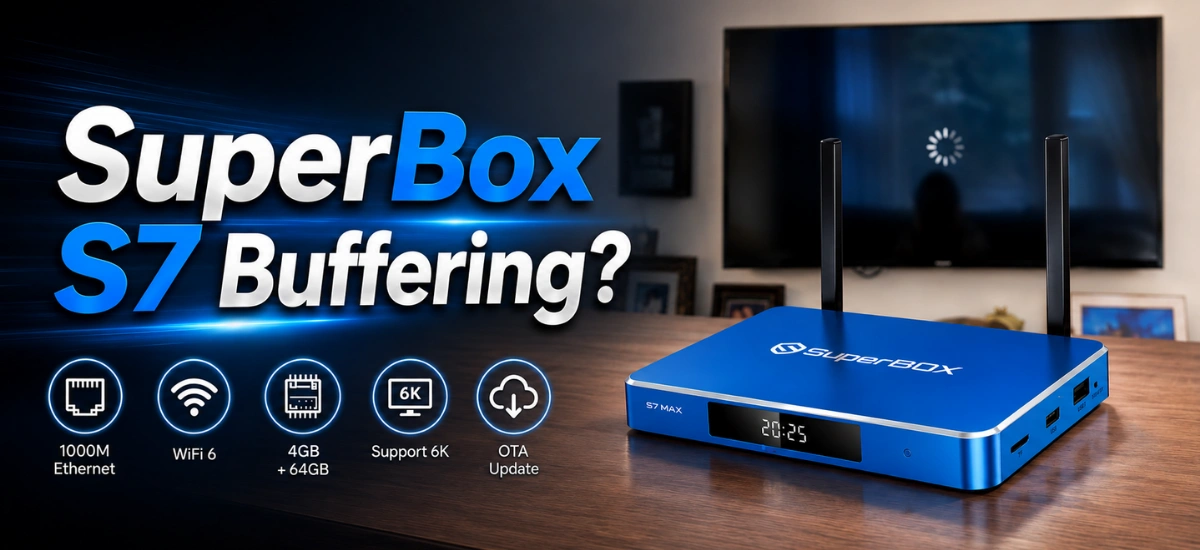
For the most stable and fastest streaming experience, especially when dealing with high-resolution content like 6K at 60fps, a wired Ethernet connection is often superior to Wi-Fi. The Superbox S7 models (Pro, Max, Ultra) feature a 1000Mbps Gigabit Ethernet port, making this a highly effective solution for Superbox S7 constantly buffering solutions.

  • When to apply: This method is highly recommended if you consistently experience buffering, lag, or drops in streaming quality over Wi-Fi, even after optimizing your wireless setup. It is ideal for users who prioritize maximum stability and speed.
  • Needed preparations: A suitable Ethernet cable (Cat5e or Cat6 recommended) of sufficient length to reach from your Superbox S7 to your internet router or a network switch.
  • How to implement:

1. Locate the Ethernet port on the back of your Superbox S7.

2. Connect one end of the Ethernet cable to the Superbox S7’s Ethernet port.

3. Connect the other end of the Ethernet cable to an available LAN (Local Area Network) port on your internet router.

4. Your Superbox S7 should automatically detect and prioritize the wired connection. You can verify this in the Superbox S7’s network settings.

  • Advantages, limitations, or risks: Ethernet provides a direct, interference-free connection, leading to significantly higher speeds and greater stability compared to Wi-Fi. This virtually eliminates buffering caused by wireless signal issues. The main limitation is the need for a physical cable, which might not be practical for all setups due to cable routing or aesthetics.
  • Tips for increased effectiveness and avoiding errors: Use a high-quality Ethernet cable to ensure optimal data transfer. Ensure the cable is not kinked or damaged to maintain connection integrity.
  • Signs of success: Instant and dramatic improvement in streaming quality, virtually no buffering, and consistently fast loading times for all content. Your Superbox S7’s network settings should indicate an active Ethernet connection.

Way 4: Clear Cache and Data on Your Superbox S7

Over time, applications on your Superbox S7 accumulate temporary files (cache) and user data. While cache is designed to speed up loading, an excessive or corrupted cache can actually slow down app performance and lead to buffering. Clearing it can free up resources and resolve app-specific issues, improving Superbox S7 apps performance. This is a crucial Superbox S7 cache clear step.

Way 4: Clear Cache and Data on Your Superbox S7
  • When to apply: This method is effective if you notice specific streaming apps (e.g., Blue TV, Blue VOD) are performing slowly, crashing, or buffering more than others. It can also help improve overall device responsiveness if your Superbox S7 feels sluggish.
  • Needed preparations: Your Superbox S7 and its remote control.
  • How to implement:
    • From the Superbox S7 home screen, navigate to Settings.
    • Select Apps (or “Applications”).
    • Scroll through the list and select the specific streaming app that is causing issues (e.g., Blue TV, Blue VOD, or any other frequently used app).
    • Within the app’s information screen, you will see options for “Clear cache” and “Clear data.”
    • First, select Clear cache. This will remove temporary files without affecting your login or settings.
    • If clearing the cache does not resolve the issue, you can consider selecting Clear data. WARNING: Clearing data will delete all user data for that app, including login information, preferences, and downloaded content. You will need to log back into the app and reconfigure any settings.
    • Repeat this process for other problematic or frequently used streaming applications.
    • For a more general system refresh, you can also look for an option to clear system cache (though this is less common on Android TV boxes and usually requires a specific recovery mode or a factory reset).
  • Advantages, limitations, or risks: Clearing cache is a safe and effective way to resolve many app-related performance issues and free up valuable storage space. Clearing data is more drastic and should only be done if clearing cache does not work, as it requires re-setup of the app.
  • Tips for increased effectiveness and avoiding errors: Regularly clear the cache for your most-used streaming apps, perhaps once a month, to maintain optimal performance. Always try “Clear cache” before “Clear data.”
  • Signs of success: The problematic app should load faster, navigate more smoothly, and exhibit significantly less buffering.

    Way 5: Update Superbox S7 Firmware and Apps

    Keeping your Superbox S7’s firmware and all installed applications up-to-date is crucial for optimal performance, stability, and security. Updates often include bug fixes, performance enhancements, and compatibility improvements that can directly impact streaming speed. This is a vital step for Superbox S7 firmware update and to resolve Superbox S7 constantly buffering solutions.

    • When to apply: This method should be applied regularly as part of routine maintenance, and especially if you are experiencing persistent issues that other basic troubleshooting steps have not resolved. Outdated software is a common cause of performance bottlenecks.
    • Needed preparations: Your Superbox S7, a stable internet connection (Ethernet is recommended for firmware updates), and sufficient power to prevent interruption during the update process.
    • How to implement:

    1. Update Superbox S7 Firmware:

    • From the Superbox S7 home screen, go to Settings.
    • Navigate to About (or “Device Preferences” > “About”).
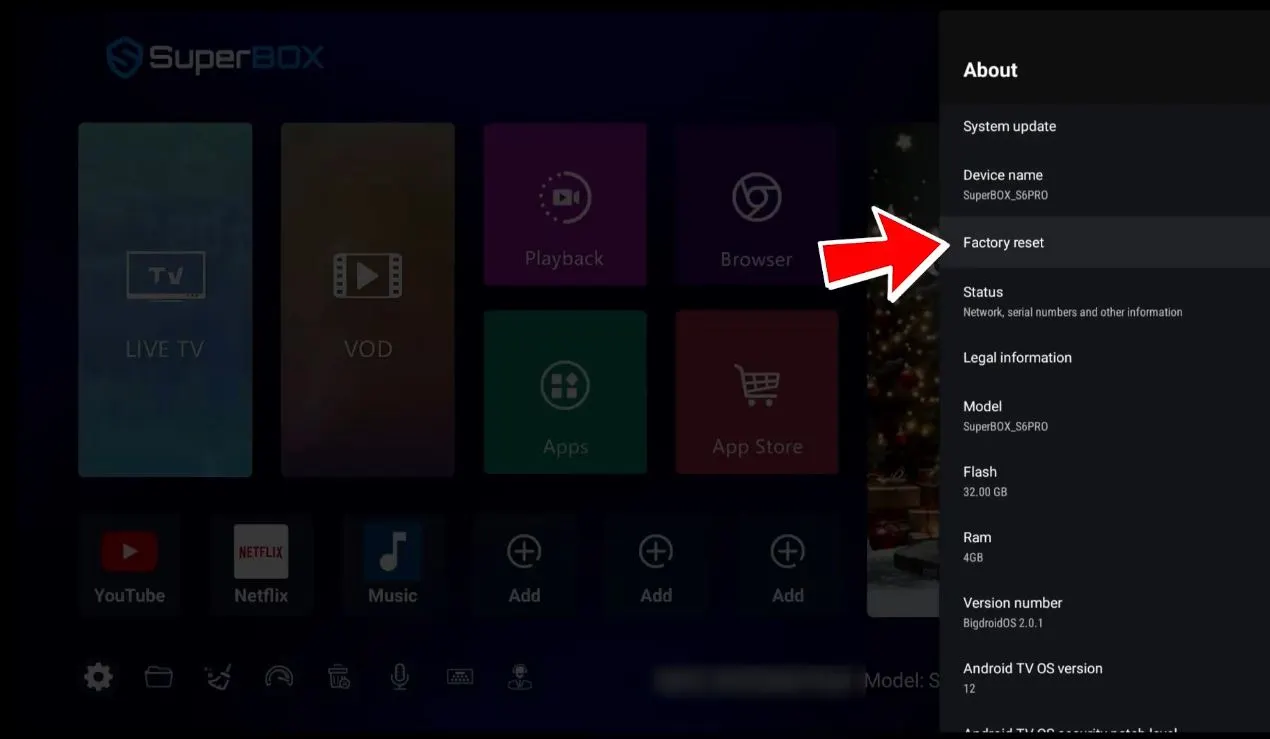
    • Select System Update (or “Software Update”).
    • The device will check for available updates. If an update is found, follow the on-screen prompts to download and install it. This process may involve restarting your Superbox S7 multiple times.

    2. Update Streaming Applications:

    • Open the Google Play Store app on your Superbox S7.
    • Go to the menu (usually represented by three horizontal lines or your profile icon).
    • Select My apps & games.
    • Check for updates for your streaming apps (e.g., Blue TV, Blue VOD, Netflix, YouTube) and install any available updates.
    • For pre-loaded apps not found on the Play Store, check within the app’s own settings for an update option, or consult the Superbox S7 user guide.
    • Advantages, limitations, or risks: Firmware updates can provide significant performance boosts, fix bugs, and improve compatibility with new streaming technologies. App updates ensure you have the latest features and bug fixes from developers. The main risk is an interrupted update (e.g., power loss), which can potentially brick the device, though this is rare with stable power.
    • Tips for increased effectiveness and avoiding errors: Always ensure your Superbox S7 is connected to a stable power source and a reliable internet connection (preferably Ethernet) during firmware updates. Do not interrupt the update process.
    • Signs of success: Improved overall device stability, faster app loading, smoother playback, and potentially new features or improved user interface elements.

    Way 6: Manage Background Apps and Storage

    Just like a computer or smartphone, your Superbox S7’s performance can be impacted by too many applications running simultaneously in the background or by insufficient storage space. Managing these resources can free up RAM and processor cycles for smoother streaming, addressing Superbox S7 memory management and Superbox S7 apps performance.

    • When to apply: This method is beneficial if your Superbox S7 feels generally sluggish, takes a long time to respond to commands, or if apps frequently crash or freeze. It is particularly useful if you have many apps installed that you do not regularly use.
    • Needed preparations: Your Superbox S7 and its remote control.
    • How to implement:

    1. Close Recent Apps: On most Android TV boxes, you can press the “Recent Apps” button (often a square icon) on your remote to see a list of recently opened applications. Close any apps you are not actively using by swiping them away or selecting a “Clear All” option.

    2. Force Stop Background Apps:

    • Go to Settings on your Superbox S7.
    • Select Apps (or “Applications”).
    • Scroll through the list of installed apps. For any app you suspect is running in the background and consuming resources unnecessarily, select it.
    • Choose Force Stop. This will immediately close the app and prevent it from running in the background until you open it again. Be cautious with system apps.

    3. Uninstall Unnecessary Apps:

    • From the same Apps menu in Settings, identify any applications you no longer use.
    • Select the app and choose Uninstall. Removing unused apps frees up storage space and reduces the potential for background processes.

    4. Check and Free Up Storage:

    • Go to Settings on your Superbox S7.
    • Select Storage (or “Device Preferences” > “Storage”).
    • Review the storage usage. If your storage is nearly full (e.g., less than 1GB free on a 32GB/64GB/128GB device), consider uninstalling more apps, clearing more cache, or moving media files to external storage if supported.
    • Advantages, limitations, or risks: This method directly addresses resource contention, leading to a more responsive device and smoother streaming. There are no significant risks, as you are simply managing software.
    • Tips for increased effectiveness and avoiding errors: Be mindful of which apps you force stop; avoid stopping critical system apps. Regularly review your installed apps and uninstall those you do not need.
    • Signs of success: The Superbox S7 responds more quickly to remote commands, apps launch faster, and overall device performance feels snappier with less lag or freezing during streaming.

    Way 7: Adjust Streaming Quality Settings

    If your internet connection is consistently slow or you have a limited data plan, trying to stream content at very high resolutions (like 4K or 6K) can lead to constant buffering. Reducing the streaming quality can significantly alleviate this pressure on your network, making it a viable solution for Superbox S7 slow streaming.

    Way 7: Adjust Streaming Quality Settings
    • When to apply: This method is ideal for users with slower internet speeds, unstable connections, or those who want to conserve bandwidth. It is a quick way to ensure smoother playback if other methods have not fully resolved buffering issues.
    • Needed preparations: Your Superbox S7 and the remote control, with access to the specific streaming application you are using.
    • How to implement:
    1. Start playing a video or live channel.
    2. While the content is playing, look for a “Settings” or “Quality” icon (often a gear icon or three dots) within the player interface.
    3. Select the video quality option.
    4. Choose a lower resolution setting, such as 1080p (Full HD), 720p (HD), or even standard definition (SD) if necessary. This directly impacts the streaming quality on Superbox S7.
    5. Some apps might have an “Auto” setting, which attempts to adjust quality based on your internet speed. While convenient, manually setting a lower quality can provide more consistent results on slower connections.
    • Advantages, limitations, or risks: This method provides an immediate and noticeable reduction in buffering, as less data needs to be downloaded. The primary limitation is a reduction in visual fidelity. There are no risks associated with this method.
    • Tips for increased effectiveness and avoiding errors: Experiment with different quality settings to find the best balance between picture quality and smooth playback for your internet speed.
    • Signs of success: Instantaneous reduction or elimination of buffering, allowing for uninterrupted playback, albeit with a slightly less sharp image.

    Frequently Asked Questions

    Why is my Superbox S7 streaming slow even with fast internet?

    Even with fast internet, issues like weak Wi-Fi signal, network congestion, outdated firmware, too many background apps, or a full cache on your Superbox S7 can cause slow streaming.

    How often should I clear the cache on my Superbox S7?

    It is generally a good practice to clear the cache of your most-used streaming apps once a month, or whenever you notice a slowdown in performance for a specific app.

    Does a VPN affect Superbox S7 streaming speed?

    Yes, a VPN can sometimes slow down streaming speed because it encrypts your internet traffic and routes it through an additional server, adding latency. While useful for privacy, it can impact performance.

    Is it better to use Wi-Fi or Ethernet for Superbox S7?

    For optimal streaming speed and stability, an Ethernet connection is almost always superior to Wi-Fi, especially given the Superbox S7’s 1000Mbps Gigabit Ethernet port.

    Can a factory reset fix all Superbox S7 buffering issues?

    A factory reset can resolve many software-related buffering issues by returning the device to its original state. However, it will not fix problems related to your internet connection or external hardware.

    Where can I find the latest firmware update for my Superbox S7?

    You can typically find firmware updates directly through your Superbox S7’s settings under “About” or “System Update.”

    What are Blue TV and Blue VOD, and how do they impact performance?

    Blue TV and Blue VOD are exclusive pre-loaded streaming applications on Superbox devices. Like any app, their performance can be affected by cache build-up, updates, and overall device resources.

    Should I buy a new router for my Superbox S7?

    Consider a new router if your current one is old, does not support modern Wi-Fi standards (like Wi-Fi 6), or struggles to handle multiple devices simultaneously. A new router can significantly improve network performance.

    How do I check my Superbox S7’s RAM and storage usage?

    Go to your Superbox S7’s Settings, then look for “Storage” and “Memory” (or “RAM”) under “Device Preferences” or “About” to see usage details.

    Conclusion and Our Recommendations for Optimal Superbox S7 Streaming

    Improving your Superbox S7’s streaming speed is a goal well within reach, often requiring just a few targeted adjustments. The key takeaways are to accurately diagnose the problem, choose the most appropriate solutions, and consistently monitor your results. Whether it is a simple restart, optimizing your Wi-Fi, or upgrading to a wired Ethernet connection, each step contributes to a smoother, more enjoyable viewing experience.

    For those new to troubleshooting, we recommend starting with a straightforward roadmap:

    1. Begin with the basics: Always perform a quick restart of your Superbox S7, router, and modem.

    2. Clear your cache: Regularly clear the cache of your most-used streaming applications.

    3. Assess your network: If issues persist, evaluate your Wi-Fi signal strength and consider the benefits of a wired Ethernet connection.

    4. Keep software updated: Ensure your Superbox S7’s firmware and all streaming apps are always up-to-date.

    5. Manage device resources: Periodically review and close background apps, and uninstall any unused applications.

    By following these recommendations and performing routine maintenance, you can significantly enhance your Superbox S7’s performance and prevent future buffering. Do not hesitate to revisit this guide as needed, and if persistent issues arise, remember to reach out to your ISP or SuperBox TV Box Store’s support team for further assistance.

    Rate this post

    Content Disclaimer: Product information and setup guides provided on this website are for informational purposes only. SuperBox TV Box Store is not responsible for the content, stability, or copyright compliance of any third-party applications installed on the device. We strongly recommend contacting our support team to verify compatibility before making a purchase. Please read our full Terms of Service & Content Policy here.

    Information about SuperBox TV Box Store:

    SuperBox TV Box Store is an authorized retailer of authentic SuperBox TV Box S6, S7, and S8 series products for customers in the US and Canada.

    As an officially authorized SuperBox distributor (Authorization Code: SP20250414002), our business generates revenue through the sale of genuine SuperBox products, including the S6, S7, and S8 models, serving customers throughout the United States and Canada.

    • Brand Name: SuperBox TV Box Store
    • Authorization Code: SP20250414002
    • Slogan: Your Entertainment Partner
    • US Address: 201 E Center St, Anaheim, CA 92805, USA
    • Canada Address: 100 Sunrise Ave #135, North York, ON M4A 1B3, Canada
    • Contact Phone/WhatsApp: +1(604) 239-6845
    • Technical Support WhatsApp: +60 11-1175 0101
    • Email: customer@superboxtvboxstore.com
    • Website: https://superboxtvboxstore.com/
    • Working Hours: Monday to Saturday, 8 AM – 7 PM

    Shopping Cart
    Scroll to Top