
Knowledge SuperBox S7
Ultimate SuperBox S7 Setup & User Guide: Complete Step-by-Step Instructions





Setting up your new SuperBox S7 (S7 Pro, S7 Max, S7 Ultra) takes less than five minutes and requires zero technical expertise. To get started, connect the included HDMI cable to your television, plug the Universal Type-C 5V/2A power supply into a wall outlet, and turn on your TV.
Next, calibrate your screen margins between 96% and 100% so menus fit your screen perfectly, and connect to your 5GHz Wi-Fi or wired Gigabit Ethernet. Then, pair the RC-200L backlit remote via Bluetooth 5.2 by holding [OK + Return] for eight seconds, and download the core streaming suite Blue TV (2,000+ live channels), Blue VOD (15,000+ movies), and Playback (7-day catch-up) from the pre-installed App Store. Your official 1-Year Manufacturer Warranty activates automatically upon downloading your first app.
Below is your complete step-by-step setup guide, covering physical connections, network calibration, remote pairing, app installation, and ongoing maintenance.
Quick Verdict: What You Need for a Seamless SuperBox S7 Setup
Physical Connection: Use the included high-speed HDMI cable and connect directly to a 4K 60Hz HDMI port on your television. Always power the console using the provided 5V/2A Type-C wall adapter rather than low-power TV USB ports.
Network Priority: Connect to the 5GHz Wi-Fi band or plug in a wired Gigabit Ethernet cable. Legacy 2.4GHz Wi-Fi is susceptible to household interference and causes unnecessary buffering on high-bitrate live sports streams.
App Installation & Warranty: Download Blue TV, Blue VOD, and Playback from the pre-installed App Store. Your 1-Year Manufacturer Replacement Warranty activates automatically with the cloud server the moment your first app installation finishes.
How to Set Up the SuperBox S7
Step 1: Connect the HDMI Cable
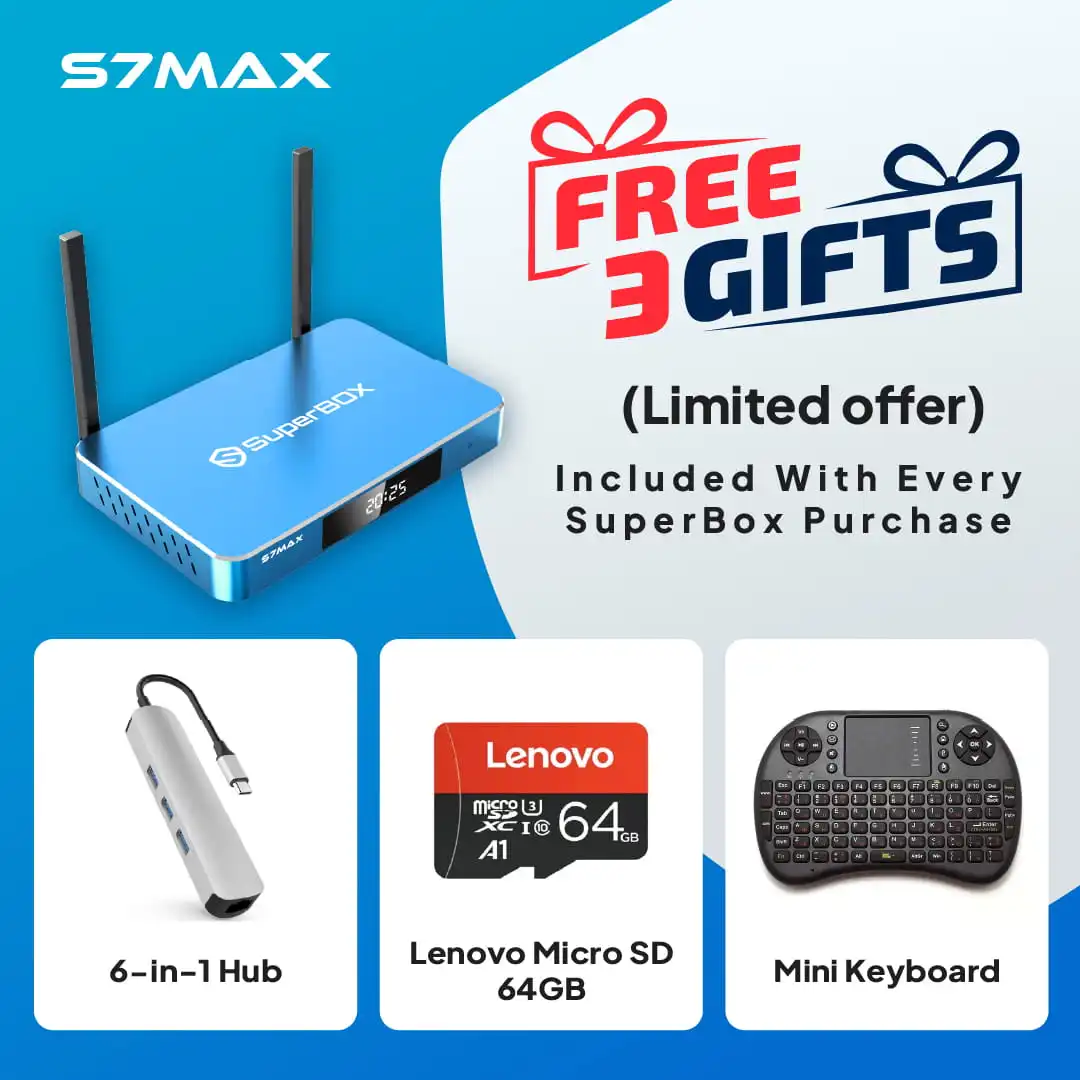
Insert one end of the included high-speed HDMI 2.0 cable into the HDMI OUT port on the rear of your SuperBox S7 console. Connect the opposite end to an available HDMI port on your television (e.g., HDMI 1 or HDMI 2). Ensure the cable is firmly seated to prevent signal dropout.
Step 2: Connect Type-C Power
Screw the two external high-gain Wi-Fi antennas onto the gold threaded connectors on the rear panel, angling them slightly outward. Then, plug the Type-C power adapter cable into the DC 5V port on the back of the box and plug the power brick into a wall outlet or surge protector. The LED clock display on the front panel will illuminate.
Step 3: Select Matching HDMI Input
Using your television’s original remote control, turn on your TV and press the Input or Source button. Select the corresponding HDMI port where your SuperBox is plugged in. You will see the animated SuperBox boot logo appear on screen within 15 to 20 seconds.
Step 4: Review and Accept the Setup Notice
When the startup wizard appears, point the RC-200L remote directly at the front of the console (operating via infrared initially). Read through the setup prompt and click “Agree” or “Next” using the central OK button to enter system calibration.
Step 5: Calibrate Display Margins and Screen Scaling
Modern televisions often apply default overscan cropping. On the screen scaling page, you will see four blue corner brackets. Press the Up and Down arrow buttons on your remote to adjust the display percentage (usually between 96% and 100%) until the brackets align flush with the edges of your TV screen. This ensures live TV tickers, scores, and subtitles are never cut off.
Step 6: Connect to 5GHz Wi-Fi or Wired Ethernet
If using a wired setup, insert a network cable into the 1000M Gigabit LAN port; the box will establish an instant internet link. If connecting wirelessly, select your home Wi-Fi network from the list, enter your password, and connect to the 5GHz band for maximum throughput. For wireless optimization tips, check our guide on how to connect SuperBox S7 to Wi-Fi 6.
Step 7: Pair the RC-200L Voice Remote
Bring the remote within 12 inches of the console. Press and hold the [OK + Return] buttons simultaneously for approximately 8 seconds until the top red LED flashes rapidly. When the screen prompts that RC200 is found, click connect. Once paired over Bluetooth 5.2, voice search and 360-degree remote operation are active. For advanced pairing and TV button cloning, see our guide to set up voice control on SuperBox S7.
Install Blue TV, Blue VOD, Playback, and Other S7 Apps
Step 1: Open App Store from the Home Screen
Navigate to the main home screen using your remote. Locate and select the green App Store icon. If prompted with an update notice, click confirm to install the latest Blue App Store repository package.
Step 2: Find the Apps You Plan to Use
Inside the Blue App Store, browse the curated catalog. You will find the core streaming triumvirate alongside bonus applications:
- Blue TV: Over 2,000+ live premium broadcast channels across sports, news, and entertainment. Learn more in our overview of what is Blue TV.
- Blue VOD: Over 15,000+ on-demand movies and television series updated weekly. Explore the catalog in our review of top VOD apps for SuperBox S7.
- Playback: 7-day automated cloud time-shift DVR across 86 channels. Read our complete guide on what is live playback.
- Prime Apps Suite: 7 bonus apps including Prime VOD, Prime Cinema, and Backup TV for server redundancy.
Step 3: Install Apps and Confirm Completion
Click on each application icon and select Download. The system will download, extract, and install the package automatically. Once successfully installed, a solid green checkmark will appear over the app icon. Click the “+” button on your home screen dock to pin shortcuts for one-click access.
Step 4: Automatic Warranty Activation and Playback Expectations
The moment your first application finishes downloading, your official 1-Year Manufacturer Replacement Warranty automatically activates with the SuperBox cloud registration server. No paper registration or receipt submission is required. Your warranty is bound directly to your device’s unique MAC address.
SuperBox S7 Lineup Specifications and Official Pricing
| Model Name | Official Store Price | RAM | Internal Storage | Connectivity | Included Remote |
|---|---|---|---|---|---|
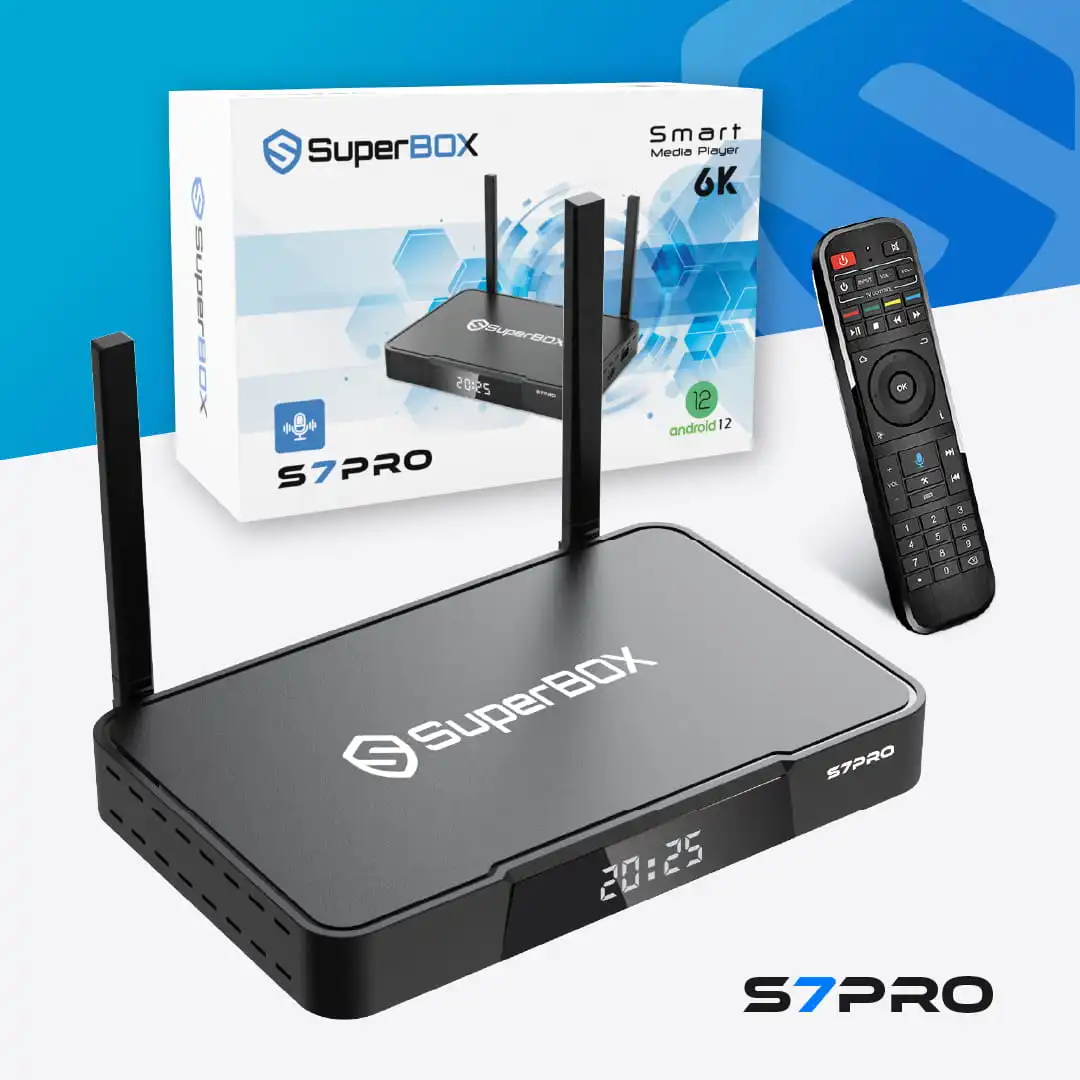
| SuperBox S7 Pro | $305.00 | 4GB DDR3 | 32GB eMMC | Wi-Fi 6 + 1000M LAN | RC-200L Backlit Voice Remote |
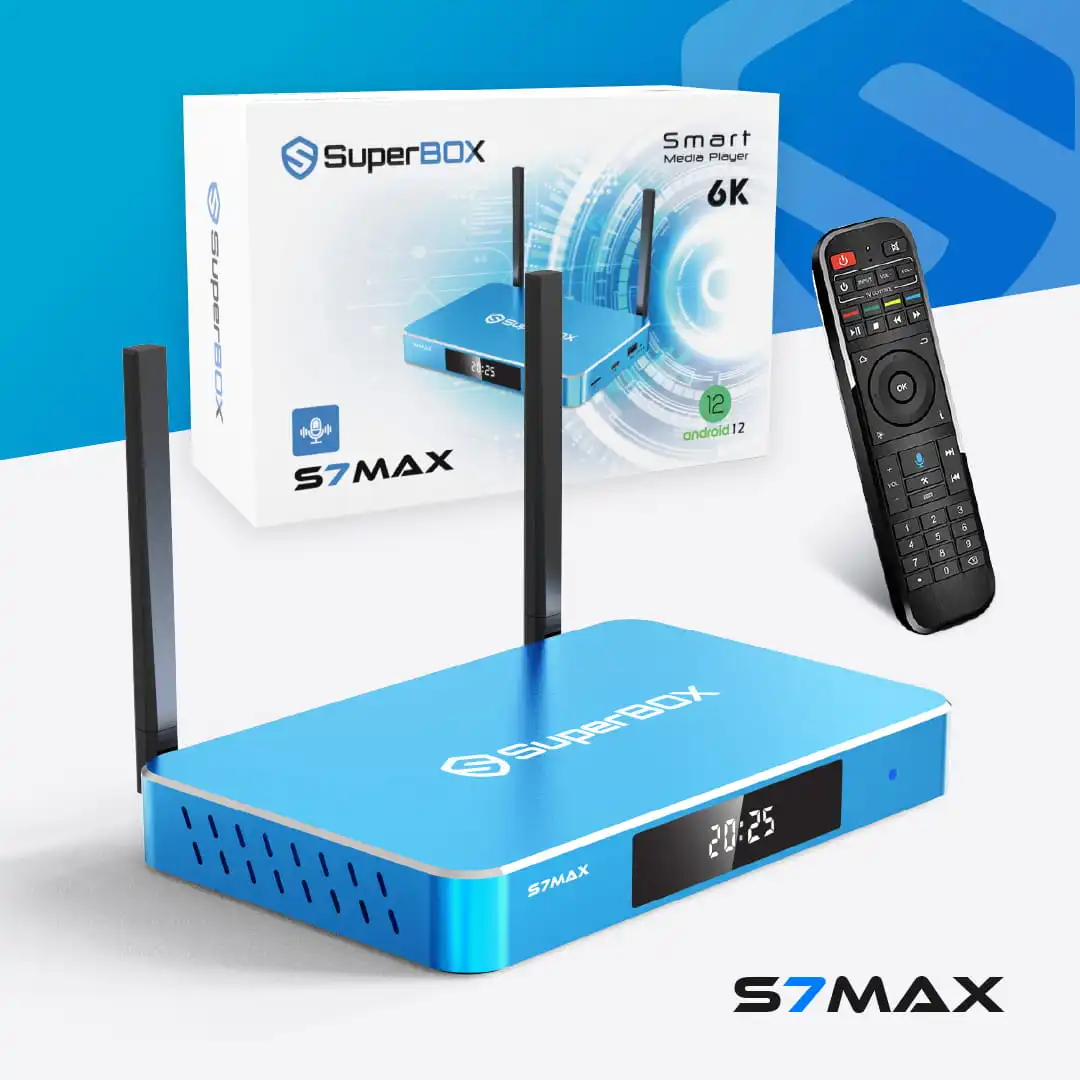
| SuperBox S7 Max | $339.00 | 4GB DDR3 | 64GB eMMC | Wi-Fi 6 + 1000M LAN | RC-200L Backlit Voice Remote |
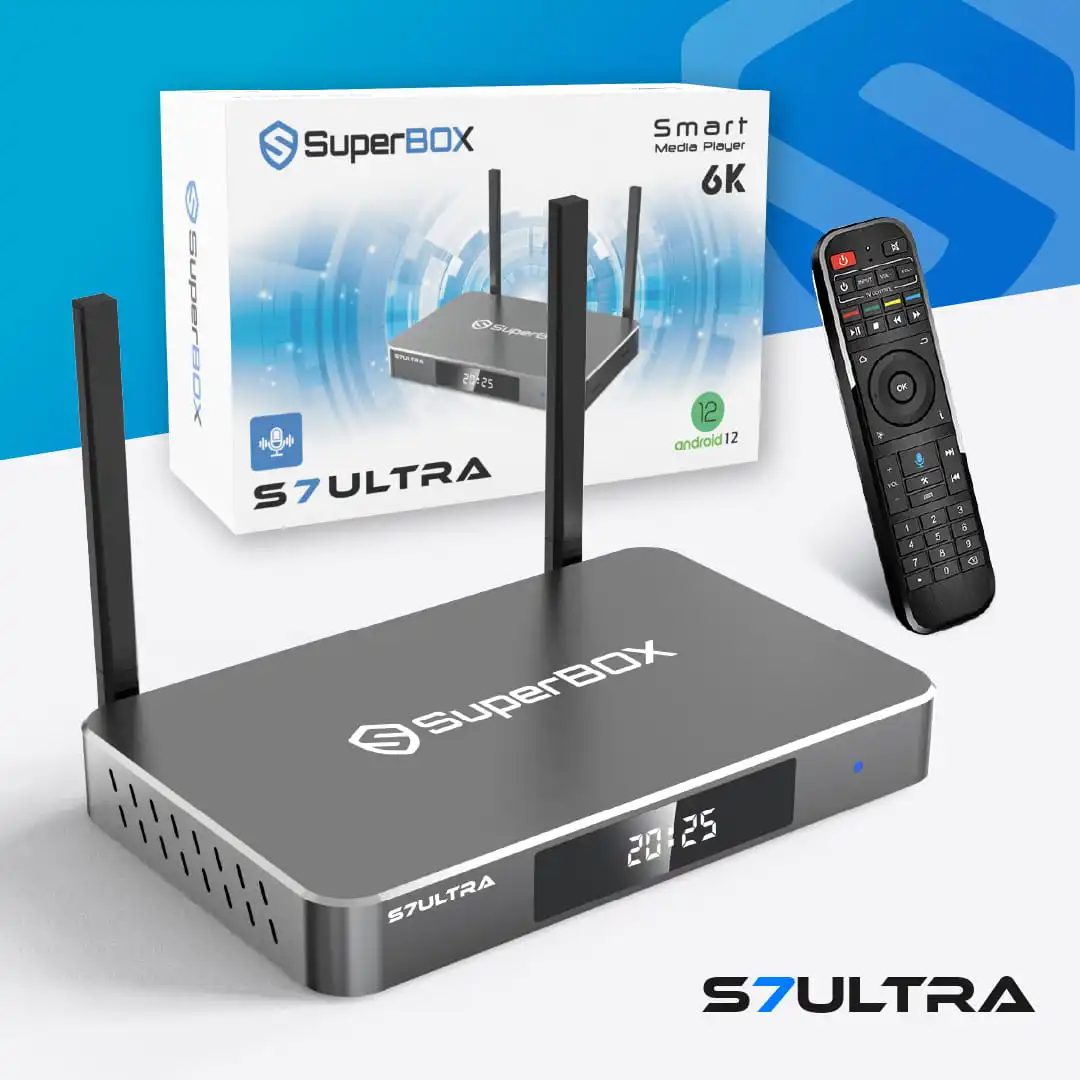
| SuperBox S7 Ultra | $381.00 | 4GB DDR3 | 128GB eMMC | Wi-Fi 6 + 1000M LAN | RC-200L Backlit Voice Remot |
How to Troubleshoot Common Setup Issues
If you encounter unexpected behavior during your initial setup, these three troubleshooting steps will resolve the issue quickly.
Step 1: Resolve Blank Screen or No Signal Errors
If your television displays “No Signal,” confirm the HDMI cable is plugged into the correct input port. Try switching HDMI ports on your TV or testing a different HDMI cable. Ensure the Type-C power adapter is plugged directly into a wall outlet rather than a low-powered TV USB port, which cannot supply sufficient current during startup.
Step 2: Fix Wi-Fi Authentication and Connection Drops
If the Wi-Fi connection fails, verify you are connecting to your router’s 5GHz network. Move the console away from metal obstacles, and check that both external antennas are securely fastened. If wireless interference persists, plug an Ethernet cable directly into the 1000M LAN port. If streaming playback ever buffers, review our diagnosis guide on SuperBox S7 buffering.
Step 3: Reconnect Unresponsive Bluetooth Voice Remote
If the remote navigates menus via infrared but the voice microphone does not respond, re-pair the remote by holding [OK + Return] for 8 seconds until the red LED flashes. Then navigate to Settings > Remote & Accessories and reselect RC200. If the remote continues to lag, replace both AAA batteries with fresh alkaline cells.
Frequently Asked Questions About SuperBox S7 Setup
Do I need a Google account to complete the initial setup?
No. The SuperBox S7 initial setup and the Blue App Store operate completely independently of Google. A Google account is only required if you want to install third-party apps directly from the Google Play Store.
How do I activate the official 1-year manufacturer warranty?
Warranty activation occurs automatically in the background. The moment you download and open your first application from the Blue App Store, your device MAC address registers with the cloud warranty database.
Can I use the SuperBox S7 on multiple televisions at the same time?
Each SuperBox S7 console provides one HDMI video output intended for a single television. While you can easily unplug the lightweight box and move it between rooms, viewing on multiple TVs simultaneously requires a separate SuperBox for each television.
Why is the 5GHz Wi-Fi band recommended over 2.4GHz?
The 5GHz frequency provides significantly higher data throughput and lower latency, which is essential for decoding uncompressed 4K and 6K video streams without buffering. The 2.4GHz band is crowded with household electronics and Bluetooth interference.
What should I do if the picture extends past my TV screen edges?
Go to Settings > Display > Screen Position > Zoom Out (or run the screen calibration wizard) and adjust the display scaling between 96% and 100% until the blue corner brackets align flush with the edges of your screen.
Do Blue TV and Blue VOD require any subscription fees or activation codes?
No. Blue TV, Blue VOD, and Playback are 100% free to access for the life of the hardware. They require zero subscription fees, monthly renewals, or activation codes.
How do I pair the RC-200L voice remote over Bluetooth?
Hold the remote within 12 inches of the console, then press and hold [OK + Return] simultaneously for eight seconds until the top red LED begins flashing rapidly. Select RC200 under Settings > Remote & Accessories to finalize the connection.
Can I plug an external hard drive or keyboard into the SuperBox S7?
Yes. The S7 features a blue USB 3.0 port (ideal for external hard drives, SSDs, and high-speed USB flash drives) and a black USB 2.0 port (ideal for wireless keyboard dongles and air mice).
What internet speed is recommended for smooth 4K streaming?
We recommend a stable internet download speed of at least 25 Mbps to 50 Mbps for smooth HD and 4K streaming. For households with multiple devices active simultaneously, 100 Mbps or higher ensures zero buffering.
How does the SuperBox S7 compare to the newer SuperBox S8 series?
The S7 lineup remains an outstanding high-performance value ($305.00 – $381.00). The newer S8 lineup ($359.00 – $449.00 across S8 Pro, S8 Plus, S8 Max, and S8 Ultra) adds an upgraded processor, Picture-in-Picture multi-viewing, the new TV Recorder application, and an AI Voice Command Engine. Read our full comparison in the SuperBox S7 vs S8 breakdown.
Final Thoughts
The SuperBox S7 series transforms any 4K smart television into a high-powered, zero-fee entertainment hub. By taking five minutes to calibrate your screen margins, connect to high-speed 5GHz Wi-Fi or Gigabit LAN, and install the Blue entertainment suite, you ensure seamless performance for years to come.
Whether you choose the entry-level S7 Pro ($305.00), the balanced S7 Max ($339.00), or the expansive S7 Ultra ($381.00), you can say goodbye to monthly cable bills and enjoy endless commercial-free live television and on-demand movies!
The article was updated on:
