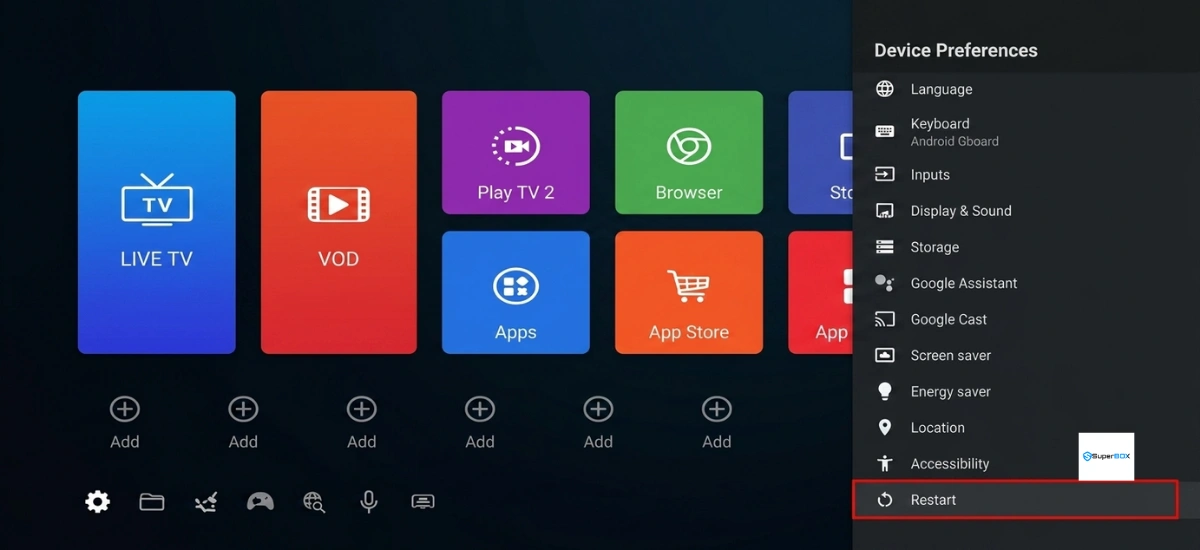
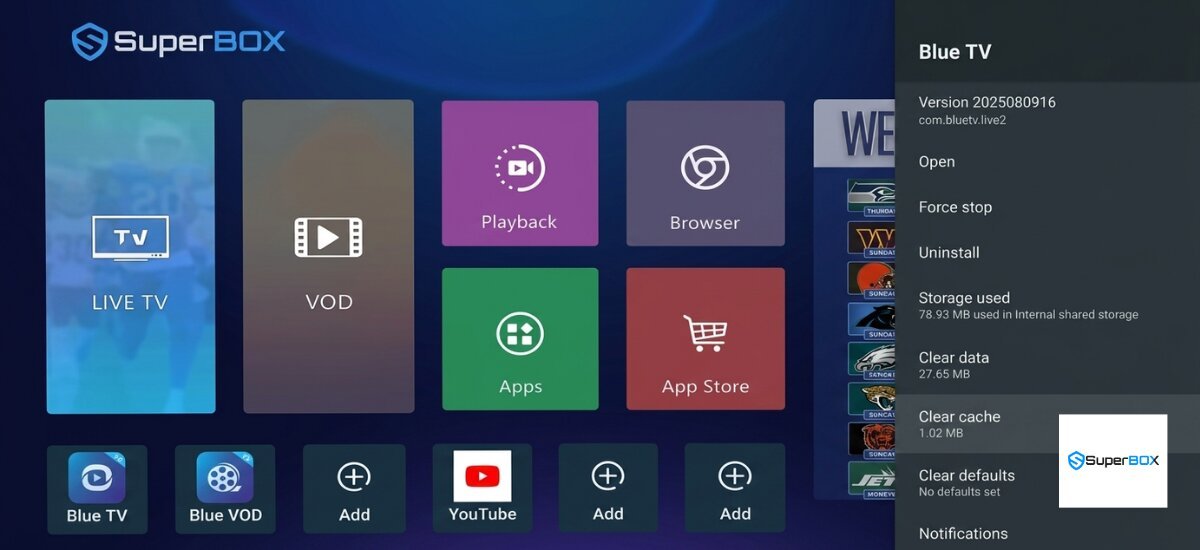
To fix a freezing SuperBox S7 Max, first try running the built-in system cleaner and speed test. If the issue persists, perform a hard restart, clear the app cache, or reinstall the streaming app.
Special Offer: Use coupon code SAVE10 to get 10% OFF your order.
Superbox S7 Max Freezing: Why It Happens and How to Resolve It
Experiencing a frozen Superbox S7 Max can be incredibly frustrating, halting your entertainment mid-stream. This issue typically means your device is unresponsive, slow, lagging, or an application has crashed. It can manifest as a completely frozen screen, delayed reactions to your remote, or apps failing to load. While the Superbox S7 Max boasts robust specifications like Android 12 OS, a Quad-core ARM Cortex-A53 processor, Mali-G31 MP2 GPU, 4GB DDR RAM, and 64GB eMMC storage, freezing issues are often related to software, environment, or usage rather than inherent hardware limitations.
If left unaddressed, persistent freezing can degrade your user experience and potentially impact the device’s long-term performance. This guide provides a variety of solutions, allowing you to choose the best approach based on your specific situation. Resolving Superbox S7 Max freezing issues is crucial for maintaining optimal performance and a smooth streaming experience.
Quick Solutions for Your Freezing Superbox S7 Max
This section offers a quick overview of common solutions for a freezing Superbox S7 Max. These methods provide a rapid review of options to stop your Superbox S7 Max from freezing and address Superbox S7 Max performance issues.
- Perform a Simple Restart: This method is ideal for minor glitches and temporary unresponsiveness, offering a quick reset to resolve immediate issues.
- Manage Background Applications: When the device is slow or freezing due to too many apps running, managing background applications improves RAM management and overall responsiveness.

- Clear Cache Data for Apps and System: This approach effectively resolves performance issues caused by corrupted or excessive temporary files, enhancing overall speed and stability.
- Free Up Storage Space: If your device’s 64GB eMMC storage is nearly full, freeing up space is recommended to prevent lag and crashes, improving Superbox S7 Max performance.
- Optimize Your Internet Connection: A stable and fast data flow is crucial when freezing occurs during streaming or buffering, making this a key Superbox S7 Max buffering solution.
- Update Firmware and Applications: Essential for fixing known bugs and improving system stability, especially after a Superbox S7 Max freezing after update scenario, ensuring your device has the latest fixes.
- Address Overheating Issues: If the device feels hot to the touch or freezes after prolonged use, addressing overheating is important to prevent performance throttling and ensure longevity.
- Check HDMI Cable and Power Supply: This foundational check helps resolve display issues or erratic behavior, ensuring stable physical connections are not the cause of your Superbox S7 Max not working.
- Factory Reset Your Superbox S7 Max: This is a last-resort solution for persistent, unresolved freezing, returning the device to its original state and often resolving deep-seated software problems.
Diagnosing Your Superbox S7 Max Freezing Issue
Before diving into solutions, identifying the specific symptoms and context of your Superbox S7 Max freezing can help you choose the most effective fix. Understanding the nature of the problem is the first step in how to fix Superbox S7 Max freezing. Consider these questions to pinpoint the cause:
- When does the device freeze? Does it freeze during streaming (e.g., Blue TV, Blue VOD), when opening specific apps, after an update, or randomly?
- What are the symptoms you observe? Is it completely unresponsive, just lagging, buffering constantly, or are apps crashing?
- Is the remote control working? Is your Superbox S7 Max frozen remote control not working?
- Does the device feel hot to the touch? Could Superbox S7 Max freezing due to overheating be the cause?
- Have you recently installed new apps or system updates?
- What is your internet connection like? Is it stable, or do you experience frequent drops, which might lead to Superbox S7 Max buffering?
Understanding these factors will help you pinpoint the likely cause. For example, Superbox S7 Max freezing during streaming often points to network or app issues, while Superbox S7 Max freezing after update suggests a firmware bug. This diagnostic process is crucial for effective Superbox S7 Max troubleshooting.
Essential Preparations Before Troubleshooting
Before attempting any fixes for your Superbox S7 Max, ensure you have these general preparations in place. Taking these steps can streamline the troubleshooting process and prevent further complications.
- Stable Power Supply: Ensure your Superbox S7 Max is connected to a reliable power source using its original Type-C DC 5V/2A adapter. An unstable power supply can lead to erratic behavior.
- Internet Access: Have a working internet connection (Wi-Fi 6 or Ethernet) readily available to download updates or test streaming services.
- Remote Control: Ensure your remote has fresh batteries or is fully charged to maintain control over the device.
- Backup Data (if considering Factory Reset): If you have important local files or app data, consider backing them up before a factory reset, as this will erase all data.
- Time: Some solutions might take a few minutes, while others, like system updates, could take longer. Allocate sufficient time for the process.
- Ventilation: Ensure the device is in a well-ventilated area, especially if overheating is suspected. Proper airflow is vital for preventing Superbox S7 Max overheating.

Detailed Solutions to Fix Your Superbox S7 Max Freezing
Method 1: Perform a Simple Restart (Soft & Hard Reboot)
A simple restart is often the quickest and easiest fix for many temporary glitches and minor freezing issues. This initial step is highly effective for basic Superbox S7 Max unresponsive fix scenarios.
When to apply this method: Use this when your Superbox S7 Max is mildly unresponsive, lagging, or has frozen temporarily. This is the first step in how to troubleshoot Superbox S7 Max freezing. Your remote control is needed for this process.
To perform a restart:
1. Soft Restart: Navigate to Settings > Device Preferences > About > Restart. Select Restart and confirm the action.
2. Hard Restart (Power Cycle): Unplug the Type-C power adapter from the back of your Superbox S7 Max. Wait for at least 30 seconds to allow the device to fully discharge. Then, plug the power adapter back in.
This method offers several advantages, including being quick, simple, and causing no data loss, often proving effective for minor issues. However, it may not resolve underlying software or hardware problems. To increase effectiveness and avoid errors, always wait the full 30 seconds for a hard restart. A successful application means the device reboots normally, and freezing stops.
Method 2: Manage Background Applications
Too many apps running simultaneously can consume RAM and CPU resources, leading to lag and freezing, especially with demanding tasks like 6K streaming. This method significantly contributes to a Superbox S7 Max lag fix and overall Superbox S7 Max performance improvement.
When to apply this method: Use this if your Superbox S7 Max feels sluggish, freezes when switching between apps, or specific apps crash frequently. Your remote control is needed for this process.
To manage background applications:
1. Go to Settings > Apps > See all apps.
2. Scroll through the list and identify apps you are not actively using.
3. Select an app, then choose Force stop to close it.
4. Consider Uninstall for rarely used or problematic apps to free up RAM and storage space.
This approach improves immediate performance and frees up RAM, which can be beneficial. However, apps might restart in the background later, requiring manual management. Prioritize closing resource-intensive apps, such as large games or streaming apps not currently in use, for better results. Device responsiveness improving and freezing reducing or stopping are signs of success.
Method 3: Clear Cache Data for Apps and System
Corrupted or excessive cache files can interfere with app and system performance, causing freezing and slow operation. This is a key Superbox S7 Max clear cache solution, essential for resolving Superbox S7 Max performance issues.
When to apply this method: Use this if specific apps (like Blue TV or Blue VOD) are freezing, crashing, or performing poorly, or if the system generally feels slow. Your remote control is needed for this process.
To clear cache data:
1. For individual apps: Go to Settings > Apps > See all apps. Select the problematic app (e.g., Blue TV, Blue VOD). Choose Clear cache. Do NOT select Clear data unless you intend to reset the app completely, as this will delete login information and settings.
2. For system-wide improvement: While Android TV does not have a single clear system cache button like some phones, regularly clearing individual app caches significantly helps overall system performance.
This method improves app stability and performance without data loss when clearing only the cache. Be aware that clearing data will erase app settings and login information. Start by clearing cache for the apps you use most frequently or those that seem to be causing issues. Apps loading faster, running smoother, and freezing within specific applications reducing are signs of success.
Method 4: Free Up Storage Space
Although the Superbox S7 Max comes with 64GB eMMC storage, filling it up can lead to performance degradation, including freezing and lagging. This action significantly contributes to Superbox S7 Max performance improvement.
When to apply this method: Use this if your device is freezing and you have many apps, games, or downloaded media files. Your remote control is needed for this process.
To free up storage space:
1. Go to Settings > Storage.
2. Review the Internal shared storage usage to understand what is consuming space.
3. Identify apps, games, or media files (videos, photos) that consume significant space.
4. Uninstall unnecessary apps or delete large downloaded files.
This method improves system responsiveness and prevents crashes due to low storage. It requires deciding which apps or files to remove. Prioritize uninstalling large games or streaming apps you no longer use to maximize impact. The device feeling snappier and freezing related to heavy storage usage disappearing are signs of success.
Method 5: Optimize Your Internet Connection
A poor or unstable internet connection can cause streaming apps to buffer endlessly, appear frozen, or crash, mimicking a device freeze. This is crucial for a Superbox S7 Max buffering solution and is vital for how to fix Superbox S7 Max freezing during streaming.
When to apply this method: Use this if freezing primarily occurs during streaming, especially with apps like Blue TV or Blue VOD. Your router/modem and an Ethernet cable (optional) are needed for this process.
To optimize your internet connection:
1. Test Speed: Use a speed test app on your Superbox S7 Max or another device connected to the same network. Ensure your internet speed meets the requirements for 6K streaming.
2. Restart Router/Modem: Unplug your internet router and modem from power for 1-2 minutes, then plug them back in. Wait for them to fully restart.
3. Switch to Ethernet: If you are using Wi-Fi, connect your Superbox S7 Max directly to your router using an Ethernet cable. The S7 Max supports 1000Mbps Gigabit Ethernet for a more stable and faster connection.
4. Reduce Network Congestion: Limit other devices on your network from performing bandwidth-heavy tasks, such as large downloads, during streaming.
This method significantly improves streaming stability and reduces buffering. It may require physical connection changes or addressing ISP issues. Placing your router closer to the Superbox S7 Max or using a Wi-Fi extender if using Wi-Fi can increase effectiveness. Smooth streaming, minimal buffering, and apps no longer appearing frozen due to network issues are signs of success.

Method 6: Update Firmware and Applications
Outdated Android 12 OS firmware or application versions can contain bugs that lead to instability and freezing. Regular updates often include performance improvements and bug fixes. This addresses Superbox S7 Max freezing after update scenarios and is a key part of Superbox S7 Max update procedures.
When to apply this method: Use this if your device has not been updated recently, or if freezing started after a new update. A stable internet connection is needed for this process.
To update firmware and applications:
1. System Update: Go to Settings > Device Preferences > About > System update. Check for and install any available updates for the Android 12 OS.
2. App Updates: Open the Google Play Store on your Superbox S7 Max. Go to My apps & games and update all pending applications. Ensure pre-loaded apps like Blue TV and Blue VOD are also up to date.
This method fixes known bugs, improves security, and enhances performance. While rare, updates can sometimes introduce new bugs. Always ensure a stable internet connection during updates to prevent corruption. Overall system stability improving and freezing issues related to software bugs resolving are signs of success.
Method 7: Address Overheating Issues
Prolonged use, poor ventilation, or high ambient temperatures can cause the Superbox S7 Max to overheat, leading to performance throttling and freezing. The S7 Max has a Blue Mental Case which helps with heat dissipation, but proper ventilation is still crucial. This directly addresses Superbox S7 Max freezing due to overheating.
When to apply this method: Use this if your device feels excessively hot to the touch or freezes after extended periods of operation. No specific preparations are needed beyond observation.
To address overheating issues:
1. Ensure the Superbox S7 Max is placed in a well-ventilated area, away from direct sunlight, other heat-emitting devices, or enclosed spaces.
2. Avoid stacking other devices on top of it, which can block airflow.
3. If the device feels very hot, turn it off for a while to allow it to cool down completely.
This method prevents performance degradation and potential hardware damage. It requires proper placement and environmental control. Ensure there is at least a few inches of space around all sides of the device for optimal airflow. The device remaining cool during operation and freezing due to overheating being eliminated are signs of success.
Method 8: Check HDMI Cable and Power Supply
Faulty physical connections can sometimes mimic freezing issues, especially a frozen screen or intermittent power. This is a foundational check for Superbox S7 Max not working fix scenarios.
When to apply this method: Use this if you experience a frozen screen, flickering, or unexpected restarts, which might be perceived as the box itself freezing. A spare HDMI 2.1 cable (optional) and a different power outlet may be needed.

To check HDMI cable and power supply:
1. HDMI Cable: Ensure the HDMI 2.1 cable is securely plugged into both the Superbox S7 Max and your TV. Try unplugging and re-plugging both ends. If possible, try a different HDMI port on your TV or a different HDMI cable.
2. Power Supply: Verify that the Type-C power supply cable is firmly connected to the device and the wall outlet. Try plugging the adapter into a different wall outlet.
This method is simple, quick, and can resolve display or power-related freezing. It requires physical inspection and potentially swapping cables. Always use the original Type-C power supply cable provided with your Superbox S7 Max for optimal performance and compatibility. Stable display, no flickering, and consistent power to the device are signs of success.
Method 9: Factory Reset Your Superbox S7 Max (Last Resort)
A factory reset wipes all data, installed apps, and settings, returning your Superbox S7 Max to its original factory state. This is a powerful how to factory reset Superbox S7 Max when frozen solution, but it should be a last resort.
When to apply this method: Use this if all other troubleshooting steps have failed, and your Superbox S7 Max continues to freeze persistently. Be aware that all data will be lost; consider backing up important information if possible.
To factory reset your device:
1. Go to Settings > Device Preferences > About > Factory reset.
2. Read the warning carefully, as this action will erase all data.
3. Confirm the action to proceed with the factory reset. The device will restart and go through an initial setup process.
This method often resolves deep-seated software issues and corrupted system files. The main limitation is that all personal data, apps, and settings will be erased. Only perform this if you have exhausted all other options. Ensure the device has sufficient power during the process to prevent interruptions. The device booting up like new and freezing issues being resolved, requiring you to reinstall apps and configure settings, are signs of success.
Choosing the Right Fix: Which Solution is Best for You?
Selecting the most effective solution for your Superbox S7 Max freezing depends on the specific symptoms and underlying causes. This section helps you determine the best way to prevent Superbox S7 Max freezing based on your situation.
- For minor, intermittent freezing or lag, start with Method 1 (Restart) and Method 2 (Manage Background Apps). These are quick, low-effort solutions to resolve Superbox S7 Max freezing issues.
- For app-specific freezing or general slowdown, focus on Method 3 (Clear Cache Data) and Method 4 (Free Up Storage Space). These target common software-related performance issues.
- For freezing during streaming or buffering, prioritize Method 5 (Optimize Internet Connection) and Method 6 (Update Firmware and Apps). These are crucial for a stable streaming experience.
- For a hot device or freezing after prolonged use, implement Method 7 (Address Overheating).
- For display issues or unexpected power cuts, check Method 8 (HDMI & Power Supply).
- For persistent, unresolved freezing after trying everything else, use Method 9 (Factory Reset) as a last resort to stop Superbox S7 Max from freezing.
Combo Recommendations:
- Quick Fix Combo: Start with a simple restart, close background applications, and clear app caches for immediate relief.
- Streaming Stability Combo: Optimize your internet connection, update apps and firmware, and clear the cache of streaming applications.
- Maximum Performance Combo: Apply all the above methods, followed by a factory reset if issues persist, for comprehensive Superbox S7 Max performance improvement.
Remember, the best way to fix Superbox S7 Max freezing is the one that addresses your specific problem effectively and efficiently.
Important Considerations When Troubleshooting Superbox S7 Max Freezing
When attempting to fix your Superbox S7 Max, keep these points in mind to avoid common pitfalls and ensure safety. These considerations are vital for effective Superbox S7 Max troubleshooting.

- Start Simple: Always begin with the easiest and least intrusive solutions, like restarting, before moving to more complex ones, such as a factory reset.
- Data Loss Warning: Be aware that a factory reset will erase all your data. Back up anything important if possible before proceeding.
- Stable Power: Ensure your device has a stable power supply during any troubleshooting, especially during firmware updates or factory resets, to prevent further damage.
- Original Accessories: Use the original Type-C power supply and HDMI 2.1 cable provided with your Superbox S7 Max for optimal performance and compatibility.
- When to Seek Professional Help: If you have tried all the solutions and your Superbox S7 Max continues to freeze, it might indicate a hardware issue. In such cases, it is best to stop troubleshooting yourself and seek expert assistance.
Verifying the Fix and Maintaining Optimal Performance
After applying any of the solutions, it is important to verify that the freezing issue is resolved and to adopt habits that prevent it from recurring. This ensures long-term Superbox S7 Max performance improvement.
Signs of improvement or success include the device responding quickly to remote commands, apps loading and running smoothly without crashing, streaming content playing without buffering or interruptions, and the device not feeling excessively hot.
For a quick check, navigate through the home screen, open a few frequently used apps like Blue TV or Blue VOD, and play a short video. For a thorough check, use the device for an extended period, performing tasks that previously caused freezing, such as streaming high-resolution content for an hour.

If the issue is not yet effective, review the steps you have taken and ensure they were followed correctly. Try combining multiple solutions, as some problems have multiple contributing factors. Also, consider if the issue might be external, such as ISP throttling or router problems, which are outside the device itself.
For ongoing maintenance, regularly clear the cache of frequently used apps. Only install essential apps and uninstall those you no longer use to free up storage space. Always place your Superbox in an open area with good airflow to ensure proper ventilation. Keep software updated by regularly checking for and installing system and app updates. Use a stable internet connection, opting for Ethernet if possible, or ensure your Wi-Fi network is strong and stable. Finally, avoid overloading the device by not running too many demanding applications simultaneously. These practices are the best way to prevent Superbox S7 Max freezing.
Frequently Asked Questions About Superbox S7 Max Freezing
Why does my Superbox S7 Max keep freezing during streaming?
It is often due to a poor internet connection, too many background apps, an outdated streaming app, or insufficient RAM. Optimizing your internet connection and managing applications can provide a Superbox S7 Max buffering solution.
Will clearing the cache delete my personal data?
No, clearing the cache only removes temporary files and usually does not delete personal data or login information. Clearing app data, however, will erase app settings and login information.
How often should I clear the cache on my Superbox S7 Max?
It is a good practice to clear the cache of frequently used apps every few weeks or whenever you notice performance issues. This contributes to Superbox S7 Max performance improvement.
Can overheating permanently damage my Superbox S7 Max?
Persistent overheating can potentially shorten the lifespan of electronic components, though modern devices often throttle performance to prevent severe damage. Addressing Superbox S7 Max freezing due to overheating is crucial.
Is a factory reset always the last option?
Yes, a factory reset should be your last resort as it erases all data and settings. Consider it only after trying all other troubleshooting steps for how to factory reset Superbox S7 Max when frozen.
My Superbox S7 Max freezes after an update. What should I do?
Try restarting the device. If the issue persists, clear the cache of problematic apps or consider performing a factory reset if the update introduced a critical bug. This addresses Superbox S7 Max freezing after update scenarios.
Does using an Ethernet cable prevent freezing more effectively than Wi-Fi?
An Ethernet connection generally provides a more stable and faster connection, which can significantly reduce freezing related to network issues, especially during high-resolution streaming.
What if my Superbox S7 Max freezes and restarts itself?
This often points to overheating, a critical software bug, or a power supply issue. Check for overheating, ensure firmware is updated, and verify the power supply to resolve why is my Superbox S7 Max constantly freezing and restarting itself.
Buying the $399 SuperBox S7 Max, 10% OFF at SuperBox TV Box Store
SuperBox TV Box Store is the most trusted retailer of authentic SuperBox TV Box S6, S7, and S8 series in the US and Canada. We provide genuine products, secure payment, fast delivery, and reliable customer support.
The SuperBox S7 Max is now available for $399.00 instead of $429.00, with tax included and free shipping. It comes with 4GB DDR3 memory, 64GB eMMC storage, a backlit voice remote, HDMI 2.1 cable, Type-C power cable, and user guide.
The S7 Max also includes pre-loaded entertainment apps such as Blue TV, Blue VOD, Playback App, 7-Day Playback, Rewind Feature, international viewing options, and 7 Bonus Prime Apps. Apps are ready to use after setup.
Each order also includes an exclusive gift bundle: Mini Keyboard, 64GB Micro SD Card, and 6-in-1 Adapter Hub.
Special Offer: Use coupon code SAVE10 to get 10% OFF your order.
To help customers shop with confidence, SuperBox TV Box Store provides:
- Free shipping in the USA & Canada: 1 business day processing, USA delivery in 2–5 business days, Canada delivery in 3–5 business days.
- Secure payment: Stripe and PayPal checkout with PCI-DSS compliance and AES-256 encryption.
- 30-day returns: unused items can be returned within 30 days, with no restocking fee.
- Refund protection: cancellations before shipment receive a 100% refund within 24 hours; approved refunds take 5–10 business days.
- Warranty support: orders are verified with serial number recording, packaging video, warranty seal, and service response within 24 business hours.
Order the SuperBox S7 Max today from SuperBox TV Box Store for $399.00, with free shipping, exclusive gifts, and dependable after-sales support.
Besides the SuperBox S7 Max, you can also check out other models like the S7 Pro or S7 Ultra.
SuperBox S7 Series:
=> Browse and shop the SuperBox S7 lineup today!