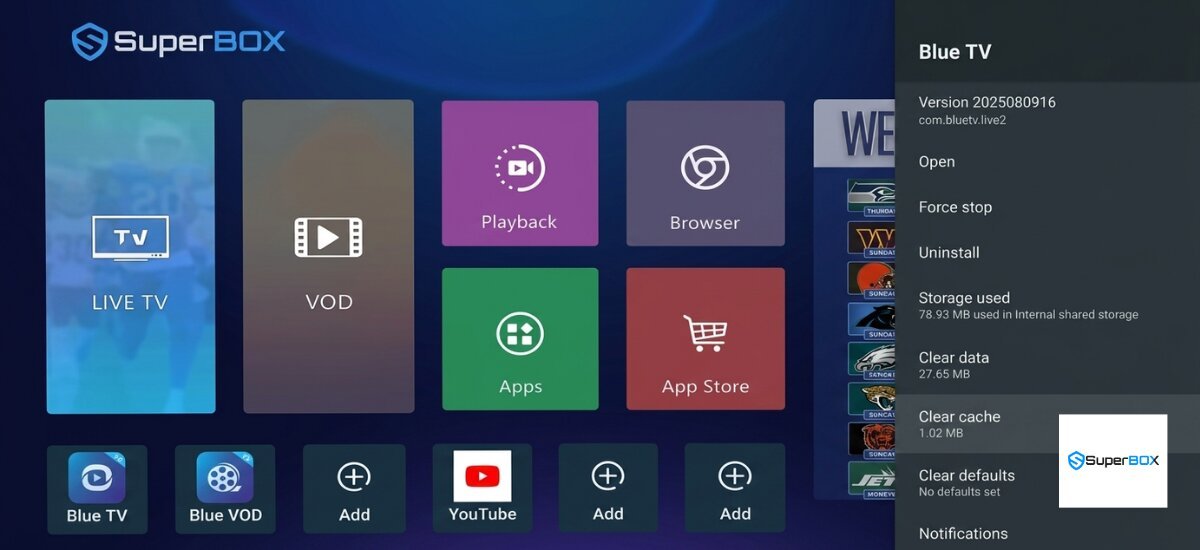
Easy Ways to Clear Cache on SuperBox S7 Max

Summarize this article with:
ChatGPTClaudeGoogle GeminiGrokPerplexity
Overview of Superbox S7 Max Performance Issues and the Role of Cache

Clearing the cache on your SuperBox S7 Max resolves streaming lag, freezing, and app glitches. You can do this quickly using the system cleaner, directly in the app settings, or by using a third-party memory booster app.

Special Offer: Use coupon code SAVE10 to get 10% OFF your order.

Overview of Superbox S7 Max Performance Issues and the Role of Cache

Many Superbox S7 Max users encounter performance issues like buffering, lagging, freezing, or slow app loading, which can disrupt their entertainment. These problems often stem from an accumulation of temporary data, known as cache, on the device.

Overview of Superbox S7 Max Performance Issues and the Role of Cache

While cache initially helps speed up app access, an excessive build-up can become counterproductive, consuming valuable storage and RAM, and leading to overall system sluggishness. Ignoring these issues can result in a frustrating user experience and app instability. Fortunately, there are several effective ways to manage and clear this digital clutter, and this article will provide a comprehensive guide to the most common methods, helping you understand when and how to apply each for optimal results.

Before Choosing a Method, You Need to Identify the Correct Situation or Need

To effectively resolve performance issues, it is crucial to first understand the nature of the problem. Consider these questions to help classify your situation:

  • Is only one specific app performing poorly, or is the entire Superbox S7 Max sluggish?
  • Are you frequently experiencing buffering during streaming, or are apps crashing?
  • Is your device showing warnings about low storage space?
  • How comfortable are you navigating through system settings?

Understanding whether your issue is isolated to an app or affects the whole system, and its severity (mild slowdown versus constant freezing), will guide you toward the most appropriate and efficient solution. Choosing the right method will save you time and significantly increase the effectiveness of your troubleshooting efforts.

General Preparations Before Applying the Methods

Before you begin clearing cache on your Superbox S7 Max, a few general preparations will ensure a smooth process.

General Preparations Before Applying the Methods
  • Ensure your Superbox S7 Max is powered on and connected to your TV.
  • Have your remote control handy and ensure its batteries are working.
  • Understand the distinction between Clear Cache and Clear Data. Clearing cache is generally safe and will not delete personal information, while clearing data will reset an app to its factory state, removing all user data, settings, and login information. This guide focuses on clearing cache to avoid data loss.
  • Allocate a few minutes of uninterrupted time. Clearing individual app cache is usually quick, while a system-wide clean might take slightly longer.

Detailed Guide to Clearing Cache on Superbox S7 Max

Method 1: Clearing Cache for Individual Applications

This method is highly recommended when you notice performance issues, such as buffering or freezing, with a specific application like Blue TV, Blue VOD, or any other app installed from the Google Play Store. It allows for targeted troubleshooting without affecting other apps or system settings.

Apply this method when a particular app is misbehaving, crashing, or loading slowly. It is suitable for all users, regardless of technical expertise, as it is a straightforward and safe first step. Simply identify the specific application that is causing you trouble.

To perform this action:

1. From the Superbox S7 Max home screen, navigate to Settings.

2. Scroll down and select Apps or Applications.

3. Browse through the list of installed apps and select the problematic one (e.g., Blue TV, Blue VOD, Playback App).

4. Within the app’s information screen, locate and select Storage & cache.

5. Tap on Clear cache.

6. Important Note: DO NOT tap Clear data unless you intend to completely reset the app and are prepared to lose all its associated data, settings, and login information.

The main advantage of this method is its targeted approach, which is quick and safe for your personal data. The limitation is that it only addresses issues with a single app, not system-wide slowdowns. There are virtually no risks when only clearing cache. Regularly check apps you use frequently, especially streaming apps, as they tend to accumulate more cache. If an app continues to misbehave after clearing its cache, consider restarting your Superbox S7 Max. The specific app should now load faster, stream smoother, and stop crashing or freezing.

Detailed Guide to Clearing Cache on Superbox S7 Max

Method 2: Clearing System-Wide Cache (Using a Cleaner App or Storage Settings)

This method is useful when your entire Superbox S7 Max feels sluggish, multiple apps are affected, or you need to free up a significant amount of storage space. It aims to clear temporary files across the entire system.

Use this method if your Superbox S7 Max is generally slow, experiencing overall lagging, or if you suspect a large accumulation of junk files is impacting performance. It is suitable for users looking for a more comprehensive cleanup. No specific preparations other than your remote control are needed.

To perform this action, you have two options:

1. Option A: Using a Built-in Cleaner/Optimizer App (if available):

  • Look for an app icon resembling a broom or labeled Cleaner, Optimizer, or System Cleaner on your Superbox S7 Max’s home screen or in the app drawer.
  • Open the app and follow the on-screen prompts to scan for and clear junk files and cache.

2. Option B: Clearing Cached Data via Storage Settings (for all apps):

  • From the Superbox S7 Max home screen, navigate to Settings.
  • Scroll down and select Storage.
  • Look for an option like Cached data or Other apps. Selecting this option might prompt you to clear all cached data for all applications. Confirm to proceed.

This method offers a more thorough cleanup, potentially freeing up more storage and improving overall system responsiveness. However, not all Android TV boxes have a dedicated clear all cache button, and relying on third-party cleaner apps requires caution to ensure they are reputable. There are minimal risks involved as long as you confirm you are only clearing cache and not data.

After clearing system-wide cache, it is often beneficial to restart your Superbox S7 Max to allow the system to refresh. You should notice a general improvement in the Superbox S7 Max’s speed, faster navigation, quicker app loading times, and potentially more available storage space.

When to Use Which Method? And Which Method is Most Effective?

Choosing the right cache clearing method depends on the specific symptoms your Superbox S7 Max is exhibiting.

  • If a single app is acting up (e.g., Blue TV buffering, a game freezing), prioritize Clearing Cache for Individual Applications. This is the most targeted and least intrusive approach.
  • If your entire Superbox S7 Max feels slow, sluggish, or multiple apps are affected, consider Clearing System-Wide Cache using a cleaner app or through storage settings. This provides a broader cleanup.
  • If you are running low on storage space, both methods can help, but a system-wide cache clear will likely yield more significant results.
  • For routine maintenance, a periodic system-wide cache clear (if available) or clearing cache for frequently used streaming apps is a good practice.

There is not one most effective method; rather, it is about applying the appropriate solution to the problem. Often, starting with individual app cache clearing is a safe and effective first step. If that does not resolve the issue, then move on to a broader system cleanup.

Important Notes When Applying the Methods to Clear Cache on Superbox S7 Max

While clearing cache is a beneficial maintenance task, it is important to keep a few things in mind to avoid common pitfalls.

  • Do NOT Confuse Clear Cache with Clear Data: This is the most critical distinction. Clearing data will erase all user information, settings, and login details for an app, essentially resetting it. Always double-check that you are selecting Clear Cache.
  • Restart Your Device: After clearing cache, especially system-wide, a simple restart of your Superbox S7 Max can help refresh the system and fully apply the changes.
  • Internet Connection: If buffering persists after clearing cache, ensure your internet connection is stable and fast enough for streaming. Slow internet is a common cause of buffering, unrelated to cache.
Important Notes When Applying the Methods to Clear Cache on Superbox S7 Max
  • Firmware Updates: Always keep your Superbox S7 Max’s firmware updated. Outdated software can sometimes lead to performance issues that clearing cache alone cannot fix.
  • When to Seek Support: If performance issues persist after trying all cache clearing methods and other basic troubleshooting (like restarting and checking internet), it might indicate a deeper software or even hardware problem. In such cases, contacting SuperBox TV Box Store support or performing a factory reset (as a last resort) might be necessary.

Checking Results and Improving Effectiveness After Clearing Cache

After clearing the cache on your Superbox S7 Max, it is important to verify if the action has resolved your performance issues and to establish a routine for maintaining optimal performance.

Signs of improvement or success include:

  • Apps load noticeably faster.
  • Streaming content experiences less or no buffering.
  • Overall navigation through the Superbox S7 Max interface feels smoother and more responsive.
  • You may observe an increase in available storage space in your device settings.
  • Apps that were previously crashing or freezing now run stably.

To quickly check, open the apps that were previously problematic and observe their loading speed and performance. Try streaming content that used to buffer. For a thorough check, go to Settings > Storage to see if the available storage has increased. Monitor your device’s performance over a few days to ensure the improvements are sustained.

If clearing cache does not fully resolve your issues, consider these additional troubleshooting steps:

  • Restart your Superbox S7 Max: A simple reboot can often fix temporary glitches.
  • Check your internet connection: Slow internet speeds are a common cause of buffering, not just the device itself.
  • Uninstall unused apps: Free up storage and RAM by removing applications you no longer use.
  • Update firmware: Ensure your Superbox S7 Max is running the latest system updates.
  • Factory Reset (Last Resort): If all else fails, a factory reset will wipe the device clean and restore it to its original settings. Always back up any important local files before doing this.

For ongoing maintenance, clear cache periodically, perhaps once a month or every few weeks, especially for frequently used streaming apps. Monitor performance, paying attention to early signs of slowdowns or app misbehavior, and address them promptly by clearing cache.

Common Issues When Clearing Cache and How to Resolve Them

Issue 1: Accidentally Tapping Clear Data Instead of Clear Cache

If you accidentally tap Clear Data, the app resets to its initial state, requiring you to log in again and reconfigure any custom settings. All downloaded content within that app is gone. This usually happens due to misunderstanding the difference between Clear Cache and Clear Data, or accidentally tapping the wrong option. You will need to re-login and reconfigure the app.

Common Issues When Clearing Cache and How to Resolve Them

There is no way to recover data lost by Clear Data. In the future, always carefully read the prompts and ensure you select Clear Cache. If you intended to clear only temporary files, this is a learning experience to be more cautious.

Issue 2: Clearing Cache Does Not Solve the Performance Issue

Your Superbox S7 Max or specific apps may continue to be slow, buffer, or crash even after clearing cache. This indicates that cache was not the root cause of the problem. Other factors like a slow internet connection, insufficient RAM for current tasks, outdated firmware, or even hardware issues could be at play.

To address this:

  • Check Internet Connection: Test your internet speed.
  • Restart Superbox S7 Max: A simple reboot can often resolve minor glitches.
  • Uninstall Unused Apps: Free up system resources.
  • Update Firmware: Ensure your device has the latest system updates.
  • Consider a Factory Reset: As a last resort, if all other troubleshooting fails.
  • Contact Support: If problems persist, reach out to SuperBox TV Box Store for further assistance.

Issue 3: Cannot Find the Clear Cache Option or a Cleaner App

The menu options in your Superbox S7 Max settings might not exactly match the instructions, or you cannot locate a dedicated cleaner app. This often occurs due to slight variations in Android OS versions or custom user interfaces implemented by Superbox.

To resolve this:

  • Explore Settings: Look for similar terms like Applications, Storage, Device Care, or Maintenance. The options might be nested differently.
  • Consult User Manual: Refer to your Superbox S7 Max’s user manual for specific navigation instructions.
  • Search Online: Look for guides specific to your exact Superbox S7 Max model and Android version.

Frequently Asked Questions About Clearing Cache on Superbox S7 Max

Will clearing cache delete my downloaded apps or personal settings?

No, clearing cache only removes temporary files and does not affect your installed apps, login information, or personal settings.

How often should I clear the cache on my Superbox S7 Max?

There is no strict rule, but it is good practice to clear it whenever you notice performance issues, or periodically (e.g., once a month) as part of routine maintenance.

Is clearing cache safe for my Superbox S7 Max?

Yes, clearing cache is a safe and standard maintenance procedure for Android devices and will not harm your Superbox S7 Max.

What is the main difference between Clear Cache and Clear Data?

Clearing cache removes temporary files, while clearing data resets an app to its initial state, deleting all user data, settings, and login information.

What if my Superbox S7 Max is still slow after clearing the cache?

If clearing cache does not resolve the issue, consider restarting your device, checking your internet connection, uninstalling unused apps, updating firmware, or as a last resort, performing a factory reset.

Does clearing cache improve my internet speed?

Some Android versions or built-in cleaner apps may offer a system-wide cache clearing option. Otherwise, you will need to clear cache for individual apps.

Can I clear cache for all apps at once on my Superbox S7 Max?

Some Android versions or built-in cleaner apps may offer a system-wide cache clearing option. Otherwise, you will need to clear cache for individual apps.

Will clearing cache affect my Superbox S7 Max’s warranty?

No, clearing cache is a standard operating system function and will not void your warranty.

Buying the $399 SuperBox S7 Max, 10% OFF at SuperBox TV Box Store

SuperBox TV Box Store is the most trusted retailer of authentic SuperBox TV Box S6, S7, and S8 series in the US and Canada. We provide genuine products, secure payment, fast delivery, and reliable customer support.

The SuperBox S7 Max is now available for $399.00 instead of $429.00, with tax included and free shipping. It comes with 4GB DDR3 memory, 64GB eMMC storage, a backlit voice remote, HDMI 2.1 cable, Type-C power cable, and user guide.

The S7 Max also includes pre-loaded entertainment apps such as Blue TV, Blue VOD, Playback App, 7-Day Playback, Rewind Feature, international viewing options, and 7 Bonus Prime Apps. Apps are ready to use after setup.

Each order also includes an exclusive gift bundle: Mini Keyboard, 64GB Micro SD Card, and 6-in-1 Adapter Hub.

Special Offer: Use coupon code SAVE10 to get 10% OFF your order. 

To help customers shop with confidence, SuperBox TV Box Store provides:

  • Free shipping in the USA & Canada: 1 business day processing, USA delivery in 2–5 business days, Canada delivery in 3–5 business days.
  • Secure payment: Stripe and PayPal checkout with PCI-DSS compliance and AES-256 encryption.
  • 30-day returns: unused items can be returned within 30 days, with no restocking fee.
  • Refund protection: cancellations before shipment receive a 100% refund within 24 hours; approved refunds take 5–10 business days.
  • Warranty support: orders are verified with serial number recording, packaging video, warranty seal, and service response within 24 business hours.

Order the SuperBox S7 Max today from SuperBox TV Box Store for $399.00, with free shipping, exclusive gifts, and dependable after-sales support.

Besides the SuperBox S7 Max, you can also check out other models like the S7 Pro or S7 Ultra.

Special Offer: Use coupon code SAVE10 to get 10% OFF your order.

=> Browse and shop the SuperBox S7 lineup today!

Rate this post

Content Disclaimer: Product information and setup guides provided on this website are for informational purposes only. SuperBox TV Box Store is not responsible for the content, stability, or copyright compliance of any third-party applications installed on the device. We strongly recommend contacting our support team to verify compatibility before making a purchase. Please read our full Terms of Service & Content Policy here.

Information about SuperBox TV Box Store:

SuperBox TV Box Store is an authorized retailer of authentic SuperBox TV Box S6, S7, and S8 series products for customers in the US and Canada.

As an officially authorized SuperBox distributor (Authorization Code: SP20250414002), our business generates revenue through the sale of genuine SuperBox products, including the S6, S7, and S8 models, serving customers throughout the United States and Canada.

  • Brand Name: SuperBox TV Box Store
  • Authorization Code: SP20250414002
  • Slogan: Your Entertainment Partner
  • US Address: 201 E Center St, Anaheim, CA 92805, USA
  • Canada Address: 100 Sunrise Ave #135, North York, ON M4A 1B3, Canada
  • Contact Phone/WhatsApp: +1(604) 239-6845
  • Technical Support WhatsApp: +60 11-1175 0101
  • Email: customer@superboxtvboxstore.com
  • Website: https://superboxtvboxstore.com/
  • Working Hours: Monday to Saturday, 8 AM – 7 PM

Shopping Cart
Scroll to Top