
Knowledge SuperBox
SuperBox S7 Ultra Full Walkthrough: Setup, Live TV, Movies and Everyday Controls





The SuperBox S7 Ultra brings live television, on-demand movies and series, and supported catch-up viewing to a TV through your home internet connection. Its main hardware advantages are 128GB of internal storage, a backlit voice remote, WiFi 6, and Gigabit Ethernet, alongside 4GB of RAM.
The most useful way to understand it is to follow a normal evening: turn on the TV, find a favorite channel, choose a movie, return to a series, or look for a program that aired earlier. This SuperBox S7 Ultra full walkthrough takes you through those tasks, starting with the connections.
If you are considering buying, you will see what the controls actually involve before making a decision. If you already own the box, work through the sections you have not tried yet. Menu labels can change with the installed S7 app version, so use the current on-screen prompts when a label differs.
Know which app to open
Most viewing questions become easier once you separate the three main jobs.
| What you want to watch | Where to start | What you select |
|---|---|---|
| A channel broadcasting now | Blue TV | Channel or program guide |
| A movie or series episode | Blue VOD | Title, season, and episode |
| Another option for live TV, movies, or series | Backup TV | Live-TV or on-demand area |
| An eligible program that already aired | Playback | Supported channel, date, and program |
| An earlier point in a supported live channel | Time Shift inside Blue TV | The available broadcast timeline |
Blue TV is built around channels. Blue VOD is built around individual titles. Playback and Time Shift provide access to supported recent programming; they are not a permanent recording library stored on the Ultra’s 128GB drive.
SuperBox’s core Blue TV and Blue VOD apps are free to use after purchasing compatible hardware. Blue TV offers access to 2,000+ live channels, while Blue VOD provides a broad on-demand selection. You still need internet, and any optional paid third-party subscriptions remain separate.
For readers deciding whether this suits a cable-cutting household, our explanation of how S7 Ultra works without cable covers that ownership model. Here, the focus is learning to use the device.
Connect the S7 Ultra and get it online
Prepare the supplied HDMI cable, the Ultra’s power equipment, the remote with batteries installed, and your television remote. Have your WiFi password available, or use an Ethernet cable if a router connection is convenient.
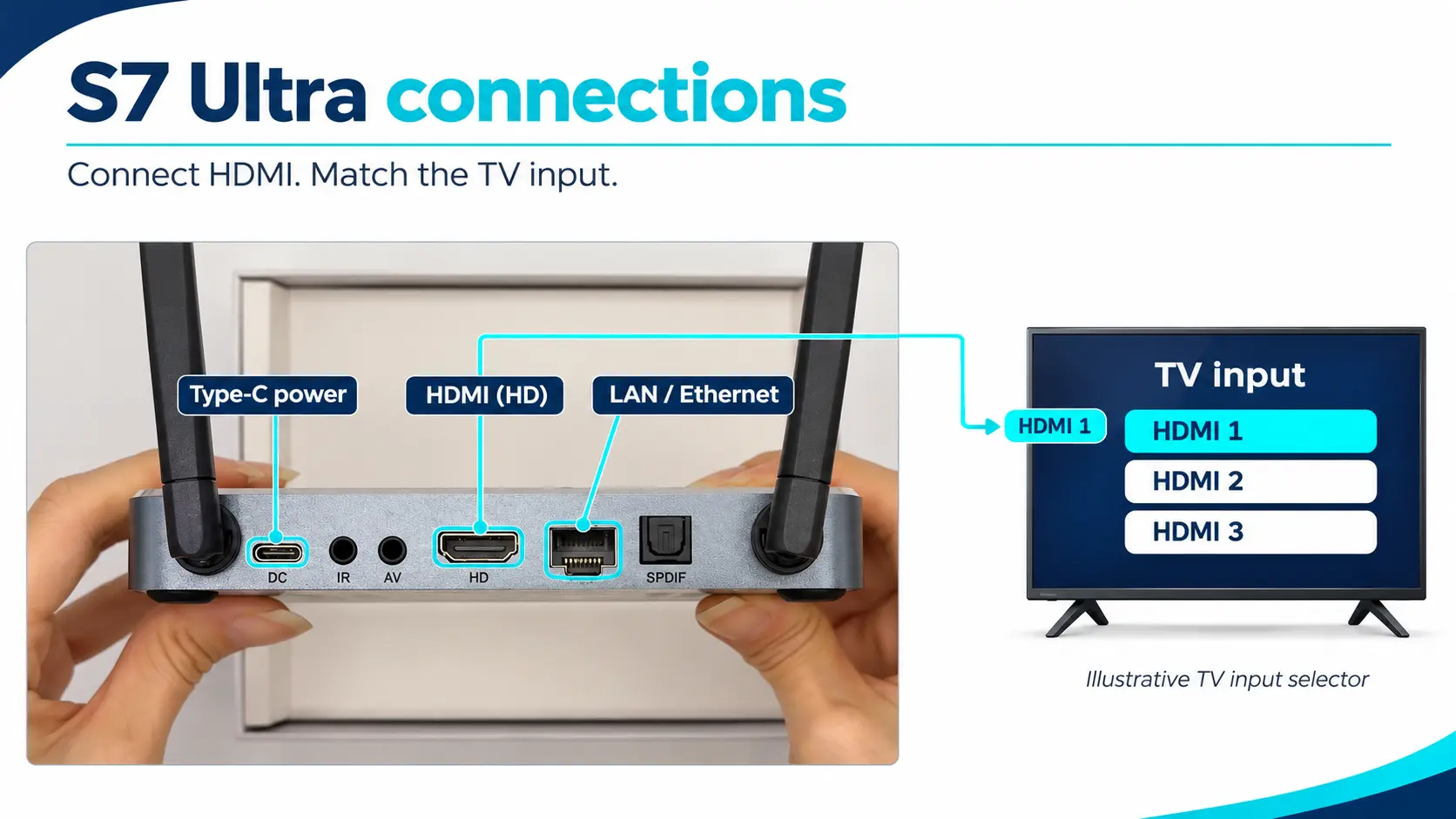
Connect picture, sound, and power
- Place the S7 Ultra in an open, ventilated spot near the television.
- Connect HDMI from the box to a free HDMI input on the TV.
- Note that TV input’s number.
- Attach the supplied power equipment to the Ultra’s Type-C power input and a suitable outlet.
- Turn on the TV and select the matching HDMI input using its own remote.
- Wait for the SuperBox startup or Home screen.
The Ultra also has USB-C and USB 3.0 data connections. Follow the port markings rather than assuming every similarly shaped connector is the power input.
A TV saying No Signal usually calls for checking that physical connection first: the selected HDMI number, cable seating, and whether the box has power. You cannot troubleshoot a missing app until the TV is displaying the box.
A smart TV is not required. A suitable HDMI-equipped television can show the S7 Ultra’s interface because the box supplies its own apps and network connection.
Choose WiFi or Ethernet
If the startup wizard asks for a network, select your preferred method there. Afterward, the manufacturer’s general network route is Settings → Network & Internet → Wi-Fi.
For WiFi, choose the exact network name, enter its password, and wait for the connected status. Capital letters, symbols, and extra spaces matter. If a connection fails, verify the network name before retyping the password.
For Ethernet, connect the Ultra’s LAN port to an active router LAN port and check the wired connection status. Start with one method so you can tell which connection you are testing.
WiFi 6 is supported, but a router’s advertised standard does not establish the connection quality beside your TV. Test the device where it will actually sit. Ethernet can be a useful comparison if wireless viewing is inconsistent.
If you need a structured check after setup, follow the S7 Ultra speed and stability test guide. It provides a home-testing method rather than an invented benchmark score.
Learn the Ultra remote before opening every menu
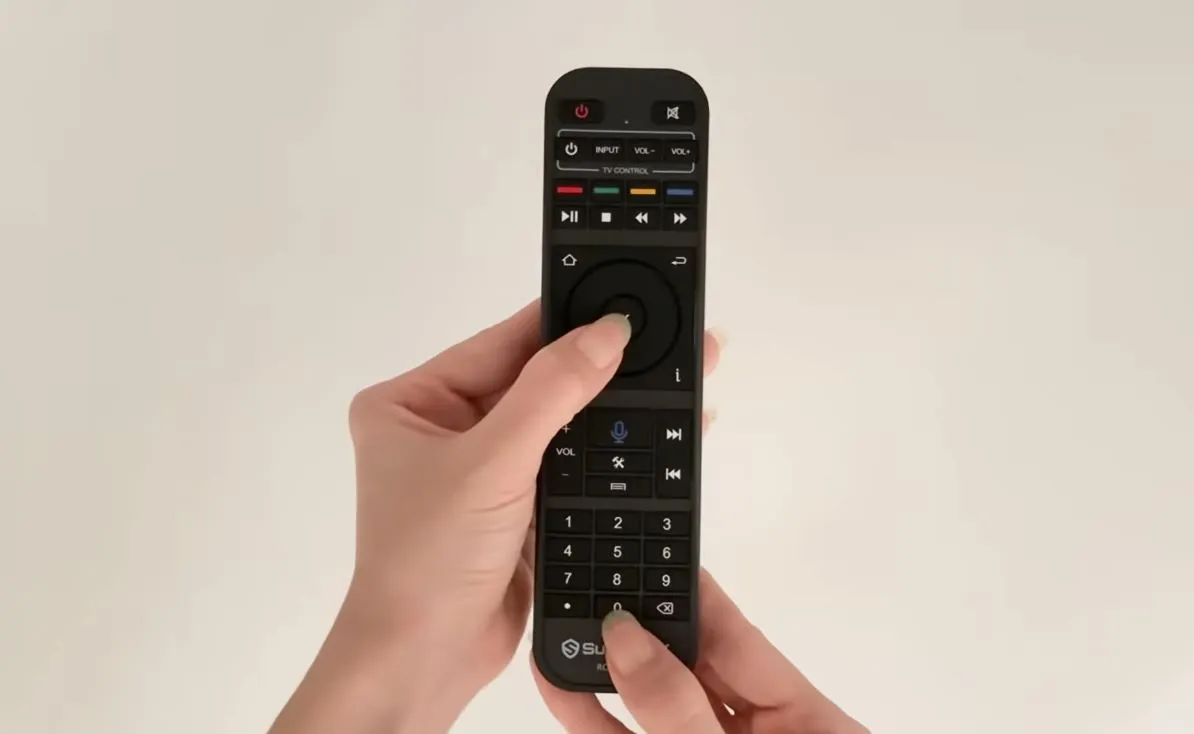
Start with Home, Back/Return, the directional ring, OK, Menu, the microphone key, and the number buttons. The same button can have different jobs depending on the app or screen.
For example, OK can confirm a channel in a browsing list, open a guide during live viewing, or pause a video. Read the current screen before repeating a press that did something different elsewhere.
Pair for Bluetooth and voice control
- Keep the remote near the powered-on S7 Ultra.
- Hold OK + Back/Return together until the red indicator starts blinking.
- Follow the pairing prompt if one appears.
- If needed, open Settings → Bluetooth and select the remote when listed.
- Confirm the connection, then test the directional ring, OK, and Back.
Use the device name and prompt shown for your remote; the manufacturer’s general pairing example identifies the connection as RC-200. Do not pair an unrelated nearby accessory.
Test voice with a simple supported command such as “Open Settings.” In a viewing app, hold the microphone button while speaking the channel or title, then release and review the result.
Bluetooth pairing connects the remote to SuperBox. Teaching it the television’s power or volume commands is a separate task; basic box navigation can be completed first.
Turn on the backlit keys
The included RC-200L backlit remote is a practical Ultra benefit when watching in a dim room.
Hold OK + 0 together for about three seconds. The red indicator flashes three times to acknowledge the change. Press a navigation button to check whether the keys illuminate.
The shortcut toggles backlighting on or off. If it was already enabled, repeating the combination disables it. The illumination normally turns off after about five seconds without input and returns when you press a button.
That timeout is normal. For a more detailed lighting check, use the RC-200L backlight tutorial.
Install the viewing apps and recognize Home
Open the device’s App Store and look for Blue TV, Blue VOD, Playback, and any additional supported apps you want.
Select an app’s available install or download action and let it finish before opening another task. A percentage or progress indicator means the installation is still running. Check the completed status rather than assuming a selected icon has already installed.
If an app offers an update, complete it through the device’s supplied update route. Keep the box powered and connected while an installation or update is active.
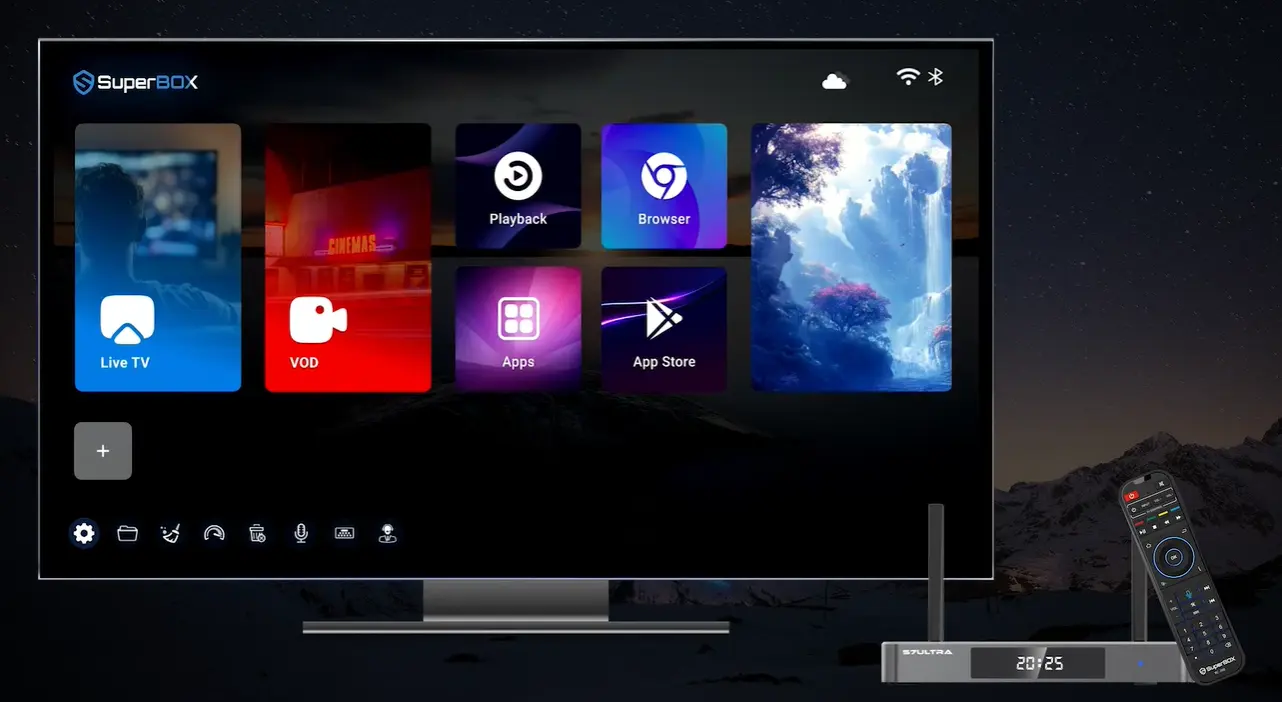
Return Home and look for your installed apps. If an app is not immediately visible, check the available Apps area or the Home shortcut selector offered by your S7 interface. Downloading an app and displaying a convenient shortcut are different jobs.
You do not need to install every available app on the first evening. Begin with the tools for your actual habits, then add more when you have a reason.
The Ultra’s 128GB gives room for compatible apps and their data, with some capacity used by Android and the system. It does not mean the entire advertised capacity is empty space, or that streaming every movie downloads it permanently.
Watch live TV and build a useful Favorites list
Open Blue TV. If its remote guide appears, read it once. You can reopen the guide through the app’s settings later instead of memorizing every shortcut immediately.
Preview a channel before opening full screen
In the S7 Blue TV interface, moving the highlight through the list can leave the current preview playing. To change it, highlight another channel and press OK.
Press OK again to enter full screen, or select the preview window and confirm it. This prevents ordinary browsing from changing the program each time you move the highlight.
Try the sequence on two channels: highlight, confirm, then expand. Once it feels familiar, you can browse without wondering whether the remote has registered the selection.
Find a channel without scrolling through everything
Use voice search when you know the network name. Hold the microphone button, say the name, release, and inspect the matching result.
For a name that voice recognition repeatedly misunderstands, use the on-screen search keyboard. Enter a distinctive part of the name, then select the intended feed.
If you already know a current channel number, the number keys provide another route. Our companion SuperBox channel guide can help you look up names; follow the current in-app listing when numbers or feed labels differ.
Save your regular channels
Open the channel or guide view, highlight a channel, and hold OK to add it to Favorites. In the S7 interface, a yellow favorite marker confirms the selection.
Repeat for a short list you actually use. A few news, entertainment, and sports choices are easier to learn than another long directory.
Open Favorites and play one of the saved channels to confirm the list works. The goal is a routine: Blue TV → Favorites → familiar channel.
For EPG styles, recent-channel shortcuts, and the complete control reference, see the S7 Blue TV guide.
Find a movie or the correct episode in Blue VOD
Return Home and open Blue VOD when you want to choose a title rather than follow a channel’s schedule.
Search for the title you mean
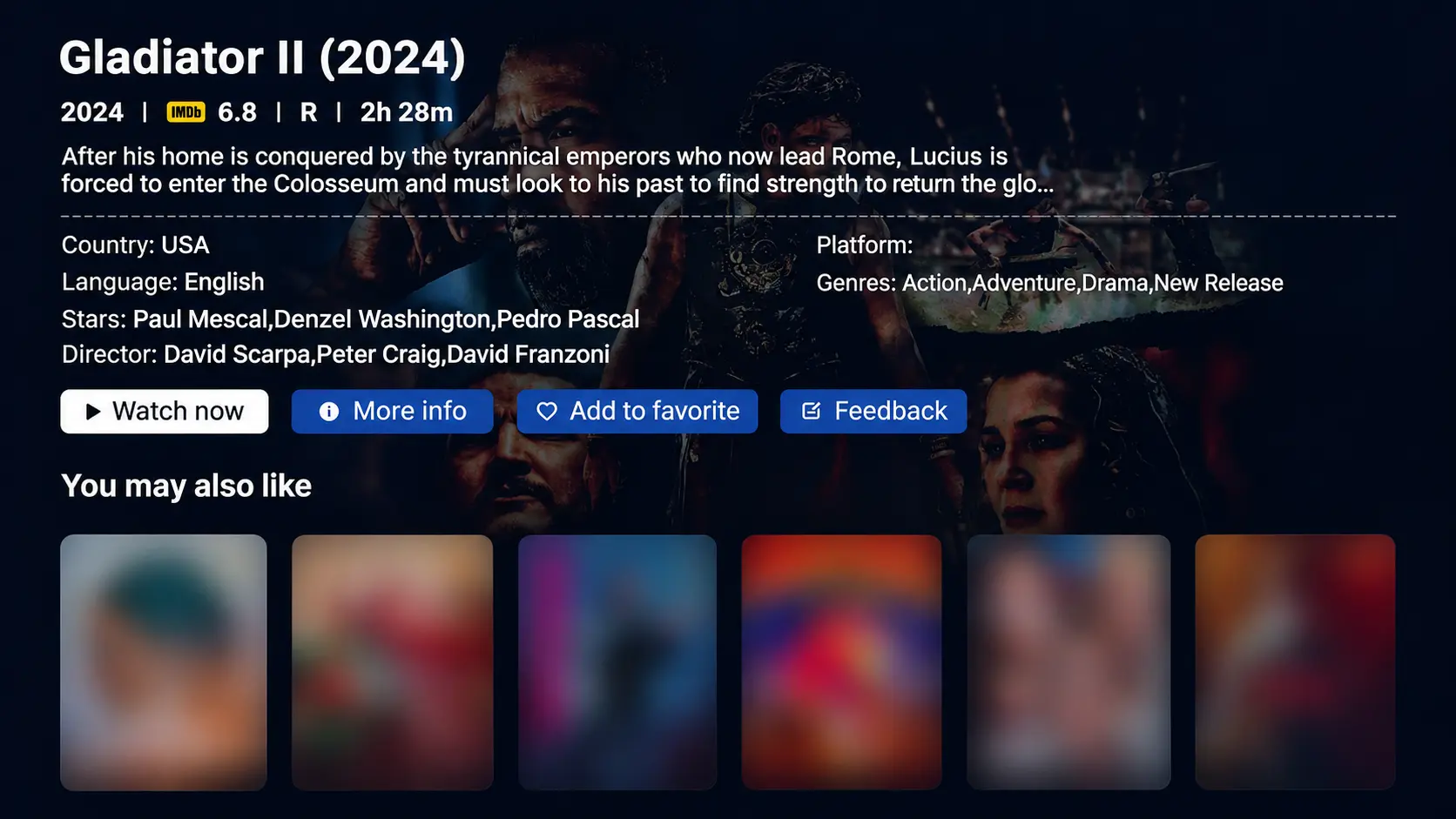
Use the microphone search or select Search and type with the on-screen keyboard. Where offered, choose the appropriate result filter, such as Movies, TV Series, Director, or Cast.
Check the title’s year and description before playing. A remake and an older film can share similar names, while a franchise search can return several related entries.
For a series, open its episode list and select the season and episode you want. The first result does not necessarily mean the first episode or the episode you left unfinished.
If a search returns nothing, shorten the wording, check the spelling, and remove unnecessary filters. For example, try the main title without a subtitle. An empty result after several filters does not establish that the whole catalog is unavailable.
Browse when you do not have a title in mind
Open Movies or TV Series and use the available genre, country, and release-year filters. Start with one filter, inspect the results, then narrow further.
A country filter helps organize the catalog; it does not promise that every resulting title includes a particular spoken language or subtitle track. Check the selected title’s actual options.
This is also a useful way to introduce the box to a family member. Let them choose a genre and a familiar era, then practice opening a detail page and returning to the results.
Use Favorites and Watch History differently
Save a title to Favorites when you want to return to it deliberately. Use Watch History to revisit something opened or watched recently.
For an unfinished series, inspect the displayed episode and playback position before resuming. A quick check is easier than starting the wrong installment and trying to reconstruct your progress.
Our S7 Blue VOD instructions cover the individual search and viewing controls in more detail.
Use Backup TV as another option for live TV and VOD
Backup TV is one of the core viewing apps to keep on your S7 Ultra. It combines live television with on-demand movies and series, giving you another place to watch when Blue TV or Blue VOD has a temporary problem.
To get started:
- Open Backup TV from your apps. If it is missing, find it in the SuperBox App Store and complete the available installation.
- For a current broadcast, enter its live-TV section and select an available channel.
- For a movie or series, open the on-demand area, find your title, and choose the movie or episode.
- Let the selection load and check the picture and sound.
For example, if a channel will not open in Blue TV, check whether it is available in Backup TV. If a movie fails in Blue VOD, look for it in Backup TV’s on-demand library. Available selections can differ between apps.
Keep Backup TV alongside your usual apps. It still needs a working internet connection, so if every app fails, check the network first. For more help finding your way around, follow the Backup TV live-TV and VOD guide.
Make playback comfortable without changing everything
Once a movie or episode is playing, test OK for pause and resume. Open the player controls and use its progress bar when you want to move to another point.
Use short directional movements for a small adjustment. A long hold can move farther than expected. Check the timeline before resuming rather than repeatedly skipping back and forth.
Check subtitles on the selected title
Open the subtitle or player-settings control and choose a supplied track. Language availability belongs to that particular title; a setting cannot create a missing subtitle file.
If subtitle timing controls are available, make a small adjustment and watch several lines. Captions that appear too early need delaying; captions that appear too late need advancing.
Changing subtitle timing is different from changing the audio/video relationship. If voices and lip movement do not match, note that symptom separately.
Keep the picture’s natural shape
Use an aspect-ratio option if the image is stretched or visibly distorted. Black bars alone can be normal for a film’s original shape. Filling every part of the TV through zoom can remove the sides or top of the picture.
Leave decoding settings alone when playback already works. If you test an alternative to solve a specific problem, note the original value and change one thing at a time.
The Ultra supports H.265 decoding up to 6K and compatible 4K playback. That does not make every title, source, or television display in 6K. Choose content and picture settings for the actual screen you use.
Catch up with Playback or Time Shift
These are two routes to supported recent programming. Choose the route that matches what you missed.
Use Playback when you know the channel and day
- Open Playback from Home or Apps.
- Choose a currently supported channel.
- Select an available date.
- Highlight the program time or timeline entry.
- Press OK to begin.
- Use Programs to return to the schedule when choosing another item.
Up to seven days can be available for supported programming. The dates and programs shown inside the app are the useful guide for that particular channel.
If the wrong part of a broadcast opens, recheck the channel and date, then inspect the progress bar. A small timeline adjustment can be more appropriate than changing the box’s clock.
The S7 Playback walkthrough explains the schedule and player separately.
Use Time Shift from a supported live channel
In Blue TV, check for a supported channel, identified in the S7 interface by a small white TV icon or the Time Shift category.
Open the channel, press Left to enter its available Time Shift timeline, and use Left or Right to move within that window. Follow the timeline on screen rather than assuming a fixed amount of history for every channel.
Press Exit/Back to leave Time Shift and return to current live viewing.
Neither route needs you to have recorded the program earlier. The Ultra’s 128GB does not extend an expired archive or create past-program support for an unlisted channel.
Set parental controls and test the result
If children or guests will use the box, review channel restrictions before leaving the remote available.
In Blue TV, open Menu → Parental Control, enable the feature, and create a private password as prompted. In its protected-channel list, highlight a channel and hold OK to apply its lock marker.
After saving, leave and reopen the app. Test one restricted channel and one unrestricted channel. The first should request the password; the second should remain usable normally.
Keep the password privately rather than putting it beside the TV. If it is forgotten, ask support for the recovery route that fits the installed app.
These controls apply within Blue TV. Review separate controls for other apps used by children. The S7 Time Shift and parental-control guide covers the lock-selection workflow.
What makes S7 Ultra worth considering?
The benefit becomes clearer after following the everyday tasks. You can browse live channels, choose on-demand entertainment, revisit eligible past programs, and use a lit remote without building the routine around several paid TV packages.
The SuperBox S7 Ultra is listed at $381 as checked on November 13, 2026. Its 128GB storage provides room for apps and data, while the included backlit remote is useful for evening viewing. WiFi 6 and Gigabit Ethernet give you wireless and wired connection choices.
The core live-TV and on-demand apps have no separate monthly subscription fee. That can lower recurring costs when they replace services your household would otherwise pay for.
For illustration, removing $50 per month in paid TV charges avoids $600 over a year. Subtracting a $381 box leaves $219 before taxes, accessories, or other changes. This assumes an existing suitable internet connection and that those charges are actually canceled; it is a household-budget example, not a quoted cable plan.
Use our monthly-cost guide to separate retained internet and optional services. Keep a subscription when its particular content or features still justify the price.
S7 Ultra suits buyers prioritizing its core viewing experience, storage, and backlit remote. S8’s built-in Recorder and PiP/Multi-Viewing are different generation features; they are not part of this S7 walkthrough.
If a viewing task does not work, narrow down the problem
Keep the last successful step in mind. A working Home screen, an installed app, and a playable channel establish different things.
| Problem | Useful next check |
|---|---|
| No SuperBox picture | TV input number, HDMI cable, and supplied power |
| Remote lights up but menus do not respond | Box state and Bluetooth pairing |
| Voice search fails | Pairing, microphone prompt, then typed search |
| App download stops | Network connection and the displayed installation status |
| One channel or title fails | Another item in that app, then another app |
| Every online function struggles | Connection at the box; compare Ethernet if practical |
| Playback date is unavailable | The current channel’s offered dates and programs |
| Picture is stretched | The app’s aspect-ratio choice |
An on-screen internet-speed indicator shows activity during playback. It is not automatically the speed of your whole internet plan. Record the symptom and compare working and failing items before changing network or decoding settings.
For the affected app, clearing its cache can be a later maintenance step. Clear cache and Clear data are different actions; data removal can erase local preferences and other app information. Do not factory-reset the whole device as the first response to a single channel problem.
Buy from a retailer who can help after the sale
SuperBox TV Box Store is an authorized retailer serving customers in the US and Canada. You can verify the authorization using SP20250414002 on the manufacturer’s authorization site.
If you purchase directly from superboxtvboxstore.com, email customer@superboxtvboxstore.com for technical or order questions. Include the model, app, exact message, connection method, and a screen photo or short video. Send order and device identifiers privately.
For example: “My S7 Ultra opens Blue TV, but [channel] shows [message]. Another channel [works/fails], and Blue VOD [works/fails]. I use [WiFi/Ethernet].”
If you are still choosing, review the S7 Ultra package and current price and ask us about your TV connection or intended use before ordering. Support access and an identifiable seller are part of a sensible purchase decision.
Frequently asked questions
Does S7 Ultra need a monthly SuperBox subscription?
No separate monthly SuperBox subscription is required for the core Blue TV and Blue VOD experience described here. Hardware, internet, and optional third-party subscriptions belong to separate parts of the budget.
Does 128GB give Ultra more channels than another S7?
Storage is not a larger channel package. Ultra’s 128GB provides internal room for apps and data. Its other practical distinction includes the backlit remote; check the current app lineup for programming.
Can I record programs directly with the S8 Recorder app on S7 Ultra?
S7 Ultra does not have the same built-in Recorder feature introduced with S8. Use its supported Playback and Time Shift functions for available recent programming, rather than treating them as a personal recording system.
Do I need a new TV to use the box?
Not necessarily. Start by checking for a suitable HDMI input and working internet. S7 Ultra provides its own interface, so an existing non-smart television with HDMI can still be useful.
Why does a remote button do something different in another app?
Controls depend on the screen and app. A short OK press, a long OK press, and a directional key can have different jobs in Blue TV, Blue VOD, and Playback. Use the app’s guide and current on-screen controls.
Can two TVs watch different programs from one Ultra?
One box provides one independent TV setup. An HDMI splitter mirrors the same output rather than giving another room its own channel selection. Separate independent SuperBox viewing requires separate boxes.
Will every movie have my preferred subtitles?
Subtitle tracks depend on the selected title. Open its available subtitle options before assuming a language is included. A country or genre filter does not guarantee a particular subtitle track.
Should I change settings if everything plays normally?
Keep working settings. Personalize useful items such as Favorites, backlighting, and parental controls, but make advanced changes only when they address a specific symptom.
Make the second evening easier than the first
Before finishing, practice one short routine: select the TV input, open Blue TV, play a saved favorite, return Home, and reopen a Blue VOD title through Favorites or Watch History.
Then try locating one eligible past program. Show the same routine to anyone else who will use the Ultra, especially the difference between a channel, a movie title, and a past broadcast.
That is the useful result of a full walkthrough: knowing where to begin each time you sit down to watch, with fewer repeated searches and a clearer understanding of what your S7 Ultra can do.
The article was updated on:
