
Knowledge SuperBox, Knowledge SuperBox S7
How to Use Time Shift and Parental Control Functions with SuperBox S7 Pro, S7 Max and S7 Ultra





The best entertainment technology does more than deliver a picture, it gives you control over when and how your household watches. On the SuperBox S7 series, two of the most useful Blue TV tools are Time Shift and Parental Control.
Time Shift lets you move back through supported live programming when you miss a moment. Parental Control lets you place a password restriction on selected channels. Used together, they make Blue TV more flexible for adults and more manageable for families.
This guide covers both functions on the SuperBox S7 Pro, S7 Max, and S7 Ultra, explains every relevant remote shortcut, and shows exactly which scenes to capture from the accompanying video for a polished customer tutorial.
Quick answer: In Blue TV, select a supported channel and press Left to enter Time Shift. Press Left or Right once to move 30 seconds, hold either button to rewind or fast-forward, and press Exit to return to live viewing. To restrict a channel, press Menu, open Parental Control, create a password, highlight a channel, and hold OK to lock it.
Before You Begin
For the smoothest setup, confirm the following first:
- Your SuperBox S7 is connected to a stable internet connection.
- Blue TV opens normally and is running the latest version available to your device.
- The remote is working reliably; Bluetooth pairing is recommended for responsive long-press commands.
- The SuperBox date, time, and time zone are correct so the guide and Time Shift timeline align properly.
- You have chosen a private password that children or guests cannot easily guess.
Menus can change slightly after an app or system update. If the wording on your screen differs from the screenshots, follow the icons and functions described below rather than relying only on exact menu placement.
What Is Time Shift on SuperBox S7?
Time Shift allows you to go back within the recent broadcast history of a supported Blue TV channel. It is useful when you join a program late, miss a line of dialogue, want to replay a key moment, or need a short break without losing your place.
The S7 demonstration presents a Time Shift window of up to seven days, an expansion from the 48-hour window referenced for the previous generation. That does not mean every channel or every program is always available for the full period. Support depends on the channel, the current Blue TV version, region, server availability, and the amount of archived programming available at that moment.
Time Shift is also different from the separate Playback app:
| Function | Best Used For | How You Open It |
|---|---|---|
| Time Shift in Blue TV | Moving back from a currently selected supported live channel | Select the channel and press Left |
| Playback app | Browsing available previously aired programs through a dedicated interface | Open the Playback app from the home screen |
| Pause/Rewind controls | Replaying a moment within the active Time Shift timeline | Press or hold Left/Right |
If your goal is simply to replay something that happened moments ago, Time Shift is the fastest route. If you want to browse past events by category or listing, the Playback app may be more convenient when that content is available.
How to Use Time Shift on SuperBox S7
Step 1: Open Blue TV
From the SuperBox home screen, launch Blue TV. Allow the app a few seconds to load the channel list and program information.
If Blue TV does not open or repeatedly returns to the home screen, restart the SuperBox and check for an app update before continuing.
Step 2: Review the Remote Guide
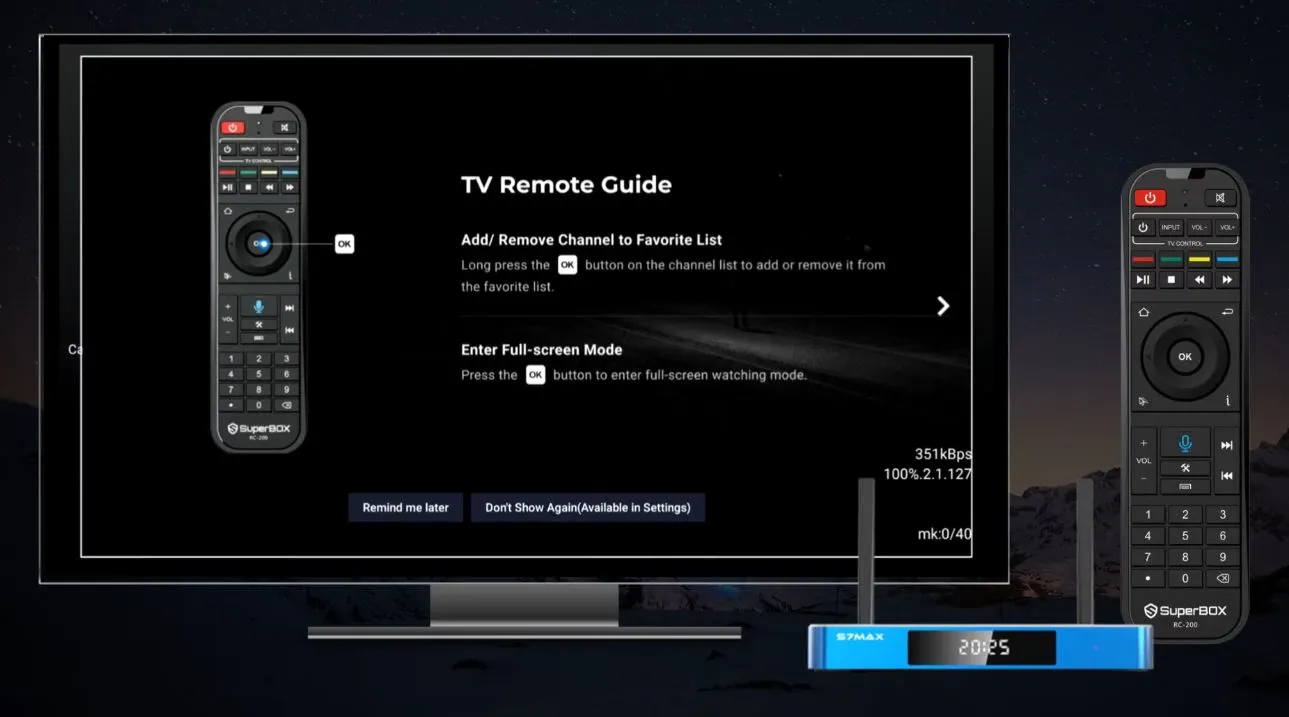
The first time you encounter the updated interface, Blue TV may display a remote-control guide. Read it once so the Left, Right, Menu, OK, and Exit commands make sense. You may skip the guide because it can be reviewed later from Settings.
The five controls that matter most are:
| Remote Button | Function in Blue TV |
| Left | Enter Time Shift on a supported channel; move backward on the timeline |
| Right | Open Search during normal live viewing; move forward when Time Shift is active |
| Menu | Open Blue TV settings, including Parental Control |
| OK | Open the channel list; hold to mark a channel inside Parental Control |
| Exit/Back | Leave Time Shift and return to the live point |
Step 3: Find a Channel That Supports Time Shift
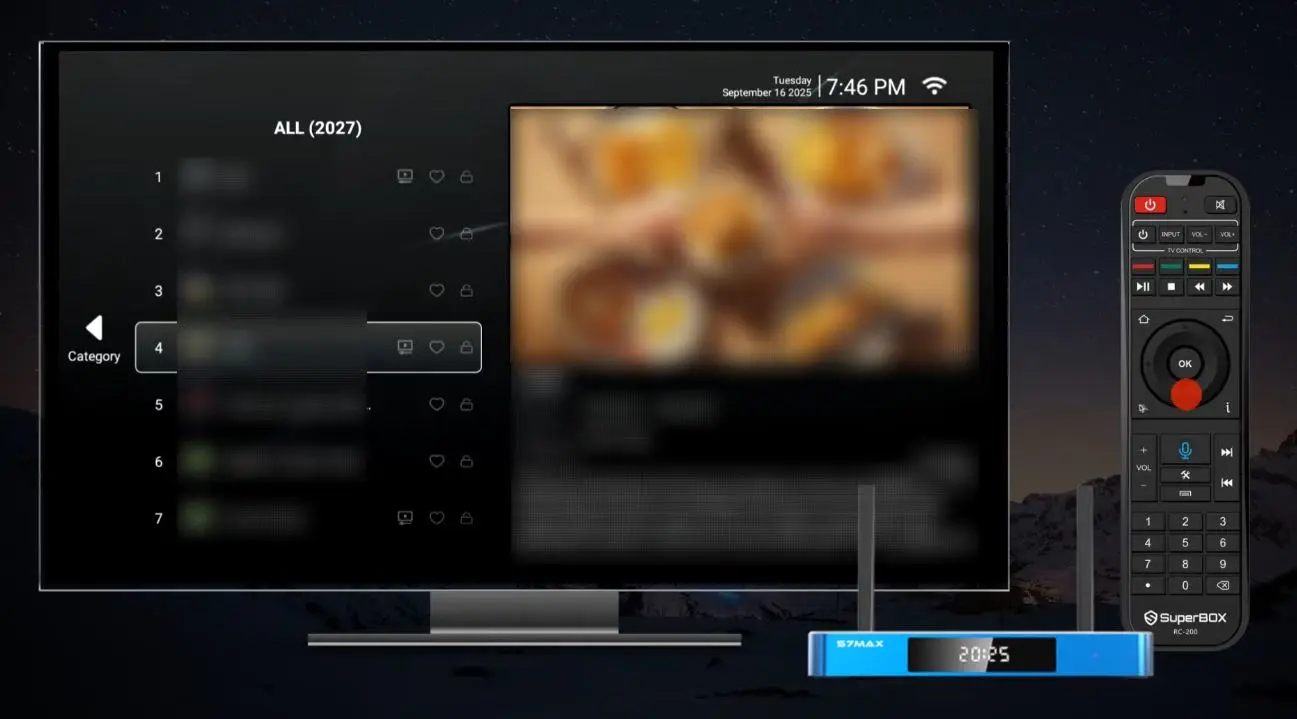
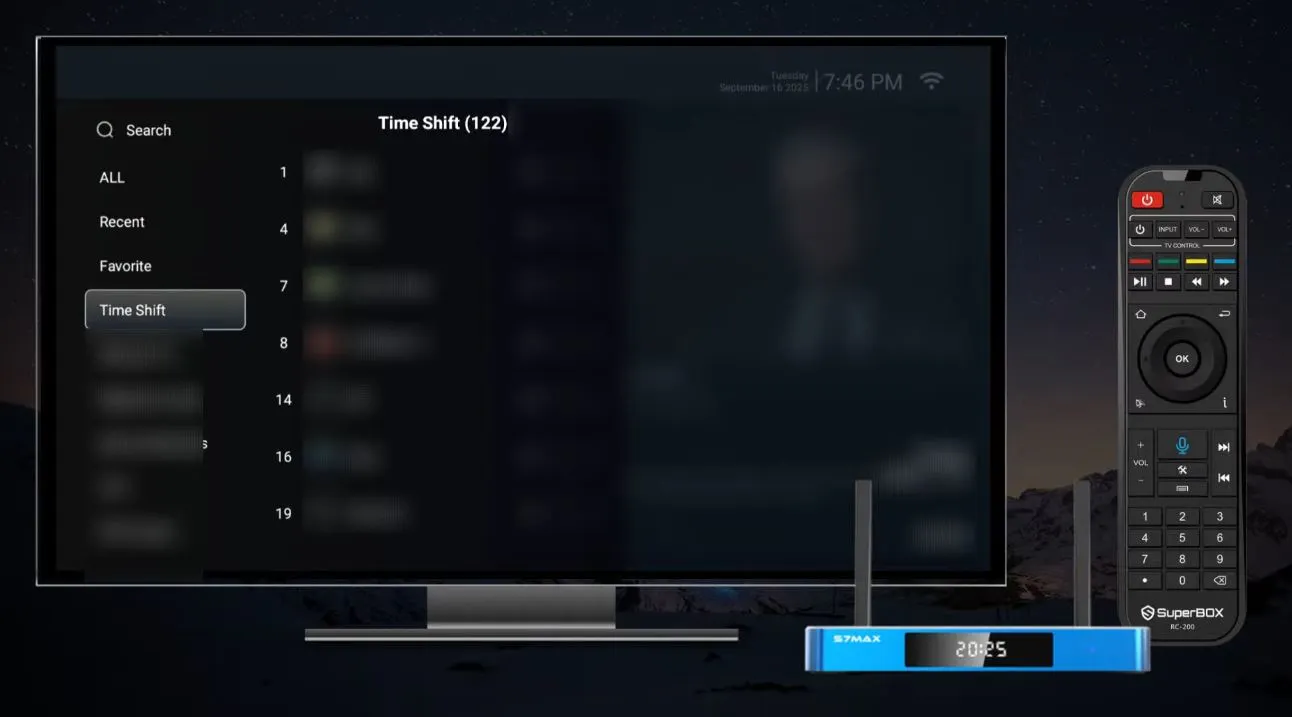
While watching Blue TV, press OK to display the channel list. In the video demonstration, compatible channels carry a small white TV icon. That marker is important: if it is absent, pressing Left may not open Time Shift for that channel.
The demonstrated interface also includes a dedicated Time Shift category. The presenter states that the category contained more than 100 compatible channels when the video was recorded, with more planned. Treat that number as a snapshot of the demonstration – not a permanent channel guarantee. Current selections can change.
Step 4: Press Left to Enter Time Shift
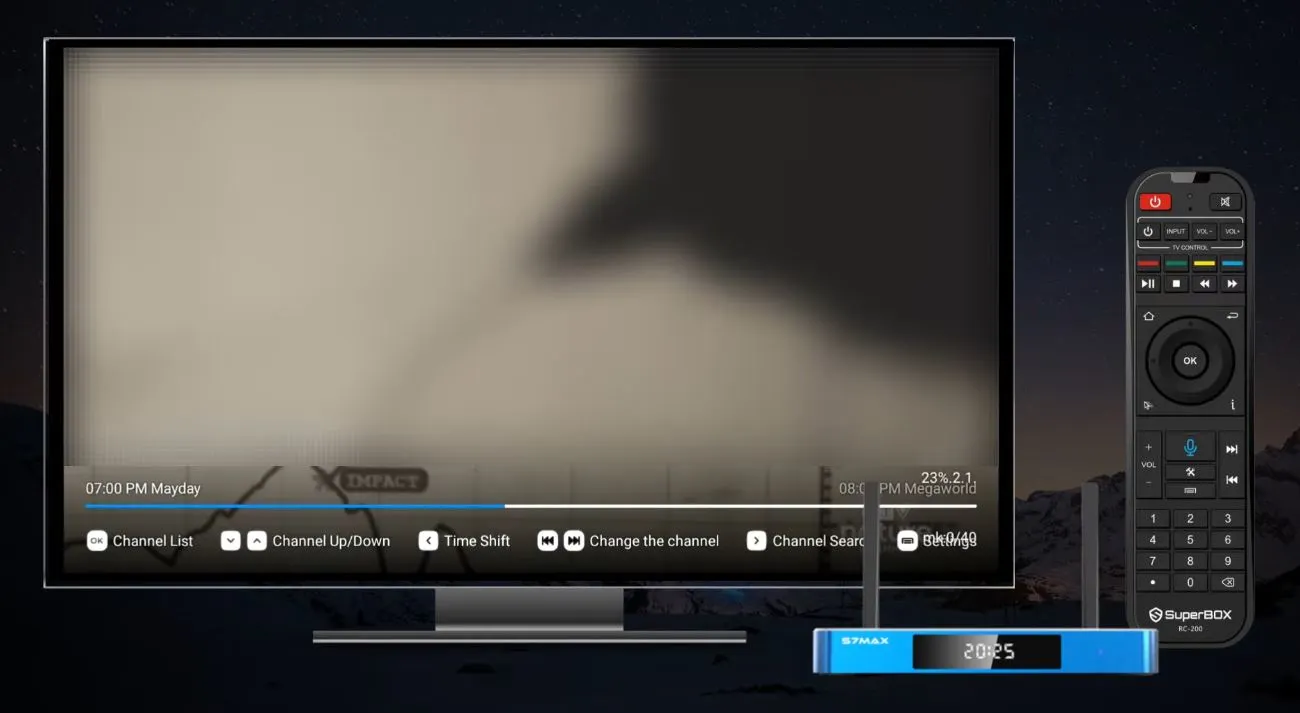
Highlight or open a supported channel, then press the Left directional button once. Blue TV enters Time Shift mode and moves back from the live point. In the video, the first press takes the program to approximately three minutes earlier.
You should now see a playback timeline or another on-screen indication that you are no longer at the live point. Wait for the archived stream to load before pressing more buttons.
Step 5: Move Backward or Forward
Once Time Shift is active, the Left and Right buttons control the timeline:
- Press Left once to move backward by approximately 30 seconds.
- Press Right once to move forward by approximately 30 seconds.
- Hold Left to rewind continuously.
- Hold Right to fast-forward through available archived content.
- Release the button near the point you want, then allow playback to stabilize.
According to the demonstration, selectable history can range from roughly two minutes earlier to as far back as seven days. The actual available range can be shorter on a specific channel.
For precise navigation, use short presses. For a large jump, use a long press and watch the timeline instead of counting button presses.
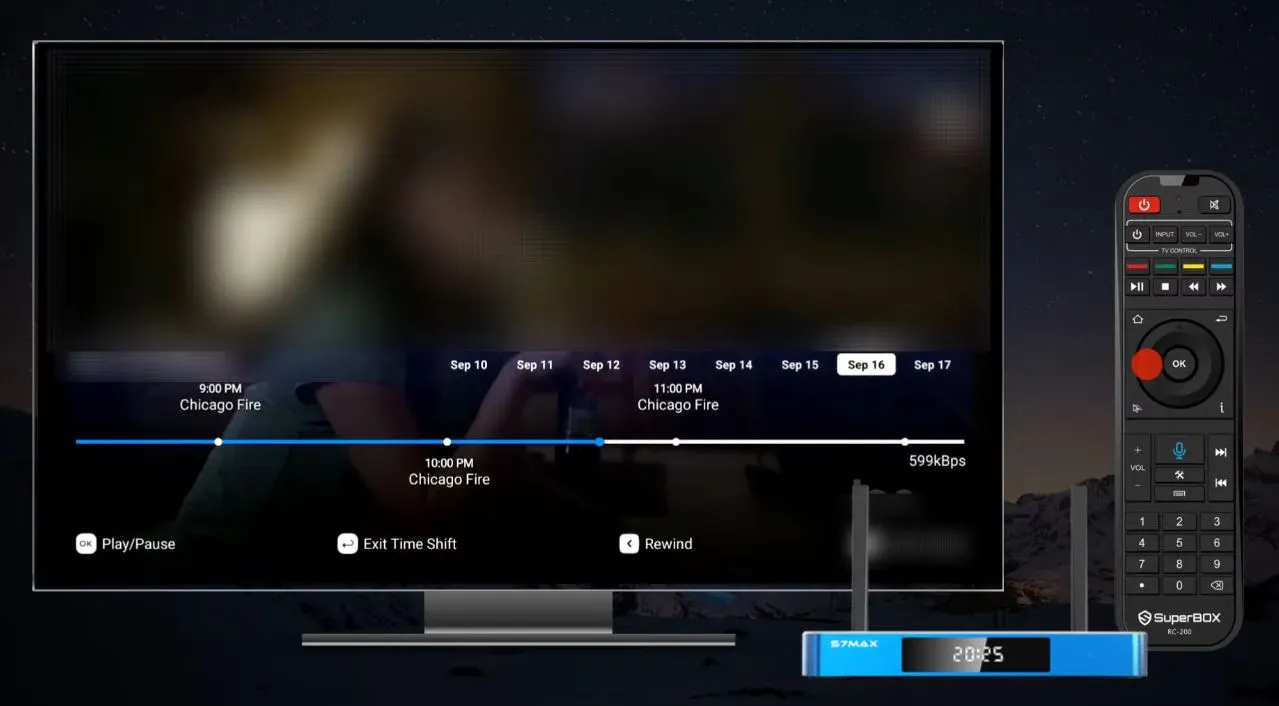
Step 6: Return to Live Viewing
When you are ready to leave the archived timeline, press Exit on the remote. Blue TV returns to the current live point.
Remember that Right has two contexts. During regular live viewing it opens Search; while Time Shift is active it moves forward through the available archive. If Right unexpectedly opens Search, you are probably no longer in Time Shift mode.
Pro tip: If the app seems “stuck in the past,” press Exit once and wait a few seconds. Confirm the playback indicator has returned to the live edge before changing channels.
How to Set Up Parental Control on SuperBox S7
Time Shift manages when you watch. Parental Control manages which selected channels can be opened without a password.
The Blue TV control shown in the tutorial works at the channel level. It is not a complete replacement for active parental supervision, Android account controls, router-level filtering, or restrictions inside third-party apps. Locks created in Blue TV apply to the Blue TV interface and may not affect other installed applications.
Step 1: Open the Blue TV Menu
While Blue TV is open, press the Menu button on the SuperBox remote. Scroll down until you find Parental Control.
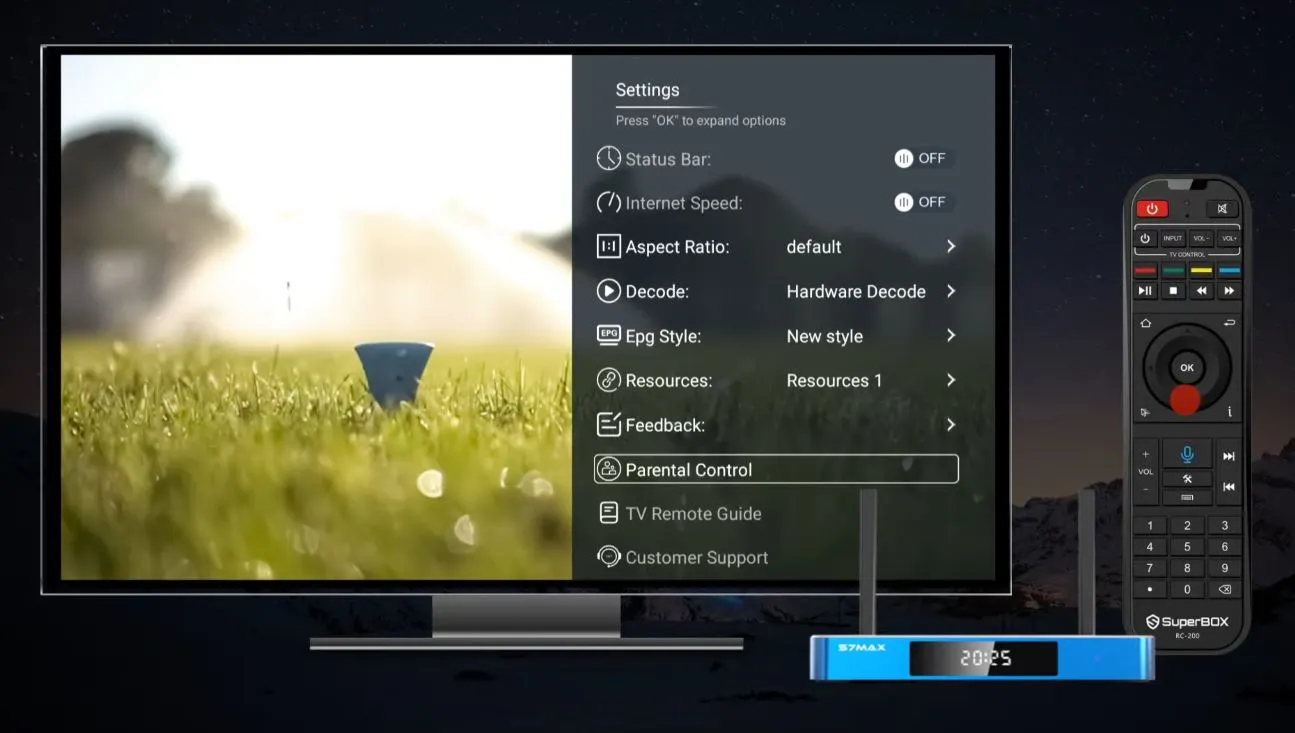
Step 2: Enable Parental Control and Create a Password
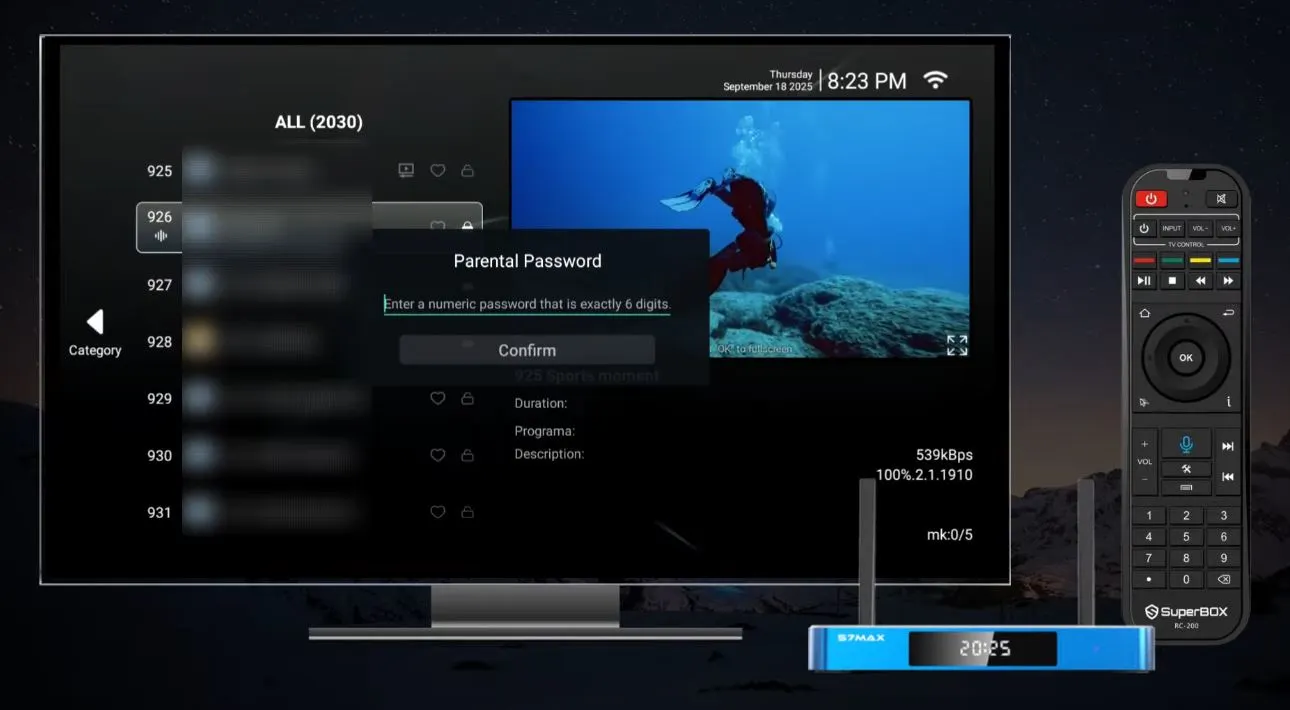
Select or switch on Parental Control, then follow the prompt to create a password. The video does not provide a universal default code, so do not rely on codes found in unrelated online guides.
Choose a password that is:
- Easy for the responsible adult to remember.
- Difficult for children or guests to guess.
- Different from simple sequences such as 0000, 1111, or a birth year.
- Stored securely away from the television.
Enter the password carefully. Depending on the app version, you may be asked to confirm it a second time.
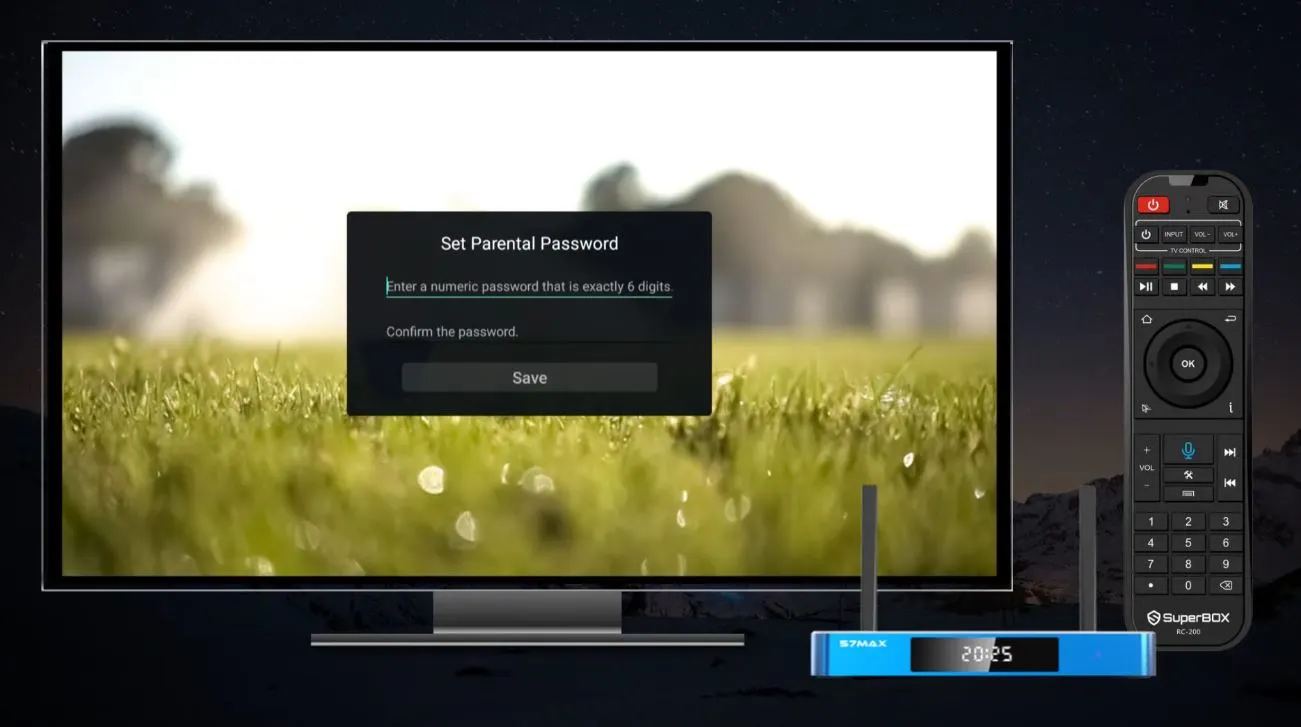
Step 3: Select the Channels You Want to Lock
After the password is set, Blue TV opens the channel-selection list. Navigate to a channel you want to restrict, then press and hold OK. A lock marker or selection indicator should appear.
Repeat the process for every additional channel you want to protect. The demonstration confirms that multiple channels can be selected during one setup session.
Before leaving the menu, review the list once more. A short tap of OK may simply open or select an item; use a deliberate long press when applying the lock.
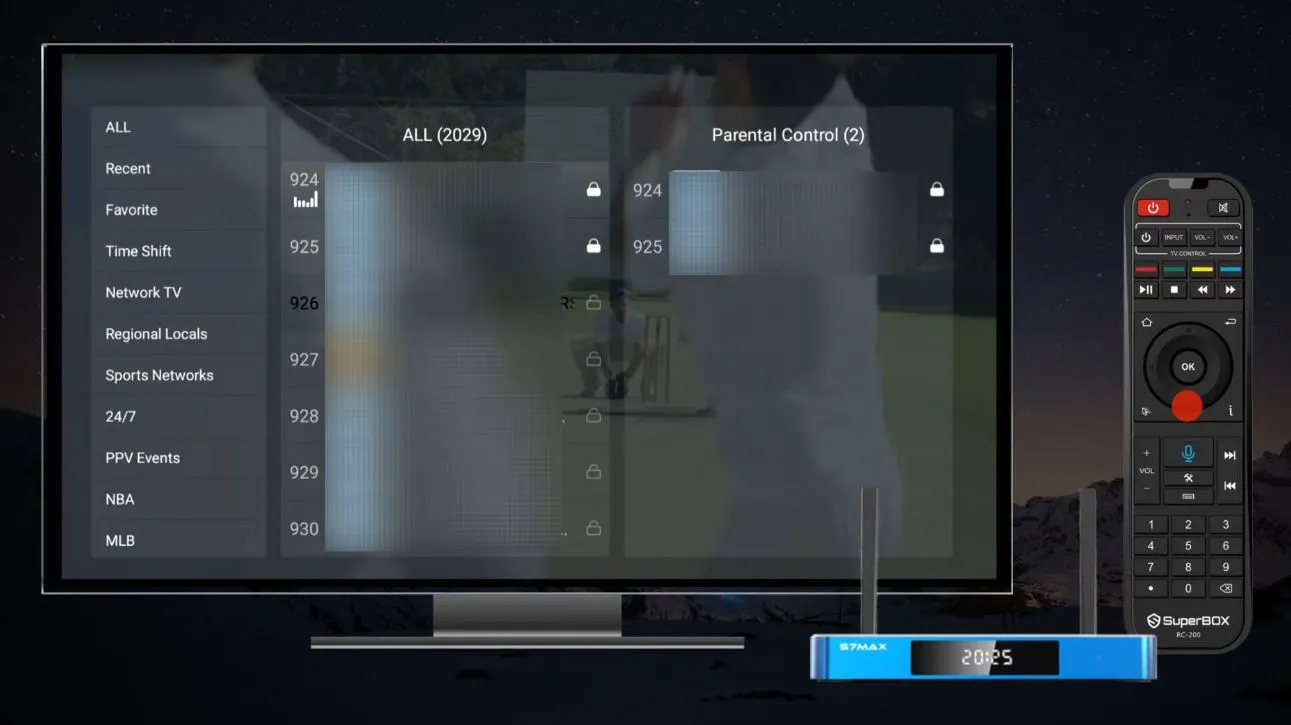
Step 4: Test the Lock
Exit and reopen Blue TV, then try to open one of the protected channels. The app should request the password before displaying it.
Testing is essential. A setting that appears selected is not useful until you confirm that the password prompt actually appears. Test at least one locked channel and one unrestricted channel so you know both behaviors are correct.
How to Change or Remove a Channel Restriction
To modify your protected list:
- Open Blue TV and press Menu.
- Select Parental Control.
- Enter your current password.
- Highlight the channel you want to change.
- Hold OK to remove or reapply its lock, according to the on-screen indicator.
- Exit the menu and test the channel again.
The tutorial demonstrates entering the existing password before restrictions can be changed or removed. If you forget the password, do not factory-reset the entire SuperBox as your first response. Restart the app, check whether the current version offers a recovery or reset option, and contact technical support with the model and app version if necessary.
Quick Remote-Control Reference
| Where You Are | Button | Result |
| Live Blue TV | OK | Opens the channel list |
| Supported live channel | Left | Enters Time Shift |
| Time Shift active | Left once | Moves back about 30 seconds |
| Time Shift active | Right once | Moves forward about 30 seconds |
| Time Shift active | Hold Left/Right | Rewinds or fast-forwards |
| Time Shift active | Exit | Returns to live viewing |
| Regular live viewing | Right | Opens Search |
| Blue TV | Menu | Opens settings and Parental Control |
| Parental channel list | Hold OK | Applies or removes a channel lock |
Troubleshooting Time Shift
The White TV Icon Is Missing
That channel may not support Time Shift in the current lineup. Try a channel inside the dedicated Time Shift category or another channel that displays the white TV icon.
Pressing Left Does Nothing
Confirm that the channel is fully playing and supports Time Shift. Press OK to reopen the channel list and check the icon. If the channel is compatible, restart Blue TV and try again.
The Full Seven-Day History Is Not Available
Seven days is the maximum demonstrated window, not a guarantee for every listing. The program may be too recent, too old, unavailable for that channel, or temporarily missing from the archive.
Time Shift Buffers or Freezes
Test another supported channel. If several channels behave the same way, restart the router and SuperBox, move closer to the Wi-Fi router, or connect by Ethernet. Avoid repeatedly pressing remote buttons while the stream is loading.
Right Opens Search Instead of Moving Forward
You are in normal live-view mode rather than Time Shift. Select a supported channel and press Left first; once the Time Shift timeline appears, Right moves forward through the available archive.
Troubleshooting Parental Control
Holding OK Does Not Lock the Channel
Make sure you entered Parental Control through Menu and completed password setup. A channel selected from the ordinary live list may open normally instead of receiving a lock.
Locked Channels Open Without a Password
Re-enter Parental Control and verify that the lock indicator is visible beside the intended channel. Exit Blue TV completely, reopen it, and test again. If the lock still fails, update the app and repeat the setup.
The Password Prompt Appears on the Wrong Channel
Review the protected list for a neighboring channel that may have been selected accidentally. Channel ordering can change, so verify the channel name and lock icon rather than relying only on position.
You Forgot the Parental Password
Do not keep guessing until the app becomes difficult to access, and do not perform a factory reset unless technical support specifically recommends it. Record your SuperBox model, Blue TV version, and a photo of the password screen—without personal information—then contact support for the recovery procedure appropriate to your software build.
The Parental Control Option Is Missing
Check for a Blue TV update and restart the device. Interfaces and feature availability may vary by software version and region. If the option remains unavailable, contact technical support rather than installing files from unknown websites.
Frequently Asked Questions
Does Time Shift Work on Every Blue TV Channel?
No. Use the small white TV icon or the Time Shift category to identify supported channels. Availability can change.
Can I Watch Anything From the Previous Seven Days?
Not necessarily. The S7 demonstration describes support for up to seven days on compatible channels, but a specific program may be unavailable.
Does Time Shift Save a Permanent Recording?
No. Treat Time Shift as access to a rolling playback window, not as permanent personal storage or an exportable DVR recording.
Which SuperBox S7 Models Support These Instructions?
The video presents the functions for the S7 series, including S7 Pro, S7 Max, and S7 Ultra. The exact screen design may vary with app and firmware versions.
Can I Lock More Than One Channel?
Yes. The demonstration shows multiple channels being selected from the Parental Control list.
Does the Blue TV Password Protect Other Apps?
No. It protects selected content within the relevant Blue TV interface. Configure separate controls for third-party apps, Google accounts, the router, or other services where appropriate.
What Is the Default Parental Control Password?
The source tutorial instructs the user to set a password and does not identify a universal default. Create your own code and keep it private.
A Better Everyday Viewing Routine
Once both tools are configured, the workflow becomes remarkably simple:
- Press OK and check for the white TV icon.
- Press Left when you need to replay a recent moment.
- Use short presses for precision and long presses for speed.
- Press Exit whenever you want to return to live viewing.
- Use Menu and Parental Control to review channel restrictions periodically.
- Retest the locks after a major app update or channel-list change.
That final point matters. Parental Control should be treated as a maintained household setting, not a one-time task. Review it occasionally, especially after software updates or when channel listings change.
Final Thoughts
Time Shift and Parental Control are small features with a meaningful effect on day-to-day use. Time Shift removes the pressure of catching every live moment, while Parental Control gives families a practical way to restrict selected channels behind a password.
The essential sequence is easy to remember: Left for Time Shift, Exit for live, and Menu for Parental Control. Learn those three commands and the most valuable parts of the S7 Blue TV interface are always only one button away.
If a menu on your unit looks different, or a supported function does not respond after updating and restarting, contact SuperBox TV Box Store Technical Support on WhatsApp. Include your exact S7 model, software version, and a clear photo of the screen so the support team can identify the correct procedure faster.
Important: SuperBox TV Box Store sells open-platform Android media-player hardware. We do not host, stream, transmit, pre-install, or maintain third-party television channels, sports networks, video-on-demand libraries, or other media content. App, channel, Time Shift, and archive availability can vary by provider, region, software version, and time. Customers are responsible for using their devices and third-party services in accordance with applicable laws and service terms.
For a visual demonstration:
Reference
This guide was developed from the workflow demonstrated in the SuperBox video: How to Use Time Shift and Parental Control Functions with SuperBox S7.
The article was updated on:
