
Knowledge SuperBox
How to Make Streaming Easier for Parents Who Are Used to Cable TV





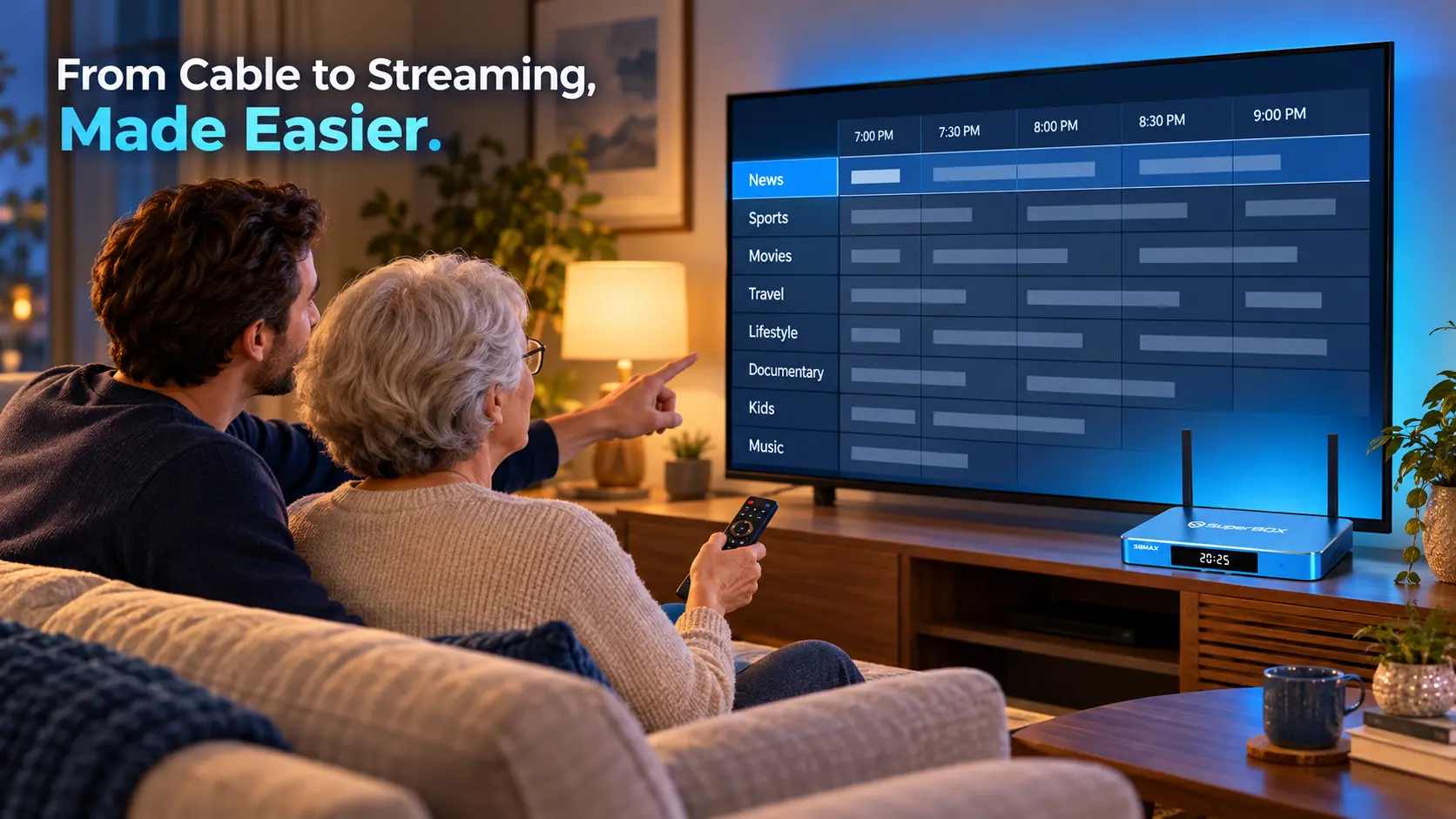
Your parents may know exactly how to use cable TV: turn on the television, enter a channel number, and settle into their favorite program. Streaming can feel unfamiliar when that simple habit becomes a choice between apps, profiles, search boxes, and different remotes.
The goal is to help them watch comfortably when you are not there. That starts with familiar entertainment, a predictable starting screen, and a short set of instructions they can repeat. A device such as SuperBox can provide a useful bridge: familiar live-TV habits first, with the flexibility of streaming introduced at their own pace.
To make streaming easier for parents who are used to cable TV, match their existing viewing habits first, prepare the equipment before teaching, and practice one complete viewing routine together. Add movies, catch-up viewing, and other features after the everyday basics feel comfortable.
Start With What They Actually Watch on Cable
Before choosing equipment or canceling a package, ask your parents to describe an ordinary television day. “What do you watch after breakfast?” is often more useful than “Which streaming features do you want?”
Write down the news programs, local broadcasts, sports, movies, and series they would miss. Include how they watch them. Someone who enjoys browsing a live guide has different needs from someone who mainly watches a particular series.
Check those programs in the proposed setup. Search for the exact channel or show, test an available program, and confirm any subscription or location requirements. A large entertainment catalog does not automatically contain every local station or regional sports broadcast.
| Current cable habit | What to prepare for streaming |
|---|---|
| Turning on the morning news | A reliable route to the preferred news channel |
| Entering familiar channel numbers | Current channel numbers or a short favorites list |
| Browsing what is on tonight | A live guide with a layout they can read |
| Watching a missed episode | The appropriate on-demand or supported catch-up option |
| Watching one particular team | Confirmation of the relevant service and regional availability |
Use this list as the acceptance check for the new setup. Our cord-cutting guide covers the broader planning process.
How SuperBox Can Help Parents Move From Cable to Streaming
SuperBox can serve as a stepping stone from cable TV to streaming. Parents can begin with a familiar activity – opening live television, checking a guide, and choosing a channe – before exploring movies or supported catch-up viewing. That gives them a comfortable starting point while they learn the new setup.
On SuperBox S8, Home shortcuts can keep the live-TV app close at hand, while supported favorites and channel-number entry help preserve familiar browsing habits. A voice-command remote offers another option when typing feels tiring. Start with the controls your parents already understand, then introduce the conveniences that make their routine easier.
The S8 Ultra includes a backlit remote, which may help someone who watches in a dim room. Compare it with the S8 Max if that is a priority. You do not need to teach advanced viewing modes simply because the device offers them.
For a closer look at the equipment, see SuperBox S8 for parents and seniors. Choose around their everyday needs and confirm their important programs before replacing the cable package.
How SuperBox Can Help Reduce the Cost of Watching TV
For families paying for a large traditional cable package and rented receivers, moving to a SuperBox setup can create substantial savings over time. You purchase the hardware upfront rather than paying our store a monthly equipment subscription. When you cancel the cable service and return its rented boxes, you can also stop the associated TV-package and rental charges under that provider’s terms.
The saving comes from what your family replaces. Compare the cable TV charges you can remove with the upfront device cost, any change to the internet bill, and subscriptions you plan to keep. Our guide to lowering cable bills helps organize that comparison.
For parents, this can make the transition worthwhile beyond the new features: a familiar daily viewing routine with less money going toward television each month. Test their essential programs first so the lower cost also meets their viewing needs.
Explain the Few Differences That Affect Daily Viewing
Start with language connected to something they already understand. An app is a place to open their entertainment. A live guide shows what is playing now. On-demand viewing lets them choose an available title and start it.
Explain the difference between the television and the streaming device, too. The TV displays the picture; a connected streaming box provides its own menus and apps through an HDMI input.
That distinction solves a common misunderstanding: pressing the TV’s Home button can open the television’s own menu, while the streaming remote’s Home button returns to the box.
Show the actual screens once. Then use consistent names such as “TV remote,” “SuperBox remote,” and “live TV app.” Avoid changing between several names for the same thing.
There is no need to buy a new television simply to try streaming if their existing set has a suitable HDMI connection. See our guide to streaming on a non-smart TV if you are checking older equipment.
Prepare the Setup Before the First Lesson
Complete the installation before asking your parents to learn the controls. Connect the device, finish the network setup, install the required apps, and handle necessary account sign-ins.
Test from their usual chair. Can they read the highlighted selection? Does the remote respond comfortably? Is dialogue clear at a reasonable volume? A setup that works while you stand beside the television may feel different across the room.
If using SuperBox S8, the WiFi and Ethernet setup guide explains both connection methods. Choose whichever works reliably in that room. Route any cable safely along the room’s edges.
Open the apps they will actually use and test several selections. Keep account recovery details available to the account owner, but do not leave passwords on a visible instruction card.
Finally, turn everything off and start again. Notice which screen appears and whether the TV stays on the correct input. Write instructions for what actually happens in their home, including any extra step needed after power-on.
Teach One Complete Routine Before Adding More Apps
For someone who mostly watches live television, the first lesson can be just five actions:
- Turn on the television and streaming device.
- Select the correct TV input if necessary.
- Open the familiar live-TV app.
- Choose a favorite channel.
- Return to the starting screen and turn everything off.
Let your parent hold the remote throughout. Describe the next action, then give them time to find the button and see the result.
Repeat the routine from the beginning. Ask them to show you how they would watch the evening news after you leave. This reveals gaps that a demonstration can hide.
If they hesitate at the same point, simplify that part. Perhaps the app icon is hard to identify, or two remotes have similar buttons. Solve the specific obstacle before introducing movie searches or additional services.
A useful first-session goal is independence with one familiar program. That gives the viewer something enjoyable to return to while the rest becomes familiar.
Give Them a Short Route to Their Channels
A large catalog is easier to enjoy when everyday choices are close at hand. Start with a small collection of channels your parents actually watch.
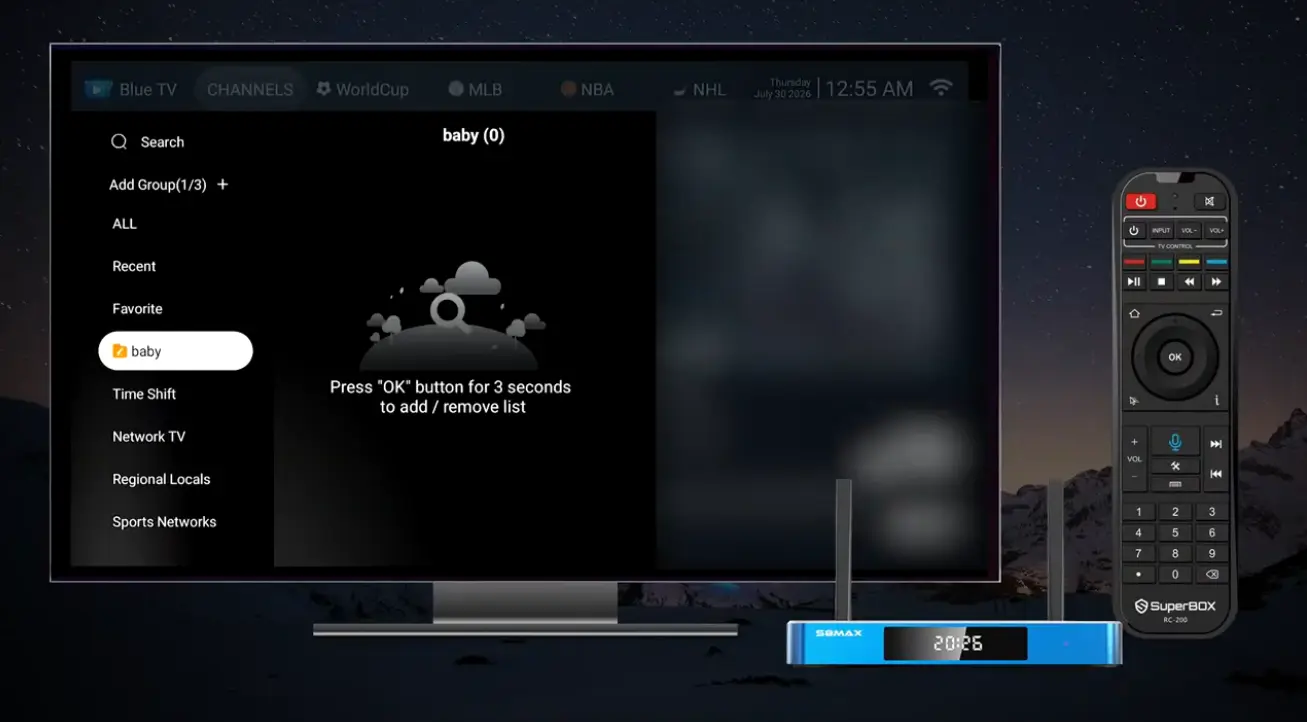
Where the app supports favorites or custom groups, create a shortlist together. Use clear names and keep the arrangement stable. Ask whether they prefer a favorites list, a live guide, or direct channel numbers.
For SuperBox S8, the Blue TV user guide covers favorites, custom groups, channel search, direct number entry, and guide layouts. Set up the method your parent prefers and practice it on the device.
If they like entering numbers, write down the current numbers for their regular channels. Explain that these may differ from the old cable lineup and can change.
Also show how to find a channel by name. This gives them a useful fallback if a number changes, without expecting them to browse the entire catalog.
Make the Remote Instructions Specific to Their Home
Before teaching voice search or shortcuts, establish which remote handles power, volume, and the streaming menus.
Use labels if your parents find them helpful. A small “TV” label and a “SuperBox” label may be enough. Avoid covering button names or sensors.
Test any supported TV-control programming before promising that one remote will operate everything. The available controls depend on the remote and equipment. If two remotes remain necessary, explain their roles clearly.
Show Back and Home separately. Back generally moves out of the current screen; Home returns to the device’s starting screen. Practice both in the apps they use, because behavior can differ between screens.
Voice input can be an additional convenience after it works reliably in their chosen app. Keep a button-based route available so a missed voice command does not stop the evening’s viewing.
For an S8 remote that needs connecting, use the remote pairing guide before the lesson.
Use SuperBox Shortcuts to Keep the Starting Point Familiar
SuperBox S8 offers Home app shortcuts and separately configured number-key app shortcuts. These can reduce the navigation needed to reach familiar entertainment.
Use the S8 shortcuts and number-key guide to set up the chosen apps. A simple arrangement might give live television one shortcut and movies another.
Explain an important distinction: an app shortcut opens an app; a channel number selects a channel inside the relevant live-TV app. On the S8 setup described in the guide, assigned app numbers are used from Home.
Write down both the starting point and action. “From SuperBox Home, press your live-TV shortcut” is clearer than “Press 1,” which can mean something different during live viewing.
If your parents prefer selecting a visible icon, use that method. The most useful shortcut is the one they remember and choose to use.
Leave a Help Card That Explains How to Get Back
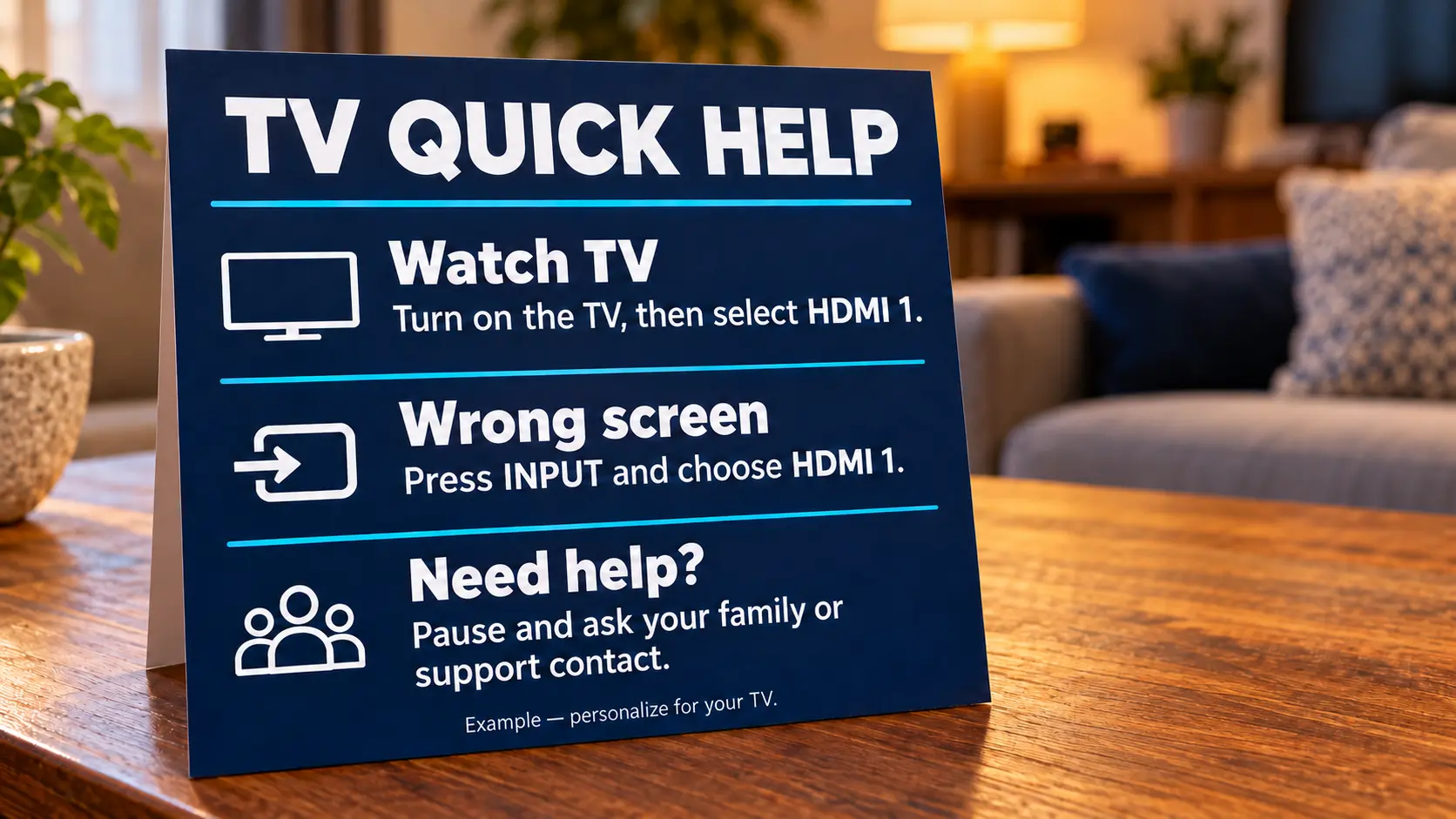
A short printed card can save a frustrating phone call. Write it after testing the setup, using the exact input, remote names, and app names in their home.
Here is a template to personalize:
| Situation | Instruction to write on the card |
|---|---|
| I want to watch television | Turn on the equipment, choose the confirmed TV input, then open the named live-TV app. |
| I opened the wrong screen | Press Home on the streaming remote and select the familiar app. |
| The TV says No Signal | Use the TV remote to select the input written on this card. |
| One channel will not play | Try another channel and note which one failed. |
| I still need help | Contact the named family member or store using the saved contact details. |
Replace general descriptions with the exact instructions you tested. For example, write “HDMI 2” only if HDMI 2 is the correct input.
Photograph the finished card and keep a copy. During a support call, you can both follow the same instructions instead of describing different screens from memory.
Agree on What to Do When Something Stops Working
Give your parents permission to stop and ask for help. They do not need to explore unfamiliar settings to prove they can use the device.
If a picture freezes, ask them to note the channel or title and try one other selection. If the second one plays, tell the helper that the problem affected a particular item. If several apps fail, the connection needs checking as part of troubleshooting.
During a phone call, ask, “What words can you see on the screen?” before giving instructions. A photo can help when the menu is difficult to describe.
Keep factory resets out of the everyday help card. Contact support before taking a step that would remove settings and require another complete setup.
Use the First Week to Build Confidence
Keep the early practice relaxed. On the first day, focus on the complete live-TV routine. During the next few days, let your parents use it at their usual viewing time and ask where they get stuck.
Once that feels comfortable, add one optional activity, such as finding a movie. Explain where that activity begins and how to return to live television afterward.
For SuperBox, Blue VOD handles on-demand browsing. The separate Playback app offers catch-up viewing for eligible programming. Introduce whichever solves a real need first.
Keep the layout consistent between visits. If an update changes an icon or menu, show the new route and revise the card.
Before canceling cable, let your parents complete several ordinary viewing sessions using streaming. Review the full cost, including internet and any chosen subscriptions, and check whether changing a bundle affects their remaining services.
Our cable-bill guide for seniors can help with that separate financial decision.
Frequently Asked Questions
What Is the Easiest Way to Help Parents Switch From Cable to Streaming?
Begin with their usual programs, prepare the equipment, and teach one complete routine. Let them control the remote and repeat the process before adding more apps.
Can Streaming Feel Similar to Cable TV?
It can retain familiar elements such as live channels, a program guide, favorites, and channel numbers where supported. Check those tools in the chosen app rather than assuming every service works alike.
Should I Cancel Their Cable Before Setting Up Streaming?
Set up and test streaming first. Confirm important programs, let your parents try normal viewing sessions, and review the effect of cancellation on bundled services and costs.
Can They Keep Their Current Television?
Often, yes. A television with a compatible HDMI input can work with an external streaming device. Check the connections and display before purchasing.
Can SuperBox Open an App With a Number Button?
Yes. S8 supports configured number-key app shortcuts from Home. These are separate from entering channel numbers inside a live-TV app. Set up and test the assignments before writing instructions.
What Should They Do if the Television Says No Signal?
Check the television’s selected input against the one confirmed during setup, then check that the connected device is powered on. Leave the correct input on their help card.
Does Buying a Streaming Box Remove Every Monthly TV Cost?
SuperBox can help lower ongoing TV spending when it replaces a more expensive cable package. The hardware does not require a recurring equipment subscription from our store, and buying your own box can remove the need to rent a cable receiver after canceling that service. Keep internet and any chosen third-party subscriptions in the comparison.
Who Can Help With a SuperBox Purchased From Your Store?
If purchased directly from superboxtvboxstore.com, email customer@superboxtvboxstore.com for technical issues or order questions. Include the model, a clear description, and a photo if helpful.
Buy With a Clear Plan for Setup and Support
SuperBox can help your parents move toward a more flexible TV setup and lower ongoing costs while keeping familiar live-viewing habits. The best result is someone who can find a favorite program, recover from a wrong button, and enjoy the change with support available when needed.
SuperBox TV Box Store is an authorized retailer serving customers in the US and Canada. Verify our authorization using SP20250414002 at the SuperBox authorization website.
Browse our SuperBox product range, or contact our team before ordering to discuss your parents’ setup.
When you purchase directly from our website, contact customer@superboxtvboxstore.com for any technical issue or order-related question. We value your family’s experience and want your parents to feel comfortable using their SuperBox after it arrives.
The article was updated on:
