Knowledge SuperBox
SuperBox App Store Missing? How to Find It and Restore Your Apps


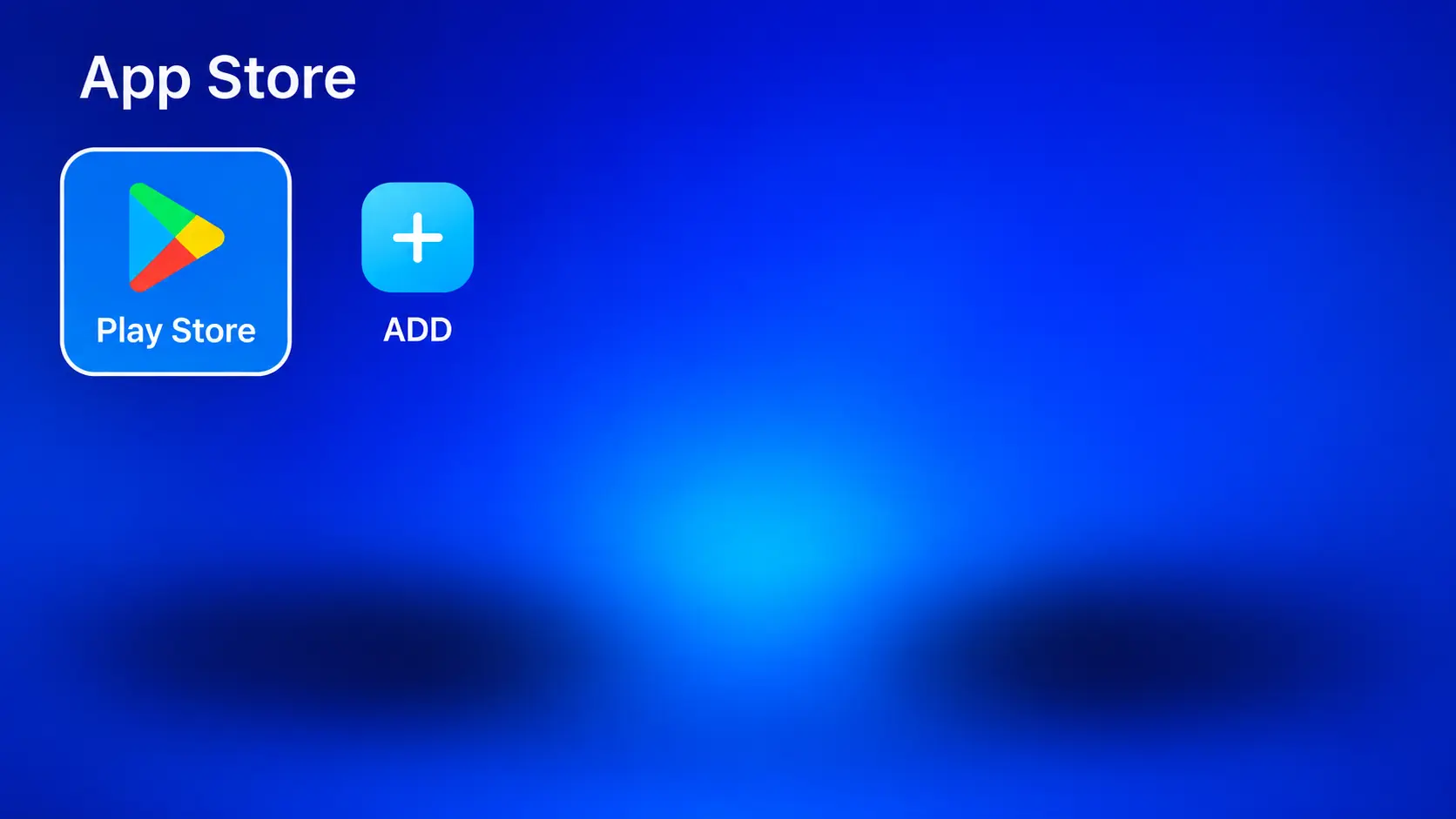
You turn on your SuperBox, open App Store from the Home screen, and discover that the familiar green Android robot is missing. Perhaps this is a brand-new box, or perhaps the green option disappeared after a factory reset. Either way, the first question is not whether the Home screen has an App Store menu, it does, but why the green Android App Store is not appearing inside that menu.
Using a SuperBox S6 or an earlier model? Follow our App Store recovery guide for S6 and older SuperBox models. The instructions below focus on the S7 and S8 series.
In this guide, SuperBox App Store missing refers specifically to the Green Android App Store entry, also described as the green robot, green Android App Store, or App Store APK. It does not mean that the App Store section has disappeared from the SuperBox Home screen. It also does not mean that a Blue TV or Blue VOD shortcut is missing from Home. These are different problems with different next steps.
Quick answer: On both the SuperBox S7 and S8 series, the normal path is Home → App Store → Green Android App Store (green robot) → Confirm. If the green robot is not listed inside App Store, check whether the device has been activated. An unactivated SuperBox will not display that green Android App Store entry. Confirm internet connectivity as well, but remember that connecting to Wi-Fi does not itself prove the box is activated. If the entry is still missing, contact the original seller or SuperBox Technical Support to verify activation and obtain the correct recovery instructions. Do not repeatedly factory reset the box or download an unverified APK.
Why Is the SuperBox App Store Missing?
The App Store option remains on the SuperBox Home screen. What can be missing is the Green Android App Store option inside it. Start by identifying when you noticed the problem: on a new device, after a reset, or when trying to load an app catalog. Device activation is an essential first check, because the green Android App Store will not appear on a box that has not been activated.
1. Your SuperBox Has Not Been Activated
An unactivated SuperBox will not show the Green Android App Store (green robot) inside the App Store section. This is one of the most important reasons to check when a new box has no green Android App Store or no green robot.
The device may still power on, display its usual Home screen, and show the App Store menu. Those signs do not confirm activation. If the device has not been activated, repeatedly opening App Store, restarting the box, or connecting to another Wi-Fi network will not by itself resolve the activation status.
How to check activation and server connection yourself: Go back to the SuperBox Home screen, then press and hold the number 6 button on your remote until the diagnostic/status screen appears. Review both the device activation status and whether the box has connected successfully to the SuperBox server. These are two separate checks: having Wi-Fi or Ethernet does not necessarily mean the box has reached the SuperBox server. Screen labels may vary by model and software version.
If you suspect the box is unactivated:
- Open Home → App Store and confirm that the green Android option is not there.
- Check that the box has a working internet connection, so support can distinguish a connection issue from an activation issue.
- Contact the seller you purchased from and ask them to check the device’s activation status. Provide the model, purchase details, and a photo of the App Store screen through the seller’s official support channel. Share the device identifier only through a trusted, private channel if requested.
- Follow the verified activation or recovery instructions provided for your exact device. Do not assume that downloading an App Store APK can activate an unactivated box.
Buying tip: To reduce the risk of receiving an unactivated or unsupported device, buy from a verified authorized SuperBox retailer that can confirm activation and provide after-sales assistance. SuperBox TV Box Store is an authorized reseller, with seller authorization code SP20250414002. Before ordering, see our guide to checking SuperBox authenticity and verifying an authorized seller. Ask the retailer to confirm that your box will be activated and ready for normal setup when delivered.
2. The Green Android App Store Is Missing During First-Time Setup
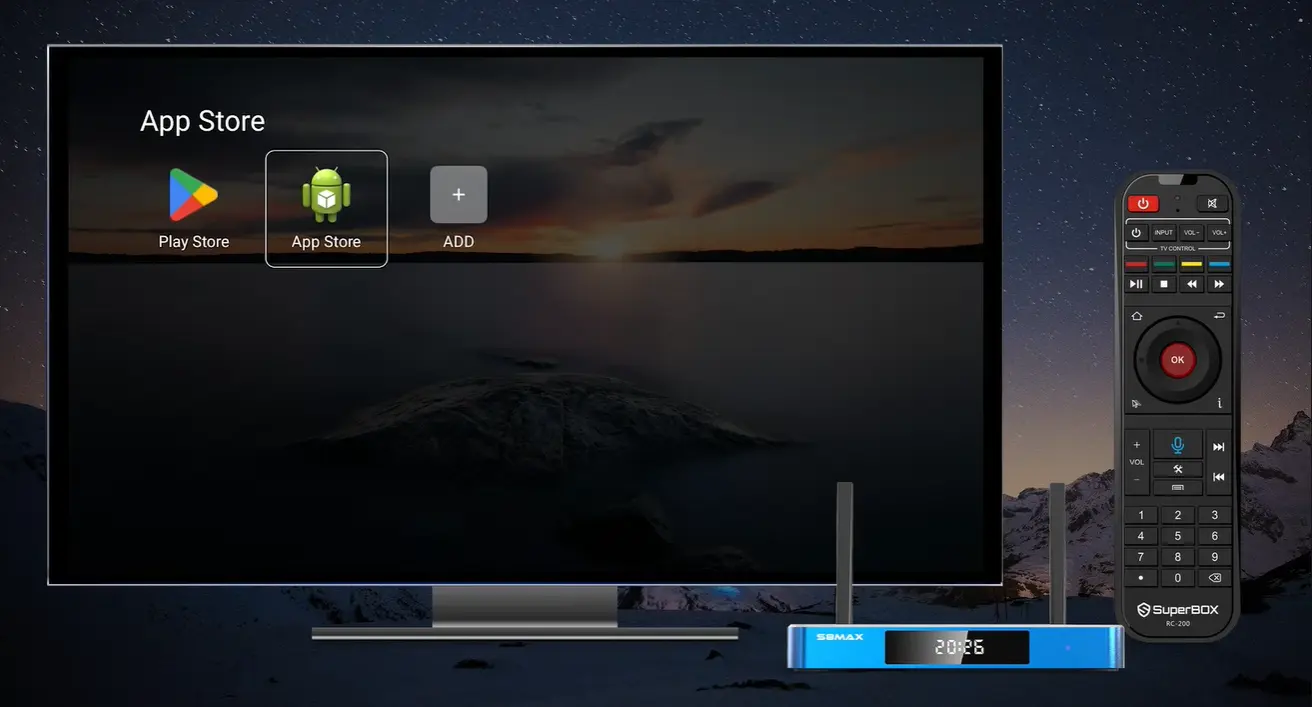
When setting up a new SuperBox, the normal starting point is App Store on the Home screen. Inside it, you should look for Green Android App Store, shown by the green Android robot. Select it and choose Confirm if a confirmation prompt appears.
If the Home-screen App Store menu is visible but the green robot is not, do not look for an S7-only or S8-only alternative menu. First, verify device activation with the seller; then check the internet connection. A new device can reach Home without showing the green Android option if it has not been activated.
For the other onboarding steps, see our SuperBox S8 Ultra setup guide. The Home → App Store → green robot navigation described here is the same basic path on S7 and S8.
Do not confuse the green Android entry in the SuperBox App Store menu with Google Play Store. Google Play is a different app catalog and is not a substitute for device activation or the missing green robot.
3. The Green Android App Store Disappeared After a Factory Reset
A factory reset can remove user-installed apps, saved connections, Home shortcuts, and other local settings. After a reset, some users can still open App Store from Home but no longer see the Green Android App Store option inside it.
A missing green robot after a reset does not, by itself, prove that the box has become unactivated. The symptom can involve the device’s app setup or software, so avoid diagnosing the activation state from the missing icon alone. Reconnect the box to the internet, confirm what is shown inside App Store, and ask Technical Support to check activation and the correct recovery procedure if the green entry remains absent.
Do not repeat a factory reset as the default fix. It can erase additional data without restoring the green Android option. Reinstalling an app also does not necessarily bring back its saved favorites, viewing history, or other locally stored settings.
4. The Green Robot Appears, but the App Catalog Will Not Load
If Green Android App Store is visible and you can select it, but the app catalog remains blank, loads indefinitely, or reports an error, the green robot is not missing. This is a different problem: the store entry is present, but the next screen is not working as expected.
Check whether Wi-Fi or Ethernet is actually providing internet access. Note any error message and the point at which the screen gets stuck.
| What you see on your SuperBox | What it means | What to do next |
|---|---|---|
| App Store is visible on Home, but Green Android App Store / green robot is missing inside it | This is the main issue covered in this guide; the device may be unactivated or need technical recovery | Ask the seller or Technical Support to check activation, then follow verified recovery guidance |
| The green robot is present, but its catalog is blank or keeps loading | The entry exists, but the catalog is not loading properly | Check internet access, record the error, and contact Technical Support if it continues |
| The app catalog works, but Blue TV or Blue VOD does not appear on Home | The app may need installation or a Home shortcut | Check the available apps and the + / ADD shortcut selector |
How to Fix a Missing Green Android App Store on SuperBox
Follow these checks in order. They help you identify a missing green Android App Store without confusing it with the permanent App Store menu on Home.
Step 1: Verify That Your SuperBox Is Activated
If your device has not been activated, the green Android App Store will not appear inside App Store. That is why activation is the first thing to verify, particularly for a brand-new box or a device purchased from an unfamiliar seller.
Self-check (no download or reset required):
1. On the Home screen, press and hold 6 on your SuperBox remote to open the diagnostic screen.
2. Look for the device activation status and the SuperBox server connection result. Confirm whether the device reports activation and a successful server connection.
3. If either status indicates a problem, is blank, or is unclear, photograph the screen and send it to the original seller or SuperBox Technical Support with your device model. If the diagnostic screen does not appear, ask Technical Support for the model-specific check.
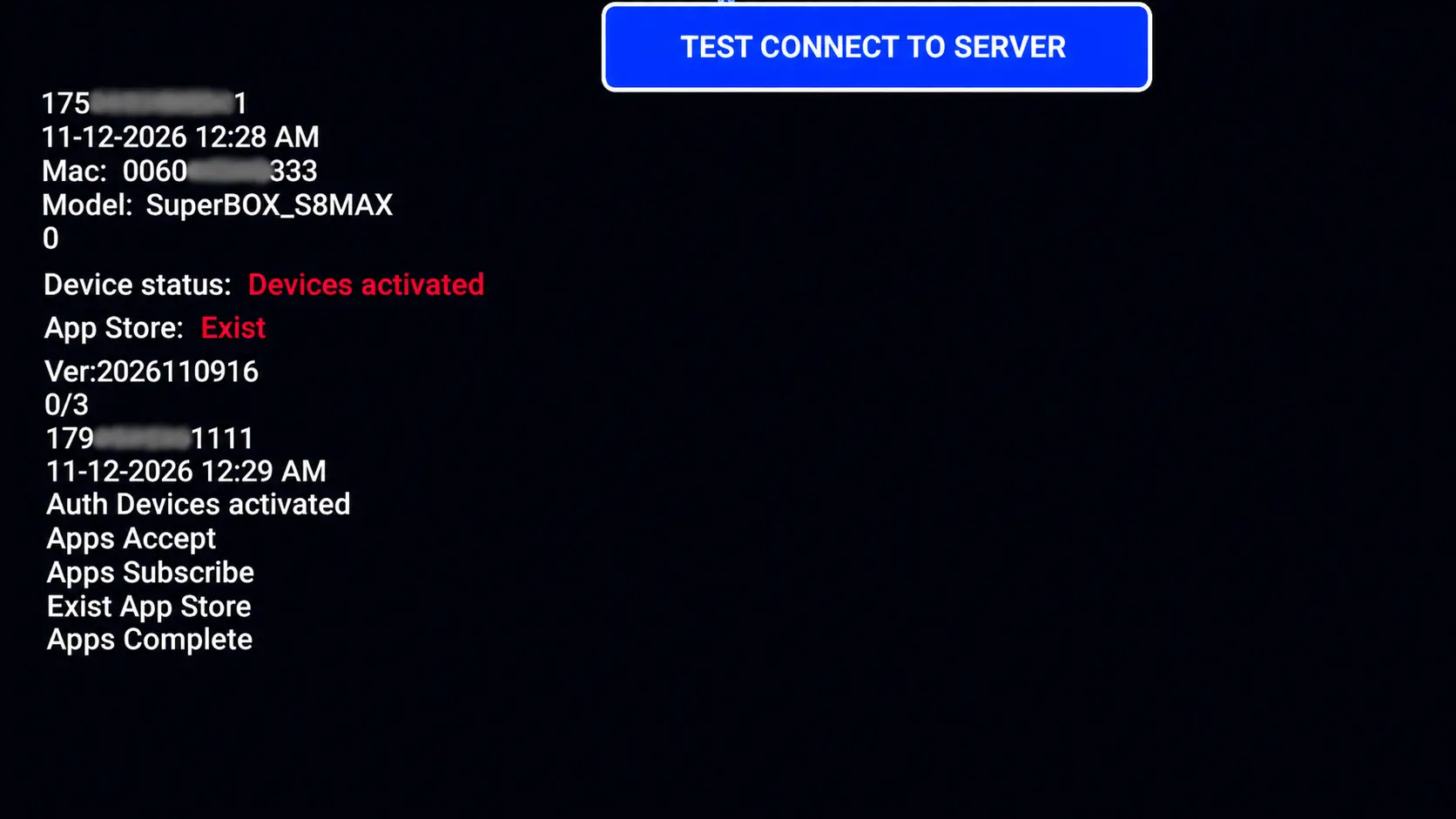
Open Home → App Store. If there is no green robot, contact your original seller and ask them to check activation status against the device’s purchase and identification details. Use the seller’s official contact channel. If you purchased through SuperBox TV Box Store, contact our support team with the order number, model, and a photo of the screen so we can review the appropriate next step.
Do not mistake normal Home-screen operation for proof of activation, and do not try to activate a device with a random App Store APK from a search result.
Step 2: Confirm That the Internet Connection Works
From the Home screen, open Settings → Network & Internet (wording can vary by software version). Confirm that your SuperBox is connected through Wi-Fi or Ethernet.
A connected Wi-Fi icon does not always guarantee working internet. If available, open the built-in browser or another on-device network test to check that online content loads. For S8 connection steps, see our SuperBox S8 Wi-Fi and Ethernet guide.
Internet access is important for setup and downloads, but being connected does not automatically activate the box. If the green robot is missing despite a working connection, return to the activation check and contact Technical Support rather than repeatedly changing networks.
Step 3: Open Home → App Store and Look for the Green Robot
Use the SuperBox remote to follow the same path on the S7 and S8 series:
- From Home, select App Store and press OK.
- Inside App Store, look for Green Android App Store (the green robot icon, sometimes referred to as the App Store APK).
- If the green robot is present, select it and choose Confirm when prompted.
- Allow the internal SuperBox app catalog to open before installing any available apps.
If the green robot is absent, stop at Step 2 of this sequence. There is nothing to select or confirm. Ask the seller or Technical Support to verify activation and advise on recovery. The App Store menu on Home is not the missing component, so do not look for a replacement Home-screen tile.
A SuperBox video demonstration may provide visual context for the menu labels. Use the options actually displayed on your box, and do not follow instructions to download installers from an unverified third-party site.
Step 4: Check the App Catalog and Install Available Apps
If the green Android option opens the internal catalog successfully, browse the apps available for your device. Depending on the model, software, and current catalog, you may see Blue TV, Blue VOD, Playback, Backup TV, or a TV ROM Updater tool.
Where the interface uses these indicators, a download arrow means an app can be installed, a progress percentage indicates a download in progress, and a green check mark indicates a completed installation. Wait for any installation to finish.
If Blue TV or Blue VOD is missing from Home, check whether it is installed or simply absent from the Home shortcut row. That is different from the green Android App Store itself being missing.
Step 5: Contact Technical Support If the Green Robot Is Still Missing
If the box is online but Home → App Store still contains no Green Android App Store, request device-specific support. Include the SuperBox model, whether the problem began at first-time setup or after a factory reset, whether the internet works, the seller or purchase record, and a clear photo of the App Store screen. Ask support to verify activation first and then confirm the correct recovery method.
Helpful evidence: From Home, hold the number 6 button to open the diagnostic screen, then include a photo showing the activation and SuperBox server connection results. This helps support distinguish a device activation issue from a server or network-connection problem.
You can contact SuperBox Technical Support on WhatsApp or use the SuperBox TV Box Store Contact Us page. For order-specific matters, start with the retailer where you purchased the unit; SuperBox TV Box Store handles its own store orders.
What about a missing App Store APK? An APK is an Android installation package, but downloading a file is not a substitute for verifying activation. Older guides and search results may list outdated or unrelated appstore.apk links. Only use a current, trusted recovery link when the responsible Technical Support team confirms it is appropriate for your model. Do not enter personal information on an unexpected redirect page.
How to Restore Blue TV and Blue VOD After a Reset
First make sure the green Android App Store is available and the internal catalog opens. If the green robot is missing, complete the activation and recovery checks above before trying to restore Blue TV or Blue VOD. Do not search for random APKs to bypass the missing store.
Once the internal catalog is working, Blue TV and Blue VOD may need to be installed again after a factory reset:
- Open Home → App Store. Select Green Android App Store (green robot) and choose Confirm if prompted.
- Find Blue TV. If offered for your device, select the app and follow the on-screen installation instructions. Wait for installation to complete.
- Find Blue VOD. Install it separately if available. Installing Blue TV does not automatically install Blue VOD.
- Check other apps only when needed. Playback and Backup TV may be available as separate app entries on supported configurations.
- Check Home-screen shortcuts. If an app is installed but not visible on Home, use the + / ADD or shortcut selector where available. A check mark may indicate that an app has been added to the shortcut row.
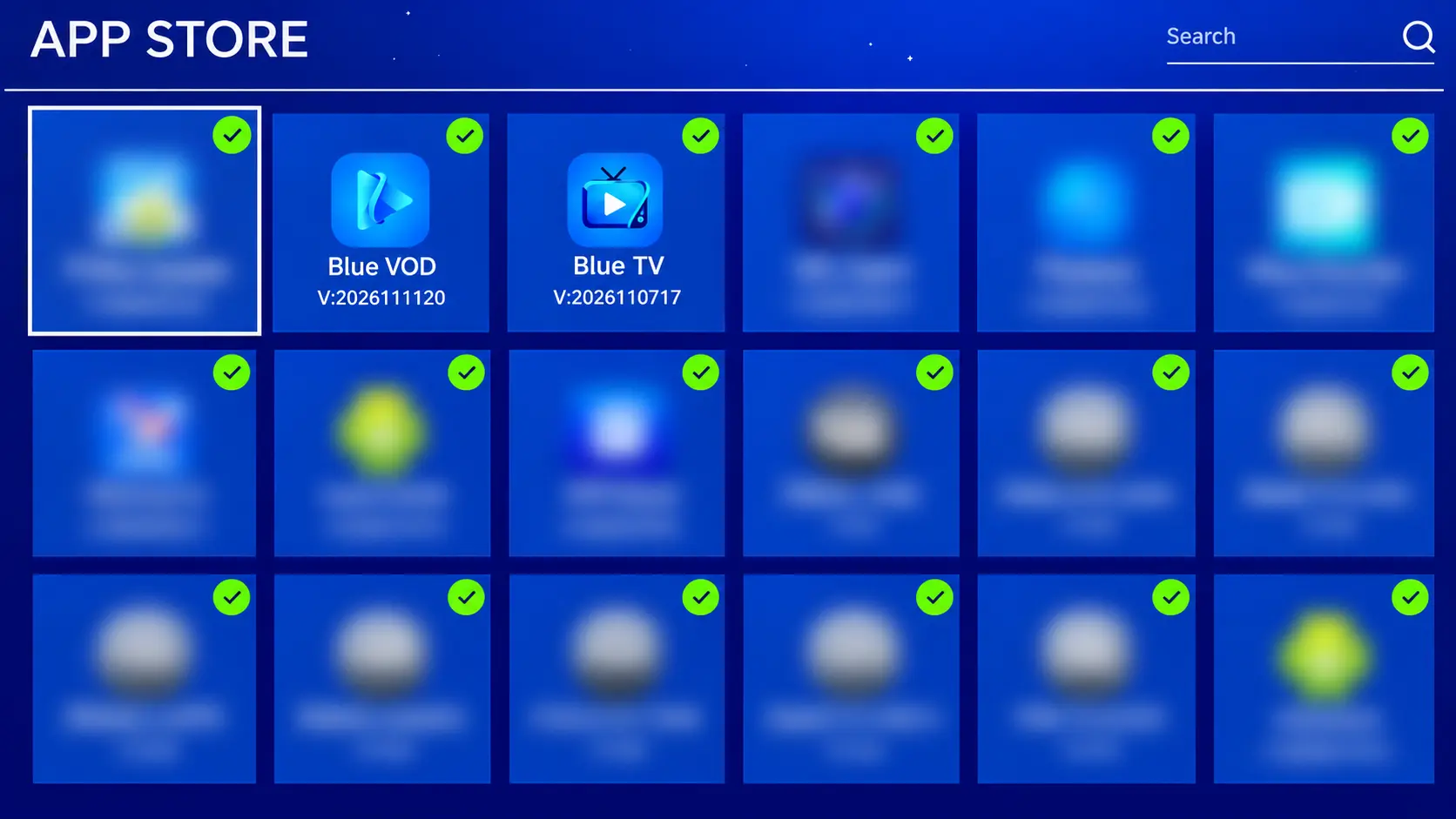
If Blue TV or Blue VOD shows as installed but is missing from Home, check the installed-app list and the shortcut selector before reinstalling. If the app does not appear in the internal catalog at all, ask Technical Support to check availability for your device.
For screenshots and more detailed installation steps, see our guide to installing Blue TV, Blue VOD, Playback, and other SuperBox S8 apps. After installing Blue TV, our SuperBox S8 Blue TV user guide covers the channel browser and viewing controls.
Important: Reinstalling an app does not guarantee restoration of data erased during a factory reset, nor does it guarantee access to any specific channel, title, or service.
SuperBox S7 vs. S8 App Store Troubleshooting
The S7 and S8 series use the same basic navigation for the issue discussed here:
Home → App Store → Green Android App Store (green robot) → Confirm.
The Home-screen App Store menu remains the starting point for both series. If the green Android entry is missing inside that menu, check activation and contact Technical Support as needed; do not assume the solution is a different S7-versus-S8 interface.
For more S7 onboarding instructions, see our SuperBox S7 setup and user guide. Your precise model still matters when support reviews firmware or recovery options, but the location of the green robot does not change between the S7 and S8 troubleshooting paths described here.
How to Prevent Green Android App Store Problems
Not every missing green robot can be prevented, but these habits can reduce avoidable setup and recovery problems:
- Buy from a verified authorized seller. Ask the retailer to confirm the box will be properly activated before delivery, and keep your receipt and seller contact details. A verified retailer can help you establish the correct support path if activation needs review.
- Check activation early. During your first setup, open Home → App Store and confirm that the Green Android App Store entry is available. If it is not, contact the seller rather than attempting an unrelated download.
- Do not factory reset as the first response. A reset can remove local apps and settings, and it is not a reliable way to activate a box.
- Use only verified update and recovery methods. Follow model-specific instructions supplied by the official Technical Support team. Do not install firmware files or App Store APKs from untrusted sources.
- Differentiate a missing app from a missing shortcut. If Blue TV or Blue VOD disappears from Home, check the installed apps and shortcut selector first. Our SuperBox S8 shortcuts and Quick Access guide explains this distinction.
- Keep useful setup details. Save the device model, the purchase record, and any error messages or screenshots. These help the seller or Technical Support investigate the issue.
If the green Android option repeatedly disappears after updates or restarts, report that pattern to Technical Support. Do not use repeated resets or different firmware packages as trial-and-error fixes.
Frequently Asked Questions
Why did my SuperBox App Store disappear?
In this article, the missing item is Green Android App Store (green robot) inside Home → App Store, not the App Store menu on Home. The green entry will not appear on an unactivated device. It can also be missing after a factory reset or require device-specific technical recovery. Check activation with your seller, verify internet access, and contact Technical Support if it remains absent.
Does an unactivated SuperBox have the Green Android App Store?
No. An unactivated SuperBox will not show the Green Android App Store entry inside the Home-screen App Store section. A device showing the normal Home screen does not, by itself, confirm activation. Ask the original seller or Technical Support to verify the device’s status instead of downloading an unofficial installer.
How do I check if my SuperBox is activated and connected to the server?
Return to the Home screen and press and hold the 6 button on the remote until the diagnostics/status screen opens. Check the device activation indicator and whether the connection to the SuperBox server is successful. If a status shows a problem or is not clear, take a photo of the screen and ask your original seller or SuperBox Technical Support to review it. The exact labels may vary with the model or firmware.
Can I reinstall the SuperBox App Store if there is no green robot?
The correct recovery method depends on the device and its activation status. Verify activation first. If the device is unactivated, downloading an appstore.apk file is not a substitute for activation. If activation is confirmed but the green robot remains absent—particularly after a reset—ask Technical Support for the current approved recovery process for your model. Avoid unknown APK files.
Why is the green Android App Store missing after a factory reset?
A reset can affect locally installed apps and configuration, but a missing green robot alone does not confirm that device activation was lost. Reconnect to the internet, open Home → App Store, and request an activation check and model-specific recovery guidance if the green entry does not return. Do not repeatedly factory reset the device.
Why is Blue TV missing after a factory reset?
Blue TV is a separate application. Once the green Android App Store and its catalog are available, check whether Blue TV can be installed from that catalog. If it is already installed but does not appear on Home, look for its shortcut in the + / ADD selector where available. If the app is absent from the catalog, contact Technical Support.
Does resetting SuperBox delete installed apps?
A factory reset generally removes user-installed apps, local settings, and saved data. Some preinstalled system components may remain. A reset does not provide a dependable way to activate a device or restore the missing green Android App Store; the next step depends on activation and the correct support procedure.
Where should I buy a SuperBox to avoid activation problems?
Choose a verified authorized SuperBox retailer that can confirm activation before delivery and provide clear after-sales support. Keep your invoice and check the seller’s authorization rather than relying on a logo or an unusually low price alone. If a newly delivered box has no green Android App Store, ask that seller to review its activation status.
Final Thoughts
When you search for SuperBox App Store missing, the critical distinction is that the App Store menu on Home is still there. The issue addressed here is the Green Android App Store (green robot / App Store APK) missing inside that menu.
Check activation first: an unactivated device will not display the green Android App Store entry. Then verify internet connectivity and inspect Home → App Store. If activation is confirmed but the green robot is still missing after setup or a factory reset, request model-specific recovery instructions through your seller or SuperBox Technical Support. This is safer than repeating a reset or downloading an unverified APK.
To check activation and server connectivity without making changes to your box, hold the number 6 button while on Home and review the resulting diagnostic screen. Share a screenshot with support if either check fails.
The article was updated on:
