
Knowledge SuperBox
How to Check SuperBox Authenticity Before and After Buying





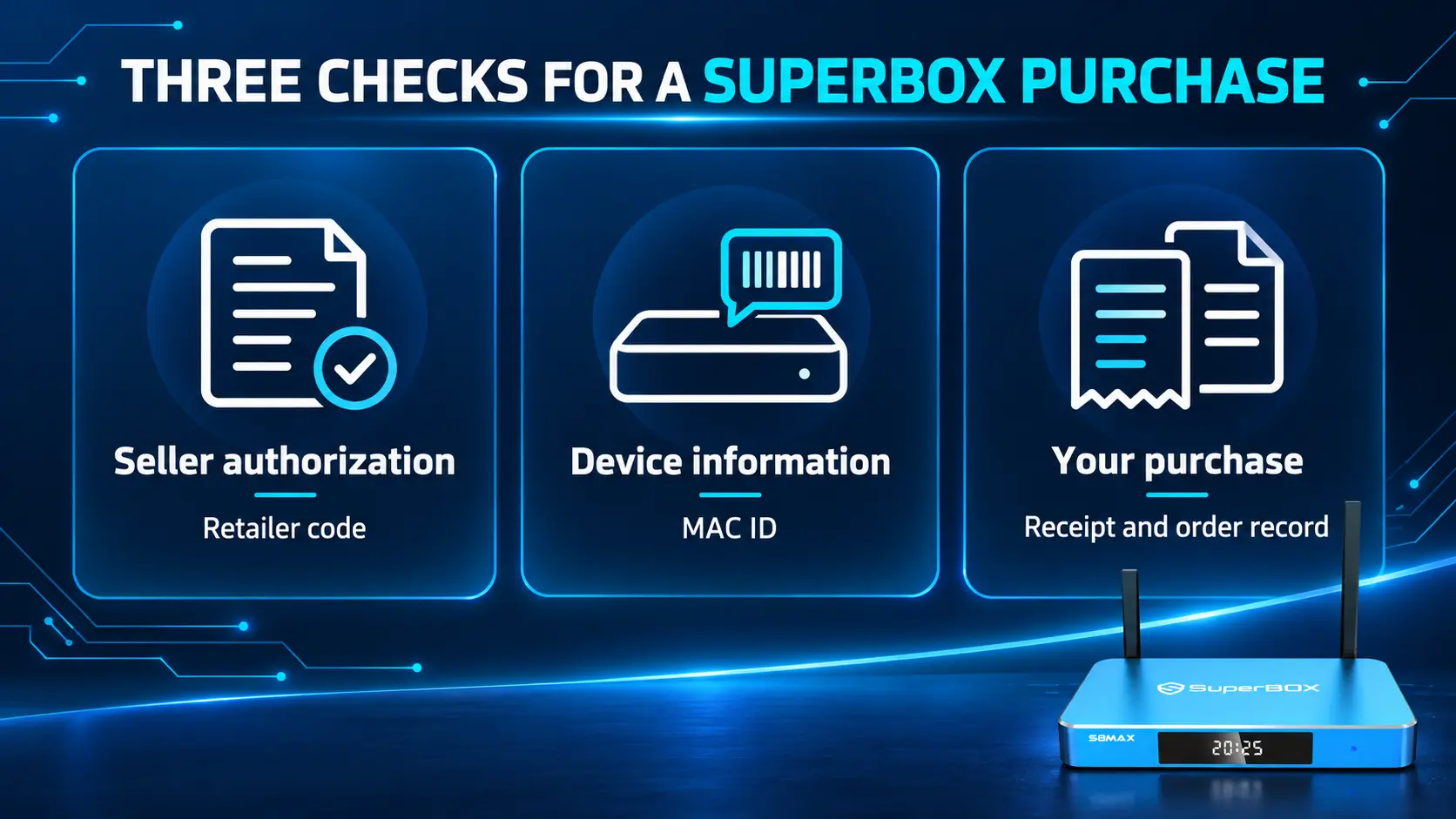
To check SuperBox authenticity, verify the seller’s authorization before buying, then use the device’s MAC ID to look up its information after delivery. Keep your receipt as well: seller authorization, device information, and proof of purchase answer different questions.
You can do the online checks through the SuperBox verification website. It has a device lookup and a separate seller authorization lookup. Using the right form is the first step toward getting a useful result.
This guide explains what to enter, what to compare, and what to do if something does not match. It applies to buyers checking an S8 model, an S7, or another SuperBox supported by the manufacturer’s lookup system.
Understand the three checks before you begin
| What you want to establish | What to check | What it answers |
|---|---|---|
| Whether a retailer is authorized | Seller authorization code and the returned certificate | Does the authorization belong to this seller? |
| Whether device details match the manufacturer’s record | The box’s MAC ID and device lookup result | What information is recorded for this identifier? |
| Which store processed your purchase | Receipt, checkout website and the seller’s order record | Who should handle your order-specific request? |
For example, an authorization code belongs to a retailer. It is not a code assigned individually to every box that retailer sells.
Similarly, a device record does not identify which store took your payment. You can own a genuine SuperBox purchased from another authorized seller.
Keep those distinctions in mind throughout the checks. They make it easier to resolve a question without sending the wrong identifier to the wrong form.
Verify the SuperBox seller before paying
Ask for the authorization details
Ask the seller for its authorization code and certificate. Look for the business name, website or sales platform, and certificate dates.
SuperBox TV Box Store is an authorized retailer serving customers in the US and Canada. Our seller authorization code is SP20250414002. Use it to check our retailer authorization when purchasing through superboxtvboxstore.com.
Another seller should provide its own details. A certificate displaying a different business does not establish authorization for the website where you are about to pay.
Enter the code in the seller lookup
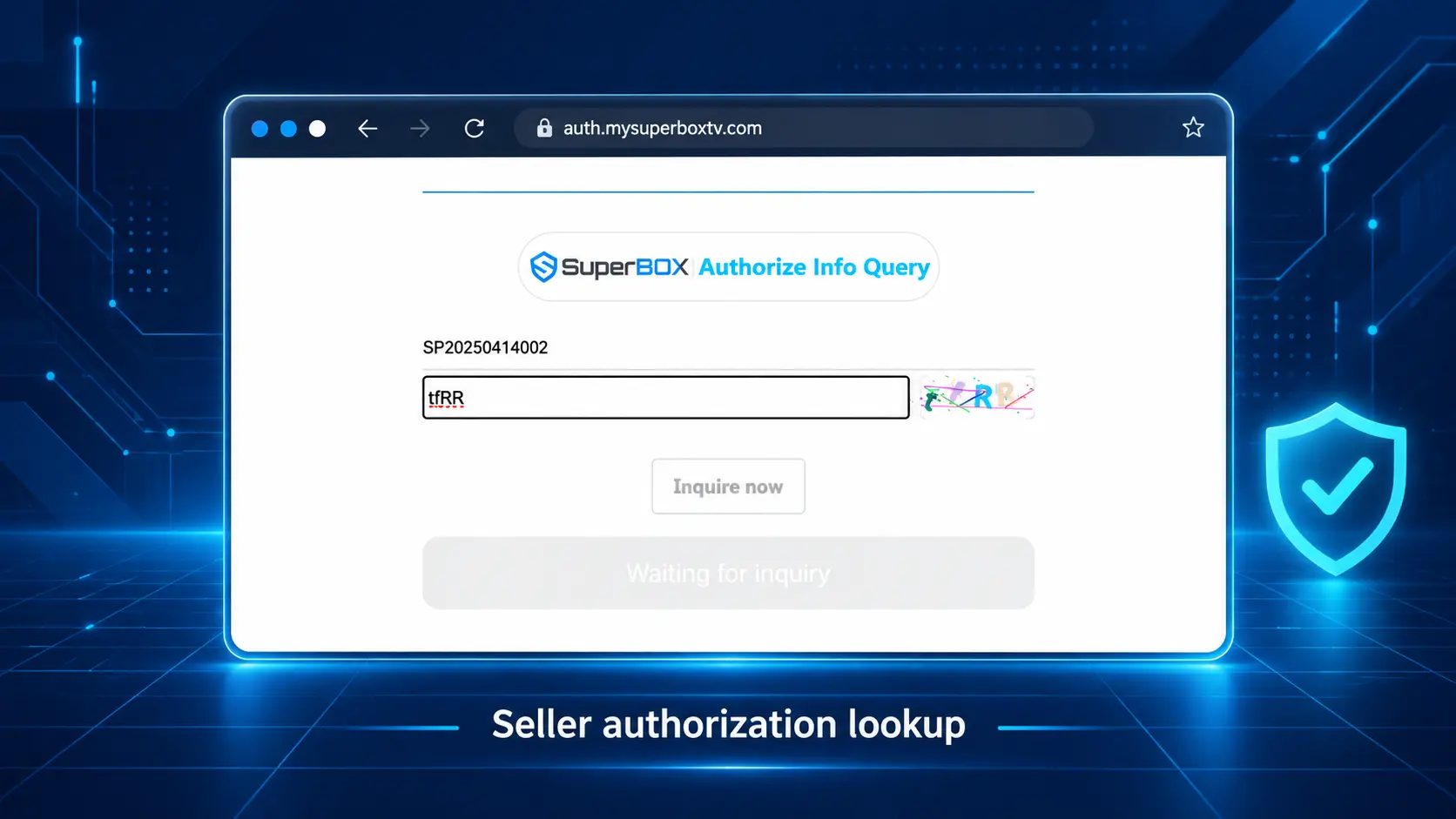
Open the verification website linked above. Find the seller section with the field labeled Please Enter The Authorization Code.
- Enter the retailer’s authorization code.
- Complete the Verification Code field using the CAPTCHA shown on the page.
- Select Inquire now.
- Review the returned seller details and certificate.
The CAPTCHA is the short challenge displayed by the website. It is separate from the seller’s authorization code.
Compare the business rather than stopping at the status
Check the name and any listed website or platform against the seller you are using. Review the certificate’s validity information too.
If the code produces no usable result, check the entry and CAPTCHA, then ask the seller for current authorization details. If the returned business is different, resolve that mismatch before completing the purchase.
A certificate screenshot is useful background, but performing the lookup yourself lets you compare the current result with the actual checkout website.
Save the purchase record while you still have it
Before closing the checkout page, save the confirmation email and receipt. Check the exact model, seller, order number, and amount.
For orders from SuperBox TV Box Store, the website is superboxtvboxstore.com, and our customer email address is customer@superboxtvboxstore.com. A display name containing “SuperBox” is not enough to identify the sender; expand the message details to see the full address.
If you later need help establishing where you ordered, follow our retailer identification checklist. A matching order confirmed by the retailer is stronger evidence than a logo on the box or a generic payment description.
This record also helps if the device information needs clarification. You can show what was sold, who supplied it, and when it arrived instead of trying to reconstruct the purchase from memory.
Find the MAC ID on the SuperBox you received
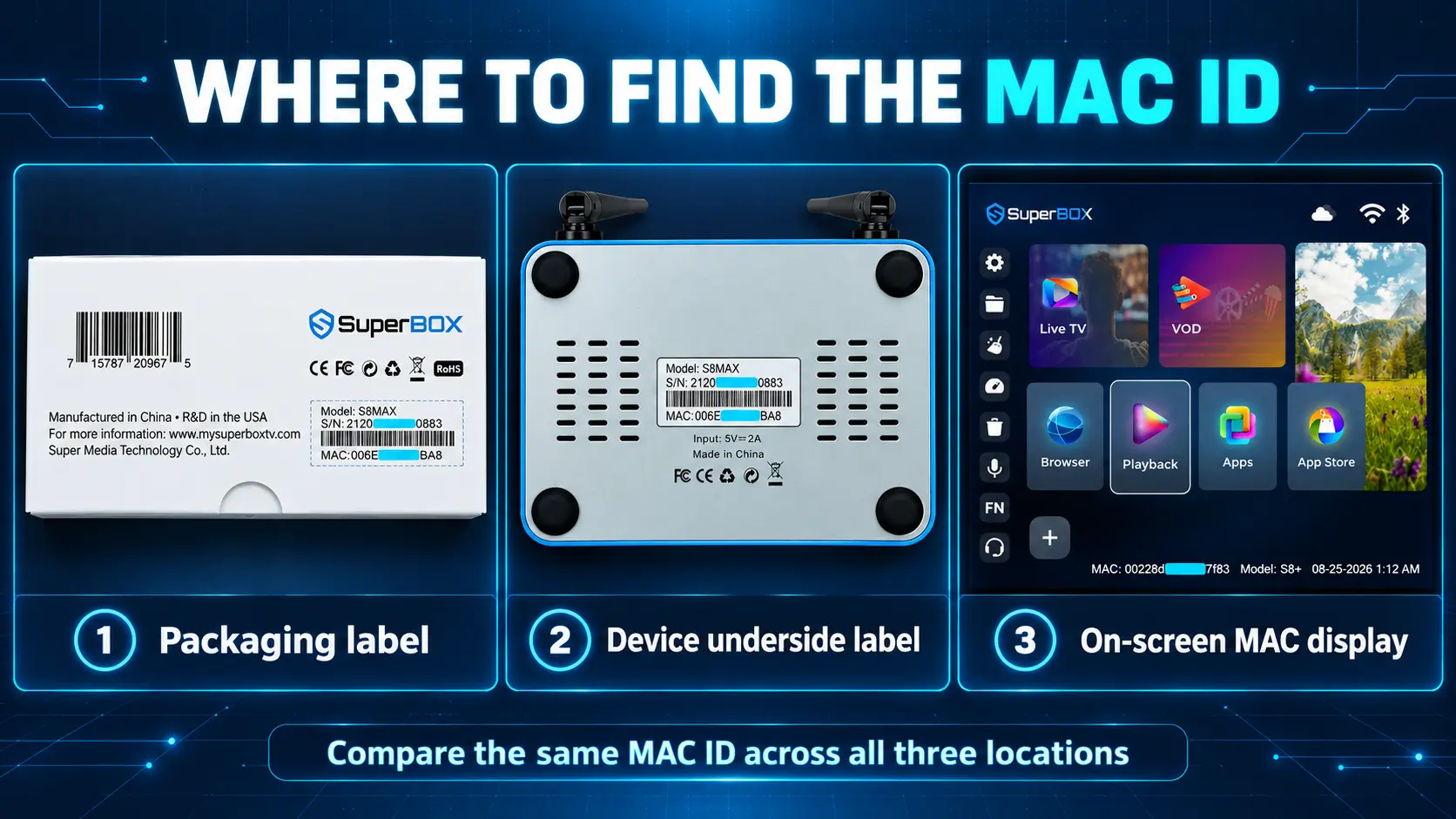
A MAC ID, also called a MAC address, is a device identifier used in the manufacturer’s lookup. In this context, “MAC” does not mean an Apple computer.
The manufacturer identifies several places to look:
- The label underneath the SuperBox.
- The product packaging.
- The device information displayed on the television.
Photograph the underside label and the on-screen identifier so you can compare them carefully. Use the SuperBox identifier, not the MAC address belonging to your router or television.
Read the letters and numbers exactly as displayed. Avoid mistaking a zero for the letter O or copying an order number into the MAC field.
If the packaging, device label, and screen show different identifiers, save photos of each and ask the seller to review them. Give support the on-screen value as well as the label information. A mismatch needs clarification; it is not a reason to edit the identifier or try to make the labels agree.
Run the SuperBox device lookup
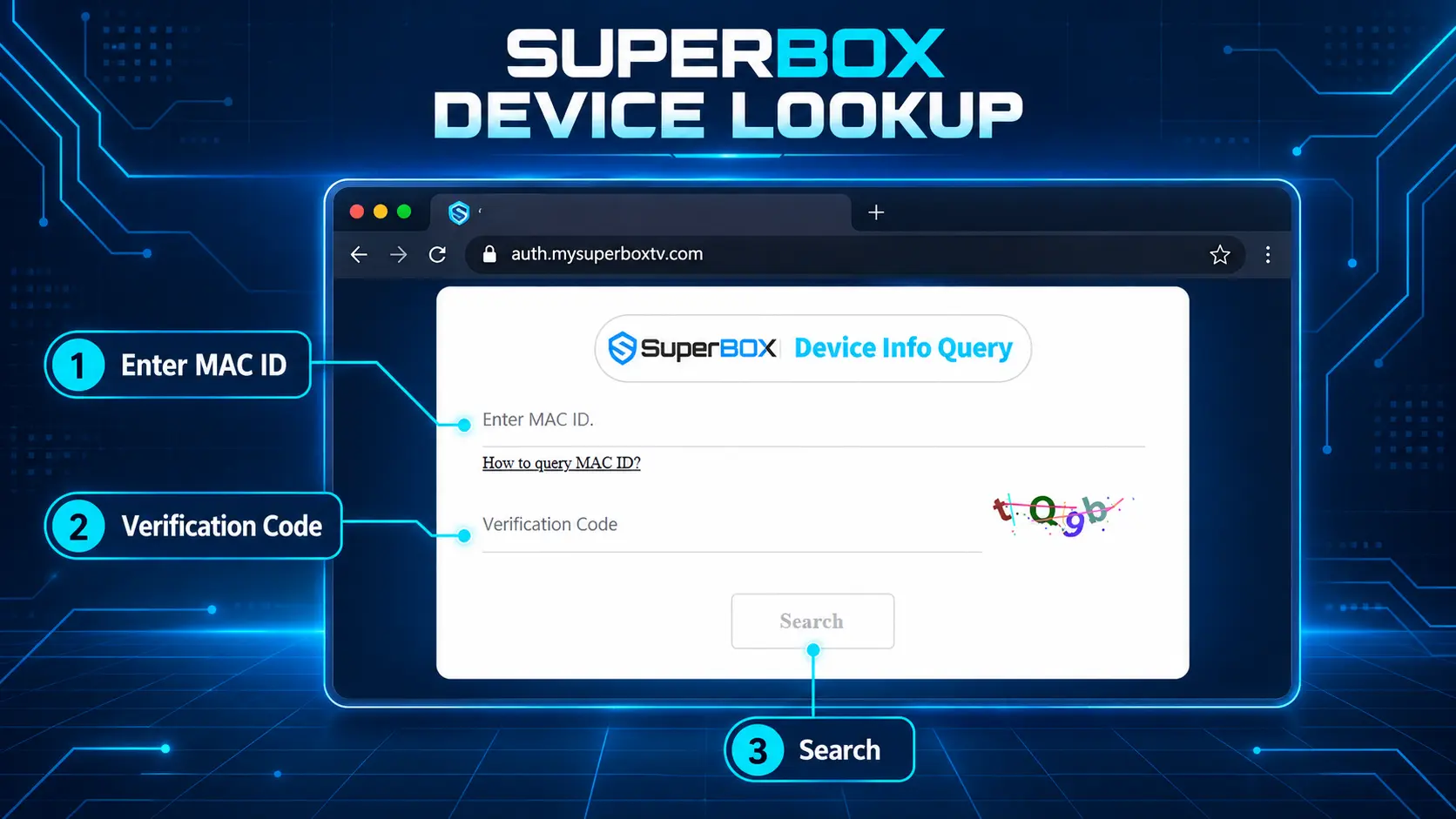
Return to the official verification portal and use the device form with the Enter MAC ID field.
- Enter the SuperBox MAC ID you collected.
- Complete the form’s Verification Code challenge.
- Select Search.
- Save the returned device information for your records.
Do not put the store code SP20250414002 in this field. That belongs in the separate seller authorization query.
Review the identifier and any activation or warranty details returned. If a model is displayed, compare it with the model you ordered. A successful lookup is useful confirmation that the manufacturer has a record for the identifier you entered.
Keep that result alongside the device photos and receipt. Together, they give the seller a clearer basis for resolving a discrepancy than one cropped screenshot.
You do not need to factory reset the box to perform this website lookup. If the form fails, first check what you entered and whether the CAPTCHA was accepted.
Know what to do with the result
A result is most useful when it tells you the next action to take.
| What you find | What to do next |
|---|---|
| Seller details match and device information looks consistent | Keep the records and continue setup |
| The authorization result names another seller | Ask the business you are buying from to explain the mismatch |
| The device search does not return a record | Recheck the MAC and CAPTCHA, then request help if it still fails |
| The label and on-screen identifiers differ | Send both photos privately to the seller |
| An activation or warranty date is unexpected | Compare it with the purchase record and ask which coverage applies |
| A device error appears although a record exists | Report the exact message for a separate technical review |
An unsuccessful lookup alone does not tell you why it failed. Likewise, a box that powers on and displays apps does not replace the seller and device checks.
Packaging appearance is another supporting clue. Compare the model name and supplied items with the listing, but do not rely on a logo, seal, or attractive retail box as the whole authenticity test. Ask about a missing or unexpected item using photos and the order description.
Read activation and warranty dates correctly
The manufacturer’s device query can show activation and warranty information. Its published verification guidance describes manufacturer warranty timing from activation.
SuperBox TV Box Store’s warranty policy states that products purchased directly from our website have one year of coverage from the delivery date, under the policy’s conditions.
Those dates should not be treated as interchangeable. If a portal date seems earlier than expected, keep the result and delivery record, then ask us to review them together.
An earlier activation date alone is not a complete explanation of the device’s history. Ask the seller to account for a significant difference rather than assuming the cause.
Also keep warranty status separate from authenticity. A genuine older device can have expired warranty coverage. The date shown is information about coverage, not by itself a counterfeit verdict.
For a purchase from our store, email us before sending a unit back. We can review the order, issue, and relevant records and explain the appropriate next step.
Compare the exact S8 model with your order
Model differences can sometimes create an authenticity concern when the customer has simply compared the box with a different S8 listing.
For example, S8 Max has 64GB internal storage and a non-backlit voice remote. S8 Ultra has 128GB and includes a backlit voice remote. A standard Max remote does not become suspicious because an Ultra photo shows illuminated buttons.
S8 Plus has a round power connector and USB 2.0 plus USB 3.0. S8 Pro, Max, and Ultra use Type-C power and USB-C plus USB 3.0. Use the supplied equipment for your exact model.
The full S8 comparison helps you check what should differ across the range.
If you are buying a new S8, Max is our main choice for a balance of features and storage; Ultra suits buyers wanting more internal space and an illuminated remote. Whichever you choose, verify the retailer first and retain the listing describing what you ordered.
Treat a device restriction as a support question
If you see Device Forbidden, Device Prohibited, or another restriction message, photograph the exact wording and contact the seller.
The message is a problem that needs investigation. It does not, by itself, establish that the physical box is counterfeit. Seller authorization, the device record, and the purchase history remain relevant to the review.
The manufacturer warns about unauthorized or irregular sales and deactivated units. That is a reason to verify the seller before buying. It is not a basis for assuming that every discounted listing will develop the same error.
Our device restriction guide addresses that separate symptom. For a direct-store purchase, send us the screen photo and order details so we can coordinate the next steps.
A working channel also does not prove who sold the box. Keep technical operation and order ownership separate when explaining the situation.
Send the right information when something needs checking
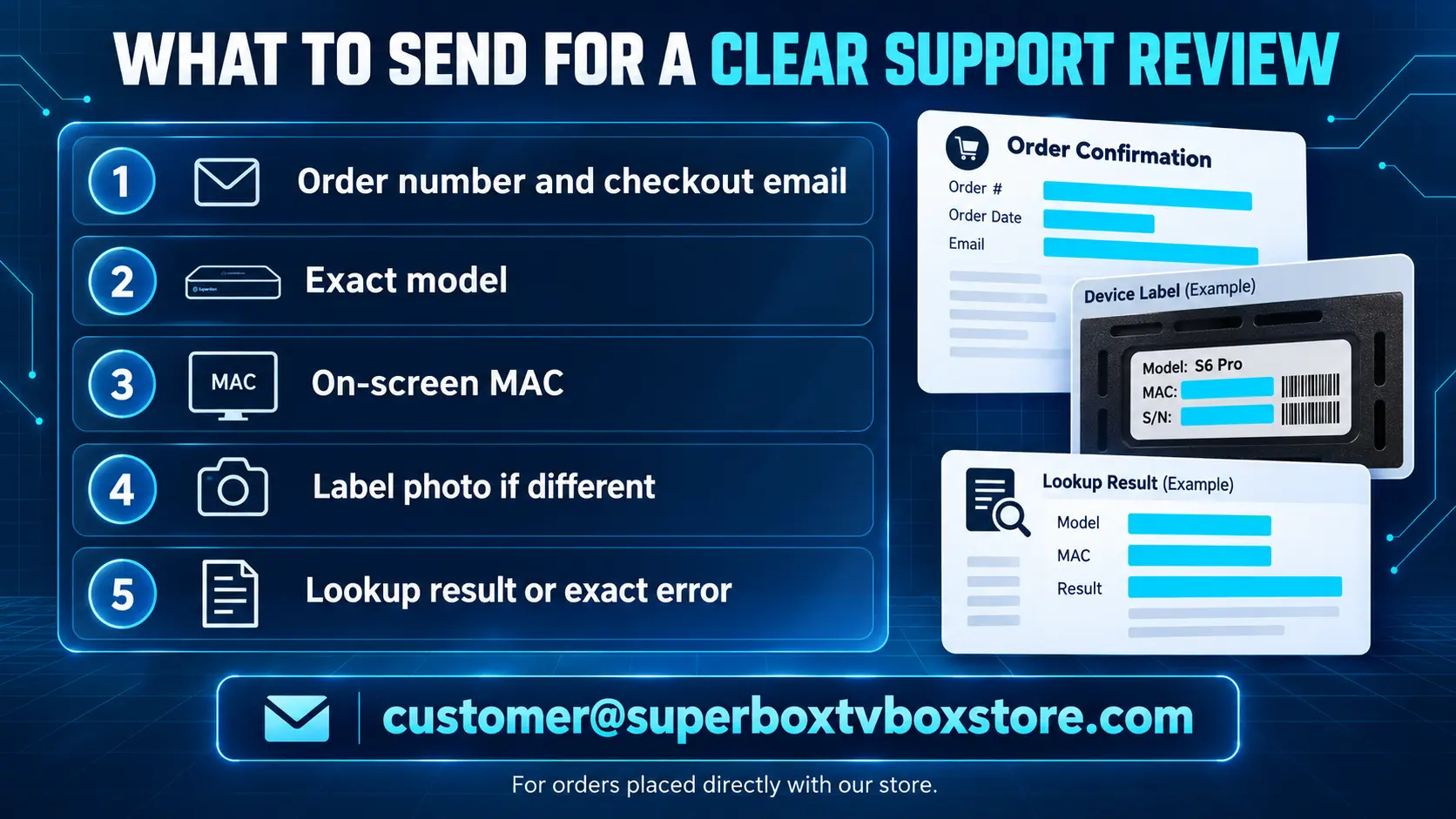
For a SuperBox purchased directly from SuperBox TV Box Store, email customer@superboxtvboxstore.com. Our team can check the order and help review the device information.
Include:
- Your order number and checkout email.
- The exact SuperBox model.
- The MAC shown on the television.
- A photo of the underside label if the identifiers differ.
- The lookup result or exact error message.
- A brief explanation of what did not match.
For example:
I ordered an S8 Max from your website. My order number is [number]. The MAC on the screen is [send privately], and the underside label shows [send privately]. The device lookup returned [result]. I have attached the label and screen photos. Please help me check the information.
Send device identifiers and purchase records privately rather than posting them in a public comment. Do not include passwords or full payment-card details.
If your receipt names another seller, contact that retailer for its order-specific review. Our contact page is available when you need help checking whether the purchase belongs to our store.
Frequently asked questions
Can I check SuperBox seller authenticity before buying?
You can check the seller’s authorization before purchasing. The individual device check generally comes after you have its MAC ID. Ask the seller for clear authorization and after-sales information before paying.
Is the seller authorization code the same as the MAC ID?
No. The authorization code identifies a retailer’s authorization. The MAC ID identifies the device record you want to query. Enter each one in its corresponding form.
Does SP20250414002 verify my individual SuperBox?
No. It is SuperBox TV Box Store’s seller authorization code. Use your own device’s MAC ID for the device lookup.
What if the verification page cannot find my MAC?
Check the identifier, the form, and the CAPTCHA first. If another attempt still produces no record, send the seller the on-screen MAC, label photo, and result for review.
Does an earlier activation date prove the box was used?
The date alone does not establish the whole history. Ask the seller to explain the record and compare it with the item description and purchase date. Direct-store buyers can also request a review under our delivery-based warranty policy.
Does buying from a different seller mean the box is fake?
No. SuperBox has multiple retailers. Check that seller’s authorization and your device details. Your receipt establishes which business should handle the purchase.
Does a valid lookup mean every channel will always work?
No. Device verification and service availability are separate. Report a viewing problem with the exact app and message so it can be investigated as a technical issue.
Finish the checks and keep one clear record
Before buying, match the seller’s authorization to the business taking your payment. After delivery, compare the device identifiers and run the MAC lookup. Save the result with the receipt and delivery information.
If those records are consistent, continue setting up your SuperBox. If something differs, send the relevant evidence to the seller and ask a specific question. You will have the information needed for a useful answer without guessing from the box’s appearance alone.
The article was updated on:
