
Knowledge SuperBox
Does SuperBox Work With Starlink? Setup and Streaming Guide





Yes, SuperBox can use Starlink as its internet connection through WiFi or Ethernet. Once your Starlink network is online, connect SuperBox to it as you would connect to another home internet network.
Starlink brings internet service to your location. SuperBox connects your television to supported entertainment apps. You do not need a special “Starlink edition” of SuperBox to combine them.
For rural homes, cabins, and other locations with limited wired internet choices, this can be a useful entertainment setup. The main things to check are your Starlink connection, WiFi coverage at the TV, the hardware needed for Ethernet, and the programs available through your chosen apps.
Yes, SuperBox can use Starlink as its internet connection through WiFi or Ethernet. Once your Starlink network is online, connect SuperBox to it as you would connect to another home internet network.
Starlink brings internet service to your location. SuperBox connects your television to supported entertainment apps. You do not need a special “Starlink edition” of SuperBox to combine them.
For rural homes, cabins, and other locations with limited wired internet choices, this can be a useful entertainment setup. The main things to check are your Starlink connection, WiFi coverage at the TV, the hardware needed for Ethernet, and the programs available through your chosen apps.
How SuperBox and Starlink work together
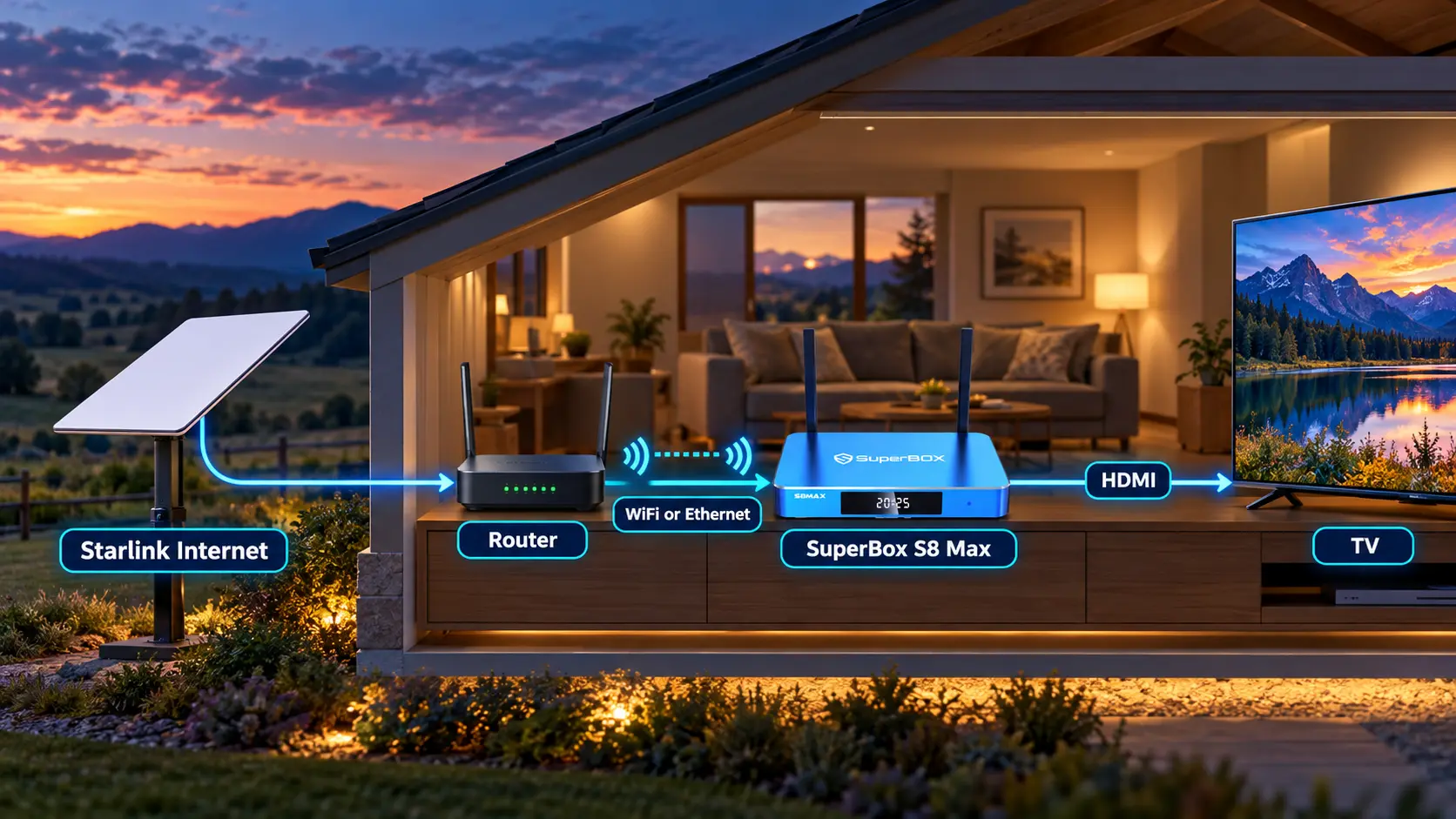
The connection has two parts: internet access through Starlink and a home-network connection between your router and SuperBox.
With WiFi, the box joins your configured wireless network. With Ethernet, a cable links its network port to an available LAN connection on your router or network equipment. SuperBox then connects to the TV through HDMI.
The satellite connection does not require the television to communicate directly with the dish. Your SuperBox uses the network provided by the working Starlink setup.
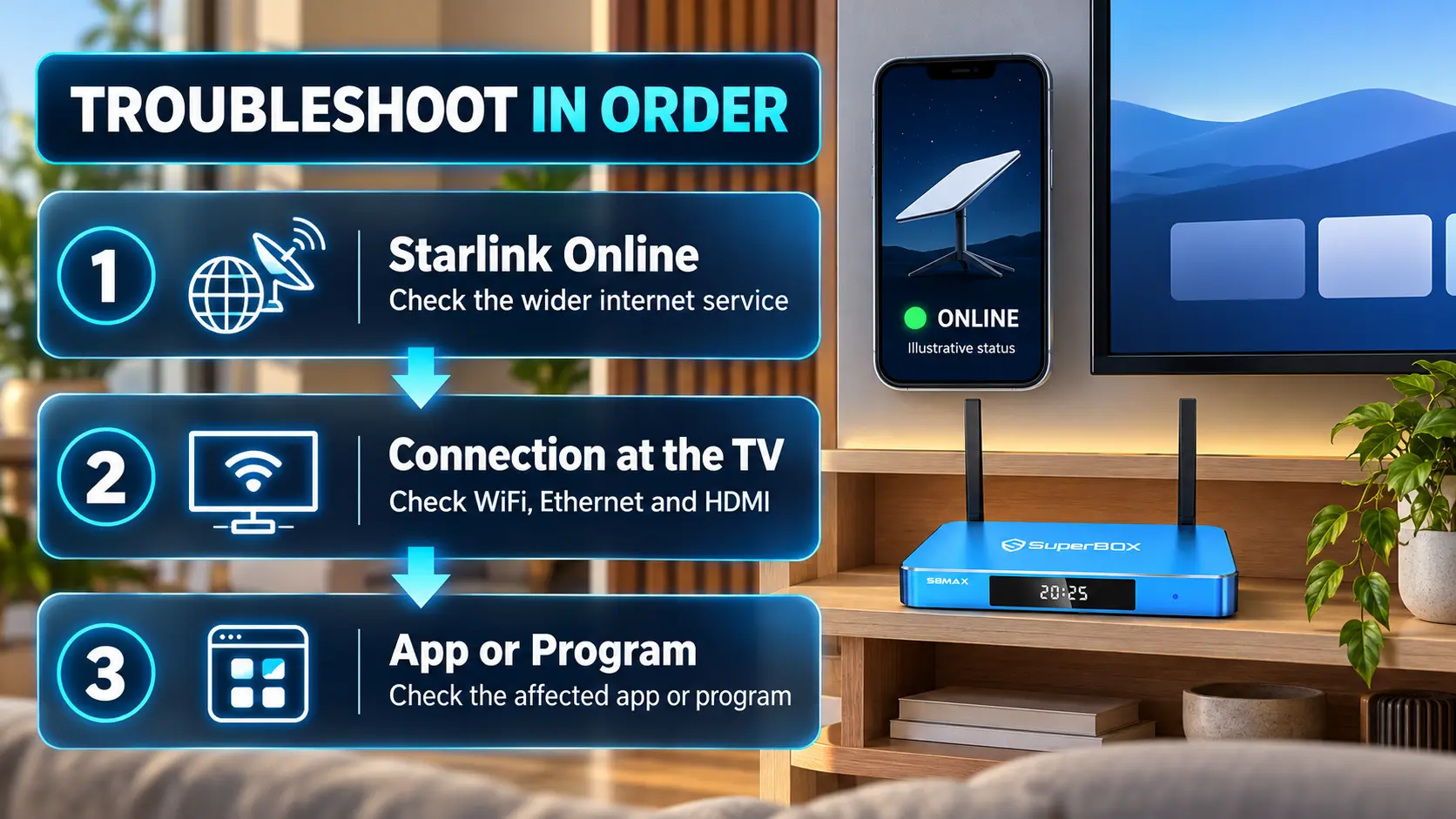
This distinction also helps with troubleshooting. If Starlink itself goes offline, changing a SuperBox setting cannot restore the satellite service. If Starlink works but the TV area has poor WiFi coverage, improving the local connection may help.
The instructions below use the S8 interface as an example. On older SuperBox models, check the supported connection options and follow the network labels on your screen.
What you need before starting
Prepare these essentials:
- An active Starlink service suitable for streaming.
- A Starlink setup that already provides working internet.
- A compatible HDMI-equipped television and powered SuperBox.
- Your WiFi name and password, or a suitable Ethernet connection.
- Any adapter required by your specific Starlink hardware.
First, connect a phone or computer to the same network and check that it can use the internet. Finish any Starlink setup or service activation before configuring the box.
Also check your plan status. Starlink’s low-speed Standby Mode is not intended for high-bandwidth use, so it should not be treated as a normal TV streaming plan. Review any high-speed data allowance or reduced-speed conditions that apply to your subscription.
SuperBox does not replace your Starlink subscription. The two purchases serve different purposes.
How to connect SuperBox to Starlink WiFi
WiFi is the easiest starting point when your television is within good wireless range.
On SuperBox S8:
- Open Settings → Network & Internet from Home.
- Open WiFi and allow the available-network list to load.
- Select the network name configured for your Starlink connection.
- Enter its WiFi password carefully.
- Choose Connect and wait for the connected status.
- Open an online app to confirm internet access.
During initial S8 setup, use Set your network → Wi-Fi instead. Refresh the access-point list if needed.
Use your WiFi password, rather than your Starlink account password. If you use a separate router or mesh system, join the WiFi network that equipment provides.
A connected WiFi icon confirms the local wireless link; testing an online function checks that the box can reach the internet too. Our SuperBox S8 internet setup guide shows the menu controls.
Which WiFi band should you use?
Where your router provides both bands, 5GHz can be useful for streaming near the router, while 2.4GHz may reach farther through the home.
Compare actual playback at the TV location. If band switching causes problems, review Starlink’s current WiFi settings and its option to split the bands where available. There is no need to change a reliable setup simply because another band exists.
How to connect SuperBox to Starlink with Ethernet
Ethernet removes the wireless hop between SuperBox and the router. It is useful for a permanent TV setup where a cable can be routed conveniently.
Check your Starlink hardware before buying an adapter:
| Starlink equipment | Wired connection for SuperBox |
|---|---|
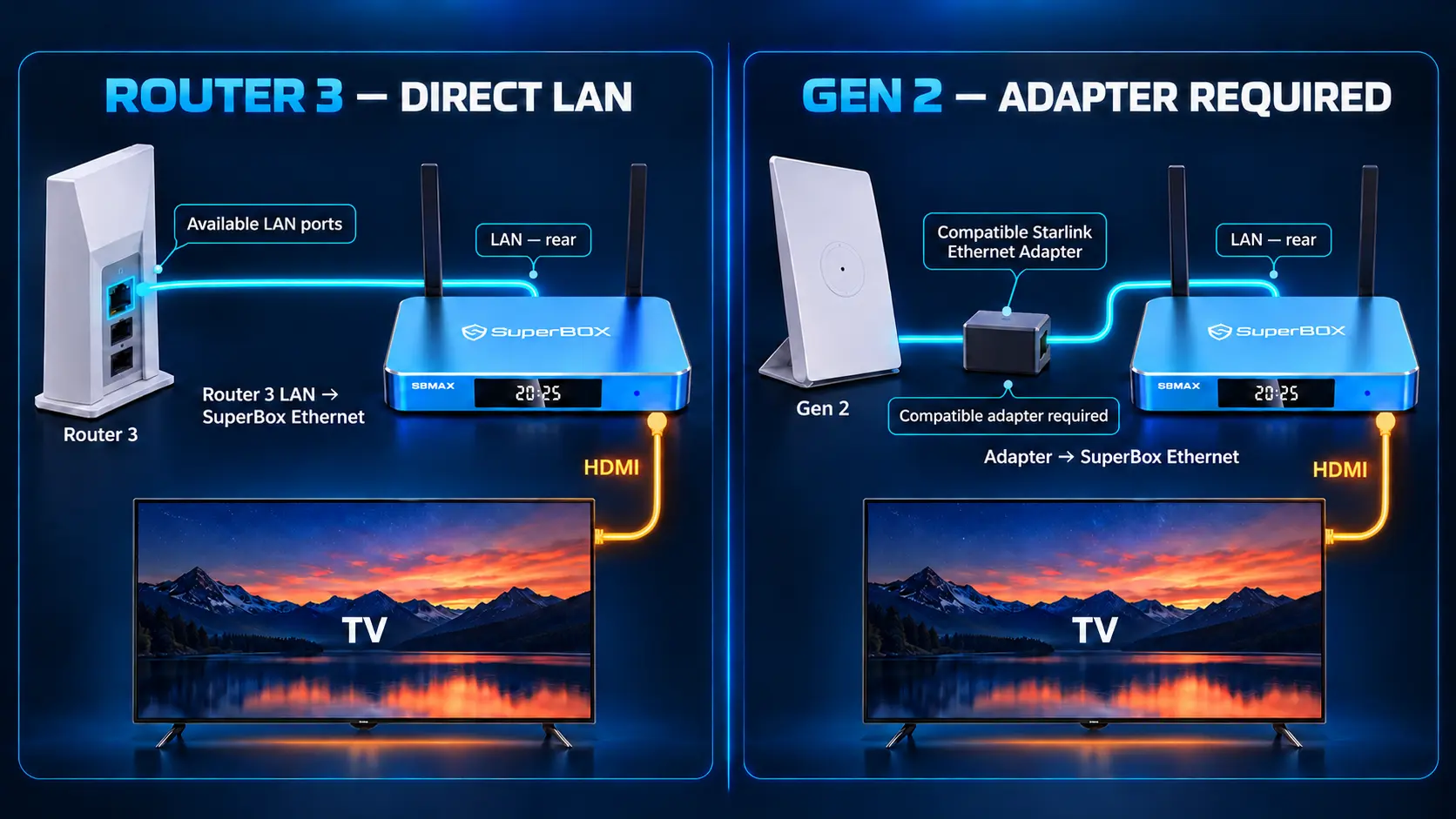
| Router 3 | Use one of its two LAN ports beneath the rear protective cover |
| Gen 2 router with Standard Actuated kit | Add the compatible Starlink Ethernet Adapter |
| Gen 1 router | Use the Ethernet port labeled AUX |
| Starlink Mini with integrated WiFi | Its published specifications list one Ethernet LAN port; use the appropriate cable |
| Router Mini accessory | Use its LAN port, keeping the Starlink-marked WAN connection for its network uplink |
Starlink Mini and Router Mini are different products. Starlink Mini combines the terminal and WiFi functionality; Router Mini is a separate networking accessory.
Kit names and bundles can change. Identify the actual router or terminal you own and follow its installation guide. The adapter required by a Gen 2 setup is a Starlink accessory for that setup, rather than a special SuperBox adapter.
To connect:
- Establish the appropriate LAN connection on your Starlink network.
- Run an Ethernet cable from that connection to SuperBox’s Ethernet port.
- Select Ethernet if the S8 setup wizard prompts you.
- Check the network status and open an online app.
Use a LAN connection intended for client devices. Do not unplug the dish’s required network connection to make room for SuperBox.
Ethernet can improve the local link, but it cannot eliminate a satellite outage or make the service faster than Starlink currently delivers.
Is Starlink fast enough for SuperBox streaming
Starlink is designed to support streaming, but the experience depends on the connection reaching your device when you watch.
For perspective, Netflix recommends a stable 5Mbps for 1080p and 15Mbps for 4K on its own service. These are general viewing benchmarks, not fixed requirements or performance guarantees for SuperBox apps.
Allow for other household activity. Several streams, large downloads, and video calls share the connection. A speed test taken when nobody else is online may not reflect evening viewing.
Stability matters alongside the download result. A connection that repeatedly drops can interrupt live viewing even if it briefly records a high speed.
S8 models support 4K playback and 6K decoding with suitable content and displays. Actual picture quality still depends on the stream, app, television, and available connection.
Check the internet link and WiFi separately
Where available, the Starlink app’s advanced tests distinguish the router’s internet connection from the connection between the testing device and router.
A strong router-to-internet result with a weak device-to-router result points you toward checking local WiFi coverage. If the Starlink-side result is poor too, investigate the wider connection.
Remember that a phone running the test measures its own wireless connection. Test near the TV, then verify playback on SuperBox. See our WiFi optimization guide for practical coverage checks.
Why SuperBox may buffer on Starlink
Buffering does not automatically mean the devices are incompatible. Work through the symptoms before changing several settings.
| What happens | What to check next |
|---|---|
| Other devices lose internet too | Starlink status, alerts, cabling, and service condition |
| Streaming improves near the router | Coverage at the TV and the box’s placement |
| Ethernet works better than WiFi | Wireless distance, interference, and mesh connections |
| Only one channel or title fails | Another item in the same app, then a different app |
| Viewing worsens when the household gets busy | Competing traffic and performance at that time |
| Problems continue in a low-speed plan state | Active plan, remaining high-speed allowance, and service conditions |
Check Starlink alerts and obstructions
Open the Starlink app and review reported outages, interruptions, or obstructions. Trees and buildings can obstruct the sky view needed by the terminal. Extreme weather or temporary network issues can also affect service.
Use Starlink’s obstruction tools and installation guidance when assessing the terminal’s position.
Compare WiFi with a wired connection
If practical, test SuperBox through Ethernet. Keep the app and program the same so you can compare the connection method.
If the box is wired to a mesh node that connects wirelessly to the main router, part of the route is still wireless. That test differs from a direct cable to the main router.
Try another program before reinstalling anything
Test another channel or title, then another online app. If most viewing works and one item does not, collect its name and exact error for support.
For a broader SuperBox issue, follow our buffering troubleshooting guide. Avoid beginning with a factory reset when you are still identifying the affected part of the setup.
Does SuperBox work with Starlink Mini
Yes, SuperBox can use the internet connection provided by a working Starlink Mini setup. Its built-in WiFi provides a wireless route, and the published Mini specifications also list an Ethernet LAN port.
Pay attention to placement. A Mini positioned for a clear sky view outdoors may be separated from an indoor TV by walls or distance. Consider the WiFi route into the room as well as the terminal’s view of the sky.
For an outdoor Ethernet connection, follow Starlink’s cable guidance. The Mini specification sheet states that its IP67 rating is not maintained with a standard RJ45 cable.
For an RV or cabin, check coverage, the applicable Starlink plan, and power for the terminal, TV, and SuperBox. This is a normal network setup question rather than a requirement for a special travel version of SuperBox.
Do you need a VPN or bypass mode
A VPN is not required simply to operate SuperBox on Starlink. SuperBox’s manufacturer guidance says VPN services are not required for operation.
If you already use a VPN and are troubleshooting, compare a permitted test without it before assuming it improves performance.
You also do not need to enable Starlink bypass mode just to connect the box to a working Starlink router. Bypass concerns a different network arrangement, such as using your own router. Follow Starlink’s instructions if you deliberately choose that configuration.
Keep the ordinary home setup simple: working Starlink internet, an active router, and SuperBox connected through WiFi or LAN.
Which SuperBox should you choose for Starlink
You do not need a higher S8 model solely because your internet comes from Starlink. The S8 lineup shares dual-band WiFi 6 and Gigabit Ethernet.
Choose the model around your viewing habits:
| Model | Storage and performance tier | Reason to consider it |
|---|---|---|
| S8 Pro | 32GB / Essential | A focused app selection and lower S8 entry price |
| S8 Plus | 64GB / Standard | Additional internal storage |
| S8 Max | 64GB / High | NFL app and broader supported Multi-Viewing |
| S8 Ultra | 128GB / Premium | Largest storage and included backlit remote |
Max and Ultra provide Multi-Viewing across full supported channels; Pro and Plus support eligible PPV/ESPN Multi-Viewing. This concerns simultaneous viewing rather than their entire single-channel selection.
For the complete differences, see our S8 model comparison.
Entertainment value beyond the connection
SuperBox’s dedicated apps include Blue TV with 2000+ live TV channels, Blue VOD with a large movie and series library, and Playback for eligible catch-up viewing.
These core apps are free after purchasing a compatible device, without separate monthly app subscriptions. Starlink service and optional paid entertainment memberships remain separate expenses.
For households moving away from traditional cable, SuperBox can help reduce recurring TV costs when its available entertainment replaces services or equipment rentals you no longer need. Compare your actual programs and bills using our cord-cutting guide.
Our Blue TV guide and Blue VOD guide explain the everyday controls.
Frequently asked questions
Does SuperBox work with Starlink residential internet?
Yes. Connect a compatible SuperBox to the working Starlink home network through WiFi or Ethernet. Streaming depends on the service and connection reaching the box.
Do I need an Ethernet adapter?
It depends on the Starlink hardware. A Gen 2 Standard Actuated setup needs its compatible Starlink Ethernet Adapter for a wired connection. Router 3 has built-in LAN ports.
Can I use SuperBox over Starlink WiFi?
Yes. Select the configured wireless network in SuperBox’s network settings and enter its WiFi password. Check internet access after the wireless connection succeeds.
Will Ethernet stop all buffering?
No. It removes the wireless link between the box and the connected network device. Starlink interruptions, congestion, or app-specific issues can still affect viewing.
Can I watch 4K with SuperBox and Starlink?
Yes, with suitable content, a compatible TV and SuperBox, and a sufficiently stable connection. A 4K-capable box does not make every channel a 4K broadcast.
Does Starlink Standby Mode work for regular TV streaming?
Standby Mode provides low-speed service and is not intended for high-bandwidth use. Use an active plan suitable for streaming and check its current terms.
Is a VPN necessary?
No. A VPN is not needed simply because you connect SuperBox through Starlink. Diagnose the normal connection first if playback has problems.
Who should I contact if it does not work?
If devices across the home lose internet or Starlink reports an outage, use Starlink support. For a SuperBox issue, send your model, connection type, exact error, and test results to your device support team.
Buy SuperBox with help choosing and connecting it
For a Starlink household, the right SuperBox is the one that fits your viewing routine and connects well in your TV room.
SuperBox TV Box Store is an authorized retailer serving the U.S. and Canada. Verify authorization code SP20250414002 through the SuperBox authorization website.
Before ordering, tell us your intended SuperBox model, Starlink equipment, and whether you prefer WiFi or Ethernet. We can help with the SuperBox side of setup and identify connection details to check.
If you purchased directly from superboxtvboxstore.com, contact customer@superboxtvboxstore.com for any technical or order-related issue. We value your experience and want you to get comfortable with your setup.
Browse SuperBox models or contact our team before choosing your box.
The article was updated on:
