
Knowledge SuperBox
How to Clear Cache on an Android TV Box Without Resetting It





To clear cache on an Android TV box, open Settings → Apps → choose the affected app → Clear cache, then confirm if asked. Some boxes place the button inside Storage or Storage & cache, and you may need See all apps to find the application.
Choose Clear cache, rather than Clear data or Clear storage, when your goal is to remove temporary app files. You can then reopen the app and check whether its loading, browsing, or playback problem has improved.
This guide covers that process on Android TV, Google TV, and Android-based boxes such as SuperBox. The screens can look different, but the important decision is the same: find the correct app on the correct device and select the maintenance action you intend.
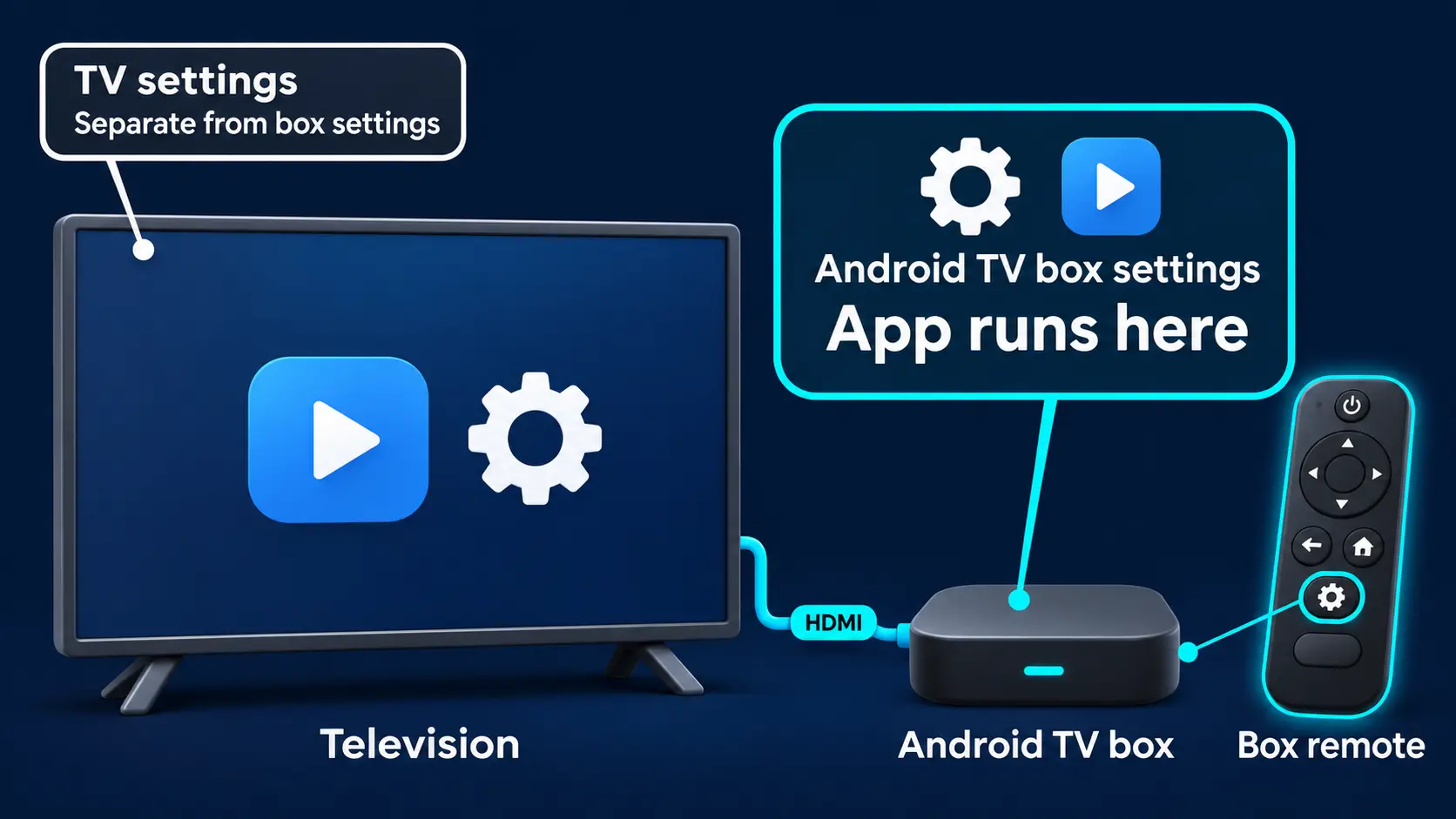
Start on the box, not the television’s own settings
If you use an external streaming box, make sure you are controlling that device. Opening a Samsung or LG television’s Settings menu will not clear the cache of an app installed on a separate Android box.
Use your television remote to select the HDMI input connected to the box. Then use the box’s remote to open its Home screen and Settings.
For example, if Blue VOD runs on your SuperBox, clear its cache through the SuperBox settings. If an app runs directly on the television instead, follow that television’s instructions.
Before continuing, note the app’s name and the problem you want to fix. “Blue VOD opens, but its title list keeps loading” is more useful than “the TV is slow.” Save a photo of an error message if one appears.
Clear one app’s cache step by step
Start with the application that is misbehaving. There is usually no need to clear every app simply because one has a problem.
1. Leave the app and open Settings
Return to the box’s Home screen. Open the gear-shaped Settings icon, or use the settings option available on your launcher.
Do this after stopping normal playback. If the app has frozen but Home still responds, move to Home and continue from there.
2. Find the installed-app list
Select Apps or Applications. If the app you need is not among the first entries, select See all apps or the equivalent installed-app list.
Google TV and Android TV menu arrangements vary, and a custom Android launcher may use slightly different wording. Your destination is the selected app’s information page, not its content library or the store page used to download it.
3. Select the correct application
Choose the app by its name and icon. On a SuperBox, Blue TV and Blue VOD are separate apps: Blue TV is for live channel viewing, while Blue VOD is for movies and television series on demand.
Clearing one will not automatically clear the other. If you are unsure which is affected, return to Home and check the name of the app you normally open.
4. Find and select Clear cache
On the app-information screen, look for Clear cache. If it is not immediately visible, open Storage or Storage & cache where your model offers that submenu.
Some interfaces show the cache size beside the button. You can note that value before clearing it, but you do not need to reach a particular number before the action is worthwhile.
Select Clear cache, press OK, and confirm if prompted. If the message instead says it will erase all application data or reset the app, cancel and check the highlighted option.
5. Reopen the app and repeat the original task
Return Home, open the same app, and try the action that was failing. For a loading problem, check the same page. For playback, reopen the same title or channel and compare another selection if needed.
The first opening can take longer while temporary information is recreated. Give it time to load before deciding whether the procedure helped.
A successful result is the original task working normally. A zero cache figure by itself does not establish that every streaming issue has been resolved.
Check browsing and playback separately
An app can improve in one area while a different problem remains. For example, Blue VOD might display its title cards normally after cleanup, but one particular movie could still fail to play. Record those as two separate results rather than clearing the cache again immediately.
Try the original selection, then a second available title or channel. If the second works, keep the exact name of the failing item. If neither works, check another app to see whether the difficulty extends beyond the one you cleaned.
Keep the connection and player settings unchanged during this comparison. Changing the WiFi network, video settings, and app data at the same time makes it difficult to tell what helped.
Once the app has rebuilt its normal screens, return to your usual viewing task. If the same error comes straight back, keep its wording or take a photo and move to the appropriate next check.
What cache does, and why clearing it can help
Cache is temporary information an app keeps so it does not have to rebuild or retrieve everything each time. Images, thumbnails, and other reusable information can make normal browsing more efficient.
Cache is useful. A growing cache does not automatically mean the app is damaged, unsafe, or performing badly.
Clearing it can be a sensible troubleshooting step when an app repeatedly fails to load properly, displays outdated items, or behaves differently from its usual routine. The app can then create new temporary information as you use it.
The benefit depends on the cause. A cached-file problem may improve; a weak internet connection or a temporarily unavailable program needs a different investigation.
It also helps to separate storage from RAM. Storage holds files, while RAM is working memory used as the system runs. Removing an app’s cached files can free storage, but it does not add physical RAM or increase the speed of your internet plan.
Clear Cache vs Clear Data, Restart, and Factory Reset
Several maintenance buttons sit close together, yet their consequences are different.
| Action | What it does | What you should expect |
|---|---|---|
| Clear cache | Removes the selected app’s temporary data | The app stays installed and can rebuild its cache |
| Clear data / Clear storage | Erases that app’s stored data | Sign-in state, local preferences, downloads, or locally saved lists may need restoring |
| Force stop | Stops the selected app from running | You must reopen the app to use it again |
| Restart | Restarts the device’s running environment | Apps reopen afterward; stored cache is not necessarily removed |
| Factory reset | Erases device-level settings and data as part of resetting the box | Accounts, apps, and setup may need to be restored |
For a cache-only procedure, keep the scope to Clear cache. It is designed to remove temporary data while leaving the application installed. Ordinary account information and settings normally belong to app data, which is why Clear data requires more care.
Do not assume every saved item is stored in the same way by every app. If a particular Favorites list, download, or sign-in matters, know how to recover it before considering a data reset or reinstall.
A restart can help when the device remains unresponsive, but it serves a different purpose. There is no need to factory-reset a working box just to reach an individual app’s cache button.
Before moving from Clear cache to Clear data
Clear data is worth considering only as an intentional app reset, not as an automatic second click. First establish that the problem belongs to that application and check any app-specific recovery instructions.
Before proceeding, make sure you can answer these questions:
- Do I know how to sign back into this app, if it requires an account?
- Have I recorded any locally saved preferences or lists I want to recreate?
- Do I know the supported source for restoring the app if further repair becomes necessary?
- Have I checked whether the issue affects one title, the whole app, or several apps?
If the recovery instructions do not match the screens on your SuperBox, take a photo and ask your retailer before proceeding. Include the app name and your exact model so support can explain what the reset would require.
If support recommends a data reset, follow the instructions for that exact app. Reopen it afterward and check the original task before adjusting other settings.
How this works on SuperBox S7 and S8
SuperBox offers both Android app settings and generation-specific Home utilities. Choose the route that matches the task.
For one troublesome app, use its settings
On an S7 or S8, begin with the app route: Settings → Apps → See all apps, if needed → select the app → Clear cache. Follow the storage submenu if your installed interface places the button there.
For example, if Blue TV works but Blue VOD will not load normally, start with Blue VOD’s cache. Keep Blue TV unchanged so you can compare the results afterward.
Blue TV and Blue VOD are free core viewing apps on compatible SuperBox hardware after purchase. Maintaining the affected app is a practical way to keep that entertainment setup easy to use without turning a small problem into a complete reinstallation.
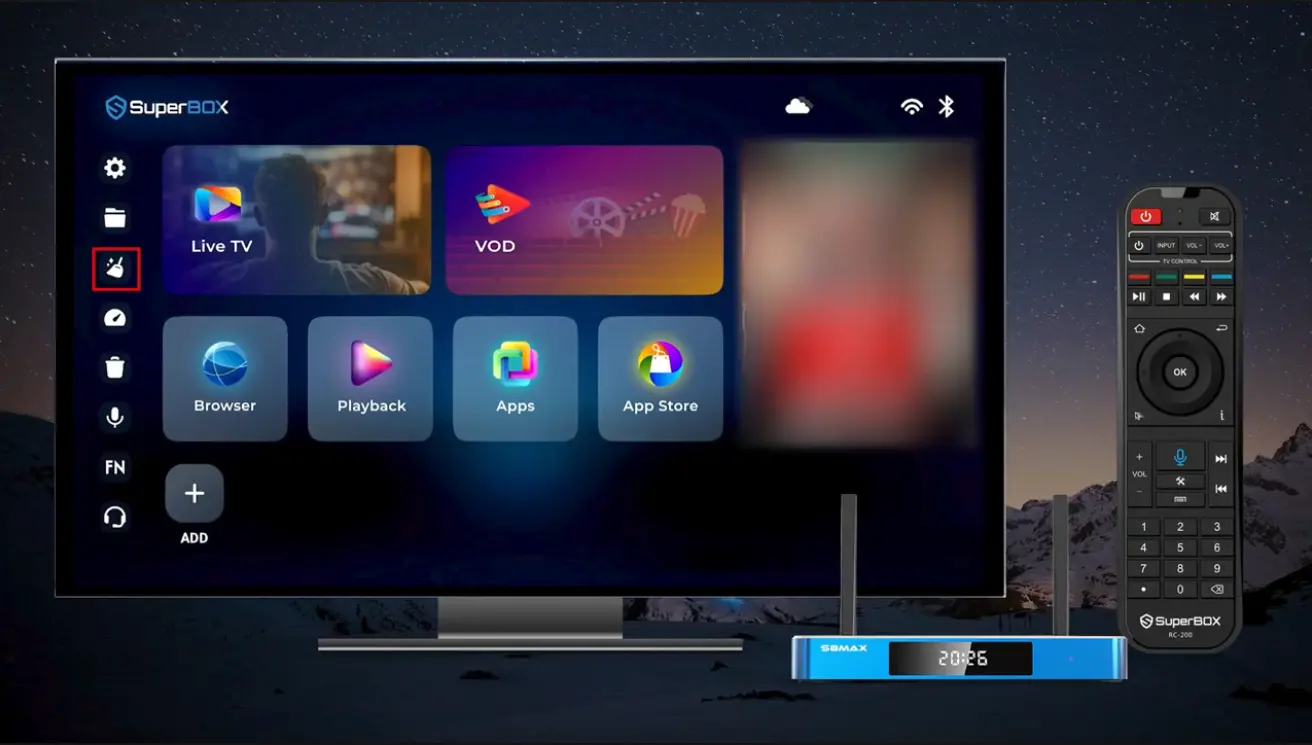
For the S8 Home cleanup, use Clean Up
On the newer S8-style launcher, a broom-shaped Clean Up shortcut appears in the left utility sidebar. Return Home, highlight that icon, and press OK. Allow its panel to finish, then review the result and use Back to return Home.
The demonstrated panel checks System memory and Installation package residue. That is a general Home cleanup, rather than the same screen as an individual app’s Clear cache button.
Running the broom tool does not establish that every installed app’s cache has been cleared. If a single app still has a problem, return to its own app-information page.
The S8 Clean Up and customer-service guide shows that particular interface. On older layouts, utility positions differ, so identify the named cleaning tool instead of selecting an unfamiliar trash-shaped icon.
If you cannot find Clear cache
First, confirm that you opened the app-information screen. A movie player’s Settings menu may contain subtitle or picture options without Android storage controls.
Next, expand See all apps if the application is not visible in the short list. Check the app name rather than assuming its Home tile uses exactly the same wording.
If the app-information page offers Storage or Storage & cache, open that section. Device makers arrange these controls differently, so use the manufacturer’s instructions for the exact model if the route still does not match.
A disabled button can mean there is nothing available to remove, or that the current interface does not offer the operation in that state. Do not switch to Clear data simply because it is the only active button.
If you need help, take a photo of the app-information screen. That lets support see the available controls without guessing from the phrase “my settings look different.”
What to do if clearing cache does not fix it
Retest before making another change. The result helps choose the next step.
| What happens afterward | Useful next check |
|---|---|
| The app opens and the original task works | Continue using it; allow normal cache rebuilding |
| One channel or title fails, but alternatives work | Record the affected selection and exact message |
| Several apps cannot load online content | Check the box’s internet connection and try a wired route where practical |
| One app still freezes while others work | Check its version and available update through its usual supported source |
| The device’s Home screen also becomes unresponsive | Use the normal restart option and reassess the broader device behavior |
| A storage warning remains | Review installed apps and files you intentionally keep; cache is only one storage category |
If the box still says storage is full
Cache is only part of the space used on the device. An app itself, its stored data, downloaded media, and files you saved can remain after you clear its temporary cache.
If your box provides a Storage section in Settings, review its categories. You can also inspect individual apps’ storage information. Pay attention to whether a figure describes the app, its data, or its cache; removing one category will not necessarily reduce the others.
Begin with items you recognize and no longer need, such as an unused downloaded file or an app you intentionally installed. Review important files before deleting them, and confirm you have a supported way to reinstall an app before uninstalling it.
Do not select Clear storage merely because its name sounds like a general space-saving option. On an app-information page, that button can erase the app’s data. Likewise, formatting a connected drive is a separate operation that erases the drive’s contents; it is not cache cleanup.
After removing a known unnecessary item, check available space again. This makes the result easier to assess than repeatedly clearing a small cache while the larger files remain.
For SuperBox viewing issues, compare the affected content with another selection in the same app and then another app. The Blue TV guide helps with live-channel navigation; the Blue VOD guide helps with finding the correct movie or episode.
If playback still pauses across different selections, move to the buffering and freezing checks. Repeatedly clearing the same app is unlikely to answer a problem elsewhere in the connection or viewing source.
For a direct purchase from SuperBox TV Box Store, contact customer@superboxtvboxstore.com for technical or order assistance. Include your model, app name, exact symptom, and the result after clearing cache. We value your experience and can help coordinate the next step.
Cache cleanup questions
Why does the cache come back after I clear it?
Apps create temporary information again as you browse and watch. A small amount returning is normal. Judge the result by whether the app works, rather than trying to keep the cache permanently at zero.
How often should I clear cache on an Android TV box?
Use it when troubleshooting a relevant app problem or reviewing storage use. If the box works normally, there is no need to empty every app’s cache after each viewing session. Follow any specific maintenance guidance for your model.
Can I clear all app caches at once?
Some devices provide a broader maintenance utility. Its scope depends on the manufacturer and what the screen actually describes. The per-app method is the clearer choice when one application is affected.
Does clearing cache uninstall an app or remove its update?
No. Clear cache removes temporary data; uninstalling an app or removing an update is a separate action. Check the label before confirming an operation.
What if I accidentally selected Clear data?
Reopen the app and check what needs to be restored. You may need to sign in again or recreate locally stored preferences. Data held in an online account may still be available after sign-in, while local-only information may have been erased. Contact the app or device support team if you cannot restore access.
Do I need to install an extra cleaner app?
You can perform this procedure through the device’s existing app settings. SuperBox also provides its own Home cleanup utility where supported. Start with those available controls rather than adding software solely to reach a cache-clearing function.
Finish by checking the task that mattered
Return to the app, open the page or program that originally failed, and check its response. If it now works, you can leave the rest of the setup alone.
If it does not, keep the exact result and move to the relevant app, network, or support check. Clearing cache is useful because it is a targeted maintenance action; the next decision should follow what the device actually does afterward.
The article was updated on:
