
Knowledge SuperBox
SuperBox Ethernet Problems: How to Fix a Wired Connection That Is Not Working





A wired Ethernet connection is usually the simplest way to give a SuperBox a fast, stable network connection. There is no Wi-Fi signal to weaken through walls, and the connection is generally less vulnerable to wireless interference. That is exactly why it can be frustrating when you connect the cable and nothing happens.
The box may show no internet connection, fail to recognize the Ethernet cable, or remain offline even though other devices can use the same router. This does not automatically mean that the SuperBox or its LAN port is defective. A loose connector, faulty cable, inactive router port, unfinished software update, or corrupted network configuration can produce the same symptom.
The best approach is to diagnose the connection in order—starting with the fastest, safest checks and leaving a factory reset until the end.
Quick answer: Restart the router and SuperBox, reconnect both ends of the Ethernet cable, test a different router port and cable, then check whether the box can connect over Wi-Fi. If both Ethernet and Wi-Fi fail after updates and restarts, a factory reset may repair the network configuration—but it will erase local apps, accounts, files, and settings.
Common Signs of a SuperBox Ethernet Problem
You may be dealing with an Ethernet issue if:
- the Ethernet cable is connected, but the box still reports no internet;
- no wired-network icon or Ethernet status appears;
- apps report a network, host, or connection error;
- Ethernet disconnects intermittently;
- the same router works with other devices, but not the SuperBox;
- Wi-Fi works on the box, but Ethernet does not; or
- neither Wi-Fi nor Ethernet can connect.
The last two symptoms are especially useful. If Wi-Fi works while Ethernet fails, focus on the cable, router port, and wired interface. If both connection types fail, the problem is more likely to involve the router, an unfinished update, the box’s network configuration, or a wider service interruption.
Before You Change Any Settings
Check whether the problem affects only the SuperBox or the entire network:
- Open a website on a phone or computer connected to the same router.
- Confirm that the router’s internet or WAN indicator looks normal.
- Note whether the SuperBox can see nearby Wi-Fi networks.
- If possible, keep a second Ethernet cable available for testing.
Do not factory-reset the device at the beginning. Most Ethernet problems can be narrowed down without deleting anything.
How to Fix SuperBox Ethernet Problems
1. Restart the router and SuperBox
Begin with a clean power cycle. Turn off the SuperBox and unplug the router or modem from power. Wait approximately 60 seconds, reconnect the router, and allow it to return fully online. Then power on the SuperBox and test Ethernet again.
Waiting matters. A quick off-and-on cycle may not give the router enough time to close its previous session, renew network leases, and initialize its LAN ports.
2. Unplug and reconnect the Ethernet cable
Disconnect the cable from both the SuperBox and the router. Inspect the connectors, then push each end back in until it clicks securely.
Look for:
- a broken or flattened locking tab;
- a loose connector that slips out easily;
- bent contacts inside the plug;
- severe twists, cuts, or crushed sections of cable; and
- dust or damage around the SuperBox LAN port.
Check the router’s LAN indicator after reconnecting the cable. If the corresponding light turns on or begins blinking, a physical link has likely been detected. Not every router uses the same indicator system, so consult the router label or manual when necessary.
3. Test the SuperBox over Wi-Fi
Temporarily disconnect Ethernet and connect the SuperBox to Wi-Fi. This is a diagnostic step, even if you ultimately want to use a wired connection.
- Wi-Fi works: The box can reach the internet, so concentrate on the cable, router LAN port, intermediary networking hardware, or Ethernet configuration.
- Wi-Fi also fails: The problem may involve the router, internet service, system software, date and time, or the SuperBox network configuration.
If Wi-Fi works, leave the box connected long enough to check for and install available system updates. The source video notes that completing updates over Wi-Fi may be enough to restore Ethernet afterward.
Changing televisions will not normally repair an Ethernet connection. It is useful only when moving the box also changes its proximity to Wi-Fi or allows you to test a different network cable or router connection.
4. Test a known-good Ethernet cable
A cable can look perfect and still fail internally. Replace it with a cable that is already working with another device. For a simple test, a standard Cat5e or newer Ethernet cable is sufficient.
When the replacement works, retire the original cable rather than continuing to bend or reposition it. An unstable cable may reconnect temporarily and then fail again during use.
5. Factory-Reset the SuperBox as a Last Resort
In the source video, neither Ethernet nor Wi-Fi could connect. After the simpler checks failed, a factory reset cleared the network problem; Wi-Fi worked during the new-device setup, and Ethernet worked when tested again.
This can help when the network configuration or system state is corrupted. However, it is a destructive troubleshooting step and should not be presented as the first fix.
Warning: A factory reset erases locally stored accounts, files, downloaded applications, preferences, and network settings. Record important login details and custom settings before continuing. Do not disconnect power while the reset is in progress.
How to factory-reset a SuperBox
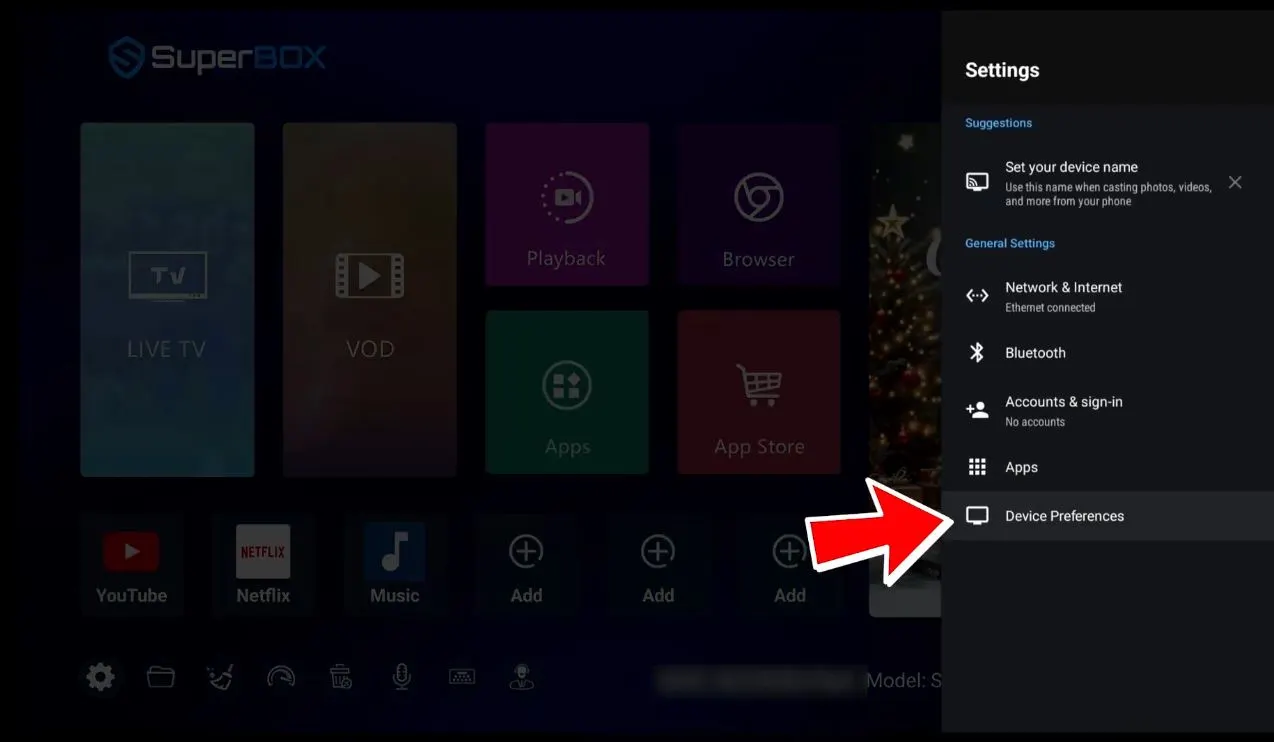
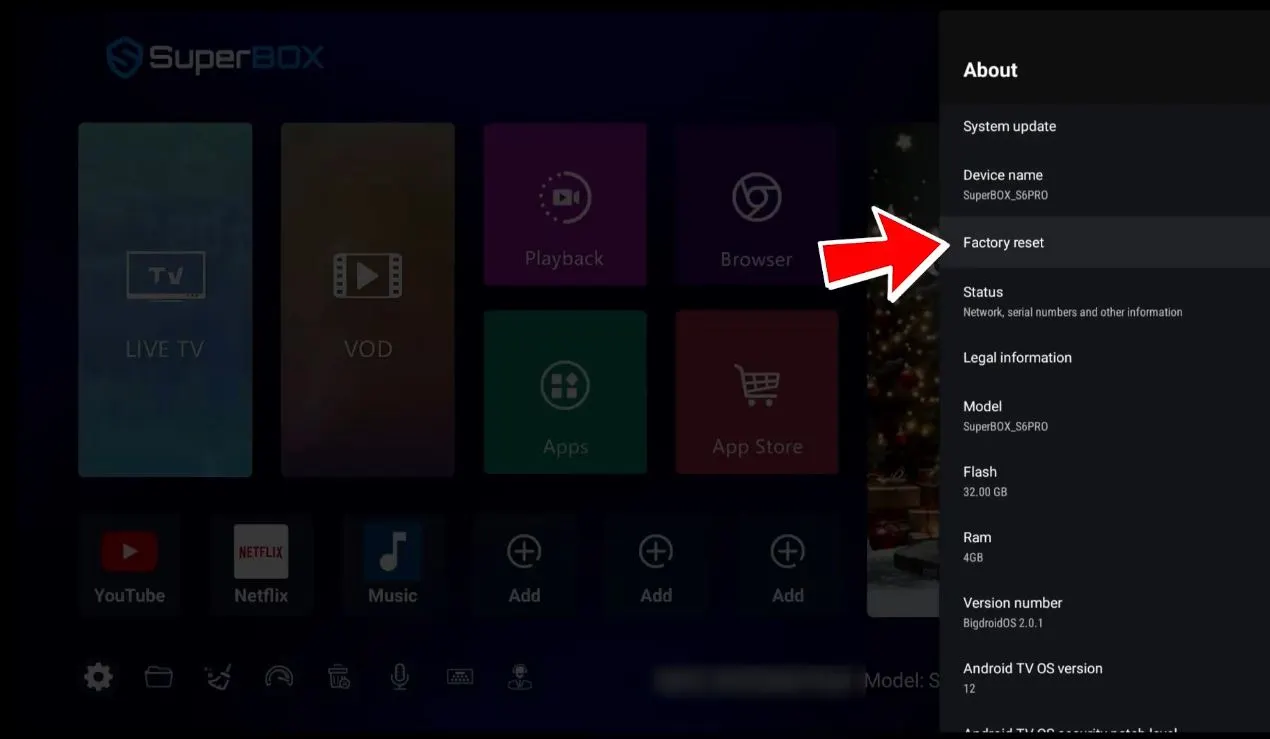
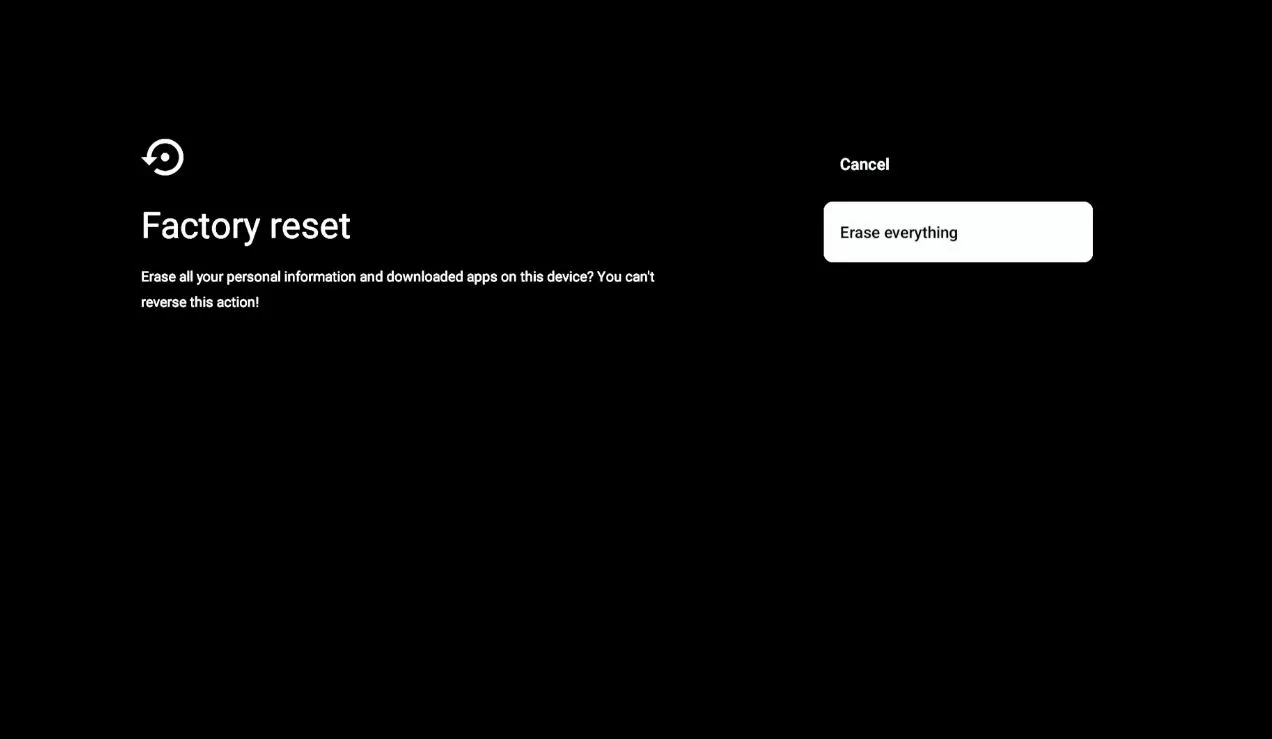
The sequence demonstrated in the video is:
- From the SuperBox home screen, open Settings.
- Select Device Preferences.
- Open About.
- Select Factory reset.
- Review the warning and select Factory reset again.
- Select Erase everything to confirm.
- Wait for the box to erase its data and restart.
Menu wording can vary slightly between models and software versions. If your menus do not match, refer to the factory-reset guide for your exact model or contact support before selecting an erase option.
Set Up and Test the Connection After the Reset
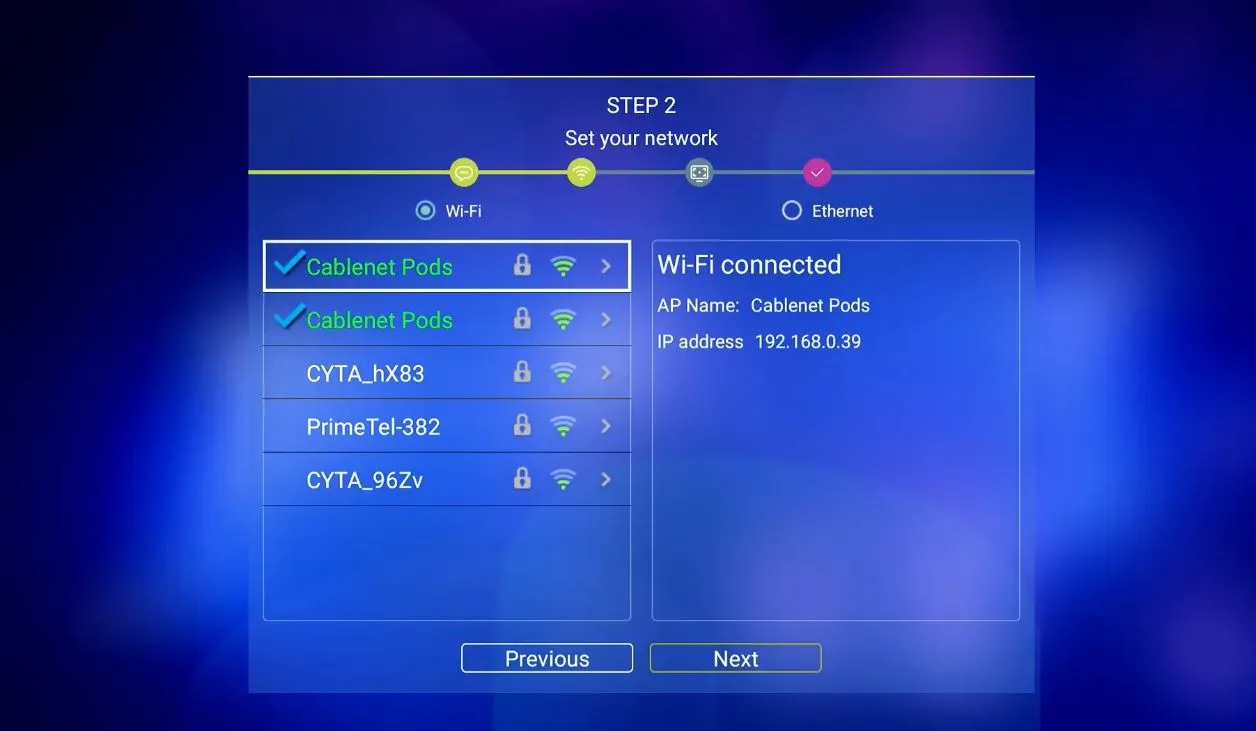
When the SuperBox restarts, it should display the initial setup flow, similar to when it was first powered on.
Complete the basic setup and test in this order:
- Connect to Wi-Fi during setup if it is available.
- Confirm that the box can reach the internet.
- Install any system update offered for your model.
- Connect the Ethernet cable.
- Disable Wi-Fi temporarily so you can confirm that traffic is actually using Ethernet.
- Open a website or another online function and allow up to one minute for the wired connection to initialize.
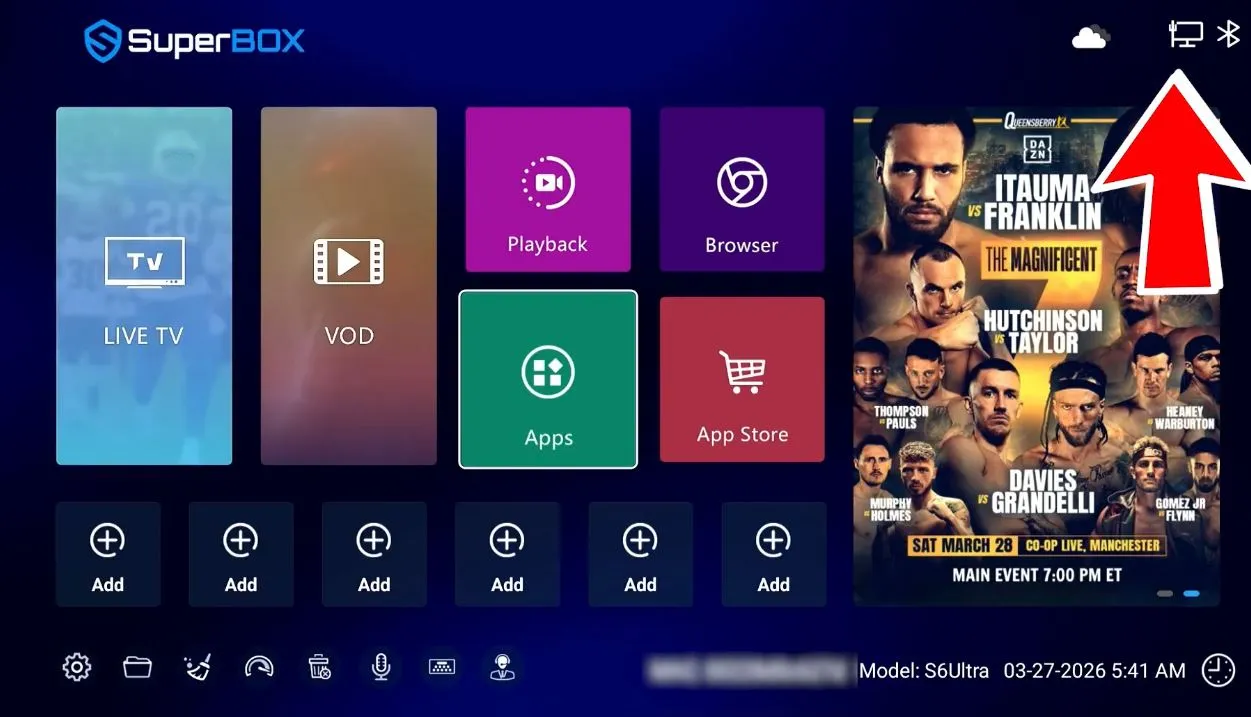
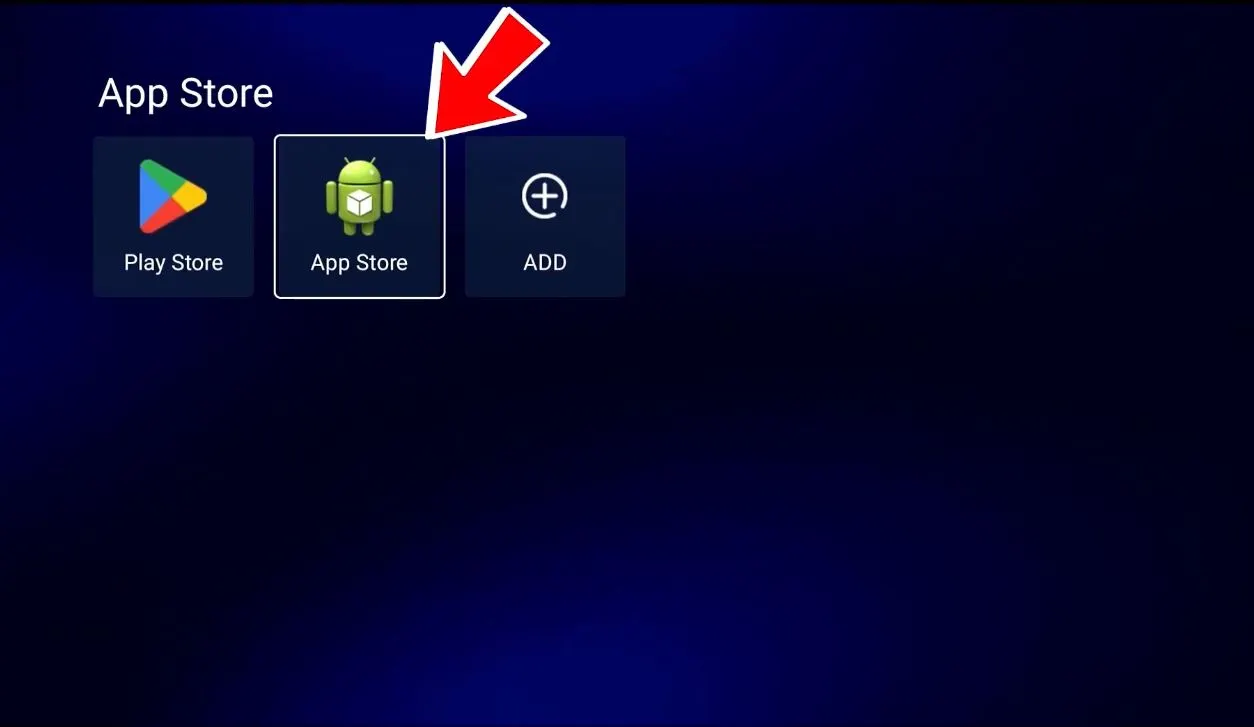
What If the Green App Store Is Missing After the Reset?
A factory reset can remove downloaded applications and may leave the green App Store absent until the recovery and update process is completed. This does not necessarily mean the device is damaged.
Follow the dedicated SuperBox App Store Missing guide to reinstall the App Store and complete the required TV ROM update. After restoration, use the App Store to install compatible applications available for your device.
Avoid APK files from random download sites. If an installer address redirects to unrelated content, asks for login credentials, or behaves differently from the verified instructions, stop and contact your seller or technical support.
SuperBox Ethernet Troubleshooting Table
| Symptom | Most likely area to check | Recommended action |
|---|---|---|
| No Ethernet icon and no router port light | Cable, connector, router LAN port, or physical LAN link | Reconnect both ends, test another LAN port, and use a known-good cable. |
| Router port light is active, but there is no internet | DHCP, router access controls, gateway, DNS, or internet service | Restart the router, check device controls and DHCP, then test another device on the same cable. |
| Wi-Fi works but Ethernet does not | Wired path or Ethernet-specific configuration | Test another cable and port, bypass switches or adapters, and install system updates over Wi-Fi. |
| Neither Wi-Fi nor Ethernet works | Router/service issue, system update, or corrupted network state | Test the router with another device, restart everything, update if possible, then consider a factory reset. |
| Ethernet connects and disconnects repeatedly | Damaged cable, loose plug, powerline/mesh instability, or router port issue | Replace the cable, connect directly to the primary router, and test another port. |
| Ethernet works after reboot but fails later | Router lease, network control, or software issue | Restart the router, update the box, and inspect router logs or device restrictions. |
| Apps report errors even though Ethernet is connected | App/server issue rather than the physical Ethernet link | Test a normal website. If the browser works, troubleshoot the specific application separately. |
| App Store is missing after factory reset | Reset removed the application or required system update | Follow the dedicated App Store recovery guide and complete the TV ROM update. |
When the Ethernet Port May Actually Be Damaged
Hardware failure becomes more plausible when all of the following are true:
- multiple known-good cables have been tested;
- multiple working router LAN ports have been tested;
- the router never detects a physical link from the SuperBox;
- Wi-Fi works normally on the same box;
- software updates and a factory reset have been completed; and
- the LAN port is visibly loose, damaged, or unable to hold the connector.
At that point, stop forcing the plug or repeatedly resetting the device. Contact the original seller with your order number, exact SuperBox model, a photo of the port, and a short video showing the cable and router indicator during the test.
Frequently Asked Questions
Is Ethernet always faster than Wi-Fi on SuperBox?
Not in every home. Real-world performance depends on the router, Ethernet port, cable, internet plan, Wi-Fi generation, distance, and interference. Ethernet’s main advantage is usually consistency and lower exposure to wireless interference—not a guarantee that every speed test will be higher.
Should I turn off Wi-Fi when using Ethernet?
It is not always required, but turning Wi-Fi off temporarily is the clearest way to verify that the box is actually using the wired connection. Once Ethernet has been confirmed, you can configure the device according to your preference.
Which Ethernet cable should I use?
A properly made Cat5e or newer cable is suitable for normal SuperBox troubleshooting. Cable condition and connector quality matter more than buying an unnecessarily expensive cable.
Why does Ethernet say connected but apps still do not load?
“Connected” can mean that a physical network link exists without confirming that the device can reach the internet or a particular app server. Test a standard website. If web browsing works, the remaining issue may be app-specific, server-side, or related to date and time rather than Ethernet.
Will switching to a different television fix Ethernet?
Normally, no. The television displays the SuperBox output but does not manage the box’s Ethernet connection. Moving the setup is useful only when it lets you test a different cable, router port, network, or stronger Wi-Fi signal.
Will a factory reset definitely fix the Ethernet problem?
No. It can repair a corrupted software or network state, as demonstrated in the source video, but it cannot repair a damaged cable, inactive router port, internet outage, router restriction, or physically damaged LAN port. That is why the reset belongs at the end of the troubleshooting sequence.
What will a factory reset delete?
It can erase local accounts, files, downloaded apps, preferences, and saved network details. Treat it as a full device wipe and prepare to complete setup again afterward.
What should I send technical support?
Send the exact SuperBox model, order number, software/build version, router model, whether Wi-Fi works, which cables and ports were tested, and clear photos of the Ethernet connection and any on-screen error. These details prevent the support process from starting over with checks you have already completed.
Final Thoughts
When Ethernet stops working, work from the outside in. Restart the network, reseat the cable, test another LAN port and cable, remove any intermediary hardware, and use Wi-Fi to check the box and install updates. Those steps solve or isolate most wired-network problems without deleting anything.
If both Wi-Fi and Ethernet remain unavailable and the router works normally with other devices—a factory reset may clear the SuperBox network configuration. Back up what you can, understand that local data will be erased, and complete the reset only as the final software step.
If Ethernet still fails after the full checklist, contact SuperBox TV Box Store Technical Support Include your model, order details, test results, and photos so the team can determine whether the issue is related to configuration, the network, or the hardware.
For visual demonstration
Source Reference: Superbox Ethernet Issues
The article was updated on:
