
Knowledge SuperBox
SuperBox S8 6K Video Decoding: What H.265 6K@60fps Means





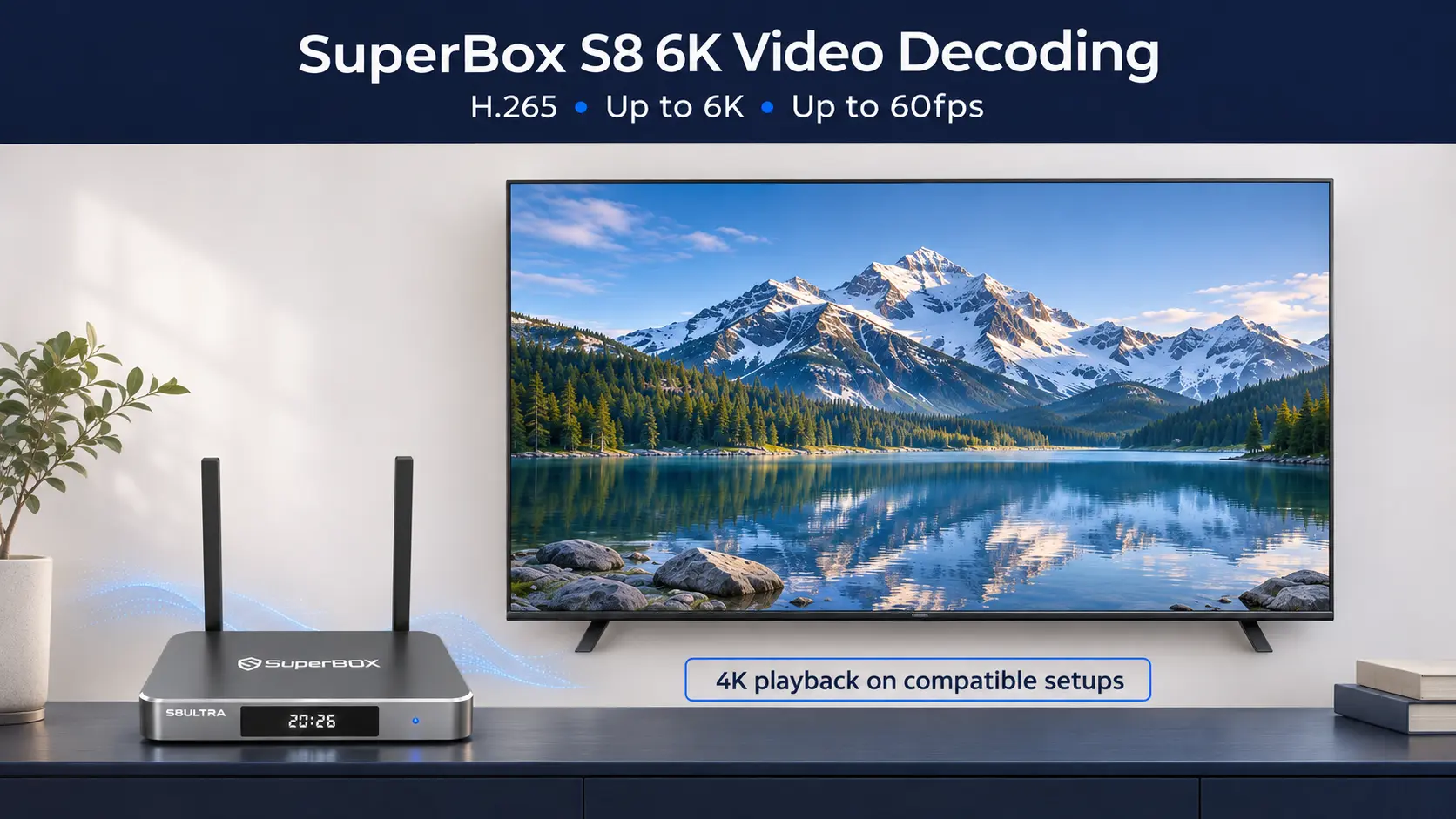
SuperBox S8 6K video decoding refers to the box’s published ability to process compatible H.265 video up to 6K at 60 frames per second. It describes a video-processing capability inside the device. The S8 also supports 4K playback with suitable content and equipment; the decoding specification is separate from the signal your TV receives.
That distinction is useful when reading product information or checking why a particular video will not play. The right question is not simply whether a file says “6K.” Its compression format, playback app and other file details matter too.
This guide explains how to read the specification and assess a specific file or stream. For the broader purchase question, our guide to using a 6K-capable box with a 4K TV covers whether the complete S8 package fits your home.
Read H.265, 6K and 60fps as three connected details
The manufacturer’s S8 Ultra specifications list the video decoder as H.265 6K@60fps. Each part tells you something different about the advertised capability.
| Part of the specification | Plain-English meaning | What to check in your content |
|---|---|---|
| H.265, also called HEVC | The video compression format | Whether the video is actually encoded with H.265 |
| Up to 6K | The advertised decoding-resolution capability | The file’s actual width and height |
| Up to 60fps | The advertised decoding frame-rate capability | How many video frames the source contains per second |
Read the complete phrase. An H.265 specification does not automatically describe a different codec such as AV1, and a 60fps capability does not change a film’s original frame rate.
“6K” also needs more detail when discussing an individual file. The public S8 specification uses that label without giving a complete matrix of supported widths, heights, bitrates and encoding profiles. For a compatibility question, the file’s actual dimensions are more useful than its filename.
The practical benefit is support for a high-resolution compressed-video format within the S8 media platform. You can evaluate that capability against content you want to play, while choosing an output your television supports.
What decoding does before a picture reaches the television
Streaming services and media files commonly store video in compressed form. A decoder processes that encoded data into pictures the playback system can use. H.265 is the format standardized as High Efficiency Video Coding by the ITU.
Think of a video arriving as instructions for reconstructing pictures. The player needs to understand those instructions before it can present the result. The decoder is doing that processing; it is not deciding which movie is available or adding pixels to the television panel.
There are several stages between receiving a video and seeing it:
- The app or player obtains the stream or local file.
- It reads the media and passes the encoded video to a suitable decoder.
- The playback system prepares the decoded picture for a supported output.
- The HDMI connection carries the output signal to the display.
- The television shows the result using its own panel.
A problem at one stage can look like a general playback failure. Separating the stages helps you ask a more useful question: is the source unavailable, is the file unsupported, or is the TV receiving an unsuitable signal?
For choosing the television’s output mode, use the Android TV box resolution guide. The focus here is the video being processed before that output.
Where the decoding capability is useful
A compatible H.265 file can be processed by the S8’s playback system and sent to the television through a supported HDMI mode. The television receives the box’s output rather than being asked to open the original file in its own USB player.
That gives the box a useful role for people with compatible media collections: the S8 handles the playback task while the TV remains the display. A good existing 4K screen can still be the right partner. The exact file and player remain part of the compatibility check, especially when moving media from a computer or another device.
Why two files labeled 6K can behave differently
A filename or file extension is only a starting point. A successful player has to handle the media inside the file, not just recognize its name.
The container is different from the video codec
MP4 and MKV are examples of containers: they organize media tracks and related information. H.265 describes the compressed video within a compatible container. Two files ending in .mp4 can therefore contain different kinds of video.
Renaming a file from .mkv to .mp4 does not convert its codec. If support asks what format you are using, send the video details as well as the extension.
Android’s media-format documentation treats codecs and containers separately and notes that support varies across device types. General Android support is not a complete compatibility certificate for every file on an individual TV box.
Frame rate and bitrate describe different demands
Frame rate describes pictures per second. Bitrate describes the amount of encoded data delivered over time. Two videos with the same dimensions can have different frame rates, bitrates or both.
This explains why “my internet is fast enough for 6K” is not a complete diagnosis. For an online video, the connection must deliver that particular stream reliably. For a local file, its storage path and playback compatibility still matter.
Profile, bit depth and audio add useful detail
H.265 files can use different encoding features and limits, described through profiles and levels. Bit depth concerns how picture values are represented. HDR and audio formats are additional parts of the media description.
You do not have to memorize those terms. Keep them in a file-information report if you need technical assistance. The short “H.265 6K@60fps” label is not enough to infer every profile, HDR format, audio track or professional camera format that will work.
The same logic applies to a premium streaming service: codec support alone does not establish the app’s permitted resolution, account entitlement or device approval. Check the service’s requirements when that service is your intended source.
Check a specific video without guessing
The most useful check combines information about the video with an observation of what your S8 actually does. You can do this without changing advanced system settings.
1. Identify the source and the player
Write down whether the video comes from an online app, a USB drive or another local source. Note the app or player name and the exact symptom: it will not open, plays without sound, pauses repeatedly or displays an error.
For Blue VOD, distinguish a missing title from a title that appears but will not play. Catalog search and video decoding are different tasks. The Blue VOD player and settings guide covers its available controls.
2. Read file information where available
For a local video you own, a computer can make this easier. MediaInfo from MediaArea displays container, video and audio details. Open your file in the appropriate MediaInfo application and look for the following information; the layout can vary by version.
| Information to record | Why it helps |
|---|---|
| Container or general format | Identifies the file wrapper |
| Video format or codec | Shows whether the video is H.265/HEVC or something else |
| Width and height | Gives the actual source dimensions |
| Frame rate | Identifies the source’s pictures per second |
| Video bitrate | Helps describe the encoded data rate |
| Profile and bit depth, if shown | Adds detail beyond the codec name |
| Audio format | Helps investigate sound separately from the picture |
You do not need to upload a private video to obtain this information with a local application. A screenshot of the relevant fields is usually more useful than sending only its filename. Hide personal folder paths before sharing it.
For an online service, use any information that the app actually exposes. Do not assume a TV channel name, poster or “HD” label supplies a full technical report.
3. Keep a known-working video as a comparison
Open a video that already plays correctly in the same player. Then try the problem file using the same connection and display arrangement. Record what changes.
If the working item plays and the other does not, you have narrowed the question to a different file or playback requirement. That result does not prove which particular field is responsible, but it gives support a more specific starting point.
For local testing, confirm that the player can browse the connected drive and open the intended file. Do not change the TV resolution, replace the network connection and switch players all at once; you would lose the useful comparison.
4. Check the output separately
If your TV offers a signal-information display, note the incoming resolution and refresh rate. Its location depends on the television model. That display describes the signal reaching the TV, not a complete report of the source file.
For example, a file may contain a 24fps movie while the TV reports a 60Hz HDMI signal. The two numbers describe different stages. Seeing 60Hz there does not establish that the movie contains 60 unique frames each second.
Likewise, a 4K signal reading does not identify whether the original source was 1080p, 4K or a compatible higher-resolution video. Compare the source information and the output reading together.
5. Keep working settings unless a change has a purpose
If your player exposes a decode setting, note its current value before testing another supported option. Reopen the same short section of the video afterward and compare the result. Restore the original option if the change makes things worse.
There is no universal “6K mode” to turn on for every S8 app. A working video does not need a decoder change just because another menu option sounds more advanced. Keep detailed app-specific controls with the relevant guide rather than applying one app’s settings to every player.
Hardware decoding and a player setting are not the same evidence
Android distinguishes hardware-accelerated and software-only codecs. A hardware decode path uses hardware acceleration for video processing; a software path uses a software implementation. An app still has to select a suitable available path for the media it is opening.
The name of a CPU or graphics processor is not, by itself, a complete decoder specification. Nor does a menu label prove that a particular file has been decoded successfully at the advertised maximum.
For ordinary use, successful picture and sound are the important result. For a demanding local-media requirement, keep the file report and playback observations so the exact combination can be checked. Technical tools can query supported size, frame-rate and bitrate capabilities, but a reported capability is different from a sustained playback measurement.
Treat H.265 6K@60fps as a published S8 capability when matching a video to the box. A claim about CPU usage or a particular loading time would require a separate measurement. For everyday viewing, focus on a supported format, a working player and the picture and sound you receive.
What a playback symptom tells you to check next
| What happens | Useful next check |
|---|---|
| One local file will not open, while another works | Compare the file reports and note the player used |
| Picture works but sound is missing | Check the audio track, player output and connected sound equipment |
| Several online videos repeatedly pause | Check the network and service behavior before changing decoder options |
| Video plays but colors look wrong | Review the source’s HDR/color information and the output setup |
| TV loses the picture after an output change | Return to a known-supported display mode |
| TV reports 4K but the program looks soft | Check what quality the source or app supplies |
These checks narrow the problem; they are not automatic diagnoses. If your issue concerns the connection, the S8 WiFi and Ethernet guide is the appropriate next step. For repeated pauses, follow the buffering and freezing troubleshooting sequence rather than changing unrelated display settings.
Choose an S8 model by the features you will use
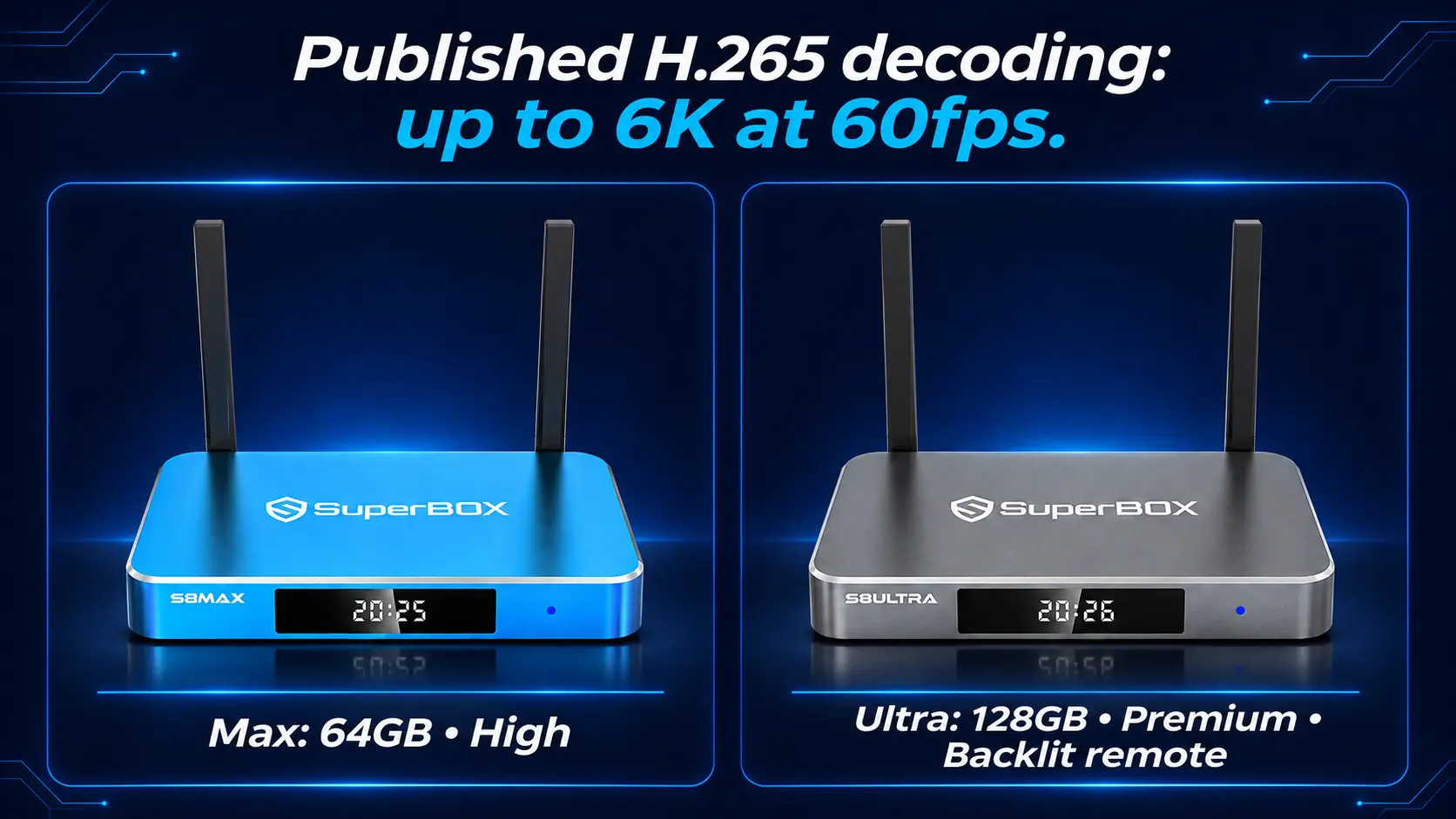
The manufacturer lists 6K decoding across S8 Pro, Plus, Max and Ultra. Both Max and Ultra publish H.265 decoding up to 6K at 60fps alongside compatible 4K playback. Ultra’s larger storage should not be read as a higher decoding resolution than Max.
S8 Max is a useful starting point if you want 64GB internal storage, the High performance tier, full supported Multi-Viewing and the listed NFL app. S8 Ultra adds 128GB, the Premium tier and an included backlit voice remote. Those tier labels are not measured decoding-speed ratios.
Pro and Plus remain options for simpler requirements. Use the four-model S8 comparison for the purchasing differences instead of choosing solely by the 6K label.
SuperBox TV Box Store is an authorized retailer serving the US and Canada. If your purchase depends on playing a particular local format, ask with the file details before ordering. That lets the conversation focus on your actual media needs while you choose the storage, remote and viewing functions that fit your household.
SuperBox S8 decoding FAQs
Do I need to enable 6K decoding in Settings?
There is no universal S8 6K switch established by the specification. The app and decoder handle compatible media through the available playback path. Set the display output for your television and leave a working player’s settings alone unless a specific issue requires attention.
Does an MP4 filename mean the video uses H.265?
No. MP4 identifies a container. Check the video format inside it using available file information. Changing the extension does not convert the compressed video.
Does 6K@60fps make every live channel 60fps?
No. The source has its own frame rate. Decoder capability and HDMI refresh rate are separate details, and neither label alone proves that a channel supplies 60 unique frames per second.
Is a downloaded 6K camera file guaranteed to work?
Its resolution label alone is insufficient. Check codec, exact dimensions, frame rate and other encoding details against the supported playback setup. The S8’s short H.265 specification is not a blanket promise for every professional recording format.
Does more internal storage improve video decoding?
Storage gives room for apps, their data and internally kept files. It is a different resource from decoder capability. The S8 storage explanation helps decide capacity without treating 128GB as a resolution or frame-rate setting.
Is watching a 6K video the same as recording one?
No. Decoding concerns playing encoded video. Recording creates an output file through a separate process. Do not infer a 6K recording format from a 6K decoding specification; check the supported Recorder workflow and its actual saved-file properties.
Use the specification with the video you want to play
The most useful reading of SuperBox S8 6K video decoding is compatible H.265 processing up to the published 6K@60fps capability, paired with supported playback and a suitable TV output.
For everyday viewing, open your chosen app and use a display mode the television supports. For a specific local file, collect its actual format details and compare a working and failing example. That turns a short product label into a practical compatibility question you can answer.
The article was updated on:
