
Knowledge SuperBox
How Does SuperBox S7 Ultra Work Without Cable TV?





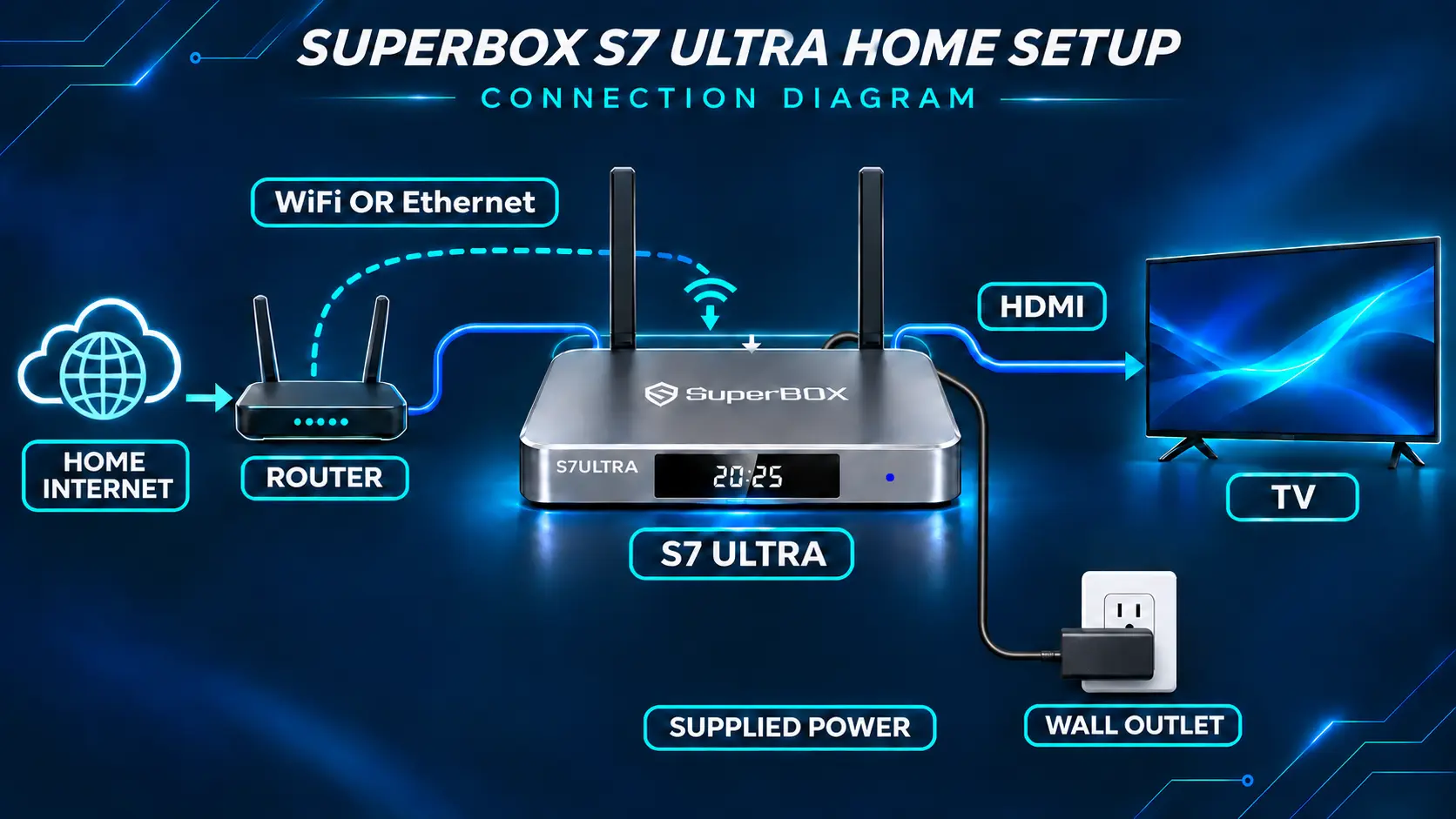
The SuperBox S7 Ultra works without a cable TV subscription by streaming over your home internet connection. You connect it to your television with HDMI, connect it to your router through WiFi or Ethernet, and open an app to watch.
The box provides the streaming hardware and TV interface. Your internet connection carries the video, and your television displays it. A traditional cable receiver is not needed for that setup.
You still need internet service, even if you cancel the television portion of your cable package. Understanding that difference is the first step toward replacing the right charges and keeping the connection your new setup needs.
What Replaces the Cable TV Connection
When you choose something to watch on the S7 Ultra, the app loads the available stream through the internet. The box processes the video and sends picture and sound to your TV over HDMI.
Three connections have different jobs:
| Connection | What it does |
|---|---|
| WiFi or Ethernet between the router and S7 Ultra | Carries internet data to the box |
| HDMI between the S7 Ultra and television | Carries picture and sound to the TV |
| Supplied power equipment connected to an outlet | Powers the S7 Ultra |
WiFi can make the router connection wireless. The HDMI and power connections still remain.
This explains why simply plugging the box into a television is not the whole setup. HDMI gives the box a screen to use, but it does not provide the internet connection needed by the streaming apps.
An antenna or satellite dish is not required for those internet streams. An antenna can remain a separate choice for over-the-air television if you already use one.
Keep Internet Even if Your Provider Is a Cable Company
“Cable” can mean two different services on the same bill: a television package and an internet connection.
You can stop buying a cable TV package while continuing to buy internet from that provider. Your modem and router may still receive their connection through a cable entering the house.
That does not prevent the S7 Ultra from working. It uses the internet service, regardless of whether you also pay that company for television.
Before canceling a bundle, ask for an internet-only quote. Compare the new internet price with the portion of the old bill you can remove. A bundle discount may change when you remove TV.
Also confirm which equipment belongs to the internet service. Return the rented cable TV receiver according to your provider’s instructions, but do not return a gateway or modem that you still need for internet.
The goal is to remove the TV services you no longer want while keeping a working connection.
What You Can Watch Through the S7 Ultra Apps
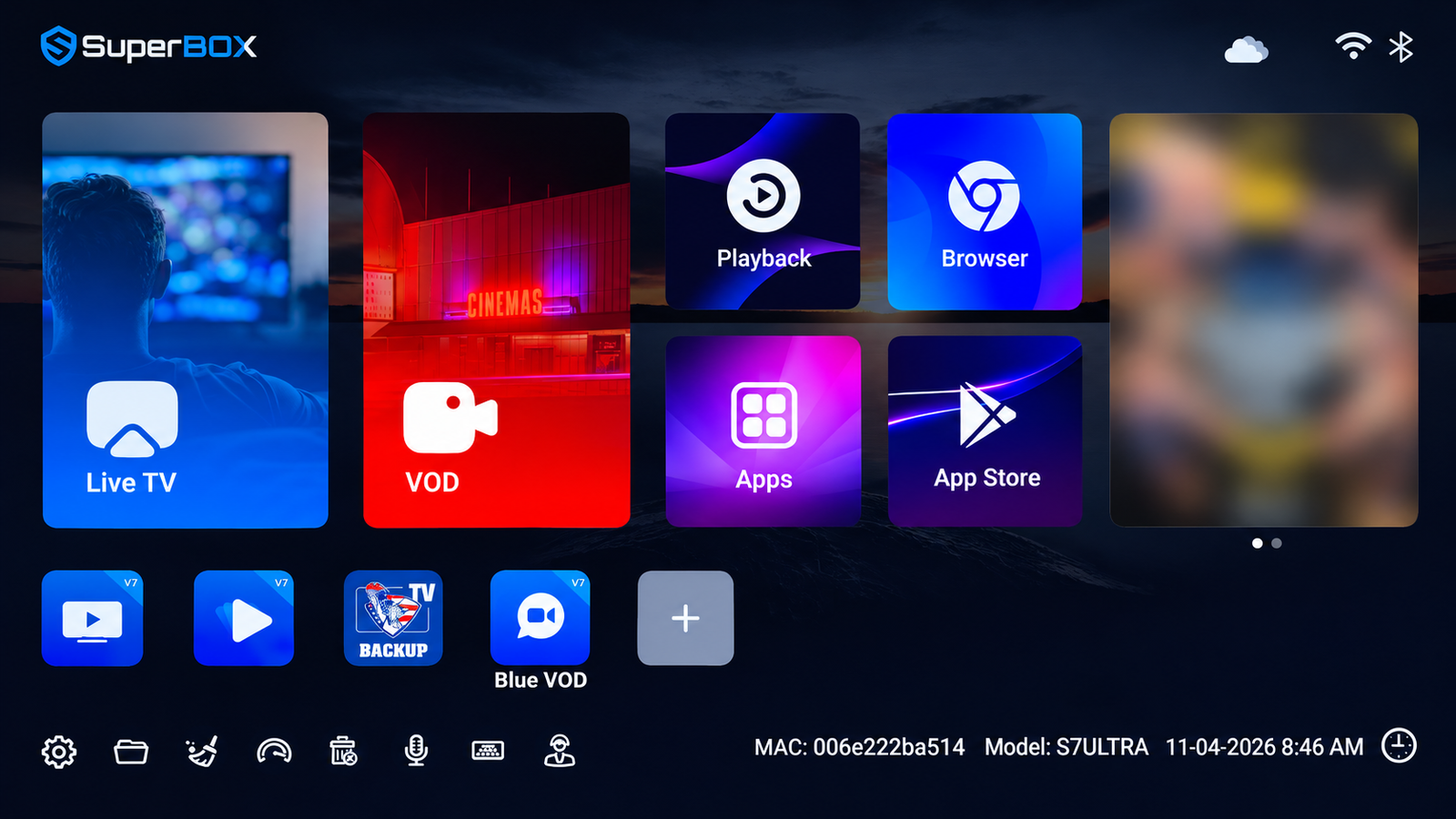
The main viewing apps serve different purposes, so learn them by what you want to watch.
Blue TV for live television
Blue TV is the channel-browsing option. The store advertises access to 2,000+ live channels on compatible SuperBox devices, with news, sports, entertainment, and international programming among the viewing categories.
Its channel lists, program guide, and Favorites can feel familiar to someone moving from cable. The S7 Blue TV navigation guide explains those everyday controls.
Check the current lineup for the channels that matter to you. A broad advertised channel count does not establish that a particular local station or event is available in your location.
Blue VOD for movies and series
Blue VOD is the on-demand option. You look for a movie or series rather than choosing a channel’s scheduled broadcast.
For a household with different schedules, this can be a useful change: choose an available title when you are ready to watch it. The S7 Blue VOD guide covers searching, saved titles, and viewing controls.
Playback for eligible past broadcasts
Playback lets you revisit supported programming within its available catch-up window, with up to seven days available on eligible programming.
This is different from building your own permanent DVR recording library. The app supplies the available past programs; the S7 Ultra’s internal storage does not automatically save everything you watch.
Use the S7 Playback tutorial when you want to find an earlier program.
What You Need Before Setting Up
Prepare the S7 Ultra, its supplied remote and power equipment, an HDMI cable, a television with a compatible HDMI input, and working home internet.
A smart TV is optional. The box provides the streaming interface, so a suitable older television with HDMI can also be used.
Choose WiFi if the router connection works well where the TV sits. If you can run a cable conveniently, Ethernet gives you a direct wired connection between the router and the box.
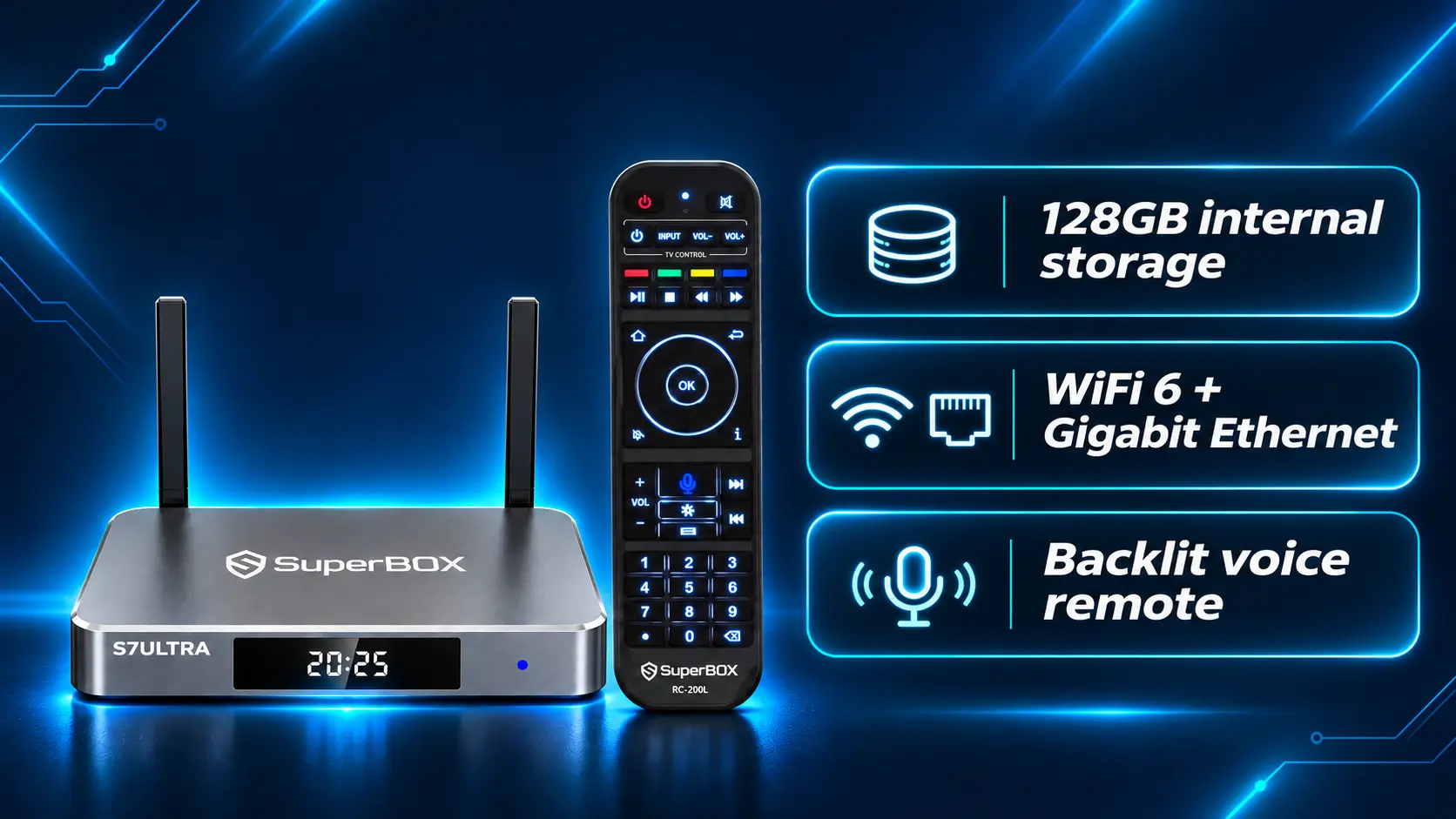
The S7 Ultra supports WiFi 6 and Gigabit Ethernet. Those specifications describe its connection capabilities; the actual connection depends on your internet service, router, placement, and other household use.
Test where you will watch, rather than relying only on the speed printed on your internet plan. If the box struggles in a distant room, improving the connection can be more useful than changing unrelated app settings.
Choose the Connection You Can Use Consistently
If your router is beside the television, Ethernet is a straightforward first test: connect a network cable from a router LAN port to the S7 Ultra’s Ethernet port. Keep the cable out of walkways.
If the router is elsewhere, try WiFi in the box’s intended position before arranging a long cable run. Test during the hours when your household normally watches, including when other people are using the internet.
You do not need to change a connection that already performs well. Choose based on actual viewing in that room, rather than assuming either connection type guarantees a perfect stream.
Connect the S7 Ultra and Start Watching
- Connect HDMI. Run the HDMI cable from the S7 Ultra to an available HDMI input on the TV.
- Connect power. Use the supplied S7 Ultra Type-C power equipment and a wall outlet.
- Select the TV input. With the television remote, choose the HDMI input matching the port you used.
- Connect the box to the internet. Choose your WiFi network and enter its password, or connect Ethernet from your router.
- Complete setup and install your viewing apps. Follow the on-screen prompts and use the device’s App Store for the supported apps you want.
The S7 setup guide provides the longer walkthrough.
For your first test, open a live channel in Blue TV and an on-demand title in Blue VOD. Let each play long enough to assess the picture, sound, and connection.
If the TV says “No Signal,” check the HDMI input and power first. If the Home screen appears but online viewing does not load, investigate the connection or app. Those symptoms point to different parts of the setup.
Separate a Channel Problem From a Connection Problem
If one channel stops, try a second channel and an on-demand title. Write down which items work. A problem limited to one selection calls for different follow-up from a box that cannot load anything online.
If several apps fail, check whether another device can use your home internet. That comparison helps you decide whether to investigate the broader connection or ask for help with the SuperBox.
Keep your tests simple and change one thing at a time. A failed stream does not automatically mean that you need a faster internet plan or a replacement box.
Where the Savings Can Come From
The S7 Ultra is an upfront hardware purchase. The store does not charge a monthly SuperBox equipment subscription, and the supported core viewing apps are free to use on a compatible device.
That can help you remove recurring cable TV costs when the available viewing options fit your household.
The amount you save depends on the charges you actually stop paying. Review your own bill instead of assuming that the entire old total disappears.
| Budget item | What to do when switching |
|---|---|
| Cable TV package | Remove it if your replacement setup meets your needs |
| Rented cable TV receivers | Check return instructions and when rental charges stop |
| Internet service | Keep it and confirm the price after any bundle change |
| SuperBox hardware | Include the upfront purchase |
| Optional paid streaming services | Keep only the subscriptions you still want |
Netflix, Hulu, and other paid services keep their own subscription terms. Buying the S7 Ultra does not make every separate service free.
For example, if you remove a TV package but keep two subscriptions, count those subscriptions in the new budget. If your internet-only price increases, include that change too.
Our guide to SuperBox monthly fees and other costs helps separate the device purchase from the household expenses that continue.
Use Your Own Numbers
Here is an illustrative example, not a typical bill or a savings guarantee. Suppose removing the TV package and receiver rentals cuts $80 per month, but your internet-only price rises by $15 and you add a $10 streaming subscription. Your ongoing reduction would be $55 per month, or $660 over twelve months, before the SuperBox purchase and any other new costs.
Replace each figure with your own provider quote and subscription choices. If the savings are smaller than expected, review the services you intend to keep before ordering or canceling anything.
What Makes the S7 Ultra Worth Considering
The S7 Ultra combines 4GB RAM, 128GB internal storage, WiFi 6, Gigabit Ethernet, and an included backlit voice remote.
The storage gives you room for compatible apps and local files. It does not determine the number of live channels you receive or replace the need for internet.
The backlit remote is a practical convenience when you watch with the lights low. Voice input offers another way to navigate supported functions after the remote is paired.
If those are the features you want, review the current S7 Ultra specifications and purchase options.
SuperBox TV Box Store is an authorized retailer serving the US and Canada. Ask through our website’s live chat if you want help deciding whether this model suits your television and viewing habits.
For an existing S7 Ultra owner, there is no reason to replace the box merely because you are canceling cable TV. Test the setup you have before buying something else.
Test Your New Routine Before Canceling Cable
Write down the channels, shows, and events your household would miss. Test the important ones on the actual television and connection you plan to use.
Include local news and regional sports if they matter to you. Check those specific listings rather than assuming they are covered by a general entertainment category.
Then have the person who normally uses the TV try the routine: turn it on, select the correct input, open an app, find a familiar program, and adjust the volume.
A saved list of regular channels can be more useful than showing someone the entire catalog. Make the daily actions comfortable before removing the familiar receiver.
Leave a Simple Reminder Beside the TV
Write down the television input used by the box, such as “HDMI 2,” and the app to open for regular live viewing. This helps if someone later switches to the TV’s built-in apps or another connected device.
Practice the routine together, then let the regular viewer repeat it without prompts. Check that they can find a channel, change the volume, and return to the correct screen after pressing the wrong button.
That brief rehearsal can make the transition feel familiar. Keep the instructions focused on daily viewing rather than explaining every advanced setting at once.
Keep records of the provider’s cancellation instructions and equipment returns. For a broader switching plan, follow the cord-cutting checklist.
If you bought directly from superboxtvboxstore.com and need technical or order help, email customer@superboxtvboxstore.com. Include your model, the app involved, and what appears on the TV. We value your experience and can coordinate the next steps.
Frequently Asked Questions
Does SuperBox S7 Ultra need internet
Yes. Its live-TV and on-demand streaming features use an internet connection through WiFi or Ethernet. Canceling cable TV does not remove that requirement.
Can I keep internet from my cable provider
Yes. You can use an internet-only service from the same provider. Confirm the revised price and which modem or gateway equipment you still need.
Do I need a smart TV
No. A television with a compatible HDMI input can display the S7 Ultra’s interface. The box supplies the streaming functions.
Does the S7 Ultra have monthly fees
There is no monthly SuperBox equipment subscription from the store, and the supported core apps are free to use on a compatible unit. Internet and optional paid third-party services are separate.
Is seven-day Playback the same as recording a show
No. Playback accesses eligible past programming offered by the app. It does not mean every broadcast is permanently recorded into your box’s 128GB storage.
Can I cancel cable as soon as I connect the box
Test the channels and programs you need first, confirm your internet-only cost, and check cancellation and equipment-return requirements with your provider.
Once the setup works for your household, the everyday routine is straightforward: open the app that fits what you want to watch and let your internet connection carry the program to your TV.
The article was updated on:
