
Knowledge SuperBox
How to Factory Reset a SuperBox S7 to Restore Speed and Performance





If your SuperBox S7 (S7 Pro, S7 Max, S7 Ultra) is running slow, freezing on menus, or buffering during live broadcasts, you can restore its original speed in under five minutes. Sluggish performance is usually caused by accumulated video cache, background apps hogging memory, or software glitches. You can fix it quickly by running the built-in Sweeper app or restarting the device.
If the slowdown persists, performing a Factory Data Reset will cleanly wipe corrupted temporary files and restore factory-fresh speed. You can reset your device via the Settings menu (Settings > Device Preferences > About > Reset), the rapid remote control shortcut [. 0 . 0 . 0 . 0 . 0], or the physical hardware reset pinhole on the back of the box.
Below is your complete step-by-step diagnostic guide to speeding up your SuperBox S7, from non-destructive maintenance to full factory reset and post-reset restoration.
Quick Verdict: The Fastest Way to Speed Up SuperBox S7
For Minor Freezes and Channel Lag: Run the green Sweeper app on your home screen to instantly clear RAM and background processes, then unplug the Type-C power cord for 30 seconds. This resolves over 80% of routine slowdowns without touching your saved settings.
For Severe Lag, App Crashes, or Memory Exhaustion: Perform a Factory Data Reset via the Settings menu or by entering the remote shortcut [. 0 . 0 . 0 . 0 . 0]. It wipes corrupted cache partitions and restores day-one responsiveness in under 4 minutes.
For Frozen Screens or Boot Loops: Use the Hardware Pinhole Reset on the rear panel with a paperclip while plugging in the power cable to execute a clean low-level recovery.
Why Your SuperBox S7 Slows Down Over Time
Even though every model in the SuperBox S7 family—including the SuperBox S7 Pro ($305.00), SuperBox S7 Max ($339.00), and flagship SuperBox S7 Ultra ($381.00)—is powered by 4GB of DDR3 RAM and a quad-core 64-bit processor, routine streaming activity leaves behind digital clutter that can gradually impact operating system responsiveness.
Accumulated Application Cache and Temporary Files
Every time you browse the live channel guide in Blue TV or explore thousands of movie posters in Blue VOD, the system downloads temporary image thumbnails and metadata files to local storage. Over months of viewing, these cached files can consume gigabytes of storage space, slowing down disk read/write operations and delaying channel transitions.
Background Apps Consuming 4GB System RAM
When you exit an application using the “Home” button rather than backing out properly, Android keeps that app suspended in background memory to allow quicker re-launching. If multiple heavy applications—such as YouTube, Netflix, Blue VOD, and media players—remain active simultaneously, free RAM drops, forcing the processor into aggressive memory management that causes interface lag.
Thermal Throttling from Enclosed Cabinets
Placing your SuperBox S7 inside a closed entertainment center or directly on top of warm audio receivers traps heat. When internal temperatures rise, the processor automatically throttles its clock speed to protect internal circuits from overheating, resulting in visible video stuttering and dropped frames.
How to Fix Sluggish Performance Without a Reset
Step 1: Perform a Soft Power Reboot
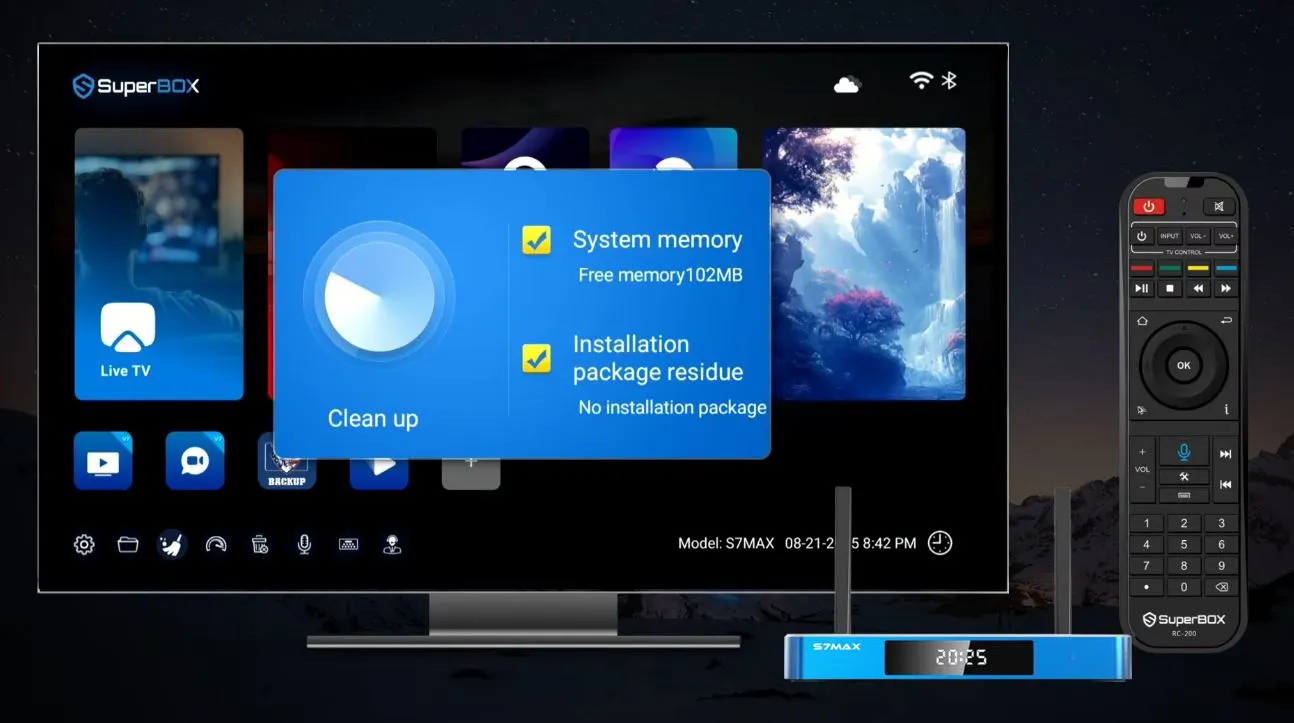
Unplug the Type-C power adapter from the back of the SuperBox S7. Wait 30 seconds for the internal capacitors to discharge fully, then plug it back in. A hard power cycle flushes temporary kernel memory and restarts background Android processes cleanly, resolving minor software glitches that accumulate over weeks of continuous standby operation.
Step 2: Run the One-Click Sweeper Tool
On your home screen, click the green Sweeper app (trash can icon). Sweeper automatically scans system RAM, closes dormant background processes, and deletes junk cache files in seconds. For comprehensive cache maintenance and app-specific cleanups, follow our dedicated tutorial on how to clear cache on SuperBox S7.
Step 3: Manually Clear Individual App Caches
If lag happens only inside one specific app (such as Blue TV freezing on channel changes or Blue VOD taking long to load movie details), go to Settings > Apps > See all apps, select the app, and click Clear Cache. This removes corrupted thumbnail files without deleting your account details. If video streaming stuttering continues, consult our troubleshooting guide on SuperBox S7 buffering.
Diagnostic Troubleshooting Ladder for SuperBox S7 Slowness
| Symptom Observed | Likely Root Cause | First Recommended Fix | Escalated Solution |
|---|---|---|---|
| Remote button clicks lag on home screen | RAM full from background apps | Run the Sweeper app | Power cycle (unplug 30 seconds) |
| Blue TV or Blue VOD crashes during playback | Corrupted app cache data | Clear App Cache in Settings > Apps | Check App Store for green checkmark update |
| Spinning loading wheel on 4K movie streams | Wi-Fi congestion or interference | Switch from 2.4GHz to 5GHz Wi-Fi | Connect a wired 1000M Gigabit LAN cable |
| Notification: “Storage space running out” | Accumulated downloads / unused APKs | Uninstall unused third-party apps | Perform Factory Data Reset |
| Screen frozen on startup logo boot loop | Corrupted firmware partition | Remote shortcut [. 0 . 0 . 0 . 0 . 0] | Hardware Pinhole Reset with paperclip |
How to Factory Reset Your SuperBox S7
Step 1: Reset via the Android Settings Menu
When your remote control functions and you can access the user interface, perform a standard menu reset:
- Click the Settings (Gear Icon) in the top-right corner of the home screen.
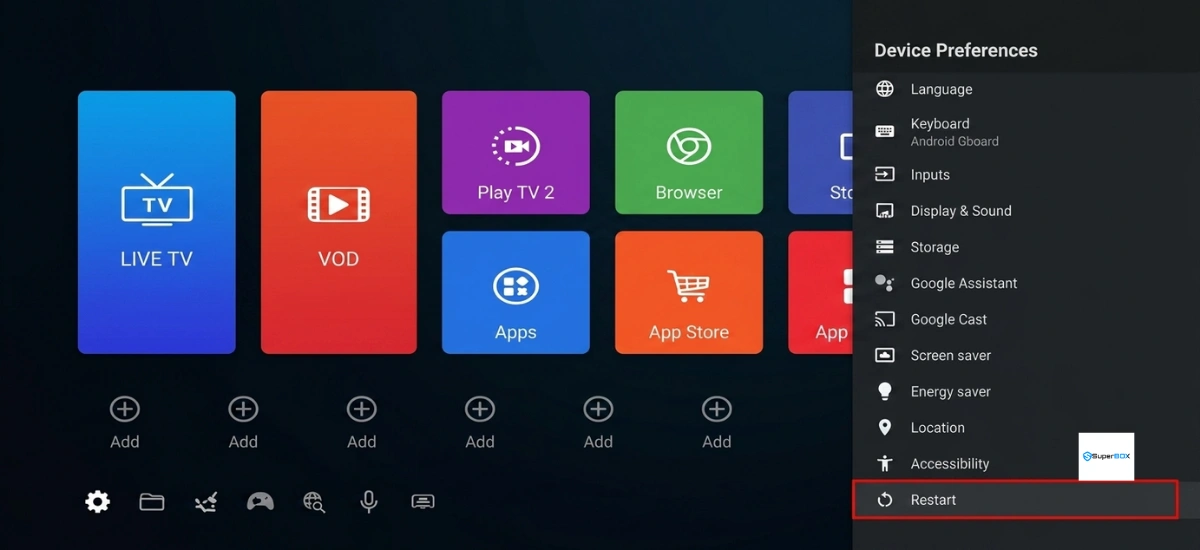
- Select Device Preferences, then click About.
- Scroll down and select Reset (or Factory Data Reset).
- Select Factory Data Reset on the warning screen, then confirm by clicking Erase Everything.
- Wait two to four minutes while the system erases user partitions and automatically reboots.
Step 2: Reset Using the Remote Shortcut Code
If the user interface is lagging severely or the settings menu will not open, use the direct infrared remote shortcut:
- Point the RC-200L remote directly at the front IR sensor of the SuperBox S7 console.
- Enter the rapid sequence: Dot (.), Zero (0), Dot (.), Zero (0), Dot (.), Zero (0), Dot (.), Zero (0), Dot (.), Zero (0)—abbreviated as [. 0 . 0 . 0 . 0 . 0].
- The screen will instantly go black, initiating an automated system wipe and reboot sequence.
Step 3: Perform Hardware Pinhole Reset for Frozen Boxes
If your device is stuck in a boot loop or frozen on the SuperBox logo, execute a hard pinhole reset:
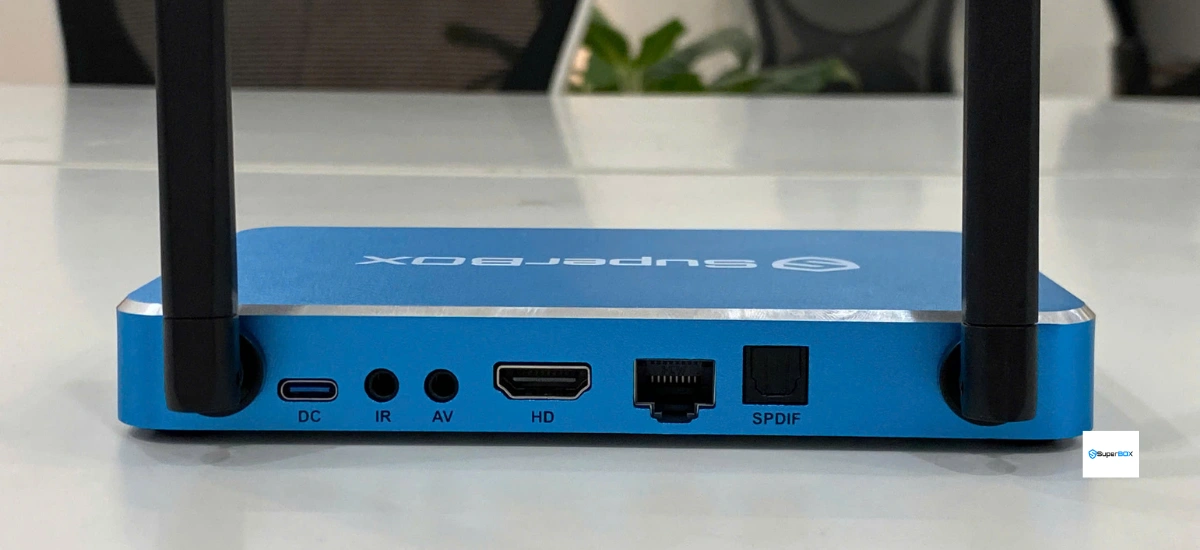
- Unplug the Type-C power cable from the back panel of the SuperBox S7.
- Locate the tiny reset pinhole on the rear panel near the HDMI port (or underneath the console).
- Insert a straightened paperclip into the pinhole until you feel a soft tactile click.
- Hold the button depressed while plugging the Type-C power cable back into the unit.
- Keep the pin held firmly for 10 to 15 seconds until the recovery animation appears, then release.
Comparison of SuperBox S7 Reset Methods
| Reset Method | System State Required | Tools Needed | Reset Level | Best Scenario |
|---|---|---|---|---|
| Settings Menu GUI | Full System Access | Remote Control | Standard Factory Reset | Seasonal maintenance, minor sluggishness |
| Remote Shortcut Code | Partial System Access | Remote [. 0 . 0 . 0 . 0 . 0] | Rapid Automated Reset | Menus frozen or settings inaccessible |
| Hardware Pinhole Reset | Zero System Access | Metal paperclip or pin | Low-Level Kernel Wipe | Boot loop, black screen, complete freeze |
How to Set Up the SuperBox S7 After a Reset
Step 1: Calibrate Display Margins and Screen Scaling
Use the Up/Down remote arrows to align the blue corner markers to the outer edges of your TV screen (typically 96% to 100%). This prevents overscan and ensures sports scores and channel numbers remain fully visible.
Step 2: Connect to 5GHz Wi-Fi or Wired Gigabit LAN
Connect to your home wireless network, selecting the 5GHz band for maximum speed, or plug in a wired Gigabit Ethernet cable to eliminate wireless interference and ensure stutter-free streaming.
Step 3: Reinstall Core Streaming Apps from App Store
Click the green App Store icon to install the official Blue App Store update. Once opened, install Blue TV (2,000+ live channels), Blue VOD (15,000+ movies), and Playback (7-day catch-up). For full initial setup instructions, see our how to guide SuperBox S7.
Step 4: Confirm Automatic Warranty Reactivation
Your official 1-Year Manufacturer Replacement Warranty automatically re-syncs with the cloud server the moment your first application finishes downloading from the Blue App Store. No manual registration cards or receipts are required, ensuring your hardware coverage remains fully active.
Hardware Upgrade Considerations: S7 vs S8 Series
If you have multiple family members streaming simultaneously or want dedicated background TV recording, upgrading to the newer SuperBox S8 series may be worthwhile. The S8 lineup—including the S8 Pro ($359.00), S8 Plus ($379.00), S8 Max ($399.00), and S8 Ultra ($449.00)—features upgraded processing power, Picture-in-Picture multi-viewing, the new TV Recorder app, and an advanced AI Voice Engine. Compare both generations in our detailed SuperBox S7 vs SuperBox S8 upgrade review.
Frequently Asked Questions About SuperBox S7 Speed and Reset
Will a factory reset delete Blue TV and Blue VOD permanently?
No. While the reset clears user data and temporarily removes installed apps, you can easily redownload Blue TV, Blue VOD, and Playback directly from the pre-installed App Store immediately after setup at zero cost.
How long does a factory reset take on the SuperBox S7?
A standard factory reset takes between two to four minutes from confirmation to the initial reboot welcome screen. Reinstalling your primary streaming apps takes an additional two to three minutes.
Will I lose my 1-year manufacturer warranty if I factory reset my box?
Not at all. Your hardware warranty remains fully intact. Downloading your first app from the App Store after a reset automatically re-syncs your hardware warranty status with the cloud activation servers.
Why is my SuperBox S7 lagging if it has 4GB of RAM?
Even with 4GB of RAM, leaving dozens of streaming apps suspended in background memory or accumulating gigabytes of unpurged video thumbnail cache will eventually exhaust available memory and slow down processor response times.
What is the shortcut code on the remote to reset the SuperBox S7?
Point the remote at the box and rapidly enter the sequence: Dot (.), Zero (0), Dot (.), Zero (0), Dot (.), Zero (0), Dot (.), Zero (0), Dot (.), Zero (0) — commonly written as [. 0 . 0 . 0 . 0 . 0].
What should I do if my SuperBox is stuck on the boot logo?
If the device is frozen on the startup logo and cannot reach the home screen, perform the Hardware Pinhole Reset (Method 3) using a straightened paperclip while plugging in the power cord.
Can clearing cache fix buffering without doing a full factory reset?
Yes! In over 80% of cases, running the built-in Sweeper tool or clearing the specific app cache in Settings > Apps resolves live TV freezing and buffering without wiping your saved settings.
Does placing the SuperBox S7 in an enclosed cabinet affect performance?
Yes. Inadequate ventilation causes heat buildup, triggering the processor’s thermal protection throttling. Ensure the box has at least two to three inches of open airflow on all sides.
Should I use 2.4GHz or 5GHz Wi-Fi after resetting my device?
Always connect to the 5GHz Wi-Fi band or use a wired Gigabit Ethernet cable. The 5GHz frequency provides significantly higher data throughput and lower latency, preventing streaming stutter.
Do I need to create a Google account after resetting the SuperBox S7?
A Google account is only required if you plan to download commercial apps from the Google Play Store (like Netflix or Disney+). Proprietary apps like Blue TV and Blue VOD do not require any Google login.
Final Thoughts
A sluggish Android TV box does not mean your hardware is failing. In nearly all cases, clearing out temporary cache with the Sweeper app, power cycling the box, or executing a clean factory data reset completely restores day-one responsiveness.
By establishing routine habits—such as running Sweeper once a week and keeping the box well-ventilated—your SuperBox S7 Pro ($305.00), S7 Max ($339.00), or S7 Ultra ($381.00) will deliver years of fast, dependable television entertainment without monthly bills.
The article was updated on:
